Panel FIAT 500E 2013 2.G Service Manual
[x] Cancel search | Manufacturer: FIAT, Model Year: 2013, Model line: 500E, Model: FIAT 500E 2013 2.GPages: 350, PDF Size: 2.49 MB
Page 164 of 350
•MENU ESC button
Press the MENU ESC button briefly to access the menu
and/or go to next screen or to confirm the required menu
option. Press and hold the MENU ESC button (approxi-
mately one second) to return to the main screen. Press the + button to scroll upward through the dis-
played menu and the related options or to increase the
displayed value. Press the – button to scroll downward
through the displayed menu and the related options or to
decrease the value displayed.
+ and – buttons activate different functions according to
the following situations:
•
To scroll the menu options upwards or downwards.
• To increase or decrease values during settings.
When opening one of the front doors, the EVIC display
will turn on the clock and the miles or kilometers covered
(if equipped) for a few seconds.
Electronic Vehicle Information Center (EVIC)
Setup Menu
The menu comprises a series of functions arranged in a
cycle. Press the + and – buttons to access the different
options and settings (setup).
EVIC Control Buttons
162 UNDERSTANDING YOUR INSTRUMENT PANEL
Page 165 of 350
The setup menu can be activated by pressing the MENU
ESC button. Single presses on the + or – buttons will
scroll through the setup menu options. The menu in-
cludes the following functions:
•Charging Schedule
• Set Date
• Set Time
• Standard Units
• Languages
• Audio Display
• Battery % Display
• Auto Door Lock
• Remote Unlock
• Daytime Running Lights •
Button Volume
• Hill Start Assist
• Stored Warning
• Connectivity ID
• Restore Factory Settings
• Exit Menu
Selecting An Option Of The Main Menu Without
Submenu:
1. Briefly press the MENU ESC button to select the main menu option to set.
2. Press the + or – button (by single presses) to select the new setting.
3. Briefly press the MENU ESC button to store the new setting and go back to the main menu option previ-
ously selected.
4
UNDERSTANDING YOUR INSTRUMENT PANEL 163
Page 166 of 350
Selecting An Option Of The Main Menu With Sub-
menu:
1. Briefly press the MENU ESC button to display the firstsubmenu option.
2. Press the + or – button (by single presses) to scroll through all the submenu options.
3. Briefly press the MENU ESC button to select the displayed submenu option and to open the relevant
setup menu.
4. Press the + or – button (by single presses) to select the new setting for this submenu option.
5. Briefly press the MENU ESC button to store the new setting and go back to the previously selected sub-
menu option. 6. Press and hold the MENU ESC button to return to the
main menu (short hold) or the main screen (longer
hold).
Trip Computer
The Trip Computer is located in the instrument cluster. It
features a driver-interactive display (displays informa-
tion such as; trip information, range, driving range,
average speed and travel time).
Trip Button
The TRIP button, located on the right steering column
stalk.
164 UNDERSTANDING YOUR INSTRUMENT PANEL
Page 167 of 350
•A short button press scrolls through the user-selectable
information.
• A long button press resets.
The User-Selectable options are:
• Instant Consumption (Kilowatts) •
Trip A
• Trip B
• Tire Pressure
New Trip
To reset:
• Press and hold the TRIP button manually.
• When the “Trip Distance” reaches 999.9 miles/
kilometers or when the “Elapsed Time” reaches 99.59
(99 hours and 59 minutes) the system will reset auto-
matically.Trip Functions
Both trip functions are resettable (reset — start of new
trip).
“Trip A” can be used to display the figures relating to:
• distance
Trip Button
4
UNDERSTANDING YOUR INSTRUMENT PANEL 165
Page 168 of 350
•avg. energy
• avg. speed
• elapsed time (driving time).
“Trip B” can be used to display the figures relating to:
• distance
• avg. energy
• avg. speed
• elapsed time (driving time).
Values Displayed
Range
This indicates the distance which may be travelled with
the remaining battery charge, assuming that driving
conditions will not change. The message “----” will
appear when the system is initializing. NOTE:
The range depends on several factors: driving
style, type of route (freeway, residential, mountain roads,
etc.), conditions of use of the car (load, tire pressure, etc.).
Trip planning must take into account the above notes.
Distance Traveled
This value shows the distance covered since the last reset.
Average Speed
This value shows the vehicle’s average speed as a func-
tion of the overall time elapsed since the last reset.
Elapsed Time
This value shows the time elapsed since the last reset.
166 UNDERSTANDING YOUR INSTRUMENT PANEL
Page 169 of 350
SALES CODE (RAB) RADIO
Introduction
The radio has been designed according to the specifica-
tions of the passenger compartment, with a personalized
design to match the style of the dashboard.If the radio has BLUE&ME™, refer to the appropriate
“BLUE&ME™ User ’s Manual” for further information.
The instructions for use are given below and we recom-
mend you to read them carefully.
Suggestions
Road Safety
Please, learn how to use all different radio functions (e.g.
store stations) before beginning to drive.
Reception Conditions
Reception conditions change constantly while driving.
Reception may be interfered with by the presence of
mountains, buildings or bridges, or when you are far
away from the broadcaster.
4
UNDERSTANDING YOUR INSTRUMENT PANEL 167
Page 170 of 350
WARNING!
Having the volume turned up high can cause the
driver to not be able to hear important traffic sounds,
i.e. sirens, horns, etc. This could cause an accident.
Always adjust the volume so that you can still hear
background noises.
Care And Maintenance
Clean the cover with a soft antistatic cloth only. Cleaning
and polishing products could damage the surface.
CDs
The presence of dirt, scratches or distortions on the CDs
could cause skipping and poor sound quality while it is
playing. For optimal playback conditions, follow these
guidelines:
•Only use branded CDs. •
Clean every CD thoroughly removing any finger
marks or dust using a soft cloth. Hold CDs by the
outside and clean them from the middle outwards.
• Never use chemicals (e.g. antistatics or thinners or
sprays) for cleaning as they could damage the surface
of the CDs.
• After listening to them place CDs back in their boxes to
prevent them from being damaged.
• Do not expose CDs to direct sunlight, high tempera-
tures or moisture for long periods.
• Do not stick labels on the CD surface or write on the
recorded surface with pencils or pens.
• Do not use CDs that are very scratched, flawed,
distorted, etc. Using discs like these will result in
malfunctions or damage to the player.
168 UNDERSTANDING YOUR INSTRUMENT PANEL
Page 171 of 350
•The use of original CD media is required for the best
quality audio production. Correct operation is not
guaranteed when CD-R/RW media are used that were
not correctly burned and/or with a maximum capacity
above 650 Mb.
• Do not use commercially available protective sheets
for CDs or discs, with stabilizers, etc. as they could get
stuck in the internal mechanism and damage the disc.
• If a copy-protected CD is used, it may take a few
seconds before the system starts to play it. The CD
player cannot be guaranteed to play all protected
discs. The fact that the CD is protected from being
copied is often shown in very small letters or is
difficult to read on the actual CD cover where it may
be, for example, “COPY CONTROL”, “COPY PRO-
TECTED”, “THIS CD CANNOT BE PLAYED ON A
PC/MAC”. •
The CD player is capable of reading most compression
systems currently in use, following the development of
these systems, the reading of all compression formats
is not guaranteed.
Technical Specifications
The complete system consists of:
• Two 165 mm diameter midwoofer speakers, one
speaker in each of the front doors.
• Two 22 mm diameter tweeter speakers, one speaker in
each of the front pillars.
• Two 100 mm diameter full range speakers, one speaker
in each of the rear side panels.
• Antenna on the car roof.
• Radio with CD/MP3 player.
4
UNDERSTANDING YOUR INSTRUMENT PANEL 169
Page 172 of 350
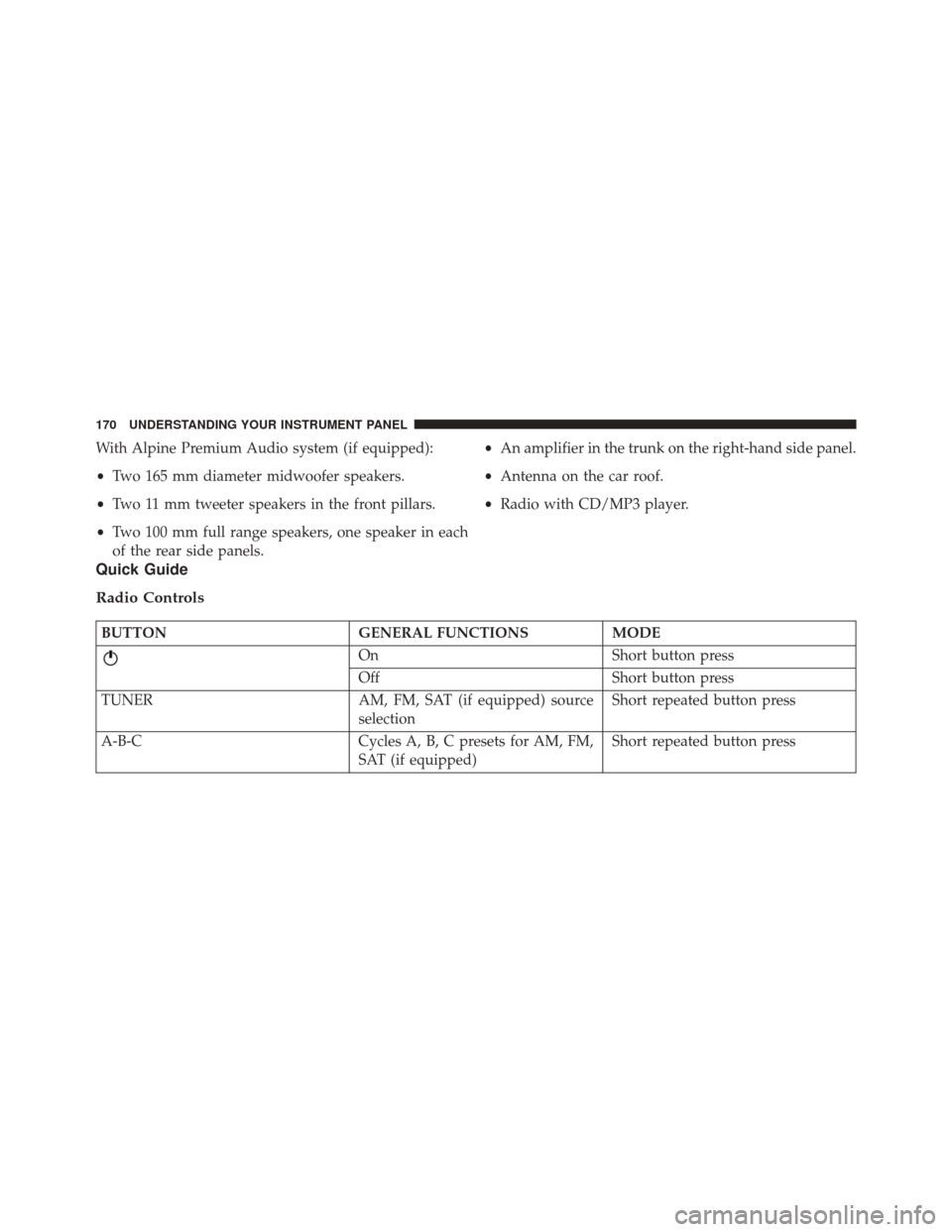
With Alpine Premium Audio system (if equipped):
•Two 165 mm diameter midwoofer speakers.
• Two 11 mm tweeter speakers in the front pillars.
• Two 100 mm full range speakers, one speaker in each
of the rear side panels. •
An amplifier in the trunk on the right-hand side panel.
• Antenna on the car roof.
• Radio with CD/MP3 player.
Quick Guide
Radio Controls
BUTTON GENERAL FUNCTIONSMODE
OnShort button press
Off Short button press
TUNER AM, FM, SAT (if equipped) source
selection Short repeated button press
A-B-C Cycles A, B, C presets for AM, FM,
SAT (if equipped)Short repeated button press
170 UNDERSTANDING YOUR INSTRUMENT PANEL
Page 173 of 350
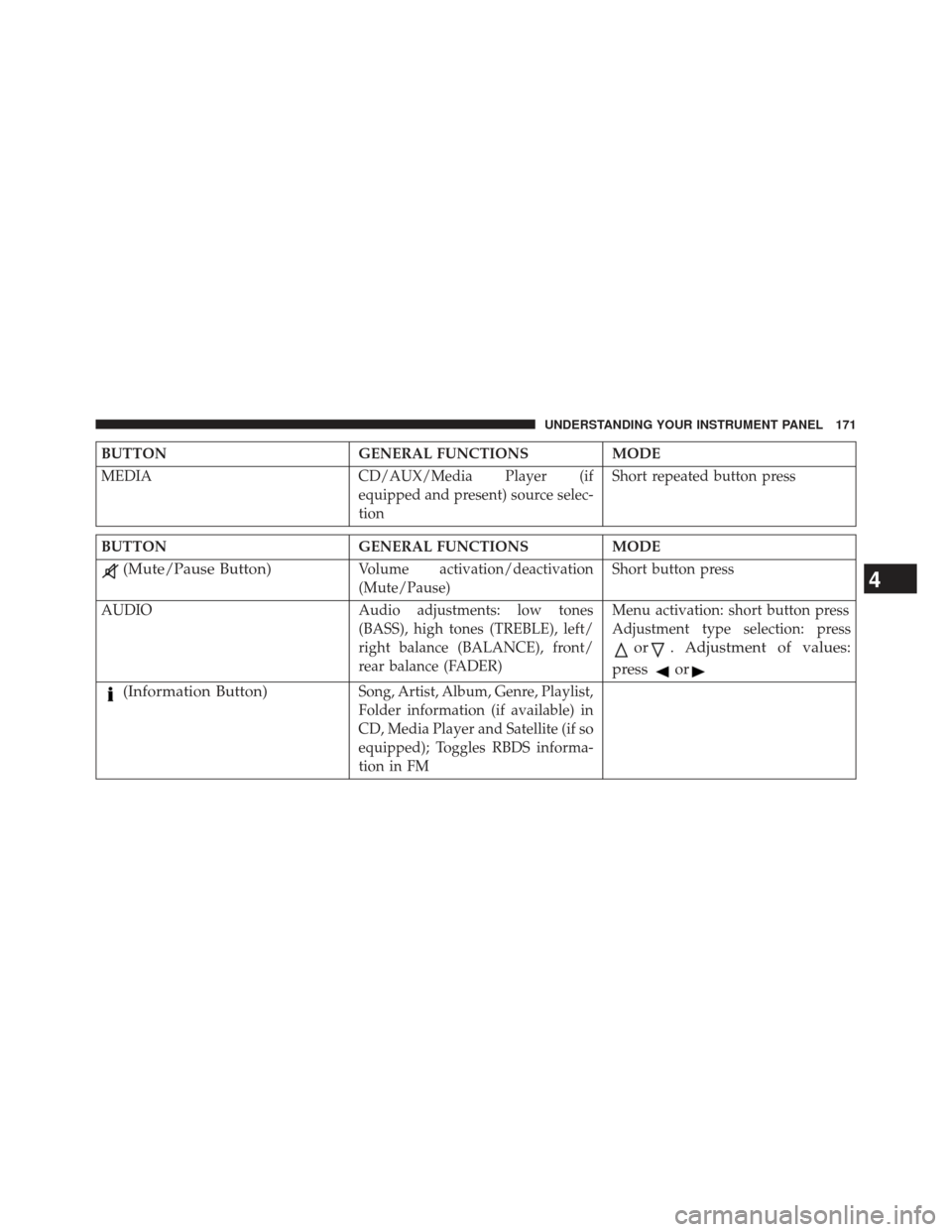
BUTTONGENERAL FUNCTIONSMODE
MEDIA CD/AUX/Media Player (if
equipped and present) source selec-
tionShort repeated button press
BUTTON
GENERAL FUNCTIONSMODE
(Mute/Pause Button)Volume activation/deactivation
(Mute/Pause)Short button press
AUDIO Audio adjustments: low tones (BASS), high tones (TREBLE), left/
right balance (BALANCE), front/
rear balance (FADER)Menu activation: short button press
Adjustment type selection: press
or. Adjustment of values:
press
or
(Information Button)Song, Artist, Album, Genre, Playlist,
Folder information (if available) in
CD, Media Player and Satellite (if so
equipped); Toggles RBDS informa-
tion in FM
4
UNDERSTANDING YOUR INSTRUMENT PANEL 171