ad blue FIAT 500E 2014 2.G User Guide
[x] Cancel search | Manufacturer: FIAT, Model Year: 2014, Model line: 500E, Model: FIAT 500E 2014 2.GPages: 92, PDF Size: 3.24 MB
Page 3 of 92
INTRODUCTION/WELCOMEWELCOME FROM FIAT...............2
IMPORTANT VEHICLE INFORMATION......4
CONTROLS AT A GLANCEDRIVER COCKPIT..................6
INSTRUMENT CLUSTER..............8
GETTING STARTEDELECTRIC VEHICLE FEATURES..........10
ELECTRIC SYSTEM OPERATION.........13
CHARGING THE HIGH VOLTAGE BATTERY...16
STARTING YOUR 500e...............19
KEY FOB......................20
VEHICLE SECURITY ALARM...........21
POWER DOOR LOCKS..............21
SEAT BELT......................21
SUPPLEMENTAL RESTRAINT SYSTEM (SRS) —
AIR BAGS......................22
CHILD RESTRAINTS................23
FRONT SEATS....................28
REAR SEATS.....................30
HEATED SEATS...................31
TILT STEERING...................32
OPERATING YOUR VEHICLEEXTENDING YOUR DRIVING RANGE
PER CHARGE....................33
TURN SIGNAL/LIGHTS/HIGH BEAM LEVER...34
WIPER/WASHER LEVER..............36
SPEED CONTROL..................37
POWER WINDOWS................39
AUTOMATIC TEMPERATURE
CONTROLS (ATC).................39
REAR PARK ASSIST.................40
POWER SUNROOF.................40
WIND BUFFETING.................41
ELECTRONICSYOUR VEHICLE'S SOUND SYSTEM........42
AM/FM RADIO WITH CD PLAYER AND
SiriusXM SATELLITE RADIO............44
BLUE&ME™ HANDS-FREE OPERATION.....45
iPod®/USB/MP3 CONTROL............51
ELECTRONIC VEHICLE INFORMATION
CENTER (EVIC)...................51
PROGRAMMABLE FEATURES...........52
TRIP BUTTON....................53
POWER OUTLET..................54
UTILITY
TRAILER TOWING WEIGHTS
(MAXIMUM TRAILER WEIGHT RATINGS)....55
RECREATIONAL TOWING
(BEHIND MOTORHOME, ETC.).........55
WHAT TO DO IN EMERGENCIES
24-HOUR ROADSIDE ASSISTANCE........56INSTRUMENT CLUSTER WARNING LIGHTS...56
TIREFIT KIT......................59
JUMP-STARTING PROCEDURE —
12 VOLT BATTERY.................65
MANUAL PARK RELEASE.............68
TOWING A DISABLED VEHICLE.........69
ENHANCED ACCIDENT RESPONSE
SYSTEM.......................70
FREEING A STUCK VEHICLE............70
EVENT DATA RECORDER (EDR).........71
MAINTAINING YOUR VEHICLE
OPENING THE HOOD..............72
UNDERHOOD COMPARTMENT........73
FLUIDS AND CAPACITIES.............74
MAINTENANCE SCHEDULE...........75
FUSES.........................77
TIRE PRESSURES..................79
TIRE ROTATION RECOMMENDATIONS....80
WHEEL AND WHEEL TRIM CARE........81
EXTERIOR BULBS.................81
CUSTOMER ASSISTANCE
FIAT CUSTOMER CENTER.............82
ASSISTANCE FOR THE HEARING IMPAIRED..82
PUBLICATIONS ORDERING...........82
REPORTING SAFETY DEFECTS IN THE
UNITED STATES...................83
MOPAR® ACCESSORIES
AUTHENTIC ACCESSORIES BY MOPAR®...84
FREQUENTLY ASKED QUESTIONS
FAQ ’s.........................85
INDEX.......................86
TABLE OF CONTENTS
1
Page 8 of 92
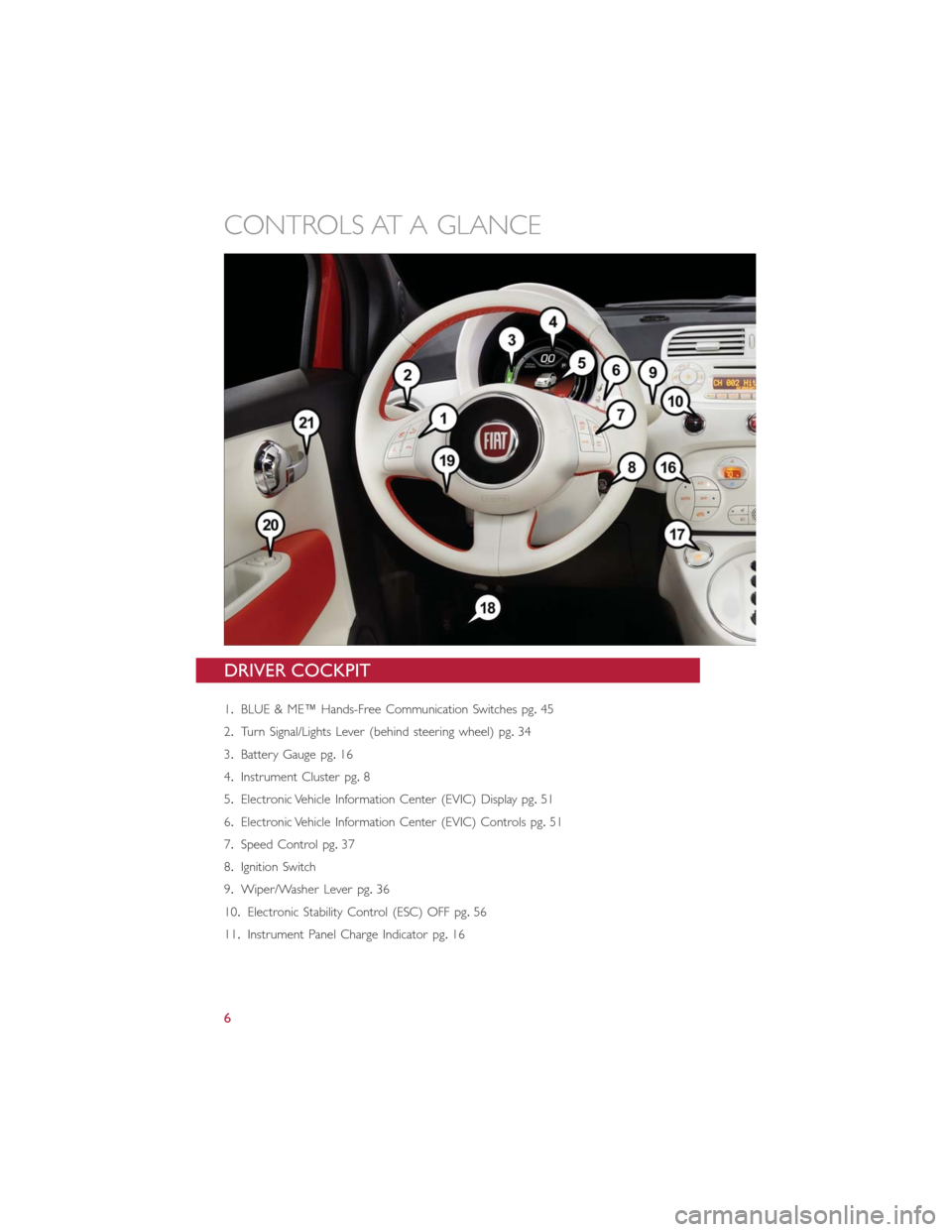
DRIVER COCKPIT
1.BLUE & ME™ Hands-Free Communication Switches pg.45
2.Turn Signal/Lights Lever (behind steering wheel) pg.34
3.Battery Gauge pg.16
4.Instrument Cluster pg.8
5.Electronic Vehicle Information Center (EVIC) Display pg.51
6.Electronic Vehicle Information Center (EVIC) Controls pg.51
7.Speed Control pg.37
8.Ignition Switch
9.Wiper/Washer Lever pg.36
10.Electronic Stability Control (ESC) OFF pg.56
11.Instrument Panel Charge Indicator pg.16
CONTROLS AT A GLANCE
6
Page 10 of 92
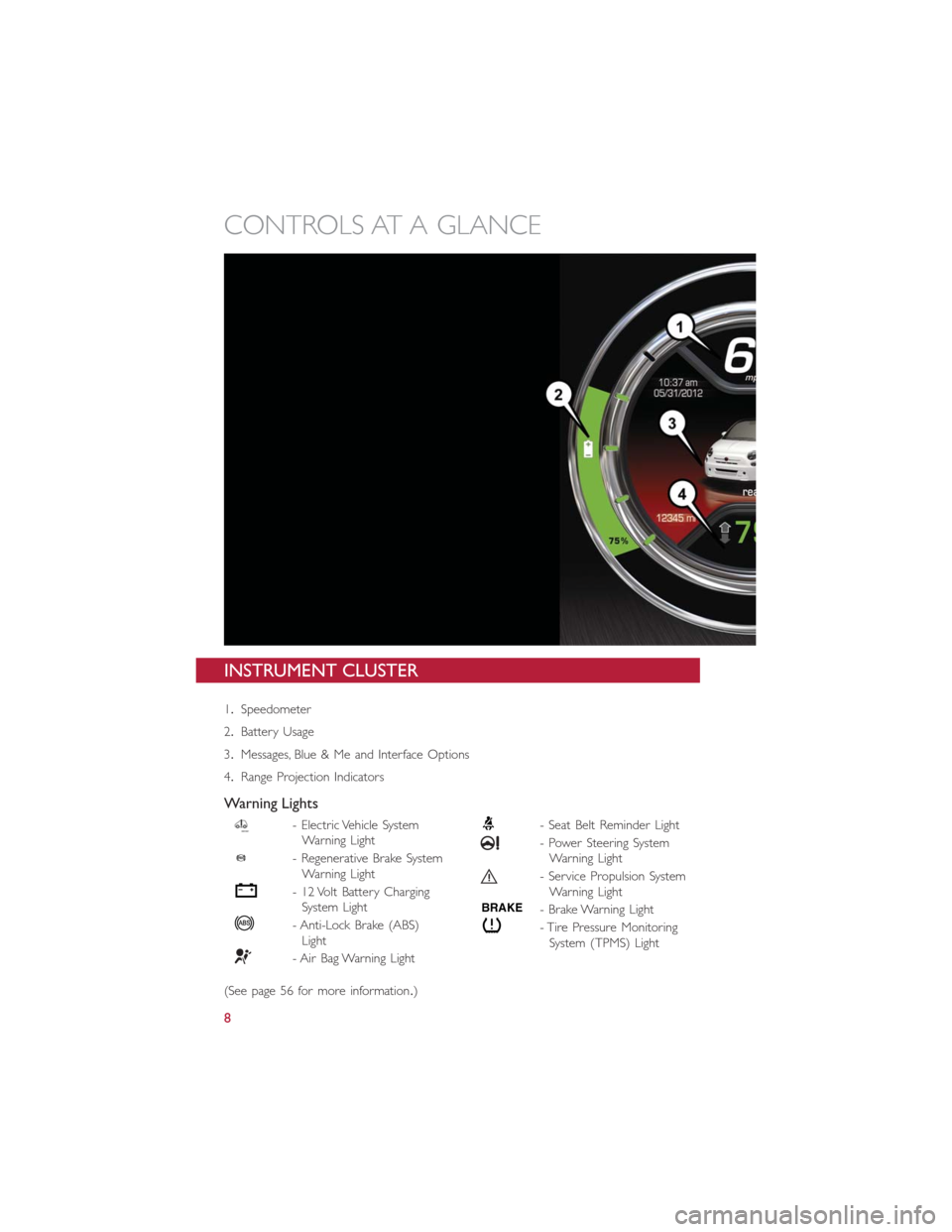
INSTRUMENT CLUSTER
1.Speedometer
2.Battery Usage
3.Messages, Blue & Me and Interface Options
4.Range Projection Indicators
Warning Lights
- Electric Vehicle System
Warning Light
- Regenerative Brake System
Warning Light
- 12 Volt Battery Charging
System Light
- Anti-Lock Brake (ABS)
Light
- Air Bag Warning Light
- Seat Belt Reminder Light
- Power Steering System
Warning Light
- Service Propulsion System
Warning Light
BRAKE- Brake Warning Light
- Tire Pressure Monitoring
System (TPMS) Light
(See page 56 for more information.)
CONTROLS AT A GLANCE
8
Page 44 of 92
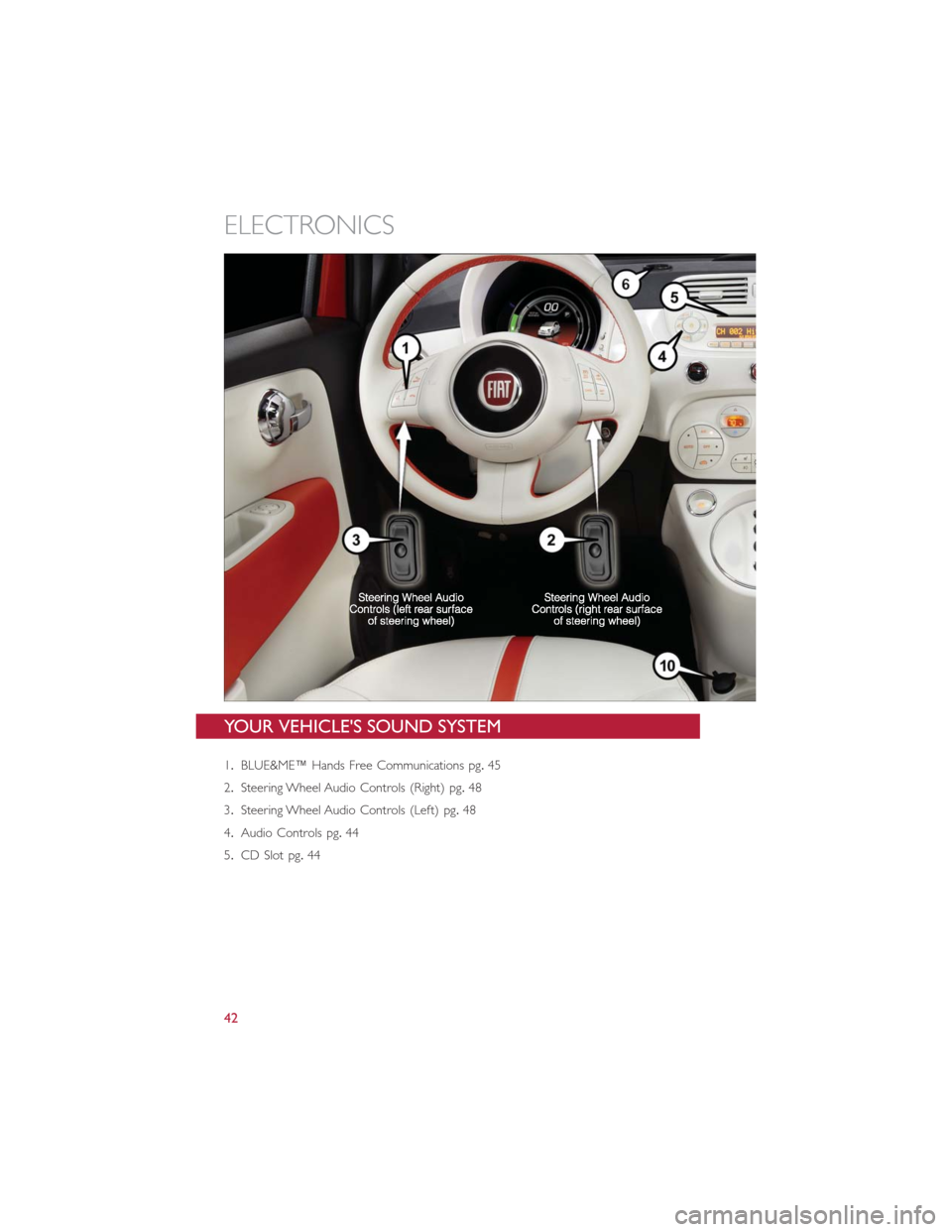
YOUR VEHICLE'S SOUND SYSTEM
1.BLUE&ME™ Hands Free Communications pg.45
2.Steering Wheel Audio Controls (Right) pg.48
3.Steering Wheel Audio Controls (Left) pg.48
4.Audio Controls pg.44
5.CD Slot pg.44
ELECTRONICS
42
Page 47 of 92
Menu
•Press the MENU button and one of the following options will appear on the Radio
display.Use the Up and Down arrows to scroll through the options; use the Left and
Right arrows to change a selection setting.
•Speech Volume•SiriusXM Telephone Number
•Aux Audio Offset•System Reset
•Radio Off•Speed Volume
•Sat ID•On Volume Limit
Station Presets
•To store a tuned station, find the station to store by either pressing the Right and Left
arrow (Seek) buttons or by pressing Up or Down arrow (Manual Tune) buttons.
•Once the station is found, press and hold one of the PRESET buttons, until you hear a
confirmation beep (Preset Saved will be shown in the radio display).A total of 15 FM,
10 AM and 15 SiriusXM Satellite Radio stations can be preset by pressing the A-B-C
button.
A-B-C Button
•Press the A-B-C button to choose between the presets stored in the AM, FM or SAT
modes.The mode (AM, FM, SAT), station preset (A, B, C) and preset button number
(P 1-5) will be displayed in the middle of the radio display.
BLUE&ME™ HANDS-FREE OPERATION
•FIAT’s Windows Mobile™ based BLUE&ME™ Hands-Free Communication is a personal
telematics system that incorporates communication and entertainment applications that
are specifically designed for use in your car.
•The BLUE&ME™ Hands-Free Communication package installed in your car is equipped
with integral hands-free functionality, message reader, and media player.BLUE&ME™ is
designed to support the future installation of additional services.
•The BLUE&ME™ Hands-Free Communication package features integrated voice recog-
nition, steering wheel controls and a multifunction electronic display that allows you to
use your Bluetooth® enabled wireless technology enabled mobile phone without
having to take your eyes off the road.You can even keep your phone in a pocket or a
bag.You are not required to train the voice recognition system to recognize your
voice.The system is “speaker independent” and performs equally well for different
users.
ELECTRONICS
45
Page 48 of 92
WARNING!
Driving while distracted can result in loss of vehicle control, accident and injury.It is
strongly recommended that you use extreme caution when using any device or feature
that may take your focus off the road or your hands off the steering wheel.Your pri-
mary responsibility is the safe operation of your vehicle.
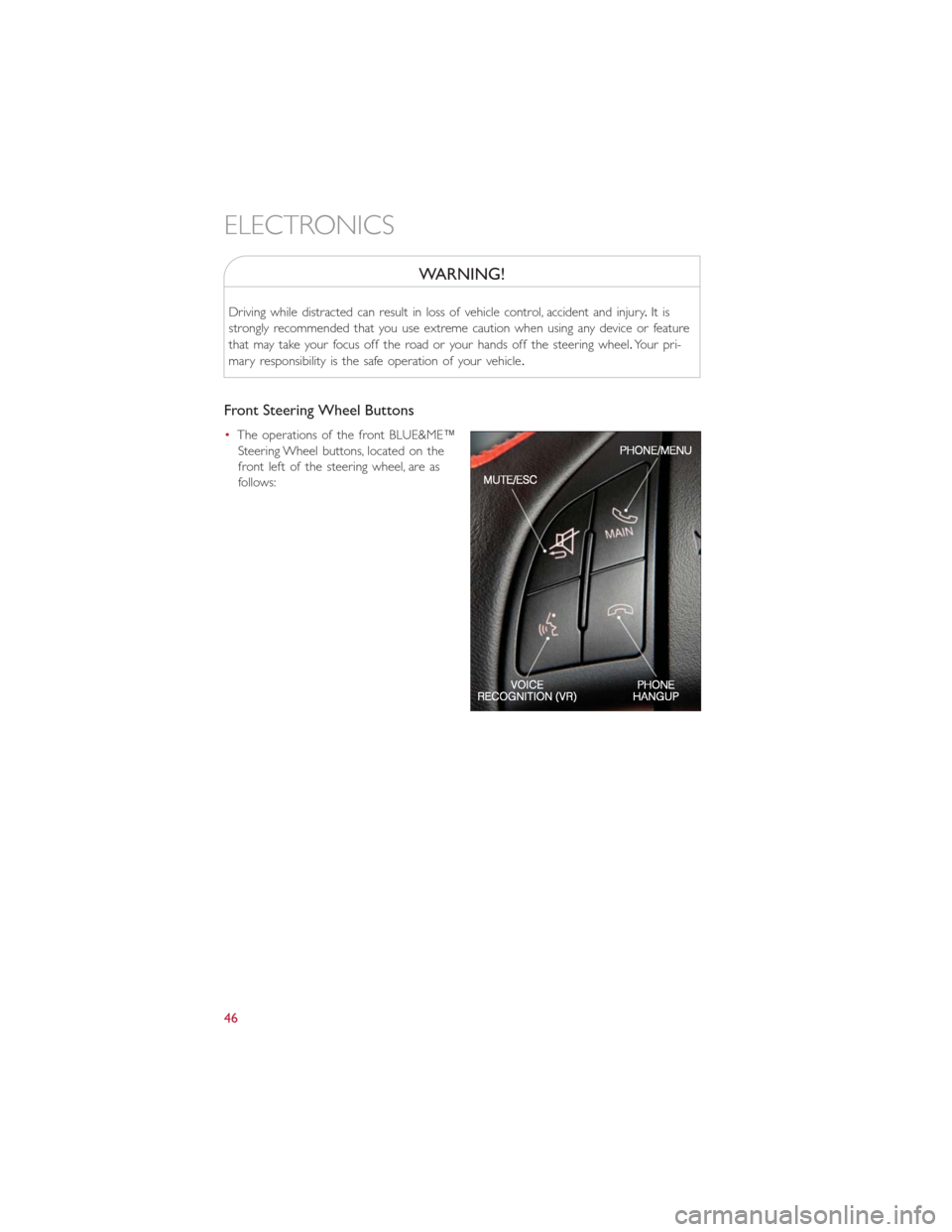
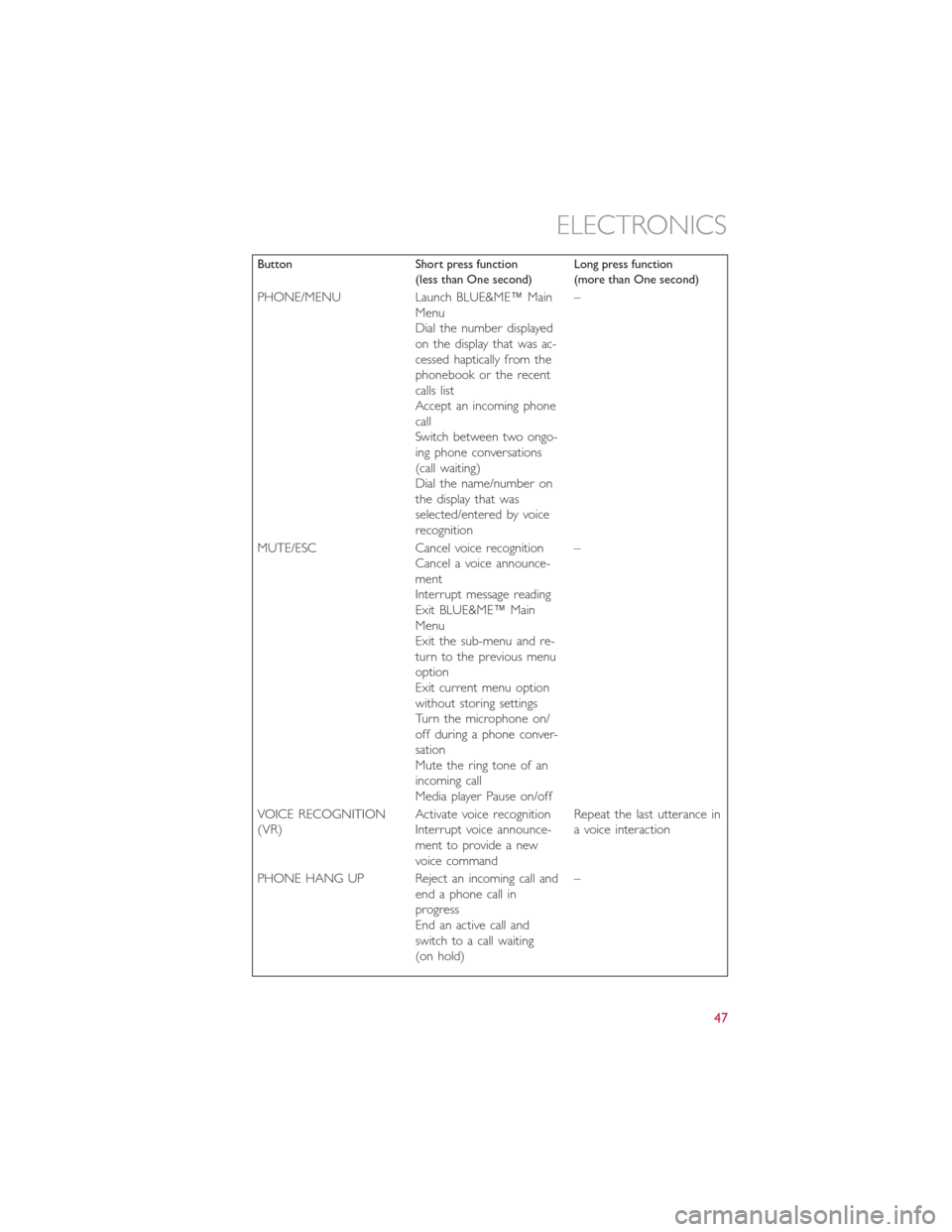
Front Steering Wheel Buttons
•The operations of the front BLUE&ME™
Steering Wheel buttons, located on the
front left of the steering wheel, are as
follows:
ELECTRONICS
46
Page 49 of 92
Button Short press function
(less than One second)Long press function
(more than One second)
PHONE/MENU Launch BLUE&ME™ Main
Menu
Dial the number displayed
on the display that was ac-
cessed haptically from the
phonebook or the recent
calls list
Accept an incoming phone
call
Switch between two ongo-
ing phone conversations
(call waiting)
Dial the name/number on
the display that was
selected/entered by voice
recognition–
MUTE/ESC Cancel voice recognition
Cancel a voice announce-
ment
Interrupt message reading
Exit BLUE&ME™ Main
Menu
Exit the sub-menu and re-
turn to the previous menu
option
Exit current menu option
without storing settings
Turn the microphone on/
off during a phone conver-
sation
Mute the ring tone of an
incoming call
Media player Pause on/off–
VOICE RECOGNITION
(VR)Activate voice recognition
Interrupt voice announce-
ment to provide a new
voice commandRepeat the last utterance in
a voice interaction
PHONE HANG UP Reject an incoming call and
end a phone call in
progress
End an active call and
switch to a call waiting
(on hold)–
ELECTRONICS
47
Page 50 of 92
Button Short press function
(less than One second)Long press function
(more than One second)
PRESET UP/OK (center
button on left side back of
steering wheel)Confirm manually selected
menu option
Switch phone conversation
from the hands-free phone
to your mobile phone and
vice versa
Select displayed message–
SCAN UP/SCAN DOWN
(upper and lower buttons
on left side back of steering
wheelScroll BLUE&ME™ menu
items
Scroll through media player
tracks
Seek up or down through
radio stations
Scroll inbox messages–
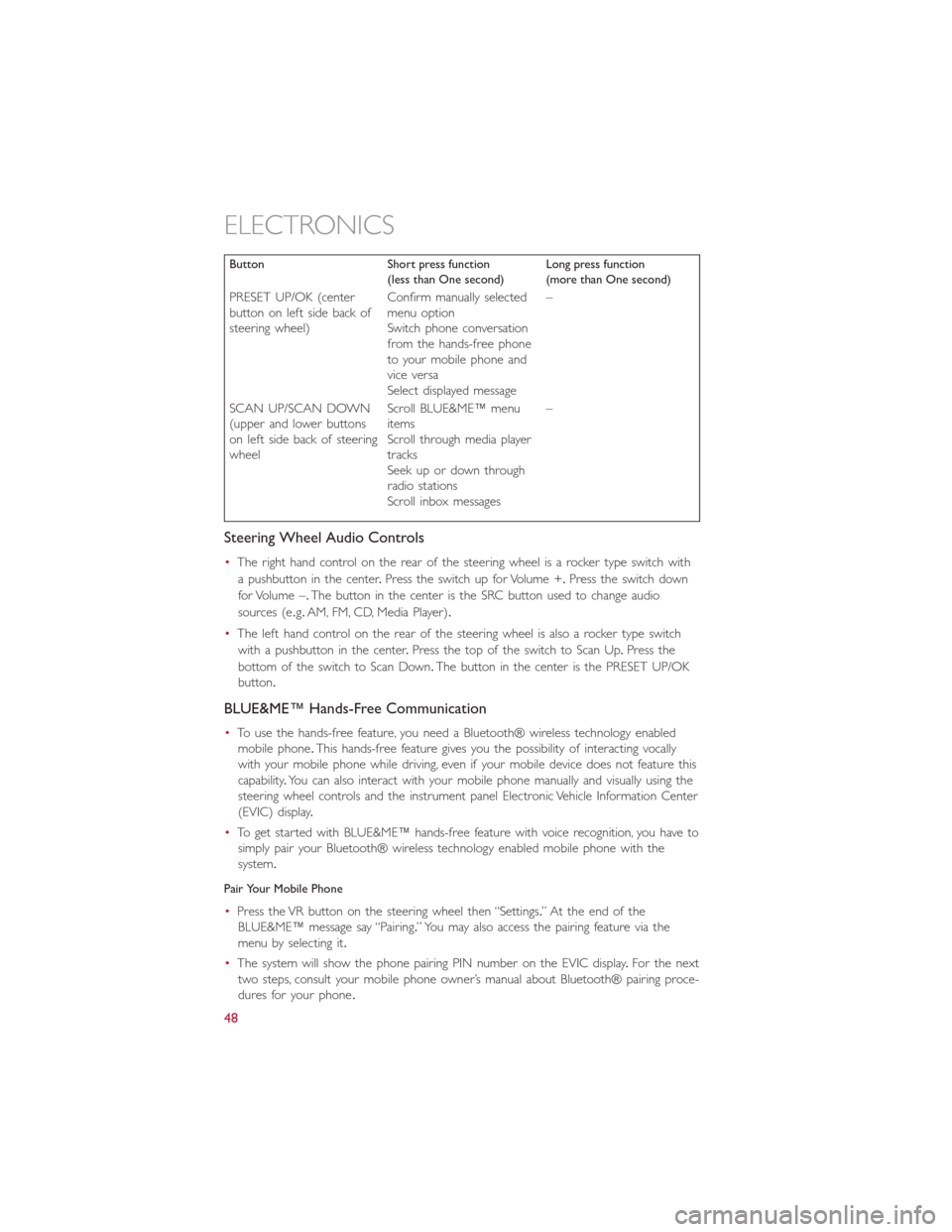
Steering Wheel Audio Controls
•The right hand control on the rear of the steering wheel is a rocker type switch with
a pushbutton in the center.Press the switch up for Volume +.Press the switch down
for Volume –.The button in the center is the SRC button used to change audio
sources (e.g.AM, FM, CD, Media Player).
•The left hand control on the rear of the steering wheel is also a rocker type switch
with a pushbutton in the center.Press the top of the switch to Scan Up.Press the
bottom of the switch to Scan Down.The button in the center is the PRESET UP/OK
button.
BLUE&ME™ Hands-Free Communication
•To use the hands-free feature, you need a Bluetooth® wireless technology enabled
mobile phone.This hands-free feature gives you the possibility of interacting vocally
with your mobile phone while driving, even if your mobile device does not feature this
capability.You can also interact with your mobile phone manually and visually using the
steering wheel controls and the instrument panel Electronic Vehicle Information Center
(EVIC) display.
•To get started with BLUE&ME™ hands-free feature with voice recognition, you have to
simply pair your Bluetooth® wireless technology enabled mobile phone with the
system.
Pair Your Mobile Phone
•Press the VR button on the steering wheel then “Settings.” At the end of the
BLUE&ME™ message say “Pairing.” You may also access the pairing feature via the
menu by selecting it.
•The system will show the phone pairing PIN number on the EVIC display.For the next
two steps, consult your mobile phone owner’s manual about Bluetooth® pairing proce-
dures for your phone.
ELECTRONICS
48
Page 51 of 92
•On your mobile phone, search for devices equipped with Bluetooth® wireless technol-
ogy (the setting on your mobile phone might be called Discover or New Device).In
this list you will find BLUE&ME™ (name identifying the BLUE&ME™ system on your
car) select it.
•When prompted by the mobile phone, enter the PIN number shown on the instru-
ment panel display using your mobile phone keypad.If pairing is successful, the system
will say “Connecting” and at the end the display will show as confirmation message, the
ID of the paired mobile phone.
•It is essential to wait until you see this confirmation message on the display.Pressing
PHONE/MENU button on the steering wheel or MUTE/ESC button before the mes-
sage is displayed may cancel the pairing process.If the pairing process fails, an error
message will be displayed: in this event repeat the pairing procedure.
•At first pairing, BLUE&ME™ will say “Welcome” immediately after connecting.This
message will no longer be heard when your phone automatically connects to the
BLUE&ME™ system on future ignition cycles.
•BLUE&ME™ will ask if you would like to copy your paired phone phonebook to
BLUE&ME™.It is recommended to copy it.To start copying the phonebook say “Yes,”
otherwise say “No.”
•For certain mobile phones the phonebook is not copied automatically, in this case you
must transfer the phonebook contacts using your mobile phone keypad.If
BLUE&ME™ asks you to do this, then perform this procedure following the instruc-
tions specific to your mobile phone and press the PHONE/MENU button on the
steering wheel when you have finished.Certain mobile phones may require you to
indicate that you do not want to be asked every time to copy the phonebook.If this is
the case, this could be indicated by checking a box on the phone during the pairing
process.If applicable, this option will only be presented on the phone during the pair-
ing process.
Making A Phone Call
•Assume that “John Smith” is one of the contacts stored in your phonebook.To call
John Smith, proceed as follows:
1.Press the VR steering wheel button and pronounce “Call John Smith.” If the name is
recognized, the system will display the recognized contact’s information on the display
screen.
2.If there is just one phone number for John Smith in your phonebook, the system will
ask if you would like to call John Smith.To start the call say “Yes,” otherwise say “No.”
If John Smith has several phone numbers, the system will ask which phone number
you would like to call (e.g.: “Call John Smith (at) Work or (at) Home?”).Answer with
the type of required phone number (e.g.: “(at) Home”).
ELECTRONICS
49
Page 52 of 92
3.If John Smith has several phone numbers but the “location” (e.g.: the type of phone
number like work, home, etc.) is missing, the system will display the selected contact
and a list of related phone numbers on the instrument cluster display.The hands-free
phone system will ask if you would like to call the phone number displayed.To r e -
spond with “Yes,” pronounce “Yes,” otherwise say “No.” If this is the correct contact
but the wrong number, say “Forward” or “Backward” to navigate to the phone num-
ber you’d like to call.To call the displayed phone number, pronounce “Call.” You can
also scroll through the phone number list manually by pressing the buttons on the
back of the steering wheel until you find the required number.Then, press PRESET
UP/OK button on the rear of the steering wheel to start the call.
4.To end the phone call, press the PHONE HANG UP button on the steering wheel.
Media Player
•With the BLUE&ME™ media player you can play, via the car sound system, the digital
audio files stored on a USB device by simply connecting it to the USB port located in
the glove compartment of the car.
•The MEDIA PLAYER menu enables the following:
– Display tracks stored on your USB stick/iPod®.
– Play audio files stored on your USB stick/iPod® (BLUE&ME™ recognizes.wma,.mp3
and.wav,.aac formats for audio files and.wpl and.m3u for playlists).
How To Connect The USB Stick/iPod® To BLUE&ME™
•To connect your USB stick/iPod® to BLUE&ME™, proceed as follows:
•USB devices without USB wire: just connect the USB stick/iPod® (directly or by an
extension lead) to the USB port on the car.
•USB stick/iPod® with USB wire: use the wire to connect the USB stick/iPod® to
the USB port on the car.
•Turn the ignition key to ON.BLUE&ME™ will start automatically to play your digital
tracks selecting them from the library built at the moment the USB stick/iPod® is
connected.
•If AUTOPLAY is set to “ON,” BLUE&ME™ will start playback automatically.
•Refer to the iPod®/USB/MP3 CONTROL section in this manual and the BLUE&ME™
User's Manual on the DVD for more details.
WARNING!
Driving while distracted can result in loss of vehicle control, accident and injury.It is
strongly recommended that you use extreme caution when using any device or feature
that may take your focus off the road or your hands off the steering wheel.Your pri-
mary responsibility is the safe operation of your vehicle.
ELECTRONICS
50