instrument panel FIAT 500E 2015 2.G Manual PDF
[x] Cancel search | Manufacturer: FIAT, Model Year: 2015, Model line: 500E, Model: FIAT 500E 2015 2.GPages: 367, PDF Size: 9.42 MB
Page 198 of 367
MP3 Mode
In addition to playing regular audio CDs, the radio is also
enabled to play CDROMs on which compressed audio
files have been recorded in an MP3 format.
To guarantee optimal reproduction, it is advisable to use
good quality CDs burned at the lowest speed possible.
The files on an MP3 CD are structured in folders that
create lists of all the folders containing MP3 tracks
(folders or subfolders are all on the same level). The
folders that do not contain MP3 tracks cannot be selected.
The specifications and operating conditions for playing
MP3 files are the following:
•The CD-ROMs used should be burned in accordance
with ISO standard 9660.
•The music files should have the extension “.mp3” or
“.wma” files with a different extension will not be
reproduced.
•The sampling frequencies that can be reproduced are:
44.1 kHz, stereo (from 96 to 320 kbit/s) – 22.05 kHz,
mono or stereo (from 32 to 80 kbit/s).
•Tracks with a variable bit-rate can be reproduced.
NOTE:The track names must not include the following
characters: spaces, ‘ (apostrophes), ( and ) (open and close
brackets). During the burning of a MP3 CD, make sure
that the names of the files do not contain these characters;
if not, the radio will not be able to play the tracks
involved.
196 UNDERSTANDING YOUR INSTRUMENT PANEL
Page 199 of 367
Selecting MP3 Sessions With Hybrid Discs
If a hybrid disc is inserted (Mixed Mode, Enhanced,
CD-Extra) also containing MP3 files, the radio automati-
cally starts playing the audio session. It is possible to
move to the MP3 session while playing by keeping the
CD button pressed for more than two seconds.
NOTE:When the function is activated the radio may take
a few seconds to start playing. While checking the disc
the display will show “CD Reading.” If no MP3 files are
detected, the radio will resume playing the audio session
from the point where it was interrupted.
Display Information
ID3–Tag Information Display
In addition to the information relating to the time
elapsed, folder name and file name, the radio is also
capable of displaying ID3–TAG information relating to
Title Track, Artist and Author.
When one of the ID3-TAG pieces of information is chosen
to be displayed (Title, Artist, Album) and this informa-
tion has not been recorded for the track played, the text
#UNKNOWN#will be displayed for that field.
Selection Of Next/Previous Folder
Push thebutton to select a next folder or the
button to select the previous folder. The display
will show the number of the folder.
The folders are selected cyclically. The first folder is
selected after the last folder and vice versa.
If no other folder/track is selected in the next two
seconds, the first track on the new folder will be played.
After the last track in a folder is played, the next folder
will be played.
4
UNDERSTANDING YOUR INSTRUMENT PANEL 197
Page 200 of 367
Structure Of The Folders
The radio with MP3 player:
•Recognizes only the folders that effectively contain
MP3 format files.
•If the MP3 files on a CD-ROM are structured in
sub-folders their structure is compressed to a single
level structure, where the sub-folders are taken to the
level of the main folders.
Troubleshooting
General
Sound Volume Low
The Fader function should be adjusted to the values “F”
(front) only to prevent the reduction in radio output
power and the cancelling of the volume if the Fader level
adjustment is equal to R+9.
Source Can Not Be Selected
Nothing has been loaded. Load the CD or the MP3 CD to
be listened to.
CD Player
The CD Does Not Play:
The CD is dirty. Clean the CD.
The CD is scratched. Try using another CD.
The CD Can Not Be Loaded:
A CD is already loaded. Press thebutton and remove
the CD.
MP3 File Reading
Track Skips While Playing Mp3 Files:
The CD is scratched or dirty.
198 UNDERSTANDING YOUR INSTRUMENT PANEL
Page 201 of 367
The Duration Of The Mp3 Tracks Is Not Correctly
Displayed:
In some cases (due to the recording mode) the duration of
the MP3 tracks can be displayed incorrectly.
Operating Instructions — Hands-Free Phone
Refer to the appropriate “BLUE&ME™ User ’s Manual”
for further information.
Personal/Portable Navigation Device (PND)
A Personal/Portable Navigation Device (PND) is avail-
able as optional equipment for this vehicle, refer to the
Navigation User Guide for further information.
iPod®/USB/MEDIA PLAYER CONTROL — IF
EQUIPPED
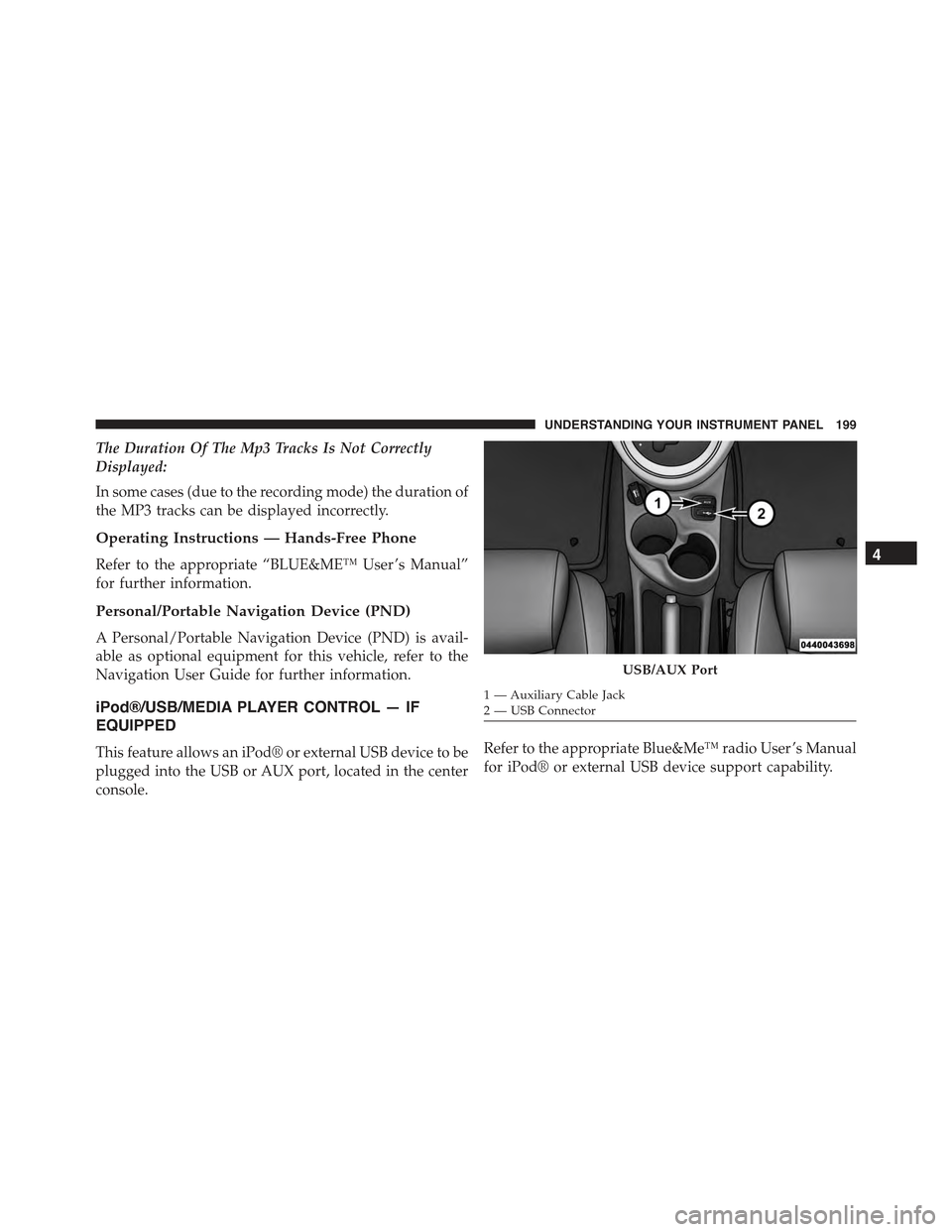
This feature allows an iPod® or external USB device to be
plugged into the USB or AUX port, located in the center
console.
Refer to the appropriate Blue&Me™ radio User ’s Manual
for iPod® or external USB device support capability.
USB/AUX Port
1 — Auxiliary Cable Jack2—USBConnector
4
UNDERSTANDING YOUR INSTRUMENT PANEL 199
Page 202 of 367
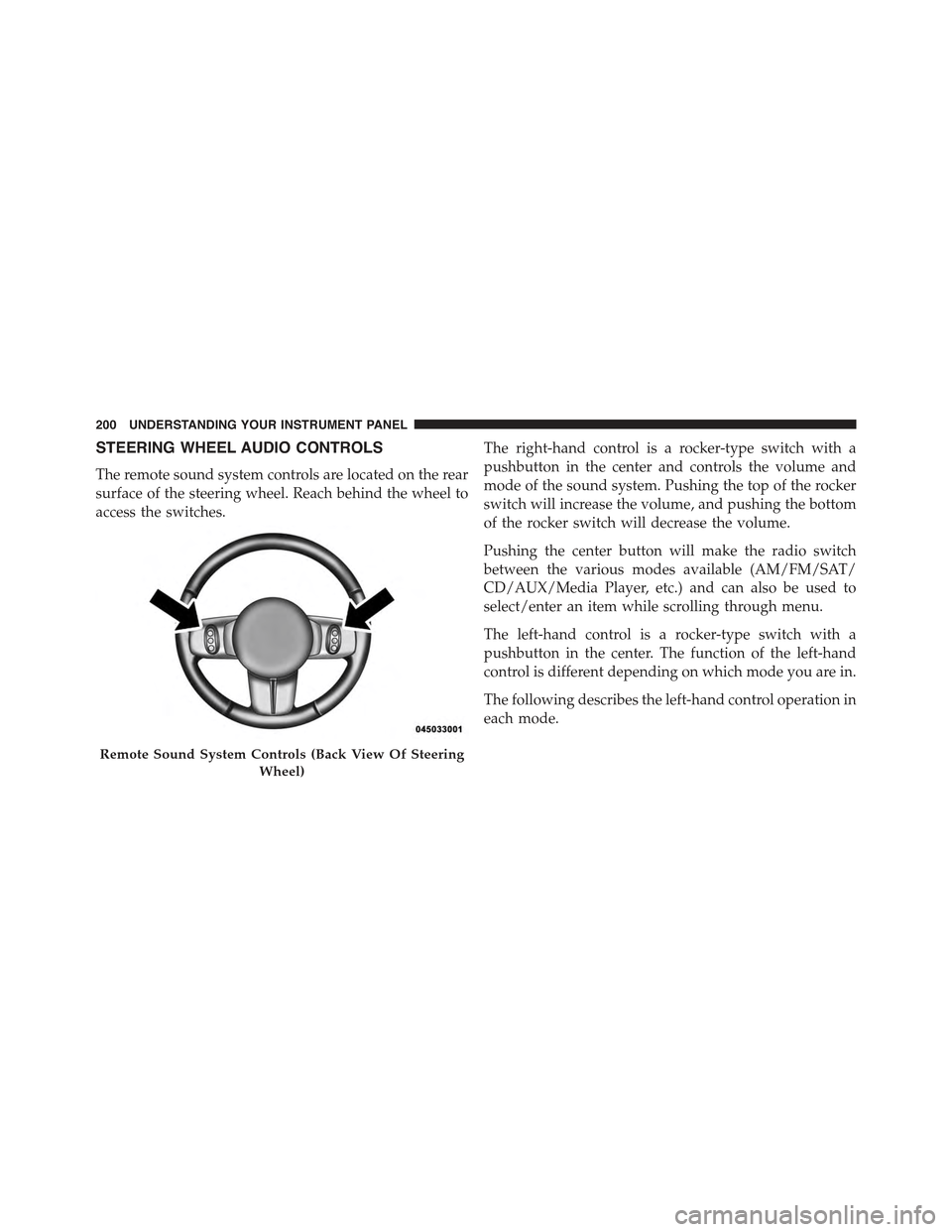
STEERING WHEEL AUDIO CONTROLS
The remote sound system controls are located on the rear
surface of the steering wheel. Reach behind the wheel to
access the switches.
The right-hand control is a rocker-type switch with a
pushbutton in the center and controls the volume and
mode of the sound system. Pushing the top of the rocker
switch will increase the volume, and pushing the bottom
of the rocker switch will decrease the volume.
Pushing the center button will make the radio switch
between the various modes available (AM/FM/SAT/
CD/AUX/Media Player, etc.) and can also be used to
select/enter an item while scrolling through menu.
The left-hand control is a rocker-type switch with a
pushbutton in the center. The function of the left-hand
control is different depending on which mode you are in.
The following describes the left-hand control operation in
each mode.
Remote Sound System Controls (Back View Of Steering
Wheel)
200 UNDERSTANDING YOUR INSTRUMENT PANEL
Page 203 of 367
Radio Operation
Pushing the top of the switch will “Seek” up for the next
listenable station and pushing the bottom of the switch
will “Seek” down for the next listenable station.
The button located in the center of the left-hand control
will tune to the next preset station that you have pro-
grammed in the radio preset button.
CD Player Operation
Pushing the top of the switch once will go to the next
track on the CD. Pushing the bottom of the switch once
will go to the beginning of the current track, or to the
beginning of the previous track if it is within one second
after the current track begins to play.
If you push the switch up or down twice, it plays the
second track; three times, it will play the third, etc.
Operating Instructions — Hands-Free Phone
(If Equipped)
Refer to the appropriate Blue&Me™ User ’s Manual for
further information.
CD/DVD DISC MAINTENANCE
To keep a CD/DVD in good condition, take the following
precautions:
1. Handle the disc by its edge; avoid touching the
surface.
2. If the disc is stained, clean the surface with a soft cloth,
wiping from center to edge.
3. Do not apply paper or tape to the disc; avoid scratch-
ing the disc.
4. Do not use solvents such as benzene, thinner, cleaners,
or anti-static sprays.
4
UNDERSTANDING YOUR INSTRUMENT PANEL 201
Page 204 of 367
5. Store the disc in its case after playing.
6. Do not expose the disc to direct sunlight.
7. Do not store the disc where temperatures may become
too high.
NOTE:If you experience difficulty in playing a particular
disc, it may be damaged (e.g., scratched, reflective coat-
ing removed, a hair, moisture or dew on the disc)
oversized, or have protection encoding. Try a known
good disc before considering disc player service.
RADIO OPERATION AND MOBILE PHONES
Under certain conditions, the mobile phone being on in
your vehicle can cause erratic or noisy performance from
your radio. This condition may be lessened or eliminated
by relocating the mobile phone antenna. This condition is
not harmful to the radio. If your radio performance does
not satisfactorily “clear” by the repositioning of the an-
tenna, it is recommended that the radio volume be turned
down or off during mobile phone operation.
CLIMATE CONTROLS
The air conditioning and heating system is designed to
make you comfortable in all types of weather.
Automatic Temperature Control (ATC)
•The Automatic Temperature Control (ATC) allows the
occupant to select a comfort settings.
•The system provides set-and-forget operation for op-
timum comfort and convenience.
•The system can be controlled manually, if desired.
The ATC system automatically maintains the interior
comfort level desired by the occupant.
202 UNDERSTANDING YOUR INSTRUMENT PANEL
Page 205 of 367
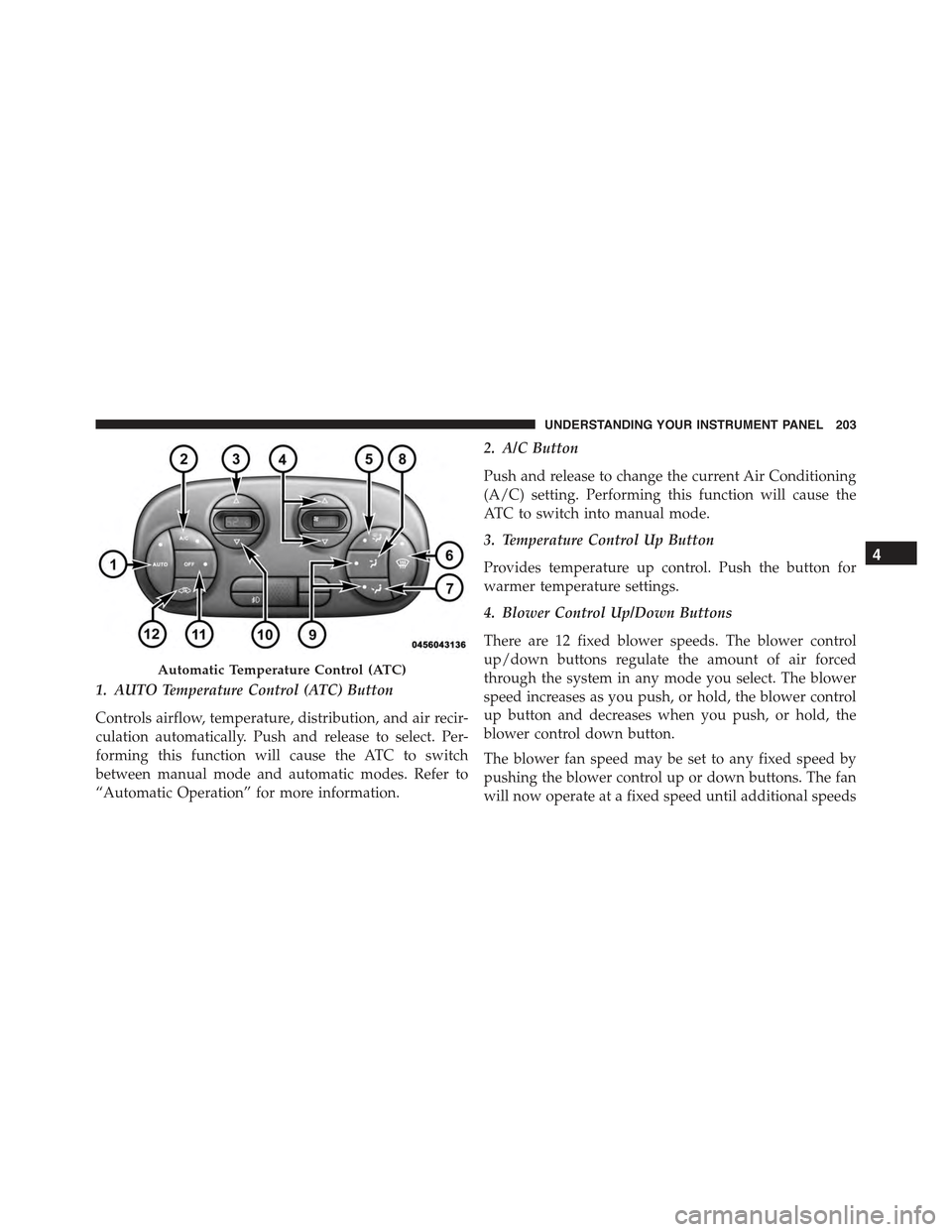
1. AUTO Temperature Control (ATC) Button
Controls airflow, temperature, distribution, and air recir-
culation automatically. Push and release to select. Per-
forming this function will cause the ATC to switch
between manual mode and automatic modes. Refer to
“Automatic Operation” for more information.
2. A/C Button
Push and release to change the current Air Conditioning
(A/C) setting. Performing this function will cause the
ATC to switch into manual mode.
3. Temperature Control Up Button
Provides temperature up control. Push the button for
warmer temperature settings.
4. Blower Control Up/Down Buttons
There are 12 fixed blower speeds. The blower control
up/down buttons regulate the amount of air forced
through the system in any mode you select. The blower
speed increases as you push, or hold, the blower control
up button and decreases when you push, or hold, the
blower control down button.
The blower fan speed may be set to any fixed speed by
pushing the blower control up or down buttons. The fan
will now operate at a fixed speed until additional speeds
Automatic Temperature Control (ATC)
4
UNDERSTANDING YOUR INSTRUMENT PANEL 203
Page 206 of 367
are selected. This allows the front occupants to control
the volume of air circulated in the vehicle and cancel the
AUTO mode.
The operator can also select the direction of the airflow
by selecting one of the following positions.
5. Mix Mode
Air is directed through the floor, defrost, and side
window demister outlets. This setting works best
in cold or snowy conditions that require extra heat to the
windshield. This setting is good for maintaining comfort
while reducing moisture on the windshield. Performing
this function will cause the ATC to switch into manual
mode.
6. Front Defrost
Push and release to change the current airflow
setting to Defrost mode. The indicator illuminates
when this feature is ON. Air comes from the windshield
and side window demist outlets. When the defrost but-
ton is selected, the blower level will increase. Use Defrost
mode with maximum temperature settings for best wind-
shield and side window defrosting and defogging. Per-
forming this function will cause the ATC to switch into
manual mode. If the front defrost mode is turned off the
climate system will return the previous setting.
7. Floor Mode
Air is directed through the floor outlets with a
small amount flowing through the defrost and
side window demister outlets. Performing this function
will cause the ATC to switch into manual mode.
8. Panel Mode
Air is directed through the outlets in the instru-
ment panel. These outlets can be adjusted to direct
airflow. Performing this function will cause the ATC to
switch into manual mode.
204 UNDERSTANDING YOUR INSTRUMENT PANEL
Page 207 of 367
NOTE:The center instrument panel outlets can be aimed
so that they are directed toward the rear seat passengers
for maximum airflow to the rear.
9. Bi-Level
Air is directed through the panel and floor outlets.
Press and release the Panel mode button and Floor
mode button to enter Bi-Level mode, the indicators
illuminate when ON. Performing this function will cause
the ATC to switch into manual mode.
10. Temperature Control Down Button
Provides temperature down control. Push the button for
cooler temperature settings.
NOTE:If the temperature is lowered until#Lo#is dis-
played, all high voltage Heating, Ventilation, and Air
Conditioning (HVAC) systems are deactivated and am-
bient air is circulated according to the Heating, Ventila-
tion, and Air Conditioning (HVAC) control settings.
11. Climate Control ON/OFF Button
Push and release to turn the Climate Control ON or OFF.
12. Recirculation Control Button
Push and release to change the current setting. The
indicator illuminates when ON.
NOTE:When in Defrost mode, the Recirculation button
will flash if pushed. This indicates that you can not
proceed to this mode due to fogging risk.
Climate Control Functions
Air Conditioning (A/C)
The Air Conditioning (A/C) button allows the operator to
manually activate or deactivate the air conditioning system.
When in A/C mode with the ATC set to a cool temperature,
dehumidified air flows through the air outlets. If Economy
mode is desired, push the A/C button to turn off the A/C
mode in the ATC display and deactivate the A/C system.
4
UNDERSTANDING YOUR INSTRUMENT PANEL 205