phone FIAT 500L 2015 2.G Owner's Manual
[x] Cancel search | Manufacturer: FIAT, Model Year: 2015, Model line: 500L, Model: FIAT 500L 2015 2.GPages: 148, PDF Size: 3.77 MB
Page 64 of 148
Bluetooth® Streaming Audio
If equipped with Uconnect® Voice Command, your Bluetooth®-equipped iPod® devices,cell phones or other media players, may also be able to stream music to your vehicle'ssound system.Your connected device must be Bluetooth®-compatible, and paired withyour system (see Uconnect® Phone for pairing instructions).You can access the musicfrom your connected Bluetooth® device by pressing the “Bluetooth®” button on thetouchscreen while in Media mode.
Uconnect® 6.5N Media Hub (USB,AUX Ports)Media Hub (SD,USB, AUX Ports)Remote USB Port(Fully Functional)
-SS
S = Standard Equipment
O = Optional Equipment
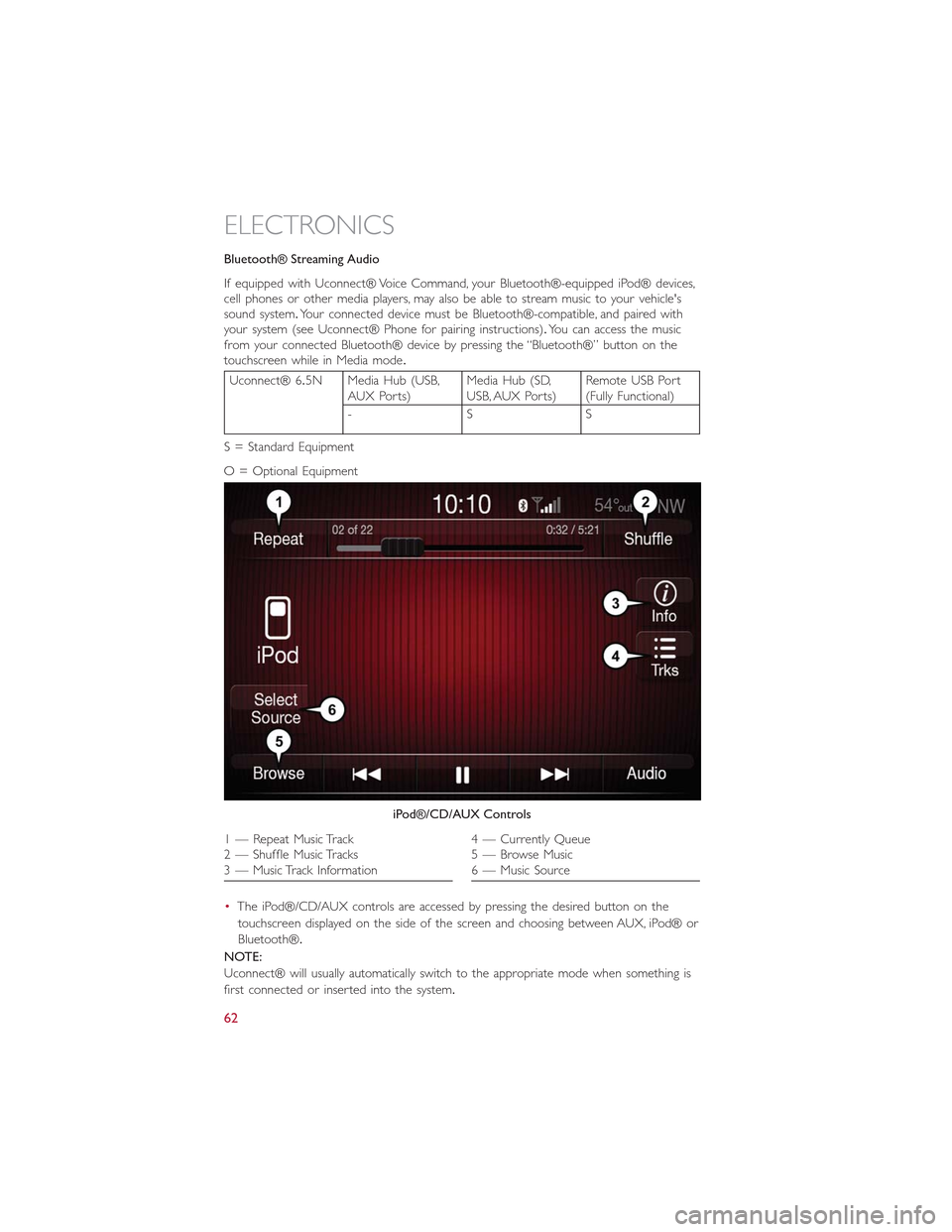
•The iPod®/CD/AUX controls are accessed by pressing the desired button on the
touchscreen displayed on the side of the screen and choosing between AUX, iPod® or
Bluetooth®.
NOTE:
Uconnect® will usually automatically switch to the appropriate mode when something is
first connected or inserted into the system.
iPod®/CD/AUX Controls
1 — Repeat Music Track2 — Shuffle Music Tracks3 — Music Track Information
4 — Currently Queue5 — Browse Music6 — Music Source
ELECTRONICS
62
Page 69 of 148
Get Started
1.VisitUconnectPhone.comto check mobile device and feature compatibility and to
find phone pairing instructions.
2.Reduce background noise.Wind and passenger conversations are examples of noise
that may impact recognition.
3.Speak clearly at a normal pace and volume while facing straight ahead.The micro-
phone is positioned on the rearview mirror and aimed at the driver.
4.Each time you give a Voice Command, you must first press either the VR or Phone
button, wait untilafterthe beep, then say your Voice Command.
5.You can interrupt the help message or system prompts by pressing the VR or Phone
button and saying a Voice Command from current category.
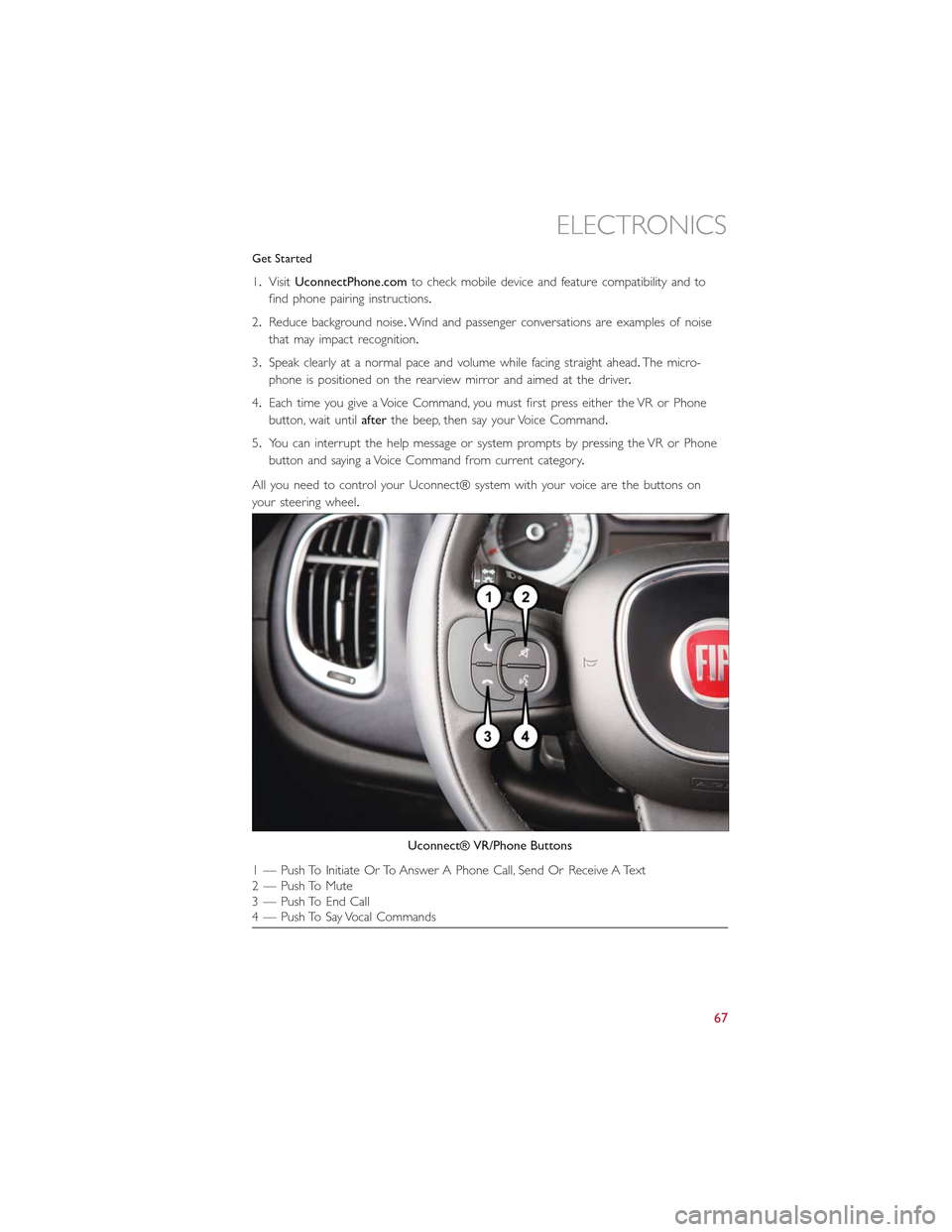
All you need to control your Uconnect® system with your voice are the buttons on
your steering wheel.
Uconnect® VR/Phone Buttons
1 — Push To Initiate Or To Answer A Phone Call, Send Or Receive A Text2 — Push To Mute3 — Push To End Call4 — Push To Say Vocal Commands
ELECTRONICS
67
Page 74 of 148
Phone
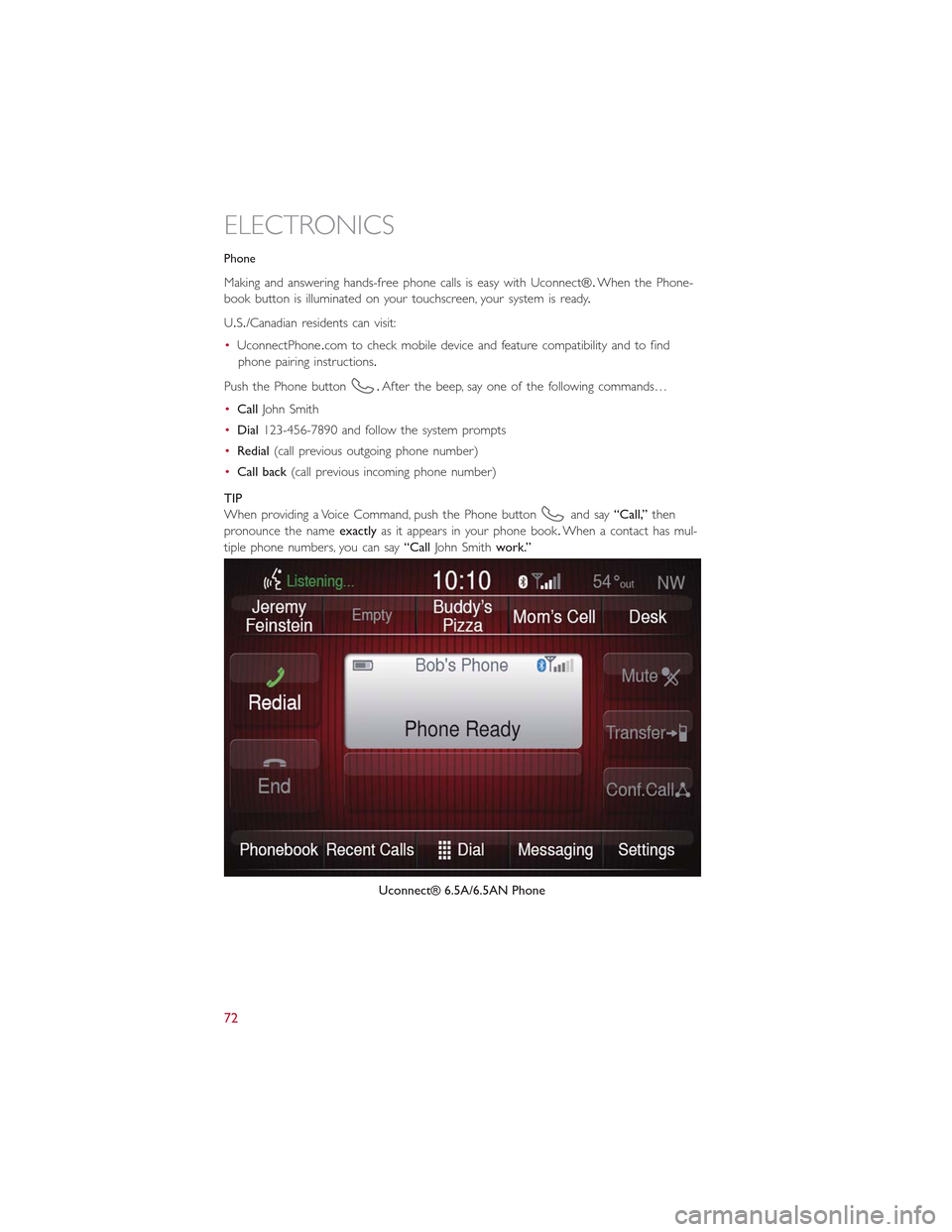
Making and answering hands-free phone calls is easy with Uconnect®.When the Phone-
book button is illuminated on your touchscreen, your system is ready.
U.S./Canadian residents can visit:
•UconnectPhone.com to check mobile device and feature compatibility and to find
phone pairing instructions.
Push the Phone button.After the beep, say one of the following commands…
•CallJohn Smith
•Dial123-456-7890 and follow the system prompts
•Redial(call previous outgoing phone number)
•Call back(call previous incoming phone number)
TIP
When providing a Voice Command, push the Phone buttonand say“Call,”then
pronounce the nameexactlyas it appears in your phone book.When a contact has mul-
tiple phone numbers, you can say“CallJohn Smithwork.”
Uconnect® 6.5A/6.5AN Phone
ELECTRONICS
72
Page 75 of 148
Voice Text Reply
Uconnect® will announceincomingtext messages.Push the Phone buttonand say
Listen.(Must have compatible mobile phone paired to Uconnect® system.)
1.Once an incoming text message is read to you, push the Phone button.After
the beep, say:Reply
2.Listen to the Uconnect® prompts.After the beep, repeat one of the pre-defined
messages and follow the system prompts.
TIP
Your mobile phone must have the full implementation of theMessage Access Profile
(MAP)to take advantage of this feature.For details about MAP, visit UconnectPhone.com
for U.S.residents.Apple iPhone® iOS6 or later supports readingincomingtext messages
only.
PRE-DEFINED VOICE TEXT REPLY RESPONSES
Yes.Stuck in Traffic.See you later.
No.Start without me.I’ll be Late.
Okay.Where are you?I will be
I’ll call you later.I need directions.See you in
Additional Information
© 2014 FCA US LLC.All rights reserved.Mopar and Uconnect are registered trade-
marks and Mopar Owner Connect is a trademark of FCA US LLC.Android is a trade-
mark of Google Inc.SiriusXM and all related marks and logos are trademarks of SiriusXM
Radio Inc.Yelp, Yelp logo, Yelp burst and related marks are registered trademarks of Yelp.
Uconnect® System Support:
•DriveUconnect.com
•U.Sresidentscall:1-877-855-8400
•Canadian residents call: 1-800-465-2001 (English) or 1-800-387-9983 (French)
Mon.– Fri., 7:00 am – 12:00 am, ET
Sat., 8:00 am – 10:00 pm, ET
Sun., 9:00 am – 5:00 pm, ET
Uconnect® Access Services Support 1-855-792-4241.Please have your Uconnect® Secu-
rity PIN ready when you call.
ELECTRONICS
73
Page 76 of 148
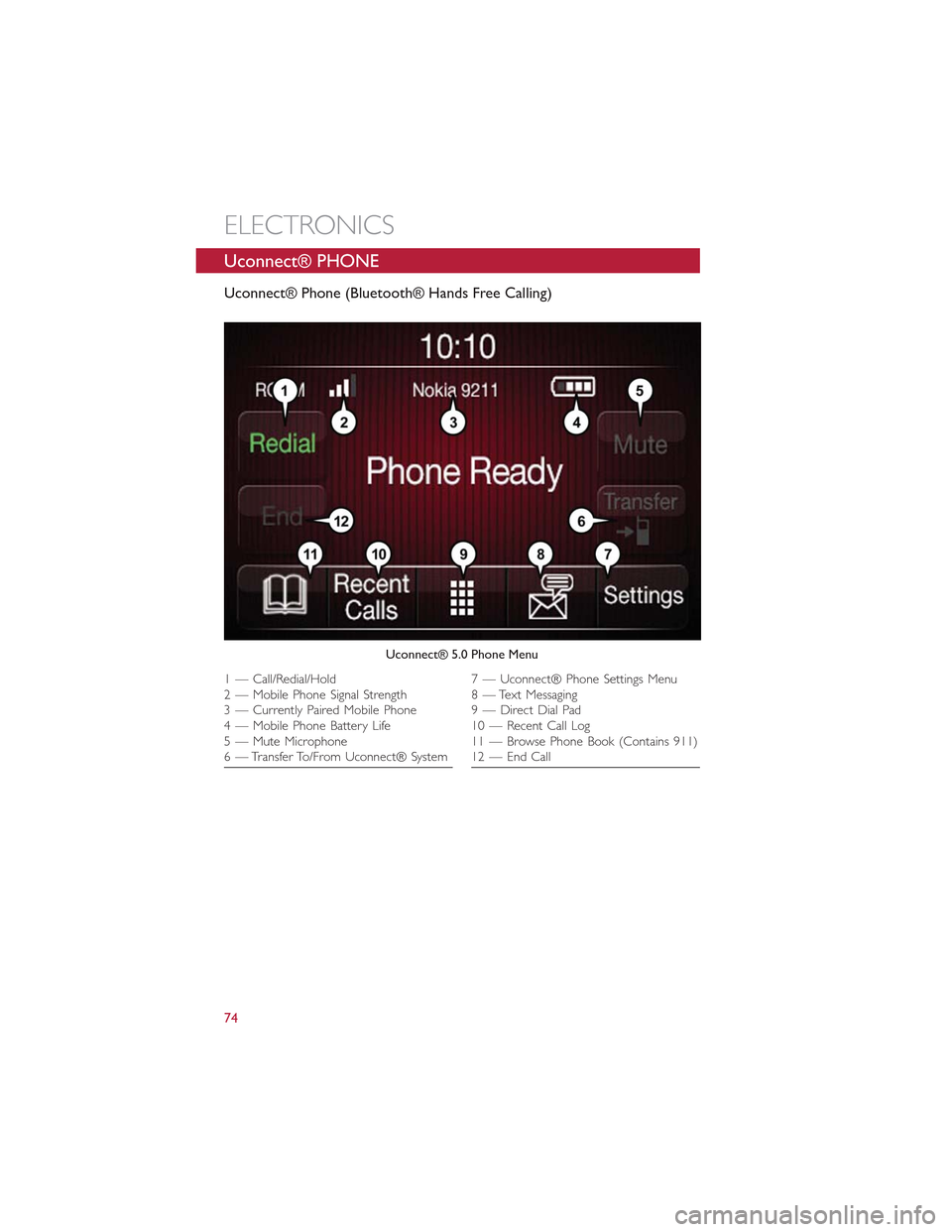
Uconnect® PHONE
Uconnect® Phone (Bluetooth® Hands Free Calling)
Uconnect® 5.0 Phone Menu
1 — Call/Redial/Hold2 — Mobile Phone Signal Strength3 — Currently Paired Mobile Phone4 — Mobile Phone Battery Life5 — Mute Microphone6 — Transfer To/From Uconnect® System
7 — Uconnect® Phone Settings Menu8 — Text Messaging9 — Direct Dial Pad10 — Recent Call Log11 — Browse Phone Book (Contains 911)12 — End Call
ELECTRONICS
74
Page 77 of 148
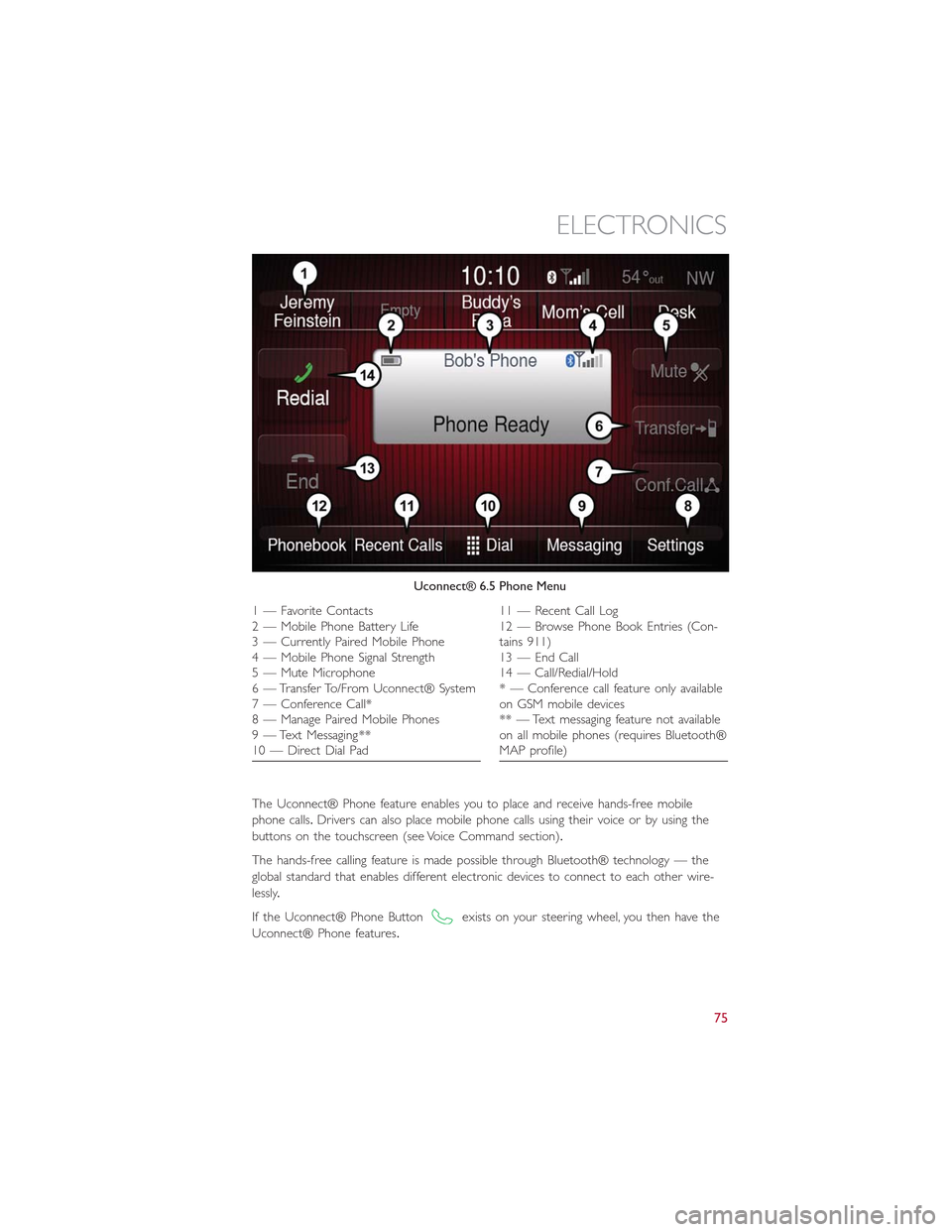
The Uconnect® Phone feature enables you to place and receive hands-free mobile
phone calls.Drivers can also place mobile phone calls using their voice or by using the
buttons on the touchscreen (see Voice Command section).
The hands-free calling feature is made possible through Bluetooth® technology — the
global standard that enables different electronic devices to connect to each other wire-
lessly.
If the Uconnect® Phone Buttonexists on your steering wheel, you then have the
Uconnect® Phone features.
Uconnect® 6.5 Phone Menu
1—FavoriteContacts2 — Mobile Phone Battery Life3 — Currently Paired Mobile Phone4 — Mobile Phone Signal Strength5 — Mute Microphone6 — Transfer To/From Uconnect® System7 — Conference Call*8 — Manage Paired Mobile Phones9 — Text Messaging **10 — Direct Dial Pad
11 — Recent Call Log12 — Browse Phone Book Entries (Con-tains 911)13 — End Call14 — Call/Redial/Hold* — Conference call feature only availableon GSM mobile devices** — Text messaging feature not availableon all mobile phones (requires Bluetooth®MAP profile)
ELECTRONICS
75
Page 78 of 148
Refer to theUnderstand The Features Of Your Vehiclesection of your vehicle's Owner's
Manual on the DVD for further details.
NOTE:
•The Uconnect® Phone requires a mobile phone equipped with the Bluetooth®
Hands-Free Profile, Version 1.0 or higher.
•Most mobile phones/devices are compatible with the Uconnect® system, however
some mobile phones/devices may not be equipped with all of the required features to
utilize all of the Uconnect® system features.
•For Uconnect® Customer Care:
•U.S.residents visit Uconnec tPhone.com or call 1-877-855-8400.
•Canadian Residents visit UconnectPhone.com or call, 1-800-465-2001 (English) or
1-800-387-9983 (French).
Pairing (Wirelessly Connecting) Your Mobile Phone To The Uconnect®
System
Mobile phone pairing is the process of establishing a wireless connection between a cellu-
lar phone and the Uconnect system.
NOTE:
•To use the Uconnect® Phone feature, you first must determine if your mobile phone
and software are compatible with the Uconnect® system.Please visit
UconnectPhone.com for complete mobile phone compatibility information.
•Mobile phone pairing is not available while the vehicle is in motion.
•A maximum of 10 mobile phones can be paired to the Uconnect® system.
Start Pairing Procedure On The Radio
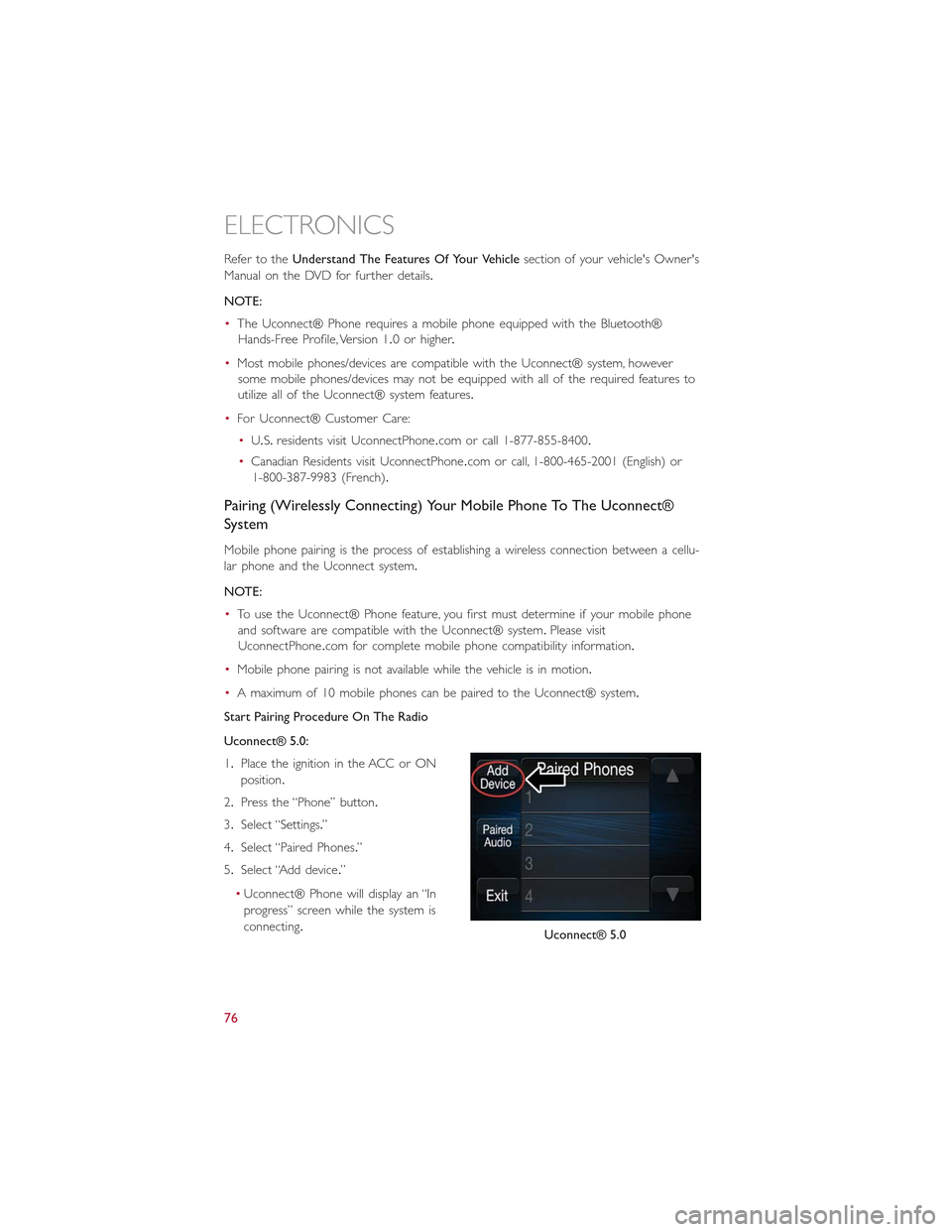
Uconnect® 5.0:
1.Place the ignition in the ACC or ON
position.
2.Press the “Phone” button.
3.Select “Settings.”
4.Select “Paired Phones.”
5.Select “Add device.”
•Uconnect® Phone will display an “In
progress” screen while the system is
connecting.Uconnect® 5.0
ELECTRONICS
76
Page 79 of 148
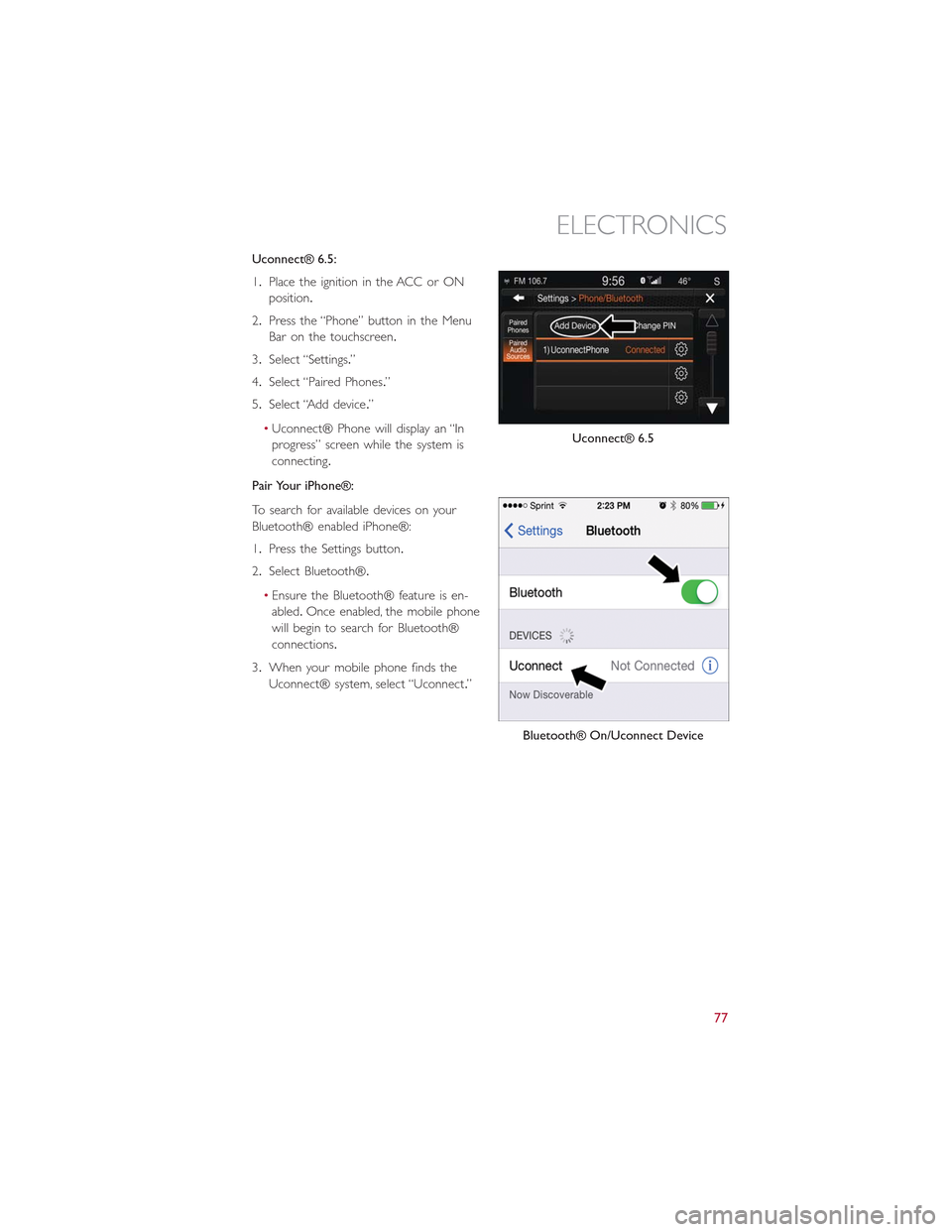
Uconnect® 6.5:
1.Place the ignition in the ACC or ON
position.
2.Press the “Phone” button in the Menu
Bar on the touchscreen.
3.Select “Settings.”
4.Select “Paired Phones.”
5.Select “Add device.”
•Uconnect® Phone will display an “In
progress” screen while the system is
connecting.
Pair Your iPhone®:
To search for available devices on your
Bluetooth® enabled iPhone®:
1.Press the Settings button.
2.Select Bluetooth®.
•Ensure the Bluetooth® feature is en-
abled.Once enabled, the mobile phone
will begin to search for Bluetooth®
connections.
3.When your mobile phone finds the
Uconnect® system, select “Uconnect.”
Uconnect® 6.5
Bluetooth® On/Uconnect Device
ELECTRONICS
77
Page 80 of 148
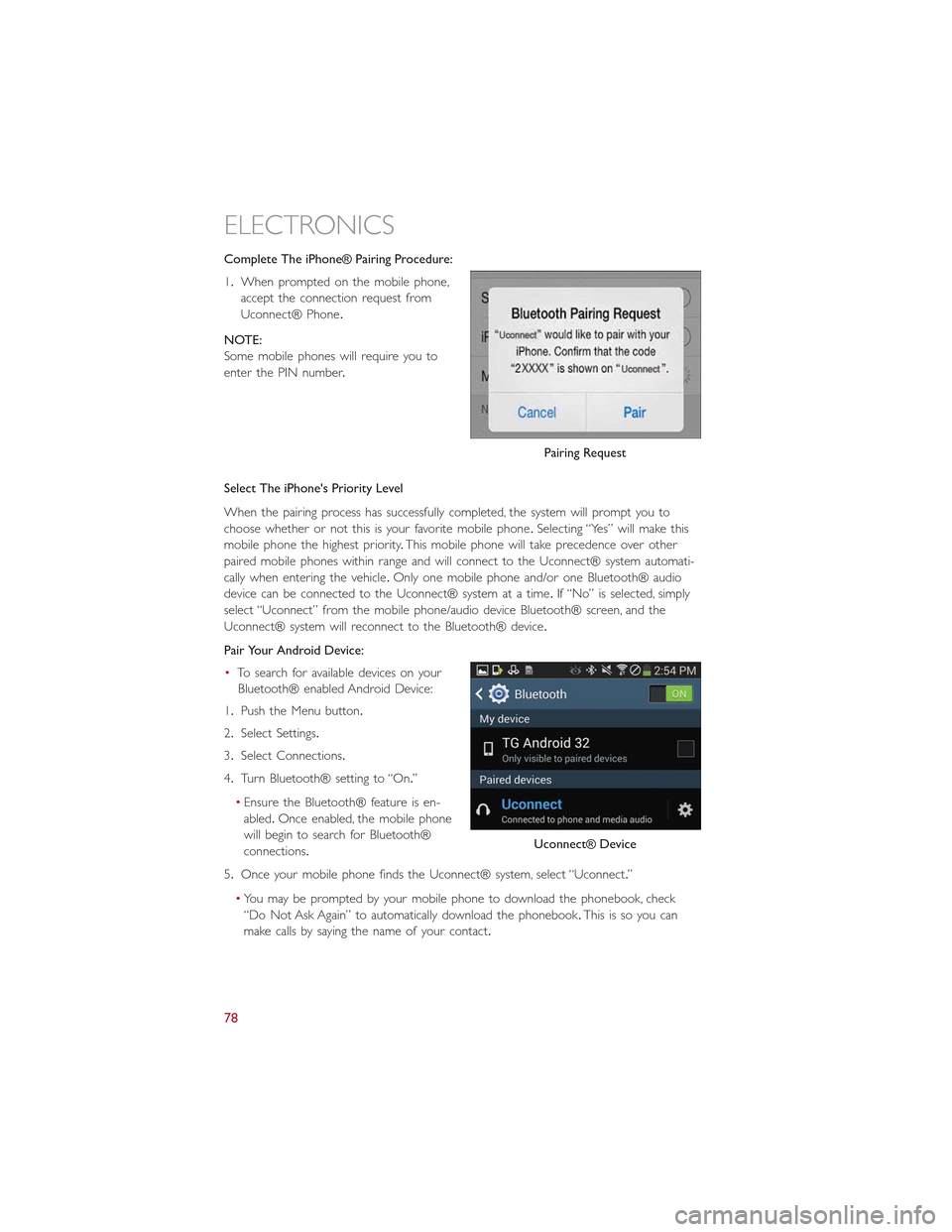
Complete The iPhone® Pairing Procedure:
1.When prompted on the mobile phone,
accept the connection request from
Uconnect® Phone.
NOTE:
Some mobile phones will require you to
enter the PIN number.
Select The iPhone's Priority Level
When the pairing process has successfully completed, the system will prompt you to
choose whether or not this is your favorite mobile phone.Selecting “Yes” will make this
mobile phone the highest priority.This mobile phone will take precedence over other
paired mobile phones within range and will connect to the Uconnect® system automati-
cally when entering the vehicle.Only one mobile phone and/or one Bluetooth® audio
device can be connected to the Uconnect® system at a time.If “No” is selected, simply
select “Uconnect” from the mobile phone/audio device Bluetooth® screen, and the
Uconnect® system will reconnect to the Bluetooth® device.
Pair Your Android Device:
•To search for available devices on your
Bluetooth® enabled Android Device:
1.Push the Menu button.
2.Select Settings.
3.Select Connections.
4.Turn Bluetooth® setting to “On.”
•Ensure the Bluetooth® feature is en-
abled.Once enabled, the mobile phone
will begin to search for Bluetooth®
connections.
5.Once your mobile phone finds the Uconnect® system, select “Uconnect.”
•You may be prompted by your mobile phone to download the phonebook, check
“Do Not Ask Again” to automatically download the phonebook.This is so you can
make calls by saying the name of your contact.
Pairing Request
Uconnect® Device
ELECTRONICS
78
Page 81 of 148
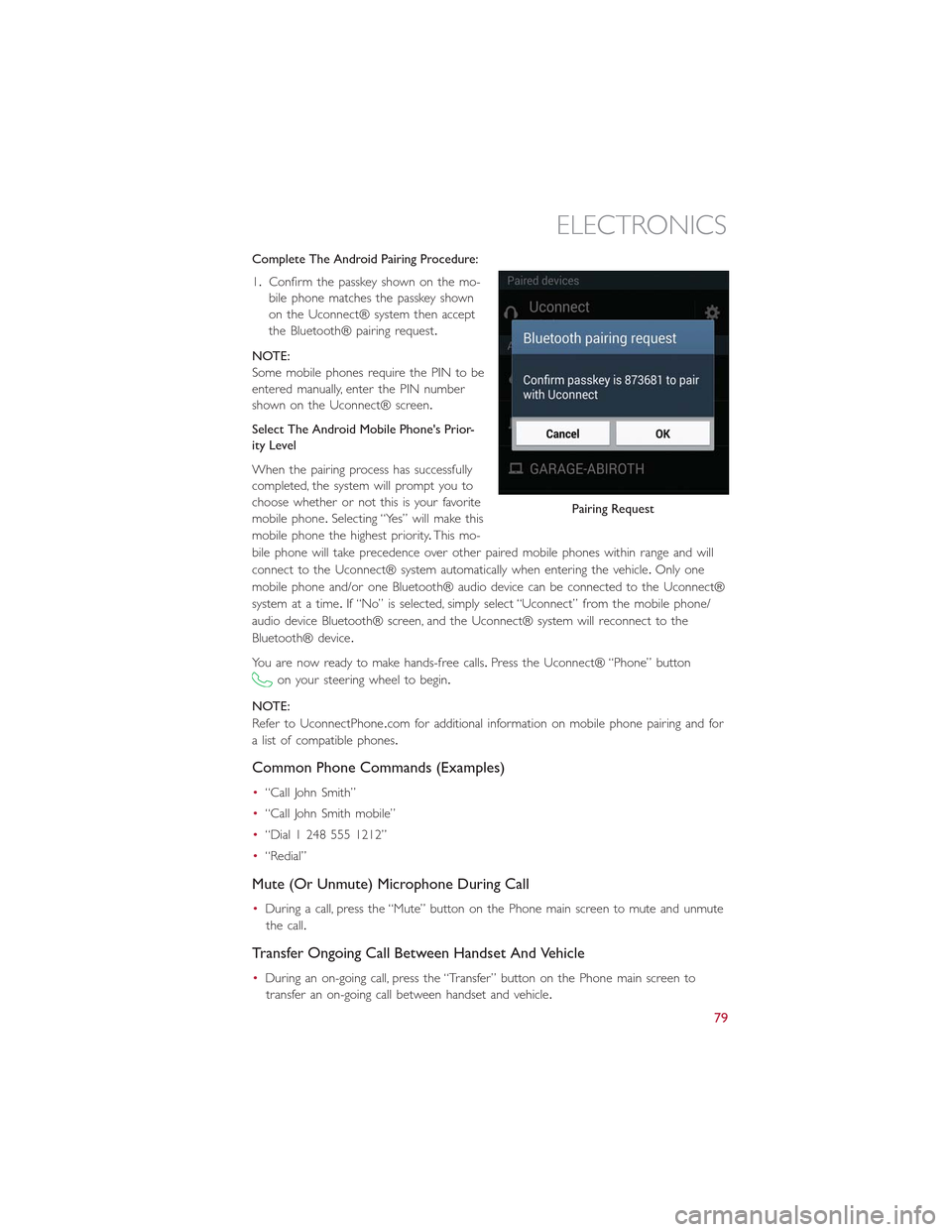
Complete The Android Pairing Procedure:
1.Confirm the passkey shown on the mo-
bile phone matches the passkey shown
on the Uconnect® system then accept
the Bluetooth® pairing request.
NOTE:
Some mobile phones require the PIN to be
entered manually, enter the PIN number
shown on the Uconnect® screen.
Select The Android Mobile Phone's Prior-
ity Level
When the pairing process has successfully
completed, the system will prompt you to
choose whether or not this is your favorite
mobile phone.Selecting “Yes” will make this
mobile phone the highest priority.This mo-
bile phone will take precedence over other paired mobile phones within range and will
connect to the Uconnect® system automatically when entering the vehicle.Only one
mobile phone and/or one Bluetooth® audio device can be connected to the Uconnect®
system at a time.If “No” is selected, simply select “Uconnect” from the mobile phone/
audio device Bluetooth® screen, and the Uconnect® system will reconnect to the
Bluetooth® device.
You are now ready to make hands-free calls.Press the Uconnect® “Phone” button
on your steering wheel to begin.
NOTE:
Refer to UconnectPhone.com for additional information on mobile phone pairing and for
a list of compatible phones.
Common Phone Commands (Examples)
•“Call John Smith”
•“Call John Smith mobile”
•“Dial 1 248 555 1212”
•“Redial”
Mute (Or Unmute) Microphone During Call
•During a call, press the “Mute” button on the Phone main screen to mute and unmute
the call.
Transfer Ongoing Call Between Handset And Vehicle
•During an on-going call, press the “Transfer” button on the Phone main screen to
transfer an on-going call between handset and vehicle.
Pairing Request
ELECTRONICS
79