change time FIAT 500X 2015 2.G Owner's Manual
[x] Cancel search | Manufacturer: FIAT, Model Year: 2015, Model line: 500X, Model: FIAT 500X 2015 2.GPages: 240, PDF Size: 10.72 MB
Page 209 of 240
User not connectedIf the user does not carry out the
Bluetooth pairing of the phone, when
the Uconnect™ button is pressed, the
radio menu shows disabled icons,
excepteco:Drive™.
Further information about the
eco:Drive™functions is available in
the dedicated chapter.Settings of the
Uconnect™ LIVE
services that can be
managed through the
radioThe "Settings" sections can be
accessed through the
icon in the
Radio menu dedicated to the
Uconnect™LIVEservices. In this
section the user can check the system
options and change them according
to their preferences.
System updatesIf an update for theUconnect™
system is available while the
Uconnect™LIVEservices are being
used, the user will be informed with
a message on the radio screen.The update includes the download of
the new software version for managing
theUconnect™LIVEservices. The
update is made using the data
connection of the paired smartphone.
The amount of traffic generated will
be communicated to the user.
IMPORTANT Do not carry out other
operations during installation and wait
for its completion, in order not to affect
correct operation of the radio.
Uconnect™ LIVE appsTheApp Uconnect™LIVEmust be
installed on your smartphone to access
the connected services on the vehicle,
this can be used to access your profile
and customise yourUconnect™
LIVEexperience.
The App can by downloaded from:
"App Store" or "Google play".
For safety reasons, the App cannot be
accessed when the phone is paired
with the radio.
Personal details (e-mail and password)
are required to access theUconnect™
LIVEradio services, therefore the
content of your personal accounts is
protected and can only be accessed by
the real user.
Connected services
that can be accessed
on the vehicleTheUconnect™LIVEservices
available in the radio menu can change
according to the market.
Theeco:Drive™and my:Car
applications are developed to improve
the customer's driving experience,
therefore they are available in all
markets where theUconnect™LIVE
services can be accessed.
For further information visit
www.DriveUconnect.eu.
If the navigation system is installed in
the radio, accessing theUconnect™
LIVEservices enables use of the
TomTom "LIVE" services. Further
information about the "LIVE" functions
is available in the dedicated chapter.eco:Drive™Theeco:Drive™application allows you
to display your driving behaviour in
real time, in order to help you reach a
more efficient driving style as far as
consumption and emissions are
concerned.
207
15-12-2014 8:23 Pagina 207
Page 212 of 240
❒"Rear Park Assist vol."(where
provided): this function can be used to
select the volume of the acoustic
warnings provided by the rear Park
Assist system.
❒"Park Assist vol."(where provided):
this function can be used to select
the volume of the acoustic warnings
provided by the Park Assist system.
❒"Lane Assist Warning"(where
provided): this function can be used to
select the LaneAssist system
intervention "readiness".
❒"Lane Assist Strength"(where
provided): this function can be used to
select the force to apply to the steering
wheel to put the vehicle back in the
lane through the electric steering
system, in the event of Lane Assist
system intervention.
❒"Blind Spot Alert"(where provided):
this function can be used to select
the type of warning ("Sound Only" or
"Sound & Display") to indicate the
presence of objects in the blind spot of
the door mirror.
❒"Rain sensor"(where provided): this
function can be used to activate/
deactivate the automatic operation of
the wipers in the event of rain.
❒"Brakes"(where provided): this
function can be used to select the
following submenus:- "Brake Service" (where provided):
allows you to activate the procedure for
carrying out braking system servicing;
- "Auto Park Brake" (where provided):
allows you to activate/deactivate the
automatic park brake engagement.
NAVIGATION(5" Uconnect Radio Nav LIVE only)Programming a routeIMPORTANT In the interest of safety
and to reduce distractions while you are
driving, you should always plan a route
before you start driving.
To plan a route, do the following:
❒tap the screen to open the Main
menu;
❒Tap "Navigate to" or "Drive to".
❒Tap "Address". You can change the
country or state setting by tapping
the flag before you select a city.
❒Enter the town or city name, or the
zip code. Towns with similar names are
shown in the list while you type. When
the desired city or town appears in
the list, tap the name to select the
destination.
❒Enter the street name. Streets with
similar names are shown in the list while
you type. When the correct street
name appears in the list, tap the name
to select the destination.❒Enter the house number, then tap
"Done".
❒The location will be shown on the
map. Tap "Select" to continue or tap
"Back" to enter another address.
❒When the new route is shown, tap
"Done". For more information about the
route, tap "Details". To change your
route, for example, to travel via a
particular location or to select a new
destination, tap "Change route".
You are guided to your destination,
using spoken instructions and
on-screen directions.
Map updatingTwo modes for downloading a map
update are available:
❒Most recent maps guarantee: if a
new map is available for your system
within 90 days of initial use, you can
download it once free of charge.
❒Map update: you can purchase a
new version of the map installed on
your system.USB device setupTo update the map, use an USB device
that meets the following requirements:
❒Ideally, the USB device should be
empty.
❒The USB device must have at least
8 GB of memory free.
210
MULTIMEDIA
15-12-2014 8:23 Pagina 210
Page 224 of 240
must support the SMS exchange
function throughBluetooth®.
If this function is not supported by the
phone, the corresponding
button is
deactivated (greyed out).
When a text message is received, the
display will show a screen where the
options "Listen", "Call" or "Ignore" can
be selected.
The list of SMS messages received
from the mobile phone can be
accessed by pressing thebutton.
APPS MODEPress the APPS button on the front
panel to display the following settings:
❒Media/Radio mode
❒Clock
❒General information
❒Compass
❒TripMedia/Radio modePressing the button on the left side of
the display allows you to display the
"Media and Radio" information.ClockPressing the time at the middle of the
top of the display allows you to set the
time.
General informationThe general information about the
vehicle is displayed in the central part of
the display:
❒the outside temperature, expressed
in the selected unit of measurement;
❒mobile phone battery charge (when a
mobile is paired);
❒the
icon (if aBluetooth® device is
connected);
❒phone network signal intensity (if a
mobile phone is connected).
CompassPress the "Compass" button to display
the direction in which you are driving
and "Navigation mode" information.TripPress the "Trip" button to access the
screens containing the Trip Computer
information processed by the
instrument panel.SETTINGSPress the
button on the front panel
to display the "Settings" menu.
NOTE The menu items displayed can
vary according to the versions.
The menu includes the following items:
❒Display;
❒Units;
❒Voice commands;
❒Clock & Date;❒Safety & Driving Assistance;
❒Lights;
❒Doors & Locks;
❒Vehicle Shutdown Options;
❒Audio;
❒Phone/Bluetooth;
❒Sirius XM Setup (where provided);
❒Radio Setup;
❒System Information;
❒Restore Default Settings;
222
MULTIMEDIA
15-12-2014 8:23 Pagina 222
❒Clear Personal Data.Safety & Driving
Assistance(where provided)
This function can be used to carry out
the following adjustments:
❒"Rear View Camera" (where
provided): allows you to activate the
display of images from the camera
when reverse is engaged.
❒"Rear view camera delayed
deactivation" (where provided): allows
you to delay the disappearance of
images from the rear camera when
reverse is disengaged.
❒"Guidelines for load platform camera"
(where provided): allows you to
activate dynamic grids that indicate the
route of the vehicle.
Page 226 of 240
❒"Auto high beams" (where provided):
allows you to deactivate the main
beam headlights when approaching a
vehicle coming from the opposite
direction;
❒"Flash Lights w/Lock" (where
provided): permits the activation of light
flashing when the doors are locked.
MAIN NAVIGATION MENUIMPORTANT Navigation maps are
pre-loaded on the system, therefore no
external support is needed.
To activate the main navigation menu,
press the NAV button on the front
panel, then press one of the following
buttons:
❒"Where to?": it searches or navigates
to the destination;
❒"View map": it displays the map;
❒"Info": it displays all info about
navigation;
❒"Emergency": it searches for
Hospitals or Police Stations located
near the destination. It is also possible
to view your current position on the
display and save, in "Favourites", the
location of the Hospitals or Police
Stations.
VIEW MAPPress the "View Map" button in the
main Navigation Menu to display the
map relative to the current position.
When the display shows the map, the
following options are available:
❒"Menu": press this button to return
to the main Navigation Menu;
❒"+/–": press the "+" or " –" button to
change the dimension of the map (it
is not possible to zoom in on minor
roads);
❒"Time of Arrival/Time to
Destination/Distance"(only during
navigation): press this button at the top
right of the display to view one of the
following options: "Time of Arrival",
"Time to Destination", "Distance".
❒"Turn List"(only during navigation):
press the list of turns along the route
at the middle of the top of the display.
Select a turn through the following
options: "Show on Map" or "Avoid
Street".
❒"Options": press this button to
display the map display options.
224
MULTIMEDIA
15-12-2014 8:23 Pagina 224
Lights (where provided)This function can be used to carry out
the following adjustments:
❒"Interior lights" (where provided):
allows you to select the interior light
brightness;
❒"Headlamp sensor" (where provided):
adjustment of headlamp activation
sensitivity;
❒"Follow me" (where provided):
permits the setting of the headlamp
deactivation delay after switching off
the engine;
❒"Courtesy lights": activation/
deactivation of courtesy lights (where
provided);
❒"Day lights": activation/deactivation of
the daytime running lights (DRLs)
(where provided);
Page 238 of 240
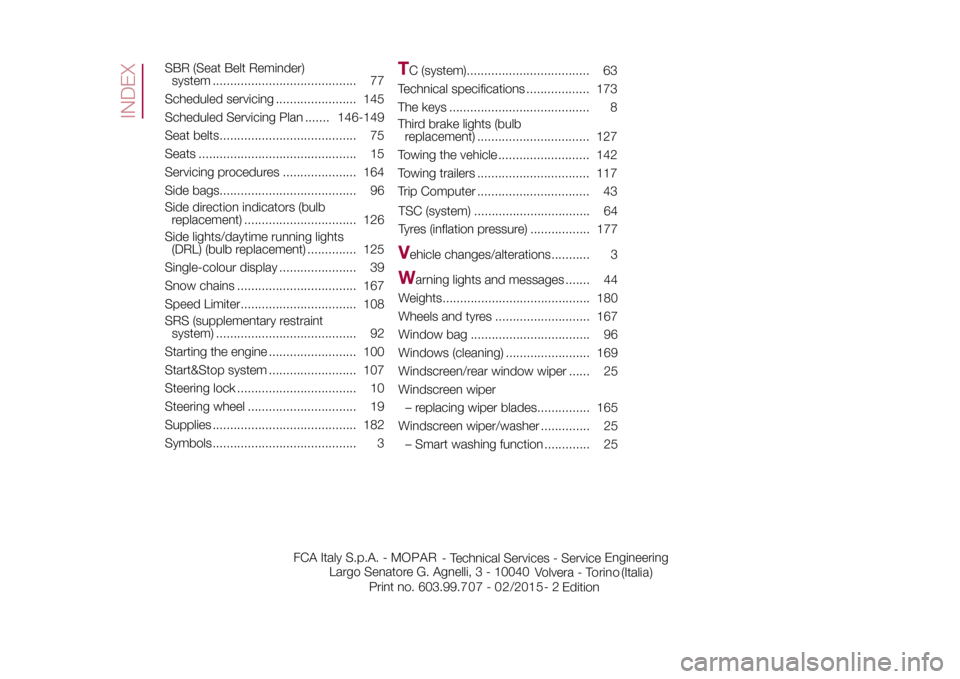
SBR (Seat Belt Reminder)
system ......................................... 77
Scheduled servicing ....................... 145
Scheduled Servicing Plan ....... 146-149
Seat belts....................................... 75
Seats ............................................. 15
Servicing procedures ..................... 164
Side bags....................................... 96
Side direction indicators (bulb
replacement) ................................ 126
Side lights/daytime running lights
(DRL) (bulb replacement) .............. 125
Single-colour display ...................... 39
Snow chains .................................. 167
Speed Limiter................................. 108
SRS (supplementary restraint
system) ........................................ 92
Starting the engine ......................... 100
Start&Stop system ......................... 107
Steering lock .................................. 10
Steering wheel ............................... 19
Supplies ......................................... 182
Symbols......................................... 3
TC (system)................................... 63
Technical specifications .................. 173
The keys ........................................ 8
Third brake lights (bulb
replacement) ................................ 127
Towing the vehicle .......................... 142
Towing trailers ................................ 117
Trip Computer ................................ 43
TSC (system) ................................. 64
Tyres (inflation pressure) ................. 177V
ehicle changes/alterations........... 3
W
arning lights and messages ....... 44
Weights.......................................... 180
Wheels and tyres ........................... 167
Window bag .................................. 96
Windows (cleaning) ........................ 169
Windscreen/rear window wiper ...... 25
Windscreen wiper
– replacing wiper blades............... 165
Windscreen wiper/washer .............. 25
– Smart washing function ............. 25
INDEX
FCA Italy S.p.A. - MOPAR
- Technical Services - ServiceEngineering
Largo Senatore G. Agnelli, 3 - 10040
Volvera - Torino (Italia)
Print no. 603.99.7 - 0 /201 5 -
Edition 07 2 2