display FIAT 500X 2015 2.G Manual PDF
[x] Cancel search | Manufacturer: FIAT, Model Year: 2015, Model line: 500X, Model: FIAT 500X 2015 2.GPages: 240, PDF Size: 10.72 MB
Page 220 of 240
SWITCHING THE SYSTEM
ON/OFFThe system is switched on/off by
pressing the
(ON/OFF) button/knob.
Turn the button/knob clockwise to
increase the radio volume or
anticlockwise to decrease it.
RADIO (TUNER) MODEThe system has the following tuners:
AM, FM and DAB (where provided).Radio mode selectionPress the RADIO button on the front
panel to activate radio mode.
The different tuning modes can be
selected with the corresponding button
on the display.
Up to 12 favourite radio stations can be
stored in each mode.Selecting a frequency
bandPress one of the buttons at the left of
the display to select the frequency
band: AM, FM and DAB (where
provided).Indications on displayAfter the desired radio station is
selected, the following information is
shown on the display:At the top: display of the stored radio
station (preset) list. If the current station
is in the list of presets, it will be
highlighted on the display.
In the middle: the name of the radio
station being listened to and the
buttons to select the previous or the
next radio station are displayed.
At the bottom: display of the following
buttons:
❒"browse": search available radio
stations
❒"tune" : manual radio station tuning
(not available for DAB radios);
❒"audio": access to the "Audio
settings" screen
❒
and
: permit searching for
the desired radio station.
Select previous/next
radio stationThe previous/next radio station can be
selected using the following methods:
turning the BROWSE ENTER
button/knob, briefly pressing the
or
button on the display, pressing of
the buttons behind the steering wheel.
Holding down the
or
buttons
on the display activates rapid scrolling
through the active frequency band.
Previous/next radio
station fast searchTo start the fast search press the
or
button on the display, or use the
corresponding steering wheel controls.
AM/FM radio station
tuningPress the "tune" button, then select the
first digit of the desired radio station.
Press the
button to delete a wrong
number (and enter the correct station
number).
After entering the last digit of the station
the system will tune to the selected
one.
The screen disappears automatically
after 5 seconds or manually by pressing
the OK button.
DAB radio (where
provided)Once DAB radio mode is selected, the
information on the current station is
displayed and the following functions.
The "browse" button is used to display:
❒the list of all DAB stations;
❒the list of all the favourites;
❒the list of stations filtered by
"Ensembles" (broadcast group).
Within each list, the "ABC" button
allows the user to skip to the desired
letter in the list.
218
MULTIMEDIA
15-12-2014 8:23 Pagina 218
Page 221 of 240
The "Refresh" button requests an
update of the DAB radio station list: the
update may last from a few seconds
to about two minutes.Pre-selection settingsPresets are available in all system
modes and are activated by touching
one of the preset buttons located in the
upper area of the display.
The system can store up to 12 radio
stations in each mode: 4 of these
are displayed in the upper area.
Press the "browse" button on the
display to show all the radio stations
stored in the selected frequency band.Audio SettingsThe Audio Settings menu, which can be
accessed by pressing the "audio"
button at the bottom of the display, can
be used to change the following
settings:
❒"Balance/Fader" (left/right and
front/rear sound balance adjustment);
❒"Equaliser" (where provided);
❒"Speed/Volume" (speed-dependent
automatic volume control);
❒"Surround Sound" (where provided);
❒"AUX Volume comp.";
❒"Loudness" (where provided);❒"Auto-On radio" (allows you to set
the automatic switching on of the radio
when the engine is started).
To exit the "audio" menu, press the
/Done button.
MEDIA MODE
Audio source selectionPress the "choose source" button to
select the desired audio source among
those available: AUX, USB / iPod, SD
(where provided) orBluetooth®.
Note: Applications used on portable
devices may be not compatible with the
Uconnect™system.Track change
(next/previous)Briefly press the
button or turn the
BROWSE ENTER button/knob
clockwise to play the next track.
Briefly press thebutton or turn the
BROWSE ENTER button/knob
anticlockwise to return to the beginning
of the selected track or to the beginning
of the previous track (if this has been
played for less than 8 seconds).
Fast forward/rewind
through tracksHold down the
button to fast
forward the selected track.
Hold down thebutton to fast
rewind the track.
Track selection
(browse)Use this function to scroll through and
select the tracks on the active device.
Within each list, the "ABC" button
allows the user to skip to the desired
letter in the list.
Press the "Browse" button to activate
this function on the source being
played.
Turn the BROWSE ENTER button/knob
to select the desired category and
then press the button/knob to confirm
the selection.
Press the "X" button to cancel the
function.
NOTE The "Browse" button may be
disabled for someApple® devices.
NOTE The "Browse" button does not
allow any operation on an AUX device.
NOTE Not allBluetooth® devices
enable you to scroll the information on
the tracks.
219
15-12-2014 8:23 Pagina 219
Page 222 of 240
Track information
displayPress the "Info" button to show the
information on the track being listened
to on the display.
Press the "X" button to exit the screen.ShufflePress the ">" button then the "Shuffle"
button to play the tracks on the USB
/ iPod, SD (where provided) orBlue-
tooth® in a random order.
Press the "Shuffle" button again to
deactivate the function.RepeatPress the ">" button then the "Repeat"
button to listen to the track again.
Press the "Repeat" button again to
deactivate the function.Bluetooth® SOURCE
Pairing a Bluetooth®
audio deviceProceed as follows:
❒activate theBluetooth® function on
the device;
❒Press the MEDIA button on the front
panel;
❒if the "Media" source is active, press
the "Source" button;
❒select theBluetooth® Media
source;
❒press the "Add Device" button;❒search forUconnect™on theBlue-
tooth® audio device (during the pairing
stage a screen is displayed showing the
progress of the operation);
❒when requested by the audio device,
enter the PIN code shown on the
system display or confirm on the device
the PIN displayed;
❒if the pairing procedure is completed
successfully, a screen is displayed.
Answer "Yes" to the question to pair the
Bluetooth® audio device as favourite
(the device will have priority over all
other devices to be paired subse-
quently). If "No" is selected, the priority
is determined according to the order of
connection. The last device connected
will have the highest priority;
❒an audio device can also be paired
by pressing the
PHONE button
on the front panel and by selecting
"Settings" or, from the "Settings" menu,
selecting "Phone/Bluetooth".
IMPORTANT If theBluetooth® con-
nection between mobile phone and
system is lost, consult the mobile
phone owner's handbook.
USB/iPod SOURCE
USB/iPod modeTo activate the USB/iPod mode insert
the corresponding device (USB or iPod)
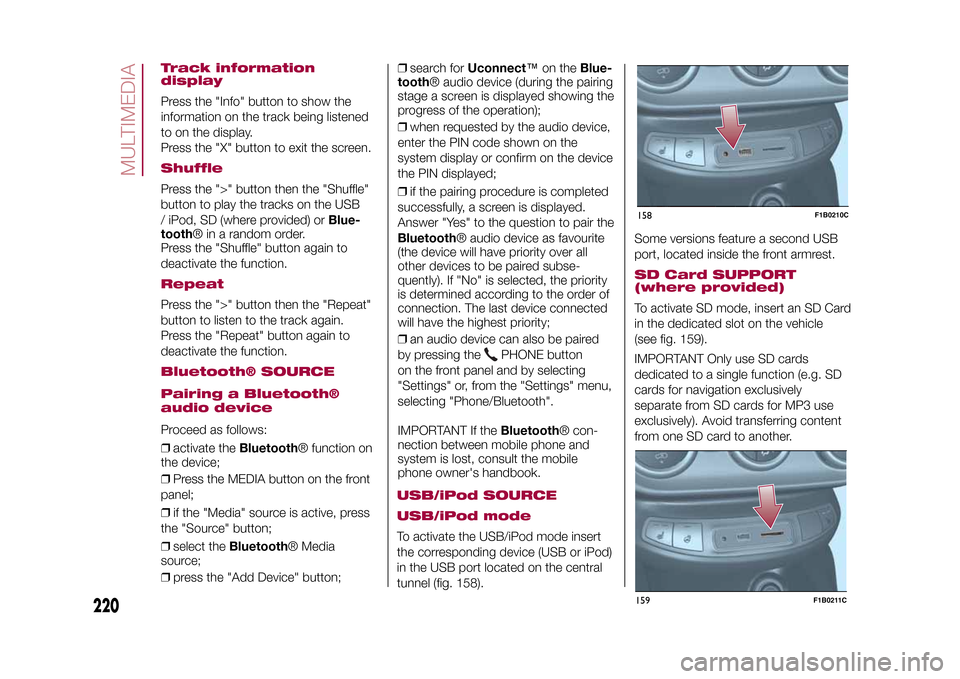
in the USB port located on the central
tunnel (fig. 158).Some versions feature a second USB
port, located inside the front armrest.
SD Card SUPPORT
(where provided)To activate SD mode, insert an SD Card
in the dedicated slot on the vehicle
(see fig. 159).
IMPORTANT Only use SD cards
dedicated to a single function (e.g. SD
cards for navigation exclusively
separate from SD cards for MP3 use
exclusively). Avoid transferring content
from one SD card to another.158
F1B0210C
220
MULTIMEDIA
15-12-2014 8:23 Pagina 220
159
F1B0211C
Page 223 of 240
AUX SUPPORTTo activate AUX mode, connect an
appropriate device to the AUX socket
on the vehicle.
Adjust the volume using the
button/
knob on the front panel or using the
volume adjustment control on the
connected device.
IMPORTANTThe functions of the device connected
with the AUX socket are directly
managed by the device itself: it is not
possible to change track/folder/playlist
or control playing start/end/pause
with the controls on the front panel or
on the steering wheel.
Do not leave the cable of your portable
player connected to the AUX socket
after disconnection, to avoid possible
hiss from the speakers.PHONE MODE
Activating the Phone
modePress the PHONE button on the front
panel to activate the Phone mode.
The buttons on the display can be used
to:
❒compose the phone number (using
the graphic keypad on the display);
❒display and call the contacts in the
mobile phone phonebook;❒display and call contacts from the
registers of recent calls;
❒pair up to 10 phones to make access
and connection easier and quicker;
❒transfer calls from the system to the
mobile phone and vice versa and
deactivate the microphone audio for
private conversations.
The mobile phone audio is transmitted
through the vehicles’s audio system;
the system automatically mutes the
radio when the Phone function is used.
Pairing a mobile phoneProceed as follows:
❒activate theBluetooth® function on
the mobile phone;
❒press the PHONE button on the front
panel;
❒if no phone is paired with the system
yet, the display shows a dedicated
screen;
❒select "Yes" to start the pairing
procedure, then search for the
Uconnect™device on the mobile
phone (if "No" is selected, the Phone
main screen is displayed);
❒when prompted by the mobile
phone, use its keypad to enter the PIN
code shown on the system display
or confirm on the mobile phone the PIN
displayed;❒from the "Phone" screen you can
always pair a mobile phone by pressing
the "Settings" button: press the "Add
Device" button and proceed as
described above;
❒during the pairing stage a screen is
displayed showing the progress of
the operation;
❒when the pairing procedure is
completed successfully, a screen is
displayed: answer "Yes" to the question
to pair the mobile phone as favourite
(the mobile phone will have priority over
all other mobile phones to be paired
subsequently). If no other devices are
paired, the system will consider the first
associated device as favourite.
221
15-12-2014 8:23 Pagina 221
Making a phone callProceed as follows:
❒selecting the
icon (mobile
phone phonebook);
❒selecting "Recent Calls";
❒selecting the
icon;
❒pressing the "Redial" button.
The operations described above can
only be accessed if supported by
the mobile phone in use.
SMS MESSAGE READERThe system can read the messages
received by the mobile phone.
To use this function the mobile phone
Page 224 of 240
must support the SMS exchange
function throughBluetooth®.
If this function is not supported by the
phone, the corresponding
button is
deactivated (greyed out).
When a text message is received, the
display will show a screen where the
options "Listen", "Call" or "Ignore" can
be selected.
The list of SMS messages received
from the mobile phone can be
accessed by pressing thebutton.
APPS MODEPress the APPS button on the front
panel to display the following settings:
❒Media/Radio mode
❒Clock
❒General information
❒Compass
❒TripMedia/Radio modePressing the button on the left side of
the display allows you to display the
"Media and Radio" information.ClockPressing the time at the middle of the
top of the display allows you to set the
time.
General informationThe general information about the
vehicle is displayed in the central part of
the display:
❒the outside temperature, expressed
in the selected unit of measurement;
❒mobile phone battery charge (when a
mobile is paired);
❒the
icon (if aBluetooth® device is
connected);
❒phone network signal intensity (if a
mobile phone is connected).
CompassPress the "Compass" button to display
the direction in which you are driving
and "Navigation mode" information.TripPress the "Trip" button to access the
screens containing the Trip Computer
information processed by the
instrument panel.SETTINGSPress the
button on the front panel
to display the "Settings" menu.
NOTE The menu items displayed can
vary according to the versions.
The menu includes the following items:
❒Display;
❒Units;
❒Voice commands;
❒Clock & Date;❒Safety & Driving Assistance;
❒Lights;
❒Doors & Locks;
❒Vehicle Shutdown Options;
❒Audio;
❒Phone/Bluetooth;
❒Sirius XM Setup (where provided);
❒Radio Setup;
❒System Information;
❒Restore Default Settings;
222
MULTIMEDIA
15-12-2014 8:23 Pagina 222
❒Clear Personal Data.Safety & Driving
Assistance(where provided)
This function can be used to carry out
the following adjustments:
❒"Rear View Camera" (where
provided): allows you to activate the
display of images from the camera
when reverse is engaged.
❒"Rear view camera delayed
deactivation" (where provided): allows
you to delay the disappearance of
images from the rear camera when
reverse is disengaged.
❒"Guidelines for load platform camera"
(where provided): allows you to
activate dynamic grids that indicate the
route of the vehicle.
Page 225 of 240
❒"Frnt Coll. Warning" (where provided):
allows you to select the Full Brake
Control system operation mode. The
options available are:
- "Off": the system is deactivated;
- "Only warning": the system intervenes
only by providing the driver with a
warning (where provided);
- "Only active braking": the system
intervenes by activating automatic
braking (where provided);
- "Warning + active braking": the
system intervenes by providing the
driver with a warning and activating
automatic braking.
❒"Forward Collision System Sensitivity"
(where provided): allows you to select
the intervention readiness for the
system according to the distance of the
obstacle. The options available are
"Near", "Med", "Far".
❒"Park Assist" (where provided): allows
you to select the type of warning
provided by the Park Assist system.
The available options are:
- "Sound Only": the system warns the
driver that an obstacle is present
through acoustic warnings only, via the
speakers in the vehicle;
- "Sound & Display": the system warns
the driver that an obstacle is present
through acoustic (via the speakers
in the vehicle) and visual (on the
instrument panel) warnings.❒"Front Park Assist vol." (where
provided): allows you to select the
volume of the acoustic warnings for the
front Park Assist system;
❒"Rear Park Assist vol." (where
provided): allows you to select the
volume of the acoustic warnings for the
rear Park Assist system,
❒"Lane Assist Warning" (where
provided): allows you to select the Lane
Assist system intervention readiness;
❒"Lane Assist Strength" (where
provided): allows you to select the force
to apply to the steering wheel to put
the vehicle back in the lane through the
electric steering system, in the event
of Lane Assist system intervention.
❒"Side Assist" (where provided): allows
you to select the type of warning from
the Side Sensor system. The options
available are:
- "Off": the system is off;
- "Sound Only": the system warns the
driver that an obstacle is present
through acoustic warnings only, via the
speakers in the vehicle;
- "Sound & Display": the system warns
the driver that an obstacle is present
through acoustic (via the speakers
in the vehicle) and visual (on the
instrument panel) warnings.❒"Side Assist volume" (where
provided): allows you to select the
volume of the acoustic warnings from
the Side Sensor system.
❒"Rain sensor" (where provided):
allows you to activate/deactivate the
automatic switching on of the wipers in
the case of rain.
223
15-12-2014 8:23 Pagina 223
❒"Brakes" (where provided): this
function can be used to select the
following submenus:
- "Brake Service" (where provided):
allows you to activate the procedure for
carrying out braking system servicing;
- "Electric Park Brake" (where
provided): allows you to activate/
deactivate the electric park brake
engagement.
Page 226 of 240
❒"Auto high beams" (where provided):
allows you to deactivate the main
beam headlights when approaching a
vehicle coming from the opposite
direction;
❒"Flash Lights w/Lock" (where
provided): permits the activation of light
flashing when the doors are locked.
MAIN NAVIGATION MENUIMPORTANT Navigation maps are
pre-loaded on the system, therefore no
external support is needed.
To activate the main navigation menu,
press the NAV button on the front
panel, then press one of the following
buttons:
❒"Where to?": it searches or navigates
to the destination;
❒"View map": it displays the map;
❒"Info": it displays all info about
navigation;
❒"Emergency": it searches for
Hospitals or Police Stations located
near the destination. It is also possible
to view your current position on the
display and save, in "Favourites", the
location of the Hospitals or Police
Stations.
VIEW MAPPress the "View Map" button in the
main Navigation Menu to display the
map relative to the current position.
When the display shows the map, the
following options are available:
❒"Menu": press this button to return
to the main Navigation Menu;
❒"+/–": press the "+" or " –" button to
change the dimension of the map (it
is not possible to zoom in on minor
roads);
❒"Time of Arrival/Time to
Destination/Distance"(only during
navigation): press this button at the top
right of the display to view one of the
following options: "Time of Arrival",
"Time to Destination", "Distance".
❒"Turn List"(only during navigation):
press the list of turns along the route
at the middle of the top of the display.
Select a turn through the following
options: "Show on Map" or "Avoid
Street".
❒"Options": press this button to
display the map display options.
224
MULTIMEDIA
15-12-2014 8:23 Pagina 224
Lights (where provided)This function can be used to carry out
the following adjustments:
❒"Interior lights" (where provided):
allows you to select the interior light
brightness;
❒"Headlamp sensor" (where provided):
adjustment of headlamp activation
sensitivity;
❒"Follow me" (where provided):
permits the setting of the headlamp
deactivation delay after switching off
the engine;
❒"Courtesy lights": activation/
deactivation of courtesy lights (where
provided);
❒"Day lights": activation/deactivation of
the daytime running lights (DRLs)
(where provided);
Page 236 of 240
INDEX
3" Uconnect Radio ........................ 1935" Uconnect Radio LIVE ................ 200
5" Uconnect Radio Nav LIVE.......... 2006.5" Uconnect Radio Nav .............. 214A
BS (system) ................................ 62
Active safety systems ..................... 62
Airbags
– Front airbags ............................. 92
– Side bags .................................. 96
Airbag (SRS supplementary
restraint system) ........................... 92
Alarm ............................................. 11
Automatic dual zone climate
control system ............................. 29
Automatic light control (AUTO
function) ....................................... 21
Automatic transmission gear
lever unlocking ............................. 140
Automatic transmission .................. 10
B
attery .......................................... 161
– advice for extending its life ........ 161
– replacement .............................. 161
Battery recharging.......................... 163
Blind Spot Assist (system) .............. 66
Bodywork (cleaning and
maintenance) ............................... 168
Bonnet ........................................... 34
Boot (extension) ............................. 17Boot............................................... 35
Brake lights (bulb replacement) ...... 126
Brakes
– brake fluid level.......................... 160
Bulbs
– types of bulbs ........................... 123
C
arrying children safely ................. 81
Changing a wheel .......................... 133
Checking levels .............................. 156
Child protection systems ................ 81
Child safety device ......................... 14
Climate control system ................... 27
CO2 emissions............................... 188
Colour display ................................ 40
Control buttons .............................. 41
Control panel and on-board
instruments .................................. 39
D
aytime running lights (DRL) ......... 22
Dead Lock (device) ........................ 14
Dimensions .................................... 178
Dipped beam headlights ................ 22
Dipped/main beam headlights
(bulb replacement) ....................... 125
Direction indicators ........................ 23
Display ........................................... 41
Doors ............................................. 12
Driving assistance systems ............ 66
Driving mode selector .................... 110
DST (system).................................. 64DTC (system) ................................. 62
E
lectrically adjustable front
seats............................................ 16
Electric Parking Brake (EPB)........... 101
Electric sun roof ............................. 32
Electric windows ............................ 31
Electronic Cruise Control ................ 109
Emergency starting ........................ 138
Engine compartment...................... 156
Engine compartment (washing) ...... 169
Engine............................................ 174
– engine coolant level ................... 160
– marking ..................................... 173
Engine oil
– consumption ............................. 160
– level check ................................ 160
EPB (Electric Parking Brake)........... 101
ERM (system) ................................. 64
ESC (system) ................................. 62
Exterior lights ................................. 21
Fiat Code (system) ........................ 11
Fix&Go automatic kit ...................... 136
Fluids and lubricants ...................... 184
Fog lights (bulb replacement) ......... 126
Fog lights ....................................... 22
Front roof light ................................ 24
Front seat electric heating .............. 16
Front seats (manual
adjustments) ................................ 15
INDEX
5
Page 238 of 240
SBR (Seat Belt Reminder)
system ......................................... 77
Scheduled servicing ....................... 145
Scheduled Servicing Plan ....... 146-149
Seat belts....................................... 75
Seats ............................................. 15
Servicing procedures ..................... 164
Side bags....................................... 96
Side direction indicators (bulb
replacement) ................................ 126
Side lights/daytime running lights
(DRL) (bulb replacement) .............. 125
Single-colour display ...................... 39
Snow chains .................................. 167
Speed Limiter................................. 108
SRS (supplementary restraint
system) ........................................ 92
Starting the engine ......................... 100
Start&Stop system ......................... 107
Steering lock .................................. 10
Steering wheel ............................... 19
Supplies ......................................... 182
Symbols......................................... 3
TC (system)................................... 63
Technical specifications .................. 173
The keys ........................................ 8
Third brake lights (bulb
replacement) ................................ 127
Towing the vehicle .......................... 142
Towing trailers ................................ 117
Trip Computer ................................ 43
TSC (system) ................................. 64
Tyres (inflation pressure) ................. 177V
ehicle changes/alterations........... 3
W
arning lights and messages ....... 44
Weights.......................................... 180
Wheels and tyres ........................... 167
Window bag .................................. 96
Windows (cleaning) ........................ 169
Windscreen/rear window wiper ...... 25
Windscreen wiper
– replacing wiper blades............... 165
Windscreen wiper/washer .............. 25
– Smart washing function ............. 25
INDEX
FCA Italy S.p.A. - MOPAR
- Technical Services - ServiceEngineering
Largo Senatore G. Agnelli, 3 - 10040
Volvera - Torino (Italia)
Print no. 603.99.7 - 0 /201 5 -
Edition 07 2 2