elect FIAT 500X 2016 2.G Owners Manual
[x] Cancel search | Manufacturer: FIAT, Model Year: 2016, Model line: 500X, Model: FIAT 500X 2016 2.GPages: 587, PDF Size: 5.18 MB
Page 496 of 587
Summer tires do not contain the all season designation or
mountain/snowflake symbol on the tire sidewall. Use
Summer tires only in sets of four; failure to do so may
adversely affect the safety and handling of your vehicle.
WARNING!
Do not use Summer tires in snow/ice conditions. You
could lose vehicle control, resulting in severe injury
or death. Driving too fast for conditions also creates
the possibility of loss of vehicle control.
Snow Tires
Some areas of the country require the use of snow tires
during the Winter. Snow tires can be identified by a
“mountain/snowflake” symbol on the tire sidewall.If you need snow tires, select tires
equivalent in size and type to the origi-
nal equipment tires. Use snow tires
only in sets of four; failure to do so
may adversely affect the safety and
handling of your vehicle.
Snow tires generally have lower speed ratings than what
was originally equipped with your vehicle and should
not be operated at sustained speeds over 75 mph
(120 km/h). For speeds above 75 mph (120 km/h) refer to
original equipment or an authorized tire dealer for
recommended safe operating speeds, loading and cold
tire inflation pressures.
494 MAINTAINING AND CARING FOR YOUR VEHICLE
Page 504 of 587
CAUTION!
Proper operation of four-wheel drive vehicles de-
pends on tires of equal size, type and circumference
on each wheel. Any difference in tire size can cause
(Continued)
CAUTION!(Continued)
damage to the power transfer unit. Tire rotation
schedule should be followed to balance tire wear.
STORING THE VEHICLE
If the vehicle should remain stationary for more than a
month, observe the following precautions:
•Park your vehicle in a covered, dry and possibly airy
location the windows open slightly;
• Check that the Electric Park Brake is not engaged.
• Disconnect the negative (-) terminal from the battery
post and be sure that the battery is fully charged.
During storage check battery charge quarterly.
• If you do not disconnect the battery from the electrical
system, check the battery charge every thirty days.
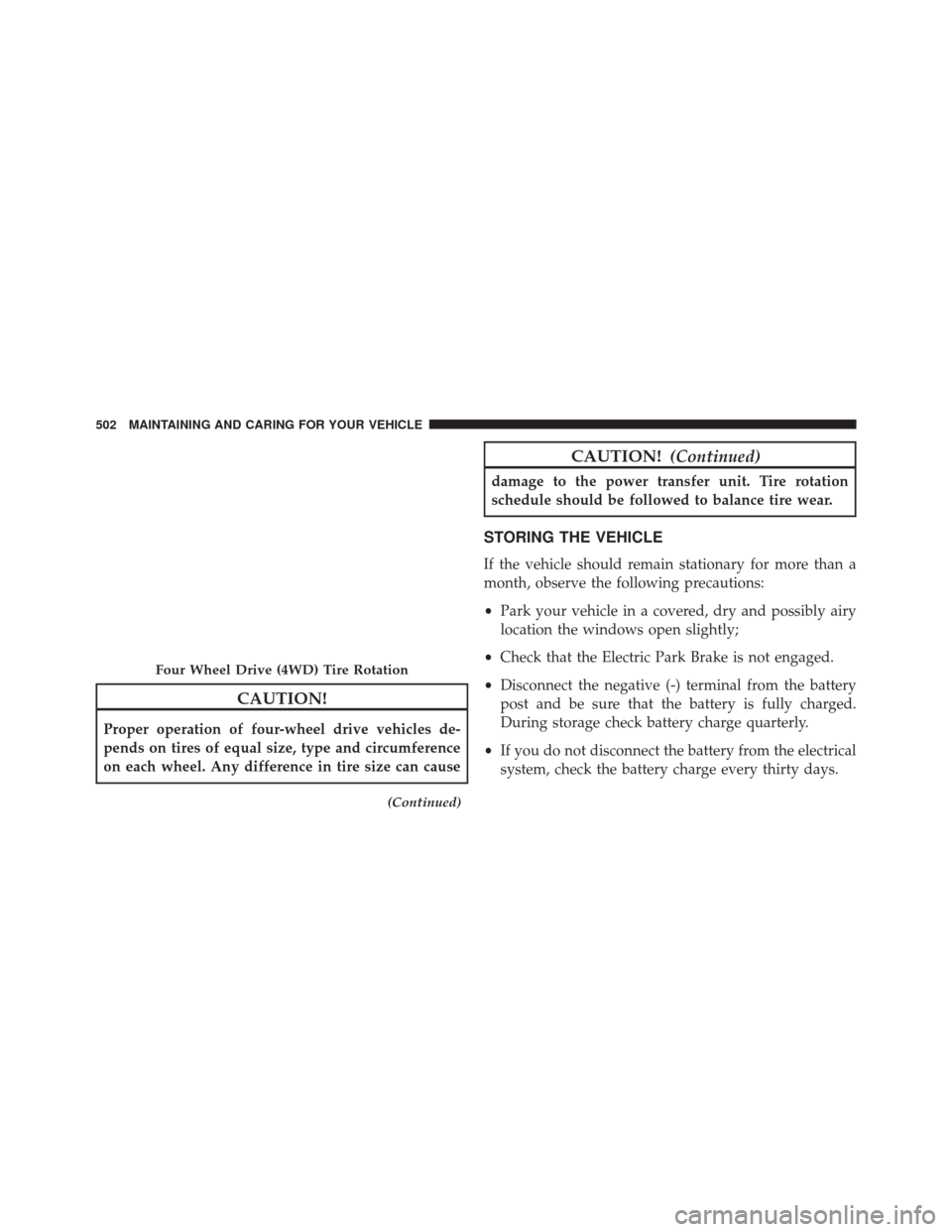
Four Wheel Drive (4WD) Tire Rotation
502 MAINTAINING AND CARING FOR YOUR VEHICLE
Page 512 of 587
FLUIDS, LUBRICANTS, AND GENUINE PARTS
Engine
ComponentFluid, Lubricant, or Genuine Part
Engine Coolant We recommend you use MOPAR Antifreeze/Coolant 10 Year/150,000 Mile
Formula OAT (Organic Additive Technology) or equivalent meeting the
requirements of FCA Material Standard MS.90032.
Engine Oil – 1.4L Turbo Engine We recommend you use SAE 5W-40 API Certified Synthetic Engine Oil, meeting the requirements of FCA US Material Standard MS-12991. Refer to
your engine oil filler cap for correct SAE grade.
Engine Oil – 2.4L Engine We recommend you use SAE 0W-20 API Certified Engine Oil, meeting the
requirements of FCA US Material Standard MS-6395. Refer to your engine oil
filler cap for correct SAE grade.
Engine Oil Filter We recommend you use a MOPAR Engine Oil Filter.
Spark Plugs We recommend you use MOPAR Spark Plugs.
Fuel Selection – 1.4L Turbo Engine91 Octane Recommended, 87 Acceptable, 0-15% Ethanol.
Fuel Selection – 2.4L Engine 87 Octane, 0-15% Ethanol.
510 TECHNICAL DATA
Page 518 of 587
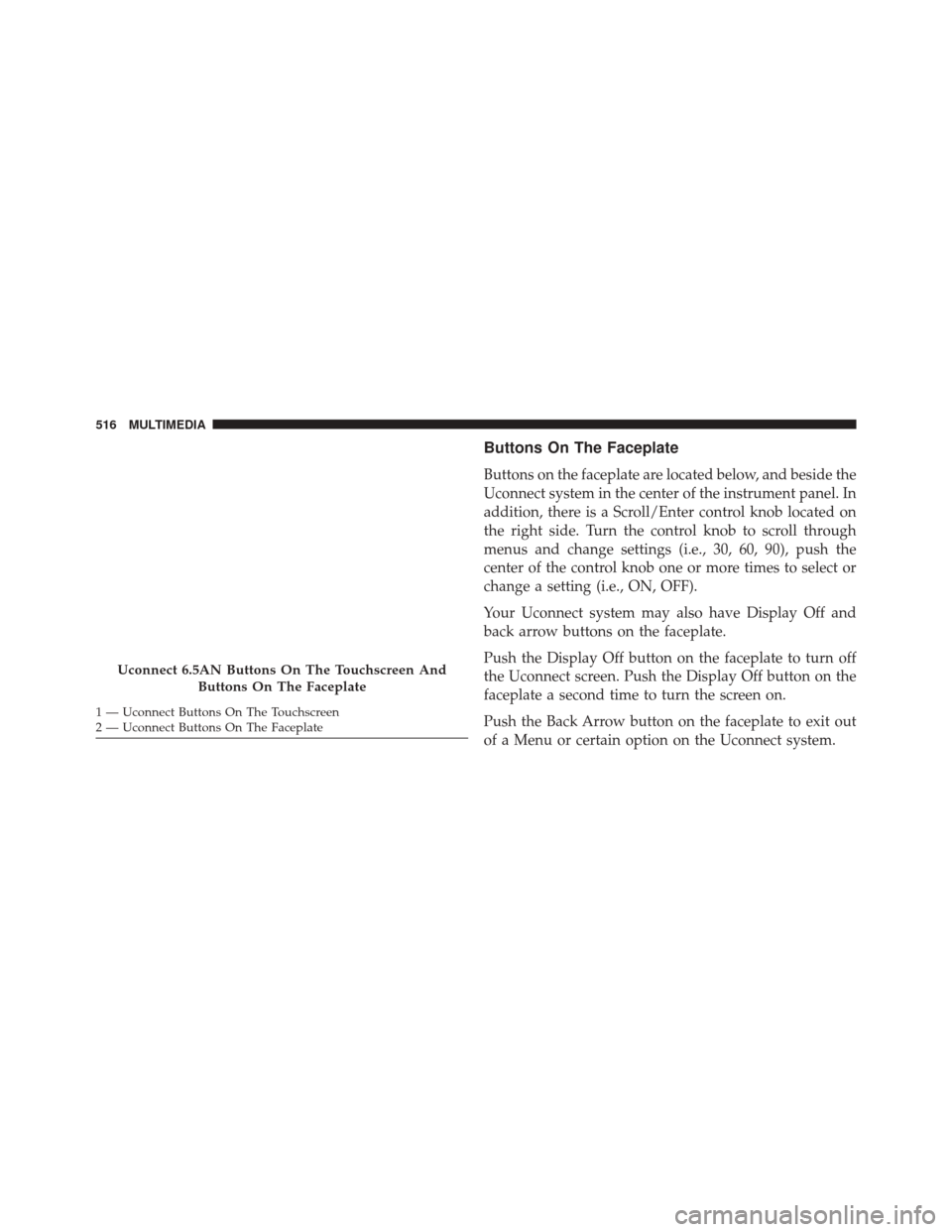
Buttons On The Faceplate
Buttons on the faceplate are located below, and beside the
Uconnect system in the center of the instrument panel. In
addition, there is a Scroll/Enter control knob located on
the right side. Turn the control knob to scroll through
menus and change settings (i.e., 30, 60, 90), push the
center of the control knob one or more times to select or
change a setting (i.e., ON, OFF).
Your Uconnect system may also have Display Off and
back arrow buttons on the faceplate.
Push the Display Off button on the faceplate to turn off
the Uconnect screen. Push the Display Off button on the
faceplate a second time to turn the screen on.
Push the Back Arrow button on the faceplate to exit out
of a Menu or certain option on the Uconnect system.
Uconnect 6.5AN Buttons On The Touchscreen AndButtons On The Faceplate
1 — Uconnect Buttons On The Touchscreen
2 — Uconnect Buttons On The Faceplate 516 MULTIMEDIA
Page 519 of 587
Buttons On The Touchscreen
Buttons on the touchscreen are accessible on the
Uconnect touchscreen.
Customer Programmable Features — Uconnect
5.0 Settings
Push the Settingsbutton on the faceplate, to display
the settings menu screen. In this mode the Uconnect
system allows you to access programmable features
that may be equipped such as Display, Units, Voice,
Clock & Date, Safety/Assistance, Lights, Doors &
Locks, Engine Off Options, Audio, Phone/Bluetooth,
Radio Setup, Restore Settings and Clear Personal Data.
NOTE: Only one touchscreen area may be selected at a
time.
When making a selection, press the button on the touch-
screen to enter the desired mode. Once in the desired
mode, press and release the preferred setting and make your selection. Once the setting is complete, either press
the Back Arrow button on the touchscreen or the Back
button on the faceplate to return to the previous menu or
press the “X” button on the touchscreen to close out of
the settings screen. Pressing the Up or Down Arrow
buttons on the right side of the screen will allow you to
toggle up or down through the available settings.
NOTE:
All settings should be changed with the ignition
in the “ AVV/START ” position.
Display
After pressing the “Display” button on the touchscreen
the following settings will be available.
• Display Mode
When in this display you may select the “Auto” or
“Manual” display settings. To change Mode status, press
and release the “Auto” or “Manual” button on the
touchscreen.
11
MULTIMEDIA 517
Page 520 of 587
•Brightness
When in this display, you may select the overall screen
brightness with the headlights on or off. Adjust the
brightness with the “+” and “–” setting buttons on the
touchscreen or by selecting any point on the scale be-
tween the “+” and “–” buttons on the touchscreen.
• Language
When in this display, you may select one of multiple
languages (Deutsche/English/Español/Français/
Italiano/Nederlands/Polski/Português/Türkçe) for all
display nomenclature, including the trip functions and
the navigation system (if equipped). Press the “Lan-
guage” button on the touchscreen, then press the desired
language button on the touchscreen.
• Touchscreen Beep
When in this display, you may turn on or shut off the
sound heard when a touchscreen button is pressed. Press the “Touchscreen Beep” button on the touchscreen until a
check-mark appears next to the setting, showing that
setting has been selected.
Units
After pressing the “Units” button on the touchscreen you
may select each unit of measure independently displayed
in the Electronic Vehicle Information System (EVIC) or
Driver Information Display (DID). The following select-
able units of measure are listed below:
•
US
Changes the EVIC/DID to US units of measure.
• Metric
Changes the EVIC/DID to Metric units of measure.
• Custom
• Fuel Consumption
Select from: “MPG” (US), “MPG” (UK), “L/100 km”
or “km/L.”
518 MULTIMEDIA
Page 521 of 587
•Temperature
Select from: “°C,” or “°F.”
• Pressure
Select from: “psi,” “kPa,” or “bar.”
Voice
After pressing the “Voice” button on the touchscreen the
following settings will be available:
• Voice Response Length
When in this display, you may change the Voice Re-
sponse Length settings. To change the Voice Response
Length, press the “Voice Response Length” button on the
touchscreen and select from “Brief” or “Detailed.”
• Show Command List
When in this display, you may change the Show Com-
mand List settings. To change the Show Command List settings, press the “Show Command List” button on the
touchscreen and select from “Always,” “With Help” or
“Never.”
Clock & Date
After pressing the “Clock & Date” button on the touch-
screen the following settings will be available:
•
Set Time and Format
When in this display, you may set the time and format
manually. Press the “Set Time and Format” button then
choose from a 12 hour or 24 hour format. Press the
corresponding arrow above and below the current time
to adjust, then select “AM” or “PM.”
• Show Time Status
When in this display, you may turn on or shut off the
digital clock in the status bar. To change the Show Time
Status setting press the “Show Time Status” button on the
touchscreen and select from “ON” or “OFF.”
11
MULTIMEDIA 519
Page 522 of 587
•Set Date
When in this display, you may set the date manually.
Press the “Set Date” button on the touchscreen then press
the corresponding arrows above and below the current
date to adjust.
• Sync Time — If Equipped
When in this display, you may sync the time with GPS.
Press the “Sync Time” button on the touchscreen and
select from “ON” or “OFF.”
Safety/Assistance
After pressing the “Safety/Assistance” button on the
touchscreen the following settings will be available:
• ParkView Backup Camera Delay — If Equipped
When the vehicle is shifted out of REVERSE (with camera
delay turned OFF), the rear camera mode is exited and
the navigation or audio screen appears again. When the vehicle is shifted out of REVERSE (with camera delay
turned ON), the rear view image with dynamic grid lines
will be displayed for up to 10 seconds after shifting out of
“REVERSE” unless the forward vehicle speed exceeds
8 mph (12 km/h), the transmission is shifted into PARK
or the ignition is switched to the OFF position. To set the
ParkView Backup Camera Delay press the “+ MORE”
button on the faceplate, the “settings” button on the
touchscreen, then the “Safety & Driving Assistance”
button on the touchscreen. Press the “Parkview Backup
camera Delay” button on the touchscreen to turn the
ParkView Delay ON or OFF.
•
ParkView Backup Camera Active Guide Lines — If
Equipped
When this feature is enabled, active (dynamic) grid lines
are overlaid on the Rear Backup Camera image to
illustrate the width of the vehicle and its projected back
up path based on the steering wheel position. A dashed
520 MULTIMEDIA
Page 523 of 587
center line overlay indicates the center of the vehicle to
assist with parking or aligning to a hitch/receiver.
•ParkView Backup Camera Fixed Guide Lines — If
Equipped
When this feature is enabled, fixed (static) grid lines are
overlaid on the Rear Backup Camera image to illustrate
the width of the vehicle.
• Forward Collision Warning-Plus (FCW+) — If
Equipped
The Front Collision Warning (FCW+) feature can be can
be set to Far, or set to Near. The default status of FCW+
is the Far setting. This means the system will warn you of
a possible collision with the vehicle in front of you when
you are farther away. This gives you the most reaction
time. To change the setting for a more dynamic driving
experience, select the Near setting. This warns you of a possible collision when you are much closer to the
vehicle in front of you. To change the FCW+ status, press
and release the “Near” or “Far” button.
•
Forward Collision Warning-Plus (FCW+) Active
Braking — If Equipped
The FCW+ system includes Advanced Brake Assist
(ABA). When this feature is selected, it will apply the
brakes to slow your vehicle in case of potential forward
collision. The ABA applies additional brake pressure
when the driver requests insufficient brake pressure to
avoid a potential frontal collision. The ABA system
becomes active at 5 mph (8 km/h).
For further information, refer to “Forward Collision
Warning-Plus (FCW+) With Mitigation” in “Safety.”
• ParkSense — If Equipped
The ParkSense system will scan for objects behind the
vehicle when the transmission shift lever/gear selector is
11
MULTIMEDIA 521
Page 524 of 587
in REVERSE and the vehicle speed is less than 11 mph
(18 km/h). It will provide an alert (audible and/or
visual) to indicate the proximity to other objects. The
system can be enabled with Sound Only, or Sound and
Display. To change the ParkSense status, press and re-
lease the “Sound Only” or “Sounds and Display” button.
Refer to “ParkSense” in “Starting And Operating” for
system function and operating information.
•Front ParkSense Volume — If Equipped
Front Park Assist chime volume settings can be selected
from the EVIC or Uconnect System (if equipped). The
chime volume settings include “LOW,” “MEDIUM,” and
“HIGH.” The factory default volume setting is MEDIUM.
• Rear ParkSense Volume — If Equipped
Rear Park Assist chime volume settings can be selected
from the EVIC or Uconnect System (if equipped). The
chime volume settings include “LOW,” “MEDIUM,” and
“HIGH.” The factory default volume setting is MEDIUM. •
Rear ParkSense Braking Assist — If Equipped
When this feature is selected, the park assist system will
detect objects located behind the vehicle and utilize
autonomous braking to stop the vehicle.
Refer to “ParkSense Rear Park Assist” in “Starting and
Operating” for system function and operating informa-
tion.
• LaneSense Warning — If Equipped
When this feature is selected, it sets the distance at which
the steering wheel will provide feedback for potential
lane departures. The LDW sensitivity can be set to
provide either an “early,” “medium,” or “late” warning
zone start point.
For further information, refer to “LaneSense Warning
(LDW)” in “Starting and Operating.”
522 MULTIMEDIA