ESP FIAT 500X 2022 User Guide
[x] Cancel search | Manufacturer: FIAT, Model Year: 2022, Model line: 500X, Model: FIAT 500X 2022Pages: 312, PDF Size: 13.26 MB
Page 90 of 312

88STARTING AND OPERATING
DRIVE (D)
This range should be used for most city and
highway driving. It provides the smoothest upshifts
and downshifts, and the best fuel economy. The
transmission automatically upshifts through all
forward gears.
When frequent transmission shifting occurs (such
as when operating the vehicle under heavy loading
conditions, in hilly terrain, traveling into strong
head winds or while towing a heavy trailer), use the
AutoStick shift control to select a lower gear. Under
these conditions, using a lower gear will improve performance and extend transmission life by
reducing excessive shifting and heat buildup.
If the transmission temperature exceeds normal
operating limits, the transmission controller may
modify the transmission shift schedule, reduce
engine torque, and/or expand the range of torque
converter clutch engagement. This is done to
prevent transmission damage due to overheating.
If the transmission becomes extremely hot, the
Transmission Temperature Warning Light may
illuminate and the transmission may operate
differently until the transmission cools down.
During cold temperatures, transmission operation
may be modified depending on engine and
transmission temperature as well as vehicle
speed. This feature improves warm up time of the
engine and transmission to achieve maximum
efficiency. Engagement of the torque converter
clutch, and shifts into EIGHTH or NINTH gear, are
inhibited until the transmission fluid is warm.
Normal operation will resume once the
transmission temperature has risen to a suitable
level.
AutoStick
AutoStick is a driver-interactive transmission
feature providing manual shift control, giving you
more control of the vehicle. AutoStick allows you to
maximize engine braking, eliminate undesirable
upshifts and downshifts, and improve overall
vehicle performance. This system can also provide you with more control during passing, city driving,
cold slippery conditions, mountain driving, trailer
towing and many other situations.
Operation
When the gear selector is in the AutoStick position
(beside the DRIVE position), it can be moved
forward and rearward. This allows the driver to
manually select the transmission gear being used.
Moving the gear selector forward (-) triggers a
downshift, and rearward (+) an upshift. The current
gear is displayed in the instrument cluster.
NOTE:In AutoStick mode, the transmission will only shift
up or down when the driver moves the gear
selector rearward (+) or forward (-), except as
described below.
The transmission will automatically upshift
lower and higher when necessary to prevent
engine overspeed.
The transmission will automatically downshift
as the vehicle slows (to prevent engine lugging)
and will display the current gear.
The transmission will automatically downshift to
FIRST or SECOND gear (depending on model)
when coming to a stop. After a stop, the driver
should manually upshift (+) the transmission as
the vehicle is accelerated.
WARNING!
Do not coast in NEUTRAL and never turn off the
ignition to coast down a hill. These are unsafe
practices that limit your response to changing
traffic or road conditions. You might lose control
of the vehicle and have a collision.
CAUTION!
Towing the vehicle, coasting, or driving for any
other reason with the transmission in NEUTRAL
can cause severe transmission damage.
For Recreational Towing Ú
page 119.
For Towing A Disabled Vehicle Ú page 232.
22_FD_OM_EN_USC_t.book Page 88
Page 92 of 312
90STARTING AND OPERATING
ALL-WHEEL DRIVE (AWD) — IF EQUIPPED
This feature provides on-demand All-Wheel Drive
(AWD). The system is automatic with no driver
inputs or additional driving skills required. Under
normal driving conditions, the front wheels provide
most of the traction. If the front wheels begin to
lose traction, power is shifted automatically to the
rear wheels. The greater the front wheel traction
loss, the greater the power transfer to the rear
wheels.
Additionally, on dry pavement under heavy throttle
input (where one may have no wheel spin), torque
will be sent to the rear in a preemptive effort to
improve vehicle launch and performance
characteristics.
DYNAMIC SELECTOR — IF EQUIPPED
The Dynamic Selector combines the capabilities of
the vehicle control systems, along with driver input,
to provide the best performance in all driving
conditions.
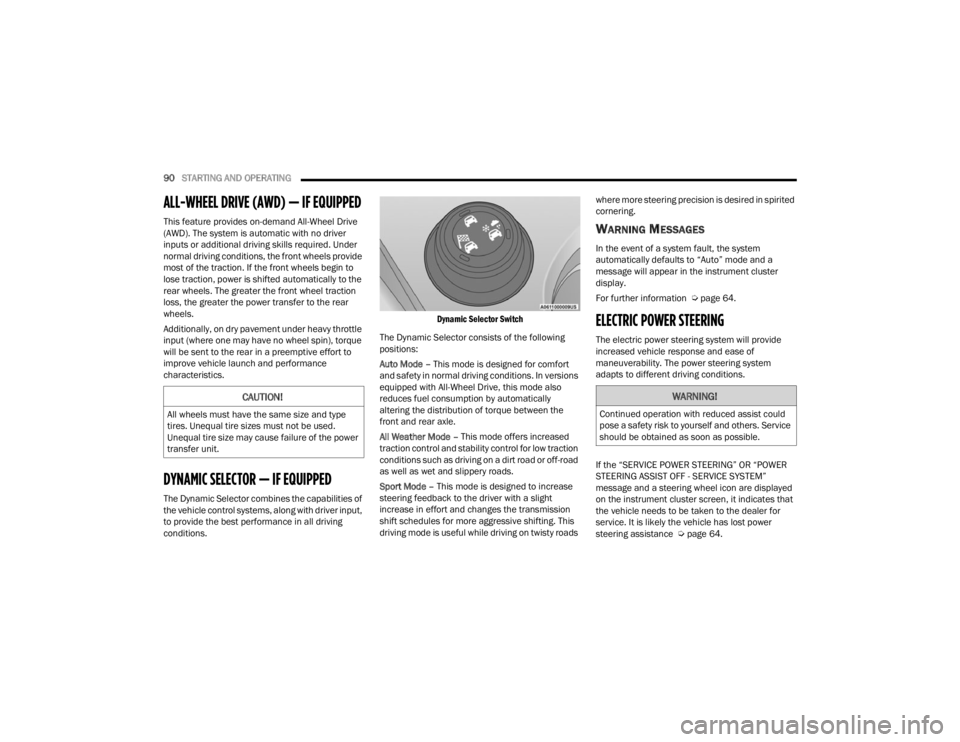
Dynamic Selector Switch
The Dynamic Selector consists of the following
positions:
Auto Mode – This mode is designed for comfort
and safety in normal driving conditions. In versions
equipped with All-Wheel Drive, this mode also
reduces fuel consumption by automatically
altering the distribution of torque between the
front and rear axle.
All Weather Mode – This mode offers increased
traction control and stability control for low traction
conditions such as driving on a dirt road or off-road
as well as wet and slippery roads.
Sport Mode – This mode is designed to increase
steering feedback to the driver with a slight
increase in effort and changes the transmission
shift schedules for more aggressive shifting. This
driving mode is useful while driving on twisty roads where more steering precision is desired in spirited
cornering.
WARNING MESSAGES
In the event of a system fault, the system
automatically defaults to “Auto” mode and a
message will appear in the instrument cluster
display.
For further information Ú
page 64.
ELECTRIC POWER STEERING
The electric power steering system will provide
increased vehicle response and ease of
maneuverability. The power steering system
adapts to different driving conditions.
If the “SERVICE POWER STEERING” OR “POWER
STEERING ASSIST OFF - SERVICE SYSTEM”
message and a steering wheel icon are displayed
on the instrument cluster screen, it indicates that
the vehicle needs to be taken to the dealer for
service. It is likely the vehicle has lost power
steering assistance Úpage 64.
CAUTION!
All wheels must have the same size and type
tires. Unequal tire sizes must not be used.
Unequal tire size may cause failure of the power
transfer unit.
WARNING!
Continued operation with reduced assist could
pose a safety risk to yourself and others. Service
should be obtained as soon as possible.
22_FD_OM_EN_USC_t.book Page 90
Page 93 of 312

STARTING AND OPERATING91
NOTE:
Even if the power steering assistance is no
longer operational, it is still possible to steer the
vehicle. Under these conditions there will be a
substantial increase in steering effort, espe -
cially at low speeds and during parking maneu -
vers.
If the condition persists, see an authorized
dealer for service.
STOP/START SYSTEM
The Stop/Start function was developed to reduce
fuel consumption. The system will stop the engine
automatically during a vehicle stop if the required
conditions are met. Releasing the brake pedal or
pressing the accelerator pedal will automatically
restart the engine.
AUTOMATIC MODE
The Stop/Start feature is enabled after every
normal customer engine start. At that time, the
system will go into STOP/START READY and if all
other conditions are met, can go into a STOP/
START AUTOSTOP ACTIVE “Autostop” mode. To Activate The Autostop Mode, The Following
Must Occur:
The system must be in STOP/START READY
state. A STOP/START READY message will be
displayed in the instrument cluster display
within the Stop/Start section Ú
page 64.
The vehicle must be completely stopped.
The gear selector must be in a forward gear and
the brake pedal pressed.
The engine will shut down, the tachometer will
move to the zero position and the Stop/Start
telltale will illuminate indicating you are in
Autostop. Customer settings will be maintained
upon return to an engine running condition.
POSSIBLE REASONS THE ENGINE DOES
N
OT AUTOSTOP
Prior to engine shut down, the system will check
many safety and comfort conditions to see if they
are fulfilled. Detailed information about the
operation of the Stop/Start system may be viewed
in the instrument cluster display Stop/Start
Screen. In the following situations the engine will
not stop:
Driver’s seat belt is not buckled.
Driver’s door is not closed.
Battery temperature is too warm or cold.
Battery charge is low.
The vehicle is on a steep grade.
Cabin heating or cooling is in process and an
acceptable cabin temperature has not been
achieved.
HVAC is set to full defrost mode at a high blower
speed.
HVAC set to MAX A/C.
Engine has not reached normal operating
temperature.
The transmission is not in a forward gear.
Hood is open.
Vehicle is in 4WD Low transfer case mode (if
equipped with 4WD).
Brake pedal is not pressed with sufficient pres -
sure with vehicle in DRIVE position.
Accelerator pedal input.
Engine temp is too high.
5 mph (8 km/h) threshold not achieved from
previous AUTOSTOP.
Steering angle is beyond threshold.
It may be possible for the vehicle to be driven
several times without the Stop/Start system going
into a STOP/START READY state under more
extreme conditions of the items listed above.
4
22_FD_OM_EN_USC_t.book Page 91
Page 97 of 312
STARTING AND OPERATING95
(Continued)
NOTE:
If the ACC sensor detects a vehicle ahead, ACC
will apply limited braking or accelerate (not to
exceed the original set speed) automatically to
maintain a preset following distance, while
matching the speed of the vehicle ahead.
Any chassis/suspension or tire size modifica -
tions to the vehicle will affect the performance
of the Adaptive Cruise Control and Forward Colli -
sion Warning system.
Fixed Speed Cruise Control (ACC not enabled)
will not detect vehicles directly ahead of you.
Always be aware of the feature selected
Ú page 297.
Adaptive Cruise Control (ACC) Operation
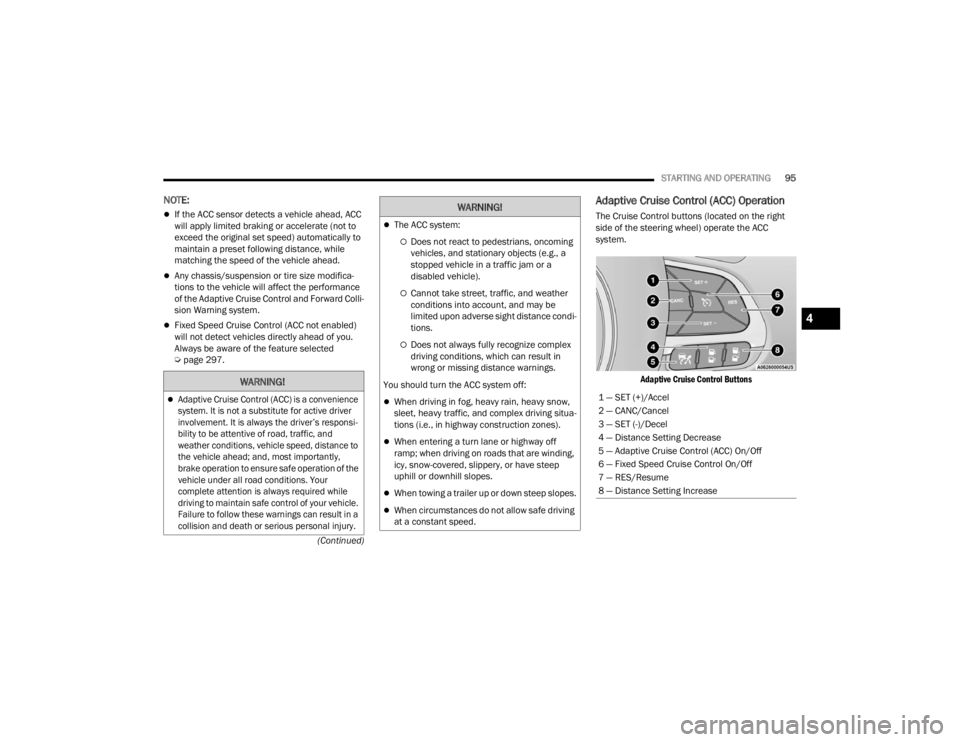
The Cruise Control buttons (located on the right
side of the steering wheel) operate the ACC
system.
Adaptive Cruise Control Buttons
WARNING!
Adaptive Cruise Control (ACC) is a convenience
system. It is not a substitute for active driver
involvement. It is always the driver’s responsi -
bility to be attentive of road, traffic, and
weather conditions, vehicle speed, distance to
the vehicle ahead; and, most importantly,
brake operation to ensure safe operation of the
vehicle under all road conditions. Your
complete attention is always required while
driving to maintain safe control of your vehicle.
Failure to follow these warnings can result in a
collision and death or serious personal injury.
The ACC system:
Does not react to pedestrians, oncoming
vehicles, and stationary objects (e.g., a
stopped vehicle in a traffic jam or a
disabled vehicle).
Cannot take street, traffic, and weather
conditions into account, and may be
limited upon adverse sight distance condi -
tions.
Does not always fully recognize complex
driving conditions, which can result in
wrong or missing distance warnings.
You should turn the ACC system off:
When driving in fog, heavy rain, heavy snow,
sleet, heavy traffic, and complex driving situa -
tions (i.e., in highway construction zones).
When entering a turn lane or highway off
ramp; when driving on roads that are winding,
icy, snow-covered, slippery, or have steep
uphill or downhill slopes.
When towing a trailer up or down steep slopes.
When circumstances do not allow safe driving
at a constant speed.
WARNING!
1 — SET (+)/Accel
2 — CANC/Cancel
3 — SET (-)/Decel
4 — Distance Setting Decrease
5 — Adaptive Cruise Control (ACC) On/Off
6 — Fixed Speed Cruise Control On/Off
7 — RES/Resume
8 — Distance Setting Increase
4
22_FD_OM_EN_USC_t.book Page 95
Page 109 of 312
STARTING AND OPERATING107
(Continued)
(Continued)
behind the fascia/bumper, or it could provide a
false indication that an obstacle is behind the
fascia/bumper.
Objects such as bicycle carriers, etc., must not
be placed within 12 inches (30 cm) from the
rear fascia/bumper while driving the vehicle.
Failure to do so can result in the system misin
-
terpreting a close object as a sensor problem,
causing a failure indication to be displayed in
the instrument cluster. If it is necessary to keep the trailer hitch and hitch
ball assembly mounted for a long period, it is
possible to filter out the trailer hitch and hitch ball
assembly presence within the sensor’s field of
view. The filtering operation must be performed
only by an authorized dealer.
WARNING!
Drivers must be careful when backing up even
when using Park Assist. Always check carefully
behind your vehicle, look behind you, and be
sure to check for pedestrians, animals, other
vehicles, obstructions, and blind spots before
backing up. You are responsible for safety and
must continue to pay attention to your
surroundings. Failure to do so can result in
serious injury or death.
Before using Park Assist, it is strongly recom
-
mended that the ball mount and hitch ball
assembly be disconnected from the vehicle
when the vehicle is not used for towing. Failure
to do so can result in injury or damage to vehi -
cles or obstacles because the hitch ball will be
much closer to the obstacle than the rear fascia
when the vehicle sounds the continuous tone.
Also, the sensors could detect the ball mount
and hitch ball assembly, depending on its size
and shape, giving a false indication that an
obstacle is behind the vehicle.
CAUTION!
Park Assist is only a parking aid and it is
unable to recognize every obstacle, including
small obstacles. Parking curbs might be
temporarily detected or not detected at all.
Obstacles located above or below the sensors
will not be detected when they are in close
proximity.
WARNING!
The vehicle must be driven slowly when using
Park Assist in order to be able to stop in time
when an obstacle is detected. It is recom -
mended that the driver looks over his/her
shoulder when using Park Assist.
CAUTION!
4
22_FD_OM_EN_USC_t.book Page 107
Page 113 of 312
STARTING AND OPERATING111
Different colored zones indicate the distance to
the rear of the vehicle.
The following table shows the approximate
distances for each zone:
NOTE:If snow, ice, mud, or any foreign substance builds
up on the camera lens, clean the lens, rinse with
water, and dry with a soft cloth. Do not cover the
lens.REFUELING THE VEHICLE
The Capless Fuel system uses a flapper placed at
the filler pipe of the fuel tank; it opens and closes
automatically upon insertion/extraction of the fuel
nozzle.
The Capless Fuel system is designed so that it
prevents the filling of an incorrect type of fuel.
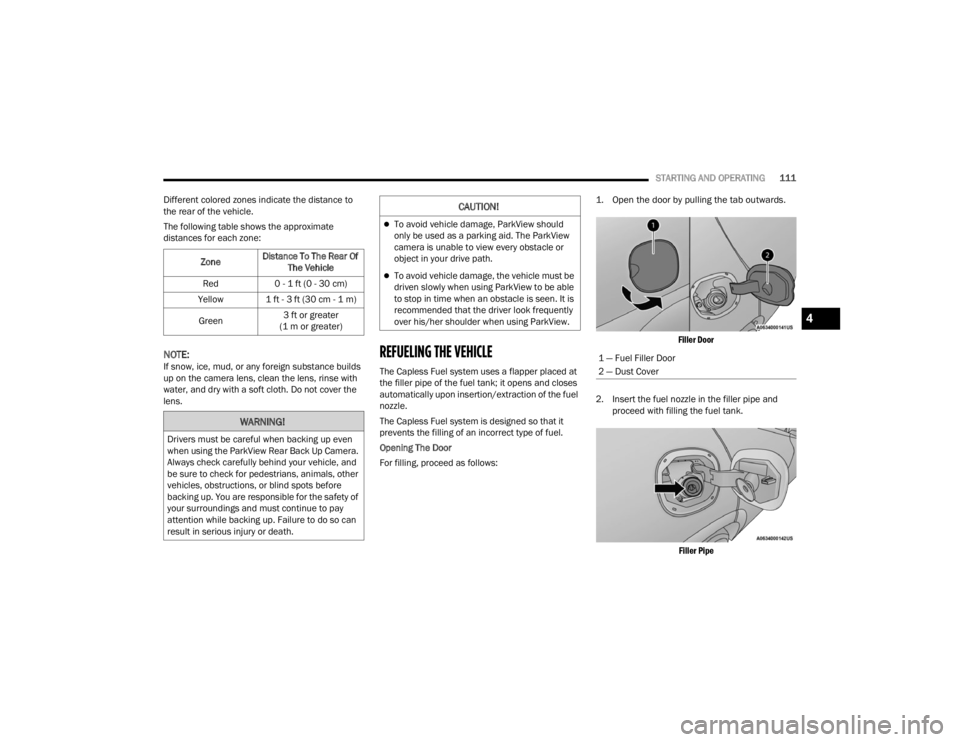
Opening The Door
For filling, proceed as follows:
1. Open the door by pulling the tab outwards.
Filler Door
2. Insert the fuel nozzle in the filler pipe and proceed with filling the fuel tank.
Filler Pipe
Zone
Distance To The Rear Of
The Vehicle
Red 0 - 1 ft (0 - 30 cm)
Yellow 1 ft - 3 ft (30 cm - 1 m)
Green 3 ft or greater
(1 m or greater)
WARNING!
Drivers must be careful when backing up even
when using the ParkView Rear Back Up Camera.
Always check carefully behind your vehicle, and
be sure to check for pedestrians, animals, other
vehicles, obstructions, or blind spots before
backing up. You are responsible for the safety of
your surroundings and must continue to pay
attention while backing up. Failure to do so can
result in serious injury or death.
CAUTION!
To avoid vehicle damage, ParkView should
only be used as a parking aid. The ParkView
camera is unable to view every obstacle or
object in your drive path.
To avoid vehicle damage, the vehicle must be
driven slowly when using ParkView to be able
to stop in time when an obstacle is seen. It is
recommended that the driver look frequently
over his/her shoulder when using ParkView.
1 — Fuel Filler Door
2 — Dust Cover
4
22_FD_OM_EN_USC_t.book Page 111
Page 126 of 312

124MULTIMEDIA
Language
Display
When the Language button is pressed on the touchscreen, the system displays the different language options. Once an option is selected, the system will
display in the chosen language. The available setting is:
NOTE:Depending on the vehicle’s options, feature settings may vary.
Setting Name Description
Language This setting will change the language of the Uconnect system. The available
languages are English, Français, and Español.
After pressing the Display button on the touchscreen, the following settings will be available:
NOTE:Depending on the vehicle’s options, feature settings may vary.
Setting Name
Description
Display Mode This setting will allow you to set the brightness manually or have the system
set it automatically. The “Auto” setting has the system automatically adjust
the display brightness. The “Manual” setting will allow the user to adjust the
brightness of the display.
Display Brightness With Headlights ON This setting will allow you to set the brightness when the headlights are on. To
access this setting, Display Mode must be set to Manual. The “+” setting will
increase the brightness; the “-” will decrease the brightness.
22_FD_OM_EN_USC_t.book Page 124
Page 128 of 312

126MULTIMEDIA
Voice
Clock
When the Voice button is pressed on the touchscreen, the system displays the options related to the vehicle’s Voice Recognition feature.
NOTE:Depending on the vehicle’s options, feature settings may vary.
Setting Name Description
Voice Response Length This setting will change the response length for the Voice Recognition system.
The “Brief” setting provides a shortened audio description from the system.
The “Detailed” setting provides the full audio description from the system.
Show Command List This setting will allow you to turn the Command List on or off. The “Always”
setting will also show the Command List. The “With Help” setting will show the
Command List and provide a brief description of what the command does.
The “Never” setting will turn the Command List off.
When the Clock button is pressed on the touchscreen, the system displays the different options related to the vehicle’s internal clock.
NOTE:Depending on the vehicle’s options, feature settings may vary.
Setting Name
Description
Sync Time With GPS This setting will sync the time to the GPS receiver in the system. The system
will control the time via the GPS location.
Time Format This setting will allow you to set the time format (AM/PM). Sync Time With GPS
must be off for this setting to be available. The “12 hrs” setting will set the
time to a 12-hour format. The “24 hrs” setting will set the time to a 24-hour
format.
22_FD_OM_EN_USC_t.book Page 126
Page 142 of 312
140MULTIMEDIA
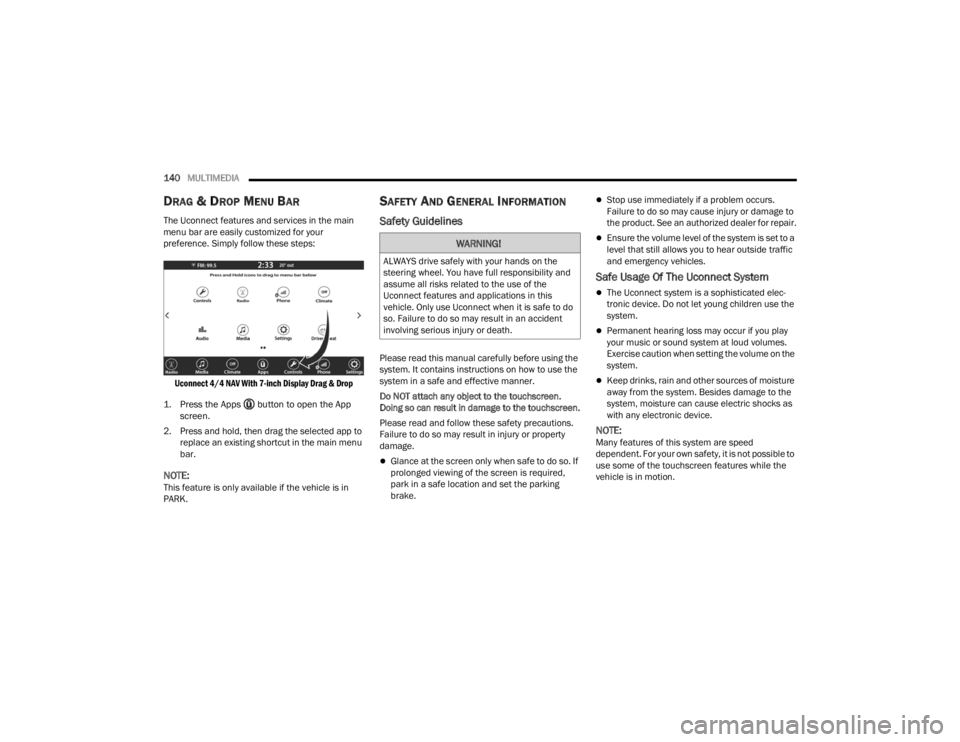
DRAG & DROP MENU BAR
The Uconnect features and services in the main
menu bar are easily customized for your
preference. Simply follow these steps:
Uconnect 4/4 NAV With 7-inch Display Drag & Drop
1. Press the Apps button to open the App screen.
2. Press and hold, then drag the selected app to replace an existing shortcut in the main menu
bar.
NOTE:This feature is only available if the vehicle is in
PARK.
SAFETY AND GENERAL INFORMATION
Safety Guidelines
Please read this manual carefully before using the
system. It contains instructions on how to use the
system in a safe and effective manner.
Do NOT attach any object to the touchscreen.
Doing so can result in damage to the touchscreen.
Please read and follow these safety precautions.
Failure to do so may result in injury or property
damage.
Glance at the screen only when safe to do so. If
prolonged viewing of the screen is required,
park in a safe location and set the parking
brake.
Stop use immediately if a problem occurs.
Failure to do so may cause injury or damage to
the product. See an authorized dealer for repair.
Ensure the volume level of the system is set to a
level that still allows you to hear outside traffic
and emergency vehicles.
Safe Usage Of The Uconnect System
The Uconnect system is a sophisticated elec -
tronic device. Do not let young children use the
system.
Permanent hearing loss may occur if you play
your music or sound system at loud volumes.
Exercise caution when setting the volume on the
system.
Keep drinks, rain and other sources of moisture
away from the system. Besides damage to the
system, moisture can cause electric shocks as
with any electronic device.
NOTE:Many features of this system are speed
dependent. For your own safety, it is not possible to
use some of the touchscreen features while the
vehicle is in motion.
WARNING!
ALWAYS drive safely with your hands on the
steering wheel. You have full responsibility and
assume all risks related to the use of the
Uconnect features and applications in this
vehicle. Only use Uconnect when it is safe to do
so. Failure to do so may result in an accident
involving serious injury or death.
22_FD_OM_EN_USC_t.book Page 140
Page 144 of 312
142MULTIMEDIA
RADIO MODE
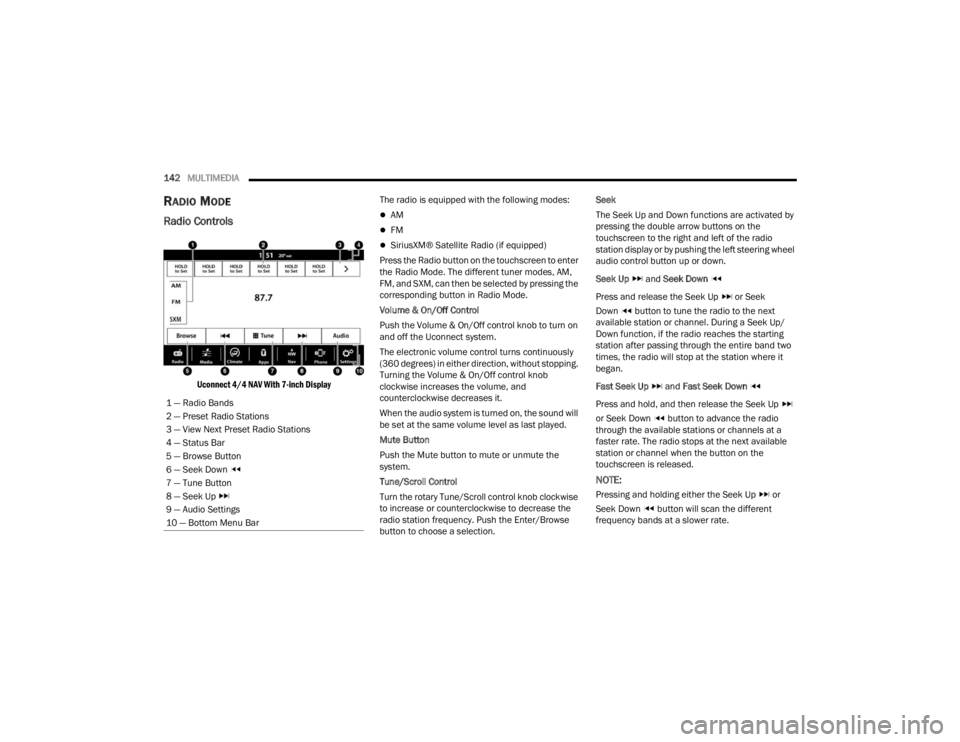
Radio Controls
Uconnect 4/4 NAV With 7-inch Display
The radio is equipped with the following modes:
AM
FM
SiriusXM® Satellite Radio (if equipped)
Press the Radio button on the touchscreen to enter
the Radio Mode. The different tuner modes, AM,
FM, and SXM, can then be selected by pressing the
corresponding button in Radio Mode.
Volume & On/Off Control
Push the Volume & On/Off control knob to turn on
and off the Uconnect system.
The electronic volume control turns continuously
(360 degrees) in either direction, without stopping.
Turning the Volume & On/Off control knob
clockwise increases the volume, and
counterclockwise decreases it.
When the audio system is turned on, the sound will
be set at the same volume level as last played.
Mute Button
Push the Mute button to mute or unmute the
system.
Tune/Scroll Control
Turn the rotary Tune/Scroll control knob clockwise
to increase or counterclockwise to decrease the
radio station frequency. Push the Enter/Browse
button to choose a selection. Seek
The Seek Up and Down functions are activated by
pressing the double arrow buttons on the
touchscreen to the right and left of the radio
station display or by pushing the left steering wheel
audio control button up or down.
Seek Up
and Seek Down
Press and release the Seek Up or Seek
Down button to tune the radio to the next
available station or channel. During a Seek Up/
Down function, if the radio reaches the starting
station after passing through the entire band two
times, the radio will stop at the station where it
began.
Fast Seek Up and Fast Seek Down
Press and hold, and then release the Seek Up
or Seek Down button to advance the radio
through the available stations or channels at a
faster rate. The radio stops at the next available
station or channel when the button on the
touchscreen is released.
NOTE:
Pressing and holding either the Seek Up or
Seek Down button will scan the different
frequency bands at a slower rate.
1 — Radio Bands
2 — Preset Radio Stations
3 — View Next Preset Radio Stations
4 — Status Bar
5 — Browse Button
6 — Seek Down
7 — Tune Button
8 — Seek Up
9 — Audio Settings
10 — Bottom Menu Bar
22_FD_OM_EN_USC_t.book Page 142