steering wheel FIAT 500X 2022 User Guide
[x] Cancel search | Manufacturer: FIAT, Model Year: 2022, Model line: 500X, Model: FIAT 500X 2022Pages: 312, PDF Size: 13.26 MB
Page 94 of 312
92STARTING AND OPERATING
TO START THE ENGINE WHILE IN
A
UTOSTOP MODE
While in a forward gear, the engine will start when
the brake pedal is released or the throttle pedal is
pressed. The transmission will automatically
re-engage upon engine restart.
Conditions That Will Cause The Engine To Start
Automatically While In Autostop Mode:
The transmission gear selector is moved out of
DRIVE except in the PARK and NEUTRAL posi -
tion.
To maintain cabin temperature comfort.
HVAC is set to full defrost mode.
HVAC system temperature or fan speed is
manually adjusted.
Battery voltage drops too low.
Low brake vacuum (e.g. after several brake
pedal applications).
Stop/Start OFF switch is pushed.
A Stop/Start system error occurs.
4WD system is put into 4WD Low mode (if
equipped with 4WD). Conditions That Force An Application Of The
Electric Park Brake While In Autostop Mode:
The driver’s door is open and brake pedal
released.
The driver’s door is open and the driver’s seat
belt is unbuckled.
The engine hood has been opened.
A Stop/Start system error occurs.
Steering wheel is beyond threshold.
If the Electric Park Brake is applied with the engine
off, the engine may require a manual restart and
the Electric Park Brake may require a manual
release (press brake pedal and push Electric Park
Brake switch) Ú page 64.
TO MANUALLY TURN OFF THE STOP/
S
TART SYSTEM
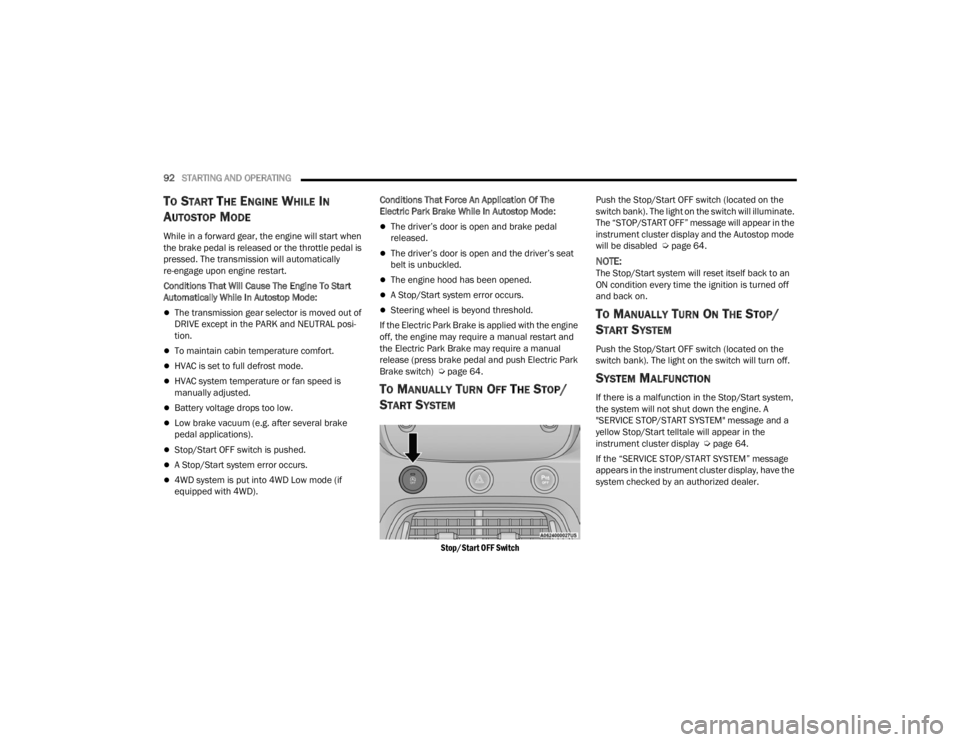
Stop/Start OFF Switch
Push the Stop/Start OFF switch (located on the
switch bank). The light on the switch will illuminate.
The “STOP/START OFF” message will appear in the
instrument cluster display and the Autostop mode
will be disabled Ú
page 64.
NOTE:The Stop/Start system will reset itself back to an
ON condition every time the ignition is turned off
and back on.
TO MANUALLY TURN ON THE STOP/
S
TART SYSTEM
Push the Stop/Start OFF switch (located on the
switch bank). The light on the switch will turn off.
SYSTEM MALFUNCTION
If there is a malfunction in the Stop/Start system,
the system will not shut down the engine. A
"SERVICE STOP/START SYSTEM" message and a
yellow Stop/Start telltale will appear in the
instrument cluster display Ú page 64.
If the “SERVICE STOP/START SYSTEM” message
appears in the instrument cluster display, have the
system checked by an authorized dealer.
22_FD_OM_EN_USC_t.book Page 92
Page 95 of 312
STARTING AND OPERATING93
CRUISE CONTROL SYSTEMS — IF EQUIPPED
Your vehicle may be equipped with the Cruise
Control system, or the Adaptive Cruise Control
(ACC) system:
Cruise Control will keep your vehicle at a
constant preset speed.
Adaptive Cruise Control (ACC) will adjust the
vehicle speed up to the preset speed to main -
tain a distance with the vehicle ahead.
NOTE:
In vehicles equipped with ACC, if ACC is not
enabled, Fixed Speed Cruise Control will not
detect vehicles directly ahead of you. Always be
aware of the feature selected.
Only one Cruise Control feature can operate at a
time. For example, if Fixed Speed Cruise Control
is enabled, Adaptive Cruise Control will be
unavailable, and vice versa.
CRUISE CONTROL
When engaged, the Cruise Control takes over
accelerator operations at speeds greater than
20 mph (32 km/h).
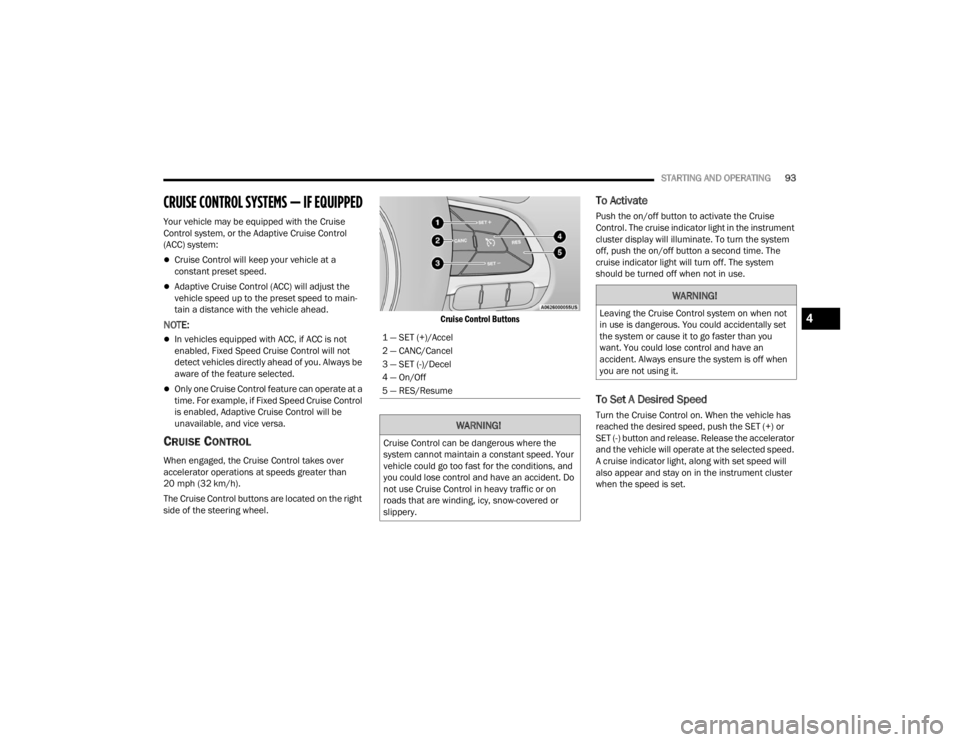
The Cruise Control buttons are located on the right
side of the steering wheel.
Cruise Control Buttons
To Activate
Push the on/off button to activate the Cruise
Control. The cruise indicator light in the instrument
cluster display will illuminate. To turn the system
off, push the on/off button a second time. The
cruise indicator light will turn off. The system
should be turned off when not in use.
To Set A Desired Speed
Turn the Cruise Control on. When the vehicle has
reached the desired speed, push the SET (+) or
SET (-) button and release. Release the accelerator
and the vehicle will operate at the selected speed.
A cruise indicator light, along with set speed will
also appear and stay on in the instrument cluster
when the speed is set.
1 — SET (+)/Accel
2 — CANC/Cancel
3 — SET (-)/Decel
4 — On/Off
5 — RES/ResumeWARNING!
Cruise Control can be dangerous where the
system cannot maintain a constant speed. Your
vehicle could go too fast for the conditions, and
you could lose control and have an accident. Do
not use Cruise Control in heavy traffic or on
roads that are winding, icy, snow-covered or
slippery.
WARNING!
Leaving the Cruise Control system on when not
in use is dangerous. You could accidentally set
the system or cause it to go faster than you
want. You could lose control and have an
accident. Always ensure the system is off when
you are not using it.4
22_FD_OM_EN_USC_t.book Page 93
Page 97 of 312
STARTING AND OPERATING95
(Continued)
NOTE:
If the ACC sensor detects a vehicle ahead, ACC
will apply limited braking or accelerate (not to
exceed the original set speed) automatically to
maintain a preset following distance, while
matching the speed of the vehicle ahead.
Any chassis/suspension or tire size modifica -
tions to the vehicle will affect the performance
of the Adaptive Cruise Control and Forward Colli -
sion Warning system.
Fixed Speed Cruise Control (ACC not enabled)
will not detect vehicles directly ahead of you.
Always be aware of the feature selected
Ú page 297.
Adaptive Cruise Control (ACC) Operation
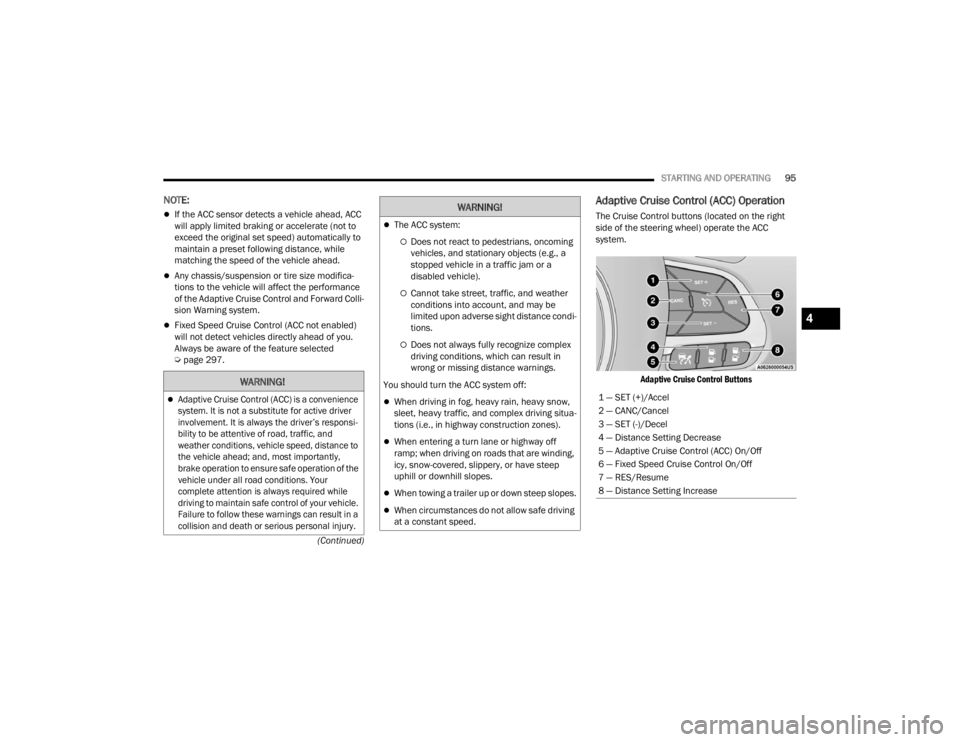
The Cruise Control buttons (located on the right
side of the steering wheel) operate the ACC
system.
Adaptive Cruise Control Buttons
WARNING!
Adaptive Cruise Control (ACC) is a convenience
system. It is not a substitute for active driver
involvement. It is always the driver’s responsi -
bility to be attentive of road, traffic, and
weather conditions, vehicle speed, distance to
the vehicle ahead; and, most importantly,
brake operation to ensure safe operation of the
vehicle under all road conditions. Your
complete attention is always required while
driving to maintain safe control of your vehicle.
Failure to follow these warnings can result in a
collision and death or serious personal injury.
The ACC system:
Does not react to pedestrians, oncoming
vehicles, and stationary objects (e.g., a
stopped vehicle in a traffic jam or a
disabled vehicle).
Cannot take street, traffic, and weather
conditions into account, and may be
limited upon adverse sight distance condi -
tions.
Does not always fully recognize complex
driving conditions, which can result in
wrong or missing distance warnings.
You should turn the ACC system off:
When driving in fog, heavy rain, heavy snow,
sleet, heavy traffic, and complex driving situa -
tions (i.e., in highway construction zones).
When entering a turn lane or highway off
ramp; when driving on roads that are winding,
icy, snow-covered, slippery, or have steep
uphill or downhill slopes.
When towing a trailer up or down steep slopes.
When circumstances do not allow safe driving
at a constant speed.
WARNING!
1 — SET (+)/Accel
2 — CANC/Cancel
3 — SET (-)/Decel
4 — Distance Setting Decrease
5 — Adaptive Cruise Control (ACC) On/Off
6 — Fixed Speed Cruise Control On/Off
7 — RES/Resume
8 — Distance Setting Increase
4
22_FD_OM_EN_USC_t.book Page 95
Page 110 of 312
108STARTING AND OPERATING
LANESENSE — IF EQUIPPED
LANESENSE OPERATION
The LaneSense system is operational at speeds
above 37 mph (60 km/h) and below 112 mph
(180 km/h). The LaneSense system uses a
forward looking camera to detect lane markings
and measure vehicle position within the lane
boundaries.
When both lane markings are detected and the
driver drifts out of the lane (no turn signal applied),
the LaneSense system provides a haptic warning
in the form of torque applied to the steering wheel
to prompt the driver to remain within the lane
boundaries. If the driver continues to drift out of
the lane, the LaneSense system provides a visual
warning through the instrument cluster display to
prompt the driver to remain within the lane
boundaries.
The driver may manually override the haptic
warning by applying force to the steering wheel at
any time.
When only a single lane marking is detected and
the driver drifts across the lane marking (no turn
signal applied), the LaneSense system provides a
visual warning through the instrument cluster display to prompt the driver to remain within the
lane. When only a single lane marking is detected,
a haptic (torque) warning will not be provided.NOTE:When operating conditions have been met, the
LaneSense system will monitor if the driver’s
hands are on the steering wheel and provides an
audible warning to the driver if removed. The
system will cancel if the driver does not return their
hands to the wheel.
TURNING LANESENSE ON OR OFF
The LaneSense button is located on the
end of the turn signal stalk, located on
the left side of the steering column.
To turn the LaneSense system on, push the
LaneSense button once. A “Lane Sense On”
message is shown in the instrument cluster
display.
To turn the LaneSense system off, push the
LaneSense button once.
NOTE:The LaneSense system will retain the last system
state (on or off) from the last ignition cycle when
the ignition is changed to the ON/RUN position.
LANESENSE WARNING MESSAGE
The LaneSense system will indicate the current
lane drift condition through the instrument cluster
display.
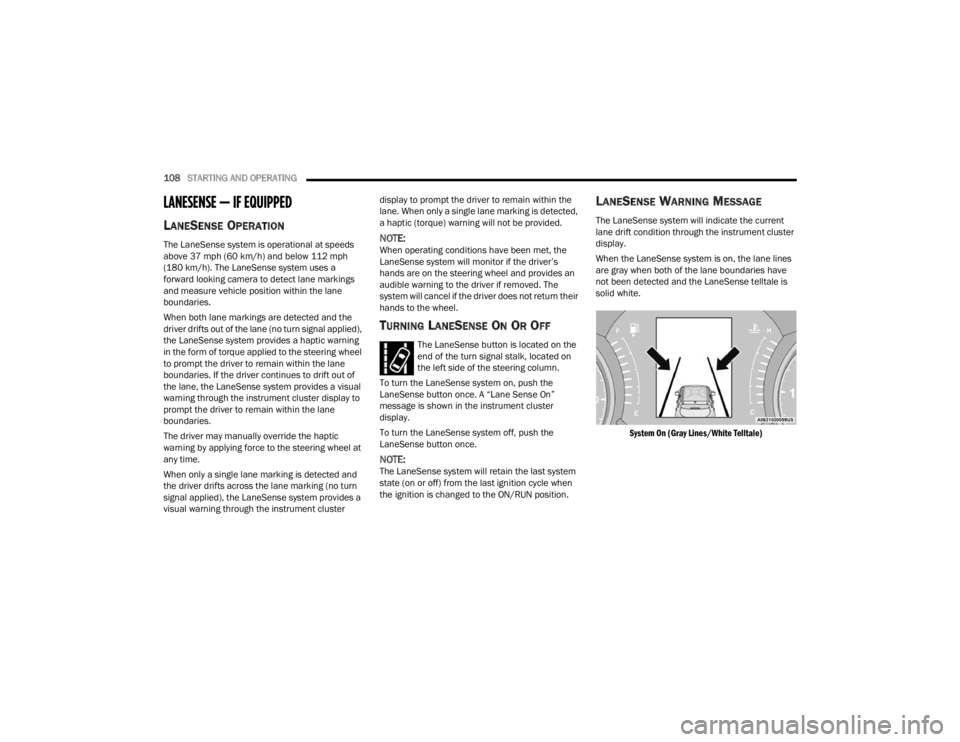
When the LaneSense system is on, the lane lines
are gray when both of the lane boundaries have
not been detected and the LaneSense telltale is
solid white.
System On (Gray Lines/White Telltale)
22_FD_OM_EN_USC_t.book Page 108
Page 111 of 312
STARTING AND OPERATING109
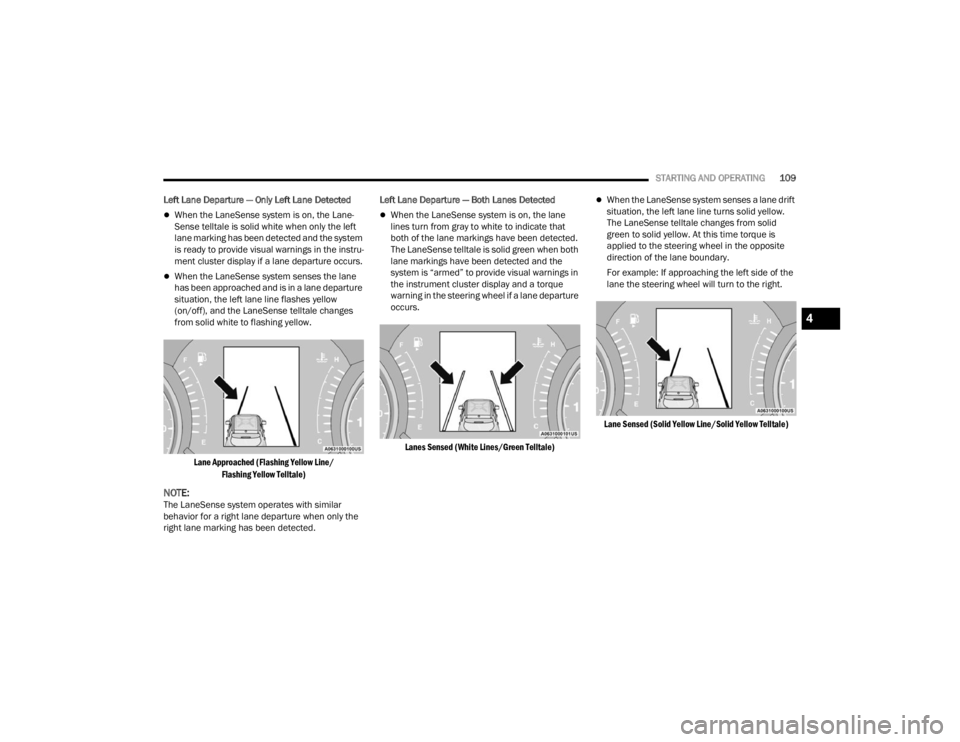
Left Lane Departure — Only Left Lane Detected
When the LaneSense system is on, the Lane-
Sense telltale is solid white when only the left
lane marking has been detected and the system
is ready to provide visual warnings in the instru -
ment cluster display if a lane departure occurs.
When the LaneSense system senses the lane
has been approached and is in a lane departure
situation, the left lane line flashes yellow
(on/off), and the LaneSense telltale changes
from solid white to flashing yellow.
Lane Approached (Flashing Yellow Line/ Flashing Yellow Telltale)
NOTE:The LaneSense system operates with similar
behavior for a right lane departure when only the
right lane marking has been detected. Left Lane Departure — Both Lanes Detected
When the LaneSense system is on, the lane
lines turn from gray to white to indicate that
both of the lane markings have been detected.
The LaneSense telltale is solid green when both
lane markings have been detected and the
system is “armed” to provide visual warnings in
the instrument cluster display and a torque
warning in the steering wheel if a lane departure
occurs.
Lanes Sensed (White Lines/Green Telltale)
When the LaneSense system senses a lane drift
situation, the left lane line turns solid yellow.
The LaneSense telltale changes from solid
green to solid yellow. At this time torque is
applied to the steering wheel in the opposite
direction of the lane boundary.
For example: If approaching the left side of the
lane the steering wheel will turn to the right.
Lane Sensed (Solid Yellow Line/Solid Yellow Telltale)
4
22_FD_OM_EN_USC_t.book Page 109
Page 112 of 312
110STARTING AND OPERATING
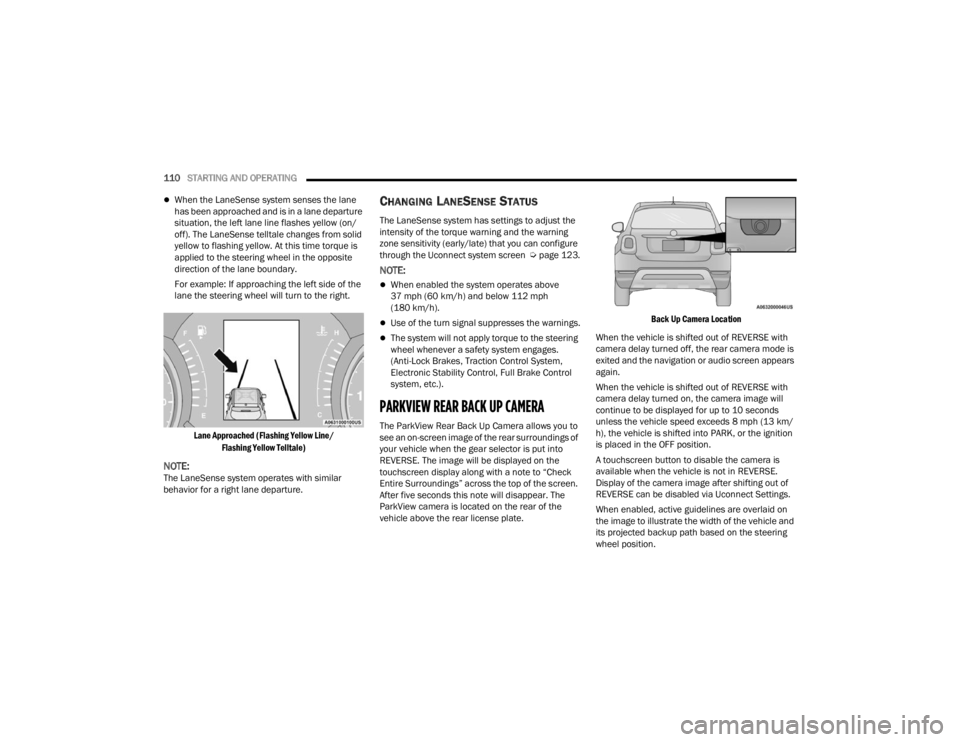
When the LaneSense system senses the lane
has been approached and is in a lane departure
situation, the left lane line flashes yellow (on/
off). The LaneSense telltale changes from solid
yellow to flashing yellow. At this time torque is
applied to the steering wheel in the opposite
direction of the lane boundary.
For example: If approaching the left side of the
lane the steering wheel will turn to the right.
Lane Approached (Flashing Yellow Line/ Flashing Yellow Telltale)
NOTE:The LaneSense system operates with similar
behavior for a right lane departure.
CHANGING LANESENSE STATUS
The LaneSense system has settings to adjust the
intensity of the torque warning and the warning
zone sensitivity (early/late) that you can configure
through the Uconnect system screen Úpage 123.
NOTE:
When enabled the system operates above
37 mph (60 km/h) and below 112 mph
(180 km/h).
Use of the turn signal suppresses the warnings.
The system will not apply torque to the steering
wheel whenever a safety system engages.
(Anti-Lock Brakes, Traction Control System,
Electronic Stability Control, Full Brake Control
system, etc.).
PARKVIEW REAR BACK UP CAMERA
The ParkView Rear Back Up Camera allows you to
see an on-screen image of the rear surroundings of
your vehicle when the gear selector is put into
REVERSE. The image will be displayed on the
touchscreen display along with a note to “Check
Entire Surroundings” across the top of the screen.
After five seconds this note will disappear. The
ParkView camera is located on the rear of the
vehicle above the rear license plate.
Back Up Camera Location
When the vehicle is shifted out of REVERSE with
camera delay turned off, the rear camera mode is
exited and the navigation or audio screen appears
again.
When the vehicle is shifted out of REVERSE with
camera delay turned on, the camera image will
continue to be displayed for up to 10 seconds
unless the vehicle speed exceeds 8 mph (13 km/
h), the vehicle is shifted into PARK, or the ignition
is placed in the OFF position.
A touchscreen button to disable the camera is
available when the vehicle is not in REVERSE.
Display of the camera image after shifting out of
REVERSE can be disabled via Uconnect Settings.
When enabled, active guidelines are overlaid on
the image to illustrate the width of the vehicle and
its projected backup path based on the steering
wheel position.
22_FD_OM_EN_USC_t.book Page 110
Page 118 of 312
116STARTING AND OPERATING
(Continued)
(Continued)
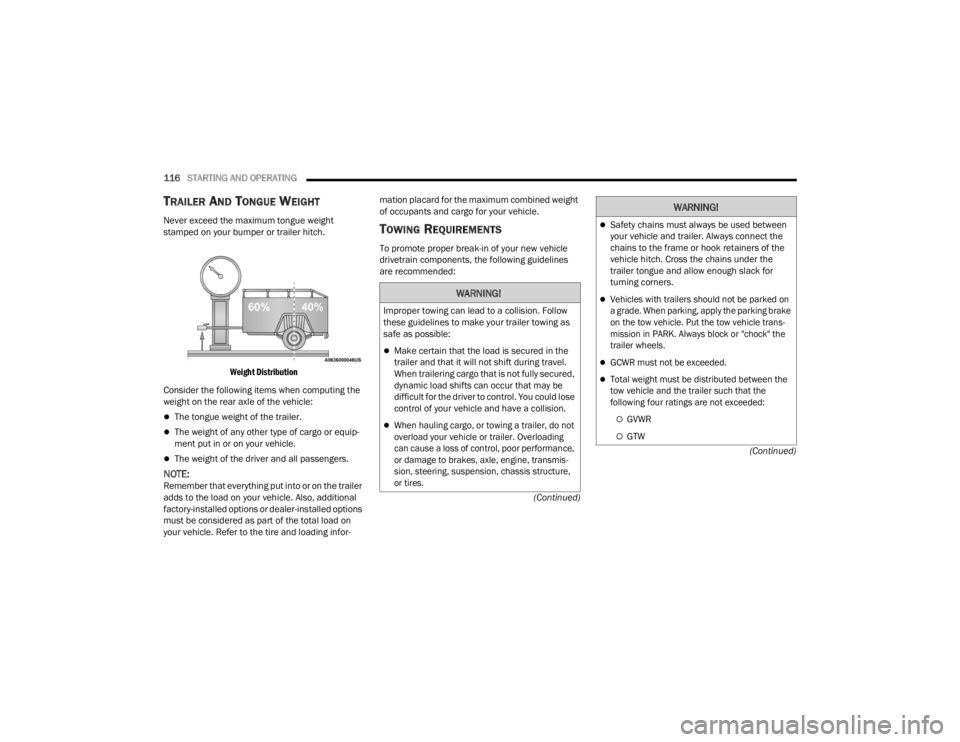
TRAILER AND TONGUE WEIGHT
Never exceed the maximum tongue weight
stamped on your bumper or trailer hitch.
Weight Distribution
Consider the following items when computing the
weight on the rear axle of the vehicle:
The tongue weight of the trailer.
The weight of any other type of cargo or equip -
ment put in or on your vehicle.
The weight of the driver and all passengers.
NOTE:Remember that everything put into or on the trailer
adds to the load on your vehicle. Also, additional
factory-installed options or dealer-installed options
must be considered as part of the total load on
your vehicle. Refer to the tire and loading infor -mation placard for the maximum combined weight
of occupants and cargo for your vehicle.
TOWING REQUIREMENTS
To promote proper break-in of your new vehicle
drivetrain components, the following guidelines
are recommended:
WARNING!
Improper towing can lead to a collision. Follow
these guidelines to make your trailer towing as
safe as possible:
Make certain that the load is secured in the
trailer and that it will not shift during travel.
When trailering cargo that is not fully secured,
dynamic load shifts can occur that may be
difficult for the driver to control. You could lose
control of your vehicle and have a collision.
When hauling cargo, or towing a trailer, do not
overload your vehicle or trailer. Overloading
can cause a loss of control, poor performance,
or damage to brakes, axle, engine, transmis
-
sion, steering, suspension, chassis structure,
or tires.
Safety chains must always be used between
your vehicle and trailer. Always connect the
chains to the frame or hook retainers of the
vehicle hitch. Cross the chains under the
trailer tongue and allow enough slack for
turning corners.
Vehicles with trailers should not be parked on
a grade. When parking, apply the parking brake
on the tow vehicle. Put the tow vehicle trans -
mission in PARK. Always block or "chock" the
trailer wheels.
GCWR must not be exceeded.
Total weight must be distributed between the
tow vehicle and the trailer such that the
following four ratings are not exceeded:
GVWR
GTW
WARNING!
22_FD_OM_EN_USC_t.book Page 116
Page 130 of 312

128MULTIMEDIA
Brake Control Sensitivity The Full Brake Control System Sensitivity setting determines at what relative
distance the vehicle directly in front of you needs to be at before the system
warns you of a possible collision, based on the option selected. “Far” gives
you the most amount of reaction time, whereas “Near” gives you the least
amount of reaction time, based on the distance between the two vehicles.
“Med” gives you a reaction time in between Near and Far.
LaneSense Warning The LaneSense Warning setting determines at what distance the Lane Control
system warns you, through steering wheel feedback, of a possible lane
departure.
LaneSense Strength This feature allows you to set the lane control strength to “Low”, “Med”, or
“High”.
Park Assist The Park Assist system setting scans for objects behind the vehicle when the
transmission gear selector is in REVERSE and the vehicle speed is less than
7 mph (11 km/h), when enabled. It provides an alert (audible and/or visual)
to indicate the proximity to other objects. The system can be enabled with
“Sound Only” or “Sound + Display.”
Front Park Assist Volume This setting will allow you to adjust the Front Park Assist Volume to “Low”,
“Medium”, or “High”.
Rear Park Assist Volume This setting will allow you to adjust the Rear Park Assist Volume to “Low”,
“Medium”, or “High”.
Setting Name
Description
22_FD_OM_EN_USC_t.book Page 128
Page 131 of 312

MULTIMEDIA129
Blind Spot Assist When the Blind Spot Assist feature is selected, the Blind Spot Monitor (BSM)
system is activated and shows a visual alert in the outside mirrors, or it shows
a visual alert in the outside mirrors and sounds an audible alert when the turn
signal is on. When “Off” is selected, the BSM system is deactivated. If your
vehicle has experienced any damage in the area where the sensor is located,
even if the fascia/bumper is not damaged, the sensor may have become
misaligned. Take your vehicle to an authorized dealer to verify sensor
alignment. A sensor that is misaligned results in the BSM not operating to
specification.
Rear View Camera Delay The Rear View Camera Delay setting determines whether or not the screen
displays the rear view image with dynamic grid lines for up to 10 seconds after
the vehicle is shifted out of REVERSE. This delay is canceled if the vehicle’s
speed exceeds 8 mph (13 km/h), the transmission is shifted into PARK, or the
ignition is switched to the OFF position.
Active Rear View Camera Guidelines The Active Rear View Camera Guidelines feature overlays the Rear View
Camera image with active, or dynamic, grid lines to help illustrate the width of
the vehicle and its projected backup path, based on the steering wheel
position when the option is checked. A dashed center line overlay indicates
the center of the vehicle to assist with parking or aligning to a hitch/receiver.
Rain Sensing Wipers This setting will allow you to turn the rain sensing wipers on or off.
Setting NameDescription
5
22_FD_OM_EN_USC_t.book Page 129
Page 133 of 312

MULTIMEDIA131
Lights
After pressing the Lights button on the touchscreen, the following settings will be available:
NOTE:Depending on the vehicle’s options, feature settings may vary.
Setting Name Description
Interior Ambient Lights When this feature is selected, it allows the adjustment of the brightness of the
interior ambient lighting.
Headlight Sensitivity This setting will allow you to adjust the headlight sensitivity to minimum
sensitivity, medium sensitivity, or maximum sensitivity.
Headlight Off Delay This setting will allow you to set the headlight off delay to “0”, “30”, “60”, or
“90” seconds.
Greeting Lights This setting will allow you to turn the greeting lights on or off.
High Beam Control This setting will allow you to turn the high beam control on or off.
Daytime Running Lights When the Daytime Running Lights feature is selected, the daytime running
lights can be turned On or Off. This feature is only available if allowed by law in
the country of the vehicle purchase.
Cornering Lights When this feature is selected, if the steering wheel rotation angle is large or
the turn signal indicators are on, a light (incorporated in the fog light) turns on,
on the relevant side to improve visibility at night.
Flash Lights With Lock This setting will allow you to turn the flash lights with lock on or off.
5
22_FD_OM_EN_USC_t.book Page 131