display FIAT 500X 2022 Workshop Manual
[x] Cancel search | Manufacturer: FIAT, Model Year: 2022, Model line: 500X, Model: FIAT 500X 2022Pages: 312, PDF Size: 13.26 MB
Page 126 of 312

124MULTIMEDIA
Language
Display
When the Language button is pressed on the touchscreen, the system displays the different language options. Once an option is selected, the system will
display in the chosen language. The available setting is:
NOTE:Depending on the vehicle’s options, feature settings may vary.
Setting Name Description
Language This setting will change the language of the Uconnect system. The available
languages are English, Français, and Español.
After pressing the Display button on the touchscreen, the following settings will be available:
NOTE:Depending on the vehicle’s options, feature settings may vary.
Setting Name
Description
Display Mode This setting will allow you to set the brightness manually or have the system
set it automatically. The “Auto” setting has the system automatically adjust
the display brightness. The “Manual” setting will allow the user to adjust the
brightness of the display.
Display Brightness With Headlights ON This setting will allow you to set the brightness when the headlights are on. To
access this setting, Display Mode must be set to Manual. The “+” setting will
increase the brightness; the “-” will decrease the brightness.
22_FD_OM_EN_USC_t.book Page 124
Page 127 of 312

MULTIMEDIA125
Units
Display Brightness With Headlights OFF This setting will allow you to set the brightness when the headlights are off. To
access this setting, Display Mode must be set to Manual. The “+” setting will
increase the brightness; the “-” will decrease the brightness.
Touchscreen Beep This setting will allow you to adjust the touchscreen beep. The setting options
are “On” or “Off”.
Setting Name
Description
When the Units button is pressed on the touchscreen, the system displays the different measurement options. The selected unit of measurement will display in
the instrument cluster display and Navigation system (if equipped). The available settings are:
NOTE:Depending on the vehicle’s options, feature settings may vary.
Setting NameDescription
US This setting will change the unit of measurement on the display to US.
Metric This setting will change the unit of measurement on the display to Metric.
Custom This setting changes the “Distance” (mi or km), “Fuel Consumption” (MPG
[US], MPG [UK], L/100 km, or km/L), “Pressure” (psi, kPa, or bar), and
“Temperature” (°C or °F) units of measurement independently.
5
22_FD_OM_EN_USC_t.book Page 125
Page 128 of 312

126MULTIMEDIA
Voice
Clock
When the Voice button is pressed on the touchscreen, the system displays the options related to the vehicle’s Voice Recognition feature.
NOTE:Depending on the vehicle’s options, feature settings may vary.
Setting Name Description
Voice Response Length This setting will change the response length for the Voice Recognition system.
The “Brief” setting provides a shortened audio description from the system.
The “Detailed” setting provides the full audio description from the system.
Show Command List This setting will allow you to turn the Command List on or off. The “Always”
setting will also show the Command List. The “With Help” setting will show the
Command List and provide a brief description of what the command does.
The “Never” setting will turn the Command List off.
When the Clock button is pressed on the touchscreen, the system displays the different options related to the vehicle’s internal clock.
NOTE:Depending on the vehicle’s options, feature settings may vary.
Setting Name
Description
Sync Time With GPS This setting will sync the time to the GPS receiver in the system. The system
will control the time via the GPS location.
Time Format This setting will allow you to set the time format (AM/PM). Sync Time With GPS
must be off for this setting to be available. The “12 hrs” setting will set the
time to a 12-hour format. The “24 hrs” setting will set the time to a 24-hour
format.
22_FD_OM_EN_USC_t.book Page 126
Page 130 of 312

128MULTIMEDIA
Brake Control Sensitivity The Full Brake Control System Sensitivity setting determines at what relative
distance the vehicle directly in front of you needs to be at before the system
warns you of a possible collision, based on the option selected. “Far” gives
you the most amount of reaction time, whereas “Near” gives you the least
amount of reaction time, based on the distance between the two vehicles.
“Med” gives you a reaction time in between Near and Far.
LaneSense Warning The LaneSense Warning setting determines at what distance the Lane Control
system warns you, through steering wheel feedback, of a possible lane
departure.
LaneSense Strength This feature allows you to set the lane control strength to “Low”, “Med”, or
“High”.
Park Assist The Park Assist system setting scans for objects behind the vehicle when the
transmission gear selector is in REVERSE and the vehicle speed is less than
7 mph (11 km/h), when enabled. It provides an alert (audible and/or visual)
to indicate the proximity to other objects. The system can be enabled with
“Sound Only” or “Sound + Display.”
Front Park Assist Volume This setting will allow you to adjust the Front Park Assist Volume to “Low”,
“Medium”, or “High”.
Rear Park Assist Volume This setting will allow you to adjust the Rear Park Assist Volume to “Low”,
“Medium”, or “High”.
Setting Name
Description
22_FD_OM_EN_USC_t.book Page 128
Page 131 of 312

MULTIMEDIA129
Blind Spot Assist When the Blind Spot Assist feature is selected, the Blind Spot Monitor (BSM)
system is activated and shows a visual alert in the outside mirrors, or it shows
a visual alert in the outside mirrors and sounds an audible alert when the turn
signal is on. When “Off” is selected, the BSM system is deactivated. If your
vehicle has experienced any damage in the area where the sensor is located,
even if the fascia/bumper is not damaged, the sensor may have become
misaligned. Take your vehicle to an authorized dealer to verify sensor
alignment. A sensor that is misaligned results in the BSM not operating to
specification.
Rear View Camera Delay The Rear View Camera Delay setting determines whether or not the screen
displays the rear view image with dynamic grid lines for up to 10 seconds after
the vehicle is shifted out of REVERSE. This delay is canceled if the vehicle’s
speed exceeds 8 mph (13 km/h), the transmission is shifted into PARK, or the
ignition is switched to the OFF position.
Active Rear View Camera Guidelines The Active Rear View Camera Guidelines feature overlays the Rear View
Camera image with active, or dynamic, grid lines to help illustrate the width of
the vehicle and its projected backup path, based on the steering wheel
position when the option is checked. A dashed center line overlay indicates
the center of the vehicle to assist with parking or aligning to a hitch/receiver.
Rain Sensing Wipers This setting will allow you to turn the rain sensing wipers on or off.
Setting NameDescription
5
22_FD_OM_EN_USC_t.book Page 129
Page 132 of 312

130MULTIMEDIA
Mirrors
Brakes
After pressing the Mirrors button on the touchscreen, the following setting will be available:
NOTE:Depending on the vehicle’s options, feature settings may vary.
Setting Name Description
Auto Folding Side Mirrors This setting will allow you to turn the auto folding side mirrors on or off.
After pressing the Brakes button on the touchscreen, the following settings will be available:
NOTE:Depending on the vehicle’s options, feature settings may vary.
Setting NameDescription
Brake Service Selecting the Brake Service feature will display a pop-up asking whether or
not you would like to retract the park brakes to the brake system service.
Auto Park Brake This setting will allow you to turn the auto park brake on or off.
22_FD_OM_EN_USC_t.book Page 130
Page 135 of 312

MULTIMEDIA133
Seats & Comfort/Auto-On Comfort Systems
Audio
When the Seats & Comfort/Auto-On Comfort Systems button is pressed on the touchscreen, the system displays the option related to the vehicle’s comfort
systems when remote start has been activated or the vehicle has been started.
NOTE:Depending on the vehicle’s options, feature settings may vary.
Setting Name Description
Auto-On Driver Heat Seat & Steering Wheel This setting will activate the vehicle’s comfort system and heated seats or
heated steering wheel when the vehicle is remote started or ignition is started.
The “Off” setting will not activate the comfort systems. The “Remote Start”
setting will only activate the comfort systems when using Remote Start. The
“All Start” setting will activate the comfort systems whenever the vehicle is
started.
When the Audio button is pressed on the touchscreen, the system displays options related to the vehicle’s sound system. These settings can change the audio
location within the vehicle, adjust the bass or treble levels, and auto-play settings from an audio device or smartphone.
NOTE:Depending on the vehicle’s options, feature settings may vary.
Setting Name
Description
Balance/Fade This setting will adjust audio levels from specific speakers in the front/back and
left/right of the vehicle. The Speaker icon can be moved to set audio location.
Equalizer This setting will adjust the “Bass”, “Mid”, and “Treble” ranges of the audio.
5
22_FD_OM_EN_USC_t.book Page 133
Page 136 of 312

134MULTIMEDIA
Engine Off Options
Speed Adjusted Volume This setting will adjust audio volume as speeds increase. At a higher setting, the
volume will increase more as the vehicle speeds up. The available settings are
“Off”, “1”, “2”, and “3”.
AUX Volume Offset This setting will tune the audio levels from a device connected through the AUX
port. The available settings are “+” and “-”.
Auto Play This setting will automatically begin playing audio from a connected device.
Surround Sound This setting will turn the Surround Sound system on or off.
Loudness This setting will improve sound quality at lower volumes when enabled.
Auto-On Radio This setting will have the radio automatically turn on when the vehicle is in ON/
RUN or will recall whether it was on or off at last ignition OFF. The available
options are “On”, “Off”, and “Last Recall”.
Setting Name
Description
When the Engine Off Options button is pressed on the touchscreen, the system will display settings concerning electronics during vehicle shut off.
NOTE:Depending on the vehicle’s options, feature settings may vary.
Setting NameDescription
Radio Off Delay This setting will keep the radio on after the vehicle has been shut off. The
available options are “0 MIN” and “20 MIN”
22_FD_OM_EN_USC_t.book Page 134
Page 137 of 312
MULTIMEDIA135
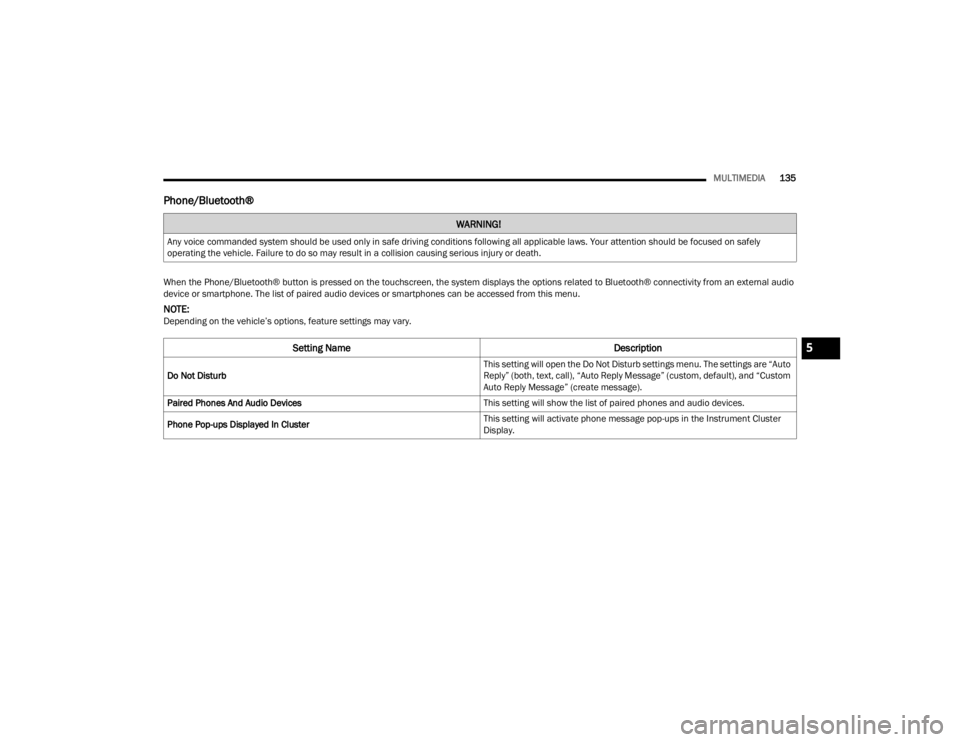
Phone/Bluetooth®
WARNING!
Any voice commanded system should be used only in safe driving conditions following all applicable laws. Your attention should be focused on safely
operating the vehicle. Failure to do so may result in a collision causing serious injury or death.
When the Phone/Bluetooth® button is pressed on the touchscreen, the system displays the options related to Bluetooth® connectivity from an external audio
device or smartphone. The list of paired audio devices or smartphones can be accessed from this menu.
NOTE:Depending on the vehicle’s options, feature settings may vary.
Setting Name Description
Do Not Disturb This setting will open the Do Not Disturb settings menu. The settings are “Auto
Reply” (both, text, call), “Auto Reply Message” (custom, default), and “Custom
Auto Reply Message” (create message).
Paired Phones And Audio Devices This setting will show the list of paired phones and audio devices.
Phone Pop-ups Displayed In Cluster This setting will activate phone message pop-ups in the Instrument Cluster
Display.
5
22_FD_OM_EN_USC_t.book Page 135
Page 138 of 312

136MULTIMEDIA
SiriusXM® Setup
When the SiriusXM® Setup button is pressed on the touchscreen, the system displays options related to SiriusXM® satellite radio. These settings can be used
to skip specific radio channels and restart favorite songs from the beginning.
NOTE:
A subscription to SiriusXM® satellite radio is required for these settings to be functional.
Depending on the vehicle’s options, feature settings may vary.
Setting Name Description
Tune Start This setting will play the current song from the beginning when you tune to a
music channel using one of the 12 presets.
Channel Skip This setting allows you to set channels that you wish to skip. A channel list will
display of the skipped channels.
Subscription Info This menu provides SiriusXM® subscription information. SiriusXM® Travel
Link is a separate subscription.
22_FD_OM_EN_USC_t.book Page 136