lock FIAT 500X 2022 Workshop Manual
[x] Cancel search | Manufacturer: FIAT, Model Year: 2022, Model line: 500X, Model: FIAT 500X 2022Pages: 312, PDF Size: 13.26 MB
Page 128 of 312

126MULTIMEDIA
Voice
Clock
When the Voice button is pressed on the touchscreen, the system displays the options related to the vehicle’s Voice Recognition feature.
NOTE:Depending on the vehicle’s options, feature settings may vary.
Setting Name Description
Voice Response Length This setting will change the response length for the Voice Recognition system.
The “Brief” setting provides a shortened audio description from the system.
The “Detailed” setting provides the full audio description from the system.
Show Command List This setting will allow you to turn the Command List on or off. The “Always”
setting will also show the Command List. The “With Help” setting will show the
Command List and provide a brief description of what the command does.
The “Never” setting will turn the Command List off.
When the Clock button is pressed on the touchscreen, the system displays the different options related to the vehicle’s internal clock.
NOTE:Depending on the vehicle’s options, feature settings may vary.
Setting Name
Description
Sync Time With GPS This setting will sync the time to the GPS receiver in the system. The system
will control the time via the GPS location.
Time Format This setting will allow you to set the time format (AM/PM). Sync Time With GPS
must be off for this setting to be available. The “12 hrs” setting will set the
time to a 12-hour format. The “24 hrs” setting will set the time to a 24-hour
format.
22_FD_OM_EN_USC_t.book Page 126
Page 133 of 312

MULTIMEDIA131
Lights
After pressing the Lights button on the touchscreen, the following settings will be available:
NOTE:Depending on the vehicle’s options, feature settings may vary.
Setting Name Description
Interior Ambient Lights When this feature is selected, it allows the adjustment of the brightness of the
interior ambient lighting.
Headlight Sensitivity This setting will allow you to adjust the headlight sensitivity to minimum
sensitivity, medium sensitivity, or maximum sensitivity.
Headlight Off Delay This setting will allow you to set the headlight off delay to “0”, “30”, “60”, or
“90” seconds.
Greeting Lights This setting will allow you to turn the greeting lights on or off.
High Beam Control This setting will allow you to turn the high beam control on or off.
Daytime Running Lights When the Daytime Running Lights feature is selected, the daytime running
lights can be turned On or Off. This feature is only available if allowed by law in
the country of the vehicle purchase.
Cornering Lights When this feature is selected, if the steering wheel rotation angle is large or
the turn signal indicators are on, a light (incorporated in the fog light) turns on,
on the relevant side to improve visibility at night.
Flash Lights With Lock This setting will allow you to turn the flash lights with lock on or off.
5
22_FD_OM_EN_USC_t.book Page 131
Page 134 of 312

132MULTIMEDIA
Doors & Locks
After pressing the Doors & Locks button on the touchscreen, the following settings will be available:
NOTE:Depending on the vehicle’s options, feature settings may vary.
Setting Name Description
Auto Door Locks When this feature is selected, all doors will lock automatically when the
vehicle reaches a speed of 15 mph (24 km/h).
Auto Unlock On Exit When the Auto Unlock On Exit feature is selected, all doors will unlock when
the vehicle is stopped and the transmission is in the PARK or NEUTRAL
position and the driver's door is opened.
Flash Lights With Lock This setting will allow you to turn the flash lights with lock on or off.
Sound Horn With Lock This setting will allow you to set the Sound Horn With Lock feature “Off”, “1st
Press”, or “2nd Press”.
Sound Horn With Remote Start This setting will allow you to turn horn with remote start on or off.
Keyless Entry This feature allows you to lock and unlock the vehicle’s door(s) without having
to press the key fob lock or unlock button.
Remote Door Unlock
When “Driver” is programmed, only the driver’s door will unlock on the first
push of the key fob Unlock button; you must push the key fob Unlock button
twice to unlock the passengers’ doors. When “All” is programmed, all of the
doors will unlock on the first press of the key fob Unlock button.
If “All” is programmed, all doors will unlock no matter which Passive
Entry-equipped door handle is grasped. If “Driver” is programmed, only the
driver’s door will unlock when the driver’s door is grabbed. Touching the
handle more than once will only result in the driver’s door unlocking. If the
driver’s door is opened, the interior door lock/unlock switch can be used to
unlock all doors (or use key fob).
22_FD_OM_EN_USC_t.book Page 132
Page 139 of 312

MULTIMEDIA137
Restore Settings
Clear Personal Data
When the Restore Settings button is pressed on the touchscreen, the system will display the setting related to resetting the system back to its default.
NOTE:Depending on the vehicle’s options, feature settings may vary.
Setting Name Description
Restore Settings When this feature is selected, it will reset Display, Clock, Audio, and Radio
Settings to their default.
When he Clear Personal Data button is pressed on the touchscreen, the system will display the option to clear personal data saved to the system.
NOTE:Depending on the vehicle’s options, feature setting’s may vary.
Setting Name
Description
Clear Personal Data When this feature is selected, it will remove personal data including
Bluetooth® devices and presets.
5
22_FD_OM_EN_USC_t.book Page 137
Page 143 of 312
MULTIMEDIA141
Care And Maintenance
Do not press the touchscreen with any hard or
sharp objects (pen, USB stick, jewelry, etc.),
which could scratch the surface.
Do not spray any liquid or chemicals directly on
the screen! Use a clean and dry microfiber lens
cleaning cloth in order to clean the touchscreen.
If necessary, use a lint-free cloth dampened
with a cleaning solution, such as isopropyl
alcohol or an isopropyl alcohol and water solu -
tion ratio of 50:50. Be sure to follow the solvent
manufacturer's precautions and directions
Ú page 297.
UCONNECT MODES
STEERING WHEEL AUDIO CONTROLS
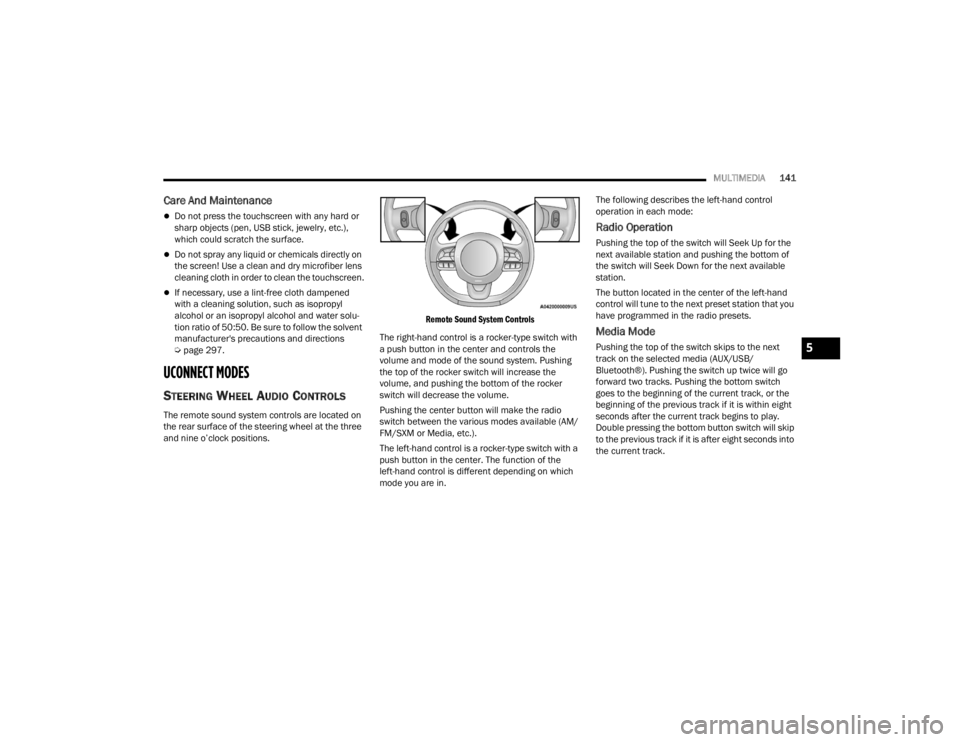
The remote sound system controls are located on
the rear surface of the steering wheel at the three
and nine o’clock positions.
Remote Sound System Controls
The right-hand control is a rocker-type switch with
a push button in the center and controls the
volume and mode of the sound system. Pushing
the top of the rocker switch will increase the
volume, and pushing the bottom of the rocker
switch will decrease the volume.
Pushing the center button will make the radio
switch between the various modes available (AM/
FM/SXM or Media, etc.).
The left-hand control is a rocker-type switch with a
push button in the center. The function of the
left-hand control is different depending on which
mode you are in. The following describes the left-hand control
operation in each mode:
Radio Operation
Pushing the top of the switch will Seek Up for the
next available station and pushing the bottom of
the switch will Seek Down for the next available
station.
The button located in the center of the left-hand
control will tune to the next preset station that you
have programmed in the radio presets.
Media Mode
Pushing the top of the switch skips to the next
track on the selected media (AUX/USB/
Bluetooth®). Pushing the switch up twice will go
forward two tracks. Pushing the bottom switch
goes to the beginning of the current track, or the
beginning of the previous track if it is within eight
seconds after the current track begins to play.
Double pressing the bottom button switch will skip
to the previous track if it is after eight seconds into
the current track.5
22_FD_OM_EN_USC_t.book Page 141
Page 144 of 312
142MULTIMEDIA
RADIO MODE
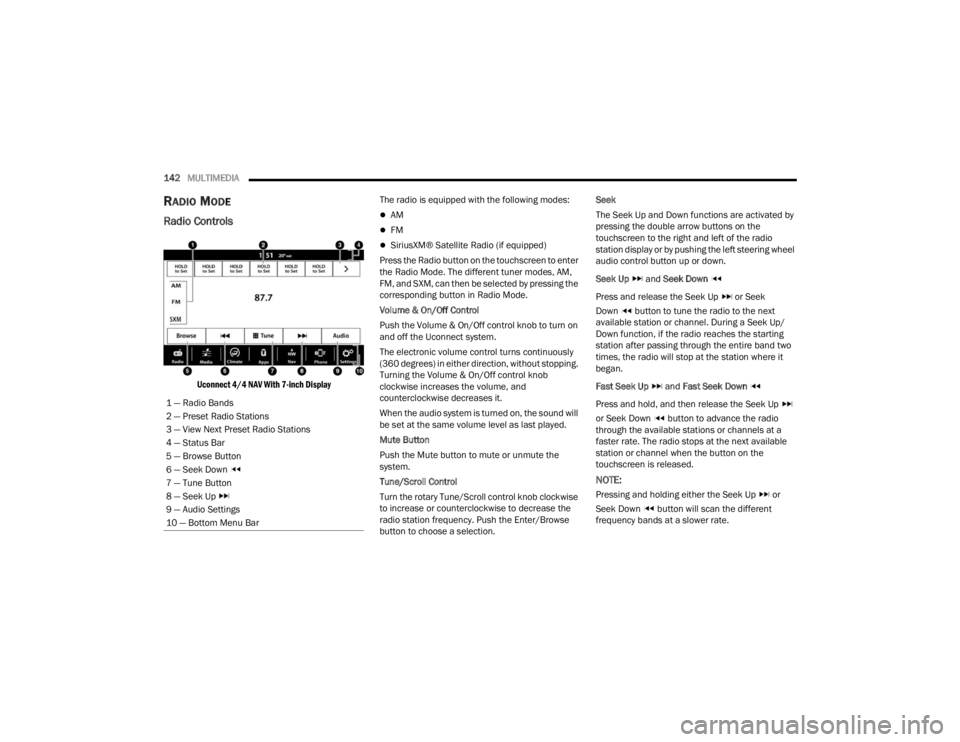
Radio Controls
Uconnect 4/4 NAV With 7-inch Display
The radio is equipped with the following modes:
AM
FM
SiriusXM® Satellite Radio (if equipped)
Press the Radio button on the touchscreen to enter
the Radio Mode. The different tuner modes, AM,
FM, and SXM, can then be selected by pressing the
corresponding button in Radio Mode.
Volume & On/Off Control
Push the Volume & On/Off control knob to turn on
and off the Uconnect system.
The electronic volume control turns continuously
(360 degrees) in either direction, without stopping.
Turning the Volume & On/Off control knob
clockwise increases the volume, and
counterclockwise decreases it.
When the audio system is turned on, the sound will
be set at the same volume level as last played.
Mute Button
Push the Mute button to mute or unmute the
system.
Tune/Scroll Control
Turn the rotary Tune/Scroll control knob clockwise
to increase or counterclockwise to decrease the
radio station frequency. Push the Enter/Browse
button to choose a selection. Seek
The Seek Up and Down functions are activated by
pressing the double arrow buttons on the
touchscreen to the right and left of the radio
station display or by pushing the left steering wheel
audio control button up or down.
Seek Up
and Seek Down
Press and release the Seek Up or Seek
Down button to tune the radio to the next
available station or channel. During a Seek Up/
Down function, if the radio reaches the starting
station after passing through the entire band two
times, the radio will stop at the station where it
began.
Fast Seek Up and Fast Seek Down
Press and hold, and then release the Seek Up
or Seek Down button to advance the radio
through the available stations or channels at a
faster rate. The radio stops at the next available
station or channel when the button on the
touchscreen is released.
NOTE:
Pressing and holding either the Seek Up or
Seek Down button will scan the different
frequency bands at a slower rate.
1 — Radio Bands
2 — Preset Radio Stations
3 — View Next Preset Radio Stations
4 — Status Bar
5 — Browse Button
6 — Seek Down
7 — Tune Button
8 — Seek Up
9 — Audio Settings
10 — Bottom Menu Bar
22_FD_OM_EN_USC_t.book Page 142
Page 166 of 312
164MULTIMEDIA
Android Auto™ Voice Command
NOTE:Feature availability depends on your carrier and
mobile phone manufacturer. Some Android Auto™
features may or may not be available in every
region and/or language.
Android Auto™ allows you to use your voice to
interact with Android’s™ best-in-class speech
technology through your vehicle’s voice recognition
system, and use your smartphone’s data plan to
project your Android™-powered smartphone and a
number of its apps onto your Uconnect
touchscreen. Connect your Android™ 6.0 or higher
to one of the media USB ports, using the
factory-provided USB cable, and press the new
Android Auto™ icon that replaces your “Phone”
icon on the main menu bar to begin Android Auto™.
Push and hold the VR button on the steering wheel,
or press and hold the “Microphone” icon within
Android Auto™, to activate Android™’s VR, which
recognizes natural voice commands, to use a list of
your smartphone’s features:
Maps
Music
Phone
Text Messages
Additional Apps
NOTE:
To use Android Auto™ on your car display, you’ll
need an Android phone running Android 6.0 or
higher, an active data plan, and the Android
Auto™ app.
To wirelessly use Android Auto™ on your car
display, you need a compatible Android smart -
phone with an active data plan. You can check
which smartphones are compatible at g.co/
androidauto/requirements.
Android™ is a trademark of Google Inc.
APPLE CARPLAY®
Use this QR code to access your
digital experience.
Uconnect works seamlessly with
Apple CarPlay®, the smarter,
more secure way to use your
iPhone® in the car, and stay
focused on the road. Use your
Uconnect Touchscreen display, the vehicle's knobs
and controls, and your voice with Siri to get access
to Apple Music®, Maps, Messages, and more.
NOTE:Feature availability depends on your carrier and
mobile phone manufacturer. Some Apple
CarPlay® features may or may not be available in
every region and/or language.
To use Apple CarPlay®, make sure you are using
iPhone® 5 or later, have Siri enabled in Settings,
ensure your iPhone® is unlocked for the very first
connection only, and then use the following
procedure:
1. Connect your iPhone® to one of the media USB ports in your vehicle.
NOTE:Be sure to use the factory-provided Lightning cable
that came with your phone, as aftermarket cables
may not work.
2. Once the device is connected and recognized, the Phone icon on the drag & drop menu bar
changes to the Apple CarPlay® Icon.
NOTE:Apple CarPlay® is set to launch immediately. You
can also launch it by pressing the Apple CarPlay®
icon on the touchscreen.
22_FD_OM_EN_USC_t.book Page 164
Page 172 of 312
170MULTIMEDIA
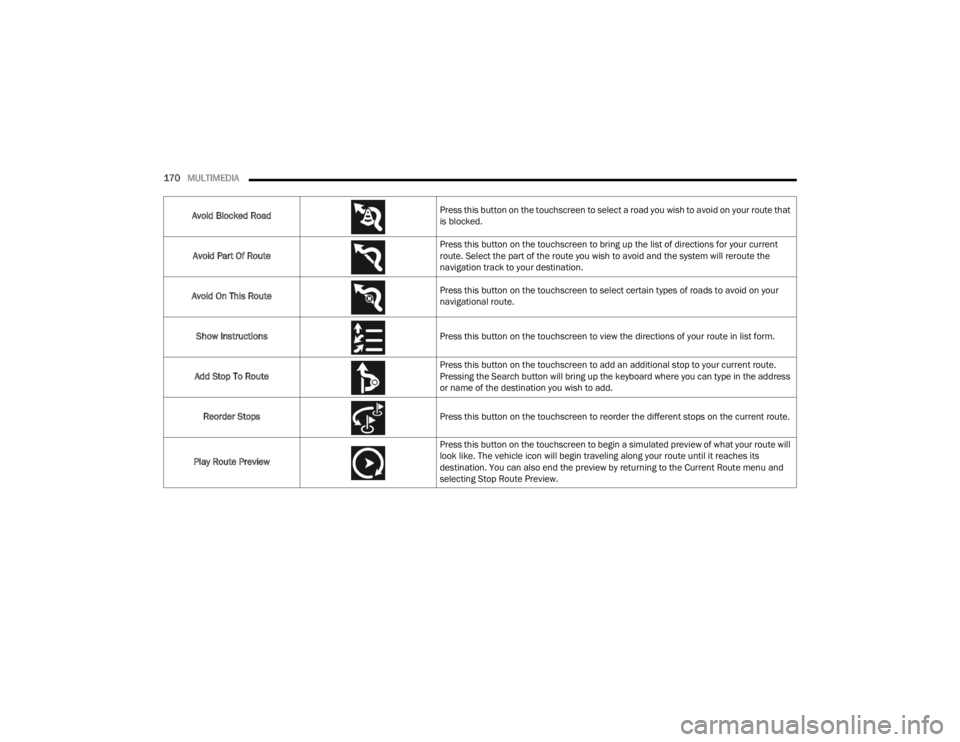
Avoid Blocked Road Press this button on the touchscreen to select a road you wish to avoid on your route that
is blocked.
Avoid Part Of Route Press this button on the touchscreen to bring up the list of directions for your current
route. Select the part of the route you wish to avoid and the system will reroute the
navigation track to your destination.
Avoid On This Route Press this button on the touchscreen to select certain types of roads to avoid on your
navigational route.
Show Instructions Press this button on the touchscreen to view the directions of your route in list form.
Add Stop To Route Press this button on the touchscreen to add an additional stop to your current route.
Pressing the Search button will bring up the keyboard where you can type in the address
or name of the destination you wish to add.
Reorder Stops Press this button on the touchscreen to reorder the different stops on the current route.
Play Route Preview Press this button on the touchscreen to begin a simulated preview of what your route will
look like. The vehicle icon will begin traveling along your route until it reaches its
destination. You can also end the preview by returning to the Current Route menu and
selecting Stop Route Preview.
22_FD_OM_EN_USC_t.book Page 170
Page 176 of 312
174 (Continued)
SAFETY
SAFETY FEATURES
ANTI-LOCK BRAKE SYSTEM (ABS)
The ABS provides increased vehicle stability and
brake performance under most braking conditions.
The system automatically prevents wheel lock and
enhances vehicle control during braking.
The ABS performs a self-check cycle to ensure that
the ABS is working properly each time the vehicle
is started and driven. During this self-check, you
may hear a slight clicking sound as well as some
related motor noises.
The ABS is activated during braking when the
system detects one or more wheels are beginning
to lock. Road conditions such as ice, snow, gravel,
bumps, railroad tracks, loose debris, or panic stops
may increase the likelihood of ABS activation(s).
You also may experience the following normal
characteristics when the ABS activates:
The ABS motor noise or clicking sounds (you may
continue to hear for a short time after the stop).
Brake pedal pulsations.
A slight drop of the brake pedal at the end of the
stop.The ABS is designed to function with the Original
Equipment Manufacturer (OEM) tires. Modification
may result in degraded ABS performance.
Anti-Lock Brake System (ABS) Warning
Light
The yellow ABS Warning Light will turn on when the
ignition is placed in the ON/RUN mode and may
stay on for as long as four seconds.
If the ABS Warning Light remains on or comes on
while driving, it indicates that the anti-lock portion
of the brake system is not functioning and that
service is required. However, the conventional
brake system will continue to operate normally if
the ABS Warning Light is on.
If the ABS Warning Light is on, the brake system
should be serviced as soon as possible to restore
the benefits of Anti-Lock Brakes. If the ABS
WARNING!
The ABS contains sophisticated electronic
equipment that may be susceptible to interfer
-
ence caused by improperly installed or high
output radio transmitting equipment. This
interference can cause possible loss of
anti-lock braking capability. Installation of
such equipment should be performed by qual -
ified professionals.
Pumping of the Anti-Lock Brakes will diminish
their effectiveness and may lead to a collision.
Pumping makes the stopping distance longer.
Just press firmly on your brake pedal when you
need to slow down or stop.
The ABS cannot prevent the natural laws of
physics from acting on the vehicle, nor can it
increase braking or steering efficiency beyond
that afforded by the condition of the vehicle
brakes and tires or the traction afforded.
The ABS cannot prevent collisions, including
those resulting from excessive speed in turns,
following another vehicle too closely, or hydro -
planing.
The capabilities of an ABS equipped vehicle
must never be exploited in a reckless or
dangerous manner that could jeopardize the
user’s safety or the safety of others.
WARNING!
22_FD_OM_EN_USC_t.book Page 174
Page 177 of 312
SAFETY175
Warning Light does not come on when the ignition
is placed in ON/RUN mode, have the light repaired
as soon as possible.
ELECTRONIC BRAKE CONTROL (EBC)
S
YSTEM
Your vehicle is equipped with an advanced
Electronic Brake Control (EBC) system. This system
includes Anti-Lock Brake System (ABS), Brake
Assist System (BAS), Dynamic Steering Torque
(DST), Electronic Brake Force Distribution (EBD),
Electronic Stability Control (ESC), Electronic Roll
Mitigation (ERM), Hill Start Assist (HSA), and
Traction Control System (TCS). These systems work
together to enhance both vehicle stability and
control in various driving conditions.
Brake System Warning Light
The red Brake System Warning Light will turn on
when the ignition is placed in the ON/RUN mode
and may stay on for as long as four seconds.
If the Brake System Warning Light remains on or
comes on while driving, it indicates that the brake
system is not functioning properly and that
immediate service is required. If the Brake System
Warning Light does not come on when the ignition
is placed in the ON/RUN mode, have the light
repaired as soon as possible.
Brake Assist System (BAS)
The BAS is designed to optimize the vehicle’s
braking capability during emergency braking
maneuvers. The system detects an emergency
braking situation by sensing the rate and amount
of brake application and then applies optimum
pressure to the brakes. This can help reduce
braking distances. The BAS complements the
Anti-Lock Brake System (ABS). Applying the brakes
very quickly results in the best BAS assistance. To
receive the benefit of the system, you must apply
continuous braking pressure during the stopping
sequence (do not “pump” the brakes). Do not
reduce brake pedal pressure unless braking is no
longer desired. Once the brake pedal is released,
the BAS is deactivated.
Dynamic Steering Torque (DST)
DST is a feature of the ESC and Electric Power
Steering (EPS) modules that provides torque at the
steering wheel for certain driving conditions in
which the ESC module is detecting vehicle
instability. The torque that the steering wheel
receives is only meant to help the driver realize
optimal steering behavior in order to reach/
maintain vehicle stability. The only notification the
driver receives that the feature is active is the
torque applied to the steering wheel.
NOTE:The DST feature is only meant to help the driver
realize the correct course of action through small
torques on the steering wheel, which means the
effectiveness of the DST feature is highly
dependent on the driver’s sensitivity and overall
reaction to the applied torque. It is very important
to realize that this feature will not steer the vehicle,
meaning the driver is still responsible for steering
the vehicle.
Electronic Brake Force Distribution (EBD)
EBD manages the distribution of the braking
torque between the front and rear axles by limiting
braking pressure to the rear axle. This is done to
prevent overslip of the rear wheels to avoid vehicle
instability, and to prevent the rear axle from
entering ABS before the front axle.
WARNING!
The Brake Assist System (BAS) cannot prevent
the natural laws of physics from acting on the
vehicle, nor can it increase the traction afforded
by prevailing road conditions. BAS cannot
prevent collisions, including those resulting from
excessive speed in turns, driving on very slippery
surfaces, or hydroplaning. The capabilities of a
BAS-equipped vehicle must never be exploited in
a reckless or dangerous manner, which could
jeopardize the user's safety or the safety of
others.
6
22_FD_OM_EN_USC_t.book Page 175