transmission FIAT DUCATO 244 2002 3.G Connect NavPlus Manual
[x] Cancel search | Manufacturer: FIAT, Model Year: 2002, Model line: DUCATO 244, Model: FIAT DUCATO 244 2002 3.GPages: 246, PDF Size: 3.39 MB
Page 17 of 246
CONNECT Nav
16
Manual switching on
With ignition key at STOPpress
knob 16-fig. 1, to switch the system
on, thus making available the following
modules:
– MAIN,
– AUDIO,
– NAV,
– TEL,
– Targasys
•.
IMPORTANTIn this mode, the
SETUP and TRIP modules can be ac-
tivated; however, it will not be possi-
ble to validate any operation con-
cerning parameter change, language
change, units change and any other
type of adjustment provided by the
system. These limitations are normal
when switching the system on manu-
ally by the knob 16-fig. 1, since with
engine off (key at STOP) the vehicle
data transmission devices are not op-
erating.
Turning the ignition key to MAR, will
make all system functions active.SYSTEM POWER OFF
The CONNECT system can be
switched off according to two differ-
ent modes:
– deactivation independentof ig-
nition key
– deactivation dependenton ig-
nition key
To choose the power-off mode, see
the Power OFF submenu in the SET-
UP menu.
Deactivation independent
of ignition key
With this mode active, the system
can be turned off by pressing the knob
16-fig. 1.
The display will show the message
“PLEASE WAIT WHILE SYSTEM
TURNS OFF”.
IMPORTANTWith ignition key at
STOP, deactivation is delayed and will
take place after 20 minutes if the sys-
tem has a destination set or a phone
call is in progress.Deactivation dependent
on ignition key
With this mode active, the system
can be switched off by turning the ig-
nition key to STOPor pressing the
knob 16-fig. 1.
IMPORTANTDeactivation with
ignition key to STOPis delayed and
will take place after 20 minutes if the
system has a destination set or a
phone call is in progress.
Page 23 of 246
CONNECT Nav
22
SERIAL - MODEM
(data interface)
This function enables to connect an
external device (e.g.: portable com-
puter) to the CONNECT Nav system
that in this case will act as a modem.
To implement such configuration the
link between the external device and
the CONNECT Nav system connec-
tion (to be found in central position
under the dashboard) shall be per-
formed using the cable provided with
the system.
The max. data transmission speed is
that provided for the cellular tele-
phone mode (TEL) and is equal to 9.6
Kbps, as established by the commu-
nication with GSM cell network.
During data transmission (modem
function on), the CONNECT Nav
condition is the following:
– telephone mode off (TEL-OFF);
– incoming calls blocked;– call forwarding blocked;
– navigator (NAV) function can be
activated; if navigation is on data trans-
mission can be slow;
– all audio functions (radio, CD) can
be activated
– emergency call can be forwarded
by pressing •25-fig. 1.
IMPORTANTThe modem func-
tion cannot be activated during a call.IMPORTANTPress button •to
abort the modem function; the system
will restore the GSM telephone mode
for the selected function and will re-
quest to enter the PIN code; data ex-
changed during transmission will be
lost (unless data back-up have been
performed by user’s computer appli-
cations).
The modem function will not be re-
stored automatically by the system
when the emergency or service call is
over. To restore it repeat the proce-
dure from the beginning.
Page 24 of 246
CONNECT Nav
23
IMPORTANTStarting the engine
when the modem function is on, will
cause the connection drop with data
loss as a consequence. Stooping the
engine has no effect on data transmis-
sion since the CONNECT Nav will
stay on for other 20 minutes. If a GSM
communication is in progress the sys-
tem will automatically activate a new
window for other 20 minutes. Long
GSM communications (with data
transmission) can run down the vehi-
cle battery.
Operation requirements
The modem function is operational
if the following conditions are present:
– CONNECT Nav system on;
– SIM card inserted;
– sufficient credit;
– GSM coverage.Portable computer setting
SERIAL PORT SETTING
The computer serial port shall be set
for 9600bps data transmission speed.
For “Windows 95” proceed as fol-
lows:
– open “computer resources”
– open “control panel”
– open “system”
– open “peripheral control”
– select “com and LPT ports”
– select “COM1 port”
– select “port setting”
– check: bit per second = 9600
data bit = 8
parity = no parity
stop bit = 1
flow control = Xon/Xoff
MODEM SETTING
The portable computer shall have the
modem. For “Windows 95” proceed
as follows:
– open “computer resources”
– open “control panel”
– open “modem”:
select add
select “modem types” = other
select “next” and follow the dis-
played instructions.
Page 29 of 246
CONNECT Nav
28
Operation requirements
The “FLEET MANAGEMENT” func-
tion is operational if the following con-
ditions are present:
– “FLEET MANAGEMENT” function
active;
– service centre telephone number
entered;
– vehicle ID entered;
– frequency set (timeor route);
– CONNECT on;
– SIM card inserted;
– sufficient credit;
– GSM coverage.Failing message sending
Should one or more of the following
conditions - e.g.: CONNECT off, SIM
card not inserted or disabled, insuffi-
cient GSM coverage - take place when
sending SMS messages, their regular
transmission will be impaired.
In this case the system will store the
messages and send them later (max.
10 messages) when normal operating
conditions are restored.IMPORTANTMore particularly,
the condition of CONNECT off will
store the messages with incorrect po-
sition, since the first position present
at system switching on will be detect-
ed.
Page 61 of 246
CONNECT Nav
60
– manual number dialling
– DTMF setting (Dual Tone Multi
Frequency) to repeat dialling and in-
hibit the own identification number
transmission
– selection of network provider
– setting ringer volume and tone
– display of remaining credit in case
of prepaid SIM card (if available by net-
work provider)
– display of signal field intensity and
other status warnings with symbols
and words.PRELIMINARY
OPERATIONS
ENTERING AND EXITING
THE TELEPHONE MODE
To enter the telephone mode
proceed as follows:
– short push on ”TEL” button 19-
fig. 1on front panel.
(If the Connect is off, switch it on by
turning the ignition key to MAR).
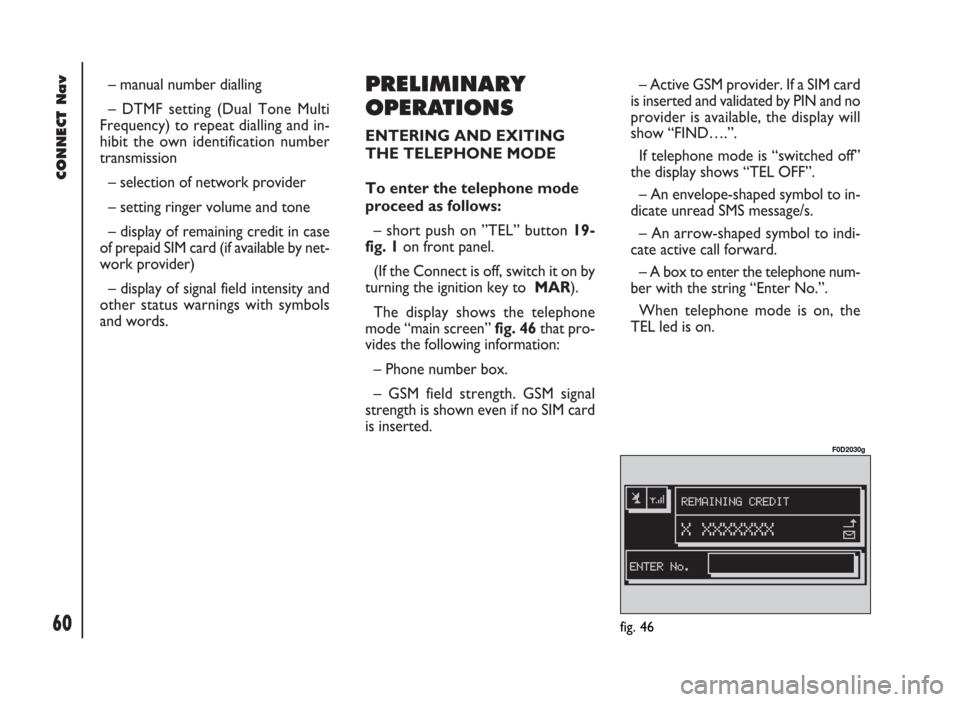
The display shows the telephone
mode “main screen”fig. 46that pro-
vides the following information:
– Phone number box.
– GSM field strength. GSM signal
strength is shown even if no SIM card
is inserted.– Active GSM provider. If a SIM card
is inserted and validated by PIN and no
provider is available, the display will
show “FIND….”.
If telephone mode is “switched off”
the display shows “TEL OFF”.
– An envelope-shaped symbol to in-
dicate unread SMS message/s.
– An arrow-shaped symbol to indi-
cate active call forward.
– A box to enter the telephone num-
ber with the string “Enter No.”.
When telephone mode is on, the
TEL led is on.
fig. 46
F0D2030g
Page 165 of 246
CONNECT Nav+
164
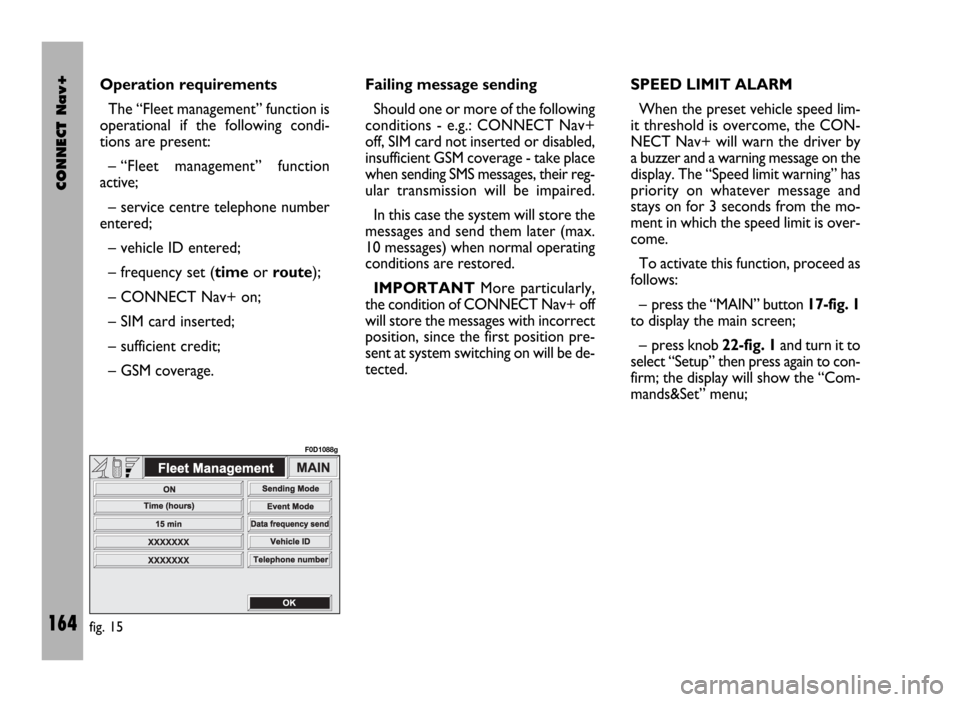
Operation requirements
The “Fleet management” function is
operational if the following condi-
tions are present:
– “Fleet management” function
active;
– service centre telephone number
entered;
– vehicle ID entered;
– frequency set (timeor route);
– CONNECT Nav+ on;
– SIM card inserted;
– sufficient credit;
– GSM coverage.Failing message sending
Should one or more of the following
conditions - e.g.: CONNECT Nav+
off, SIM card not inserted or disabled,
insufficient GSM coverage - take place
when sending SMS messages, their reg-
ular transmission will be impaired.
In this case the system will store the
messages and send them later (max.
10 messages) when normal operating
conditions are restored.
IMPORTANTMore particularly,
the condition of CONNECT Nav+ off
will store the messages with incorrect
position, since the first position pre-
sent at system switching on will be de-
tected.SPEED LIMIT ALARM
When the preset vehicle speed lim-
it threshold is overcome, the CON-
NECT Nav+ will warn the driver by
a buzzer and a warning message on the
display. The “Speed limit warning” has
priority on whatever message and
stays on for 3 seconds from the mo-
ment in which the speed limit is over-
come.
To activate this function, proceed as
follows:
– press the “MAIN” button 17-fig. 1
to display the main screen;
– press knob 22-fig. 1and turn it to
select “Setup” then press again to con-
firm; the display will show the “Com-
mands&Set” menu;
fig. 15
F0D1088g
Page 168 of 246

CONNECT Nav+
167
MODEM (data interface)
This function enables to connect an
external device (e.g.: portable com-
puter) to the CONNECT Nav+ that
in this case will act as a modem. To im-
plement such configuration the link be-
tween the external device and the
CONNECT Nav+ connection (to be
found in central position under the
dashboard) shall be performed using
the cable provided with the system.
The max. data transmission speed is
that provided for the cellular tele-
phone mode (TEL) and is equal to 9.6
Kbps, as established by the commu-
nication with GSM cell network.
During data transmission (modem
function on), the CONNECT Nav+
condition is the following:
– telephone mode off (TEL-OFF);
– incoming calls blocked;– call forwarding blocked;
– navigator (NAV) function can be
activated; if navigation is on data trans-
mission can be slow;
– all audio functions (radio, CD) can
be activated
– emergency call can be forwarded
by pressing •25-fig. 1.IMPORTANTThe modem func-
tion cannot be activated during a call.
IMPORTANTPress button •to
abort the modem function; the system
will restore the GSM telephone mode
for the selected function and will re-
quest to enter the PIN code; data ex-
changed during transmission will be
lost (unless data back-up have been
performed by user’s computer appli-
cations).
The modem function will not be re-
stored automatically by the system
when the emergency or service call is
over. To restore it repeat the proce-
dure from the beginning.
Page 169 of 246

CONNECT Nav+
168
IMPORTANTStarting the engine
when the modem function is on, will
cause the connection drop with data
loss as a consequence. Stooping the
engine has no effect on data transmis-
sion since the CONNECT Nav+ will
stay on for other 20 minutes. If a GSM
communication is in progress the sys-
tem will automatically activate a new
window for other 20 minutes. Long
GSM communications (with data
transmission) can run down the vehi-
cle battery.
Operation requirements
The modem function is operational
if the following conditions are present:
– CONNECT Nav+ on;
– SIM card inserted;
– sufficient credit;
– GSM coverage.Portable computer setting
SERIAL PORT SETTING
The computer serial port shall be set
for 9600bps data transmission speed.
For “Windows 95” proceed as fol-
lows:
– open “computer resources”
– open “control panel”
– open “system”
– open “peripheral control”
– select “com and LPT ports”
– select “COM1 communications
port”
– select “port setting”
– check: bit per second = 9600
data bit = 8
parity = no parity
stop bit = 1
flow control = Xon/Xoff
MODEM SETTING
The portable computer shall have the
modem. For “Windows 95” proceed
as follows:
– open “computer resources”
– open “control panel”
– open “modem”:
select add
select “modem types” = other
select “next” and follow the dis-
played instructions.
Page 170 of 246
CONNECT Nav+
169
Once the modem has been proper-
ly installed, the portable computer can
use all the applications provided for
telematic connections to data base -
external servers, etc.; more particu-
larly the following can be used:
– Hiper Terminal;
– Microsoft Explorer or Netscape
for Internet and its applications (pro-
vided the user has an “Internet
provider”);
– Microsoft Mail or Groupwise (for
e-mail address).To activate the Modem function,
proceed as follows:
– press the “MAIN” button17-fig. 1
to display the main screen;
– press the knob 22-fig. 1and turn
it to select “Setup” then press the
knob to confirm; the display will show
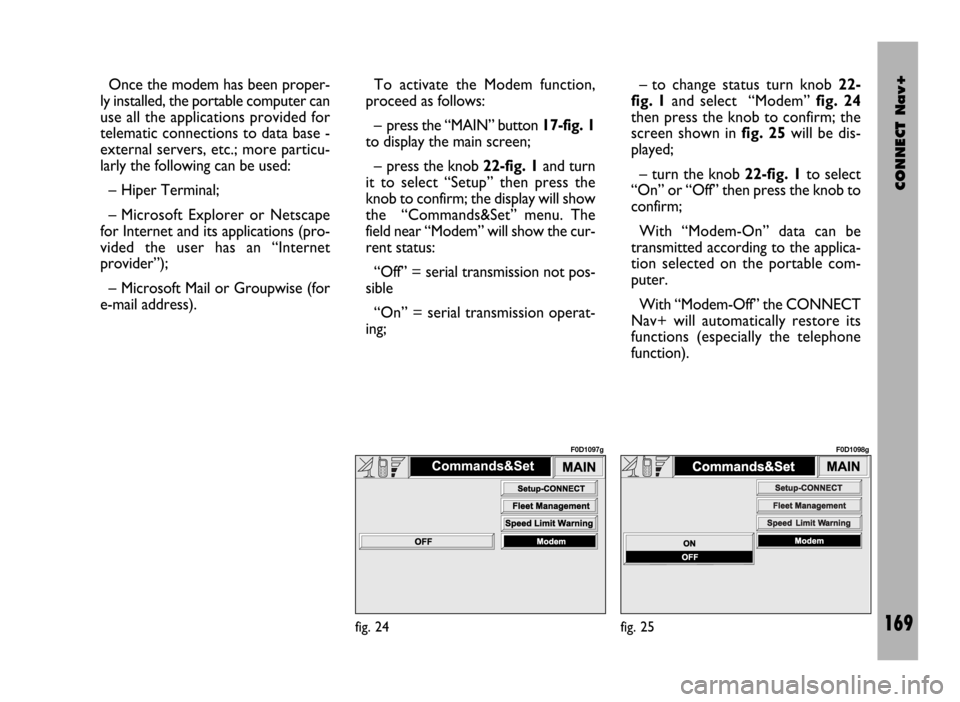
the “Commands&Set” menu. The
field near “Modem” will show the cur-
rent status:
“Off” = serial transmission not pos-
sible
“On” = serial transmission operat-
ing;– to change status turn knob 22-
fig. 1and select “Modem” fig. 24
then press the knob to confirm; the
screen shown in fig. 25will be dis-
played;
– turn the knob 22-fig. 1to select
“On” or “Off” then press the knob to
confirm;
With “Modem-On” data can be
transmitted according to the applica-
tion selected on the portable com-
puter.
With “Modem-Off” the CONNECT
Nav+ will automatically restore its
functions (especially the telephone
function).
fig. 24
F0D1097g
fig. 25
F0D1098g
Page 188 of 246
CONNECT Nav+
187
– information on SIM card conditions
(correct or wrong insertion and space
available in the memory)
– access to the list of the last 10
numbers dialled to facilitate frequent
calls
– access to the list of the last 10 calls
received
– SMS function (Short Message Ser-
vice) to receive and send short text
messages
– activation and deactivation of ac-
cess to SIM card (Subscriber Identifi-
cation Module)
– access and change of the lists con-
taining the most frequently dialled
numbers and to telephone directory;
– manual number dialling
– DTMF setting (Dual Tone Multi
Frequency) to repeat dialling and in-
hibit the own identification number
transmission
– selection of network provider
– setting volume
– display of remaining credit in case
of prepaid SIM card (if the Network
Provider makes these data available)– display of signal field intensity and
other status warnings with symbols
and words:
telephone wordings not active or
lack of network service or telephone
not included in network
êfield intensity shown by lit sec-
tors
call signal off wording
ï“forwarding” function activated
ñSMS message received
and already read
óSMS message received
and not read yet
íSMS message written
and already sent
îSMS message written,
but not sent yet.
PRELIMINARY OPERATIONS
Telephone card insertion
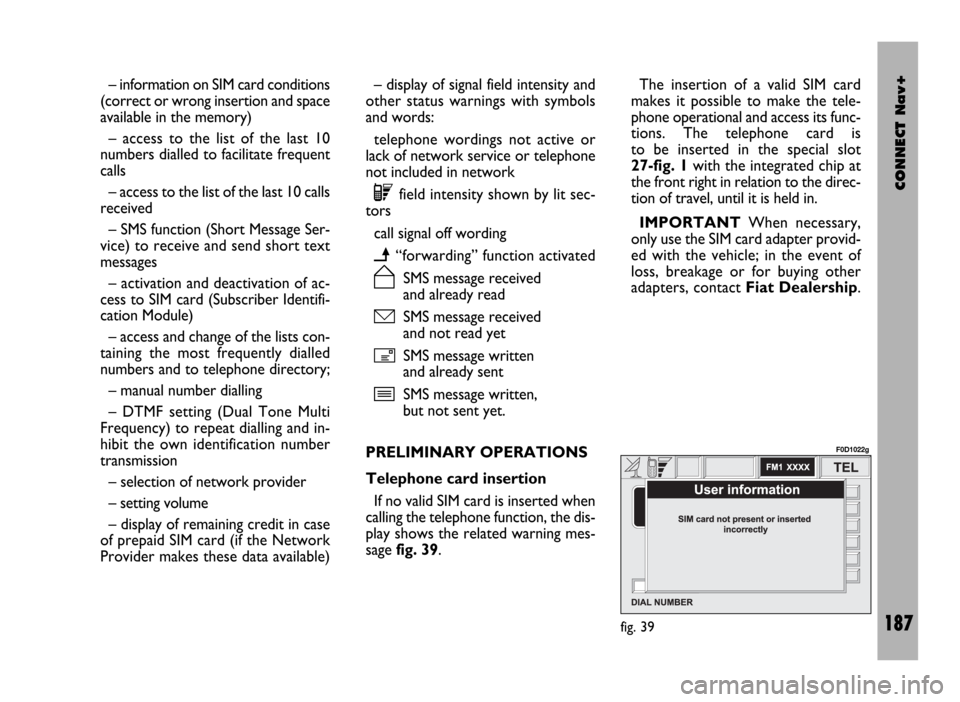
If no valid SIM card is inserted when
calling the telephone function, the dis-
play shows the related warning mes-
sage fig. 39.The insertion of a valid SIM card
makes it possible to make the tele-
phone operational and access its func-
tions. The telephone card is
to be inserted in the special slot
27-fig. 1with the integrated chip at
the front right in relation to the direc-
tion of travel, until it is held in.
IMPORTANTWhen necessary,
only use the SIM card adapter provid-
ed with the vehicle; in the event of
loss, breakage or for buying other
adapters, contact Fiat Dealership.
fig. 39
F0D1022g