reset FIAT FREEMONT 2014 1.G Owners Manual
[x] Cancel search | Manufacturer: FIAT, Model Year: 2014, Model line: FREEMONT, Model: FIAT FREEMONT 2014 1.GPages: 388, PDF Size: 4.13 MB
Page 26 of 388
• Tire Pressure
• Vehicle Information
• Warning Message Displays
• Turn Menu OFF
The system allows the driver to select information by
pressing the following buttons mounted on the steer-
ing wheel:
(fig. 9)
•UP Button
Press and release the UP button to scroll up-
ward through the main menus (Fuel Economy,
Vehicle Info, Tire PSI, Cruise, Messages, Units)
and sub-menus.
• DOWN Button
Press and release the DOWN button to
scroll downward through the main menus
and sub-menus.
• SELECT Button
Press and release the SELECT button for
access to main menus or sub-menus. Press
and hold the SELECT button for two seconds
to reset features.
• BACK Button
Press the BACK button to scroll back to a
previous menu.
ELECTRONIC VEHICLE INFORMATION
CENTER (EVIC) DISPLAYS
The EVIC display consists of three sections:
1. The top line where compass direction, odometer line and outside temperature are displayed.
2. The main display area where the menus and pop up messages are displayed.
3. The reconfigurable telltales section below the odometer line.
(fig. 9)
EVIC Steering Wheel Buttons
20
KNOWINGYOUR
VEHICLE
SAFETY
STARTING AND
DRIVING
W
ARNING LIGHTS AND
MESSAGES
IN AN
EMERGENCY
SERVICING AND CARE
TECHNICAL
SPECIFICATIONS
CONTENTS
Page 33 of 388
OIL CHANGE DUE
Your vehicle is equipped with an engine oil change
indicator system. The “Oil Change Due” message will
flash in the EVIC display for approximately 10 seconds
after a single chime has sounded to indicate the next
scheduled oil change interval. The engine oil change
indicator system is duty cycle based, which means the
engine oil change interval may fluctuate dependent
upon your personal driving style.
Unless reset, this message will continue to display each
time you cycle the ignition to the ON/RUN position.
To turn off the message temporarily, press and release
the BACK button. To reset the oil change indicator
system please refer to a Fiat Dealership.
FUEL ECONOMY
Press and release the UP or DOWN button until “Fuel
Economy” displays highlighted in the EVIC and press
the SELECT button. The following Fuel Economy func-
tions will display in the EVIC:
• Average Fuel Economy
• Distance To Empty (DTE)
• Instantaneous Fuel Economy
Average Fuel Economy
Shows the average fuel economy since the last reset.
When the fuel economy is reset, the display will read“RESET” or show dashes for two seconds. Then, the
history information will be erased, and the averaging
will continue from the last fuel average reading before
the reset.
(fig. 14)
Distance To Empty (DTE)
Shows the estimated distance that can be traveled with
the fuel remaining in the tank. This estimated distance
is determined by a weighted average of the instanta-
neous and average fuel economy, according to the
current fuel tank level. DTE cannot be reset through
the SELECT button.
NOTE:
Significant changes in driving style or vehicle
loading will greatly affect the actual drivable distance of
the vehicle, regardless of the DTE displayed value.
(fig. 14)
Fuel Economy Display
27
KNOWING
YOUR
VEHICLE
SAFETY
STARTING
AND
DRIVING
W
ARNING
LIGHTS
AND
MESSAGES
IN AN
EMERGENCY
SERVICING
AND CARE
TECHNICAL
SPECIFICATIONS
CONTENTS
Page 34 of 388
When the DTE value is less than 48 km estimated
driving distance, the DTE display will change to a
“LOW FUEL” message. This display will continue until
the vehicle runs out of fuel. Adding a significant amount
of fuel to the vehicle will turn off the “LOW FUEL”
message and a new DTE value will display.
L/100km
This display shows the instantaneous L/100km in bar
graph form while driving. This will monitor the gas
mileage in real-time as you drive and can be used to
modify driving habits in order to increase fuel economy.
(fig. 15)
VEHICLE SPEED
Press and release the UP or DOWN button until
“Vehicle Speed” displays highlighted in the EVIC. Press
the SELECT button to display the current speed
in km/h. Pressing the SELECT button a second time will
toggle the unit of measure between km/h.
NOTE:Changing the unit of measure in the Vehicle
Speed menu will not change the unit of measure in the
EVIC.
TRIP INFO
Press and release the UP or DOWN button until “Trip
Info” displays highlighted in the EVIC and press the
SELECT button. Pressing the SELECT button with
"Trip Info" highlighted will cause the EVIC display to
show Trip A, Trip B, and Elapsed Time all in one display.
If you want to reset one of the three functions you use
the UP or DOWN buttons to highlight (select) the
feature that you want to reset. Pressing the SELECT
button will cause the selected feature to reset individu-
ally. The three features can only be reset individually.
The following Trip functions display in the EVIC:
• Trip A
• Trip B
• Elapsed Time
(fig. 15)
L/100km Bar Graph
28
KNOWINGYOUR
VEHICLE
SAFETY
STARTING AND
DRIVING
W
ARNING LIGHTS AND
MESSAGES
IN AN
EMERGENCY
SERVICING AND CARE
TECHNICAL
SPECIFICATIONS
CONTENTS
Page 35 of 388
The Trip Functions mode displays the following infor-
mation:
Trip A
Shows the total distance traveled for Trip A since the
last reset.
Trip B
Shows the total distance traveled for Trip B since the
last reset.
Elapsed Time
Shows the total elapsed time of travel since the last
reset. Elapsed time will increment when the ignition is
in the ON/RUN position.
To Reset The Display
Reset will only occur while a resettable function is
being displayed. Press and release the SELECT button
once to clear the resettable function.
TIRE BAR/PSI
Press and release the UP or DOWN button until “Tire
BAR/PSI” displays highlighted in the EVIC. Press the
SELECT button to view a graphic of the vehicle with a
tire pressure value at each corner of the graphic.VEHICLE INFO (CUSTOMER
INFORMATION FEATURES)
(for versions/markets, where provided)
Press and release the UP or DOWN button until
“Vehicle Info” displays in the EVIC and press the SE-
LECT button. Press the UP and DOWN button to
scroll through the available information displays that
may be equipped.
• Coolant Temp
Displays the actual coolant temperature.
• Oil Temperature — for versions/markets, where
provided
Displays the actual oil temperature.
• Oil Pressure — for versions/markets, where
provided
Displays the actual oil pressure.
• Trans Temperature
Displays the actual transmission sump temperature.
• Engine Hours
Displays the number of hours of engine operation.
29
KNOWING
YOUR
VEHICLE
SAFETY
STARTING
AND
DRIVING
W
ARNING
LIGHTS
AND
MESSAGES
IN AN
EMERGENCY
SERVICING
AND CARE
TECHNICAL
SPECIFICATIONS
CONTENTS
Page 43 of 388
•Calibration (for versions/markets, where provided)
Press the Calibration key to change this setting. This
compass is self-calibrating, which eliminates the need
to manually reset the compass. When the vehicle is
new, the compass may appear erratic and the EVIC will
display CAL until the compass is calibrated. You may
also calibrate the compass by pressing the ON soft-key
and completing one or more 360–degree turns (in an
area free from large metal or metallic objects) until the
CAL indicator displayed in the EVIC turns off. The
compass will now function normally.
NOTE:A good calibration requires a level surface
and an environment free from large metallic objects
such as buildings, bridges, underground cables, railroad
tracks, etc.
Audio
• Equalizer (for versions/markets, where provided)
Press the Equalizer soft-key to change this display.
When in this display you may adjust the Bass, Mid and
Treble settings. Adjust the settings with the + and –
setting soft-keys or by selecting any point on the scale
in between the + and – soft-keys followed by pressing
the arrow back soft-key.
NOTE: Bass/mid/treble allow the you to simply slide
your finger up/down to change the setting as well as
press directly on the desired setting. • Balance / Fade (for versions/markets, where
provided)
Press the Balance / Fade soft-key to change this display.
When in this display you may adjust the Balance and
Fade settings.
• Speed Adjusted Volume (for versions/markets,
where provided)
Press the Speed Adjusted Volume soft-key to change
this display. Decreases volume relative to vehicle
speed. To change the Speed Adjusted Volume press the
Off, 1, 2 or 3 soft-key followed by pressing the arrow
back soft-key.
• Surround Sound (for versions/markets, where
provided)
Press the Surround Sound soft-key to change this
display. Provides simulated surround sound mode. To
make your selection, press the Surround Sound soft-
key, select ON or OFF followed by pressing the arrow
back soft-key.
Phone / Bluetooth®
• Paired Devices
This feature shows which phones are paired to the
Phone/Bluetooth® system. For further information,
refer to the Uconnect® Supplement.
37
KNOWING
YOUR
VEHICLE
SAFETY
STARTING
AND
DRIVING
W
ARNING
LIGHTS
AND
MESSAGES
IN AN
EMERGENCY
SERVICING
AND CARE
TECHNICAL
SPECIFICATIONS
CONTENTS
Page 50 of 388
• Perform Compass Calibration (for versions/
markets, where provided)
Press the Calibration key to change this setting. This
compass is self-calibrating, which eliminates the need
to manually reset the compass. When the vehicle is
new, the compass may appear erratic and the EVIC will
display CAL until the compass is calibrated. You may
also calibrate the compass by pressing the ON soft-key
and completing one or more 360–degree turns (in an
area free from large metal or metallic objects) until the
CAL indicator displayed in the EVIC turns off. The
compass will now function normally.
Audio
• Balance/Fade (for versions/markets, where
provided)
When in this display you may adjust the Balance and
Fade settings.
• Equalizer (for versions/markets, where provided)
When in this display you may adjust the Bass, Mid and
Treble settings. Adjust the settings with the + and –
setting soft-keys or by selecting any point on the scale
in between the + and – soft-keys followed by pressing
the arrow back soft-key.NOTE:
Bass/mid/treble allow the you to simply slide
your finger up/down to change the setting as well as
press directly on the desired setting.
• Speed Adjusted Volume (for versions/markets,
where provided)
Decreases volume relative to vehicle speed. To change
the Speed Adjusted Volume press the Off, 1, 2 or 3
soft-key followed by pressing the arrow back soft-key.
• Music Info Cleanup (for versions/markets, where
provided)
This feature helps organize music files for optimized
music navigation. To make your selection, press the
Music Info Cleanup soft-key, select On or Off followed
by pressing the arrow back soft-key.
Phone / Bluetooth®
• Paired Devices
This feature shows which phones are paired to the
Phone/Bluetooth® system. For further information,
refer to the Uconnect® Supplement.
44
KNOWING YOUR
VEHICLE
SAFETY
STARTING AND
DRIVING
W
ARNING LIGHTS AND
MESSAGES
IN AN
EMERGENCY
SERVICING AND CARE
TECHNICAL
SPECIFICATIONS
CONTENTS
Page 58 of 388
For comfort, the Active Head Restraints can be tilted
forward and backward. To tilt the head restraint closer
to the back of your head, pull forward on the bottom of
the head restraint. Push rearward on the bottom of the
head restraint to move the head restraint away from
your head.
(fig. 29) (fig. 30)
NOTE:
• The head restraints should only be removed byqualified technicians, for service purposes only. If
either of the head restraints require removal, see
your authorized dealer.
• In the event of deployment of an Active Head Re- straint, refer to “Occupant Restraints/Supplemental
Active Head Restraints (AHR)/Resetting Active
Head Restraints (AHR)” in “Safety” for further infor-
mation.
(fig. 29)
Active Head Restraint (Normal Position)(fig. 30) Active Head Restraint (Tilted)
52
KNOWINGYOUR
VEHICLE
SAFETY
STARTING AND
DRIVING
W
ARNING LIGHTS AND
MESSAGES
IN AN
EMERGENCY
SERVICING AND CARE
TECHNICAL
SPECIFICATIONS
CONTENTS
Page 102 of 388
REAR WINDOW DEFROSTERThe rear window defroster button is located on
the climate control panel. Press this button to
turn on the rear window defroster and the heated
outside mirrors (for versions/markets, where pro-
vided). An indicator in the button will illuminate when
the rear window defroster is on. The rear window
defroster automatically turns off after approximately
10 minutes.
NOTE: To prevent excessive battery drain, use the
rear window defroster only when the engine is oper-
ating.
Failure to follow these cautions can
cause damage to the heating elements:
•Use care when washing the inside of
the rear window. Do not use abrasive window
cleaners on the interior surface of the window.
Use a soft cloth and a mild washing solution,
wiping parallel to the heating elements. Labels
can be peeled off after soaking with warm water.
• Do not use scrapers, sharp instruments, or abra-
sive window cleaners on the interior surface of
the window.
• Keep all objects a safe distance from the win-
dow.
ELECTRONIC SPEED CONTROL
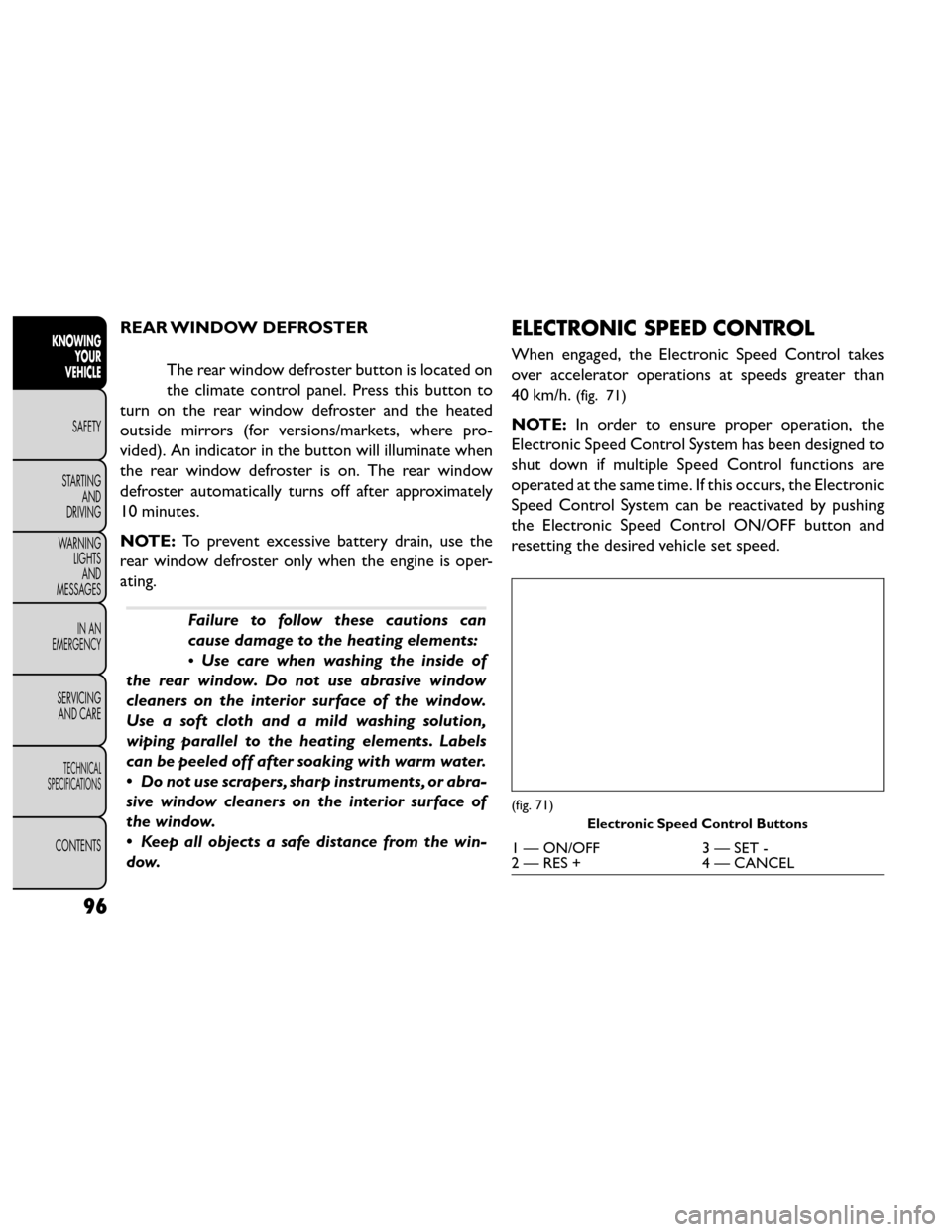
When engaged, the Electronic Speed Control takes
over accelerator operations at speeds greater than
40 km/h.
(fig. 71)
NOTE: In order to ensure proper operation, the
Electronic Speed Control System has been designed to
shut down if multiple Speed Control functions are
operated at the same time. If this occurs, the Electronic
Speed Control System can be reactivated by pushing
the Electronic Speed Control ON/OFF button and
resetting the desired vehicle set speed.
(fig. 71)
Electronic Speed Control Buttons
1 — ON/OFF 3 — SET -
2 — RES + 4 — CANCEL
96
KNOWING
YOUR
VEHICLE
SAFETY
STARTING AND
DRIVING
W
ARNING LIGHTS AND
MESSAGES
IN AN
EMERGENCY
SERVICING AND CARE
TECHNICAL
SPECIFICATIONS
CONTENTS
Page 129 of 388
Auto-Down Feature
The driver's power window switch has an Auto-down
feature. Press the window switch past the first detent,
release, and the window will go down automatically.
To open the window part way, press the window
switch to the first detent and release it when you want
the window to stop.
To stop the window from going all the way down during
the Auto-down operation, pull up on the switch briefly.
Auto-Up Feature With Anti-Pinch Protection
On some models, the driver and front passenger
power window switches have an Auto-up feature. Pull
the window switch up to the second detent, release,
and the window will go up automatically.
To stop the window from going all the way up during
the Auto-up operation, push down on the switch
briefly.
To close the window part way, pull the window switch
up to the first detent and release it when you want the
window to stop.
NOTE:
• If the window runs into any obstacle during Auto-closure, it will reverse direction and then go back
down. Remove the obstacle and use the window
switch again to close the window. • Any impact due to rough road conditions may trigger
the auto-reverse function unexpectedly during auto-
closure. If this happens, pull the switch lightly to the
first detent and hold to close window manually.
WARNING!
There is no anti-pinch protection when
the win
dow is almost closed. To avoid
personal injury, be sure to clear your arms, hands,
fingers, and objects from the window path before
closing the window. Such entrapment may result
in serious injury.
Reset
It may be necessary at some point in time to reactivate
the Auto-up/Auto-down feature. To do so, perform
the following steps:
1. Pull the window switch up to close the window completely and continue to hold the switch up for
an additional two seconds after the window is
closed.
2. Push the window switch down firmly to the second detent to open the window completely and con-
tinue to hold the switch down for an additional two
seconds after the window is fully open.
123
KNOWING
YOUR
VEHICLE
SAFETY
STARTING
AND
DRIVING
W
ARNING
LIGHTS
AND
MESSAGES
IN AN
EMERGENCY
SERVICING
AND CARE
TECHNICAL
SPECIFICATIONS
CONTENTS
Page 168 of 388
RIGHT-HAND SWITCH FUNCTIONS
• Press the top of the switch to increase the volume.
• Press the bottom of the switch to decrease thevolume.
• Press the button in the center of the switch to change modes (i.e., AM, FM, etc.).
LEFT-HAND SWITCH FUNCTIONS FOR
RADIO OPERATION
• Press the top of the switch to SEEK the next listen- able station up from the current setting.
• Press the bottom of the switch to SEEK the next listenable station down from the current setting.
• Press the button in the center of the switch to tune to the next preset that you have programmed. LEFT-HAND SWITCH FUNCTIONS FOR
MEDIA (I.E., CD) OPERATION
• Press the top of the switch once to listen to the next
track.
• Press the bottom of the switch once, either to listen to the beginning of the current track or to listen to
the beginning of the previous track, if it is within eight
seconds after the current track begins to play.
• Pressing the switch up will request the system to start playing the next track in the current play se-
quence with wrap around to the beginning of the play
sequence. If you are currently playing track 5, press
the switch up twice to begin playing track 7 (if
available).
• The button in the center of the left-hand switch has no function in this mode.
162
KNOWING YOUR
VEHICLE
SAFETY
STARTING AND
DRIVING
W
ARNING LIGHTS AND
MESSAGES
IN AN
EMERGENCY
SERVICING AND CARE
TECHNICAL
SPECIFICATIONS
CONTENTS