buttons FIAT FREEMONT 2015 1.G Owner's Manual
[x] Cancel search | Manufacturer: FIAT, Model Year: 2015, Model line: FREEMONT, Model: FIAT FREEMONT 2015 1.GPages: 412, PDF Size: 3.37 MB
Page 88 of 412
8. Passenger Temperature Control Up Button
Provides the passenger with independent temperature
control. Push the button for warmer temperature
settings.
NOTE:Pressing this button while in Sync mode will
automatically exit Sync.
9. Passenger Temperature Control Down Button
Provides the passenger with independent temperature
control. Push the button for cooler temperature set-
tings.
NOTE: Pressing this button while in Sync mode will
automatically exit Sync.
10. SYNC
Press the Sync button on the touchscreen to toggle the
Sync feature On/Off. The Sync indicator is illuminated
when this feature is enabled. Sync is used to synchro-
nize the passenger temperature setting with the driver
temperature setting. Changing the passenger tempera-
ture setting while in Sync will automatically exit this
feature.
11. Blower Control
Blower control is used to regulate the amount of air
forced through the climate system. There are seven
blower speeds available. Adjusting the blower will
cause automatic mode to switch to manual operation.
The speeds can be selected using either the blower control knob on the faceplate or buttons on the touch-
screen as follows:
Blower Control Knob On The Faceplate
The blower speed increases as you turn the blower
control knob clockwise from the lowest blower set-
ting. The blower speed decreases as you turn the
blower control knob counter-clockwise.
Button On The Touchscreen
Use the small blower icon to reduce the blower setting
and the large blower icon to increase the blower
setting. Blower can also be selected by pressing the
blower bar area between the icons.
12. Modes
The airflow distribution mode can be adjusted so air
comes from the instrument panel outlets, floor outlets,
and demist outlets and defrost outlets. The Mode
settings are as follows:
• Panel Mode
Air comes from the outlets in the instrument
panel. Each of these outlets can be individually
adjusted to direct the flow of air. The air vanes of the
center outlets and outboard outlets can be moved up
and down or side to side to regulate airflow direction.
There is a shut off wheel located below the air vanes to
shut off or adjust the amount of airflow from these
outlets.
82
KNOWING YOUR
VEHICLE
SAFETY
STAR
TINGAND
DRIVING
WARNING LIGHTSAND
MESSAGES
IN AN
EMERGENCY
SERVICINGAND CARE
TECHNICAL
SPECIFICATIONS
CONTENTS
Page 91 of 412
NOTE:In cold weather, use of Recirculation mode
may lead to excessive window fogging. The recircula-
tion feature may be unavailable (soft button greyed
out). Recirculation mode is not allowed in Defrost
mode to improve window clearing operation. Recircu-
lation will be disabled automatically if this mode is
selected. Attempting to use Recirculation while in this
mode will cause the LED in the control button to blink
and then turn off.
Automatic Temperature Control (ATC)
Automatic Operation
1. Press the AUTO button on the faceplate or on the touchscreen (4) on the Automatic Temperature
Control (ATC) Panel.
2. Next, adjust the temperature you would like the system to maintain by adjusting the driver and pas-
senger temperature control buttons (8, 9, 14, 15).
Once the desired temperature is displayed, the
system will achieve and automatically maintain that
comfort level.
3. When the system is set up for your comfort level, it is not necessary to change the settings. You will
experience the greatest efficiency by simply allowing
the system to function automatically. NOTE:
• It is not necessary to move the temperature settings.
The system automatically adjusts the temperature,
mode, and blower speed to provide comfort as
quickly as possible.
• The temperature can be displayed in U.S. or Metric units by selecting the US/M customer-programmable
feature. Refer to the “Uconnect® System Settings”
in this section of the manual.
To provide you with maximum comfort in the Auto-
matic mode, during cold start-ups the blower fan will
remain on low until the engine warms up. The blower
will increase in speed and transition into Auto mode.
Manual Operation Override
The system allows for manual selection of blower
speed, air distribution mode, A/C status and recircula-
tion control.
The blower fan speed can be set to any fixed speed by
adjusting the blower control. The fan will now operate
at a fixed speed until additional speeds are selected.
This allows the front occupants to control the volume
of air circulated in the vehicle and cancel the Auto
mode.
85
KNOWING
YOUR
VEHICLE
SAFETY
STAR
TING
AND
DRIVING
WARNING
LIGHTS
AND
MESSAGES
IN AN
EMERGENCY
SERVICING
AND CARE
TECHNICAL
SPECIFICATIONS
CONTENTS
Page 92 of 412
The operator can also select the direction of the
airflow by selecting one of the available mode settings.
A/C operation and Recirculation control can also be
manually selected in Manual operation.
NOTE:Each of these features operates independently
from each other. If any feature is controlled manually,
temperature control will continue to operate auto-
matically.
Rear Automatic Temperature Control (ATC)
(for versions/markets, where provided)
The rear ATC system has floor air outlets at the rear
right side of the 3rd Row seats and overhead outlets at
each outboard rear seating position. The system pro-
vides heated air through the floor outlets or cool,
dehumidified air through the headliner outlets.
The rear system temperature control buttons are lo-
cated in the Uconnect® touch system, located on the
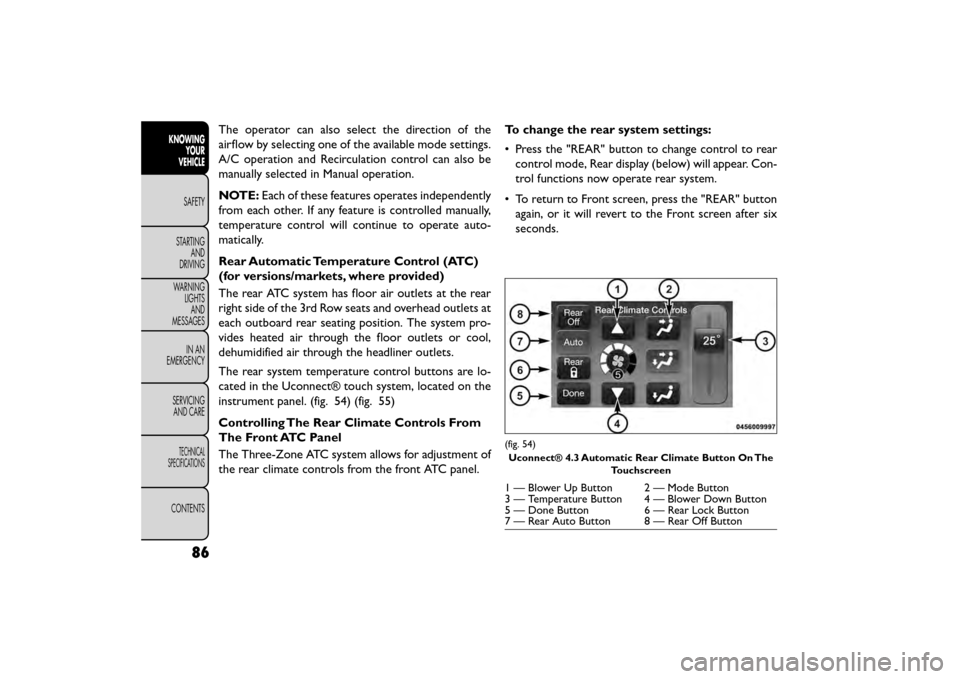
instrument panel. (fig. 54) (fig. 55)
Controlling The Rear Climate Controls From
The Front ATC Panel
The Three-Zone ATC system allows for adjustment of
the rear climate controls from the front ATC panel. To change the rear system settings:
• Press the "REAR" button to change control to rear
control mode, Rear display (below) will appear. Con-
trol functions now operate rear system.
• To return to Front screen, press the "REAR" button again, or it will revert to the Front screen after six
seconds.
(fig. 54)
Uconnect® 4.3 Automatic Rear Climate Button On The Touchscreen
1 — Blower Up Button 2 — Mode Button
3 — Temperature Button 4 — Blower Down Button
5 — Done Button 6 — Rear Lock Button
7 — Rear Auto Button 8 — Rear Off Button
86
KNOWINGYOUR
VEHICLE
SAFETY
STAR
TINGAND
DRIVING
WARNING LIGHTSAND
MESSAGES
IN AN
EMERGENCY
SERVICINGAND CARE
TECHNICAL
SPECIFICATIONS
CONTENTS
Page 109 of 412
ELECTRONIC SPEED CONTROL
When engaged, the Electronic Speed Control takes
over accelerator operations at speeds greater than
40 km/h.
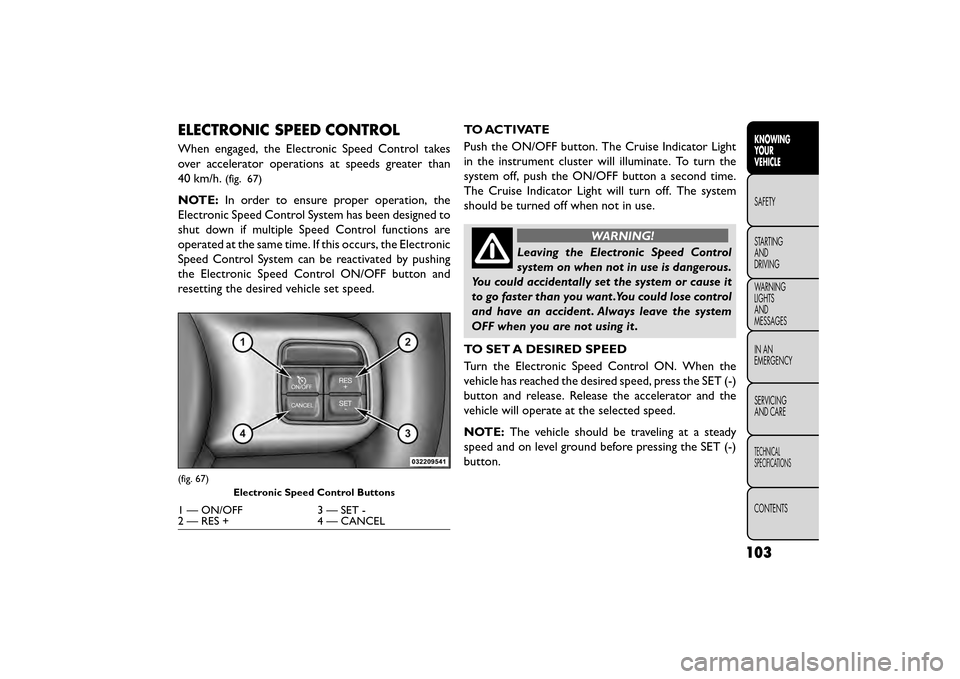
(fig. 67)
NOTE:In order to ensure proper operation, the
Electronic Speed Control System has been designed to
shut down if multiple Speed Control functions are
operated at the same time. If this occurs, the Electronic
Speed Control System can be reactivated by pushing
the Electronic Speed Control ON/OFF button and
resetting the desired vehicle set speed. TO ACTIVATE
Push the ON/OFF button. The Cruise Indicator Light
in the instrument cluster will illuminate. To turn the
system off, push the ON/OFF button a second time.
The Cruise Indicator Light will turn off. The system
should be turned off when not in use.
WARNING!
Leaving the Electronic Speed Control
system on
when not in use is dangerous.
You could accidentally set the system or cause it
to go faster than you want .You could lose control
and have an accident . Always leave the system
OFF when you are not using it .
TO SET A DESIRED SPEED
Turn the Electronic Speed Control ON. When the
vehicle has reached the desired speed, press the SET (-)
button and release. Release the accelerator and the
vehicle will operate at the selected speed.
NOTE: The vehicle should be traveling at a steady
speed and on level ground before pressing the SET (-)
button.
(fig. 67)
Electronic Speed Control Buttons
1 — ON/OFF 3 — SET -
2 — RES + 4 — CANCEL
103
KNOWING
YOUR
VEHICLE
SAFETY
STAR
TING
AND
DRIVING
WARNING
LIGHTS
AND
MESSAGES
IN AN
EMERGENCY
SERVICING
AND CARE
TECHNICAL
SPECIFICATIONS
CONTENTS
Page 129 of 412
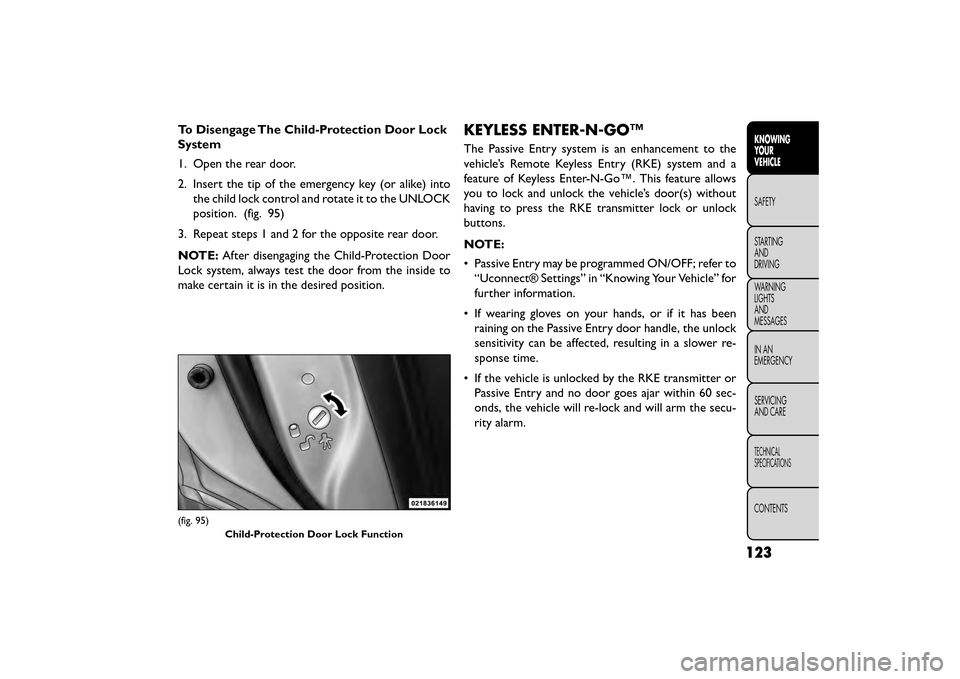
To Disengage The Child-Protection Door Lock
System
1. Open the rear door.
2. Insert the tip of the emergency key (or alike) intothe child lock control and rotate it to the UNLOCK
position. (fig. 95)
3. Repeat steps 1 and 2 for the opposite rear door.
NOTE: After disengaging the Child-Protection Door
Lock system, always test the door from the inside to
make certain it is in the desired position.KEYLESS ENTER-N-GO™
The Passive Entry system is an enhancement to the
vehicle’s Remote Keyless Entry (RKE) system and a
feature of Keyless Enter-N-Go™. This feature allows
you to lock and unlock the vehicle’s door(s) without
having to press the RKE transmitter lock or unlock
buttons.
NOTE:
• Passive Entry may be programmed ON/OFF; refer to “Uconnect® Settings” in “Knowing Your Vehicle” for
further information.
• If wearing gloves on your hands, or if it has been raining on the Passive Entry door handle, the unlock
sensitivity can be affected, resulting in a slower re-
sponse time.
• If the vehicle is unlocked by the RKE transmitter or Passive Entry and no door goes ajar within 60 sec-
onds, the vehicle will re-lock and will arm the secu-
rity alarm.
(fig. 95)
Child-Protection Door Lock Function
123
KNOWING
YOUR
VEHICLE
SAFETY
STAR
TING
AND
DRIVING
WARNING
LIGHTS
AND
MESSAGES
IN AN
EMERGENCY
SERVICING
AND CARE
TECHNICAL
SPECIFICATIONS
CONTENTS
Page 176 of 412
Using The Remote Control
1. Push the MODE button on the Remote Control.
2. While looking at the video screen, highlight AUX 1,by either pushing Up/Down/Left/Right buttons or
by repeatedly pushing the MODE button, then push
ENTER on the Remote Control.
Using The Touchscreen Radio Controls
1. Press the “Player” button on the touchscreen.
2. Press the “Rear Entertainment” button on the touchscreen to display the Rear Entertainment
Controls.
3. If the Rear Entertainment is turned off, press the “Power” button on the touchscreen.
4. Press the “1” or “2” button on the touchscreen for the channel desired and press the Source button on
the touchscreen to select the desired mode.
Listen To An Audio Source On Channel 2
While A Video Is Playing On Channel 1
Ensure the Remote Control and Headphone switch is
on Channel 2. Using The Remote Control
1. Push the MODE button on the Remote Control and
the Mode Select Screen will display, unless a video is
playing then only a small banner will appear on the
bottom of the screen.
2. While looking at the video screen, either press Up/Down/Left/Right on the Remote Control to
highlight the desired audio source or repeatedly
push the MODE button on the remote until the
desired audio source appears on the screen.
Using The Touchscreen Radio Controls
1. Press the “Player” button on the touchscreen.
2. Press the “Rear Entertainment” button on the touchscreen to display the Rear Entertainment
Controls.
3. If the Rear Entertainment is turned off, press the “Power” button on the touchscreen.
4. Press the “1” or “2” button on the touchscreen for the channel desired then press the SOURCE button
on the touchscreen to select the desired mode.
170
KNOWING YOUR
VEHICLE
SAFETY
STAR
TINGAND
DRIVING
WARNING LIGHTSAND
MESSAGES
IN AN
EMERGENCY
SERVICINGAND CARE
TECHNICAL
SPECIFICATIONS
CONTENTS
Page 177 of 412
Important Notes For Single Video Screen
System
• VES™ is able to transmit two channels of stereoaudio simultaneously.
• In split screen mode the left side equates to Channel 1 and right side equates to Channel 2.
• If a video source is selected on Channel 1, then Channel 2 is for audio only.
• When selecting a video source on Channel 1, the video will display on the screen and the audio will be
heard on Channel 1 in the headphones.
• Audio can be heard through the headphones even when the Video Screen is closed.
Play A DVD Using The Touchscreen Radio
1. Insert the DVD with the label facing up. The radio automatically selects the appropriate mode after
the disc is recognized and displays the menu screen
or starts playing the first track. Using The Remote Control
1. Push the MODE button on the Remote Control.
2. While looking at the Video Screen, highlight DISC
by either pushing Up/Down/Left/Right buttons or
by repeatedly pushing the MODE button, then push
ENTER.
NOTE:
• The VES™ system will retain the last setting when turned off.
• Viewing a DVD on the Touchscreen radio screen is not available in some regions or locations, the vehicle
must be stopped, and the shift lever must be in the
PARK position for vehicles with automatic transmis-
sion. In vehicles with manual transmission the park-
ing brake must be engaged even when the vehicle is
parked. Refer to local and state laws.
171
KNOWING
YOUR
VEHICLE
SAFETY
STAR
TING
AND
DRIVING
WARNING
LIGHTS
AND
MESSAGES
IN AN
EMERGENCY
SERVICING
AND CARE
TECHNICAL
SPECIFICATIONS
CONTENTS
Page 186 of 412
Changing The Audio Mode For Headphones
1. Ensure the Remote Control channel/screen selec-tor switch is in the same position as the headphone
selector switch.
NOTE:
• When both switches are on Channel 1, the Remote is controlling Channel 1 and the headphones are
tuned to the audio of the VES™ Channel 1.
• When both switches are on Channel 2, the Remote is controlling Channel 2 and the headphones are
tuned to the audio of the VES™ Channel 2.
2. Push the MODE button on the remote control.
3. If the video screen is displaying a video source (such as a DVD Video), pushing STATUS shows the status
on a popup banner at the bottom of the screen.
Pushing the MODE button will advance to the next
mode. When the mode is in an audio only source
(such as FM), the Mode Selection menu appears on
screen.
4. When the Mode Selection menu appears on screen, use the cursor buttons on the remote control to
navigate to the available modes and push the EN-
TER button to select the new mode.
5. To cancel out of the Mode Selection menu, push the BACK button on the remote control. Replacing The Headphone Batteries
Each set of headphones requires two AAA batteries for
operation. To replace the batteries:
• Locate the battery compartment on the left ear cup
of the headphones, and then slide the battery cover
downward.
• Replace the batteries, making sure to orient them according to the polarity diagram shown.
• Replace the battery compartment cover.
Unwired® Stereo Headphone Lifetime
Limited Warranty
Who Does This Warranty Cover? This warranty
covers the initial user or purchaser ("you" or "your") of
this particular Unwired Technology LLC ("Unwired")
wireless headphone ("Product"). The warranty is not
transferable.
How Long Does The Coverage Last? This war-
ranty lasts as long as you own the Product.
What DoesThis Warranty Cover? Except as speci-
fied below, this warranty covers any Product that in
normal use is defective in workmanship or materials.
180
KNOWING YOUR
VEHICLE
SAFETY
STAR
TINGAND
DRIVING
WARNING LIGHTSAND
MESSAGES
IN AN
EMERGENCY
SERVICINGAND CARE
TECHNICAL
SPECIFICATIONS
CONTENTS
Page 190 of 412
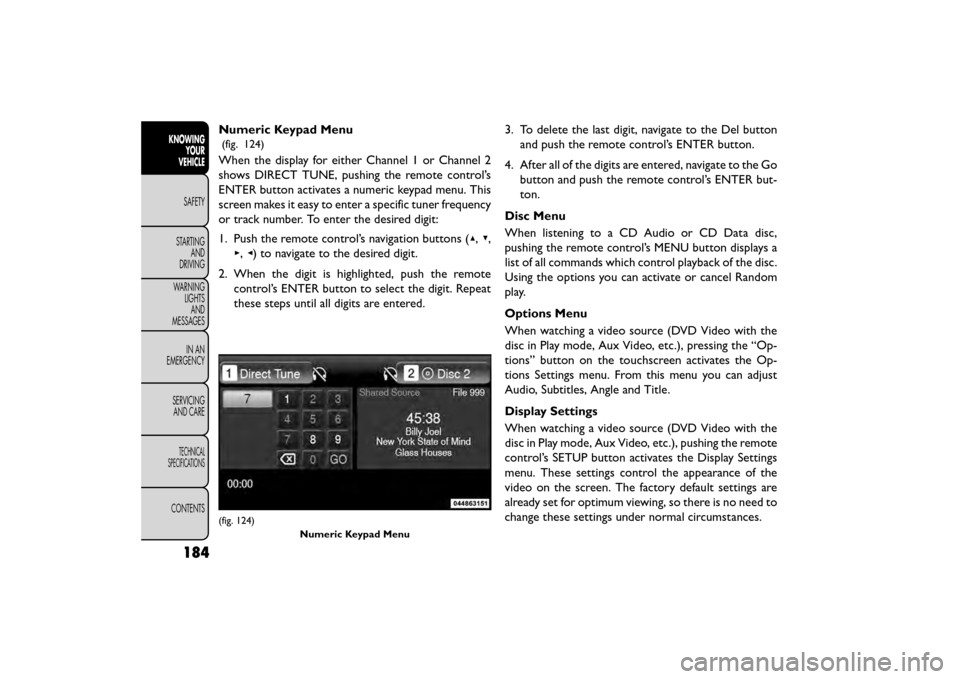
Numeric Keypad Menu
(fig. 124)
When the display for either Channel 1 or Channel 2
shows DIRECT TUNE, pushing the remote control’s
ENTER button activates a numeric keypad menu. This
screen makes it easy to enter a specific tuner frequency
or track number. To enter the desired digit:
1. Push the remote control’s navigation buttons (▴,▾,
▸, ◂) to navigate to the desired digit.
2. When the digit is highlighted, push the remote control’s ENTER button to select the digit. Repeat
these steps until all digits are entered. 3. To delete the last digit, navigate to the Del button
and push the remote control’s ENTER button.
4. After all of the digits are entered, navigate to the Go button and push the remote control’s ENTER but-
ton.
Disc Menu
When listening to a CD Audio or CD Data disc,
pushing the remote control’s MENU button displays a
list of all commands which control playback of the disc.
Using the options you can activate or cancel Random
play.
Options Menu
When watching a video source (DVD Video with the
disc in Play mode, Aux Video, etc.), pressing the “Op-
tions” button on the touchscreen activates the Op-
tions Settings menu. From this menu you can adjust
Audio, Subtitles, Angle and Title.
Display Settings
When watching a video source (DVD Video with the
disc in Play mode, Aux Video, etc.), pushing the remote
control’s SETUP button activates the Display Settings
menu. These settings control the appearance of the
video on the screen. The factory default settings are
already set for optimum viewing, so there is no need to
change these settings under normal circumstances.
(fig. 124) Numeric Keypad Menu
184
KNOWINGYOUR
VEHICLE
SAFETY
STAR
TINGAND
DRIVING
WARNING LIGHTSAND
MESSAGES
IN AN
EMERGENCY
SERVICINGAND CARE
TECHNICAL
SPECIFICATIONS
CONTENTS
Page 191 of 412
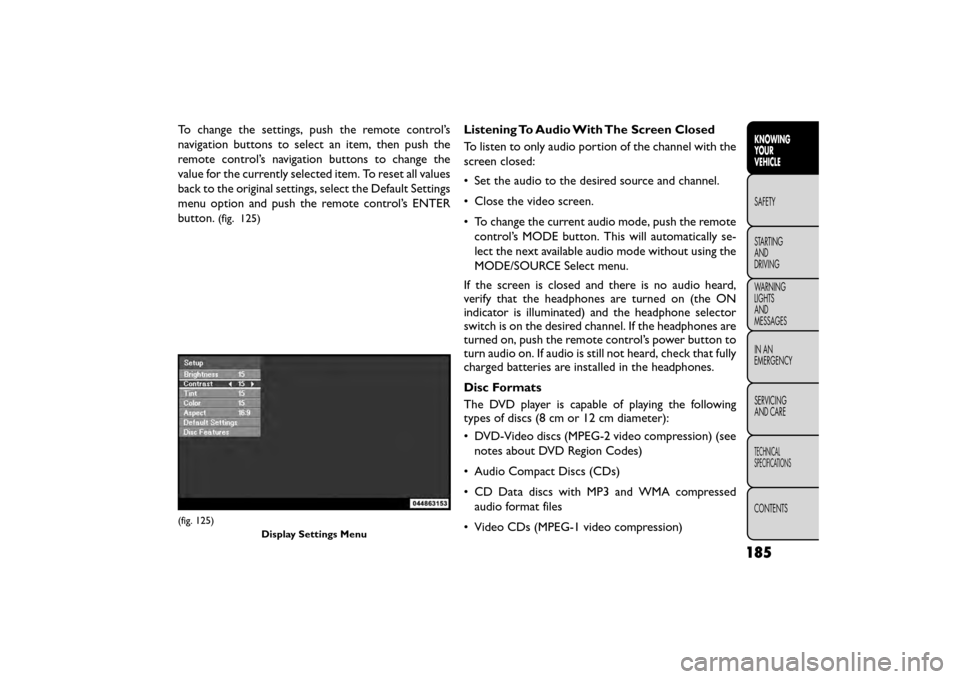
To change the settings, push the remote control’s
navigation buttons to select an item, then push the
remote control’s navigation buttons to change the
value for the currently selected item. To reset all values
back to the original settings, select the Default Settings
menu option and push the remote control’s ENTER
button.
(fig. 125)
Listening To Audio With The Screen Closed
To listen to only audio portion of the channel with the
screen closed:
• Set the audio to the desired source and channel.
• Close the video screen.
• To change the current audio mode, push the remotecontrol’s MODE button. This will automatically se-
lect the next available audio mode without using the
MODE/SOURCE Select menu.
If the screen is closed and there is no audio heard,
verify that the headphones are turned on (the ON
indicator is illuminated) and the headphone selector
switch is on the desired channel. If the headphones are
turned on, push the remote control’s power button to
turn audio on. If audio is still not heard, check that fully
charged batteries are installed in the headphones.
Disc Formats
The DVD player is capable of playing the following
types of discs (8 cm or 12 cm diameter):
• DVD-Video discs (MPEG-2 video compression) (see notes about DVD Region Codes)
• Audio Compact Discs (CDs)
• CD Data discs with MP3 and WMA compressed audio format files
• Video CDs (MPEG-1 video compression)
(fig. 125) Display Settings Menu
185
KNOWING
YOUR
VEHICLE
SAFETY
STAR
TING
AND
DRIVING
WARNING
LIGHTS
AND
MESSAGES
IN AN
EMERGENCY
SERVICING
AND CARE
TECHNICAL
SPECIFICATIONS
CONTENTS