ECO mode FIAT FREEMONT 2016 1.G Owner's Manual
[x] Cancel search | Manufacturer: FIAT, Model Year: 2016, Model line: FREEMONT, Model: FIAT FREEMONT 2016 1.GPages: 412, PDF Size: 3.36 MB
Page 134 of 412
AUTO-DOWN FEATURE
The driver's power window switch has an Auto-down
feature. Press the window switch past the first detent,
release, and the window will go down automatically.
To open the window part way, press the window
switch to the first detent and release it when you want
the window to stop.
To stop the window from going all the way down during
the Auto-down operation, pull up on the switch briefly.
AUTO-UP FEATURE WITH ANTI-PINCH
PROTECTION
On some models, the driver and front passenger
power window switches have an Auto-up feature. Pull
the window switch up to the second detent, release,
and the window will go up automatically.
To stop the window from going all the way up during
the Auto-up operation, push down on the switch
briefly.
To close the window part way, pull the window switch
up to the first detent and release it when you want the
window to stop.NOTE:
• If the window runs into any obstacle during Auto-
closure, it will reverse direction and then go back
down. Remove the obstacle and use the window
switch again to close the window.
• Any impact due to rough road conditions may trigger the auto-reverse function unexpectedly during auto-
closure. If this happens, pull the switch lightly to the
first detent and hold to close window manually.
WARNING!
There is no anti-pinch protection when
th e
window is almost closed. To avoid
personal injury, be sure to clear your arms, hands,
fingers, and objects from the window path before
closing the window. Such entrapment may result
in serious injury.
RESET
It may be necessary at some point in time to reactivate
the Auto-up/Auto-down feature. To do so, perform
the following steps:
1. Pull the window switch up to close the window completely and continue to hold the switch up for
an additional two seconds after the window is
closed.
128
KNOWING YOUR
VEHICLE
SAFETY
STAR
TINGAND
DRIVING
WARNING LIGHTSAND
MESSAGES
IN AN
EMERGENCY
SERVICINGAND CARE
TECHNICAL
SPECIFICATIONS
CONTENTS
Page 153 of 412
ESC ACTIVATION/MALFUNCTION
INDICATOR LIGHT AND ESC OFF
INDICATOR LIGHTThe “ESC Activation/Malfunction Indicator
Light” in the instrument cluster will come on
when the ignition switch is turned to the ON
position. It should go out with the engine
running. If the “ESC Activation/Malfunction Indicator
Light” comes on continuously with the engine running,
a malfunction has been detected in the ESC system. If
this light remains on after several ignition cycles, and
the vehicle has been driven several kilometers at
speeds greater than 48 km/h, see your authorized
dealer as soon as possible to have the problem diag-
nosed and corrected.
The “ESC Activation/Malfunction Indicator Light” (lo-
cated in the instrument cluster) starts to flash as soon
as the tires lose traction and the ESC system becomes
active. The “ESC Activation/Malfunction Indicator
Light” also flashes when TCS is active. If the “ESC
Activation/Malfunction Indicator Light” begins to flash
during acceleration, ease up on the accelerator and
apply as little throttle as possible. Be sure to adapt your
speed and driving to the prevailing road conditions. NOTE:
• The “ESC Activation/Malfunction Indicator Light”
and the “ESC OFF Indicator Light” come on momen-
tarily each time the ignition switch is turned ON.
• Each time the ignition is turned ON, the ESC system will be ON even if it was turned off previously.
• The ESC system will make buzzing or clicking sounds when it is active. This is normal; the sounds will stop
when ESC becomes inactive following the maneuver
that caused the ESC activation.
The “ESC OFF Indicator Light” indicates the
Electronic Stability Control (ESC) is in Partial
OFF mode.
HILL START ASSIST (HSA)
The HSA system is designed to assist the driver when
starting a vehicle from a stop on a hill. HSA will
maintain the level of brake pressure the driver applied
for a short period of time after the driver takes their
foot off of the brake pedal. If the driver does not apply
the throttle during this short period of time, the
system will release brake pressure and the vehicle will
roll down the hill. The system will release brake pres-
sure in proportion to the amount of throttle applied as
the vehicle starts to move in the intended direction of
travel.
147
KNOWING
YOUR
VEHICLE
SAFETY
STAR
TING
AND
DRIVING
WARNING
LIGHTS
AND
MESSAGES
IN AN
EMERGENCY
SERVICING
AND CARE
TECHNICAL
SPECIFICATIONS
CONTENTS
Page 155 of 412
TRAILER SWAY CONTROL (TSC)
TSC uses sensors in the vehicle to recognize an exces-
sively swaying trailer. TSC activates automatically once
the excessively swaying trailer is recognized. When
TSC is functioning, the “ESC Activation/Malfunction
Indicator Light” will flash, the engine power will be
reduced, and you will feel the brake being applied to
individual wheels in an attempt to stop the trailer from
swaying.
NOTE:The TSC is disabled when the ESC system is in
the “Partial Off ” mode.
WARNING!
• TSC cannot stop all trailers from
s w
aying. Always use caution when tow-
ing a trailer and follow the tongue weight recom-
mendations. Refer to “Trailer Towing” in “Starting
and Driving” for further information.
• If TSC activates while towing a trailer, stop the
vehicle at the nearest safe location and adjust
the trailer load to eliminate the trailer sway.
• Failure to follow these warnings can result in an
accident or serious personal injury.
ONBOARD DIAGNOSTIC SYSTEM —
OBD II
Your vehicle is equipped with a sophisticated onboard
diagnostic system called OBD II. This system monitors
the performance of the emissions, engine, and auto-
matic transmission control systems. When these sys-
tems are operating properly, your vehicle will provide
excellent performance and fuel economy, as well as
engine emissions well within current government regu-
lations.
If any of these systems require service, the OBD II
system will turn on the “Malfunction Indicator Light”
(MIL). It will also store diagnostic codes and other
information to assist your service technician in making
repairs. Although your vehicle will usually be drivable
and not need towing, see your authorized dealer for
service as soon as possible.
• Prolonged driving with the MIL on
could cause further damage to the emis-
sion control system. It could also affect
fuel economy and driveability.The vehicle must be
serviced before any emissions tests can be per-
formed.
• If the MIL is flashing while the engine is running,
severe catalytic converter damage and power loss
will soon occur. Immediate service is required.
149
KNOWING
YOUR
VEHICLE
SAFETY
STAR
TING
AND
DRIVING
WARNING
LIGHTS
AND
MESSAGES
IN AN
EMERGENCY
SERVICING
AND CARE
TECHNICAL
SPECIFICATIONS
CONTENTS
Page 171 of 412
PARKVIEW® REAR BACK UP
CAMERA (for versions/markets,
where provided)
Your vehicle may be equipped with the ParkView®
Rear Back Up Camera that allows you to see an
on-screen image of the rear surroundings of your
vehicle whenever the shift lever is put into REVERSE.
The ParkView® camera is located on the rear of the
vehicle above the rear License plate. The image will be
displayed in the touchscreen display along with a cau-
tion note to “check entire surroundings” across the top
of the screen. After five seconds this note will disap-
pear.
When the vehicle is shifted out of REVERSE, the rear
camera mode is exited and the last selected touch-
screen appears again.
If your vehicle is equipped with the Camera Delay
feature and it is turned ON, the rear camera image will
be displayed for up to 10 seconds when the vehicle is
shifted out of REVERSE unless the forward vehiclespeed exceeds 13 km/h, the transmission is shifted into
"PARK" or the vehicle's ignition is cycled to the OFF
position.
Static grid lines will illustrate the width of the vehicle
while a dashed center-line will indicate the center of
the vehicle to assist with parking or aligning to a
hitch/receiver. The static grid lines will show separate
zones that will help indicate the distance to the rear of
the vehicle.
NOTE:
The ParkView® Rear Back Up Camera has
programmable modes of operation that may be se-
lected through the Uconnect® System. Refer to
“Uconnect® Settings” in “Knowing Your Vehicle” for
further information.
Different colored zones indicate the distance to the
rear of the vehicle.
The following table shows the approximate distances
for each zone:
Zone Distance to the rear of the vehicle
Red 0-30cm
Yellow 30 cm-1m
Green 1 m or greater
165
KNOWING
YOUR
VEHICLE
SAFETY
STAR
TING
AND
DRIVING
WARNING
LIGHTS
AND
MESSAGES
IN AN
EMERGENCY
SERVICING
AND CARE
TECHNICAL
SPECIFICATIONS
CONTENTS
Page 174 of 412
LEFT-HAND SWITCH FUNCTIONS FOR
RADIO OPERATION
• Push the top of the switch to SEEK the next listen-able station up from the current setting.
• Push the bottom of the switch to SEEK the next listenable station down from the current setting.
• Push the button in the center of the switch to tune to the next preset that you have programmed.
LEFT-HAND SWITCH FUNCTIONS FOR
MEDIA (I.E., CD) OPERATION
• Push the top of the switch once to listen to the next track.
• Push the bottom of the switch once, either to listen to the beginning of the current track or to listen to
the beginning of the previous track, if it is within eight
seconds after the current track begins to play.
• Pushing the switch up will request the system to start playing the next track in the current play se-
quence with wrap around to the beginning of the play
sequence. If you are currently playing track 5, push
the switch up twice to begin playing track 7 (if
available).
• The button in the center of the left-hand switch has no function in this mode.UCONNECT® MULTIMEDIA VIDEO
ENTERTAINMENT SYSTEM (VES™)
(for versions/markets, where
provided)
Your rear seat Video Entertainment System (VES™) is
designed to give your family years of enjoyment. You
can play your favorite CDs or DVDs, listen to audio
over the wireless headphones, or plug and play a variety
of standard video games or audio devices. Please re-
view this Owner's Manual to become familiar with its
features and operation.
Getting Started
•Screen located in the overhead console:
Unfold
the overhead LCD screen by pushing the button on
the overhead console behind the screen.
(fig. 119)
• With the ignition switch in the ON or ACC position, turn the radio on by pushing the ON/OFF Volume
Control knob.
• When the Video Screen is open and a DVD is inserted into the radio, the screen turns on auto-
matically, the headphone transmitters turn on and
playback begins.
168
KNOWING YOUR
VEHICLE
SAFETY
STAR
TINGAND
DRIVING
WARNING LIGHTSAND
MESSAGES
IN AN
EMERGENCY
SERVICINGAND CARE
TECHNICAL
SPECIFICATIONS
CONTENTS
Page 177 of 412
Important Notes For Single Video Screen
System
• VES™ is able to transmit two channels of stereoaudio simultaneously.
• In split screen mode the left side equates to Channel 1 and right side equates to Channel 2.
• If a video source is selected on Channel 1, then Channel 2 is for audio only.
• When selecting a video source on Channel 1, the video will display on the screen and the audio will be
heard on Channel 1 in the headphones.
• Audio can be heard through the headphones even when the Video Screen is closed.
Play A DVD Using The Touchscreen Radio
1. Insert the DVD with the label facing up. The radio automatically selects the appropriate mode after
the disc is recognized and displays the menu screen
or starts playing the first track. Using The Remote Control
1. Push the MODE button on the Remote Control.
2. While looking at the Video Screen, highlight DISC
by either pushing Up/Down/Left/Right buttons or
by repeatedly pushing the MODE button, then push
ENTER.
NOTE:
• The VES™ system will retain the last setting when turned off.
• Viewing a DVD on the Touchscreen radio screen is not available in some regions or locations, the vehicle
must be stopped, and the shift lever must be in the
PARK position for vehicles with automatic transmis-
sion. In vehicles with manual transmission the park-
ing brake must be engaged even when the vehicle is
parked. Refer to local and state laws.
171
KNOWING
YOUR
VEHICLE
SAFETY
STAR
TING
AND
DRIVING
WARNING
LIGHTS
AND
MESSAGES
IN AN
EMERGENCY
SERVICING
AND CARE
TECHNICAL
SPECIFICATIONS
CONTENTS
Page 182 of 412
Remote Con-trol Button Standard Screens Menu Screens
AM/FM/
MW/LW DISC
AUX/AUX1/AUX2 Mode
Select Menu Screen
Setup
Prog Up Next
Preset* Not
Available Next Disc (if player is
changer) Not
Available Not
Available Not
Available
Prog Down Previous
Preset* Not
Available Previous Disc (if player is
changer) Not
Available Not
Available Not
Available
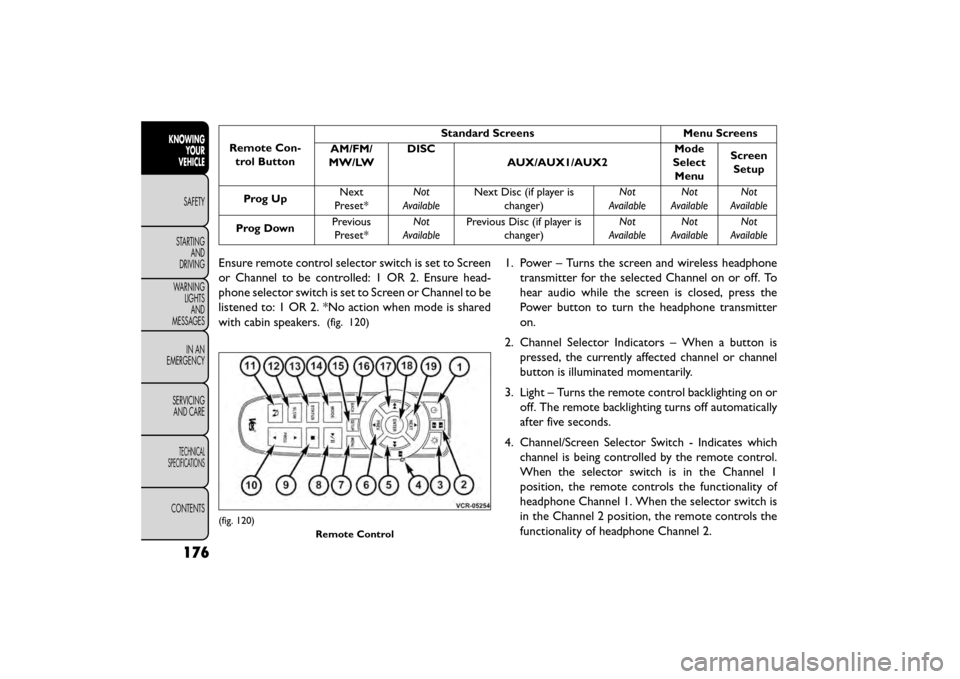
Ensure remote control selector switch is set to Screen
or Channel to be controlled: 1 OR 2. Ensure head-
phone selector switch is set to Screen or Channel to be
listened to: 1 OR 2. *No action when mode is shared
with cabin speakers.
(fig. 120)
1. Power – Turns the screen and wireless headphone transmitter for the selected Channel on or off. To
hear audio while the screen is closed, press the
Power button to turn the headphone transmitter
on.
2. Channel Selector Indicators – When a button is pressed, the currently affected channel or channel
button is illuminated momentarily.
3. Light – Turns the remote control backlighting on or off. The remote backlighting turns off automatically
after five seconds.
4. Channel/Screen Selector Switch - Indicates which channel is being controlled by the remote control.
When the selector switch is in the Channel 1
position, the remote controls the functionality of
headphone Channel 1. When the selector switch is
in the Channel 2 position, the remote controls the
functionality of headphone Channel 2.
(fig. 120)
Remote Control
176
KNOWINGYOUR
VEHICLE
SAFETY
STAR
TINGAND
DRIVING
WARNING LIGHTSAND
MESSAGES
IN AN
EMERGENCY
SERVICINGAND CARE
TECHNICAL
SPECIFICATIONS
CONTENTS
Page 188 of 412
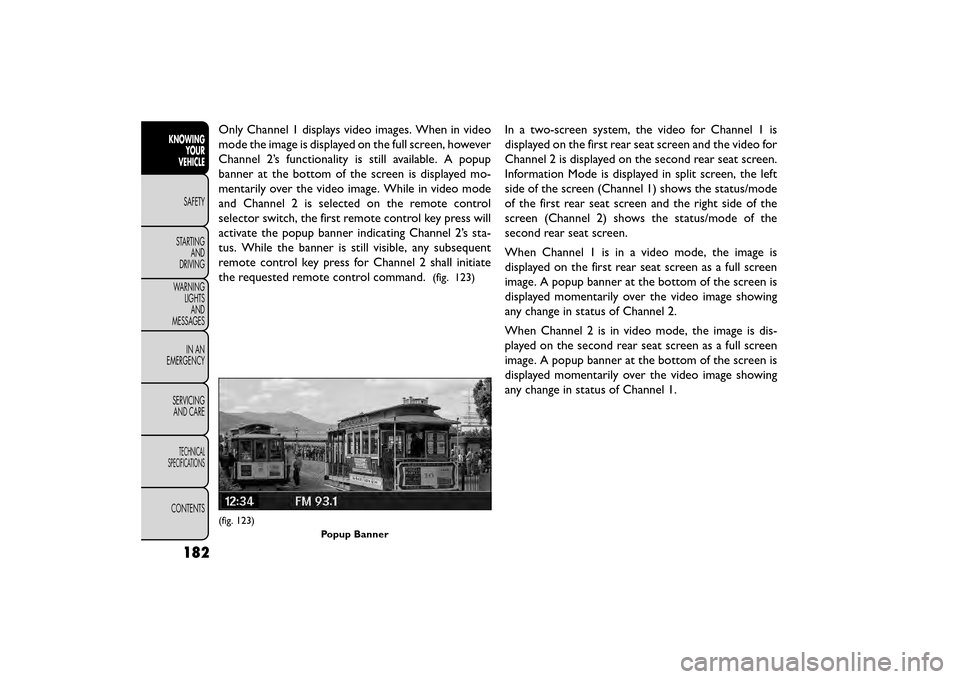
Only Channel 1 displays video images. When in video
mode the image is displayed on the full screen, however
Channel 2’s functionality is still available. A popup
banner at the bottom of the screen is displayed mo-
mentarily over the video image. While in video mode
and Channel 2 is selected on the remote control
selector switch, the first remote control key press will
activate the popup banner indicating Channel 2’s sta-
tus. While the banner is still visible, any subsequent
remote control key press for Channel 2 shall initiate
the requested remote control command.
(fig. 123)
In a two-screen system, the video for Channel 1 is
displayed on the first rear seat screen and the video for
Channel 2 is displayed on the second rear seat screen.
Information Mode is displayed in split screen, the left
side of the screen (Channel 1) shows the status/mode
of the first rear seat screen and the right side of the
screen (Channel 2) shows the status/mode of the
second rear seat screen.
When Channel 1 is in a video mode, the image is
displayed on the first rear seat screen as a full screen
image. A popup banner at the bottom of the screen is
displayed momentarily over the video image showing
any change in status of Channel 2.
When Channel 2 is in video mode, the image is dis-
played on the second rear seat screen as a full screen
image. A popup banner at the bottom of the screen is
displayed momentarily over the video image showing
any change in status of Channel 1.
(fig. 123)Popup Banner
182
KNOWINGYOUR
VEHICLE
SAFETY
STAR
TINGAND
DRIVING
WARNING LIGHTSAND
MESSAGES
IN AN
EMERGENCY
SERVICINGAND CARE
TECHNICAL
SPECIFICATIONS
CONTENTS
Page 191 of 412
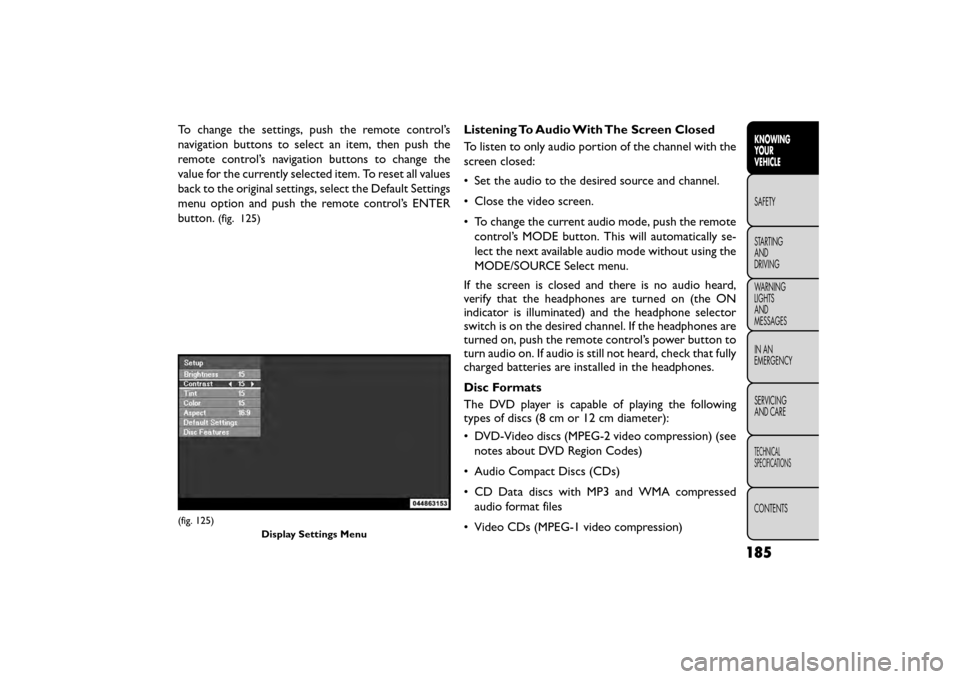
To change the settings, push the remote control’s
navigation buttons to select an item, then push the
remote control’s navigation buttons to change the
value for the currently selected item. To reset all values
back to the original settings, select the Default Settings
menu option and push the remote control’s ENTER
button.
(fig. 125)
Listening To Audio With The Screen Closed
To listen to only audio portion of the channel with the
screen closed:
• Set the audio to the desired source and channel.
• Close the video screen.
• To change the current audio mode, push the remotecontrol’s MODE button. This will automatically se-
lect the next available audio mode without using the
MODE/SOURCE Select menu.
If the screen is closed and there is no audio heard,
verify that the headphones are turned on (the ON
indicator is illuminated) and the headphone selector
switch is on the desired channel. If the headphones are
turned on, push the remote control’s power button to
turn audio on. If audio is still not heard, check that fully
charged batteries are installed in the headphones.
Disc Formats
The DVD player is capable of playing the following
types of discs (8 cm or 12 cm diameter):
• DVD-Video discs (MPEG-2 video compression) (see notes about DVD Region Codes)
• Audio Compact Discs (CDs)
• CD Data discs with MP3 and WMA compressed audio format files
• Video CDs (MPEG-1 video compression)
(fig. 125) Display Settings Menu
185
KNOWING
YOUR
VEHICLE
SAFETY
STAR
TING
AND
DRIVING
WARNING
LIGHTS
AND
MESSAGES
IN AN
EMERGENCY
SERVICING
AND CARE
TECHNICAL
SPECIFICATIONS
CONTENTS
Page 192 of 412
DVD Region Codes
The DVD player and many DVD discs are coded by
geographic region. These region codes must match in
order for the disc to play. If the region code for the
DVD disc does not match the region code for the
player, the disc will stop playing and a warning will be
displayed.
DVD Audio Support
When a DVD-Audio disc is inserted in the DVD player,
the DVD-Audio title on the disc is played by default
(most DVD-Audio discs also have a Video title, but the
Video title is ignored). All multi-channel program ma-
terial is automatically mixed down to two channels,
which may result in a lowered apparent volume level. If
you increase the volume level to account for this
change in level, remember to lower the volume before
changing the disc or to another mode.
Recorded Discs
The DVD player will play CD-R and CD-RW discs
recorded in CD-Audio or Video-CD format, or as a
CD-ROM containing MP3 or WMA files. The player
will also play DVD-Video content recorded to a
DVD-R, DVD-RW and DVD-ROM discs.
If you record a disc using a personal computer, there
may be cases where the DVD player may not be able to
play some or the entire disc, even if it is recorded in acompatible format and is playable on other players. To
help avoid playback problems, use the following guide-
lines when recording discs.
• Open sessions are ignored. Only sessions that are
closed are playable.
• For multi-session CDs that contain only multiple CD-Audio sessions, the player will renumber the
tracks so each track number is unique.
• For CD Data (or CD-ROM) discs, always use the ISO-9660 (Level 1 or Level 2), Joliet, or UDF format.
CD-DA may also be used for PCM Audio contained
on CD-Based Data.
• The player recognizes a maximum of 512 files and 99 folders per CD-R and CD-RW disc.
• Mixed media recordable DVD formats will only play the Video_TS portion of the disc.
If you are still having trouble writing a disc that is
playable in the DVD player, check with the disc record-
ing software publisher for more information about
burning playable discs.
The recommended method for labeling recordable
discs (CD-R, CD-RW, DVD-R and DVD-RW) is with a
permanent marker. Do not use adhesive labels as they
may separate from the disc, become stuck, and cause
permanent damage to the DVD player.
186
KNOWING YOUR
VEHICLE
SAFETY
STAR
TINGAND
DRIVING
WARNING LIGHTSAND
MESSAGES
IN AN
EMERGENCY
SERVICINGAND CARE
TECHNICAL
SPECIFICATIONS
CONTENTS