display FIAT FREEMONT 2016 1.G Owner's Manual
[x] Cancel search | Manufacturer: FIAT, Model Year: 2016, Model line: FREEMONT, Model: FIAT FREEMONT 2016 1.GPages: 412, PDF Size: 3.36 MB
Page 47 of 412
• Set Language (for versions/markets, where pro-
vided)
When in this display you may select a different language
for all display nomenclature, including the trip functions
and the navigation system (for versions/markets, where
provided). Press the German, French, Spanish, Italian,
Dutch or English button to select the language pre-
ferred followed by pressing the arrow back button on
the touchscreen. Then, as you continue, the informa-
tion will display in the selected language.
• Units (for versions/markets, where provided)
When in this display you may select to have the EVIC,
odometer, and navigation system (for versions/
markets, where provided) changed between US and
Metric units of measure. Press US or Metric followed
by pressing the arrow back button on the touchscreen.
Then, as you continue, the information will display in
the selected units of measure.
• Voice Response Length (for versions/markets,
where provided)
When in this display you may change the Voice Re-
sponse Length settings. To change the Voice Response
Length press and release the Brief or Detailed button
on the touchscreen followed by pressing the arrow
back button on the touchscreen.• Touchscreen Beep
When in this display you may turn on or shut off the
sound heard when a touchscreen button (button on
the touchscreen) is pressed. To change the Touch-
screen Beep setting press and release the On or Off
button on the touchscreen followed by pressing the
arrow back button on the touchscreen.
• Navigation Turn-By-Turn in Cluster (for
versions/markets, where provided)
When this feature is selected, the turn-by-turn direc-
tions will appear in the display as the vehicle ap-
proaches a designated turn within a programmed
route. To make your selection, press the Navigation
Turn-By-Turn in Cluster button on the touchscreen,
select On or Off followed by pressing the arrow back
button on the touchscreen.
Clock
• Sync Time with GPS (for versions/markets,
where provided)
When in this display you may automatically have the
radio set the time. To change the Sync Time setting
press and release the On or Off button on the touch-
screen followed by pressing the arrow back button on
the touchscreen.
41
KNOWING
YOUR
VEHICLE
SAFETY
STAR
TING
AND
DRIVING
WARNING
LIGHTS
AND
MESSAGES
IN AN
EMERGENCY
SERVICING
AND CARE
TECHNICAL
SPECIFICATIONS
CONTENTS
Page 48 of 412
• Set Time Hours
When in this display you may select the time display
settings. To make your selection, press the Set Time
button on the touchscreen, adjust the hours using the
up and down buttons on the touchscreen, followed by
pressing the arrow back button on the touchscreen
when all selections are complete.
• Set Time Minutes
When in this display you may select the time display
settings. To make your selection, press the Set Time
button on the touchscreen, adjust the minutes using
the up and down buttons on the touchscreen, followed
by pressing the arrow back button on the touchscreen
when all selections are complete.
• Time Format
When in this display you may select the time display
settings. To make your selection, press the Set Time
button on the touchscreen, select 12 hr or 24 hr
followed by pressing the arrow back button on the
touchscreen when all selections are complete.
• Show Time in Status Bar (for versions/markets,
where provided)
When in this display you may turn on or shut off the
digital clock in the status bar. To change the Show Time
Status setting press and release the On or Off button
on the touchscreen followed by pressing the arrow
back button on the touchscreen.Safety / Assistance
• Park Assist (for versions/markets, where pro-
vided)
The Rear Park Assist system will scan for objects
behind the vehicle when the transmission shift lever is
in REVERSE and the vehicle speed is less than 11 km/h.
The system can be enabled with Sound Only, Sound
and Display, or turned OFF. To change the Park Assist
status press and release the Off, Sound Only or Sounds
and Display button followed by pressing the arrow back
button on the touchscreen.
• Parkview Backup Camera (for versions/markets,
where provided)
Your vehicle may be equipped with the ParkView®
Rear Back Up Camera that allows you to see an
on-screen image of the rear surroundings of your
vehicle whenever the shift lever is put into REVERSE.
The image will be displayed on the radio touchscreen
display along with a caution note to “check entire
surroundings” across the top of the screen. After five
seconds this note will disappear. The ParkView® cam-
era is located on the rear of the vehicle above the rear
License plate. To make your selection, press the
Parkview Backup Camera check box in the "Safety &
Driving Assistance" menu to enable/disable the
Parkview Backup Camera.
42
KNOWING
YOUR
VEHICLE
SAFETY
STAR
TINGAND
DRIVING
WARNING LIGHTSAND
MESSAGES
IN AN
EMERGENCY
SERVICINGAND CARE
TECHNICAL
SPECIFICATIONS
CONTENTS
Page 53 of 412
• Perform Compass Calibration (for versions/
markets, where provided)
Press the Calibration button to change this setting.
This compass is self-calibrating, which eliminates the
need to manually reset the compass. When the vehicle
is new, the compass may appear erratic and the EVIC
will display CAL until the compass is calibrated. You
may also calibrate the compass by pressing the ON
button on the touchscreen and completing one or
more 360–degree turns (in an area free from large
metal or metallic objects) until the CAL indicator
displayed in the EVIC turns off. The compass will now
function normally.
Audio
• Balance/Fade (for versions/markets, where pro-
vided)
When in this display you may adjust the Balance and
Fade settings.
• Equalizer (for versions/markets, where provided)
When in this display you may adjust the Bass, Mid and
Treble settings. Adjust the settings with the + and –
setting buttons on the touchscreen or by selecting any
point on the scale in between the + and – buttons on
the touchscreen followed by pressing the arrow back
button on the touchscreen.NOTE:
Bass/mid/treble allow the you to simply slide
your finger up/down to change the setting as well as
press directly on the desired setting.
• Speed Adjusted Volume (for versions/markets,
where provided)
Decreases volume relative to vehicle speed. To change
the Speed Adjusted Volume press the Off, 1, 2 or 3
button on the touchscreen followed by pressing the
arrow back button on the touchscreen.
• Music Info Cleanup (for versions/markets, where
provided)
This feature helps organize music files for optimized
music navigation. To make your selection, press the
Music Info Cleanup button on the touchscreen, select
On or Off followed by pressing the arrow back button
on the touchscreen.
Phone/Bluetooth®
• Paired Devices
This feature shows which phones are paired to the
Phone/Bluetooth® system. For further information,
refer to the Uconnect® Supplement.
47
KNOWING
YOUR
VEHICLE
SAFETY
STAR
TING
AND
DRIVING
WARNING
LIGHTS
AND
MESSAGES
IN AN
EMERGENCY
SERVICING
AND CARE
TECHNICAL
SPECIFICATIONS
CONTENTS
Page 56 of 412
HEATED SEATS (for versions/markets, where
provided)
The front heated seats control buttons are located
within the Uconnect® system. You can gain access to
the control buttons through the climate screen or the
controls screen.
• Press the heated seat button
once to turn the
High setting ON.
• Press the heated seat button
a second time to
turn the Low setting ON.
• Press the heated seat button
a third time to turn
the heating elements OFF.
If the HI-level setting is selected, the system will auto-
matically switch to LO-level after approximately 60
minutes of continuous operation. At that time, the
display will change from HI to LO, indicating the
change. The LO-level setting will turn OFF automati-
cally after approximately 45 minutes. NOTE:
The engine must be running for the heated
seats to operate.
WARNING!
• Persons who are unable to feel pain to
t h
e skin because of advanced age,
chronic illness, diabetes, spinal cord injury, medi-
cation, alcohol use, exhaustion or other physical
condition must exercise care when using the seat
heater. It may cause burns even at low tempera-
tures, especially if used for long periods of time.
• Do not place anything on the seat or seatback
that insulates against heat , such as a blanket or
cushion. This may cause the seat heater to over-
heat . Sitting in a seat that has been overheated
could cause serious burns due to the increased
surface temperature of the seat .
50
KNOWING YOUR
VEHICLE
SAFETY
STAR
TINGAND
DRIVING
WARNING LIGHTSAND
MESSAGES
IN AN
EMERGENCY
SERVICINGAND CARE
TECHNICAL
SPECIFICATIONS
CONTENTS
Page 76 of 412
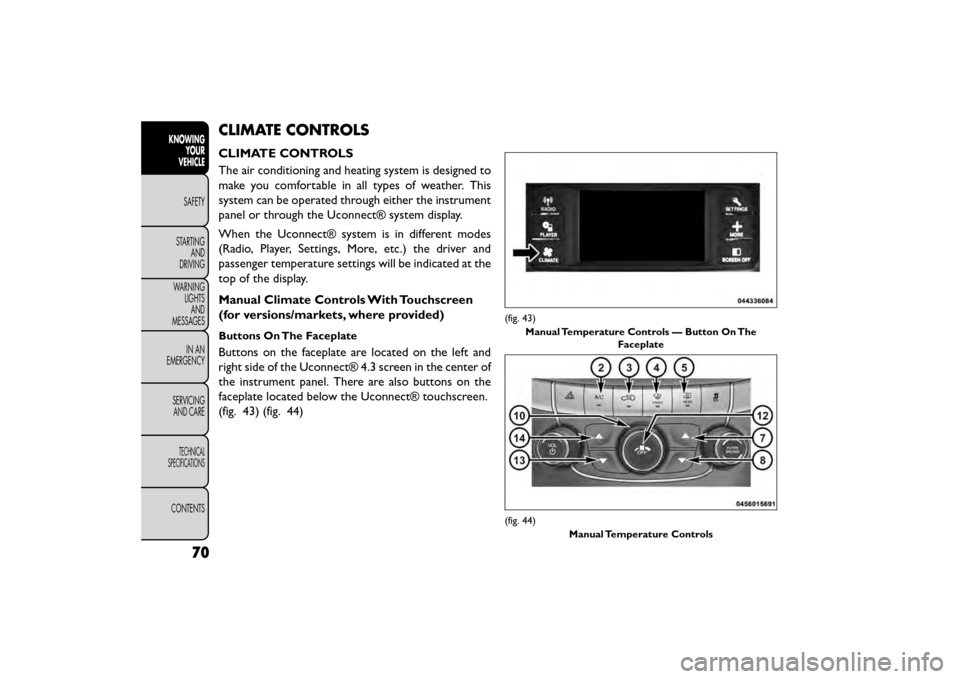
CLIMATE CONTROLS
CLIMATE CONTROLS
The air conditioning and heating system is designed to
make you comfortable in all types of weather. This
system can be operated through either the instrument
panel or through the Uconnect® system display.
When the Uconnect® system is in different modes
(Radio, Player, Settings, More, etc.) the driver and
passenger temperature settings will be indicated at the
top of the display.
Manual Climate Controls With Touchscreen
(for versions/markets, where provided)
Buttons On The Faceplate
Buttons on the faceplate are located on the left and
right side of the Uconnect® 4.3 screen in the center of
the instrument panel. There are also buttons on the
faceplate located below the Uconnect® touchscreen.
(fig. 43) (fig. 44)
(fig. 43)Manual Temperature Controls — Button On The Faceplate
(fig. 44)
Manual Temperature Controls
70
KNOWINGYOUR
VEHICLE
SAFETY
STAR
TINGAND
DRIVING
WARNING LIGHTSAND
MESSAGES
IN AN
EMERGENCY
SERVICINGAND CARE
TECHNICAL
SPECIFICATIONS
CONTENTS
Page 83 of 412
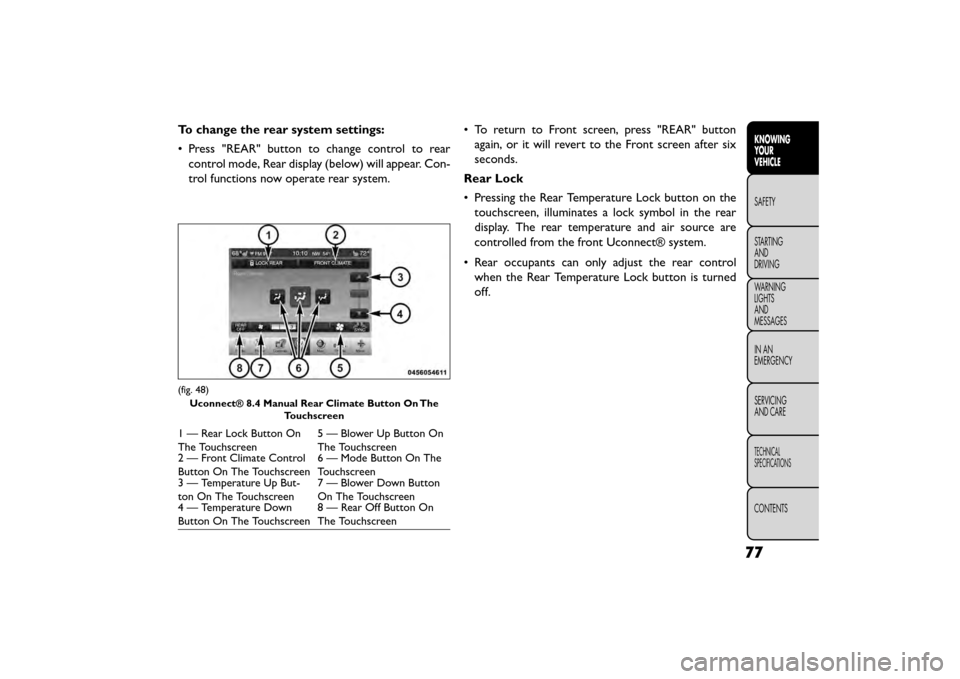
To change the rear system settings:
• Press "REAR" button to change control to rearcontrol mode, Rear display (below) will appear. Con-
trol functions now operate rear system. • To return to Front screen, press "REAR" button
again, or it will revert to the Front screen after six
seconds.
Rear Lock
• Pressing the Rear Temperature Lock button on the touchscreen, illuminates a lock symbol in the rear
display. The rear temperature and air source are
controlled from the front Uconnect® system.
• Rear occupants can only adjust the rear control when the Rear Temperature Lock button is turned
off.
(fig. 48)
Uconnect® 8.4 Manual Rear Climate Button On The Touchscreen
1 — Rear Lock Button On
The Touchscreen 5 — Blower Up Button On
The Touchscreen
2 — Front Climate Control
Button On The Touchscreen 6 — Mode Button On The
Touchscreen
3 — Temperature Up But-
ton On The Touchscreen 7 — Blower Down Button
On The Touchscreen
4 — Temperature Down
Button On The Touchscreen 8 — Rear Off Button On
The Touchscreen
77
KNOWING
YOUR
VEHICLE
SAFETY
STAR
TING
AND
DRIVING
WARNING
LIGHTS
AND
MESSAGES
IN AN
EMERGENCY
SERVICING
AND CARE
TECHNICAL
SPECIFICATIONS
CONTENTS
Page 91 of 412
NOTE:In cold weather, use of Recirculation mode
may lead to excessive window fogging. The recircula-
tion feature may be unavailable (soft button greyed
out). Recirculation mode is not allowed in Defrost
mode to improve window clearing operation. Recircu-
lation will be disabled automatically if this mode is
selected. Attempting to use Recirculation while in this
mode will cause the LED in the control button to blink
and then turn off.
Automatic Temperature Control (ATC)
Automatic Operation
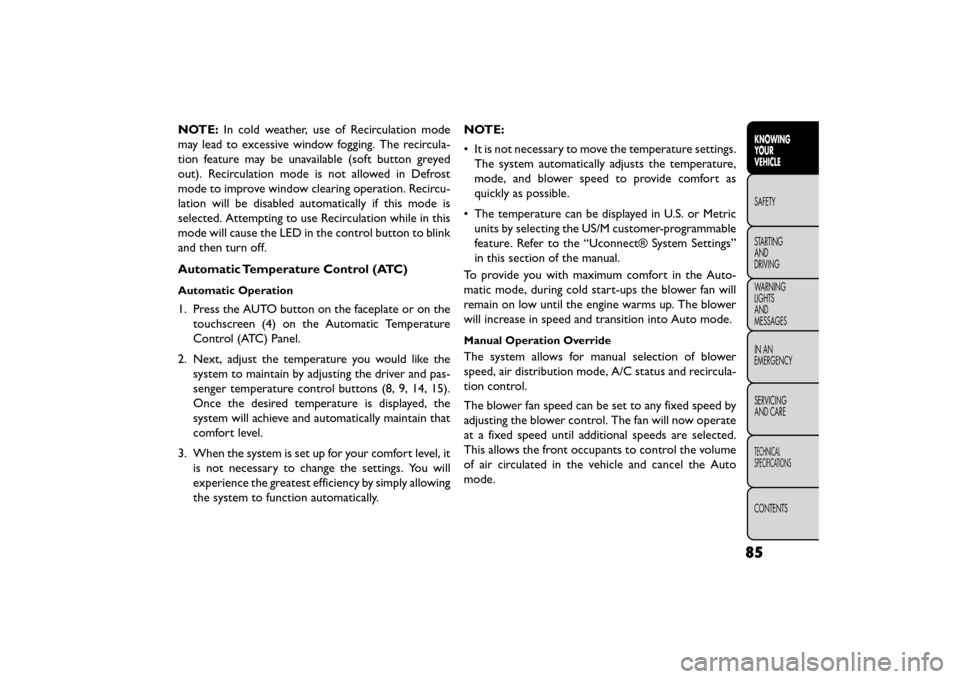
1. Press the AUTO button on the faceplate or on the touchscreen (4) on the Automatic Temperature
Control (ATC) Panel.
2. Next, adjust the temperature you would like the system to maintain by adjusting the driver and pas-
senger temperature control buttons (8, 9, 14, 15).
Once the desired temperature is displayed, the
system will achieve and automatically maintain that
comfort level.
3. When the system is set up for your comfort level, it is not necessary to change the settings. You will
experience the greatest efficiency by simply allowing
the system to function automatically. NOTE:
• It is not necessary to move the temperature settings.
The system automatically adjusts the temperature,
mode, and blower speed to provide comfort as
quickly as possible.
• The temperature can be displayed in U.S. or Metric units by selecting the US/M customer-programmable
feature. Refer to the “Uconnect® System Settings”
in this section of the manual.
To provide you with maximum comfort in the Auto-
matic mode, during cold start-ups the blower fan will
remain on low until the engine warms up. The blower
will increase in speed and transition into Auto mode.
Manual Operation Override
The system allows for manual selection of blower
speed, air distribution mode, A/C status and recircula-
tion control.
The blower fan speed can be set to any fixed speed by
adjusting the blower control. The fan will now operate
at a fixed speed until additional speeds are selected.
This allows the front occupants to control the volume
of air circulated in the vehicle and cancel the Auto
mode.
85
KNOWING
YOUR
VEHICLE
SAFETY
STAR
TING
AND
DRIVING
WARNING
LIGHTS
AND
MESSAGES
IN AN
EMERGENCY
SERVICING
AND CARE
TECHNICAL
SPECIFICATIONS
CONTENTS
Page 92 of 412
The operator can also select the direction of the
airflow by selecting one of the available mode settings.
A/C operation and Recirculation control can also be
manually selected in Manual operation.
NOTE:Each of these features operates independently
from each other. If any feature is controlled manually,
temperature control will continue to operate auto-
matically.
Rear Automatic Temperature Control (ATC)
(for versions/markets, where provided)
The rear ATC system has floor air outlets at the rear
right side of the 3rd Row seats and overhead outlets at
each outboard rear seating position. The system pro-
vides heated air through the floor outlets or cool,
dehumidified air through the headliner outlets.
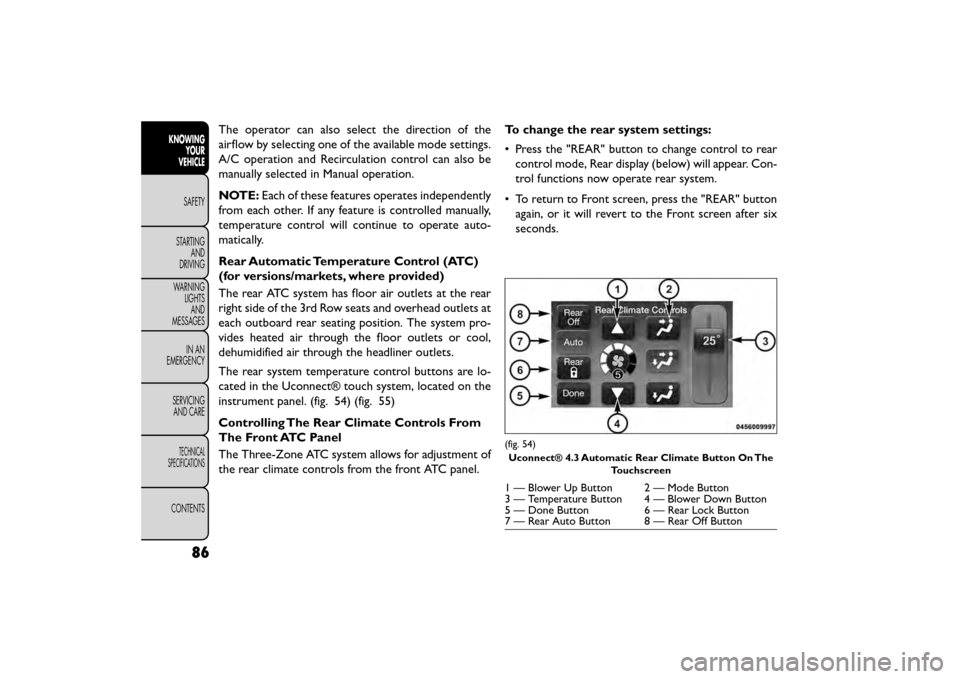
The rear system temperature control buttons are lo-
cated in the Uconnect® touch system, located on the
instrument panel. (fig. 54) (fig. 55)
Controlling The Rear Climate Controls From
The Front ATC Panel
The Three-Zone ATC system allows for adjustment of
the rear climate controls from the front ATC panel. To change the rear system settings:
• Press the "REAR" button to change control to rear
control mode, Rear display (below) will appear. Con-
trol functions now operate rear system.
• To return to Front screen, press the "REAR" button again, or it will revert to the Front screen after six
seconds.
(fig. 54)
Uconnect® 4.3 Automatic Rear Climate Button On The Touchscreen
1 — Blower Up Button 2 — Mode Button
3 — Temperature Button 4 — Blower Down Button
5 — Done Button 6 — Rear Lock Button
7 — Rear Auto Button 8 — Rear Off Button
86
KNOWINGYOUR
VEHICLE
SAFETY
STAR
TINGAND
DRIVING
WARNING LIGHTSAND
MESSAGES
IN AN
EMERGENCY
SERVICINGAND CARE
TECHNICAL
SPECIFICATIONS
CONTENTS
Page 93 of 412
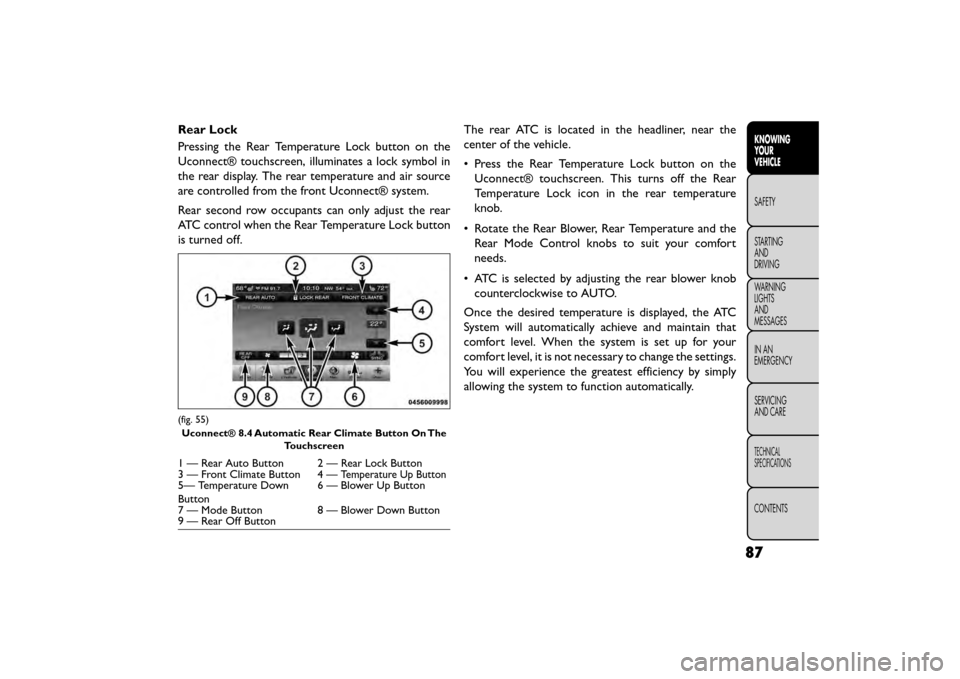
Rear Lock
Pressing the Rear Temperature Lock button on the
Uconnect® touchscreen, illuminates a lock symbol in
the rear display. The rear temperature and air source
are controlled from the front Uconnect® system.
Rear second row occupants can only adjust the rear
ATC control when the Rear Temperature Lock button
is turned off.The rear ATC is located in the headliner, near the
center of the vehicle.
• Press the Rear Temperature Lock button on the
Uconnect® touchscreen. This turns off the Rear
Temperature Lock icon in the rear temperature
knob.
• Rotate the Rear Blower, Rear Temperature and the Rear Mode Control knobs to suit your comfort
needs.
• ATC is selected by adjusting the rear blower knob counterclockwise to AUTO.
Once the desired temperature is displayed, the ATC
System will automatically achieve and maintain that
comfort level. When the system is set up for your
comfort level, it is not necessary to change the settings.
You will experience the greatest efficiency by simply
allowing the system to function automatically.
(fig. 55) Uconnect® 8.4 Automatic Rear Climate Button On The Touchscreen
1 — Rear Auto Button 2 — Rear Lock Button
3 — Front Climate Button 4 —Temperature Up Button5— Temperature Down
Button 6 — Blower Up Button
7 — Mode Button 8 — Blower Down Button
9 — Rear Off Button
87
KNOWING
YOUR
VEHICLE
SAFETY
STAR
TING
AND
DRIVING
WARNING
LIGHTS
AND
MESSAGES
IN AN
EMERGENCY
SERVICING
AND CARE
TECHNICAL
SPECIFICATIONS
CONTENTS
Page 102 of 412
INTERIOR LIGHTS
The interior lights come on when a door is opened.
To protect the battery, the interior lights will turn off
automatically 10 minutes after the ignition switch is
moved to the LOCK position. This will occur if the
interior lights were switched on manually or are on
because a door is open. This includes the glove box
light, but not the trunk light. To restore interior light
operation, either turn the ignition switch ON or cycle
the light switch.
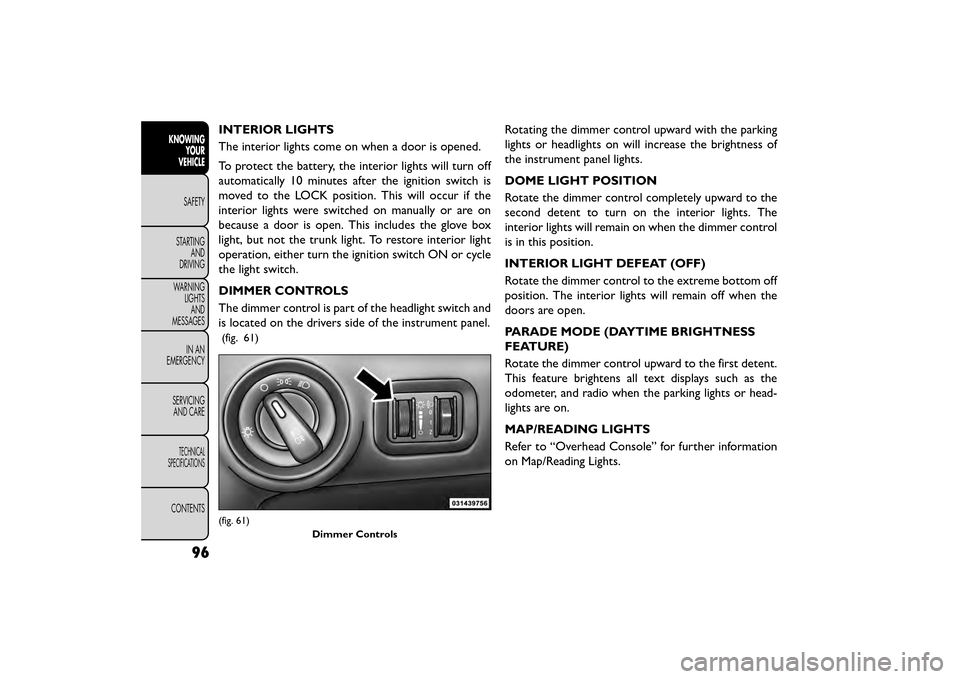
DIMMER CONTROLS
The dimmer control is part of the headlight switch and
is located on the drivers side of the instrument panel.
(fig. 61)
Rotating the dimmer control upward with the parking
lights or headlights on will increase the brightness of
the instrument panel lights.
DOME LIGHT POSITION
Rotate the dimmer control completely upward to the
second detent to turn on the interior lights. The
interior lights will remain on when the dimmer control
is in this position.
INTERIOR LIGHT DEFEAT (OFF)
Rotate the dimmer control to the extreme bottom off
position. The interior lights will remain off when the
doors are open.
PARADE MODE (DAYTIME BRIGHTNESS
FEATURE)
Rotate the dimmer control upward to the first detent.
This feature brightens all text displays such as the
odometer, and radio when the parking lights or head-
lights are on.
MAP/READING LIGHTS
Refer to “Overhead Console” for further information
on Map/Reading Lights.
(fig. 61)Dimmer Controls
96
KNOWINGYOUR
VEHICLE
SAFETY
STAR
TINGAND
DRIVING
WARNING LIGHTSAND
MESSAGES
IN AN
EMERGENCY
SERVICINGAND CARE
TECHNICAL
SPECIFICATIONS
CONTENTS