time FIAT PANDA 2007 169 / 2.G Connect NavPlus Manual
[x] Cancel search | Manufacturer: FIAT, Model Year: 2007, Model line: PANDA, Model: FIAT PANDA 2007 169 / 2.GPages: 166, PDF Size: 5.19 MB
Page 128 of 166

127
CONNECT NAV+
To set a new Date/Time (only with
ignition key at ON), select the “Date
& time” icon and then press the knob
15-fig. 1.
To set day, month, year, hours, min-
utes, mode (12h /24h), rotate the
knob 15-fig. 1to the required setting
and then press the knob 15-fig. 1,
each field will be activated in sequence.
Setting “GG”: selectday rotating
the knob 15-fig. 1and press it to con-
firm.
Setting “MMM”: select month rotat-
ing the knob 15-fig. 1and press it to
confirm.Setting AAAA: select year rotating
the knob 15-fig. 1and press it to con-
firm.
Setting HH: select hour rotating the
knob 15-fig. 1and press it to confirm.
Setting MM: select minutes rotating
the knob 15-fig. 1and press it to con-
firm.
Setting MODO (12h / 24h): select
12h or 24h mode rotating the knob
15-fig. 1and press it to confirm.
To activate the required settings, se-
lect and confirm “OK” by turning and
pressing the knob 15-fig. 1.IMPORTANTDuring setting,
hours (HH) are always displayed with
24h mode, regardless of set mode.
IMPORTANTIf set mode is 24h,
the display shows time using digits be-
tween 0 and 23; if set mode is 12h, the
display shows time using digits be-
tween 1 and 12.
Page 133 of 166
132
CONNECT NAV+
VIDEO
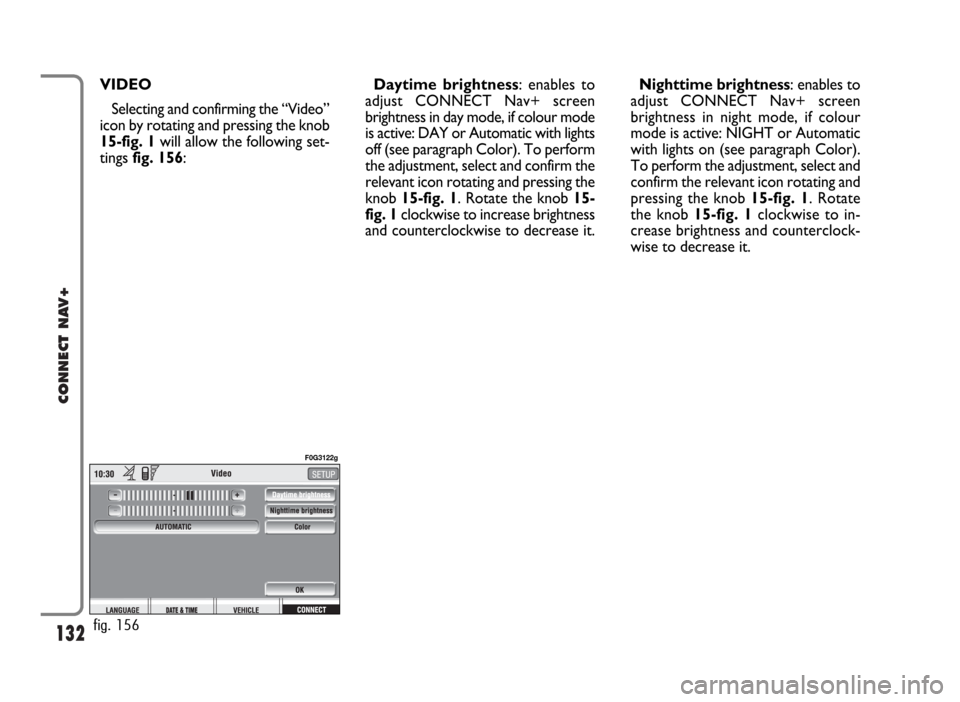
Selecting and confirming the “Video”
icon by rotating and pressing the knob
15-fig. 1will allow the following set-
tings fig. 156:Daytime brightness: enables to
adjust CONNECT Nav+ screen
brightness in day mode, if colour mode
is active: DAY or Automatic with lights
off (see paragraph Color). To perform
the adjustment, select and confirm the
relevant icon rotating and pressing the
knob 15-fig. 1. Rotate the knob 15-
fig. 1clockwise to increase brightness
and counterclockwise to decrease it.Nighttime brightness: enables to
adjust CONNECT Nav+ screen
brightness in night mode, if colour
mode is active: NIGHT or Automatic
with lights on (see paragraph Color).
To perform the adjustment, select and
confirm the relevant icon rotating and
pressing the knob 15-fig. 1. Rotate
the knob 15-fig. 1clockwise to in-
crease brightness and counterclock-
wise to decrease it.
fig. 156
F0G3122g
Page 134 of 166
133
CONNECT NAV+
Color: selecting and confirming it by
rotating and pressing the knob 15-
fig. 1, the following settings are pos-
sible:
– “Automatic”: enables to adjust au-
tomatically the colour palette
(day/night) depending on car lights
switching on/off.In MAIN mode and color set to “Au-
tomatic”, press knob 15-fig. 1to al-
ternate daytime brightness and night-
time brightness settings.
– “Day”: activates day mode. The ad-
justment cursor is available if “Color”
is set to Day or Automatic with lights
off.
– “Night”: activates night mode. The
adjustment cursor is available if “Col-
or” is set to Night or Automatic with
lights on.OK
To activate and to store settings, se-
lect and confirm “OK” by turning and
pressing the knob 15-fig. 1.
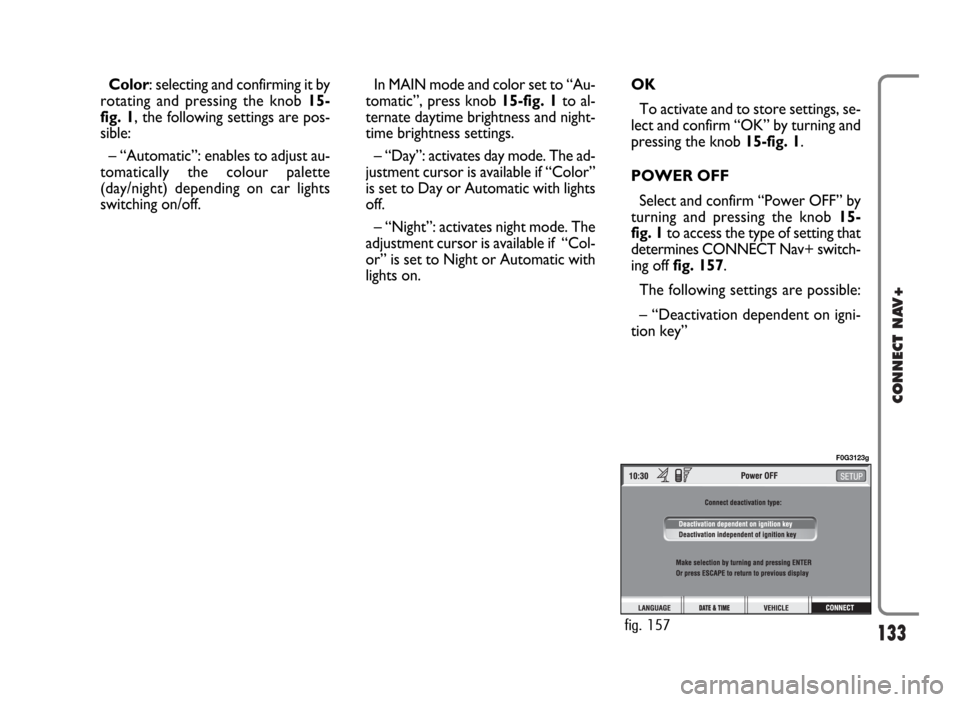
POWER OFF
Select and confirm “Power OFF” by
turning and pressing the knob 15-
fig. 1to access the type of setting that
determines CONNECT Nav+ switch-
ing off fig. 157.
The following settings are possible:
– “Deactivation dependent on igni-
tion key”
fig. 157
F0G3123g
Page 135 of 166
– “Deactivation independent of igni-
tion key”.
Current activated setting will be high-
lighted.
Select the required setting by rotat-
ing the knob 15-fig. 1and then press
it to confirm.
Press “ESC” 14-fig. 1to go back to
previous screen.
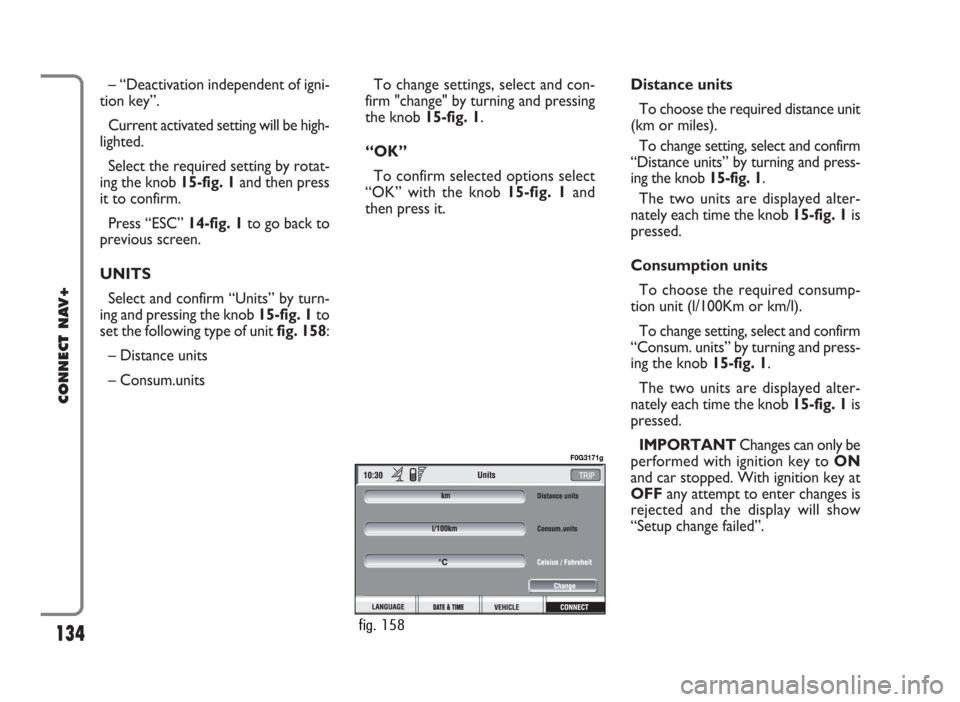
UNITS
Select and confirm “Units” by turn-
ing and pressing the knob 15-fig. 1to
set the following type of unit fig. 158:
– Distance units
– Consum.unitsTo change settings, select and con-
firm "change" by turning and pressing
the knob 15-fig. 1.
“OK”
To confirm selected options select
“OK” with the knob 15-fig. 1and
then press it.Distance units
To choose the required distance unit
(km or miles).
To change setting, select and confirm
“Distance units” by turning and press-
ing the knob 15-fig. 1.
The two units are displayed alter-
nately each time the knob 15-fig. 1is
pressed.
Consumption units
To choose the required consump-
tion unit (l/100Km or km/l).
To change setting, select and confirm
“Consum. units” by turning and press-
ing the knob 15-fig. 1.
The two units are displayed alter-
nately each time the knob 15-fig. 1is
pressed.
IMPORTANTChanges can only be
performed with ignition key to ON
and car stopped. With ignition key at
OFFany attempt to enter changes is
rejected and the display will show
“Setup change failed”.
134
CONNECT NAV+
fig. 158
F0G3171g
Page 136 of 166

135
CONNECT NAV+
GENERAL INFORMATION
With the “Voice recognition” func-
tion the user can control the CON-
NECT Nav+ by voice. By means of
“Voice recognition”, the user can
send commands to the system to the
system through a microphone: short
push on
}1-fig. 1set on front pan-
el enables voice command interpre-
tation; CONNECT Nav+ will then
provide voice help to guide the user
get the required function.
Press again
}1-fig. 1to stop pro-
cedure.Voice recognition is performed in
two ways:
– voice recognition without
voice identification;
– voice recognition with voice
identification.
Commands without voice identi-
ficationactivate the main system
functions (TEL, RADIO, CD etc.).
Commands with voice identifica-
tionmakes it possible to enter / recall
names in the phone directory and/or
navigation addresses.
In the first case (voice recognition
without voice identification), the sys-
tem is able to receive the voice com-
mands regardless of the user’s sex and
voice tone and inflexion.No preliminary training phase is re-
quired, just follow the instructions giv-
en by the system each time.
In the second case (voice recognition
with voice identification), the system
is able to recognise the required com-
mand comparing the voice command
pronounced to the corresponding
voice sample previously stored by the
user.
IMPORTANTThe voice recogni-
tion and message store operations are
immediately interrupted in the event
of incoming calls; in this case, at the
end of the call, the whole operation
must be repeated. Conversely, in-
coming SMS text messages do not in-
terrupt the operations.
V V
O O
I I
C C
E E
R R
E E
C C
O O
G G
N N
I I
T T
I I
O O
N N
Page 137 of 166
136
CONNECT NAV+
VOICE COMMANDS
Voice commands, identified as “key-
words”, that the system is able to rec-
ognize are organized according to four
increasing levels: 1st level, 2nd level,
3rd level, 4th level. 1st level keywords
activate the following main system
functions: Memo; Radio; CD player;
CD Changer; Navigator, Telephone.
When a 1st level keyword is pro-
nounced, the system will activate 2nd
level keywords; when a 2nd level key-
word is pronounced, the system will
activate 3rd level keywords; when a
3rd level keyword is pronounced, thesystem will activate 4th level key-
words.
If the user pronounces a 1st level
keyword, then the submenu relevant
to that command will remain active
until another 1st level keyword is giv-
en; the same rule applies for the oth-
er lower levels (2, 3 and 4).
If too much time passes between a
command and another of lower level
the system will invite the user to con-
tinue by voice message “Can I help
you?”.1st level keywords are the following:
– Memo
– Radio
– CD player
– CD changer
– Navigator
– Call
– Dial
– Redial
– PIN code
– Address book
– Abort.
REQUIRED FUNCTION
Memo (“Voice memo” function)
Read a message
Delete all messages
Go to next message
Go to previous message
Record memo
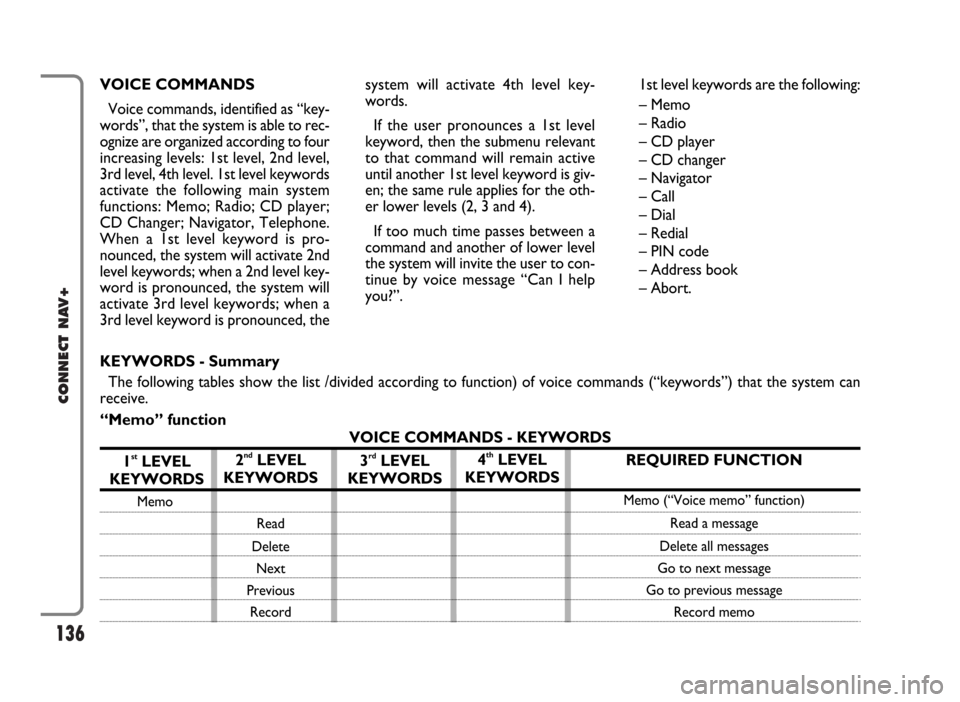
KEYWORDS - Summary
The following tables show the list /divided according to function) of voice commands (“keywords”) that the system can
receive.
“Memo” function
VOICE COMMANDS - KEYWORDS
1
stLEVEL
KEYWORDS
Memo
2ndLEVEL
KEYWORDS
Read
Delete
Next
Previous
Record
3rdLEVEL
KEYWORDS4thLEVEL
KEYWORDS
Page 156 of 166

155
CONNECT NAV+
If the function is enabled, pressing the
“SOS” key 12-fig. 1, automatically
opens the screen with the “Automat-
ic medical advice”: function already
highlighted: if the user does not move
the cursor within 15 seconds using the
knob 15-fig. 1and call is not cancelled
for other 10 seconds, the request for
medical assistance will be forwarded
automatically. If not, the call will not
be sent and to activate it at a later
time, the user will have to select again
the “Medical advice” function and to
press the knob 15-fig.1to confirm.
“OK” icon key
To confirm settings, select “OK”
with the knob 15-fig. 1and press it to
confirm.CALLS FOR MEDICAL
ADVICE OR ROADSIDE
ASSISTANCE
During the forwarding of a call for as-
sistance to the operating centre, any
other operations activated are inter-
rupted and the volume of any audio
sources (except the phone) is muted.
These conditions will be maintained as
long as the call for assistance is active,
with the corresponding screen on the
display.
If a phone call is received while for-
warding a request for assistance, the
corresponding alert will not be shown
on the display but the ringer will ring.
If the user decides to accept the call
and briefly presses the
ß3-fig. 1, key,
the assistance call screen goes off the
display.
IMPORTANTThe call for assis-
tance is always forwarded; however, if
you accept the incoming call, the
bCONNECToperator might have
difficulty in contacting you since the
number could be busy. When the call has been sent, the dis-
play shows the corresponding call for-
warded message for about 4 seconds.
If for any reason the call for assis-
tance cannot be sent, the display
shows a warning message and the user
is then asked if he/she wants to acti-
vate a phone call in any case (*) to the
operating centre to avail of the service
required, even if in this case the op-
erating centre will no longer be able
to locate the car.
(*) The call is normally made using the toll-
free number, while it is at the user’s expense
if it is made in roaming conditions.
Page 160 of 166
159
CONNECT NAV+
The CONNECT Nav+ system is
able to detect both internal faults and
faults due to overheating.
INTERNAL
FAULTS
If the system detects an internal fault
on a certain module (audio, telephone,
etc…), the system will “freeze” the
last available screen and it will start di-
agnostics.
For a set period of time the system
monitors the involved module for
troubleshooting. If time-out expires
with no result, the system will adopt
the best repair action (e.g.: resetting
involved module hardware).
Should the system be not operating,
reset it manually by pressing the
knob17-fig. 1for over 7 seconds.OVERTEMPERATURE
FAULTS
If the temperature of a CONNECT
Nav+ hardware module (audio, tele-
phone, CD player, etc..) exceeds the
max. limit, the module will detect
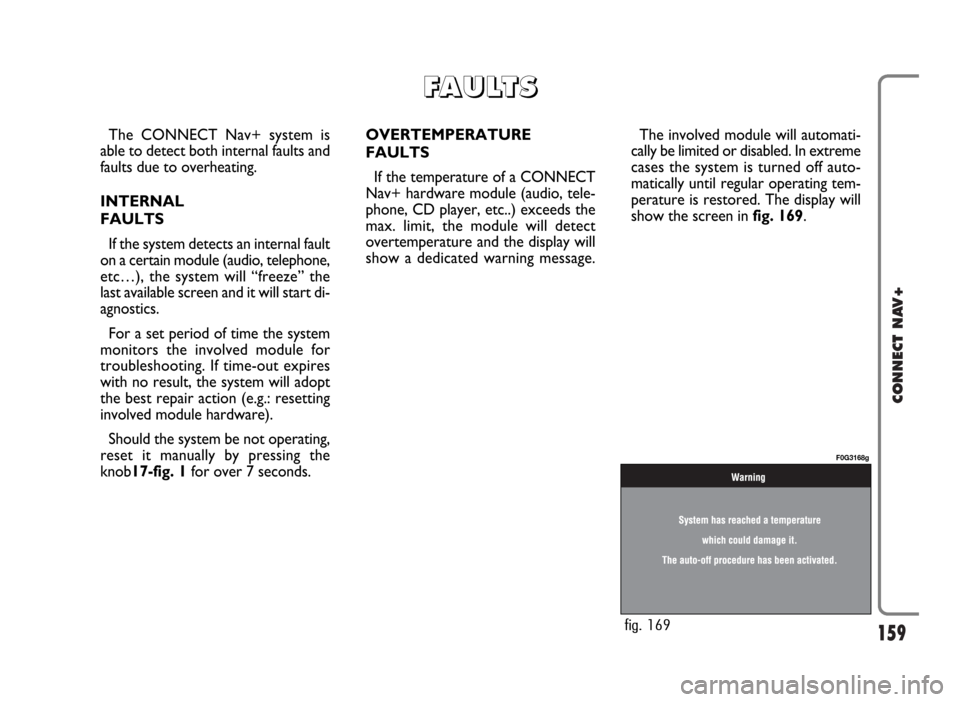
overtemperature and the display will
show a dedicated warning message.The involved module will automati-
cally be limited or disabled. In extreme
cases the system is turned off auto-
matically until regular operating tem-
perature is restored. The display will
show the screen in fig. 169.
F F
A A
U U
L L
T T
S S
fig. 169
F0G3168g