display FIAT PANDA 2016 319 / 3.G Service Manual
[x] Cancel search | Manufacturer: FIAT, Model Year: 2016, Model line: PANDA, Model: FIAT PANDA 2016 319 / 3.GPages: 204, PDF Size: 18.77 MB
Page 100 of 204
MODE SELECTOR
(Panda Cross versions)
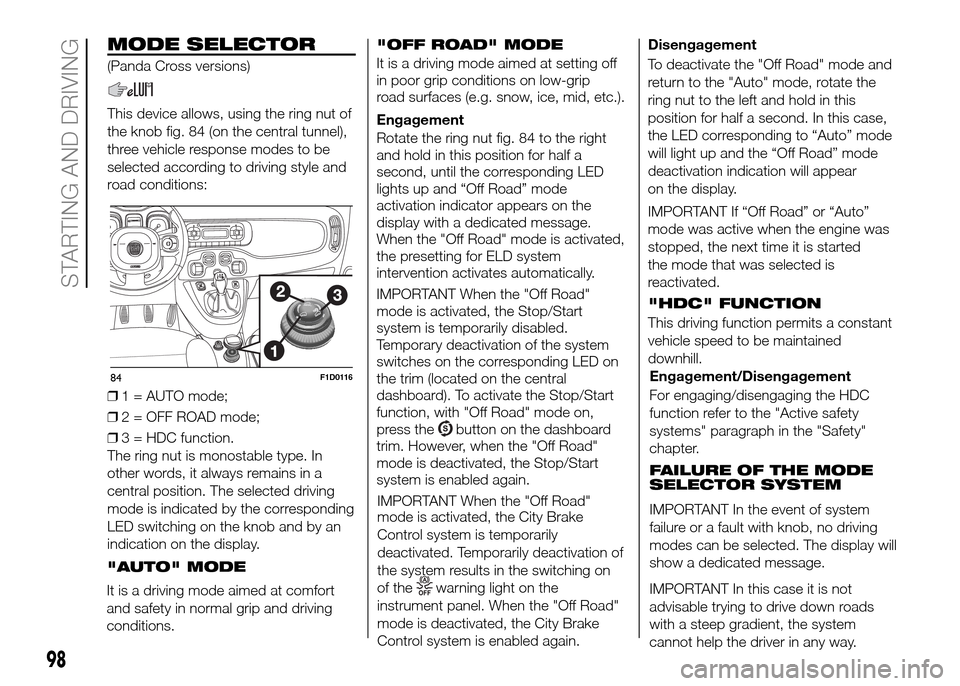
This device allows, using the ring nut of
the knob fig. 84 (on the central tunnel),
three vehicle response modes to be
selected according to driving style and
road conditions:
❒1 = AUTO mode;
❒2 = OFF ROAD mode;
❒3 = HDC function.
The ring nut is monostable type. In
other words, it always remains in a
central position. The selected driving
mode is indicated by the corresponding
LED switching on the knob and by an
indication on the display.
84F1D0116
98
STARTING AND DRIVING
"AUTO" MODE
It is a driving mode aimed at comfort
and safety in normal grip and driving
conditions."OFF ROAD" MODE
It is a driving mode aimed at setting off
in poor grip conditions on low-grip
road surfaces (e.g. snow, ice, mid, etc.).
Engagement
Rotate the ring nut fig. 84 to the right
and hold in this position for half a
second, until the corresponding LED
lights up and “Off Road” mode
activation indicator appears on the
display with a dedicated message.
When the "Off Road" mode is activated,
the presetting for ELD system
intervention activates automatically.
IMPORTANT When the "Off Road"
mode is activated, the Stop/Start
system is temporarily disabled.
Temporary deactivation of the system
switches on the corresponding LED on
the trim (located on the central
dashboard). To activate the Stop/Start
function, with "Off Road" mode on,
press the
button on the dashboard
trim. However, when the "Off Road"
mode is deactivated, the Stop/Start
system is enabled again.
IMPORTANT When the "Off Road"
mode is activated, the City Brake
Control system is temporarily
deactivated. Temporarily deactivation of
the system results in the switching on
of the
warning light on the
instrument panel. When the "Off Road"
mode is deactivated, the City Brake
Control system is enabled again.Disengagement
To deactivate the "Off Road" mode and
return to the "Auto" mode, rotate the
ring nut to the left and hold in this
position for half a second. In this case,
the LED corresponding to “Auto” mode
will light up and the “Off Road” mode
deactivation indication will appear
on the display.
IMPORTANT If “Off Road” or “Auto”
mode was active when the engine was
stopped, the next time it is started
the mode that was selected is
reactivated.
"HDC" FUNCTION
This driving function permits a constant
vehicle speed to be maintained
downhill.
Engagement/Disengagement
For engaging/disengaging the HDC
function refer to the "Active safety
systems" paragraph in the "Safety"
chapter.
FAILURE OF THE MODE
SELECTOR SYSTEM
IMPORTANT In the event of system
failure or a fault with knob, no driving
modes can be selected. The display will
show a dedicated message.
IMPORTANT In this case it is not
advisable trying to drive down roads
with a steep gradient, the system
cannot help the driver in any way.
Page 154 of 204
15
TECHNICAL SPECIFICATIONS
2
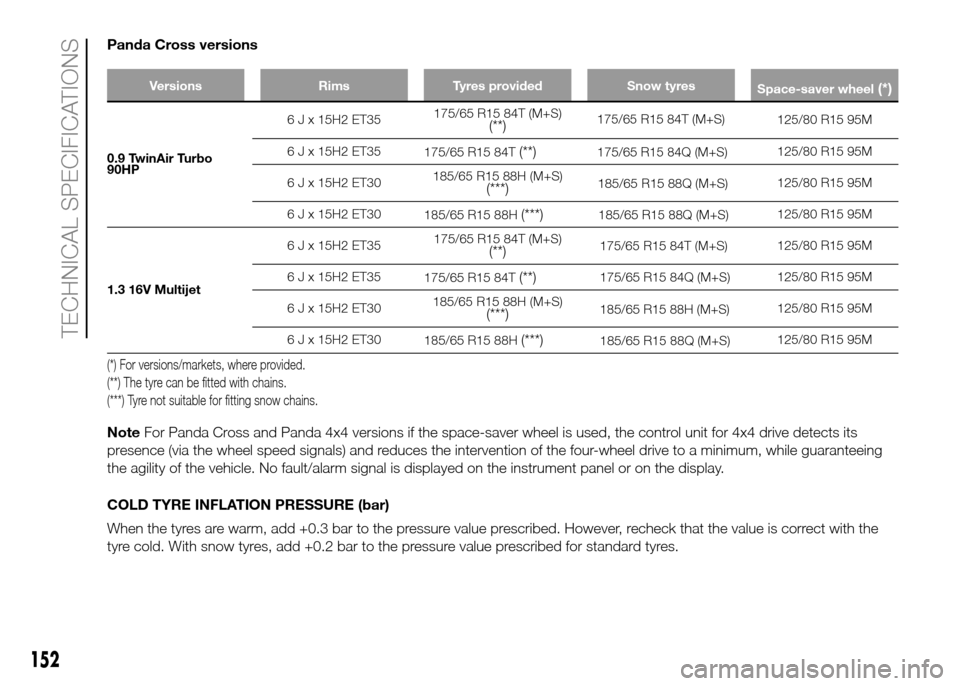
Panda Cross versions
Versions Rims Tyres provided Snow tyres
Space-saver wheel(*)
0.9 TwinAir Turbo
HP6 J x 15H2 ET35175/65 R15 84T (M+S)
(**)125/80 R15 95M
6 J x 15H2 ET35
175/65 R15 84T
(**)125/80 R15 95M
6 J x 15H2 ET30185/65 R15 88H (M+S)
(***)125/80 R15 95M
6 J x 15H2 ET30
185/65 R15 88H
(***)125/80 R15 95M
1.3 16V Multijet6 J x 15H2 ET35175/65 R15 84T (M+S)
(**)125/80 R15 95M
6 J x 15H2 ET35
175/65 R15 84T
(**)125/80 R15 95M
6 J x 15H2 ET30185/65 R15 88H (M+S)
(***)125/80 R15 95M
6 J x 15H2 ET30
185/65 R15 88H
(***)125/80 R15 95M
(*) For versions/markets, where provided.
(**) The tyre can be fitted with chains.
(***) Tyre not suitable for fitting snow chains.
NoteFor Panda Cross and Panda 4x4 versions if the space-saver wheel is used, the control unit for 4x4 drive detects its
presence (via the wheel speed signals) and reduces the intervention of the four-wheel drive to a minimum, while guaranteeing
the agility of the vehicle. No fault/alarm signal is displayed on the instrument panel or on the display.
COLD TYRE INFLATION PRESSURE (bar)
When the tyres are warm, add +0.3 bar to the pressure value prescribed. However, recheck that the value is correct with the
tyre cold. With snow tyres, add +0.2 bar to the pressure value prescribed for standard tyres.
90175/65 R15 84T (M+S)
175/65 R15 84Q (M+S)
185/65 R15 88Q (M+S)
185/65 R15 88Q (M+S)
175/65 R15 84T (M+S)
175/65 R15 84Q (M+S)
185/65 R15 88H (M+S)
185/65 R15 88Q (M+S)
Page 179 of 204
RADIO
186) 187)
The radio has been designed according
to the specifications of the passenger
compartment, with a personalised
design matching the style of the
dashboard perfectly.
TIPS
Road safety
Please, learn how to use all different
radio functions (e.g. save stations)
before beginning to drive.
Care and maintenance
Clean the cover with a soft antistatic
cloth only. Cleaning and polishing
products may damage the surface.
ANTI-THEFT
PROTECTION
The radio is equipped with an anti-theft
protection system based on the
exchange of information between the
radio and the electronic control unit
(Body Computer) on the car.
This system guarantees maximum
safety and prevents the secret code
from being entered each time the radio
power supply is disconnected.If the check has a positive outcome, the
radio will start to function, whereas if
the comparison codes are not the
same or if the electronic control unit
(Body Computer) is replaced, the
device will ask the user to enter the
secret code according to the procedure
described in the paragraph below.
Entering the secret code
When the radio is switched on, if the
code is requested, the display will show
"Radio code" for about 2 seconds
followed by four dashes "----".
The code is made up of four numbers
from 1 to 6, each corresponding to one
of the dashes.
To enter the first digit of the code, press
the corresponding button of the
pre-selected stations (from 1 to 6).
Enter the other code digits in the same
way.
If the four digits are not entered within
20 seconds, the display will show
"Enter code----".Ifthis occurs, it is
not considered an incorrect code entry.
After entering the fourth digit (within
20 seconds), the car radio will start to
work.
If an incorrect code is entered, the radio
will emit a sound and the display
shows the text "Radio blocked/wait" to
notify the user of the need to enter
the correct code.Each time the user enters an incorrect
code, the waiting time will gradually
increase (1 min, 2 min, 4 min, 8 min, 16
min, 30 min, 1 h, 2 h, 4 h, 8 h, 16 h,
24 h) up to a maximum of 24 hours.
The waiting time will be shown on the
display with the text "Radio blocked/
wait". After the text has disappeared it
is possible to start the code entering
procedure again.
Car radio passport
This document certifies the ownership
of the car radio. The car radio passport
shows the radio model, serial number
and secret code.
IMPORTANT Keep the radio passport in
a safe place so that you can give the
information to the relevant authorities if
the radio is stolen.
In the case of loss of the vehicle radio
passport, contact the Fiat Dealership,
taking an ID document and the vehicle
ownership documents.
177
Page 183 of 204
INTRODUCTION
The radio offers the following functions:
Radio section
❒PLL tuning with FM/AM/MW
frequency bands;
❒RDS (Radio Data System) with TA
(traffic alerts) function - TP (traffic
programmes) - EON (Enhanced Other
Network) - REG (regional programmes);
❒AF: search selection for alternative
frequencies in RDS mode;
❒provision for emergency alarm;
❒automatic/manual tuning into
stations;
❒FM Multipath detector;
❒manual storing of 30 stations: 18 on
FM band (6 on FM1, 6 on FM2, 6 on
FMT), 12 on MW band (6 on MW1,
6 on MW2);
❒automatic programming (Autostore
function) of 6 stations on dedicated FM
band;
❒SPEED VOLUME function: automatic
volume adjustment according to the
car speed;
❒automatic Stereo/Mono selection.CD section
❒Direct selection of the disc;
❒Track selection (forward/back);
❒Fast advance (forward/back) through
tracks;
❒CD Display function: display of disc
name and time elapsed since the
start of the track;
❒Playing of audio CD, CD-R and
CD-RW.
MP3 CD section
❒MP3-Info function (ID3-TAG);
❒Folder selection (previous/next);
❒Track selection (forward/back);
❒Fast advance (forward/back) through
tracks;
❒MP3 Display function: display of
name of folder, ID3-TAG information,
time elapsed since the start of the
track, name of the file);
❒Playing of audio or data CD, CD-R
and CD-RW.
Audio section
❒Mute/Pause function;
❒Soft-Mute function;
❒Loudness function;
❒7-band graphic equaliser;
❒Separate bass/treble adjustment;
❒Right/left channel balance.Media Player section (only with
Blue&Me™)
For the Media Player functions see, the
Blue&Me™supplement.
AUX section (only with Blue&Me™)
(for versions/markets, where provided)
❒AUX source selection;
❒AUX Offset function: alignment of the
portable device volume with that of
the other sources;
❒Portable player playback.
WARNING
186)High volume can be a risk for the
driver and for other road users. Always
adjust the volume so that you can still hear
background noises.
187)Multimedia CDs include data tracks in
addition to the audio tracks. Playing this
type of CD can cause hissing at a volume
that may jeopardise road safety as well
as cause damage to the final stages and
the speakers.
181
Page 184 of 204
BLUE&ME™
188) 189) 190) 191) 192) 193) 194).
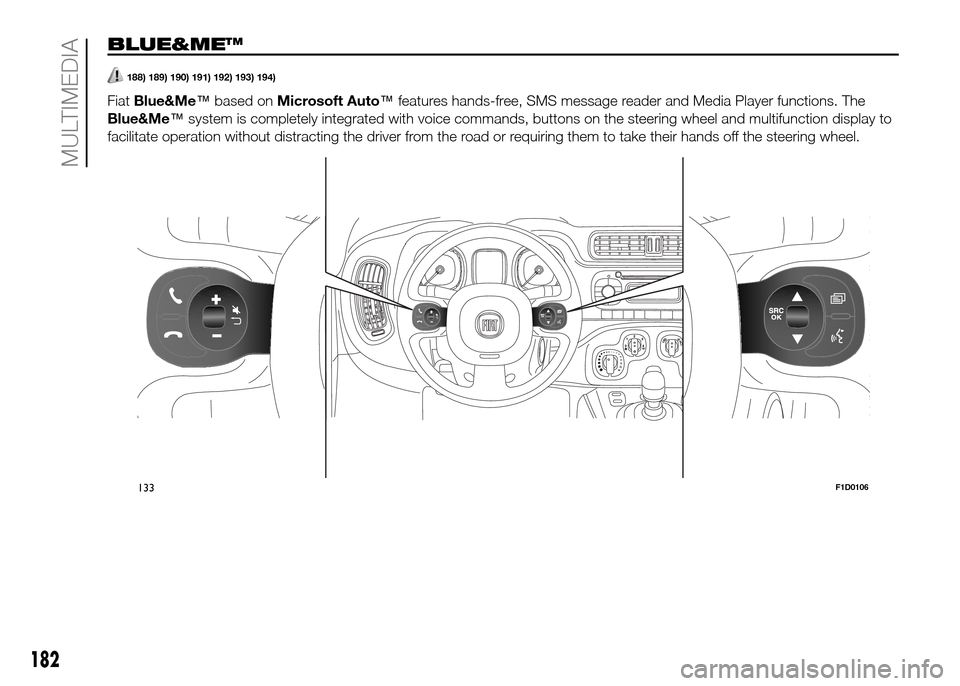
FiatBlue&Me™based onMicrosoft Auto™features hands-free, SMS message reader and Media Player functions. The
Blue&Me™system is completely integrated with voice commands, buttons on the steering wheel and multifunction display to
facilitate operation without distracting the driver from the road or requiring them to take their hands off the steering wheel.
.
133F1D0106
182
MULTIMEDIA
Page 185 of 204
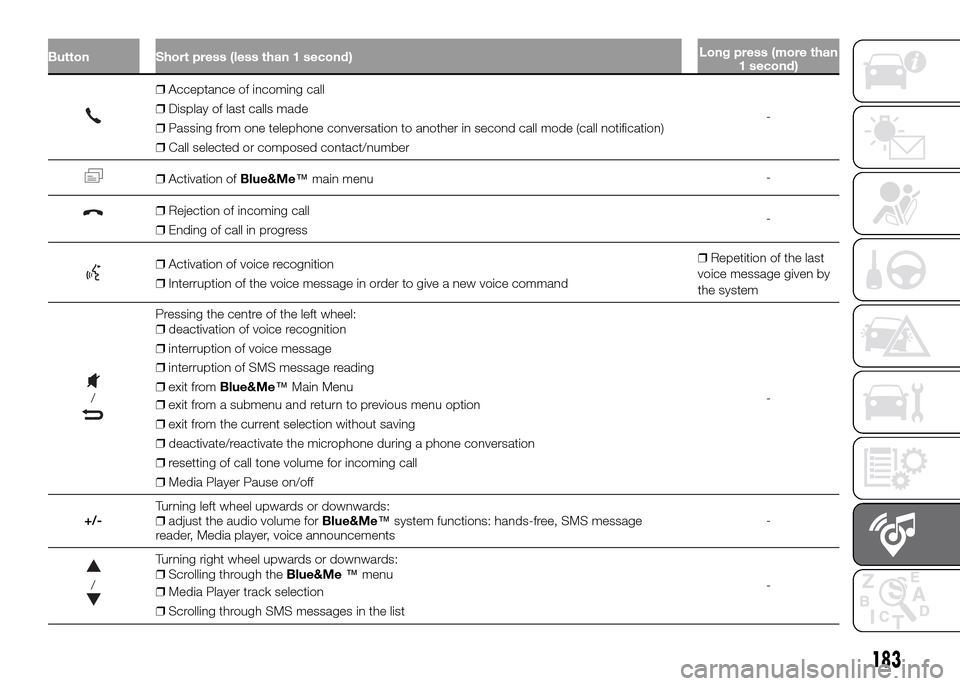
Button Short press (less than 1 second)Long press (more than
1 second)
❒Acceptance of incoming call
❒Display of last calls made
❒Passing from one telephone conversation to another in second call mode (call notification)
❒Call selected or composed contact/number-
❒Activation ofBlue&Me™main menu-
❒Rejection of incoming call
❒Ending of call in progress-
❒Activation of voice recognition
❒Interruption of the voice message in order to give a new voice command❒Repetition of the last
voice message given by
the system
/
Pressing the centre of the left wheel:
❒deactivation of voice recognition
❒interruption of voice message
❒interruption of SMS message reading
❒exit fromBlue&Me™Main Menu
❒exit from a submenu and return to previous menu option
❒exit from the current selection without saving
❒deactivate/reactivate the microphone during a phone conversation
❒resetting of call tone volume for incoming call
❒Media Player Pause on/off-
+/-Turning left wheel upwards or downwards:
❒adjust the audio volume forBlue&Me™system functions: hands-free, SMS message
reader, Media player, voice announcements-
/
Turning right wheel upwards or downwards:
❒Scrolling through theBlue&Me™menu
❒Media Player track selection
❒Scrolling through SMS messages in the list-
183
Page 186 of 204
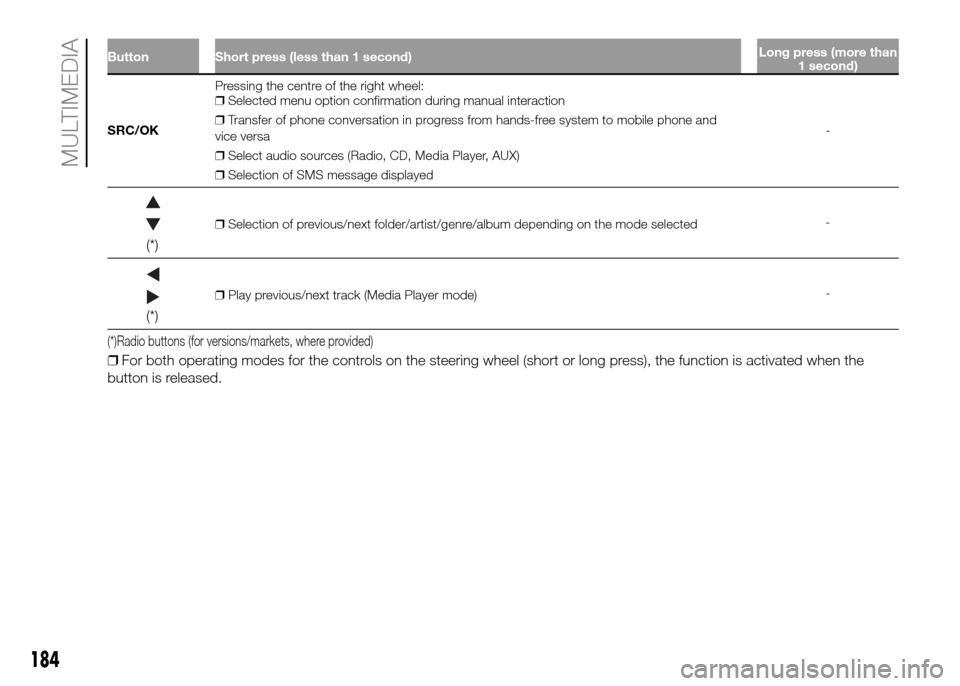
Button Short press (less than 1 second)Long press (more than
1 second)
SRC/OKPressing the centre of the right wheel:
❒Selected menu option confirmation during manual interaction
❒Transfer of phone conversation in progress from hands-free system to mobile phone and
vice versa
❒Select audio sources (Radio, CD, Media Player, AUX)
❒Selection of SMS message displayed-
(*)
❒Selection of previous/next folder/artist/genre/album depending on the mode selected-
(*)
❒Play previous/next track (Media Player mode)-
(*)Radio buttons (for versions/markets, where provided)
❒For both operating modes for the controls on the steering wheel (short or long press), the function is activated when the
button is released.
184
MULTIMEDIA
Page 187 of 204
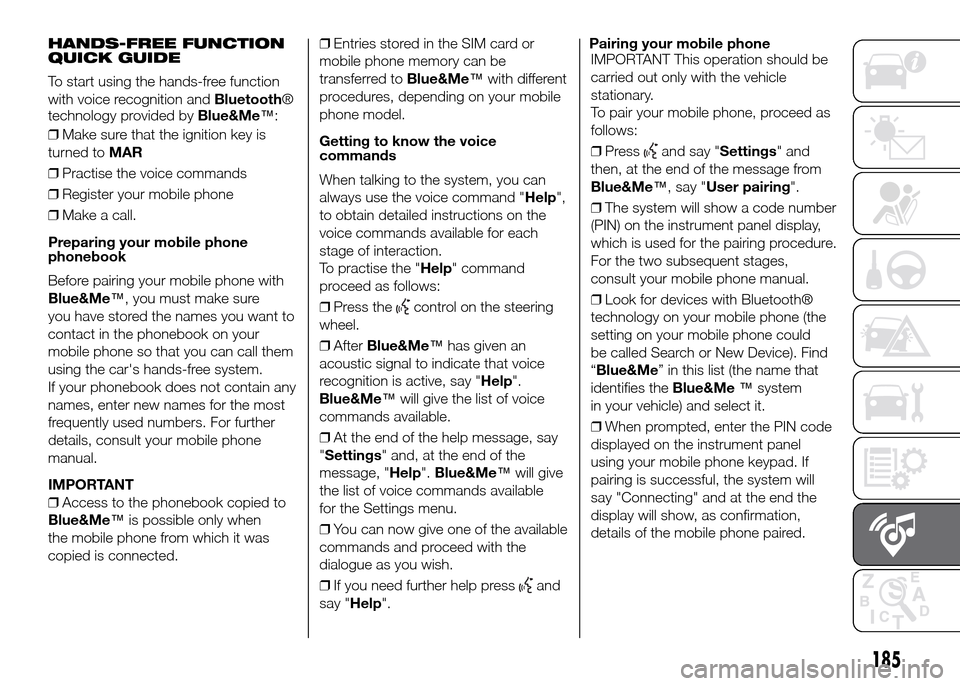
HANDS-FREE FUNCTION
QUICK GUIDE
To start using the hands-free function
with voice recognition andBluetooth®
technology provided byBlue&Me™:
❒Make sure that the ignition key is
turned toMAR
❒Practise the voice commands
❒Register your mobile phone
❒Make a call.
Preparing your mobile phone
phonebook
Before pairing your mobile phone with
Blue&Me™, you must make sure
you have stored the names you want to
contact in the phonebook on your
mobile phone so that you can call them
using the car's hands-free system.
If your phonebook does not contain any
names, enter new names for the most
frequently used numbers. For further
details, consult your mobile phone
manual.
IMPORTANT
❒Access to the phonebook copied to
Blue&Me™is possible only when
the mobile phone from which it was
copied is connected.❒Entries stored in the SIM card or
mobile phone memory can be
transferred toBlue&Me™with different
procedures, depending on your mobile
phone model.
Getting to know the voice
commands
When talking to the system, you can
always use the voice command "Help",
to obtain detailed instructions on the
voice commands available for each
stage of interaction.
To practise the "Help" command
proceed as follows:
❒Press the
control on the steering
wheel.
❒AfterBlue&Me™has given an
acoustic signal to indicate that voice
recognition is active, say "Help".
Blue&Me™will give the list of voice
commands available.
❒At the end of the help message, say
"Settings" and, at the end of the
message, "Help".Blue&Me™will give
the list of voice commands available
for the Settings menu.
❒You can now give one of the available
commands and proceed with the
dialogue as you wish.
❒If you need further help press
and
say "Help".Pairing your mobile phone
IMPORTANT This operation should be
carried out only with the vehicle
stationary.
To pair your mobile phone, proceed as
follows:
❒Press
and say "Settings" and
then, at the end of the message from
Blue&Me™, say "User pairing".
❒The system will show a code number
(PIN) on the instrument panel display,
which is used for the pairing procedure.
For the two subsequent stages,
consult your mobile phone manual.
❒Look for devices with Bluetooth®
technology on your mobile phone (the
setting on your mobile phone could
be called Search or New Device). Find
“Blue&Me” in this list (the name that
identifies theBlue&Me™system
in your vehicle) and select it.
❒When prompted, enter the PIN code
displayed on the instrument panel
using your mobile phone keypad. If
pairing is successful, the system will
say "Connecting" and at the end the
display will show, as confirmation,
details of the mobile phone paired.
185
Page 188 of 204
It is important to wait for this
confirmation message; if you press the
right
/wheel before it appears,
you risk cancelling the pairing process.
If the registration fails, an error message
will appear; in this case, you will need
to repeat the procedure.
❒After pairing your mobile phone, the
first time you connect,Blue&Me™
will say "Welcome". This message will
no longer be heard at subsequent
pairing or connecting procedures.
❒Blue&Me™asks you if you want to
copy the phonebook of the mobile
phone just paired onto theBlue&Me™
system. You are advised to copy it. To
proceed with copying, say "Ye s"; if you
do not want to copy the phonebook,
say "No".
❒On some mobile phones, the names
in the phonebook are not copied
automatically, but have to be
transferred by using the mobile phone
keypad. IfBlue&Me™asks you, carry
out this procedure by following the
specific instructions on your mobile
phone and press the rightSRC/OK
wheel when you have finished.Making a phone call
Imagine that "John" is one of the
names saved in your phonebook.
To call John, proceed as follows:
❒Press the
control on the steering
wheel and say "Call John".
❒If the system recognises the name
John, the relevant information will
be shown on the display.
If your phonebook has only one number
stored for John, the system will ask
you directly if you want to call him. To
make the call, say "Ye s"; otherwise, say
"No".
If, on the other hand, there are several
phone numbers for John, the system
will ask which one you wish to call
(for example, "Call John work
or home?"). Respond by indicating
which number you want to call (for
example, "Home").If John has several phone numbers but
the type of phone number is missing,
the system will display the selected
contact and a list of related phone
numbers. The hands-free system will
ask if you would like to call the phone
number displayed. If the number
displayed is the one you wish to call,
say "Ye s"; otherwise, say “No". If
the person to contact is the correct
one, but the number is wrong, say
"Forward"or"Back" to see the other
phone numbers for this person.
To call the number displayed, say
"Call". You can also navigate through
this list manually by turning the right
/wheel until you find the desired
number. At this point, press
to make
the call.
❒To end the call, press
.
SMS MESSAGE READER
QUICK GUIDE
(only for phones which support this
function)
If yourBluetooth® phone supports
this function, when a new SMS mes-
sage is receivedBlue&Me™will notify
you through an acoustic signal and ask
you if you want to read it.
❒Say "Ye s" or press the rightSRC/OK
wheel, and the system will read the
last message received.
186
MULTIMEDIA
Page 190 of 204
189)IMPORTANT: looking at the system
when driving can divert attention from
the road, with the risk of accidents or other
serious consequences. Do not change
system settings or enter data non-verbally
(using the manual controls) while driving.
Stop the vehicle in a safe and legal manner
before carrying out these operations. This
is important since while setting up or
changing some functions your attention
may be distracted from the road and you
may have to remove your hands from
the wheel.
190)Voice commands: the system
functions can be carried out using only
voice commands. The use of voice control
commands when driving allows the system
to be managed without taking your hands
off the steering wheel.
191)Looking at the display for a long time:
while driving, do not use any function that
requires looking at the display for a long
time. Pull over in a safe and legal manner
before attempting to access a function
of the system that requires prolonged
attention. Even occasional short glances at
the display may be hazardous if your
attention is diverted from driving at a critical
moment.
192)Setting the volume: do not turn the
volume up too high. Keep the volume at a
level where you can still hear outside traffic
and emergency signals while driving.
Driving without being able to hear these
sounds can cause accidents.193)Using the voice recognition: the voice
recognition software is based on a
statistical process that is subject to error. It
is your responsibility to monitor the
system's voice recognition functions and to
correct any errors.
194)Danger of distraction: the functions
may require manual settings (not using
voice commands). Performing these
settings or entering data when driving can
distract you significantly, causing accidents
or having other serious consequences.
Stop the vehicle in a safe and legal manner
before attempting these operations.
188
MULTIMEDIA