service FIAT TIPO 5DOORS STATION WAGON 2017 1.G User Guide
[x] Cancel search | Manufacturer: FIAT, Model Year: 2017, Model line: TIPO 5DOORS STATION WAGON, Model: FIAT TIPO 5DOORS STATION WAGON 2017 1.GPages: 264, PDF Size: 4.53 MB
Page 211 of 264

PRESCRIPTIONS FOR HANDLING THE VEHICLE AT THE END OF ITS
LIFE
(for versions/markets, where provided)
FCA has been committed for many years to safeguarding the environment through the constant improvement of its production
processes and manufacturing products that are increasingly "eco-compatible". To grant customers the best possible service in
terms of respecting environmental laws and in response to European Directive 2000/53/EC governing vehicles at the end of
their life, FCA is offering its customers the chance to hand over their car at the end of its life without incurring any additional
costs. The European Directive sets out that when the vehicle is handed over, the last keeper or owner should not incur any
expenses as a result of it having a zero or negative market value.
To hand your vehicle over at the end of its life without extra cost, contact one of our dealerships if you are purchasing another
vehicle or an FCA-authorised collection and scrapping centre. These centres have been carefully chosen to offer high quality
service for the collection, treatment and recycling of vehicles at their end of life, respecting the surrounding environment.
You can find further information on these collection and scrapping centres either from an FCA dealership or by calling the
number in the Warranty Booklet or by consulting the websites of the various FCA brands.
209
Page 225 of 264
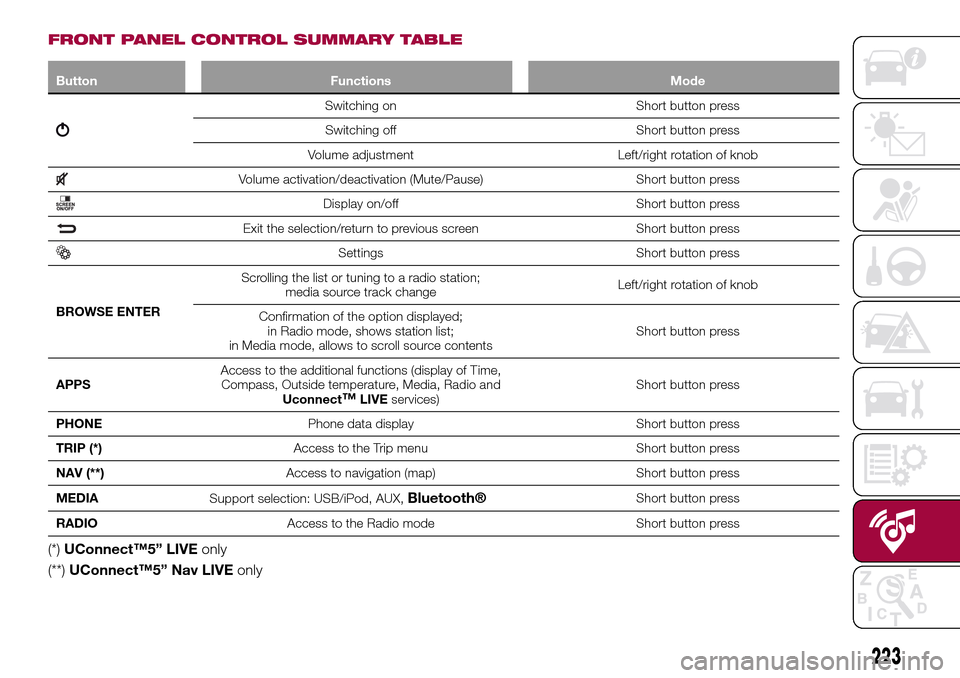
FRONT PANEL CONTROL SUMMARY TABLE
Button Functions Mode
Switching on Short button press
Switching off Short button press
Volume adjustment Left/right rotation of knob
Volume activation/deactivation (Mute/Pause) Short button press
Display on/off Short button press
Exit the selection/return to previous screen Short button press
Settings Short button press
BROWSE ENTERScrolling the list or tuning to a radio station;
media source track changeLeft/right rotation of knob
Confirmation of the option displayed;
in Radio mode, shows station list;
in Media mode, allows to scroll source contentsShort button press
APPSAccess to the additional functions (display of Time,
Compass, Outside temperature, Media, Radio and
Uconnect
™LIVEservices)Short button press
PHONEPhone data display Short button press
TRIP (*)Access to the Trip menu Short button press
NAV (**)Access to navigation (map) Short button press
MEDIA
Support selection: USB/iPod, AUX,
Bluetooth®Short button press
RADIOAccess to the Radio mode Short button press
(*)UConnect™5” LIVEonly
(**)UConnect™5” Nav LIVEonly
223
Page 231 of 264
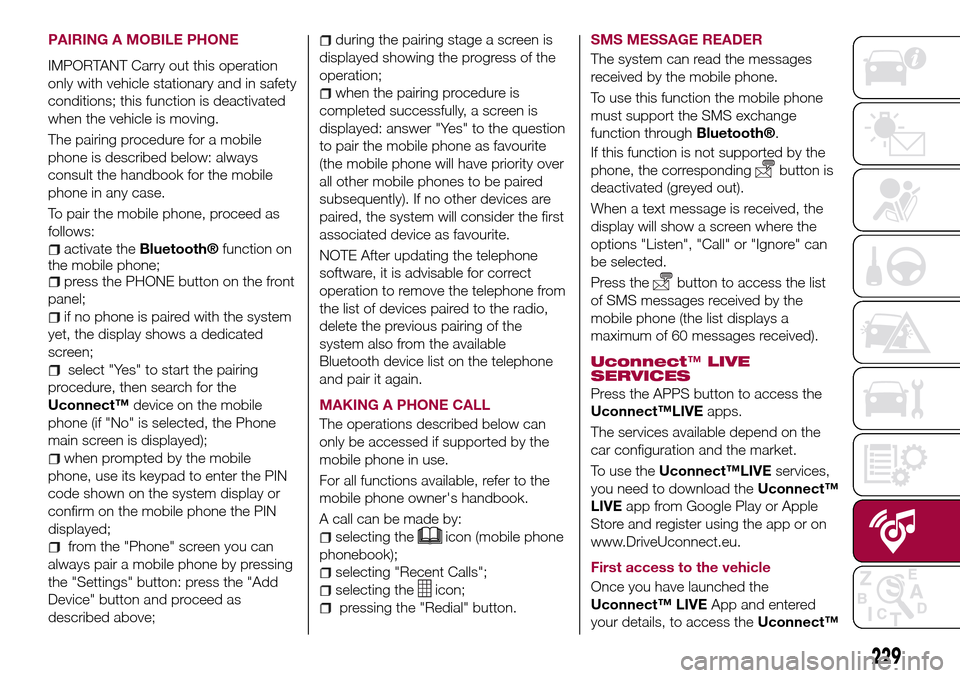
PAIRING A MOBILE PHONE
IMPORTANT Carry out this operation
only with vehicle stationary and in safety
conditions; this function is deactivated
when the vehicle is moving.
The pairing procedure for a mobile
phone is described below: always
consult the handbook for the mobile
phone in any case.
To pair the mobile phone, proceed as
follows:
activate theBluetooth®function on
the mobile phone;
press the PHONE button on the front
panel;
if no phone is paired with the system
yet, the display shows a dedicated
screen;
select "Yes" to start the pairing
procedure, then search for the
Uconnect™device on the mobile
phone (if "No" is selected, the Phone
main screen is displayed);
when prompted by the mobile
phone, use its keypad to enter the PIN
code shown on the system display or
confirm on the mobile phone the PIN
displayed;
from the "Phone" screen you can
always pair a mobile phone by pressing
the "Settings" button: press the "Add
Device" button and proceed as
described above;
during the pairing stage a screen is
displayed showing the progress of the
operation;
when the pairing procedure is
completed successfully, a screen is
displayed: answer "Yes" to the question
to pair the mobile phone as favourite
(the mobile phone will have priority over
all other mobile phones to be paired
subsequently). If no other devices are
paired, the system will consider the first
associated device as favourite.
NOTE After updating the telephone
software, it is advisable for correct
operation to remove the telephone from
the list of devices paired to the radio,
delete the previous pairing of the
system also from the available
Bluetooth device list on the telephone
and pair it again.
MAKING A PHONE CALL
The operations described below can
only be accessed if supported by the
mobile phone in use.
For all functions available, refer to the
mobile phone owner's handbook.
A call can be made by:
selecting theicon (mobile phone
phonebook);
selecting "Recent Calls";
selecting theicon;
pressing the "Redial" button.SMS MESSAGE READER
The system can read the messages
received by the mobile phone.
To use this function the mobile phone
must support the SMS exchange
function through
Bluetooth®.
If this function is not supported by the
phone, the corresponding
button is
deactivated (greyed out).
When a text message is received, the
display will show a screen where the
options "Listen", "Call" or "Ignore" can
be selected.
Press the
button to access the list
of SMS messages received by the
mobile phone (the list displays a
maximum of 60 messages received).
Uconnect™LIVE
SERVICES
Press the APPS button to access the
Uconnect™LIVEapps.
The services available depend on the
car configuration and the market.
To use theUconnect™LIVEservices,
you need to download theUconnect™
LIVEapp from Google Play or Apple
Store and register using the app or on
www.DriveUconnect.eu.
First access to the vehicle
Once you have launched the
Uconnect™ LIVEApp and entered
your details, to access theUconnect™
229
Page 232 of 264
LIVEservices in your vehicle you have
to pair the
Bluetooth®with your
smartphone and the radio, as
described in the "Pairing a mobile
phone" chapter.
When pairing is complete, the
connected services can be accessed
by pressing theUconnect™ LIVEicon
on the radio.
Before you can use the connected
services, complete the activation
procedure by following the instructions
that appear in theUconnect™LIVE
app after having done the
Bluetooth®
pairing.
Settings of the Uconnect™ LIVE
services that can be managed
through the radio
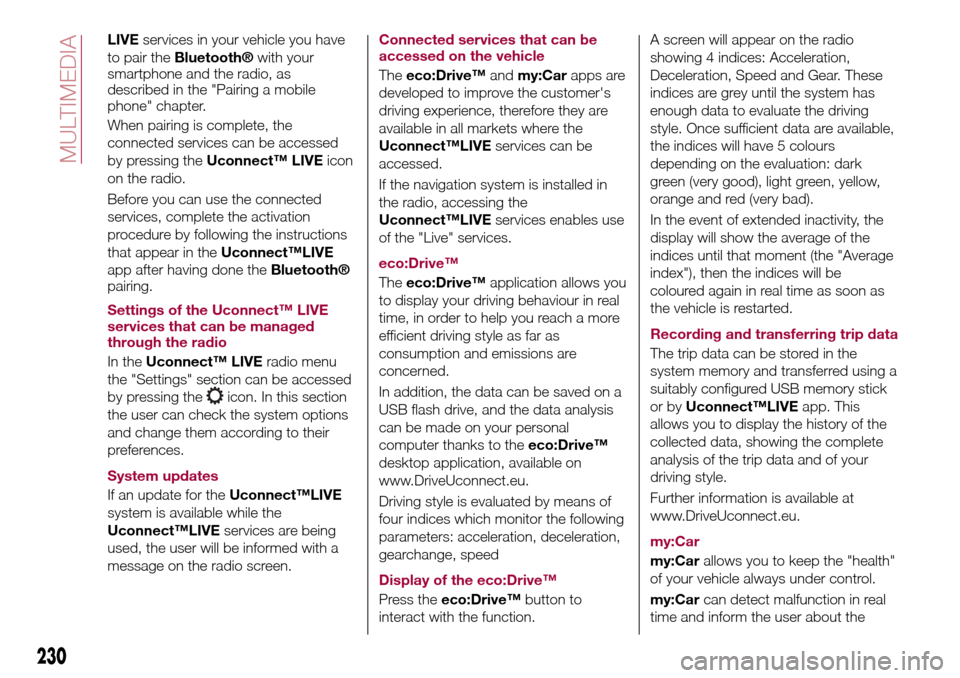
In theUconnect™ LIVEradio menu
the "Settings" section can be accessed
by pressing the
icon. In this section
the user can check the system options
and change them according to their
preferences.
System updates
If an update for theUconnect™LIVE
system is available while the
Uconnect™LIVEservices are being
used, the user will be informed with a
message on the radio screen.Connected services that can be
accessed on the vehicle
Theeco:Drive™andmy:Carapps are
developed to improve the customer's
driving experience, therefore they are
available in all markets where the
Uconnect™LIVEservices can be
accessed.
If the navigation system is installed in
the radio, accessing the
Uconnect™LIVEservices enables use
of the "Live" services.
eco:Drive™
Theeco:Drive™application allows you
to display your driving behaviour in real
time, in order to help you reach a more
efficient driving style as far as
consumption and emissions are
concerned.
In addition, the data can be saved on a
USB flash drive, and the data analysis
can be made on your personal
computer thanks to theeco:Drive™
desktop application, available on
www.DriveUconnect.eu.
Driving style is evaluated by means of
four indices which monitor the following
parameters: acceleration, deceleration,
gearchange, speed
Display of the eco:Drive™
Press theeco:Drive™button to
interact with the function.A screen will appear on the radio
showing 4 indices: Acceleration,
Deceleration, Speed and Gear. These
indices are grey until the system has
enough data to evaluate the driving
style. Once sufficient data are available,
the indices will have 5 colours
depending on the evaluation: dark
green (very good), light green, yellow,
orange and red (very bad).
In the event of extended inactivity, the
display will show the average of the
indices until that moment (the "Average
index"), then the indices will be
coloured again in real time as soon as
the vehicle is restarted.
Recording and transferring trip data
The trip data can be stored in the
system memory and transferred using a
suitably configured USB memory stick
or byUconnect™LIVEapp. This
allows you to display the history of the
collected data, showing the complete
analysis of the trip data and of your
driving style.
Further information is available at
www.DriveUconnect.eu.
my:Car
my:Carallows you to keep the "health"
of your vehicle always under control.
my:Carcan detect malfunction in real
time and inform the user about the
230
MULTIMEDIA
Page 234 of 264
"Lane Assist Warning"(where
provided): this function can be used to
select the LaneAssist system
intervention "readiness".
"Lane Assist Strength"(where
provided): this function can be used to
select the force to apply to the steering
wheel to put the vehicle back in the
lane through the electric steering
system, in the event of Lane Assist
system intervention.
"Blind Spot Alert"(where provided):
this function can be used to select the
type of warning ("Sound Only" or
"Sound & Display") to indicate the
presence of objects in the blind spot of
the door mirror.
"Rain sensor"(where provided): this
function can be used to activate/
deactivate the automatic operation of
the wipers in the event of rain.
"Brakes"(where provided): this
function can be used to select the
following submenus:
- "Brake Service" (where provided):
allows you to activate the procedure for
carrying out braking system servicing;
- "Auto Park Brake" (where provided):
allows you to activate/deactivate the
automatic park brake engagement.
NAVIGATION(UConnect™ 5" Nav LIVE only)
Programming a route
WARNING In the interest of safety and
to reduce distractions while you are
driving, you should always plan a route
before you start driving.
Using the destination search function, it
is possible to find and reach your
destinations in different ways: searching
for a specific address, a partial address,
a specific type of location (for example
a service station or a restaurant), a
postal code, a POI (Point Of Interest)
near your current position (for example,
a restaurant with the search type set to
"nearby"), a pair of latitude and
longitude coordinates, or by selecting a
point on the map.
Select “Search” in the Main menu and
set the search for a destination.
While entering the information, the list
displays the corresponding addresses
and POIs in two separate lists. The
corresponding address and city are
displayed in the Address list and the
POI, the type of POIs and the locations
are displayed in the Point of Interest
lists.
To plan a route towards the destination,
select the “Guide” button.
A route is planned and you are guidedto your destination, using spoken
instructions and on-screen directions.
VOICE COMMANDS
NoteFor languages not supported by
the system, voice commands are not
available.
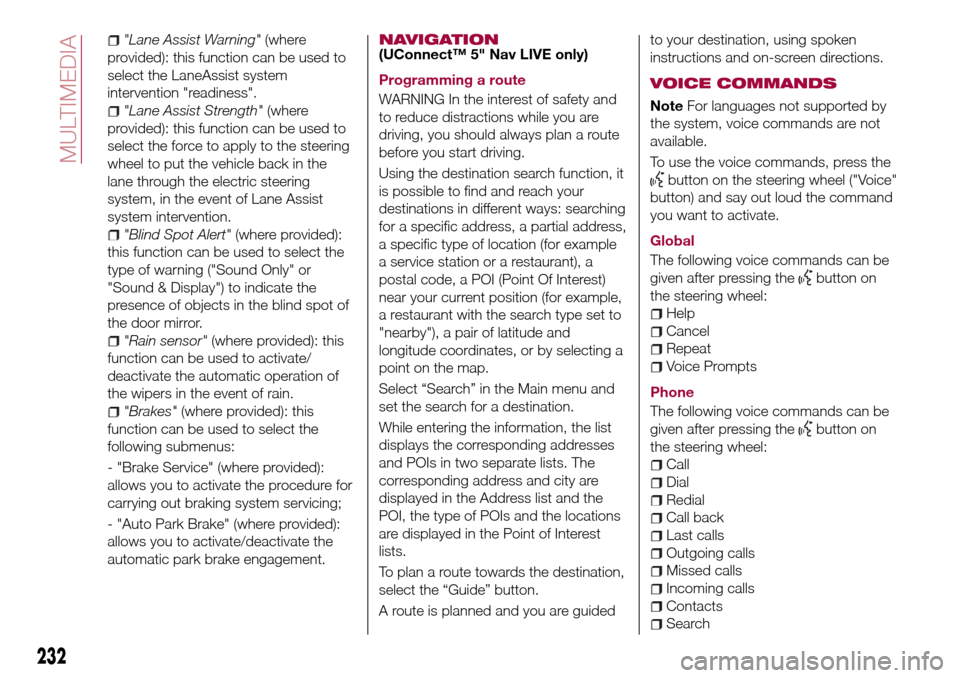
To use the voice commands, press the
button on the steering wheel ("Voice"
button) and say out loud the command
you want to activate.
Global
The following voice commands can be
given after pressing the
button on
the steering wheel:
Help
Cancel
Repeat
Voice Prompts
Phone
The following voice commands can be
given after pressing the
button on
the steering wheel:
Call
Dial
Redial
Call back
Last calls
Outgoing calls
Missed calls
Incoming calls
Contacts
Search
232
MULTIMEDIA
Page 245 of 264
FAVOURITES
You can add a number or a contact (if
already in Contacts) to the favourite list
during a call by pressing one of the five
"Empty" graphic buttons on the upper
part of the display. The favourites can
also be managed by using the
Phonebook options.
SMS MESSAGE READER
The system can read the messages
received by the mobile phone. To use
this function the mobile phone must
support the SMS exchange function
through
Bluetooth®.
If this function is not supported by the
phone, the corresponding "Text" button
is deactivated (greyed out).
When a text message is received, the
display will show a screen where the
options "Read", "View", "Call" or
"Ignore" can be selected.
Press the "Text" graphic button to
access the list of text messages
received by the mobile phone (the list
displays a maximum of 60 messages
received).
DO NOT DISTURB FUNCTION
If supported by the connected phone,
by pressing the "Do not disturb"
graphic button the user will not receive
notifications of incoming calls or text
messages. The user can reply with adefault or customised message by
means of the settings.
Uconnect™LIVE
SERVICES
Press theUconnect™button to
access theUconnect™ LIVE
applications.
The services available depend on the
car configuration and the market.
To use theUconnect™LIVEservices,
you need to download theUconnect™
LIVEapp from Google Play or Apple
Store and register using the app or on
www.DriveUconnect.eu.
First access to the vehicle
Once you have launched the
Uconnect™ LIVEApp and entered
your details, to access theUconnect™
LIVEservices in your vehicle you have
to pair the
Bluetooth®with your
smartphone and the radio, as
described in the "Pairing a mobile
phone" chapter.
When pairing is complete, the
connected services can be accessed
by pressing theUconnect™ LIVEicon
on the radio.
Before you can use the connected
services, complete the activation
procedure by following the instructions
that appear in theUconnect™LIVE
app after having done the
Bluetooth®
pairing.Settings of the Uconnect™ LIVE
services that can be managed
through the radio
In theUconnect™ LIVEradio menu
the "Settings" section can be accessed
by pressing the
icon. In this section
the user can check the system options
and change them according to their
preferences.
System updates
If an update for theUconnect™LIVE
system is available while the
Uconnect™LIVEservices are being
used, the user will be informed with a
message on the radio screen.
Connected services that can be
accessed on the vehicle
Theeco:Drive™andmy:Carapps are
developed to improve the customer's
driving experience, therefore they are
available in all markets where the
Uconnect™LIVEservices can be
accessed.
If the navigation system is installed in
the radio, accessing the
Uconnect™LIVEservices enables use
of the "Live" services.
eco:Drive™
Theeco:Drive™application allows you
to display your driving behaviour in real
time, in order to help you reach a more
efficient driving style as far as
243
Page 247 of 264
provided): this function can be used to
select the "readiness" of the Brake
Control system to intervene, according
to the distance from the obstacle. The
options available are "Near", "Med",
"Far".
“Park Assist"(for versions/markets,
where provided): this function can be
used to select the type of warning
provided by the Park Assist system.
The options available are:
- “Warning Only”
- “Warning + image”
“Front Park Assist”
The options available are: "Low",
"Medium", "High".
“Rear Park Assist”
The options available are: "Low",
"Medium", "High".
"Rear View Camera Delay" (where
provided): permits a delay in the
disappearance of images from the
camera when reverse is disengaged.
“Active Rear View Camera
Guidelines”(where provided): activates
dynamic grids that indicate the
trajectory of the vehicle on the display.
"Rain sensor"(where provided): this
function can be used to activate/
deactivate the automatic operation of
the wipers in the event of rain.
NAVIGATION(Uconnect™ 7" HD Nav LIVE only)
Press the "Nav" button to show the
navigation map on the display.
NOTE: The navigation system volume
can only be adjusted during navigation
when the system provides voice
indications.
Main navigation menu
In the map display or navigation view,
tap the main menu button to open the
menu fig. 220 and fig. 221:
“Search”: select this button to
search for an address, a place
or a point of interest, then plan
a route to the location.
“Current route”: select this
button to cancel or change the
planned route.
“My places”: select this button
to create a collection of useful
or favourite addresses. The
following items are always
available in "My places":
“Home” and “Recent
destinations”.
“Parking”: select this button to
search for car parks.
“Weather”: select this button to
receive weather service
information.
NOTE The “Weather” function is only
active if TomTom Services are activated.
Otherwise, the button will appear
greyed out (and the function will not be
available).
“Petrol station”: select this
button to search for service
stations.
“TomTom services”: select this
button to access the following
services (available on
subscription): “Traffic”, “Speed
cameras”, “Weather”, “Online
search”.
"Report safety camera": tap on
this button to report a new
speed camera location.
NOTE The “Report safety camera”
function is only active if TomTom
Services are activated. Otherwise, the
button will appear greyed out (and the
function will not be available).
Select this button to open the
"Settings" menu;
245
Page 254 of 264

Mopar Vehicle Protectionoffers a series of service contracts that are designed to give all our customers the
pleasure of driving their vehicle without any hitch's and concerns.
Our product portfolio consists of a wide and flexible range of extended warranty and maintenance plans
endorsed by FCA. Each with a series of different coverage tiers, in terms of durability and mileage, built to
accommodate you’re driving needs.
Service contracts are made by experts that know every part of your vehicle, and commit themselves
to maintain it in tip top conditions. Our knowledge and passion is tailored around designing
products that promises all our drivers “worry-free driving”.
Only with Mopar Vehicle Protection you are ensured that all service operations are performed
by highly qualified and specialized technicians in authorized FCA repair facilities, using the right tools,
equipment and only original parts, all over Europe.
Check which Service Contract plans are available on your market today and choose the
Service Contract that suits your driving habits best.
Ask your local dealer for further information.
MAINTAIN YOUR VEHICLE IN
TIP TOP CONDITIONS WITH
Page 260 of 264
identification data plate.......187
Ignition device...............12
Important information and
recommendations..........248
Interior lights................26
Interiors (cleaning)............185
ISOFIX child restraint system
(installation)...............92
iTPMS (indirect Tyre Pressure
Monitoring System)..........80
Jump starting..............155
Keys.....................11
key with remote control.......11
Lifting the vehicle............182
Light beam direction...........40
Light bulbs
types of bulbs............133
LPG filter...................46
LPG System functional diagram....44
Luggage Compartment.........35
Luggage compartment
(extension)................17
Luggage covering curtain (TIPO
STATION WAGON version)......37
Main beam headlights..........24
Main Beam Headlights (bulb
replacement)..............135
Main menu.................55
Manual climate control..........29
Media mode...............240Multi-Functional Reconfigurable
Display - Right hand drive
version..................53
Multimedia
Uconnect™ LIVE Services .229 ,243
Number plate lights (bulb
replacement)..............141
Occupant protection systems.....83
Paintwork (cleaning and
maintenance).............183
Parking Brake...............110
Parking lights................23
Parking sensors.............123
Parking the vehicle...........110
Passive/active safety (LPG
system)..................42
PBA (system)................74
Performance (top speed)........205
Periodic checks (scheduled
servicing)................169
Pre-tensioners...............86
Load limiters..............87
Prescriptions for handling the
vehicle at the end of its life.....209
Radio mode...............240
Rain sensor.................27
Rear seats..................17
Rear view camera............125
Rear View Camera............125
Rear view mirrors.............22Reconfigurable Multifunction
Display..................51
Refuelling.................199
Refuelling procedure..........129
Emergency refuelling........129
Refuelling the vehicle..........128
Replacing a bulb.............132
Replacing an external bulb......135
Rims and tyres (dimensions)......191
Roof rack/ski rack.............41
SBR (Seat Belt Reminder).......85
SBR (Seat Belt Reminder) system.......................85
Scheduled servicing...........161
Scheduled Servicing Plan.......162
Screen wiper/washer...........26
Smart washing function.......27
Seat belts..................83
Seats.....................16
Servicing procedures..........178
Side bag..................105
Side direction indicators (bulb
replacement)..............136
Sideboards (TIPO STATION
WAGON version)............39
Snow chains...............182
Speed Limiter...............113
SRS (supplementary restraint
system).................101
Starting the engine...........109
Steering lock................13
INDEX
Page 262 of 264
FCA Italy S.p.A. - MOPAR - Technical Services - Service Engineering
Largo Senatore G. Agnelli, 3 - 10040 Volvera - Turin (Italy)
Print no. 603.99.808 - 06/2016- 1 Edition