wheel FIAT TIPO 5DOORS STATION WAGON 2018 Owner handbook (in English)
[x] Cancel search | Manufacturer: FIAT, Model Year: 2018, Model line: TIPO 5DOORS STATION WAGON, Model: FIAT TIPO 5DOORS STATION WAGON 2018Pages: 292, PDF Size: 7.74 MB
Page 261 of 292
A route is planned and you are guided
to your destination, using spoken
instructions and on-screen directions.
Map update
To ensure optimal performance, the
navigation system must be updated
periodically. For this, the Mopar Map
Care service offers a new map update
every three months.
The updates can be downloaded from
the maps.mopar.eu website and
installed directly on theUConnect™
system. All updates are free of charge
for 3 years from the start of the
warranty on the car.
The navigation system can also be
updated at the Fiat Dealership.
NOTE The dealer may charge for
updating the navigation system.
VOICE COMMANDS
NoteFor languages not supported by
the system, voice commands are not
available.
To use the voice commands, press the
button on the steering wheel ("Voice"
button) and say out loud the command
you want to activate.Global
The following voice commands can be
given after pressing the
button on
the steering wheel:
Help
Cancel
Repeat
Voice Tutorial
Phone
The following voice commands can be
given after pressing the
button on
the steering wheel:
Call
Dial
Redial
Call back
Recent calls
Outgoing Calls
Missed calls
Incoming Calls
PhoneBook
Search
Show SMS
Send an SMS
Show messages
Radio
The following voice commands can be
given after pressing the
button on
the steering wheel:
Tune to FM "frequency"
Tune to AM "frequency"
Tune to "radio name" FM
Tune to "radio name"Media
The following voice commands can be
given after pressing the
button on
the steering wheel:
Play song...
Play album…
Play artist…
Play genre…
Play playlist…
Play podcast…
Play audiobook…
Select the source...
View...
Navigation (Uconnect™ 5" Nav LIVE
only)
The following voice commands can be
given after pressing the
button on
the steering wheel:
Increase zoom
Decrease zoom
2d mode
3D mode
Add this position
Navigate home
Navigate going through home
Cancel the route
259
Page 265 of 292
STEERING WHEEL CONTROLS
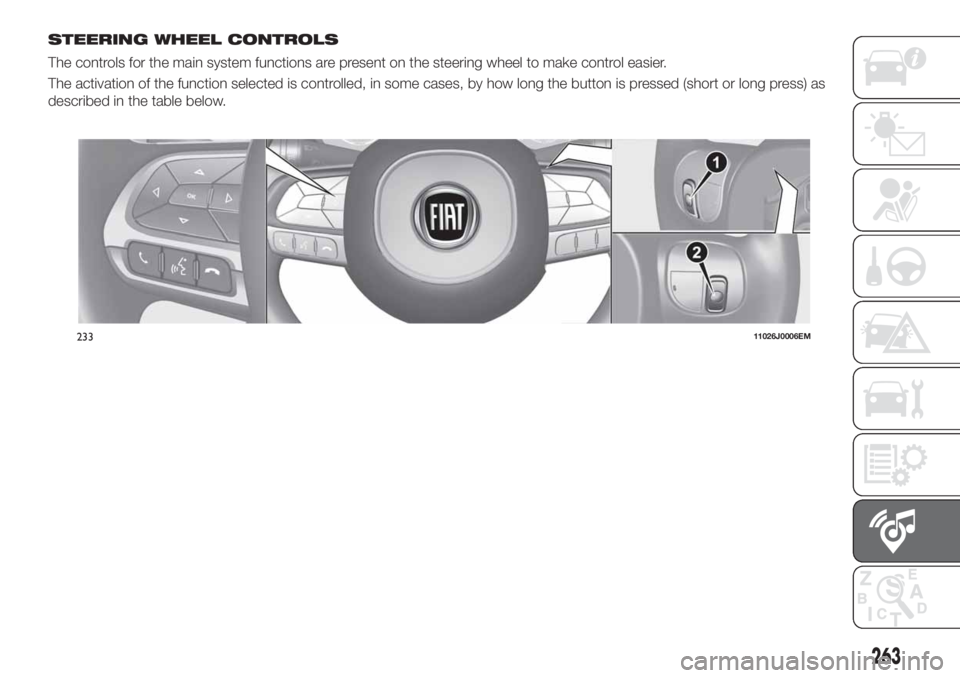
The controls for the main system functions are present on the steering wheel to make control easier.
The activation of the function selected is controlled, in some cases, by how long the button is pressed (short or long press) as
described in the table below.
23311026J0006EM
263
Page 266 of 292
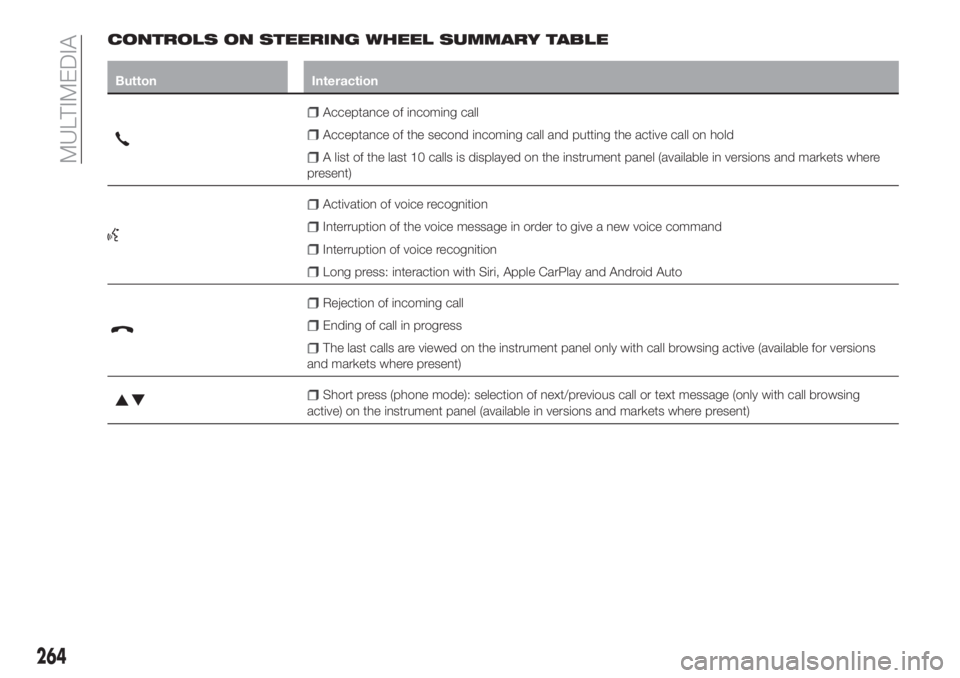
CONTROLS ON STEERING WHEEL SUMMARY TABLE
Button Interaction
Acceptance of incoming call
Acceptance of the second incoming call and putting the active call on hold
A list of the last 10 calls is displayed on the instrument panel (available in versions and markets where
present)
Activation of voice recognition
Interruption of the voice message in order to give a new voice command
Interruption of voice recognition
Long press: interaction with Siri, Apple CarPlay and Android Auto
Rejection of incoming call
Ending of call in progress
The last calls are viewed on the instrument panel only with call browsing active (available for versions
and markets where present)
Short press (phone mode): selection of next/previous call or text message (only with call browsing
active) on the instrument panel (available in versions and markets where present)
264
MULTIMEDIA
Page 267 of 292
CONTROLS BEHIND THE STEERING WHEEL
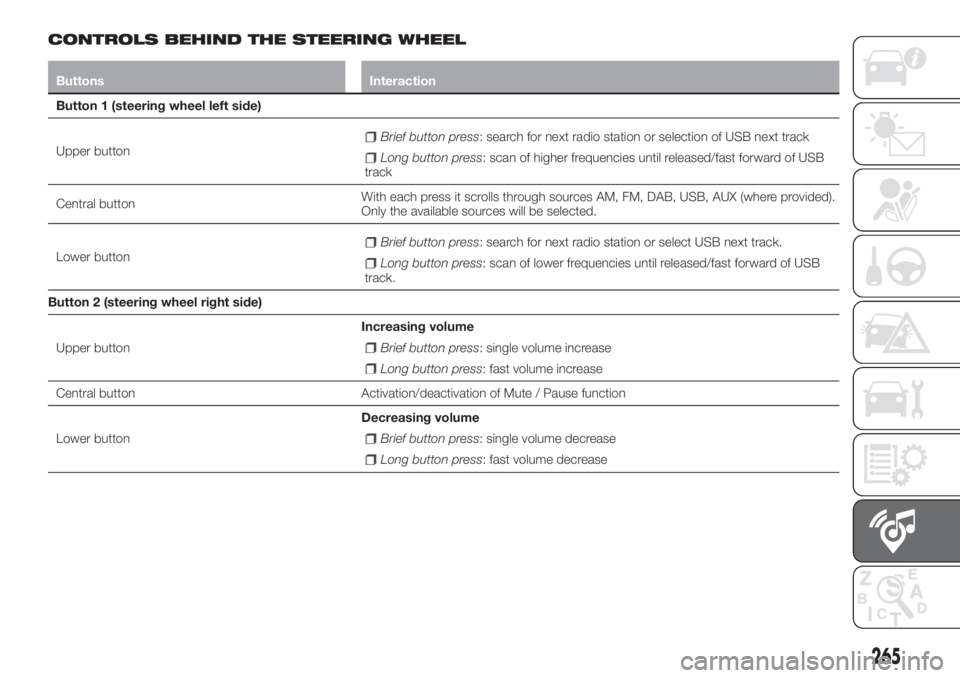
Buttons Interaction
Button 1 (steering wheel left side)
Upper button
Brief button press: search for next radio station or selection of USB next track
Long button press: scan of higher frequencies until released/fast forward of USB
track
Central buttonWith each press it scrolls through sources AM, FM, DAB, USB, AUX (where provided).
Only the available sources will be selected.
Lower button
Brief button press: search for next radio station or select USB next track.
Long button press: scan of lower frequencies until released/fast forward of USB
track.
Button 2 (steering wheel right side)
Upper buttonIncreasing volume
Brief button press: single volume increase
Long button press: fast volume increase
Central button Activation/deactivation of Mute / Pause function
Lower buttonDecreasing volume
Brief button press: single volume decrease
Long button press: fast volume decrease
265
Page 270 of 292
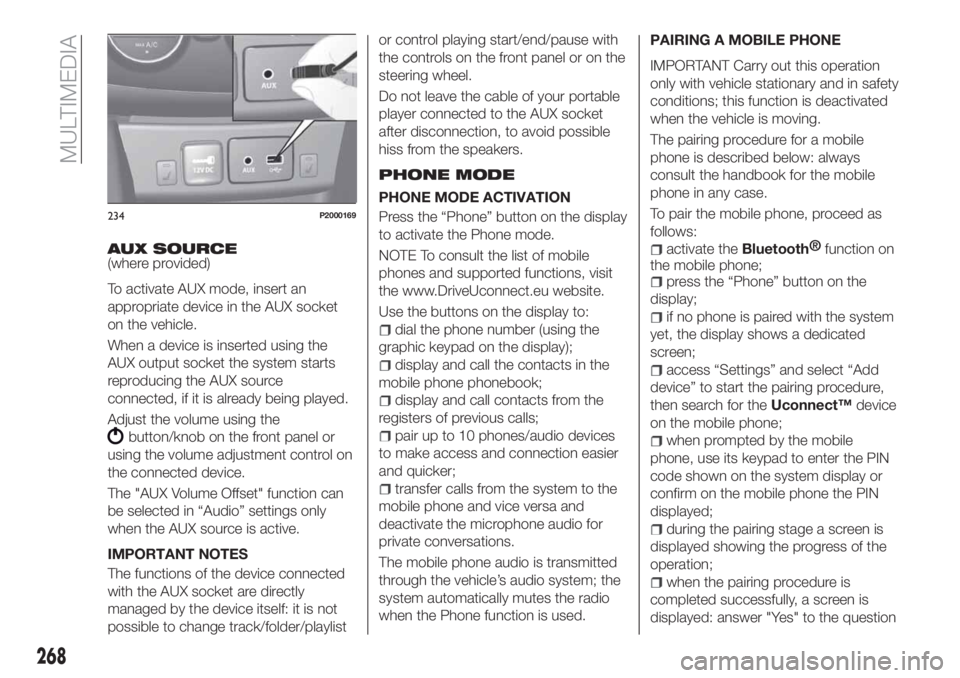
AUX SOURCE(where provided)
To activate AUX mode, insert an
appropriate device in the AUX socket
on the vehicle.
When a device is inserted using the
AUX output socket the system starts
reproducing the AUX source
connected, if it is already being played.
Adjust the volume using the
button/knob on the front panel or
using the volume adjustment control on
the connected device.
The "AUX Volume Offset" function can
be selected in “Audio” settings only
when the AUX source is active.
IMPORTANT NOTES
The functions of the device connected
with the AUX socket are directly
managed by the device itself: it is not
possible to change track/folder/playlistor control playing start/end/pause with
the controls on the front panel or on the
steering wheel.
Do not leave the cable of your portable
player connected to the AUX socket
after disconnection, to avoid possible
hiss from the speakers.
PHONE MODE
PHONE MODE ACTIVATION
Press the “Phone” button on the display
to activate the Phone mode.
NOTE To consult the list of mobile
phones and supported functions, visit
the www.DriveUconnect.eu website.
Use the buttons on the display to:
dial the phone number (using the
graphic keypad on the display);
display and call the contacts in the
mobile phone phonebook;
display and call contacts from the
registers of previous calls;
pair up to 10 phones/audio devices
to make access and connection easier
and quicker;
transfer calls from the system to the
mobile phone and vice versa and
deactivate the microphone audio for
private conversations.
The mobile phone audio is transmitted
through the vehicle’s audio system; the
system automatically mutes the radio
when the Phone function is used.PAIRING A MOBILE PHONE
IMPORTANT Carry out this operation
only with vehicle stationary and in safety
conditions; this function is deactivated
when the vehicle is moving.
The pairing procedure for a mobile
phone is described below: always
consult the handbook for the mobile
phone in any case.
To pair the mobile phone, proceed as
follows:
activate theBluetooth®
function on
the mobile phone;
press the “Phone” button on the
display;
if no phone is paired with the system
yet, the display shows a dedicated
screen;
access “Settings” and select “Add
device” to start the pairing procedure,
then search for theUconnect™device
on the mobile phone;
when prompted by the mobile
phone, use its keypad to enter the PIN
code shown on the system display or
confirm on the mobile phone the PIN
displayed;
during the pairing stage a screen is
displayed showing the progress of the
operation;
when the pairing procedure is
completed successfully, a screen is
displayed: answer "Yes" to the question
234P2000169
268
MULTIMEDIA
Page 273 of 292
Apple CarPlay and
Android Auto
(where provided)
The Apple CarPlay and Android Auto
applications allow you to use your
smartphone in the car safely and
intuitively. To enable them, just connect
a compatible smartphone via the USB
port and the phone's contents will be
automatically shown on the
Uconnect™system display.
To check the compatibility of your
smartphone, see the indications on the
websites:
https://www.android.com/intl/it_it/auto/
and http://www.apple.com/it/ios/
carplay/.
If the smartphone is connected
correctly to the car via the USB port,
the Apple CarPlay or Android Auto icon
will be displayed in place of the
button in the main menu.
Android Auto APP Setup
Before use, download the Android Auto
application to your smartphone from
Google Play Store.
The application is compatible with
Android 5.0 (Lollipop) and later
versions. To use Android Auto, the
smartphone must be connected to the
car with a USB cable.
On the first connection, you will have to
perform the setup procedure that
appears on the smartphone.You can only perform this procedure
with the vehicle stationary.
Once connected to the USB port, the
Android Auto application establishes a
parallel
Bluetooth®
connection.
Apple CarPlay App Setup
Apple CarPlay is compatible with the
iPhone 5 or more recent models, with
the iOS 7.1 operating system or later
versions. Before using Apple CarPlay,
enable Siri from "Settings"
General
Siri on the smartphone.
To use Apple CarPlay, the smartphone
must be connected to the car with a
USB cable.
NOTE Enabling CarPlay/Android Auto
or some functions could require
interaction on the smartphone. If
necessary, complete the step on your
device (smartphone).
Interaction
After the setup procedure, on
connecting your smartphone to the
car's USB port, the application will run
automatically on theUconnect™
system. You can interact with Apple
CarPlay and Android Auto using the
steering wheel button
(long press of
the button), using the BROWSE ENTER
button/knob (to select and confirm) or
using theUconnect™system
touchscreen.Navigation
With the Apple CarPlay and Android
Auto applications, the driver can
choose to use the navigation system on
their smartphone.
If the system “Nav” mode is already
active, or when a device is connected
to the car with a navigation session in
progress, theUconnect™display
shows a pop-up alert enabling the
driver to choose between system
navigation or navigation using the
smartphone.
The selection can be changed at any
time by accessing the chosen
navigation system and setting a new
destination.
Setting “AutoShow smartphone
display on connection"
Through theUconnect™system
settings, the user can decide to view
the smartphone screen on the
Uconnect™system display as soon as
the smartphone is connected via the
USB port.
When this function is set, each time a
connection is made via USB, the Apple
CarPlay or Android Auto apps will run
automatically on theUconnect™
system display.
The "AutoShow smartphone display on
connection" item can be found in the
"Display" submenu.
271
Page 276 of 292
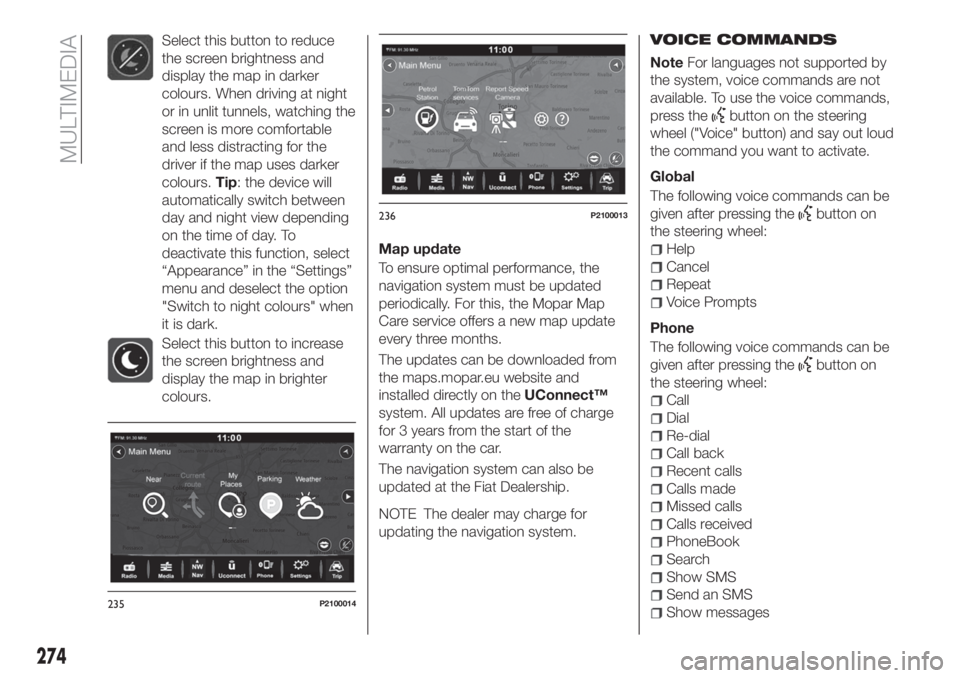
Select this button to reduce
the screen brightness and
display the map in darker
colours. When driving at night
or in unlit tunnels, watching the
screen is more comfortable
and less distracting for the
driver if the map uses darker
colours.Tip: the device will
automatically switch between
day and night view depending
on the time of day. To
deactivate this function, select
“Appearance” in the “Settings”
menu and deselect the option
"Switch to night colours" when
it is dark.
Select this button to increase
the screen brightness and
display the map in brighter
colours.
Map update
To ensure optimal performance, the
navigation system must be updated
periodically. For this, the Mopar Map
Care service offers a new map update
every three months.
The updates can be downloaded from
the maps.mopar.eu website and
installed directly on theUConnect™
system. All updates are free of charge
for 3 years from the start of the
warranty on the car.
The navigation system can also be
updated at the Fiat Dealership.
NOTE The dealer may charge for
updating the navigation system.VOICE COMMANDS
NoteFor languages not supported by
the system, voice commands are not
available. To use the voice commands,
press the
button on the steering
wheel ("Voice" button) and say out loud
the command you want to activate.
Global
The following voice commands can be
given after pressing the
button on
the steering wheel:
Help
Cancel
Repeat
Voice Prompts
Phone
The following voice commands can be
given after pressing the
button on
the steering wheel:
Call
Dial
Re-dial
Call back
Recent calls
Calls made
Missed calls
Calls received
PhoneBook
Search
Show SMS
Send an SMS
Show messages235P2100014
236P2100013
274
MULTIMEDIA
Page 277 of 292
Radio
The following voice commands can be
given after pressing the
button on
the steering wheel:
Tune to FM "frequency"
Tune to AM "frequency"
Tune to "radio name" FM
Tune to "radio name"
Media
The following voice commands can be
given after pressing the
button on
the steering wheel:
Play song...
Play album…
Play artist…
Play genre…
Play playlist…
Play podcast…
Play audiobook…
Select the source...
View...
Navigation (Uconnect™ 7" HD Nav
LIVE only)
The following voice commands can be
given after pressing the
button on
the steering wheel:
Find "POI"
Navigate to “address”
Go to "city name" centre
Navigate to an address
Drive towards a town centre
Navigate home
Go via home
Clear route
Add this position to “My places”
Display “My Places”
Navigate through a saved location
Recent Destinations
Stop at a recent destination
Zoom in/Zoom out
2D/3D view
Report Speed Camera
Report risk area
275
OFFICIAL TYPE
APPROVALS
All radio equipment supplied with the
vehicle complies with the 2014/53/EU
directive.
For further information visit the
www.mopar.eu/owner or
http://aftersales.fiat.com/elum/
websites.
Page 278 of 292
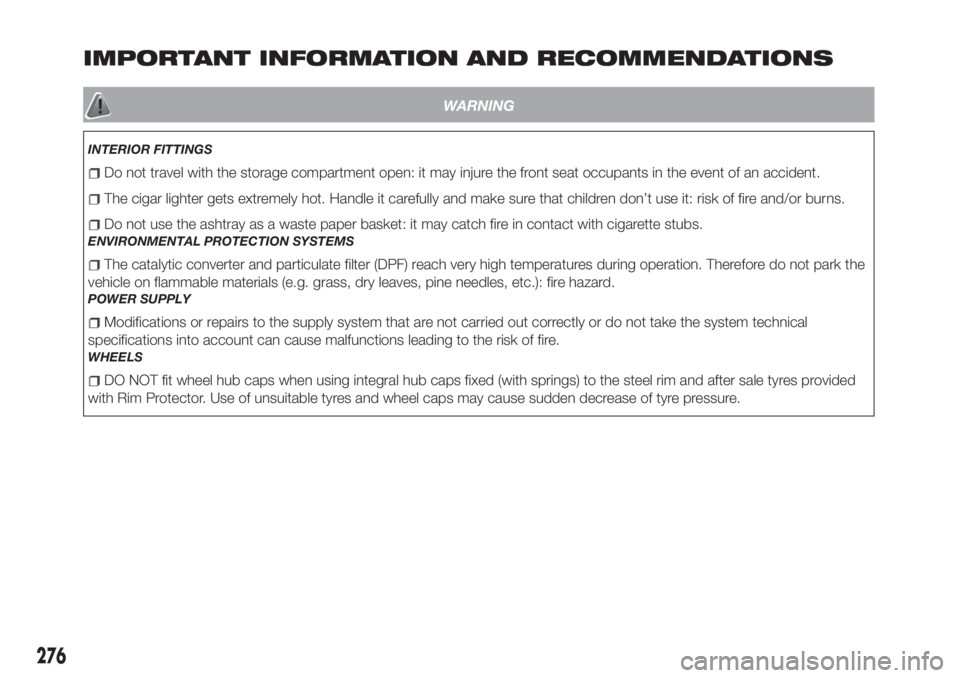
IMPORTANT INFORMATION AND RECOMMENDATIONS
WARNING
INTERIOR FITTINGS
Do not travel with the storage compartment open: it may injure the front seat occupants in the event of an accident.
The cigar lighter gets extremely hot. Handle it carefully and make sure that children don’t use it: risk of fire and/or burns.
Do not use the ashtray as a waste paper basket: it may catch fire in contact with cigarette stubs.
ENVIRONMENTAL PROTECTION SYSTEMS
The catalytic converter and particulate filter (DPF) reach very high temperatures during operation. Therefore do not park the
vehicle on flammable materials (e.g. grass, dry leaves, pine needles, etc.): fire hazard.
POWER SUPPLY
Modifications or repairs to the supply system that are not carried out correctly or do not take the system technical
specifications into account can cause malfunctions leading to the risk of fire.
WHEELS
DO NOT fit wheel hub caps when using integral hub caps fixed (with springs) to the steel rim and after sale tyres provided
with Rim Protector. Use of unsuitable tyres and wheel caps may cause sudden decrease of tyre pressure.
276
Page 287 of 292
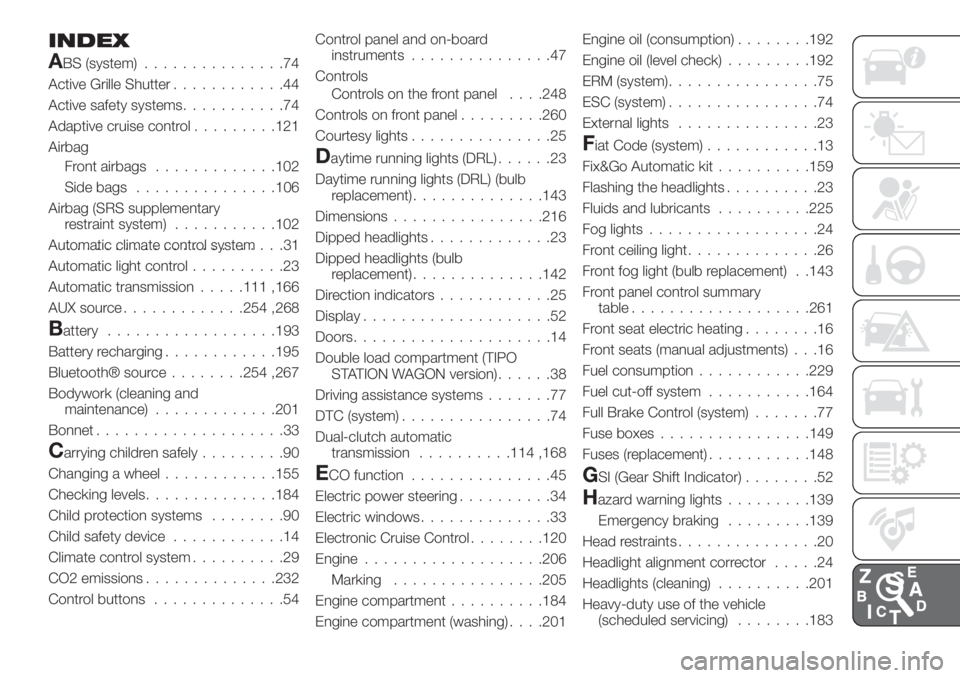
INDEX
ABS (system)...............74
Active Grille Shutter............44
Active safety systems...........74
Adaptive cruise control.........121
Airbag
Front airbags.............102
Side bags...............106
Airbag (SRS supplementary
restraint system)...........102
Automatic climate control system.......................31
Automatic light control..........23
Automatic transmission.....111 ,166
AUX source.............254 ,268
Battery..................193
Battery recharging............195
Bluetooth® source........254 ,267
Bodywork (cleaning and
maintenance).............201
Bonnet....................33
Carrying children safely.........90
Changing a wheel............155
Checking levels..............184
Child protection systems........90
Child safety device............14
Climate control system..........29
CO2 emissions..............232
Control buttons..............54Control panel and on-board
instruments...............47
Controls
Controls on the front panel. . . .248
Controls on front panel.........260
Courtesy lights...............25
Daytime running lights (DRL)......23
Daytime running lights (DRL) (bulb
replacement)..............143
Dimensions................216
Dipped headlights.............23
Dipped headlights (bulb
replacement)..............142
Direction indicators............25
Display....................52
Doors.....................14
Double load compartment (TIPO
STATION WAGON version)......38
Driving assistance systems.......77
DTC (system)................74
Dual-clutch automatic
transmission..........114 ,168
ECO function...............45
Electric power steering..........34
Electric windows..............33
Electronic Cruise Control........120
Engine...................206
................205
Engine compartment..........184
Engine compartment (washing). . . .201Engine oil (consumption)........192
Engine oil (level check).........192
ERM (system)................75
ESC (system)................74
External lights...............23
Fiat Code (system)............13
Fix&Go Automatic kit..........159
Flashing the headlights..........23
Fluids and lubricants..........225
Fog lights..................24
Front ceiling light..............26
Front fog light (bulb replacement) . .143
Front panel control summary
table...................261
Front seat electric heating........16
Front seats (manual adjustments) . . .16
Fuel consumption............229
Fuel cut-off system...........164
Full Brake Control (system).......77
Fuse boxes................149
Fuses (replacement)...........148
GSI (Gear Shift Indicator)........52
Hazard warning lights.........139
Emergency braking.........139
Head restraints...............20
Headlight alignment corrector.....24
Headlights (cleaning)..........201
Heavy-duty use of the vehicle
(scheduled servicing)........183
Marking