reset FORD B MAX 2012 1.G User Guide
[x] Cancel search | Manufacturer: FORD, Model Year: 2012, Model line: B MAX, Model: FORD B MAX 2012 1.GPages: 256, PDF Size: 19.67 MB
Page 178 of 256
Downloaded from www.Manualslib.com manuals search engine 1.Press the MENU button and selectAUDIO or AUDIO SETTINGS.
2.Select AVC LEVEL or ADAPTIVEVOL.
3.Use the left or right arrow button toadjust the setting.
4.Press the OK button to confirm yourselection.
5.Press the MENU button to return.
News Broadcasts
Your audio unit may interrupt normalreception to broadcast news bulletins fromstations on the FM waveband, radio datasystem or other enhanced network linkedstations.
The display will indicate there is anincoming announcement, during newsbroadcasts. When the audio unit interruptsfor a news broadcast the preset volumelevel will be the same as trafficannouncements.
1.Press the MENU button.
2.Select AUDIO or AUDIO SETTINGS.
3.Scroll to NEWS and turn on or off withthe OK button.
4.Press the MENU button to return.
Alternative Frequencies
The majority of programs that broadcaston the FM waveband have a programidentification code, it can be recognised byaudio units.
When your vehicle moves from onetransmission area to another with thealternative frequencies tuning switchedon, this function will search for thestrongest station signal.
Under certain conditions, alternativefrequencies tuning may temporarily disruptnormal reception.
When selected, the unit continuallyevaluates signal strength and if a bettersignal becomes available, the unit willswitch to that alternative. It mutes whileit checks a list of alternative frequenciesand if necessary, it will search once acrossthe selected waveband for a genuinealternative frequency.
It will restore radio reception when it findsone or if one is not found, the unit willreturn to the original stored frequency.
When selected,AF will be shown in thedisplay.
1.Press the MENU button.
2.Select AUDIO or AUDIO SETTINGS.
3.Scroll to ALTERNAT FREQ orALTERNATIVE FREQ and turn on oroff with the OK button.
4.Press the MENU button to return.
Regional Mode
Regional mode controls the behavior ofalternative frequencies switching betweenregionally related networks of a parentbroadcaster. A broadcaster may run a fairlylarge network across a large part of thecountry. At various times of the day thislarge network may be broken down into anumber of smaller regional networks,typically centred on major towns or cities.When the network is not split into regionalvariants, the whole network caries thesame programming.
Regional mode ON: This prevents randomalternative frequency switches whenneighbouring regional networks are notcarrying the same programming.
Regional mode OFF: This allows a largercoverage area if neighbouring regionalnetworks are carrying the sameprogramming, but can cause randomalternative frequency switches if they arenot.
1.Press the MENU button.
176Audio System
Page 181 of 256
Downloaded from www.Manualslib.com manuals search engine Sound Button
This will allow you to adjust the soundsettings (for example bass, middle andtreble).
1.Press the sound button.
2.Use the up and down arrow buttons toselect the required setting.
3.Use the left and right arrow buttons tomake the necessary adjustment. Thedisplay indicates the level selected.
4.Press the OK button to confirm thenew settings.
Waveband Button
Press the RADIO button to select from thewavebands available.
You can use the selector to return to radioreception when you have been listening toanother source.
Alternatively, press the left arrow buttonto display the available wavebands. Scrollto the required waveband and press OK.
Station Tuning Control
DAB Service Linking
Note:The DAB service linking is as perdefault off.
Note:Service linking allowscross-referencing to other correspondingfrequencies of the same station, for exampleFM and other DAB ensembles.
Note:The system will automaticallychange to another corresponding station ifthe current one becomes unavailable, forexample when leaving the coverage area.
Switching DAB service linking on and off.See General Information (page 58).
Seek Tuning
Select a waveband and briefly press oneof the seek buttons. The unit will stop atthe first station it finds in the direction youhave chosen.
Manual Tuning
1.Press function button 2.
2.Use the left and right arrow buttons totune down or up the waveband in smallincrements or press and hold toincrement quickly, until you find astation you want to listen to.
3.Press OK to continue listening to astation.
Scan Tuning
Scan allows you to listen to a few secondsof each station detected.
1.Press function button 3.
2.Use the seek buttons to scan up ordown the selected waveband.
3.Press function button 3 again or OKto continue listening to a station.
Station Preset Buttons
This feature allows you to store yourfavourite stations, they can be recalled byselecting the appropriate waveband andpressing one of the preset buttons.
1.Select a waveband.
2.Tune to the station required.
3.Press and hold one of the presetbuttons. A progress bar and messagewill appear. When the progress barcompletes the station has been stored.The audio unit will also mutemomentarily as confirmation.
You can repeat this on each waveband andfor each preset button.
179Audio System
Page 182 of 256
Downloaded from www.Manualslib.com manuals search engine Note:When you drive to another part of thecountry, stations that broadcast onalternative frequencies, and are stored onpreset buttons, may be updated with thecorrect frequency and station name for thatarea.
Autostore Control
Note:This will store up to a maximum ofthe 10 strongest signals available, eitherfrom the AM or the FM waveband, andoverwrite the previously stored stations. Youcan also store stations manually in the sameway as other wavebands.
•Press the MENU button, select audiomode then press and hold the RADIObutton.
•When the search is complete, sound isrestored and the strongest signals arestored on the autostore presets.
Traffic Information Control
Many stations that broadcast on the FMwaveband have a TP code to signify thatthey carry traffic program information.
Turning Traffic Announcements On andOff
Before you can receive trafficannouncements, you must press either theTA or TRAFFIC button. A TA display willappear to show the feature is switched on.
If you are already tuned to a station thatbroadcasts traffic information,TP will alsobe displayed. Otherwise the unit will searchfor a traffic program.
When traffic information is broadcast, itwill automatically interrupt normal radioor CD playback and Trafficannouncement will appear in the display.
If a non-traffic station is selected orrecalled using a preset button, the audiounit will remain on that station unless TAor TRAFFIC is turned off, then on again.
Note:If traffic announcement is on and youselect a preset or manual tune to a nontraffic announcement station no trafficannouncement will be heard.
Note:When you are listening to a nontraffic announcement station and turntraffic announcement off and on again a TPseek will occur.
Traffic Announcement Volume
Traffic announcements interrupt normalbroadcasts at a preset minimum level thatis usually louder than normal listeningvolumes.
To adjust the preset volume:
•Use the volume control to make thenecessary adjustment during anincoming traffic announcementbroadcast. The display will show thelevel selected.
Ending Traffic Announcements
The audio unit will return to normaloperation at the end of each trafficannouncement. To end the announcementprematurely, press TA or TRAFFIC duringthe announcement.
Note:If you press TA or TRAFFIC at anyother time it will switch all announcementsoff.
Automatic Volume Control
When available, automatic volume controladjusts the volume level to compensatefor engine noise and road speed noise.
1.Press the MENU button and selectAUDIO or AUDIO SETTINGS.
2.Select AVC LEVEL or ADAPTIVEVOL.
3.Use the left or right arrow button toadjust the setting.
4.Press the OK button to confirm yourselection.
180Audio System
Page 183 of 256
Downloaded from www.Manualslib.com manuals search engine 5.Press the MENU button to return.
News Broadcasts
Your audio unit may interrupt normalreception to broadcast news bulletins fromstations on the FM waveband, radio datasystem or other enhanced network linkedstations.
The display will indicate there is anincoming announcement, during newsbroadcasts. When the audio unit interruptsfor a news broadcast the preset volumelevel will be the same as trafficannouncements.
1.Press the MENU button.
2.Select AUDIO or AUDIO SETTINGS.
3.Scroll to NEWS and turn on or off withthe OK button.
4.Press the MENU button to return.
Alternative Frequencies
The majority of programs that broadcaston the FM waveband have a programidentification code, it can be recognised byaudio units.
When your vehicle moves from onetransmission area to another with thealternative frequencies tuning switchedon, this function will search for thestrongest station signal.
Under certain conditions, alternativefrequencies tuning may temporarily disruptnormal reception.
When selected, the unit continuallyevaluates signal strength and, if a bettersignal becomes available, the unit willswitch to that alternative. It mutes whileit checks a list of alternative frequenciesand if necessary, it will search once acrossthe selected waveband for a genuinealternative frequency.
It will restore radio reception when it findsone or if one is not found, the unit willreturn to the original stored frequency.
When selected, AF will be shown in thedisplay.
1.Press the MENU button.
2.Select AUDIO or AUDIO SETTINGS.
3.Scroll to ALTERNAT FREQ. orALTERNATIVE FREQ. and turn on oroff with the OK button.
4.Press the MENU button to return.
Regional Mode
Regional mode controls the behaviour ofalternative frequencies switching betweenregionally related networks of a parentbroadcaster. A broadcaster may run a fairlylarge network across a large part of thecountry. At various times of the day thislarge network may be broken down into anumber of smaller regional networks,typically centred on major towns or cities.When the network is not split into regionalvariants, the whole network caries thesame programming.
Regional mode ON: This prevents randomalternative frequency switches whenneighbouring regional networks are notcarrying the same programming.
Regional mode OFF: This allows a largercoverage area if neighbouring regionalnetworks are carrying the sameprogramming, but can cause randomalternative frequency switches if they arenot.
1.Press the MENU button.
2.Select AUDIO or AUDIO SETTINGS.
3.Scroll to RDS REGIONAL and turn onor off with the OK button.
4.Press the MENU button to return.
181Audio System
Page 186 of 256
Downloaded from www.Manualslib.com manuals search engine CD: Press the button to change source to CD, it will also cancel the menu orlist browsing.X
Volume: Turn the dial to adjust the volume.Y
Sound Button
This will allow you to adjust the soundsettings (for example bass, middle andtreble).
1.Press the SOUND button.
2.Use the up and down arrow buttons toselect the required setting.
3.Use the left and right arrow buttons tomake the necessary adjustment. Thedisplay indicates the level selected.
4.Press the OK button to confirm thenew settings.
Waveband Button
Press the RADIO button to select from thewavebands available.
You can use the selector to return to radioreception when you have been listening toanother source.
Alternatively, press the left arrow buttonto display the available wavebands. Scrollto the required waveband and press OK.
Station Tuning Control
DAB Service Linking
Note:The DAB service linking is as perdefault off.
Note:Service linking allowscross-referencing to other correspondingfrequencies of the same station, for exampleFM and other DAB ensembles.
Note:The system will automaticallychange to another corresponding station ifthe current one becomes unavailable, forexample when leaving the coverage area.
Switching DAB service linking on and off.See General Information (page 58).
Seek Tuning
Select a waveband and briefly press oneof the seek buttons. The unit will stop atthe first station it finds in the direction youhave chosen.
Manual Tuning
1.Press function button 2.
2.Use the left and right arrow buttons totune down or up the waveband in smallincrements or press and hold toincrement quickly, until you find astation you want to listen to.
3.Press OK to continue listening to astation.
Scan Tuning
Scan allows you to listen to a few secondsof each station detected.
1.Press function button 3.
2.Use the seek buttons to scan up ordown the selected waveband.
3.Press function button 3 again or OK tocontinue listening to a station.
Station Preset Buttons
This feature allows you to store yourfavourite stations, they can be recalled byselecting the appropriate waveband andpressing one of the preset buttons.
1.Select a waveband.
2.Tune to the station required.
184Audio System
Page 187 of 256
Downloaded from www.Manualslib.com manuals search engine 3.Press and hold one of the presetbuttons. A progress bar and messagewill appear. When the progress barcompletes the station has been stored.The audio unit will also mutemomentarily as confirmation.
You can repeat this on each waveband andfor each preset button.
Note:When you drive to another part of thecountry, stations that broadcast onalternative frequencies, and are stored onpreset buttons, may be updated with thecorrect frequency and station name for thatarea.
Autostore Control
Note:This will store up to a maximum ofthe 10 strongest signals available, eitherfrom the AM or the FM waveband, andoverwrite the previously stored stations. Youcan also store stations manually in the sameway as other wavebands.
Note:You must select either FM AST orAM AST to use this function.
•Press the MENU button, select audiomode then press and hold the RADIObutton.
•When the search is complete, sound isrestored and the strongest signals arestored on the autostore presets.
Traffic Information Control
Many stations that broadcast on the FMwaveband have a TP code to signify thatthey carry traffic program information.
Turning Traffic Announcements On andOff
Before you can receive trafficannouncements, you must press either theTA or TRAFFIC button. A TA display willappear to show the feature is switched on.
If you are already tuned to a station thatbroadcasts traffic information,TP will alsobe displayed. Otherwise the unit will searchfor a traffic program.
When traffic information is broadcast, itwill automatically interrupt normal radioor CD playback and Traffic announcementwill appear in the display.
If a non-traffic station is selected orrecalled using a preset button, the audiounit will remain on that station unless TAor TRAFFIC is turned off, then on again.
Note:If traffic announcement is on and youselect a preset or manual tune to a nontraffic announcement station no trafficannouncement will be heard.
Note:When you are listening to a nontraffic announcement station and turntraffic announcement off and on again a TPseek will occur.
Traffic Announcement Volume
Traffic announcements interrupt normalbroadcasts at a preset minimum level thatis usually louder than normal listeningvolumes.
To adjust the preset volume:
•Use the volume control to make thenecessary adjustment during anincoming traffic announcementbroadcast. The display will show thelevel selected.
Ending Traffic Announcements
The audio unit will return to normaloperation at the end of each trafficannouncement. To end the announcementprematurely, press TA or TRAFFIC duringthe announcement.
Note:If you press TA or TRAFFIC at anyother time it will switch all announcementsoff.
185Audio System
Page 188 of 256
Downloaded from www.Manualslib.com manuals search engine Automatic Volume Control
When available, automatic volume controladjusts the volume level to compensatefor engine noise and road speed noise.
1.Press the MENU button and selectAUDIO.
2.Select AVC LEVEL or ADAPTIVEVOL.
3.Use the left or right arrow button toadjust the setting.
4.Press the OK button to confirm yourselection.
5.Press the MENU button to return.
Digital Signal Processing
Digital Signal Processing Occupancy
This feature takes into account thedifferences in distance from the variousspeakers in your vehicle to each seat. Youmust select the correct sitting position forthe audio to be correctly set.
Digital Signal Processing Equaliser
Select the music category that most suitsyour listening preference. The audio outputwill change to enhance the particular styleof music chosen.
Changing the Digital Signal ProcessingSettings
1.Press the MENU button.
2.Select AUDIO or AUDIO SETTINGS.
3.Scroll to the required digital signalprocessing function.
4.Use the up and down arrow buttons toselect the required setting.
5.Press the OK button to confirm yourselection.
6.Press the MENU button to return.
News Broadcasts
Your audio unit may interrupt normalreception to broadcast news bulletins fromstations on the FM waveband, radio datasystem or other enhanced network linkedstations.
The display will indicate there is anincoming announcement, during newsbroadcasts. When the audio unit interruptsfor a news broadcast the preset volumelevel will be the same as trafficannouncements.
1.Press the MENU button.
2.Select AUDIO or AUDIO SETTINGS.
3.Scroll to NEWS and turn on or off withthe OK button.
4.Press the MENU button to return.
Alternative Frequencies
The majority of programs that broadcaston the FM waveband have a programidentification code, it can be recognised byaudio units.
When your vehicle moves from onetransmission area to another with thealternative frequencies tuning switchedon, this function will search for thestrongest station signal.
Under certain conditions, however,alternative frequencies tuning maytemporarily disrupt normal reception.
When selected, the unit continuallyevaluates signal strength and, if a bettersignal becomes available, the unit willswitch to that alternative. It mutes whileit checks a list of alternative frequenciesand if necessary, it will search once acrossthe selected waveband for a genuinealternative frequency.
It will restore radio reception when it findsone or if one is not found, the unit willreturn to the original stored frequency.
186Audio System
Page 199 of 256
Downloaded from www.Manualslib.com manuals search engine Safety Information
WARNING
Driving while distracted can result inloss of vehicle control, collision andinjury. We strongly recommend thatyou use extreme caution when using anydevice that may take your focus off theroad. Your primary responsibility is the safeoperation of your vehicle. We recommendagainst the use of any handheld devicewhile driving, encourage the use ofvoice-operated systems when possibleand that you become aware of applicablecountry and local laws that may affect useof electronic devices while driving.
When using SYNC:
•Do not operate playing devices if thepower cords or cables are broken, splitor damaged. Carefully place cords andcables where they cannot be steppedon or interfere with the operation ofpedals, seats, compartments or safedriving abilities.
•Do not leave playing devices in yourvehicle during extreme conditions as itcould cause them damage. Refer toyour device's user guide for furtherinformation.
•Do not attempt to service or repair thesystem. See an authorised dealer.
Privacy Information
When a mobile phone is connected toSYNC, the system creates a profile withinyour vehicle that is linked to that mobilephone. This profile is created in order tooffer you more mobile features and tooperate more efficiently. Among otherthings, this profile may contain data aboutyour phone book, text messages (read andunread) and call history. Including thehistory of calls when your mobile phonewas not connected to the system. Inaddition, if you connect a media device,the system creates and retains an index ofsupported media content. The system alsorecords a short development log ofapproximately 10 minutes of all recentsystem activity. The log profile and othersystem data may be used to improve thesystem and help diagnose any problemsthat may occur.
The mobile phone profile, media deviceindex, and development log will remain inyour vehicle unless you delete it and aregenerally accessible only in your vehiclewhen the mobile phone or media player isconnected. If you no longer plan to use thesystem or your vehicle, we recommend youperform a master reset to erase all storedinformation.
System data cannot be accessed withoutspecial equipment and access to yourvehicle's SYNC module. We will not accessthe system data for any purpose other thanas described absent consent, a court order,or where required by law enforcement,other government authorities or other thirdparties acting with lawful authority. Otherparties may seek to access the informationindependently of us. For further privacyinformation, see the sections onemergency assistance.
197SYNC
Page 212 of 256
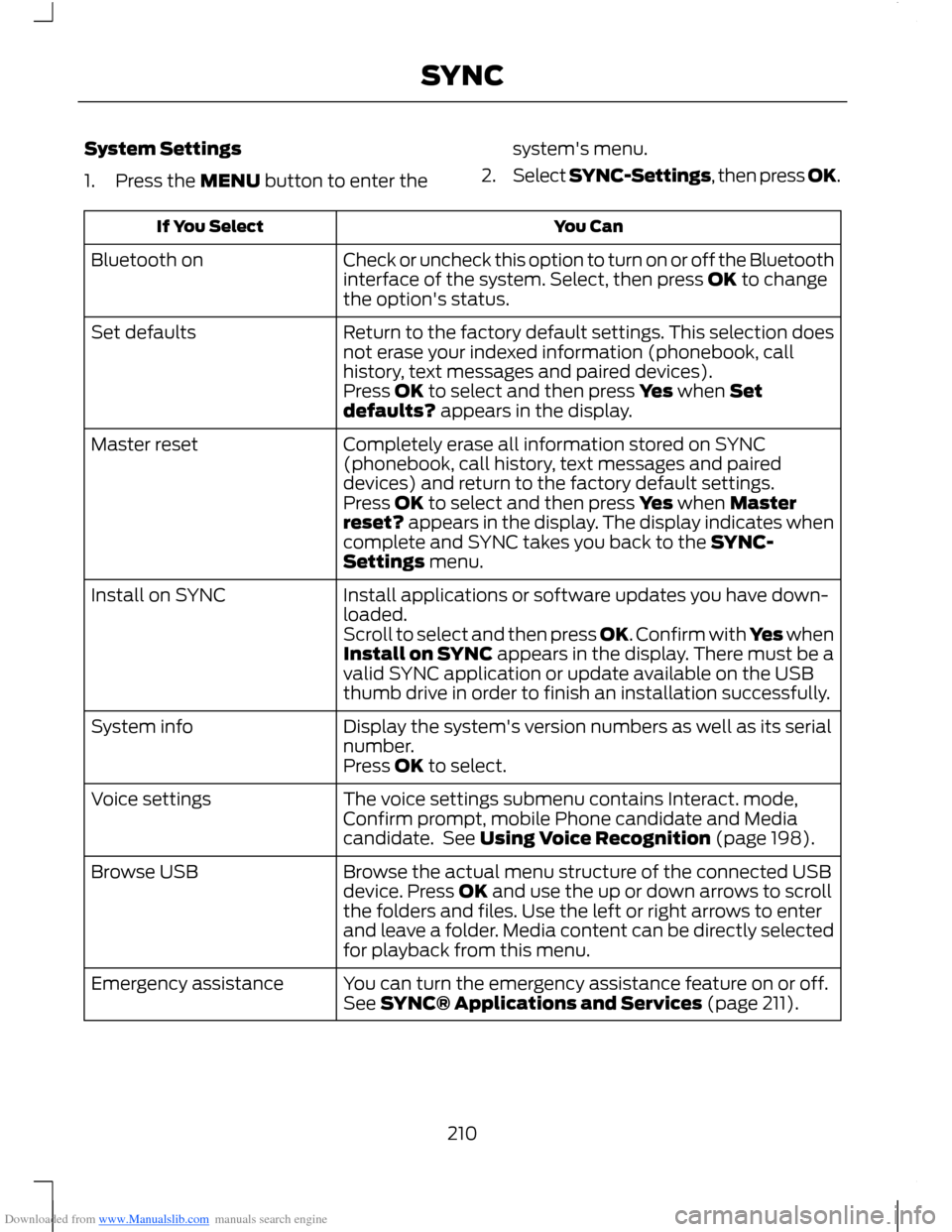
Downloaded from www.Manualslib.com manuals search engine System Settings
1.Press the MENU button to enter the
system's menu.
2.Select SYNC-Settings, then press OK.
You CanIf You Select
Check or uncheck this option to turn on or off the Bluetoothinterface of the system. Select, then press OK to changethe option's status.
Bluetooth on
Return to the factory default settings. This selection doesnot erase your indexed information (phonebook, callhistory, text messages and paired devices).
Set defaults
Press OK to select and then press Yes when Setdefaults? appears in the display.
Completely erase all information stored on SYNC(phonebook, call history, text messages and paireddevices) and return to the factory default settings.
Master reset
Press OK to select and then press Yes when Masterreset? appears in the display. The display indicates whencomplete and SYNC takes you back to the SYNC-Settings menu.
Install applications or software updates you have down-loaded.Install on SYNC
Scroll to select and then press OK. Confirm with Yes whenInstall on SYNC appears in the display. There must be avalid SYNC application or update available on the USBthumb drive in order to finish an installation successfully.
Display the system's version numbers as well as its serialnumber.System info
Press OK to select.
The voice settings submenu contains Interact. mode,Confirm prompt, mobile Phone candidate and Mediacandidate. See Using Voice Recognition (page 198).
Voice settings
Browse the actual menu structure of the connected USBdevice. Press OK and use the up or down arrows to scrollthe folders and files. Use the left or right arrows to enterand leave a folder. Media content can be directly selectedfor playback from this menu.
Browse USB
You can turn the emergency assistance feature on or off.See SYNC® Applications and Services (page 211).Emergency assistance
210SYNC
Page 216 of 256
Downloaded from www.Manualslib.com manuals search engine Connecting Your Digital MediaPlayer to the USB Port
Note:If your digital media player has apower switch, make sure that the device isturned on.
To Connect Using Voice Commands
1.Plug the device into your vehicle's USBport.
2.Press the voice button and whenprompted, say "USB".
3.You can now play music by saying anyof the appropriate voice commands.Refer to the media voice commands.
To Connect Using the System Menu
1.Plug the device into your vehicle's USBport.
2.Press the AUX button until initialisingappears in the top left corner of thedisplay.
3.Depending on how many digital mediafiles are on your connected device,Indexing USB may appear in thedisplay. When indexing is complete, thescreen returns to the Play menu.
Press Browse. Now you can scroll throughthe list:
•Play all.
•Playlists.
•Songs.
•Artists.
•Albums.
•Genres.
•Browse USB.
•Reset USB.
•Exit.
What's Playing?
At any time when a track is playing, youcan press the voice icon and ask thesystem "What's playing?" The systemreads the metadata tags (if populated) ofthe track being played.
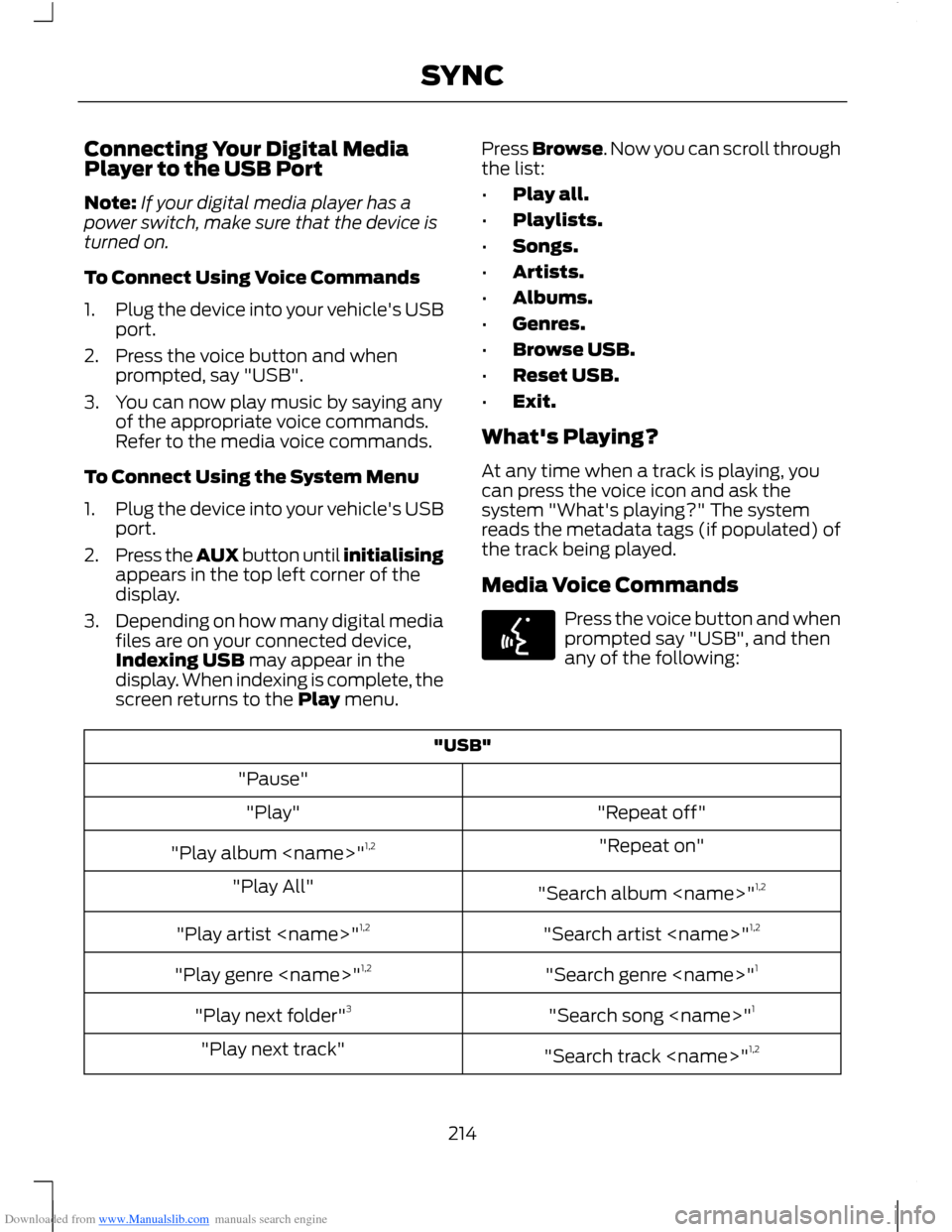
Media Voice Commands
Press the voice button and whenprompted say "USB", and thenany of the following:
"USB"
"Pause"
"Repeat off""Play"
"Repeat on""Play album
"Search album
"Search artist
"Search genre
"Search song
"Search track
214SYNC