CD player FORD B MAX 2012 1.G Owners Manual
[x] Cancel search | Manufacturer: FORD, Model Year: 2012, Model line: B MAX, Model: FORD B MAX 2012 1.GPages: 256, PDF Size: 19.67 MB
Page 6 of 256
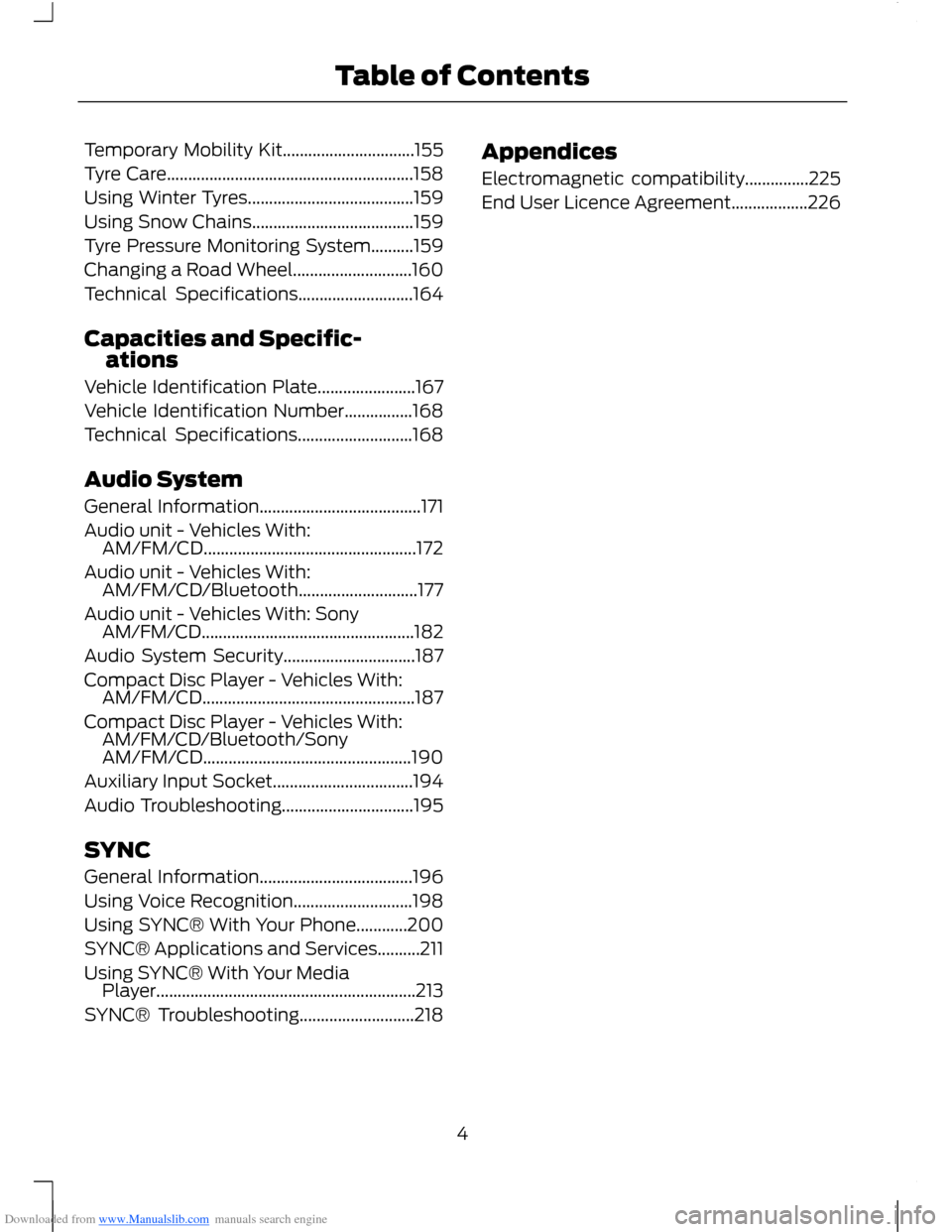
Downloaded from www.Manualslib.com manuals search engine Temporary Mobility Kit...............................155
Tyre Care..........................................................158
Using Winter Tyres.......................................159
Using Snow Chains......................................159
Tyre Pressure Monitoring System..........159
Changing a Road Wheel............................160
Technical Specifications...........................164
Capacities and Specific-ations
Vehicle Identification Plate.......................167
Vehicle Identification Number................168
Technical Specifications...........................168
Audio System
General Information......................................171
Audio unit - Vehicles With:AM/FM/CD..................................................172
Audio unit - Vehicles With:AM/FM/CD/Bluetooth............................177
Audio unit - Vehicles With: SonyAM/FM/CD..................................................182
Audio System Security...............................187
Compact Disc Player - Vehicles With:AM/FM/CD..................................................187
Compact Disc Player - Vehicles With:AM/FM/CD/Bluetooth/SonyAM/FM/CD.................................................190
Auxiliary Input Socket.................................194
Audio Troubleshooting...............................195
SYNC
General Information....................................196
Using Voice Recognition............................198
Using SYNC® With Your Phone............200
SYNC® Applications and Services..........211
Using SYNC® With Your MediaPlayer.............................................................213
SYNC® Troubleshooting...........................218
Appendices
Electromagnetic compatibility...............225
End User Licence Agreement..................226
4Table of Contents
Page 173 of 256
Downloaded from www.Manualslib.com manuals search engine GENERAL INFORMATION
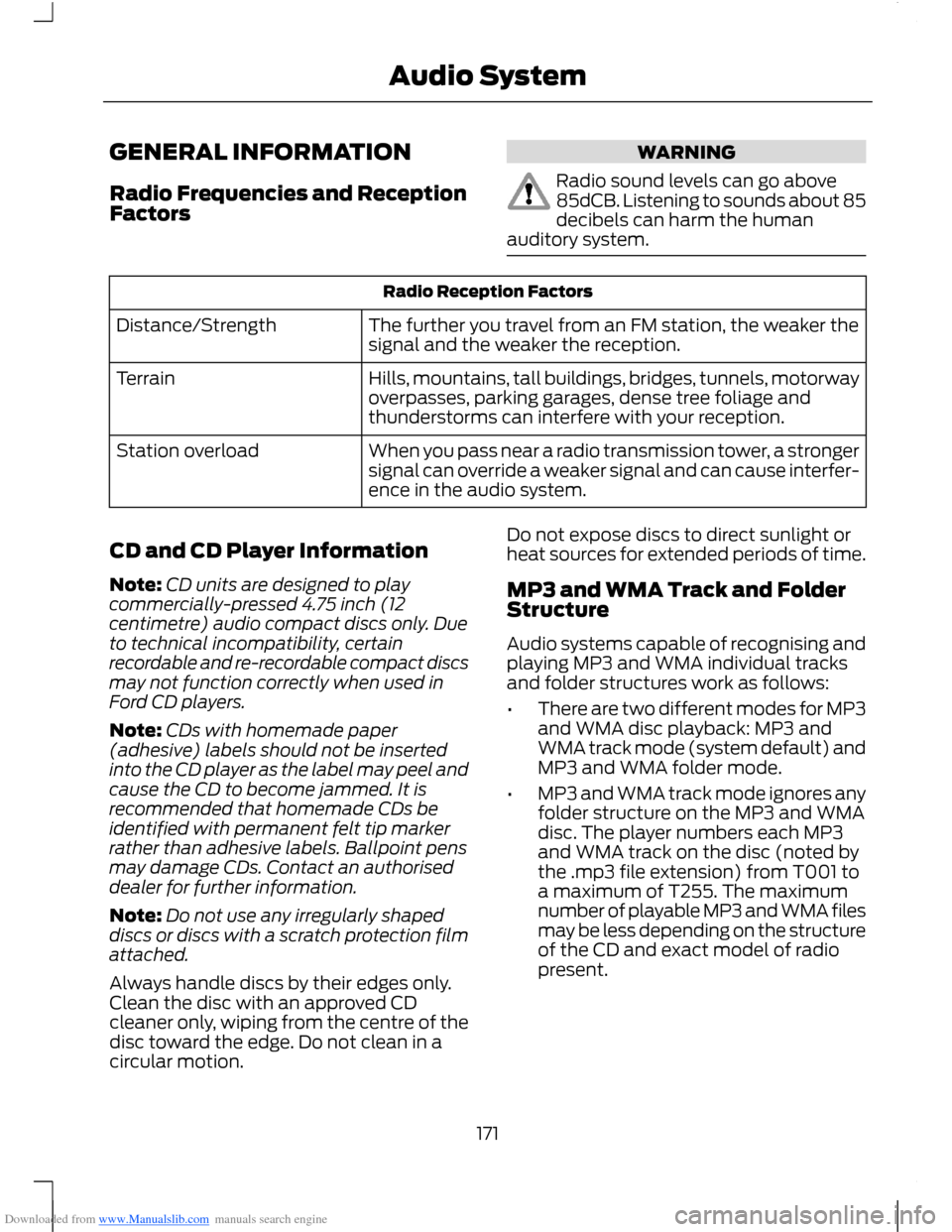
Radio Frequencies and ReceptionFactors
WARNING
Radio sound levels can go above85dCB. Listening to sounds about 85decibels can harm the humanauditory system.
Radio Reception Factors
The further you travel from an FM station, the weaker thesignal and the weaker the reception.Distance/Strength
Hills, mountains, tall buildings, bridges, tunnels, motorwayoverpasses, parking garages, dense tree foliage andthunderstorms can interfere with your reception.
Terrain
When you pass near a radio transmission tower, a strongersignal can override a weaker signal and can cause interfer-ence in the audio system.
Station overload
CD and CD Player Information
Note:CD units are designed to playcommercially-pressed 4.75 inch (12centimetre) audio compact discs only. Dueto technical incompatibility, certainrecordable and re-recordable compact discsmay not function correctly when used inFord CD players.
Note:CDs with homemade paper(adhesive) labels should not be insertedinto the CD player as the label may peel andcause the CD to become jammed. It isrecommended that homemade CDs beidentified with permanent felt tip markerrather than adhesive labels. Ballpoint pensmay damage CDs. Contact an authoriseddealer for further information.
Note:Do not use any irregularly shapeddiscs or discs with a scratch protection filmattached.
Always handle discs by their edges only.Clean the disc with an approved CDcleaner only, wiping from the centre of thedisc toward the edge. Do not clean in acircular motion.
Do not expose discs to direct sunlight orheat sources for extended periods of time.
MP3 and WMA Track and FolderStructure
Audio systems capable of recognising andplaying MP3 and WMA individual tracksand folder structures work as follows:
•There are two different modes for MP3and WMA disc playback: MP3 andWMA track mode (system default) andMP3 and WMA folder mode.
•MP3 and WMA track mode ignores anyfolder structure on the MP3 and WMAdisc. The player numbers each MP3and WMA track on the disc (noted bythe .mp3 file extension) from T001 toa maximum of T255. The maximumnumber of playable MP3 and WMA filesmay be less depending on the structureof the CD and exact model of radiopresent.
171Audio System
Page 174 of 256
Downloaded from www.Manualslib.com manuals search engine •MP3 and WMA folder mode representsa folder structure consisting of onelevel of folders. The CD player numbersall MP3 and WMA tracks on the disc(noted by the .mp3 or . WMA fileextension) and all folders containingMP3 and WMA files, from F001 (folder)T001 (track) to F253 T255.
•Creating discs with only one level offolders helps with navigation throughthe disc files.
If you are burning your own MP3 and WMAdiscs, it is important to understand howthe system reads the structures you create.While various files may be present, (fileswith extensions other than mp3 andWMA), only files with the .mp3 and WMAextension are played; other files areignored by the system. This enables you touse the same MP3 and WMA disc for avariety of tasks on your work computer,home computer and your in-vehiclesystem.
In track mode, the system displays andplays the structure as if it were only onelevel deep (all .mp3 and WMA files areplayed, regardless of being in a specificfolder). In folder mode, the system onlyplays the .mp3 or WMA files in the currentfolder.
AUDIO UNIT - VEHICLES WITH:
AM/FM/CD
WARNING
Driving while distracted can result inloss of vehicle control, accident andinjury. We strongly recommend thatyou use extreme caution when using anydevice or feature that may take your focusoff the road. Your primary responsibility isthe safe operation of your vehicle. Werecommend against the use of anyhandheld device while driving andencourage the use of voice-operatedsystems when possible. Make sure you areaware of all applicable local laws that mayaffect the use of electronic devices whiledriving.
172Audio System
Page 189 of 256
Downloaded from www.Manualslib.com manuals search engine When selected, AF will be shown in thedisplay.
1.Press the MENU button.
2.Select AUDIO or AUDIO SETTINGS.
3.Scroll to ALTERNAT FREQ. orALTERNATIVE FREQ. and turn on oroff with the OK button.
4.Press the MENU button to return.
Regional Mode
Regional mode controls the behaviour ofalternative frequencies switching betweenregionally related networks of a parentbroadcaster. A broadcaster may run a fairlylarge network across a large part of thecountry. At various times of the day thislarge network may be broken down into anumber of smaller regional networks,typically centred on major towns or cities.When the network is not split into regionalvariants, the whole network caries thesame programming.
Regional mode ON: This prevents randomalternative frequency switches whenneighbouring regional networks are notcarrying the same programming.
Regional mode OFF: This allows a largercoverage area if neighbouring regionalnetworks are carrying the sameprogramming, but can cause 'random'alternative frequency switches if they arenot.
1.Press the MENU button.
2.Select AUDIO or AUDIO SETTINGS.
3.Scroll to RDS REGIONAL and turn onor off with the OK button.
4.Press the MENU button to return.
AUDIO SYSTEM SECURITY
Each unit incorporates a unique code thatis linked to the vehicle identificationnumber. The system will automaticallycheck that the audio unit and vehiclematch before allowing operation.
If a security code message appears, see anauthorised dealer.
COMPACT DISC PLAYER -
VEHICLES WITH: AM/FM/CD
Compact Disc Playback
Note:During playback, the display indicatesthe disc, track and time that has elapsedsince the start of the track.
During radio reception, press the CD buttononce to start CD playback.
After a disc is loaded, playback will startimmediately.
Track Selection
•Press the seek down button once toreplay the current track. If pressedwithin two seconds of the start of atrack, the previous track will beselected.
•Press the up or down arrow buttons toselect the required track, then pressthe OK button.
Fast Forward and Reverse
Press and hold the seek down or upbuttons to search backward or forwardwithin the tracks on the disc.
Shuffle and Random
Random track playback, also known asshuffle, plays all tracks on the CD inrandom order.
187Audio System
Page 192 of 256
Downloaded from www.Manualslib.com manuals search engine MP3 or WMA Navigation
MP3 tracks may be recorded on the CD inseveral ways. They can all be placed in theroot directory like a conventional audio CD,or they can be placed in folders that mayrepresent, for example, an album, artist, orgenre.
The normal playing sequence on CDs withmultiple folders is:
•Play the tracks within the root (toplevel) first
•Then the tracks in any folder(s) withinthe root
•Then move onto the second folder, andso forth.
To navigate to a track.
1.Press the up or down arrow buttons toenter the track list.
2.Navigate the hierarchy using the arrowbuttons to select another folder ortrack (file).
3.Press OK to select a highlighted track.
MP3 and WMA Display Options
When an MP3 or WMA disc is playing,certain information encoded in each trackcan be displayed. Such information willnormally include:
•The file name.
•The folder name.
•ID3 information which might be thealbum or artist’s name.
The unit will normally show the file namethat is playing. To select one of the otheritems of information, press the INFObutton repeatedly until the required itemis shown in the display.
Note:If the ID3 information selected isunavailable,NO MP3 or WMA TAG will beshown in the display.
CD Text Display Options
When an audio disc with CD text is playing,limited information encoded in each trackcan be displayed. Such information willnormally include:
•The disc name.
•The artist name.
•The track name.
Note:These display options are selectedin the same way as MP3 displays.NO DISCNAME or NO TRACK NAME will be shownin the display if no information has beenencoded.
Ending Compact Disc Playback
To restore radio reception on all units,press the RADIO button.
Note:The CD will not be ejected. The discwill pause at the point where radio receptionwas restored.
To resume CD playback, press the CDbutton again.
COMPACT DISC PLAYER -
VEHICLES WITH:
AM/FM/CD/BLUETOOTH/SONY
AM/FM/CD
Compact Disc Playback
Note:During playback, the display indicatesthe disc, track and time that has elapsedsince the start of the track.
During radio reception, press the CD buttononce to start CD playback.
After a disc is loaded, playback will startimmediately.
190Audio System
Page 196 of 256
Downloaded from www.Manualslib.com manuals search engine AUXILIARY INPUT SOCKET
WARNINGS
Driving while distracted can result inloss of vehicle control, accident andinjury. We strongly recommend thatyou use extreme caution when using anydevice or feature that may take your focusoff the road. Your primary responsibility isthe safe operation of your vehicle. Werecommend against the use of anyhandheld device while driving andencourage the use of voice-operatedsystems when possible. Make sure you areaware of all applicable local laws that mayaffect the use of electronic devices whiledriving.
For safety reasons, do not connector adjust the settings on yourportable music player while yourvehicle is moving.
Store the portable music player in asecure location, such as the centreconsole or the glove box, when yourvehicle is in moving. Hard objects maybecome projectiles in a collision or suddenstop, which may increase the risk of seriousinjury. The audio extension cable must belong enough to allow the portable musicplayer to be safely stored while yourvehicle is moving.
The auxiliary input jack allows you toconnect and play music from your portablemusic player through your vehicle speakers.You can use any portable music playerdesigned for use with headphones. Youraudio extension cable must have maleone-eighth inch (three and one-halfmillimetre) connectors at each end.
1.Make sure your vehicle, radio andportable music player are turned offand move the transmission selectorlever to position P.
2.Plug the extension cable from theportable music player into the auxiliaryinput jack.
3.Switch the radio on. Select either atuned FM station or a CD.
4.Adjust the volume as desired.
5.Switch the portable music player onand adjust its volume to half itsmaximum level.
6.Press AUX until LINE or LINE INappears in the display. You should hearmusic from your device even if it is low.
7.Adjust the volume on your portablemusic player until it reaches the volumelevel of the FM station or CD. Do thisby switching back and forth betweenthe AUX and FM or CD controls.
194Audio System
Page 198 of 256
Downloaded from www.Manualslib.com manuals search engine GENERAL INFORMATION
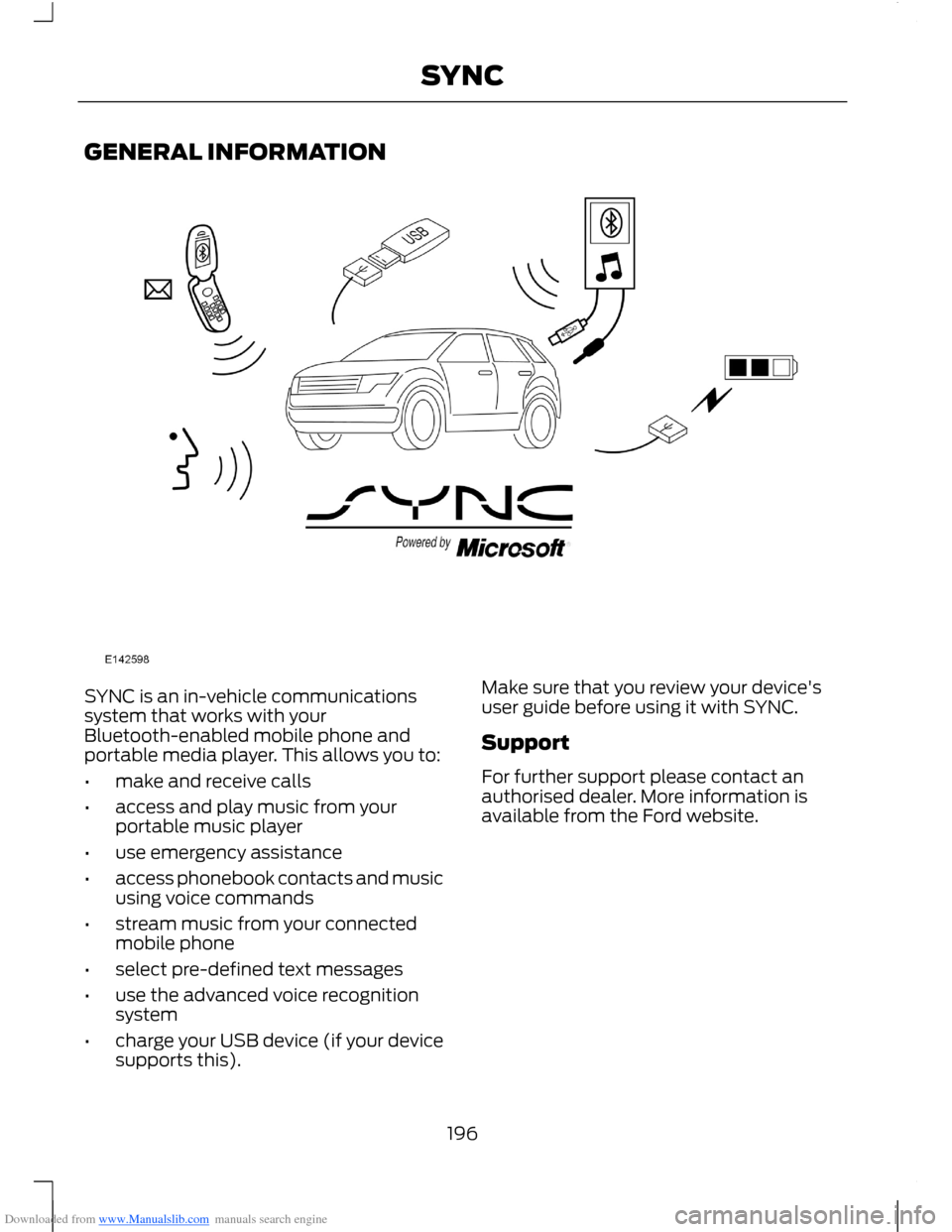
SYNC is an in-vehicle communicationssystem that works with yourBluetooth-enabled mobile phone andportable media player. This allows you to:
•make and receive calls
•access and play music from yourportable music player
•use emergency assistance
•access phonebook contacts and musicusing voice commands
•stream music from your connectedmobile phone
•select pre-defined text messages
•use the advanced voice recognitionsystem
•charge your USB device (if your devicesupports this).
Make sure that you review your device'suser guide before using it with SYNC.
Support
For further support please contact anauthorised dealer. More information isavailable from the Ford website.
196SYNC
Page 199 of 256
Downloaded from www.Manualslib.com manuals search engine Safety Information
WARNING
Driving while distracted can result inloss of vehicle control, collision andinjury. We strongly recommend thatyou use extreme caution when using anydevice that may take your focus off theroad. Your primary responsibility is the safeoperation of your vehicle. We recommendagainst the use of any handheld devicewhile driving, encourage the use ofvoice-operated systems when possibleand that you become aware of applicablecountry and local laws that may affect useof electronic devices while driving.
When using SYNC:
•Do not operate playing devices if thepower cords or cables are broken, splitor damaged. Carefully place cords andcables where they cannot be steppedon or interfere with the operation ofpedals, seats, compartments or safedriving abilities.
•Do not leave playing devices in yourvehicle during extreme conditions as itcould cause them damage. Refer toyour device's user guide for furtherinformation.
•Do not attempt to service or repair thesystem. See an authorised dealer.
Privacy Information
When a mobile phone is connected toSYNC, the system creates a profile withinyour vehicle that is linked to that mobilephone. This profile is created in order tooffer you more mobile features and tooperate more efficiently. Among otherthings, this profile may contain data aboutyour phone book, text messages (read andunread) and call history. Including thehistory of calls when your mobile phonewas not connected to the system. Inaddition, if you connect a media device,the system creates and retains an index ofsupported media content. The system alsorecords a short development log ofapproximately 10 minutes of all recentsystem activity. The log profile and othersystem data may be used to improve thesystem and help diagnose any problemsthat may occur.
The mobile phone profile, media deviceindex, and development log will remain inyour vehicle unless you delete it and aregenerally accessible only in your vehiclewhen the mobile phone or media player isconnected. If you no longer plan to use thesystem or your vehicle, we recommend youperform a master reset to erase all storedinformation.
System data cannot be accessed withoutspecial equipment and access to yourvehicle's SYNC module. We will not accessthe system data for any purpose other thanas described absent consent, a court order,or where required by law enforcement,other government authorities or other thirdparties acting with lawful authority. Otherparties may seek to access the informationindependently of us. For further privacyinformation, see the sections onemergency assistance.
197SYNC
Page 215 of 256
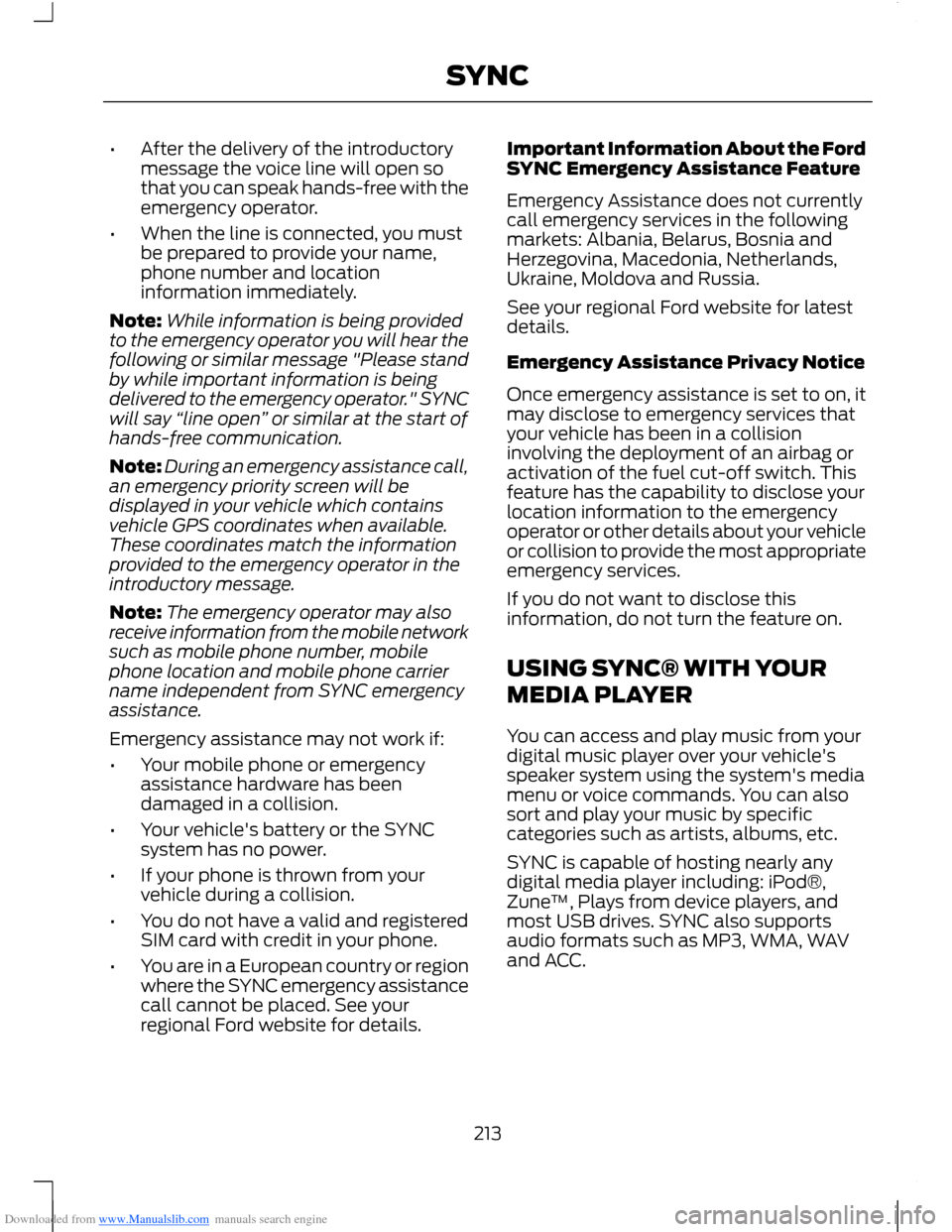
Downloaded from www.Manualslib.com manuals search engine •After the delivery of the introductorymessage the voice line will open sothat you can speak hands-free with theemergency operator.
•When the line is connected, you mustbe prepared to provide your name,phone number and locationinformation immediately.
Note:While information is being providedto the emergency operator you will hear thefollowing or similar message "Please standby while important information is beingdelivered to the emergency operator." SYNCwill say “line open” or similar at the start ofhands-free communication.
Note:During an emergency assistance call,an emergency priority screen will bedisplayed in your vehicle which containsvehicle GPS coordinates when available.These coordinates match the informationprovided to the emergency operator in theintroductory message.
Note:The emergency operator may alsoreceive information from the mobile networksuch as mobile phone number, mobilephone location and mobile phone carriername independent from SYNC emergencyassistance.
Emergency assistance may not work if:
•Your mobile phone or emergencyassistance hardware has beendamaged in a collision.
•Your vehicle's battery or the SYNCsystem has no power.
•If your phone is thrown from yourvehicle during a collision.
•You do not have a valid and registeredSIM card with credit in your phone.
•You are in a European country or regionwhere the SYNC emergency assistancecall cannot be placed. See yourregional Ford website for details.
Important Information About the FordSYNC Emergency Assistance Feature
Emergency Assistance does not currentlycall emergency services in the followingmarkets: Albania, Belarus, Bosnia andHerzegovina, Macedonia, Netherlands,Ukraine, Moldova and Russia.
See your regional Ford website for latestdetails.
Emergency Assistance Privacy Notice
Once emergency assistance is set to on, itmay disclose to emergency services thatyour vehicle has been in a collisioninvolving the deployment of an airbag oractivation of the fuel cut-off switch. Thisfeature has the capability to disclose yourlocation information to the emergencyoperator or other details about your vehicleor collision to provide the most appropriateemergency services.
If you do not want to disclose thisinformation, do not turn the feature on.
USING SYNC® WITH YOUR
MEDIA PLAYER
You can access and play music from yourdigital music player over your vehicle'sspeaker system using the system's mediamenu or voice commands. You can alsosort and play your music by specificcategories such as artists, albums, etc.
SYNC is capable of hosting nearly anydigital media player including: iPod®,Zune™, Plays from device players, andmost USB drives. SYNC also supportsaudio formats such as MP3, WMA, WAVand ACC.
213SYNC
Page 216 of 256
Downloaded from www.Manualslib.com manuals search engine Connecting Your Digital MediaPlayer to the USB Port
Note:If your digital media player has apower switch, make sure that the device isturned on.
To Connect Using Voice Commands
1.Plug the device into your vehicle's USBport.
2.Press the voice button and whenprompted, say "USB".
3.You can now play music by saying anyof the appropriate voice commands.Refer to the media voice commands.
To Connect Using the System Menu
1.Plug the device into your vehicle's USBport.
2.Press the AUX button until initialisingappears in the top left corner of thedisplay.
3.Depending on how many digital mediafiles are on your connected device,Indexing USB may appear in thedisplay. When indexing is complete, thescreen returns to the Play menu.
Press Browse. Now you can scroll throughthe list:
•Play all.
•Playlists.
•Songs.
•Artists.
•Albums.
•Genres.
•Browse USB.
•Reset USB.
•Exit.
What's Playing?
At any time when a track is playing, youcan press the voice icon and ask thesystem "What's playing?" The systemreads the metadata tags (if populated) ofthe track being played.
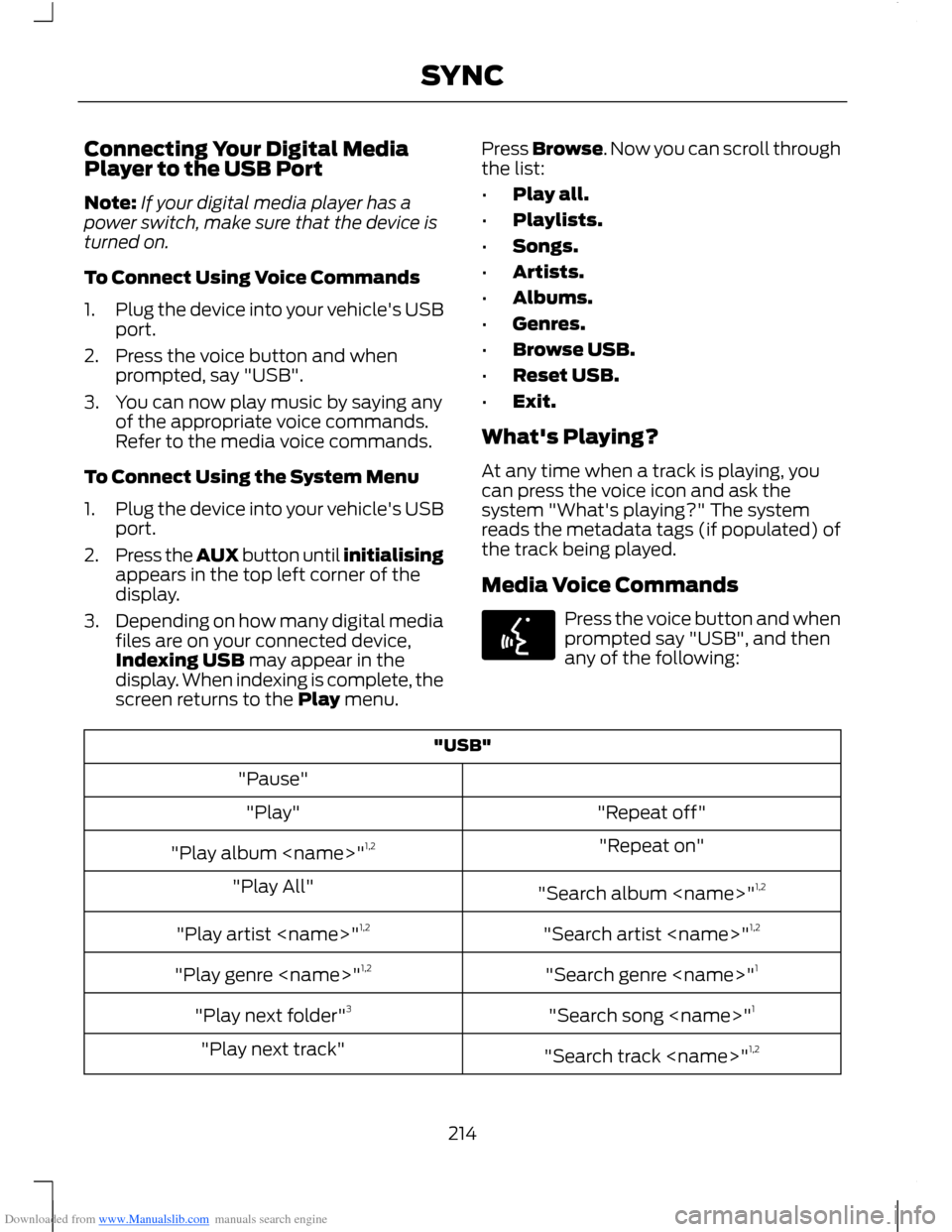
Media Voice Commands
Press the voice button and whenprompted say "USB", and thenany of the following:
"USB"
"Pause"
"Repeat off""Play"
"Repeat on""Play album
"Search album
"Search artist
"Search genre
"Search song
"Search track
214SYNC