USB FORD B MAX 2013 1.G User Guide
[x] Cancel search | Manufacturer: FORD, Model Year: 2013, Model line: B MAX, Model: FORD B MAX 2013 1.GPages: 298, PDF Size: 20.63 MB
Page 260 of 298
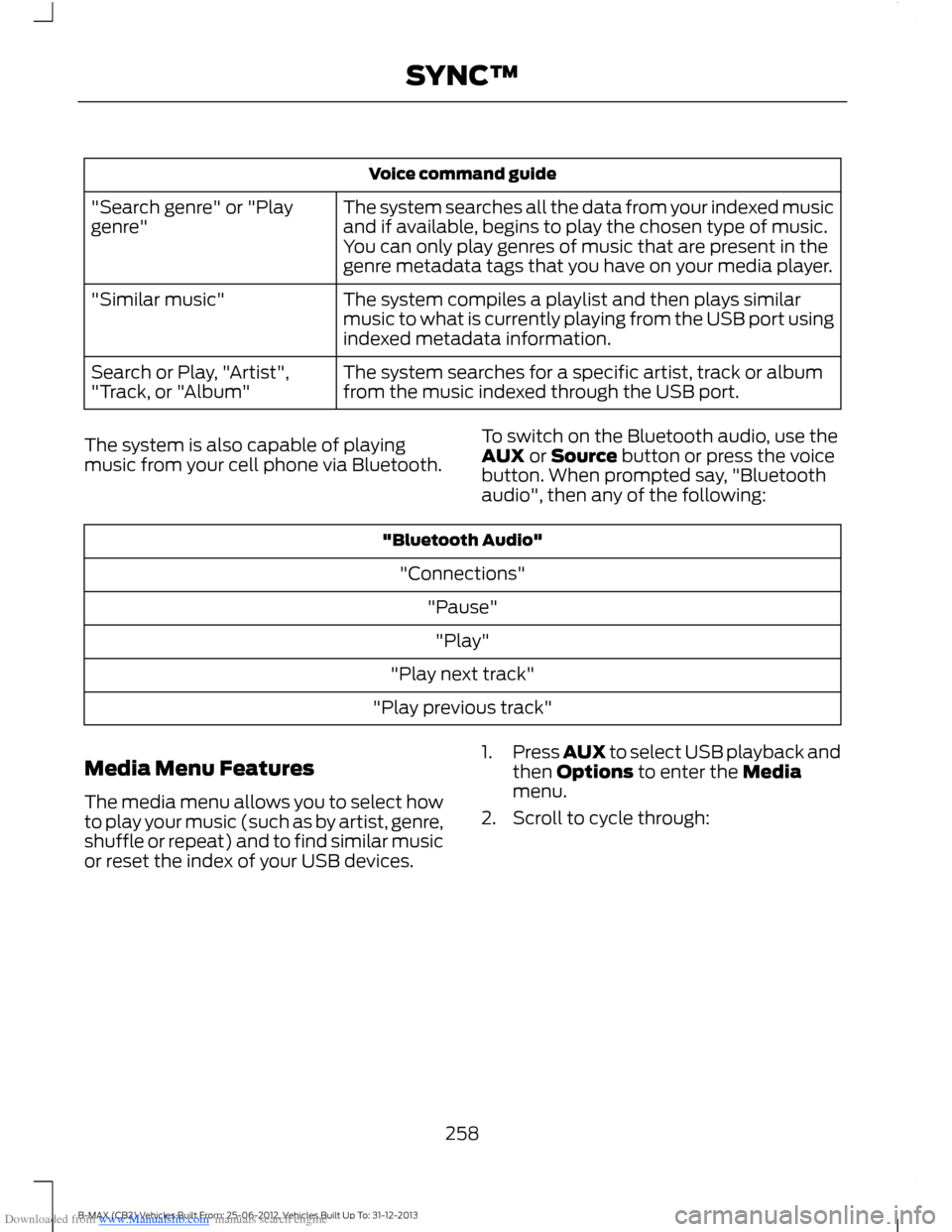
Downloaded from www.Manualslib.com manuals search engine Voice command guide
The system searches all the data from your indexed musicand if available, begins to play the chosen type of music.You can only play genres of music that are present in thegenre metadata tags that you have on your media player.
"Search genre" or "Playgenre"
The system compiles a playlist and then plays similarmusic to what is currently playing from the USB port usingindexed metadata information.
"Similar music"
The system searches for a specific artist, track or albumfrom the music indexed through the USB port.Search or Play, "Artist","Track, or "Album"
The system is also capable of playingmusic from your cell phone via Bluetooth.
To switch on the Bluetooth audio, use theAUX or Source button or press the voicebutton. When prompted say, "Bluetoothaudio", then any of the following:
"Bluetooth Audio"
"Connections"
"Pause"
"Play"
"Play next track"
"Play previous track"
Media Menu Features
The media menu allows you to select howto play your music (such as by artist, genre,shuffle or repeat) and to find similar musicor reset the index of your USB devices.
1.Press AUX to select USB playback andthen Options to enter the Mediamenu.
2.Scroll to cycle through:
258B-MAX (CB2) Vehicles Built From: 25-06-2012, Vehicles Built Up To: 31-12-2013SYNC™
Page 261 of 298
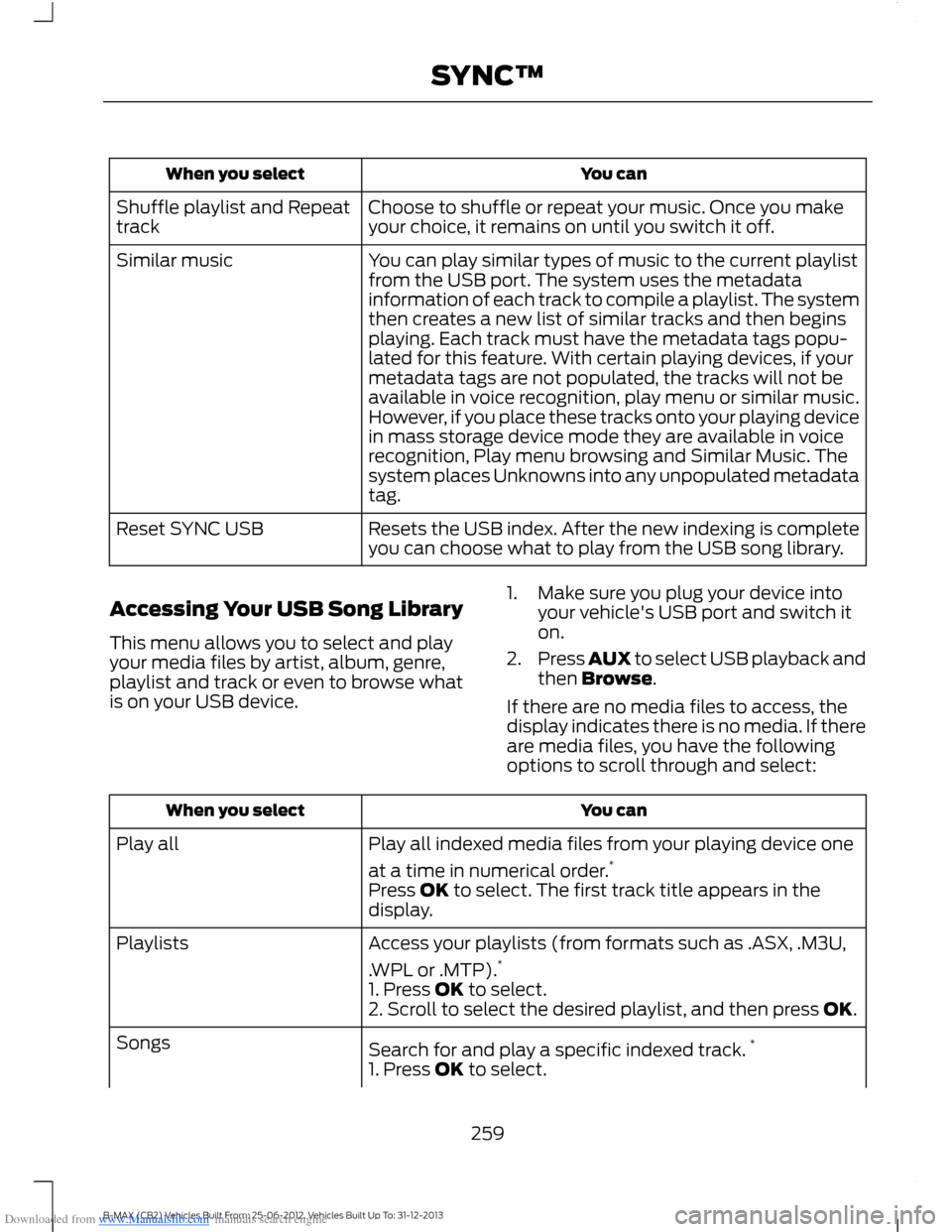
Downloaded from www.Manualslib.com manuals search engine You canWhen you select
Choose to shuffle or repeat your music. Once you makeyour choice, it remains on until you switch it off.Shuffle playlist and Repeattrack
You can play similar types of music to the current playlistfrom the USB port. The system uses the metadatainformation of each track to compile a playlist. The systemthen creates a new list of similar tracks and then beginsplaying. Each track must have the metadata tags popu-lated for this feature. With certain playing devices, if your
Similar music
metadata tags are not populated, the tracks will not beavailable in voice recognition, play menu or similar music.However, if you place these tracks onto your playing devicein mass storage device mode they are available in voicerecognition, Play menu browsing and Similar Music. Thesystem places Unknowns into any unpopulated metadatatag.
Resets the USB index. After the new indexing is completeyou can choose what to play from the USB song library.Reset SYNC USB
Accessing Your USB Song Library
This menu allows you to select and playyour media files by artist, album, genre,playlist and track or even to browse whatis on your USB device.
1.Make sure you plug your device intoyour vehicle's USB port and switch iton.
2.Press AUX to select USB playback andthen Browse.
If there are no media files to access, thedisplay indicates there is no media. If thereare media files, you have the followingoptions to scroll through and select:
You canWhen you select
Play all indexed media files from your playing device one
at a time in numerical order.*Play all
Press OK to select. The first track title appears in thedisplay.
Access your playlists (from formats such as .ASX, .M3U,
.WPL or .MTP).*Playlists
1. Press OK to select.2. Scroll to select the desired playlist, and then press OK.
Search for and play a specific indexed track.*Songs
1. Press OK to select.
259B-MAX (CB2) Vehicles Built From: 25-06-2012, Vehicles Built Up To: 31-12-2013SYNC™
Page 262 of 298
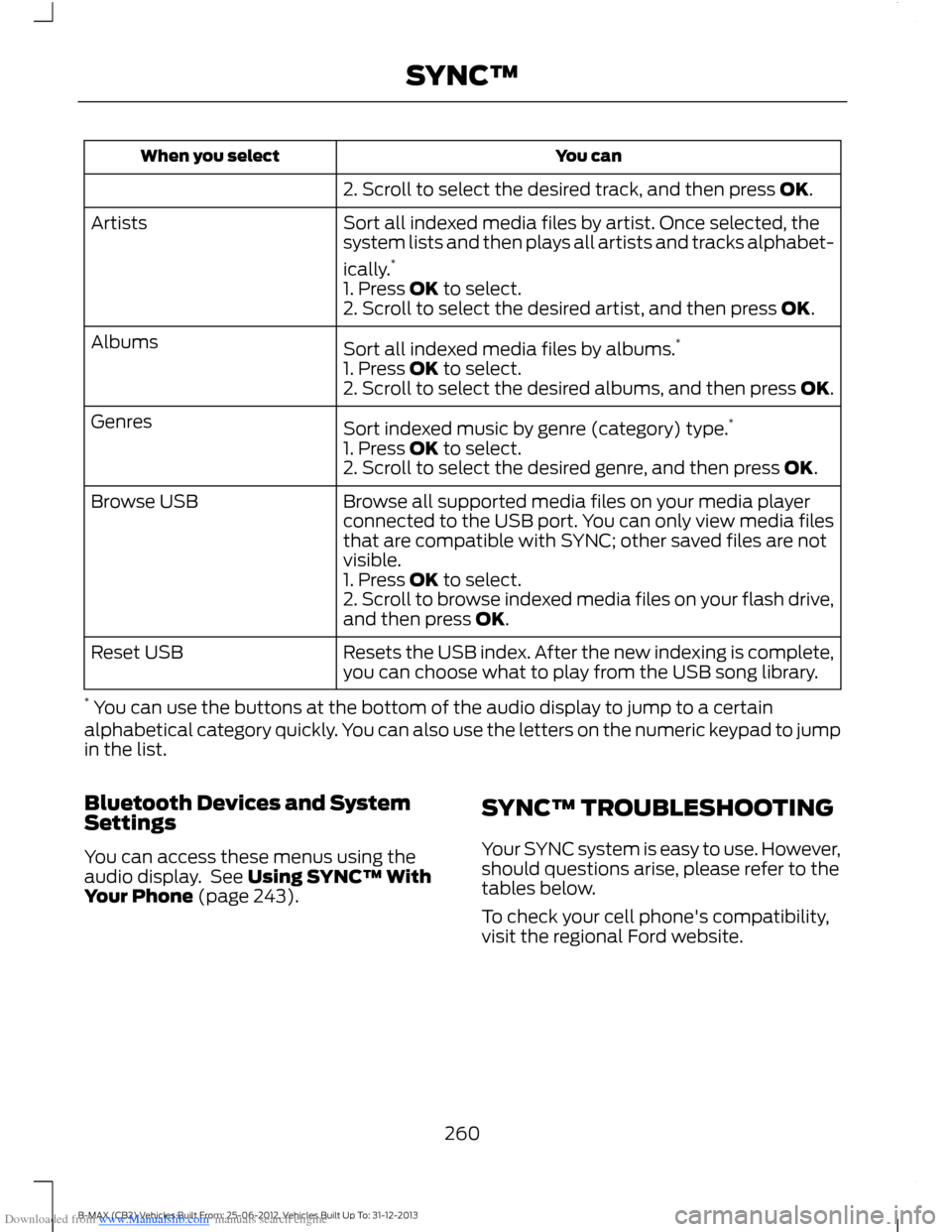
Downloaded from www.Manualslib.com manuals search engine You canWhen you select
2. Scroll to select the desired track, and then press OK.
Sort all indexed media files by artist. Once selected, thesystem lists and then plays all artists and tracks alphabet-
ically.*
Artists
1. Press OK to select.2. Scroll to select the desired artist, and then press OK.
Sort all indexed media files by albums.*Albums
1. Press OK to select.2. Scroll to select the desired albums, and then press OK.
Sort indexed music by genre (category) type.*Genres
1. Press OK to select.2. Scroll to select the desired genre, and then press OK.
Browse all supported media files on your media playerconnected to the USB port. You can only view media filesthat are compatible with SYNC; other saved files are notvisible.
Browse USB
1. Press OK to select.2. Scroll to browse indexed media files on your flash drive,and then press OK.
Resets the USB index. After the new indexing is complete,you can choose what to play from the USB song library.Reset USB
* You can use the buttons at the bottom of the audio display to jump to a certainalphabetical category quickly. You can also use the letters on the numeric keypad to jumpin the list.
Bluetooth Devices and SystemSettings
You can access these menus using theaudio display. See Using SYNC™ WithYour Phone (page 243).
SYNC™ TROUBLESHOOTING
Your SYNC system is easy to use. However,should questions arise, please refer to thetables below.
To check your cell phone's compatibility,visit the regional Ford website.
260B-MAX (CB2) Vehicles Built From: 25-06-2012, Vehicles Built Up To: 31-12-2013SYNC™
Page 265 of 298
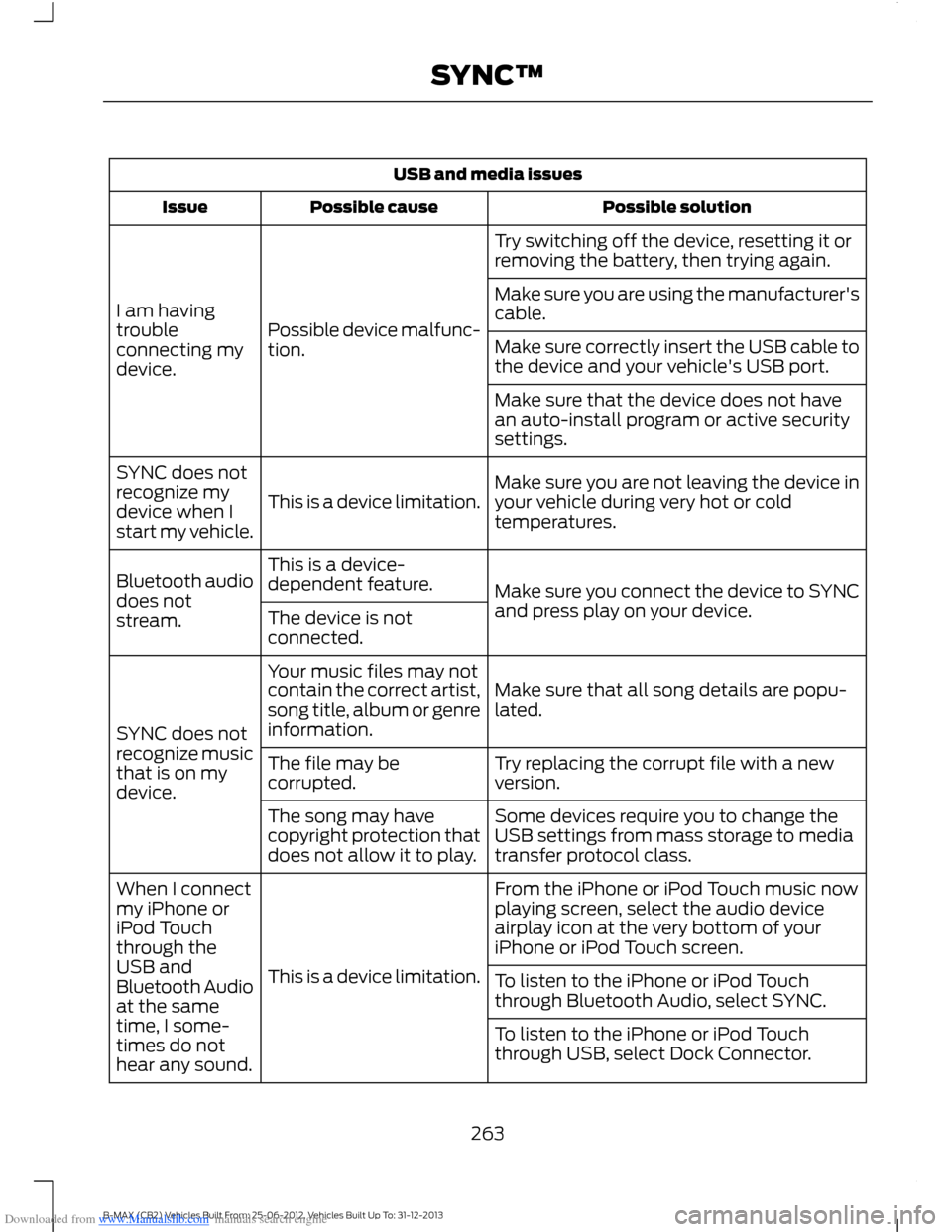
Downloaded from www.Manualslib.com manuals search engine USB and media issues
Possible solutionPossible causeIssue
Try switching off the device, resetting it orremoving the battery, then trying again.
Possible device malfunc-tion.
I am havingtroubleconnecting mydevice.
Make sure you are using the manufacturer'scable.
Make sure correctly insert the USB cable tothe device and your vehicle's USB port.
Make sure that the device does not havean auto-install program or active securitysettings.
Make sure you are not leaving the device inyour vehicle during very hot or coldtemperatures.This is a device limitation.
SYNC does notrecognize mydevice when Istart my vehicle.
Make sure you connect the device to SYNCand press play on your device.
This is a device-dependent feature.Bluetooth audiodoes notstream.The device is notconnected.
Make sure that all song details are popu-lated.
Your music files may notcontain the correct artist,song title, album or genreinformation.SYNC does notrecognize musicthat is on mydevice.
Try replacing the corrupt file with a newversion.The file may becorrupted.
Some devices require you to change theUSB settings from mass storage to mediatransfer protocol class.
The song may havecopyright protection thatdoes not allow it to play.
From the iPhone or iPod Touch music nowplaying screen, select the audio deviceairplay icon at the very bottom of youriPhone or iPod Touch screen.
This is a device limitation.
When I connectmy iPhone oriPod Touchthrough theUSB andBluetooth Audioat the sametime, I some-times do nothear any sound.
To listen to the iPhone or iPod Touchthrough Bluetooth Audio, select SYNC.
To listen to the iPhone or iPod Touchthrough USB, select Dock Connector.
263B-MAX (CB2) Vehicles Built From: 25-06-2012, Vehicles Built Up To: 31-12-2013SYNC™
Page 267 of 298
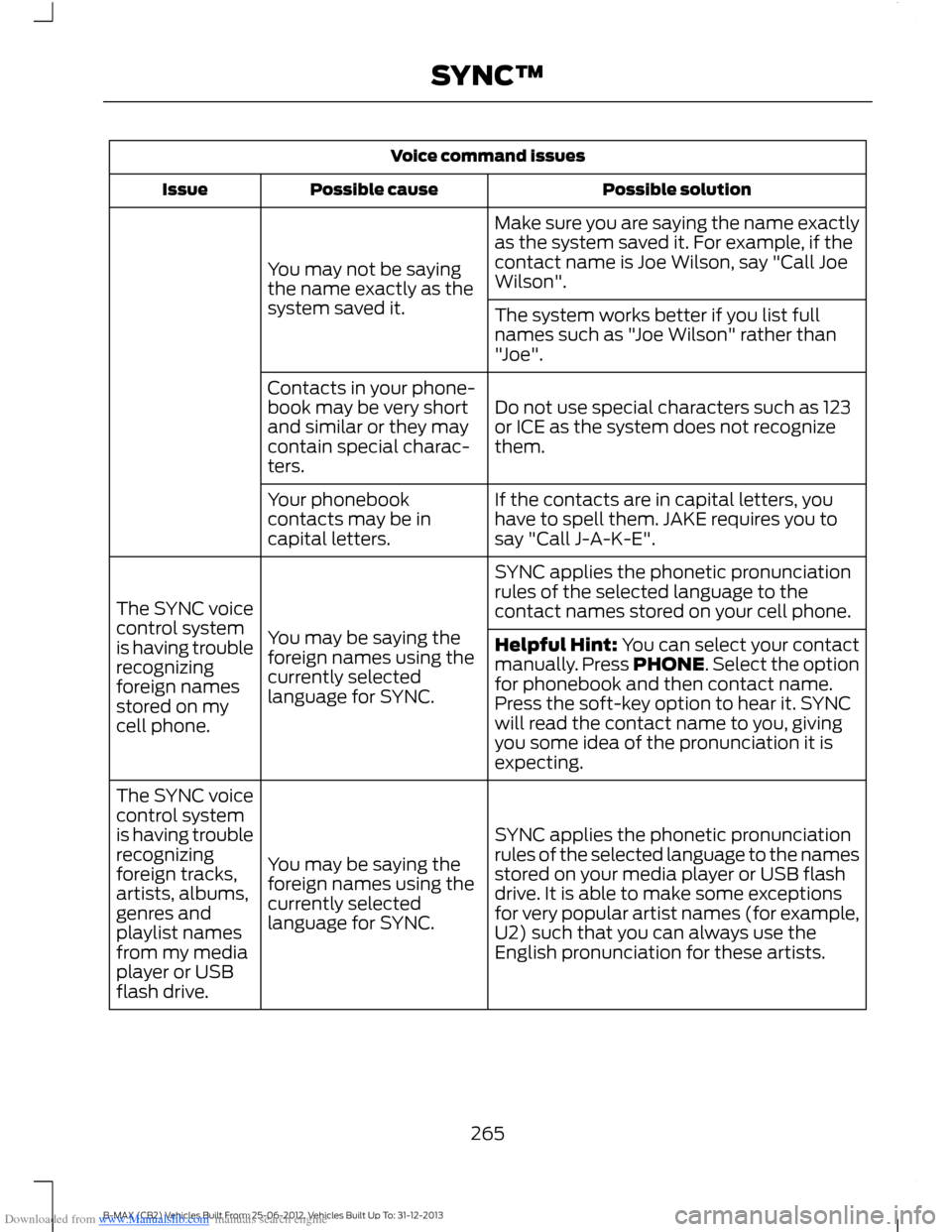
Downloaded from www.Manualslib.com manuals search engine Voice command issues
Possible solutionPossible causeIssue
Make sure you are saying the name exactlyas the system saved it. For example, if thecontact name is Joe Wilson, say "Call JoeWilson".You may not be sayingthe name exactly as thesystem saved it.The system works better if you list fullnames such as "Joe Wilson" rather than"Joe".
Do not use special characters such as 123or ICE as the system does not recognizethem.
Contacts in your phone-book may be very shortand similar or they maycontain special charac-ters.
If the contacts are in capital letters, youhave to spell them. JAKE requires you tosay "Call J-A-K-E".
Your phonebookcontacts may be incapital letters.
SYNC applies the phonetic pronunciationrules of the selected language to thecontact names stored on your cell phone.
You may be saying theforeign names using thecurrently selectedlanguage for SYNC.
The SYNC voicecontrol systemis having troublerecognizingforeign namesstored on mycell phone.
Helpful Hint: You can select your contactmanually. Press PHONE. Select the optionfor phonebook and then contact name.Press the soft-key option to hear it. SYNCwill read the contact name to you, givingyou some idea of the pronunciation it isexpecting.
SYNC applies the phonetic pronunciationrules of the selected language to the namesstored on your media player or USB flashdrive. It is able to make some exceptionsfor very popular artist names (for example,U2) such that you can always use theEnglish pronunciation for these artists.
You may be saying theforeign names using thecurrently selectedlanguage for SYNC.
The SYNC voicecontrol systemis having troublerecognizingforeign tracks,artists, albums,genres andplaylist namesfrom my mediaplayer or USBflash drive.
265B-MAX (CB2) Vehicles Built From: 25-06-2012, Vehicles Built Up To: 31-12-2013SYNC™
Page 268 of 298
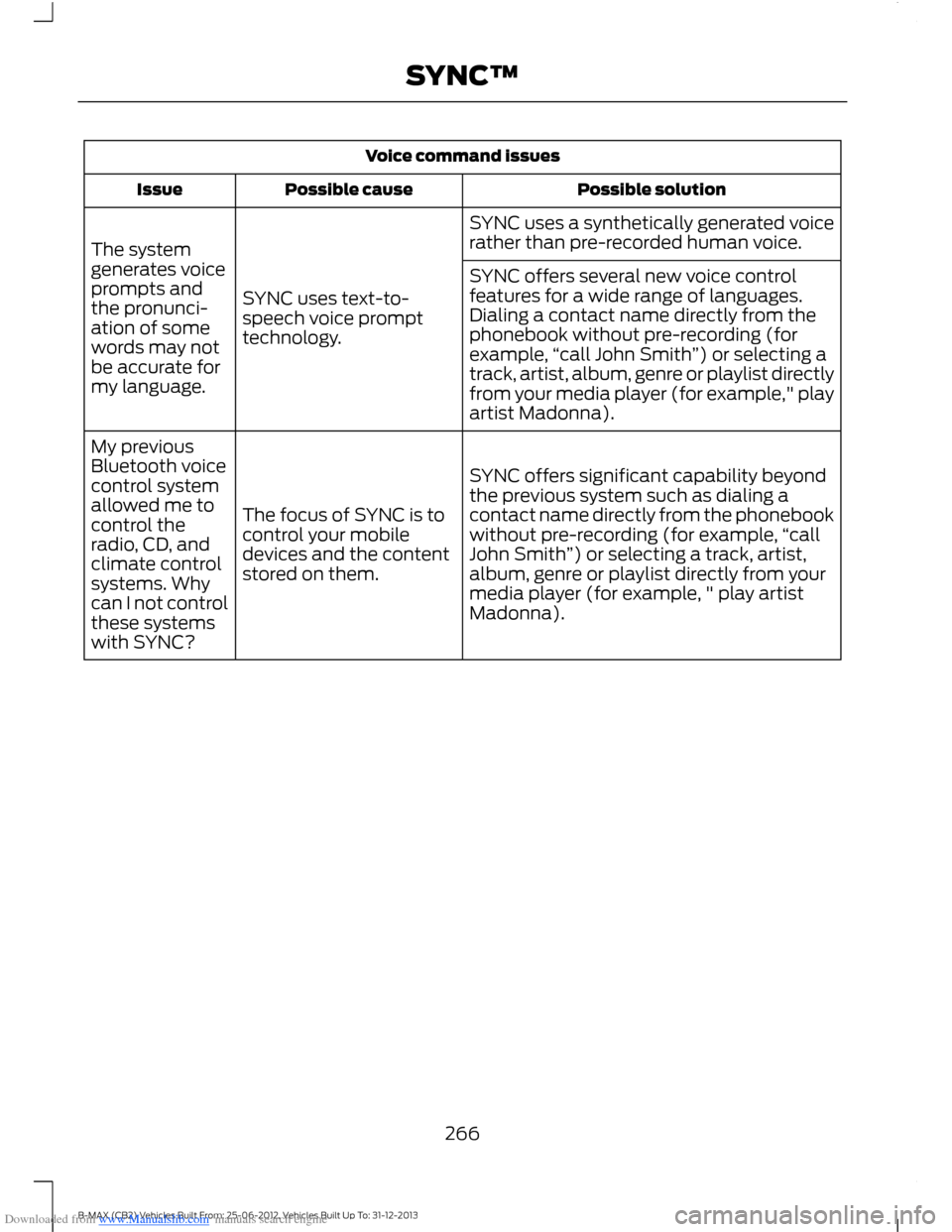
Downloaded from www.Manualslib.com manuals search engine Voice command issues
Possible solutionPossible causeIssue
SYNC uses a synthetically generated voicerather than pre-recorded human voice.
SYNC uses text-to-speech voice prompttechnology.
The systemgenerates voiceprompts andthe pronunci-ation of somewords may notbe accurate formy language.
SYNC offers several new voice controlfeatures for a wide range of languages.Dialing a contact name directly from thephonebook without pre-recording (forexample,“call John Smith”) or selecting atrack, artist, album, genre or playlist directlyfrom your media player (for example," playartist Madonna).
SYNC offers significant capability beyondthe previous system such as dialing acontact name directly from the phonebookwithout pre-recording (for example,“callJohn Smith”) or selecting a track, artist,album, genre or playlist directly from yourmedia player (for example, " play artistMadonna).
The focus of SYNC is tocontrol your mobiledevices and the contentstored on them.
My previousBluetooth voicecontrol systemallowed me tocontrol theradio, CD, andclimate controlsystems. Whycan I not controlthese systemswith SYNC?
266B-MAX (CB2) Vehicles Built From: 25-06-2012, Vehicles Built Up To: 31-12-2013SYNC™
Page 269 of 298
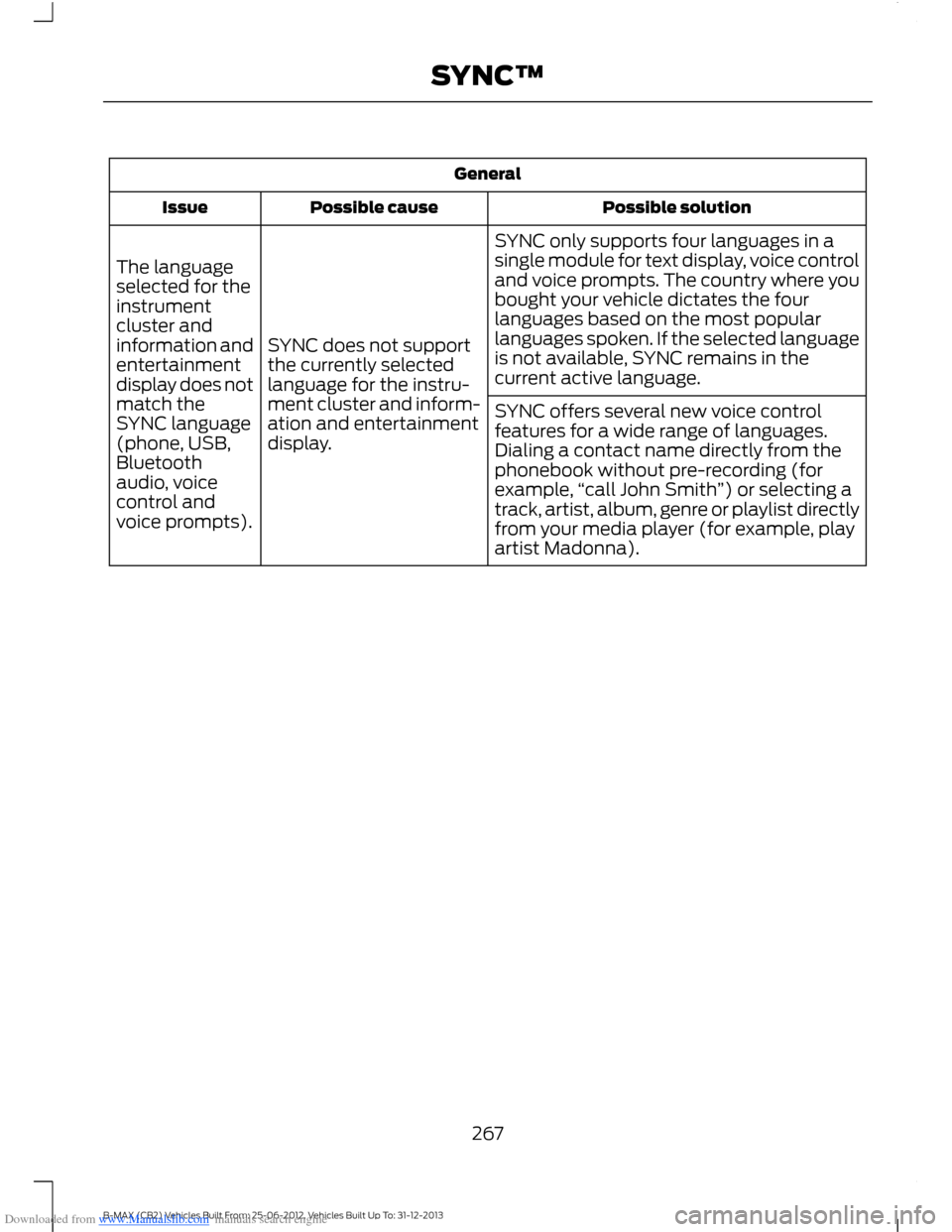
Downloaded from www.Manualslib.com manuals search engine General
Possible solutionPossible causeIssue
SYNC only supports four languages in asingle module for text display, voice controland voice prompts. The country where youbought your vehicle dictates the fourlanguages based on the most popularlanguages spoken. If the selected languageis not available, SYNC remains in thecurrent active language.
SYNC does not supportthe currently selectedlanguage for the instru-ment cluster and inform-ation and entertainmentdisplay.
The languageselected for theinstrumentcluster andinformation andentertainmentdisplay does notmatch theSYNC language(phone, USB,Bluetoothaudio, voicecontrol andvoice prompts).
SYNC offers several new voice controlfeatures for a wide range of languages.Dialing a contact name directly from thephonebook without pre-recording (forexample,“call John Smith”) or selecting atrack, artist, album, genre or playlist directlyfrom your media player (for example, playartist Madonna).
267B-MAX (CB2) Vehicles Built From: 25-06-2012, Vehicles Built Up To: 31-12-2013SYNC™
Page 294 of 298
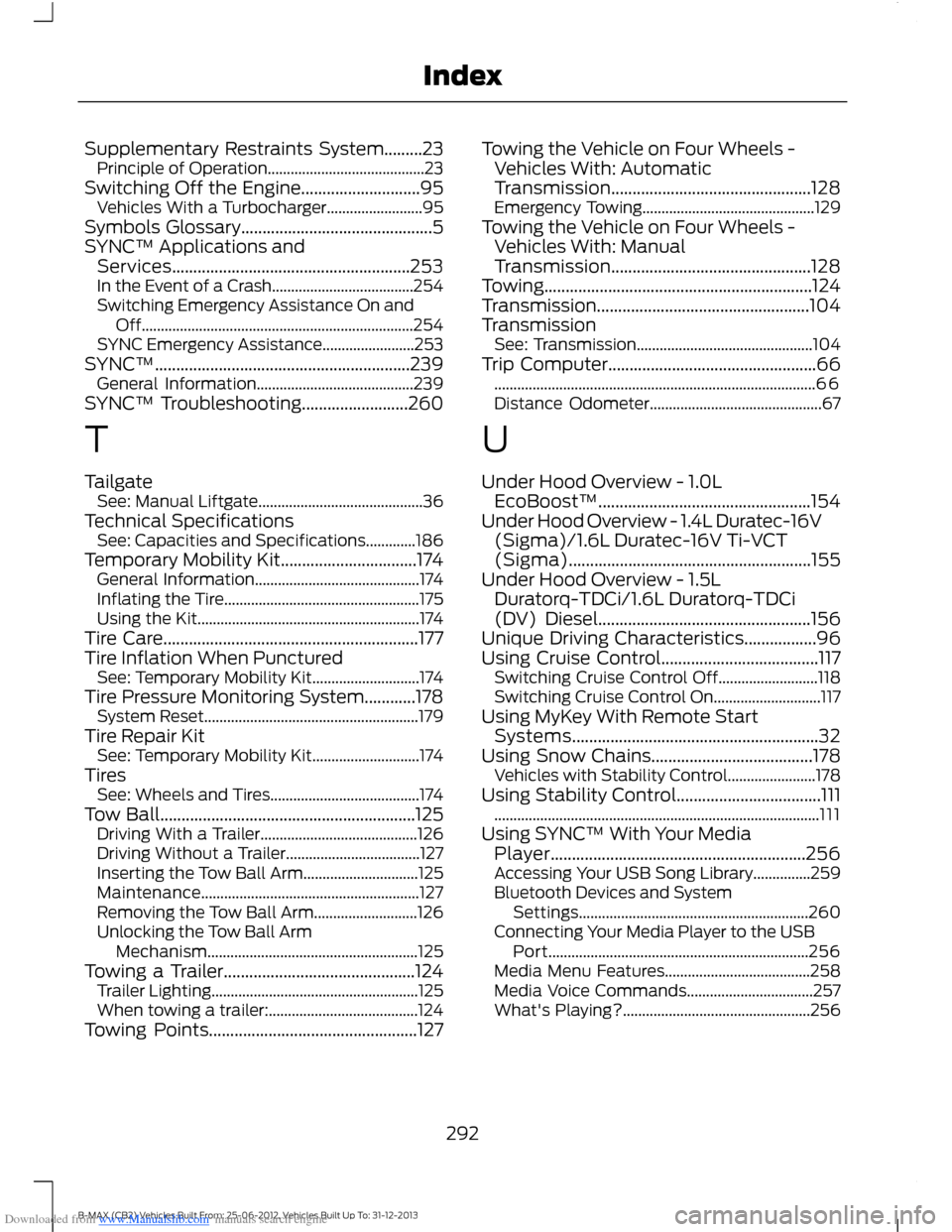
Downloaded from www.Manualslib.com manuals search engine Supplementary Restraints System.........23Principle of Operation.........................................23Switching Off the Engine............................95Vehicles With a Turbocharger.........................95Symbols Glossary.............................................5SYNC™ Applications andServices........................................................253In the Event of a Crash.....................................254Switching Emergency Assistance On andOff.......................................................................254SYNC Emergency Assistance........................253SYNC™............................................................239General Information.........................................239SYNC™ Troubleshooting.........................260
T
TailgateSee: Manual Liftgate...........................................36Technical SpecificationsSee: Capacities and Specifications.............186Temporary Mobility Kit................................174General Information...........................................174Inflating the Tire...................................................175Using the Kit..........................................................174Tire Care............................................................177Tire Inflation When PuncturedSee: Temporary Mobility Kit............................174Tire Pressure Monitoring System............178System Reset........................................................179Tire Repair KitSee: Temporary Mobility Kit............................174TiresSee: Wheels and Tires.......................................174Tow Ball............................................................125Driving With a Trailer.........................................126Driving Without a Trailer...................................127Inserting the Tow Ball Arm..............................125Maintenance.........................................................127Removing the Tow Ball Arm...........................126Unlocking the Tow Ball ArmMechanism.......................................................125Towing a Trailer.............................................124Trailer Lighting......................................................125When towing a trailer:.......................................124Towing Points.................................................127
Towing the Vehicle on Four Wheels -Vehicles With: AutomaticTransmission...............................................128Emergency Towing.............................................129Towing the Vehicle on Four Wheels -Vehicles With: ManualTransmission...............................................128Towing...............................................................124Transmission..................................................104TransmissionSee: Transmission..............................................104Trip Computer.................................................66....................................................................................66Distance Odometer.............................................67
U
Under Hood Overview - 1.0LEcoBoost™..................................................154Under Hood Overview - 1.4L Duratec-16V(Sigma)/1.6L Duratec-16V Ti-VCT(Sigma).........................................................155Under Hood Overview - 1.5LDuratorq-TDCi/1.6L Duratorq-TDCi(DV) Diesel..................................................156Unique Driving Characteristics.................96Using Cruise Control.....................................117Switching Cruise Control Off..........................118Switching Cruise Control On............................117Using MyKey With Remote StartSystems..........................................................32Using Snow Chains......................................178Vehicles with Stability Control.......................178Using Stability Control..................................111.....................................................................................111Using SYNC™ With Your MediaPlayer............................................................256Accessing Your USB Song Library...............259Bluetooth Devices and SystemSettings............................................................260Connecting Your Media Player to the USBPort....................................................................256Media Menu Features......................................258Media Voice Commands.................................257What's Playing?.................................................256
292B-MAX (CB2) Vehicles Built From: 25-06-2012, Vehicles Built Up To: 31-12-2013Index