change time FORD B MAX 2013 1.G User Guide
[x] Cancel search | Manufacturer: FORD, Model Year: 2013, Model line: B MAX, Model: FORD B MAX 2013 1.GPages: 298, PDF Size: 20.63 MB
Page 212 of 298
Downloaded from www.Manualslib.com manuals search engine Seek down: Press the button to go to the next station down the radio frequencyband or the previous track on a CD, When in CD mode. In phone mode use thebutton to begin a phone call. An incoming phone call can be accepted.
V
RADIO: Press the button to select different radio bands, it will also cancel themenu or list browsing.W
CD: Press the button to change source to CD, it will also cancel the menu orlist browsing.X
Volume: Turn the dial to adjust the volume.Y
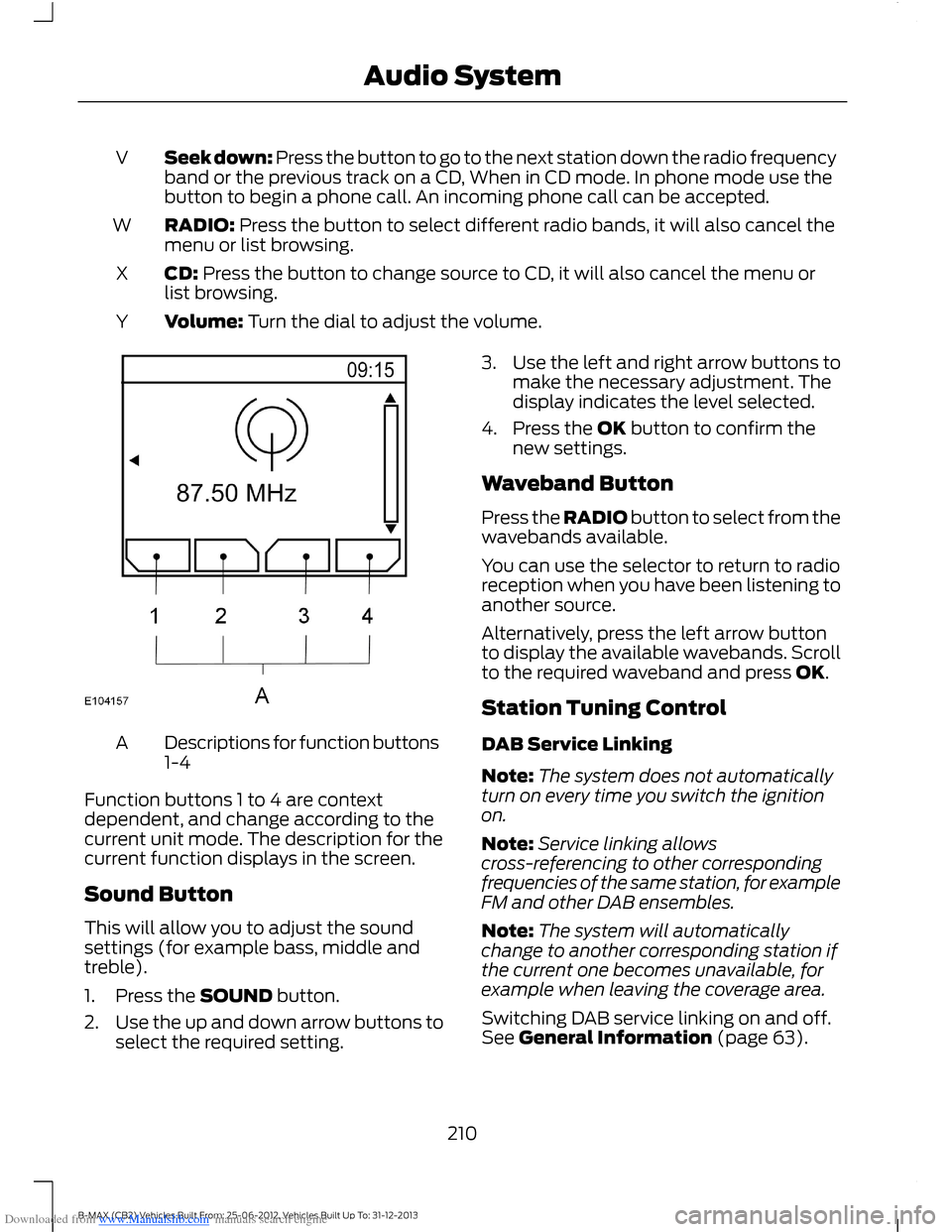
Descriptions for function buttons1-4A
Function buttons 1 to 4 are contextdependent, and change according to thecurrent unit mode. The description for thecurrent function displays in the screen.
Sound Button
This will allow you to adjust the soundsettings (for example bass, middle andtreble).
1.Press the SOUND button.
2.Use the up and down arrow buttons toselect the required setting.
3.Use the left and right arrow buttons tomake the necessary adjustment. Thedisplay indicates the level selected.
4.Press the OK button to confirm thenew settings.
Waveband Button
Press the RADIO button to select from thewavebands available.
You can use the selector to return to radioreception when you have been listening toanother source.
Alternatively, press the left arrow buttonto display the available wavebands. Scrollto the required waveband and press OK.
Station Tuning Control
DAB Service Linking
Note:The system does not automaticallyturn on every time you switch the ignitionon.
Note:Service linking allowscross-referencing to other correspondingfrequencies of the same station, for exampleFM and other DAB ensembles.
Note:The system will automaticallychange to another corresponding station ifthe current one becomes unavailable, forexample when leaving the coverage area.
Switching DAB service linking on and off.See General Information (page 63).
210B-MAX (CB2) Vehicles Built From: 25-06-2012, Vehicles Built Up To: 31-12-2013Audio System
Page 214 of 298
Downloaded from www.Manualslib.com manuals search engine Note:If traffic announcement is on and youselect a preset or manual tune to a nontraffic announcement station no trafficannouncement will be heard.
Note:When you are listening to a nontraffic announcement station and turntraffic announcement off and on again a TPseek will occur.
Traffic Announcement Volume
Traffic announcements interrupt normalbroadcasts at a preset minimum level thatis usually louder than normal listeningvolumes.
To adjust the preset volume:
•Use the volume control to make thenecessary adjustment during anincoming traffic announcementbroadcast. The display will show thelevel selected.
Ending Traffic Announcements
The audio unit will return to normaloperation at the end of each trafficannouncement. To end the announcementprematurely, press TA or TRAFFIC duringthe announcement.
Note:If you press TA or TRAFFIC at anyother time it will switch all announcementsoff.
Automatic Volume Control
When available, automatic volume controladjusts the volume level to compensatefor engine noise and road speed noise.
1.Press the MENU button.
2.Select AUDIO or AUDIO SETTINGS.
3.Select AVC LEVEL or ADAPTIVEVOL.
4.Use the left or right arrow button toadjust the setting.
5.Press the OK button to confirm yourselection.
6.Press the MENU button to return.
Digital Signal Processing
Digital Signal Processing Occupancy
This feature takes into account thedifferences in distance from the variousspeakers in your vehicle to each seat. Youmust select the correct sitting position forthe audio to be correctly set.
Digital Signal Processing Equalizer
Select the music category that most suitsyour listening preference. The audio outputwill change to enhance the particular styleof music chosen.
Changing the Digital Signal ProcessingSettings
1.Press the MENU button.
2.Select AUDIO or AUDIO SETTINGS.
3.Scroll to the required digital signalprocessing function.
4.Press the OK button.
5.Use the up and down arrow buttons toselect the required setting.
6.Press the OK button to confirm yourselection.
7.Press the MENU button to return.
News Broadcasts
Your audio unit may interrupt normalreception to broadcast news bulletins fromstations on the FM waveband, radio datasystem or other enhanced network linkedstations.
The display will indicate there is anincoming announcement, during newsbroadcasts. When the audio unit interruptsfor a news broadcast the preset volumelevel will be the same as trafficannouncements.
1.Press the MENU button.
212B-MAX (CB2) Vehicles Built From: 25-06-2012, Vehicles Built Up To: 31-12-2013Audio System
Page 218 of 298
Downloaded from www.Manualslib.com manuals search engine Seek down: Press the button to go to the next station down the radio frequencyband or the previous track on a CD, when in CD mode. In phone mode use thebutton to begin a phone call. An incoming phone call can be accepted.
V
RADIO: Press the button to select different radio bands, it will also cancel themenu or list browsing.W
CD: Press the button to change source to CD, it will also cancel the menu orlist browsing.X
Volume: Turn the dial to adjust the volume.Y
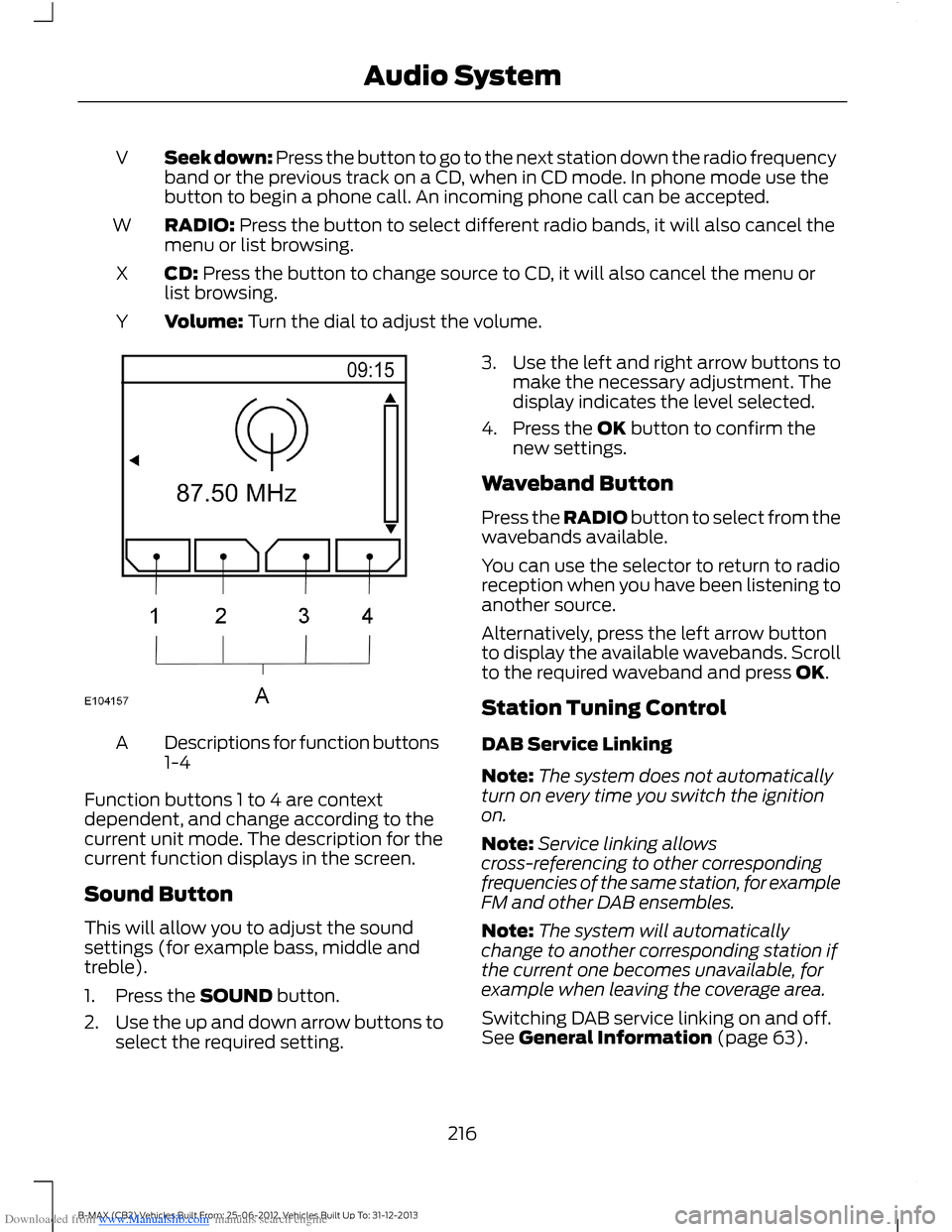
Descriptions for function buttons1-4A
Function buttons 1 to 4 are contextdependent, and change according to thecurrent unit mode. The description for thecurrent function displays in the screen.
Sound Button
This will allow you to adjust the soundsettings (for example bass, middle andtreble).
1.Press the SOUND button.
2.Use the up and down arrow buttons toselect the required setting.
3.Use the left and right arrow buttons tomake the necessary adjustment. Thedisplay indicates the level selected.
4.Press the OK button to confirm thenew settings.
Waveband Button
Press the RADIO button to select from thewavebands available.
You can use the selector to return to radioreception when you have been listening toanother source.
Alternatively, press the left arrow buttonto display the available wavebands. Scrollto the required waveband and press OK.
Station Tuning Control
DAB Service Linking
Note:The system does not automaticallyturn on every time you switch the ignitionon.
Note:Service linking allowscross-referencing to other correspondingfrequencies of the same station, for exampleFM and other DAB ensembles.
Note:The system will automaticallychange to another corresponding station ifthe current one becomes unavailable, forexample when leaving the coverage area.
Switching DAB service linking on and off.See General Information (page 63).
216B-MAX (CB2) Vehicles Built From: 25-06-2012, Vehicles Built Up To: 31-12-2013Audio System
Page 220 of 298
Downloaded from www.Manualslib.com manuals search engine Note:If traffic announcement is on and youselect a preset or manual tune to a nontraffic announcement station no trafficannouncement will be heard.
Note:When you are listening to a nontraffic announcement station and turntraffic announcement off and on again a TPseek will occur.
Traffic Announcement Volume
Traffic announcements interrupt normalbroadcasts at a preset minimum level thatis usually louder than normal listeningvolumes.
To adjust the preset volume:
•Use the volume control to make thenecessary adjustment during anincoming traffic announcementbroadcast. The display will show thelevel selected.
Ending Traffic Announcements
The audio unit will return to normaloperation at the end of each trafficannouncement. To end the announcementprematurely, press TA or TRAFFIC duringthe announcement.
Note:If you press TA or TRAFFIC at anyother time it will switch all announcementsoff.
Automatic Volume Control
When available, automatic volume controladjusts the volume level to compensatefor engine noise and road speed noise.
1.Press the MENU button.
2.Select AUDIO or AUDIO SETTINGS.
3.Select AVC LEVEL or ADAPTIVEVOL.
4.Use the left or right arrow button toadjust the setting.
5.Press the OK button to confirm yourselection.
6.Press the MENU button to return.
Digital Signal Processing
Digital Signal Processing Occupancy
This feature takes into account thedifferences in distance from the variousspeakers in your vehicle to each seat. Youmust select the correct sitting position forthe audio to be correctly set.
Digital Signal Processing Equalizer
Select the music category that most suitsyour listening preference. The audio outputwill change to enhance the particular styleof music chosen.
Changing the Digital Signal ProcessingSettings
1.Press the MENU button.
2.Select AUDIO or AUDIO SETTINGS.
3.Scroll to the required digital signalprocessing function.
4.Press the OK button.
5.Use the up and down arrow buttons toselect the required setting.
6.Press the OK button to confirm yourselection.
7.Press the MENU button to return.
News Broadcasts
Your audio unit may interrupt normalreception to broadcast news bulletins fromstations on the FM waveband, radio datasystem or other enhanced network linkedstations.
The display will indicate there is anincoming announcement, during newsbroadcasts. When the audio unit interruptsfor a news broadcast the preset volumelevel will be the same as trafficannouncements.
1.Press the MENU button.
218B-MAX (CB2) Vehicles Built From: 25-06-2012, Vehicles Built Up To: 31-12-2013Audio System
Page 222 of 298
Downloaded from www.Manualslib.com manuals search engine Note:Coverage differs from region to regionand will influence the quality of reception.It is broadcast nationwide, regionally andlocally.
The following formats are supported:
•DAB
•DAB+
•DMB-Audio (Digital MultimediaBroadcasting).
Ensembles
Ensembles contain a group of radiostations. Each ensemble can consist ofseveral different radio stations.
The radio station name displays below theensemble name.
Note:When you tune from one ensembleto another, it can take a while until thesystem synchronizes to the next ensemble.The system mutes during synchronization.
Selecting Radio Band
DAB1 and DAB2 operate in the same way.You can store up to 10 different presets oneach band.
1.Press the RADIO button.
2.Press the left arrow button to displaythe available wavebands.
3.Select DAB1 or DAB2.
Radio Station Tuning Control
Press the RADIO button and select DAB1or DAB2. Both preset banks operate in thesame way and can store up to 10 differentpreset radio stations.
Note:When you reach the first or last radiostation within an ensemble, further tuningwill skip to the next ensemble. There maybe a delay during this change and the audiowill briefly mute.
Seek Tuning
1.Press a seek button. The system willstop at the first radio station it finds inthe direction chosen.
Radio Station List
This feature displays all the available radiostations in a list.
1.Press function button 1.
2.Press the left or right arrow buttons tochange ensembles. Press the up ordown arrow button to navigate to yourrequired radio station.
3.Press OK to confirm your selection.
Note:The display will only show radiostations in the current ensemble.
Manual Tuning
1.Press function button 2.
2.Press the left or right arrow button totune up or down the waveband in smallincrements. Press and hold to movethrough the waveband quickly.
3.Press OK to confirm your selection.
Note:Seek tuning is also possible withinthis screen.
Radio Station Preset Buttons
This feature allows you to store up to 10favorite radio stations from any ensemblein each preset bank.
1.Select a radio station.
2.Press and hold one of the presetbuttons. A progress bar and messagewill appear. When the progress barcompletes the radio station has beenstored. The system will mutemomentarily as confirmation.
Once stored press a preset button at anytime to select a favourite radio station.
220B-MAX (CB2) Vehicles Built From: 25-06-2012, Vehicles Built Up To: 31-12-2013Audio System
Page 225 of 298
Downloaded from www.Manualslib.com manuals search engine Playing a Multi Session Disc
When the first track of the first session isaudio CD data only, the audio CD data ofthe first session is played back. Non-audioCD data, MP3 or WMA file information(track number, time, etc.) is displayed withno sound.
When the first track of the first session isnot audio CD data:
•If an MP3 or WMA file is on the disc,only MP3, WMA or other data isskipped. Audio CD data is notrecognized.
•If no MP3 or WMA file is in the disc,nothing is played back. Audio CD datais not recognized.
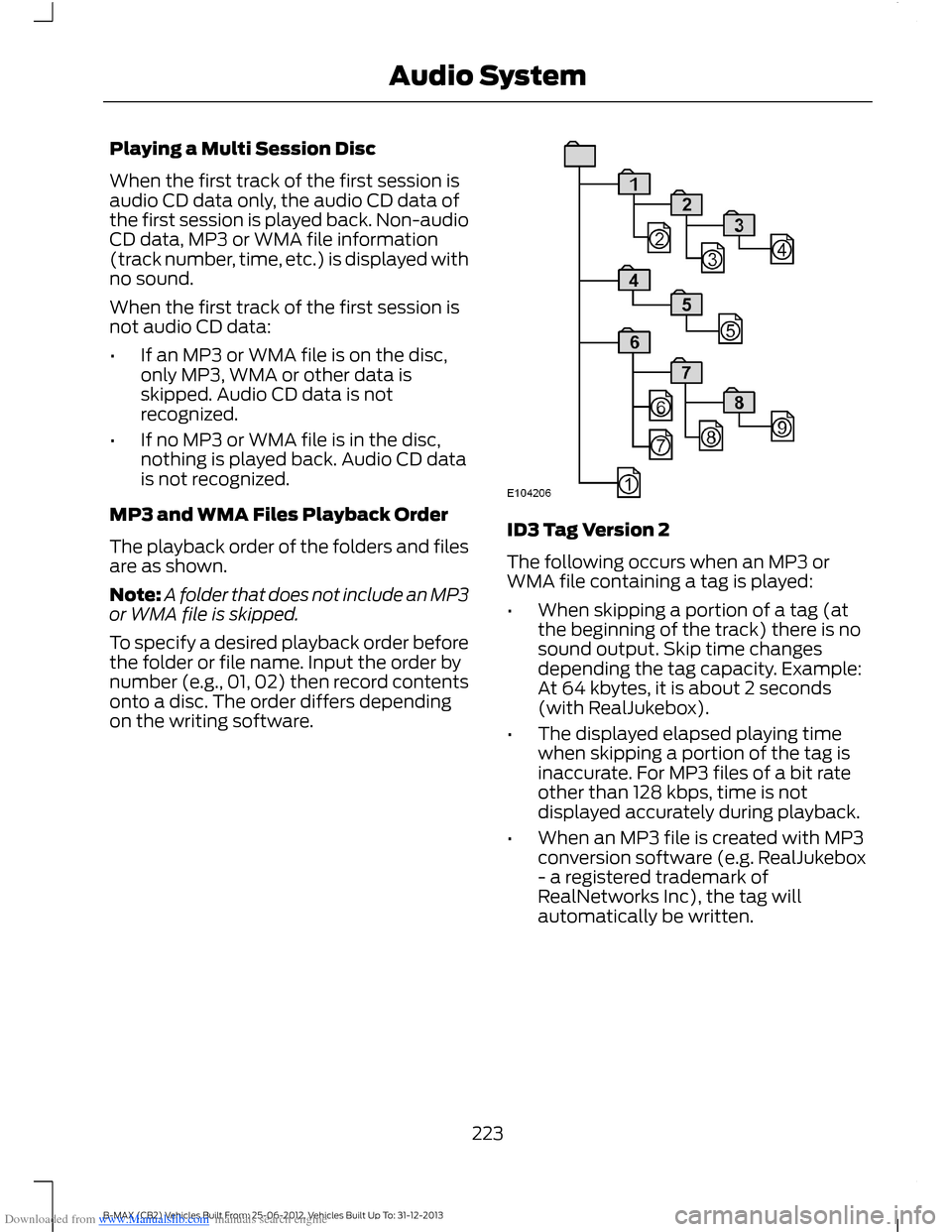
MP3 and WMA Files Playback Order
The playback order of the folders and filesare as shown.
Note:A folder that does not include an MP3or WMA file is skipped.
To specify a desired playback order beforethe folder or file name. Input the order bynumber (e.g., 01, 02) then record contentsonto a disc. The order differs dependingon the writing software.
ID3 Tag Version 2
The following occurs when an MP3 orWMA file containing a tag is played:
•When skipping a portion of a tag (atthe beginning of the track) there is nosound output. Skip time changesdepending the tag capacity. Example:At 64 kbytes, it is about 2 seconds(with RealJukebox).
•The displayed elapsed playing timewhen skipping a portion of the tag isinaccurate. For MP3 files of a bit rateother than 128 kbps, time is notdisplayed accurately during playback.
•When an MP3 file is created with MP3conversion software (e.g. RealJukebox- a registered trademark ofRealNetworks Inc), the tag willautomatically be written.
223B-MAX (CB2) Vehicles Built From: 25-06-2012, Vehicles Built Up To: 31-12-2013Audio System
Page 229 of 298
Downloaded from www.Manualslib.com manuals search engine •When skipping a portion of a tag (atthe beginning of the track) there is nosound output. Skip time changesdepending on the tag capacity.Example: At 64 kbytes, it is about 2seconds (with RealJukebox).
•The displayed elapsed playing timewhen skipping a portion of the tag isinaccurate. For MP3 files of a bit rateother than 128 kbps, time does notdisplay accurately during playback.
•When an MP3 file is created with MP3conversion software (such asRealJukebox - a registered trademarkof RealNetworks Inc.), the taggenerates automatically.
MP3 or WMA Navigation
You can record MP3 tracks on the CD inseveral ways. You can place them in theroot directory like a conventional audio CD,or in folders that may represent categories,such as album, artist, or genre.
The normal playing sequence on CDs withmultiple folders is:
•Play the tracks within the root (toplevel) first
•Then the tracks in any folder(s) withinthe root
•Then move onto the second folder, andso forth.
To navigate to a track:
1.Press the up or down arrow buttons toenter the track list.
2.Navigate the hierarchy using the arrowbuttons to select another folder ortrack (file).
3.Press OK to select a highlighted track.
MP3 and WMA Display Options
When an MP3 or WMA disc is playing,certain information encoded in each trackcan display. Such information normallyincludes:
•The file name.
•The folder name.
•ID3 information, which might be thealbum or artist name.
The unit normally shows the file name thatis playing. To select one of the other itemsof information, press INFO repeatedly untilthe required item appears in the display.
Note:If the ID3 information selected isunavailable,NO MP3 or WMA TAG appearsin the display.
CD Text Display Options
When an audio disc with CD text is playing,limited information encoded in each trackcan display. Such information normallyincludes:
•The disc name.
•The artist name.
•The track name.
Note:You can select these display optionsin the same way as MP3 displays.NO DISCNAME or NO TRACK NAME appears in thedisplay if there is no encoded information.
Ending Compact Disc Playback
To restore radio reception on all units,press RADIO.
Note:The CD does not eject. The discpauses at the point where radio receptionreturned.
To resume CD playback, press CD again.
227B-MAX (CB2) Vehicles Built From: 25-06-2012, Vehicles Built Up To: 31-12-2013Audio System
Page 236 of 298
Downloaded from www.Manualslib.com manuals search engine Fast
This option will calculate your time ofarrival based on a fast drive to thedestination.
Eco Settings
Trailer
Use this feature to change the economysettings of your journey relating to whetheror not you are towing a trailer and if so thesize of trailer being towed.
Roof Box
Use this feature to change the economysettings of your journey relating to the useof a roof box.
Dynamic
When switched on, and if the unit isreceiving a valid traffic message channelsignal, the route will be automaticallyupdated to take into account real timetraffic incidents or congestion.
Note:This feature can be useful in avoidingdelays or hold ups on journeys.
Freeway
When switched off the system will avoidfreeways on your route and automaticallyupdate your route distance and timings.
Tunnel
When switched off the system will avoidtunnels on your route and automaticallyupdate your route distance and timings.
Ferries and Car Trains
When switched off the system will avoidferry crossings and car train facilities onyour route and automatically update yourroute distance and timings.
Toll
When switched off the system will avoidtoll roads on your route and automaticallyupdate your route distance and timings.
Seasonal Roads
When switched off the system will avoidseasonal roads (for example, mountainpasses) on your route and automaticallyupdate your route distance and timings.
Toll Sticker
When switched off the system will avoidtoll routes and automatically update yourroute distance and timings.
Information
Press the information button to viewdetails of your current location or journey.During active route guidance pressing thisbutton will repeat the last navigationinstruction.
Setting Your NavigationPreferences
Select settings for the system to take intoaccount when planning your route.
234B-MAX (CB2) Vehicles Built From: 25-06-2012, Vehicles Built Up To: 31-12-2013Navigation
Page 238 of 298
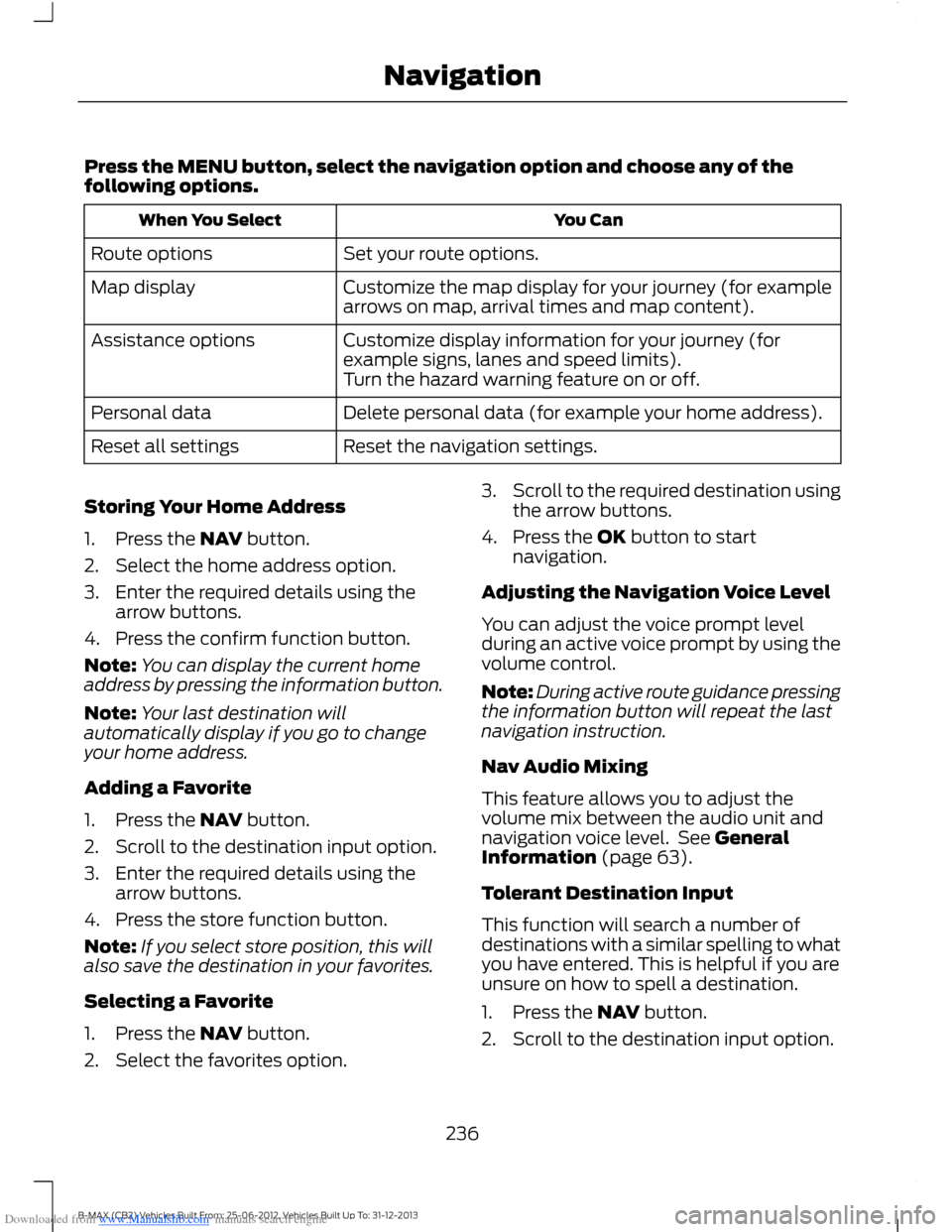
Downloaded from www.Manualslib.com manuals search engine Press the MENU button, select the navigation option and choose any of thefollowing options.
You CanWhen You Select
Set your route options.Route options
Customize the map display for your journey (for examplearrows on map, arrival times and map content).Map display
Customize display information for your journey (forexample signs, lanes and speed limits).Assistance options
Turn the hazard warning feature on or off.
Delete personal data (for example your home address).Personal data
Reset the navigation settings.Reset all settings
Storing Your Home Address
1.Press the NAV button.
2.Select the home address option.
3.Enter the required details using thearrow buttons.
4.Press the confirm function button.
Note:You can display the current homeaddress by pressing the information button.
Note:Your last destination willautomatically display if you go to changeyour home address.
Adding a Favorite
1.Press the NAV button.
2.Scroll to the destination input option.
3.Enter the required details using thearrow buttons.
4.Press the store function button.
Note:If you select store position, this willalso save the destination in your favorites.
Selecting a Favorite
1.Press the NAV button.
2.Select the favorites option.
3.Scroll to the required destination usingthe arrow buttons.
4.Press the OK button to startnavigation.
Adjusting the Navigation Voice Level
You can adjust the voice prompt levelduring an active voice prompt by using thevolume control.
Note:During active route guidance pressingthe information button will repeat the lastnavigation instruction.
Nav Audio Mixing
This feature allows you to adjust thevolume mix between the audio unit andnavigation voice level. See GeneralInformation (page 63).
Tolerant Destination Input
This function will search a number ofdestinations with a similar spelling to whatyou have entered. This is helpful if you areunsure on how to spell a destination.
1.Press the NAV button.
2.Scroll to the destination input option.
236B-MAX (CB2) Vehicles Built From: 25-06-2012, Vehicles Built Up To: 31-12-2013Navigation
Page 239 of 298
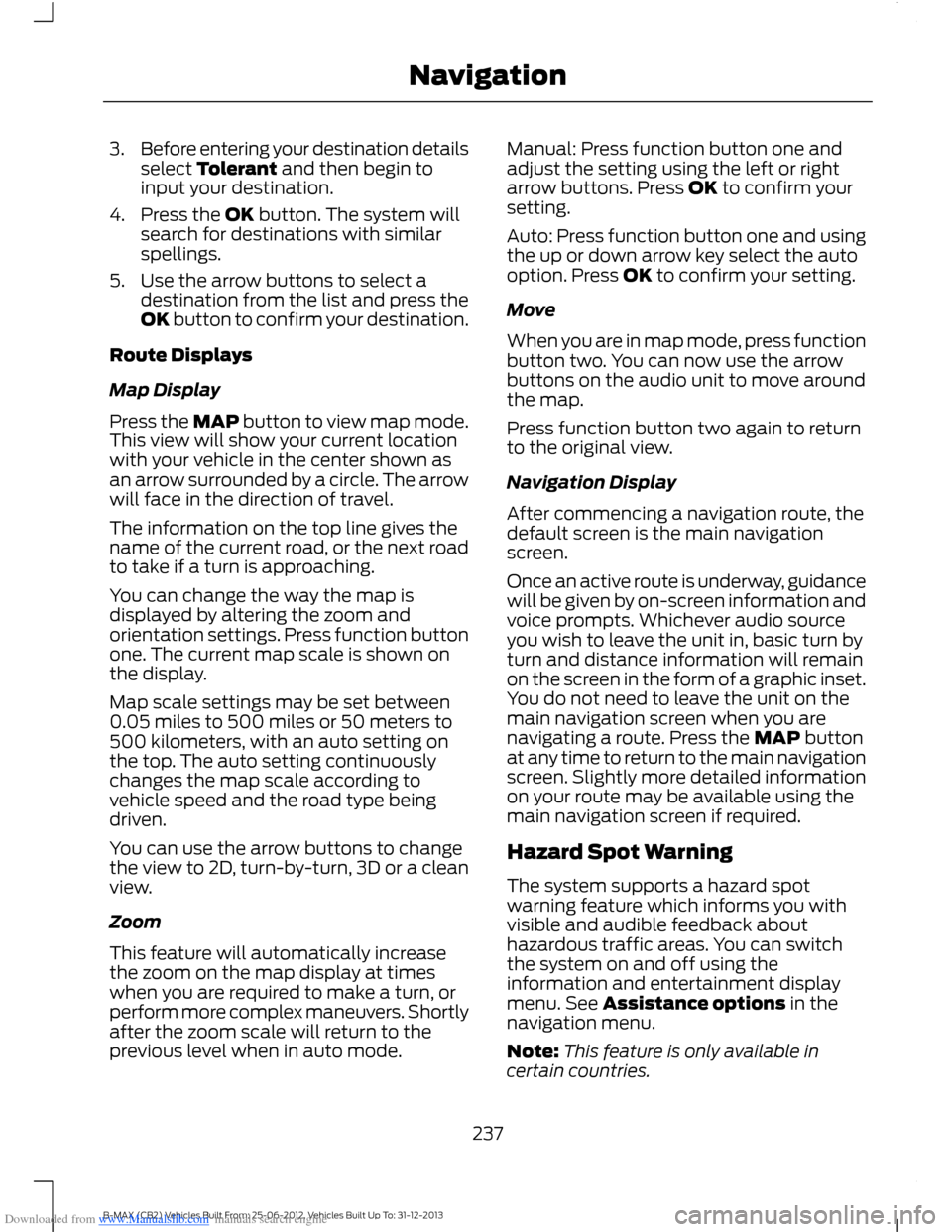
Downloaded from www.Manualslib.com manuals search engine 3.Before entering your destination detailsselect Tolerant and then begin toinput your destination.
4.Press the OK button. The system willsearch for destinations with similarspellings.
5.Use the arrow buttons to select adestination from the list and press theOK button to confirm your destination.
Route Displays
Map Display
Press the MAP button to view map mode.This view will show your current locationwith your vehicle in the center shown asan arrow surrounded by a circle. The arrowwill face in the direction of travel.
The information on the top line gives thename of the current road, or the next roadto take if a turn is approaching.
You can change the way the map isdisplayed by altering the zoom andorientation settings. Press function buttonone. The current map scale is shown onthe display.
Map scale settings may be set between0.05 miles to 500 miles or 50 meters to500 kilometers, with an auto setting onthe top. The auto setting continuouslychanges the map scale according tovehicle speed and the road type beingdriven.
You can use the arrow buttons to changethe view to 2D, turn-by-turn, 3D or a cleanview.
Zoom
This feature will automatically increasethe zoom on the map display at timeswhen you are required to make a turn, orperform more complex maneuvers. Shortlyafter the zoom scale will return to theprevious level when in auto mode.
Manual: Press function button one andadjust the setting using the left or rightarrow buttons. Press OK to confirm yoursetting.
Auto: Press function button one and usingthe up or down arrow key select the autooption. Press OK to confirm your setting.
Move
When you are in map mode, press functionbutton two. You can now use the arrowbuttons on the audio unit to move aroundthe map.
Press function button two again to returnto the original view.
Navigation Display
After commencing a navigation route, thedefault screen is the main navigationscreen.
Once an active route is underway, guidancewill be given by on-screen information andvoice prompts. Whichever audio sourceyou wish to leave the unit in, basic turn byturn and distance information will remainon the screen in the form of a graphic inset.You do not need to leave the unit on themain navigation screen when you arenavigating a route. Press the MAP buttonat any time to return to the main navigationscreen. Slightly more detailed informationon your route may be available using themain navigation screen if required.
Hazard Spot Warning
The system supports a hazard spotwarning feature which informs you withvisible and audible feedback abouthazardous traffic areas. You can switchthe system on and off using theinformation and entertainment displaymenu. See Assistance options in thenavigation menu.
Note:This feature is only available incertain countries.
237B-MAX (CB2) Vehicles Built From: 25-06-2012, Vehicles Built Up To: 31-12-2013Navigation