ECU FORD B MAX 2013 1.G Owner's Manual
[x] Cancel search | Manufacturer: FORD, Model Year: 2013, Model line: B MAX, Model: FORD B MAX 2013 1.GPages: 298, PDF Size: 20.63 MB
Page 155 of 298
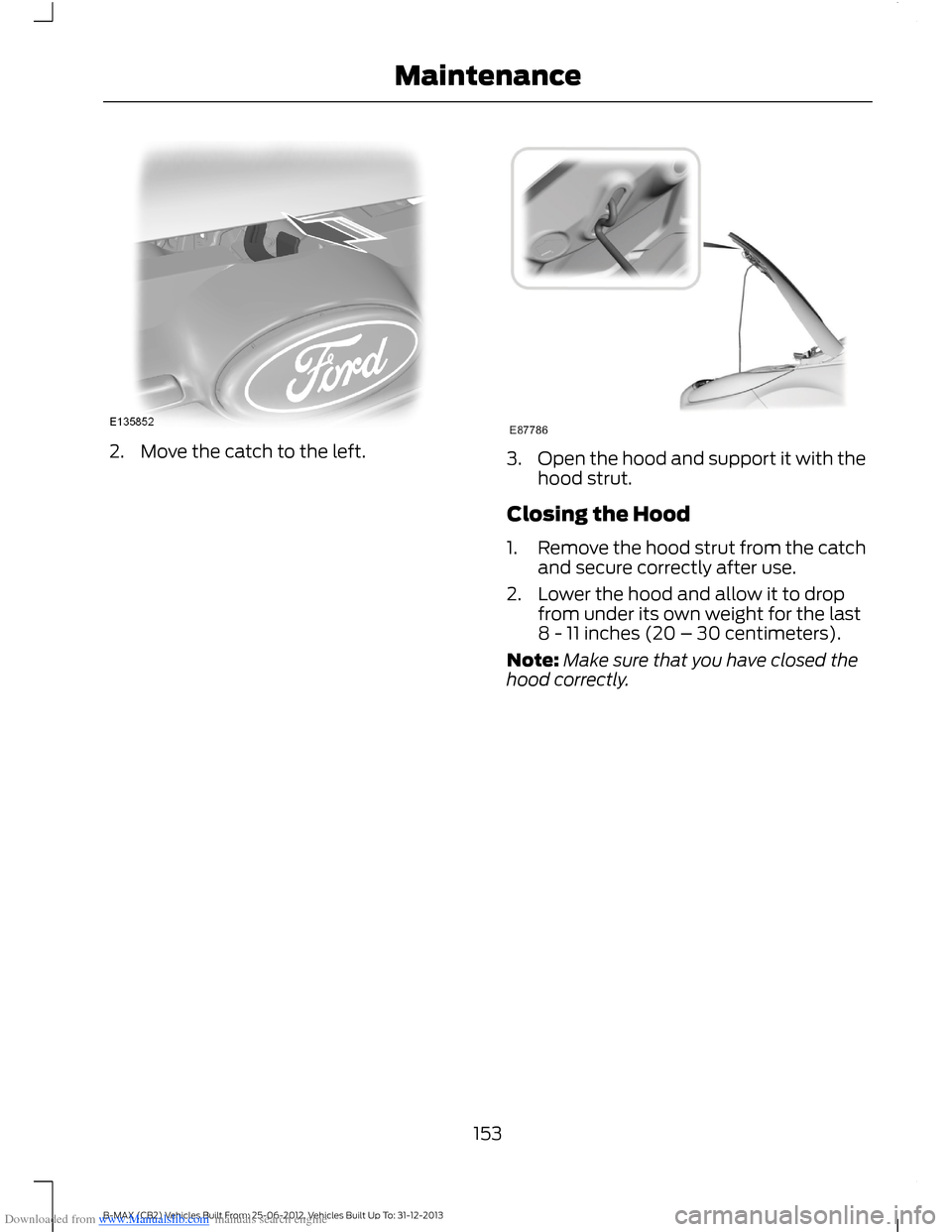
Downloaded from www.Manualslib.com manuals search engine 2.Move the catch to the left.3.Open the hood and support it with thehood strut.
Closing the Hood
1.Remove the hood strut from the catchand secure correctly after use.
2.Lower the hood and allow it to dropfrom under its own weight for the last8 - 11 inches (20 – 30 centimeters).
Note:Make sure that you have closed thehood correctly.
153B-MAX (CB2) Vehicles Built From: 25-06-2012, Vehicles Built Up To: 31-12-2013Maintenance
Page 184 of 298
Downloaded from www.Manualslib.com manuals search engine Note:Make sure that you pull the wheeltrim remover at right angles to the trim.
Removing a Road Wheel
WARNINGS
Park your vehicle in such a positionthat neither the traffic nor you arehindered or endangered.
Set up a warning triangle.
Make sure that your vehicle is on firm,level ground with the wheels pointingstraight ahead.
Switch the ignition off and apply theparking brake.
If your vehicle has a manualtransmission, move the selector leverto first or reverse gear. If it has anautomatic transmission, move the selectorlever to position (P).
Have the passengers leave yourvehicle.
Secure the diagonally oppositewheel with an appropriate block orwheel chock.
Make sure that the arrows ondirectional tires point in the directionof rotation when your vehicle ismoving forward. If you have to fit a sparewheel with the arrows pointing in theopposite direction, have the tire refitted inthe correct direction by an authorizeddealer.
Do not work underneath your vehiclewhen it is supported only by a jack.
Make sure that the jack is vertical tothe jacking point and the base is flaton the ground.
Note:Do not lay alloy wheels face downon the ground, this will damage the paint.
Note:The spare wheel is located under thefloor cover in the luggage compartment.
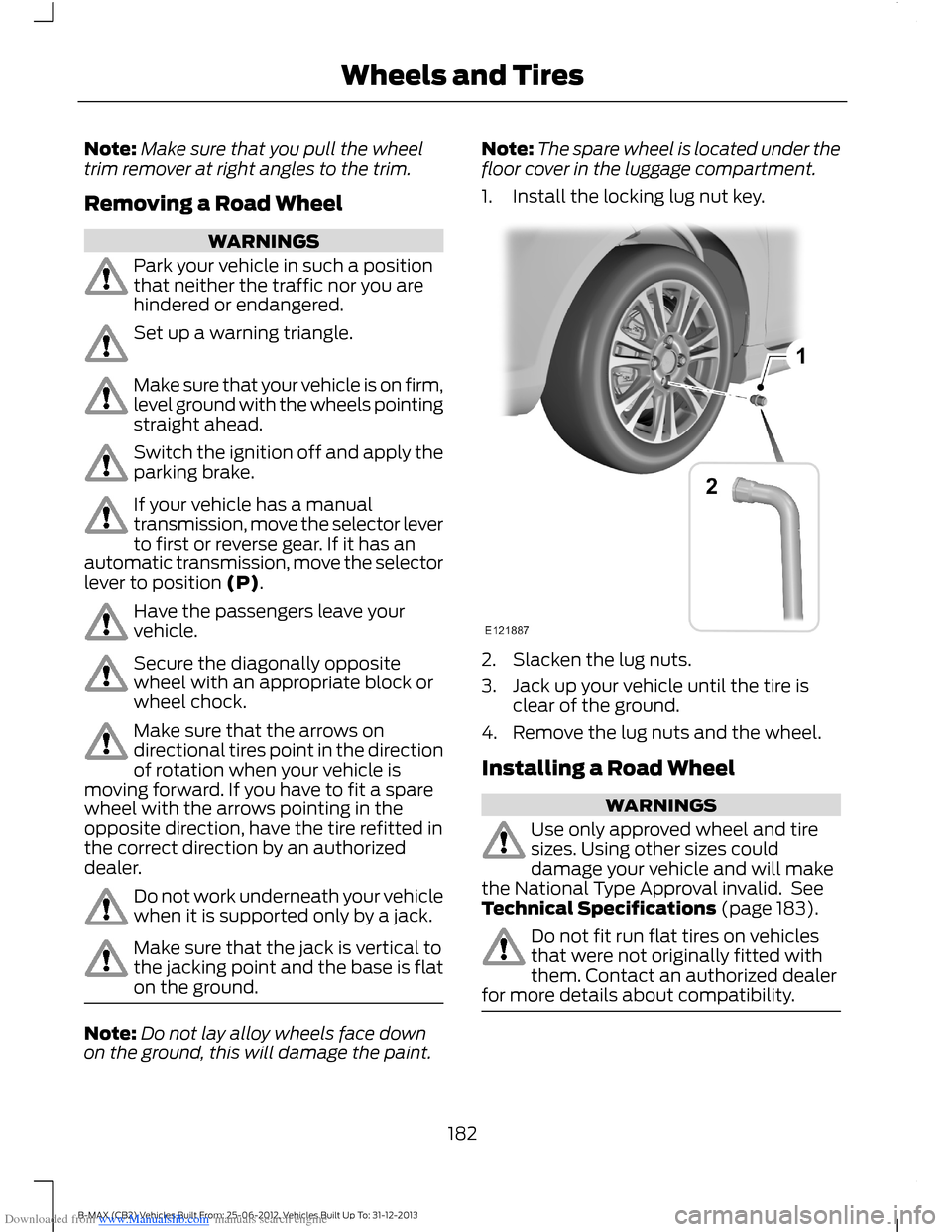
1.Install the locking lug nut key.
2.Slacken the lug nuts.
3.Jack up your vehicle until the tire isclear of the ground.
4.Remove the lug nuts and the wheel.
Installing a Road Wheel
WARNINGS
Use only approved wheel and tiresizes. Using other sizes coulddamage your vehicle and will makethe National Type Approval invalid. SeeTechnical Specifications (page 183).
Do not fit run flat tires on vehiclesthat were not originally fitted withthem. Contact an authorized dealerfor more details about compatibility.
182B-MAX (CB2) Vehicles Built From: 25-06-2012, Vehicles Built Up To: 31-12-2013Wheels and Tires
Page 201 of 298
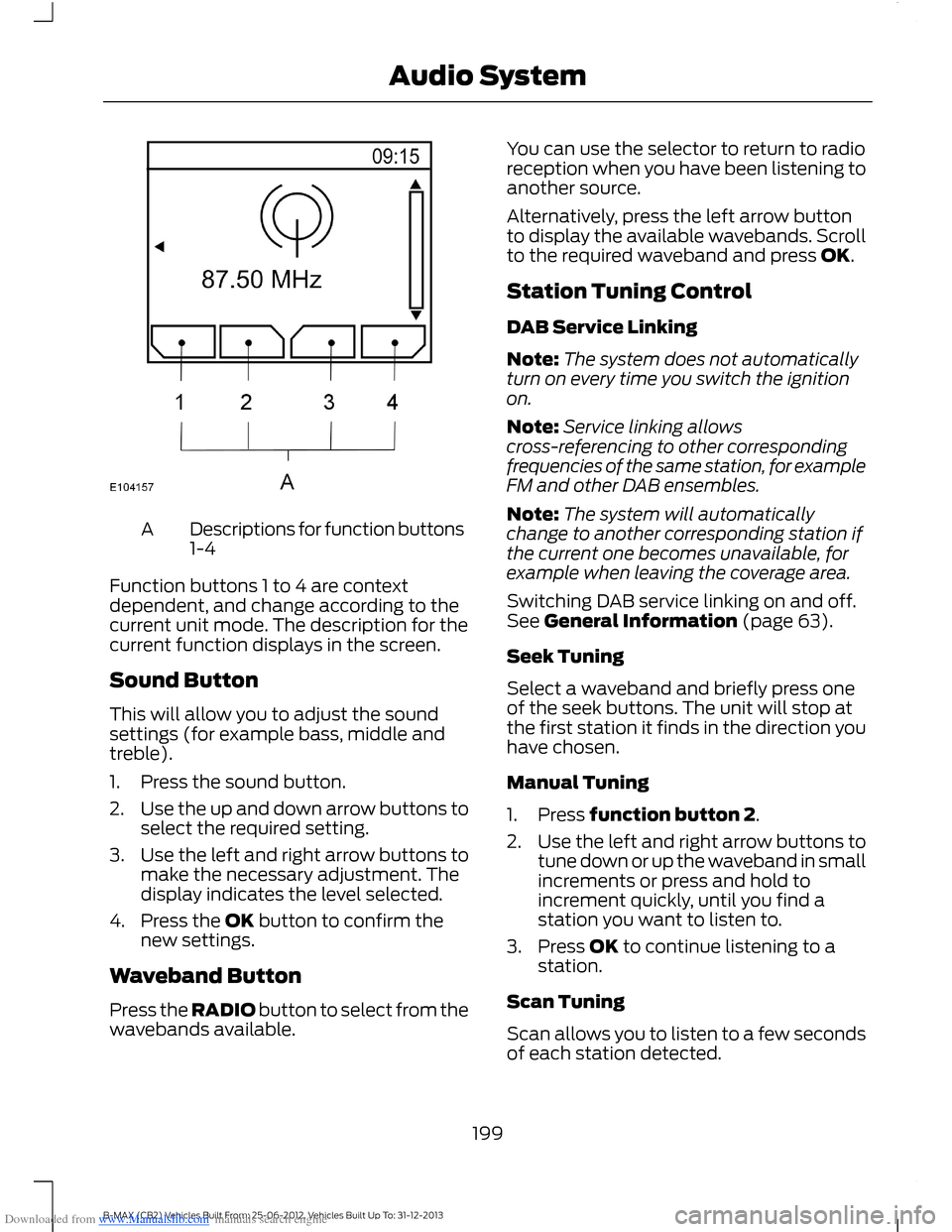
Downloaded from www.Manualslib.com manuals search engine Descriptions for function buttons1-4A
Function buttons 1 to 4 are contextdependent, and change according to thecurrent unit mode. The description for thecurrent function displays in the screen.
Sound Button
This will allow you to adjust the soundsettings (for example bass, middle andtreble).
1.Press the sound button.
2.Use the up and down arrow buttons toselect the required setting.
3.Use the left and right arrow buttons tomake the necessary adjustment. Thedisplay indicates the level selected.
4.Press the OK button to confirm thenew settings.
Waveband Button
Press the RADIO button to select from thewavebands available.
You can use the selector to return to radioreception when you have been listening toanother source.
Alternatively, press the left arrow buttonto display the available wavebands. Scrollto the required waveband and press OK.
Station Tuning Control
DAB Service Linking
Note:The system does not automaticallyturn on every time you switch the ignitionon.
Note:Service linking allowscross-referencing to other correspondingfrequencies of the same station, for exampleFM and other DAB ensembles.
Note:The system will automaticallychange to another corresponding station ifthe current one becomes unavailable, forexample when leaving the coverage area.
Switching DAB service linking on and off.See General Information (page 63).
Seek Tuning
Select a waveband and briefly press oneof the seek buttons. The unit will stop atthe first station it finds in the direction youhave chosen.
Manual Tuning
1.Press function button 2.
2.Use the left and right arrow buttons totune down or up the waveband in smallincrements or press and hold toincrement quickly, until you find astation you want to listen to.
3.Press OK to continue listening to astation.
Scan Tuning
Scan allows you to listen to a few secondsof each station detected.
199B-MAX (CB2) Vehicles Built From: 25-06-2012, Vehicles Built Up To: 31-12-2013Audio System
Page 207 of 298
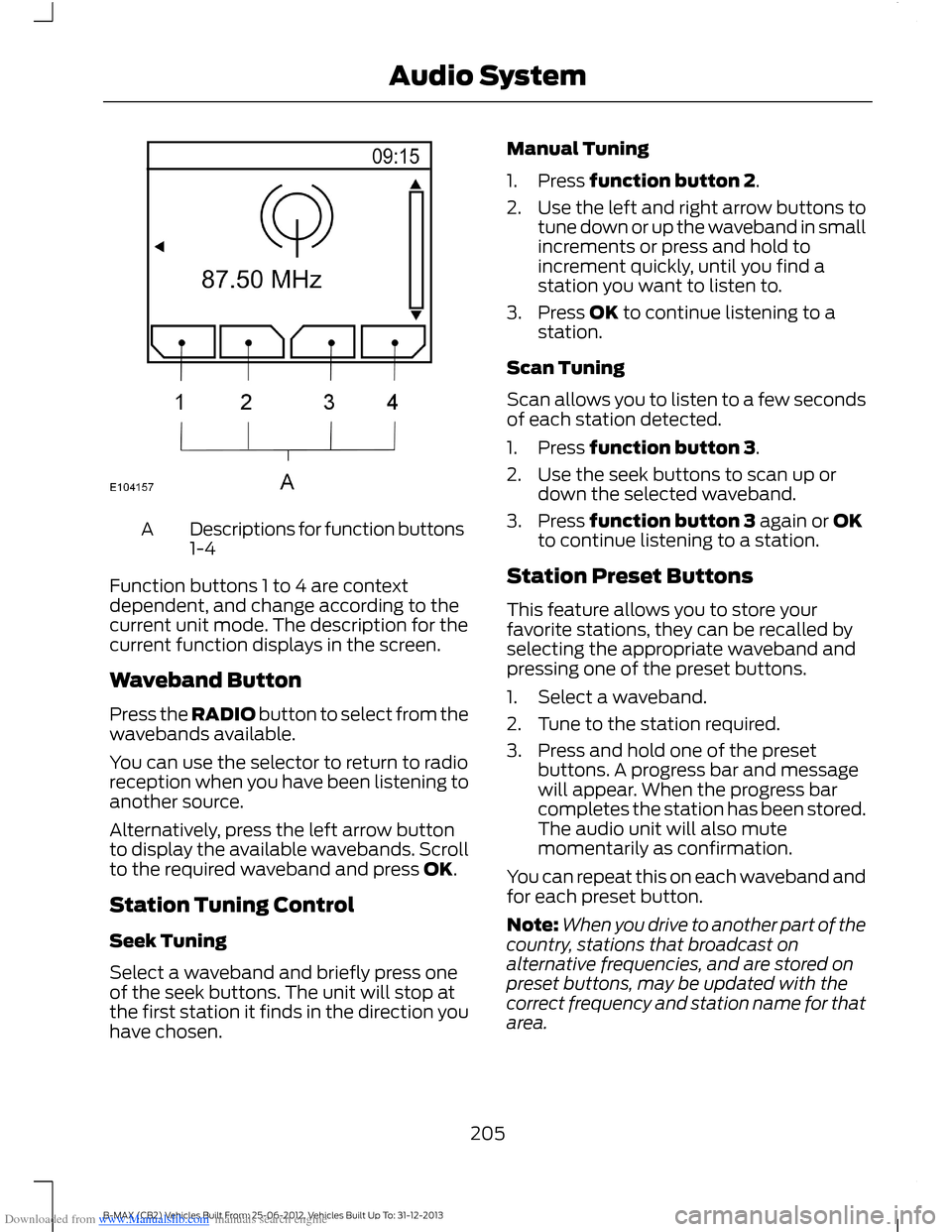
Downloaded from www.Manualslib.com manuals search engine Descriptions for function buttons1-4A
Function buttons 1 to 4 are contextdependent, and change according to thecurrent unit mode. The description for thecurrent function displays in the screen.
Waveband Button
Press the RADIO button to select from thewavebands available.
You can use the selector to return to radioreception when you have been listening toanother source.
Alternatively, press the left arrow buttonto display the available wavebands. Scrollto the required waveband and press OK.
Station Tuning Control
Seek Tuning
Select a waveband and briefly press oneof the seek buttons. The unit will stop atthe first station it finds in the direction youhave chosen.
Manual Tuning
1.Press function button 2.
2.Use the left and right arrow buttons totune down or up the waveband in smallincrements or press and hold toincrement quickly, until you find astation you want to listen to.
3.Press OK to continue listening to astation.
Scan Tuning
Scan allows you to listen to a few secondsof each station detected.
1.Press function button 3.
2.Use the seek buttons to scan up ordown the selected waveband.
3.Press function button 3 again or OKto continue listening to a station.
Station Preset Buttons
This feature allows you to store yourfavorite stations, they can be recalled byselecting the appropriate waveband andpressing one of the preset buttons.
1.Select a waveband.
2.Tune to the station required.
3.Press and hold one of the presetbuttons. A progress bar and messagewill appear. When the progress barcompletes the station has been stored.The audio unit will also mutemomentarily as confirmation.
You can repeat this on each waveband andfor each preset button.
Note:When you drive to another part of thecountry, stations that broadcast onalternative frequencies, and are stored onpreset buttons, may be updated with thecorrect frequency and station name for thatarea.
205B-MAX (CB2) Vehicles Built From: 25-06-2012, Vehicles Built Up To: 31-12-2013Audio System
Page 212 of 298
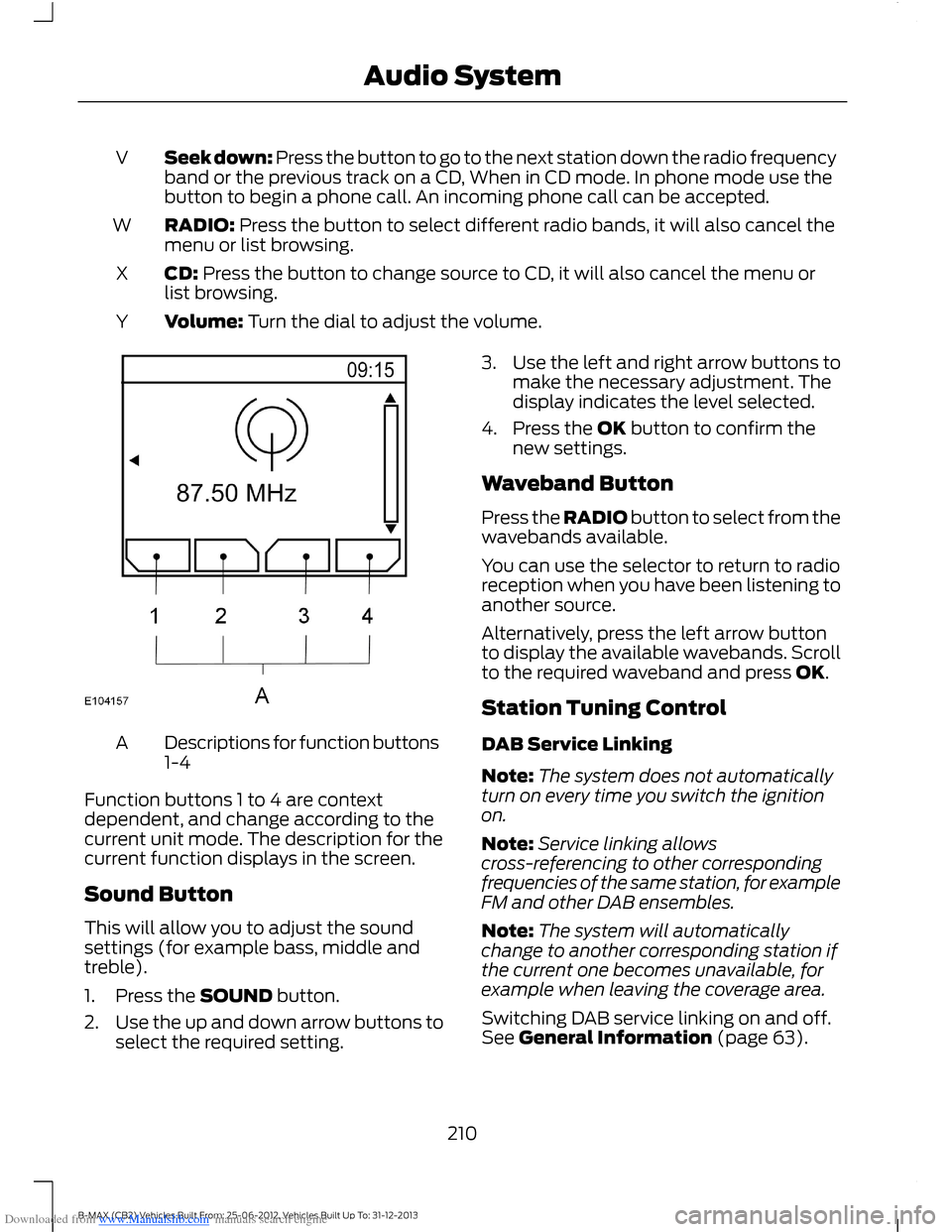
Downloaded from www.Manualslib.com manuals search engine Seek down: Press the button to go to the next station down the radio frequencyband or the previous track on a CD, When in CD mode. In phone mode use thebutton to begin a phone call. An incoming phone call can be accepted.
V
RADIO: Press the button to select different radio bands, it will also cancel themenu or list browsing.W
CD: Press the button to change source to CD, it will also cancel the menu orlist browsing.X
Volume: Turn the dial to adjust the volume.Y
Descriptions for function buttons1-4A
Function buttons 1 to 4 are contextdependent, and change according to thecurrent unit mode. The description for thecurrent function displays in the screen.
Sound Button
This will allow you to adjust the soundsettings (for example bass, middle andtreble).
1.Press the SOUND button.
2.Use the up and down arrow buttons toselect the required setting.
3.Use the left and right arrow buttons tomake the necessary adjustment. Thedisplay indicates the level selected.
4.Press the OK button to confirm thenew settings.
Waveband Button
Press the RADIO button to select from thewavebands available.
You can use the selector to return to radioreception when you have been listening toanother source.
Alternatively, press the left arrow buttonto display the available wavebands. Scrollto the required waveband and press OK.
Station Tuning Control
DAB Service Linking
Note:The system does not automaticallyturn on every time you switch the ignitionon.
Note:Service linking allowscross-referencing to other correspondingfrequencies of the same station, for exampleFM and other DAB ensembles.
Note:The system will automaticallychange to another corresponding station ifthe current one becomes unavailable, forexample when leaving the coverage area.
Switching DAB service linking on and off.See General Information (page 63).
210B-MAX (CB2) Vehicles Built From: 25-06-2012, Vehicles Built Up To: 31-12-2013Audio System
Page 218 of 298
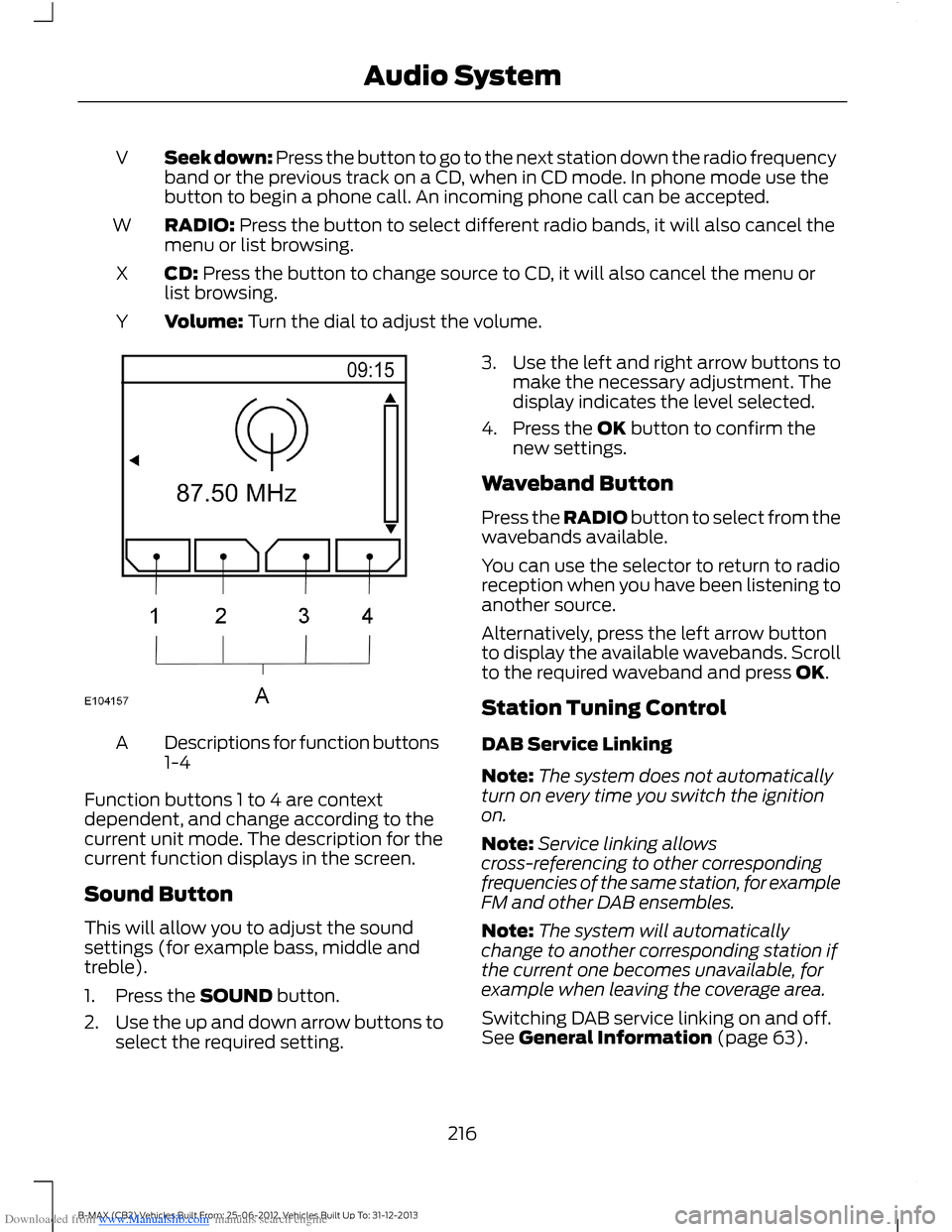
Downloaded from www.Manualslib.com manuals search engine Seek down: Press the button to go to the next station down the radio frequencyband or the previous track on a CD, when in CD mode. In phone mode use thebutton to begin a phone call. An incoming phone call can be accepted.
V
RADIO: Press the button to select different radio bands, it will also cancel themenu or list browsing.W
CD: Press the button to change source to CD, it will also cancel the menu orlist browsing.X
Volume: Turn the dial to adjust the volume.Y
Descriptions for function buttons1-4A
Function buttons 1 to 4 are contextdependent, and change according to thecurrent unit mode. The description for thecurrent function displays in the screen.
Sound Button
This will allow you to adjust the soundsettings (for example bass, middle andtreble).
1.Press the SOUND button.
2.Use the up and down arrow buttons toselect the required setting.
3.Use the left and right arrow buttons tomake the necessary adjustment. Thedisplay indicates the level selected.
4.Press the OK button to confirm thenew settings.
Waveband Button
Press the RADIO button to select from thewavebands available.
You can use the selector to return to radioreception when you have been listening toanother source.
Alternatively, press the left arrow buttonto display the available wavebands. Scrollto the required waveband and press OK.
Station Tuning Control
DAB Service Linking
Note:The system does not automaticallyturn on every time you switch the ignitionon.
Note:Service linking allowscross-referencing to other correspondingfrequencies of the same station, for exampleFM and other DAB ensembles.
Note:The system will automaticallychange to another corresponding station ifthe current one becomes unavailable, forexample when leaving the coverage area.
Switching DAB service linking on and off.See General Information (page 63).
216B-MAX (CB2) Vehicles Built From: 25-06-2012, Vehicles Built Up To: 31-12-2013Audio System
Page 221 of 298
Downloaded from www.Manualslib.com manuals search engine 2.Select AUDIO or AUDIO SETTINGS.
3.Scroll to NEWS and turn on or off withthe OK button.
4.Press the MENU button to return.
Alternative Frequencies
The majority of programs that broadcaston the FM waveband have a programidentification code, it can be recognized byaudio units.
When your vehicle moves from onetransmission area to another with thealternative frequencies tuning switchedon, this function will search for thestrongest station signal.
Under certain conditions, however,alternative frequencies tuning maytemporarily disrupt normal reception.
When selected, the unit continuallyevaluates signal strength and, if a bettersignal becomes available, the unit willswitch to that alternative. It mutes whileit checks a list of alternative frequenciesand if necessary, it will search once acrossthe selected waveband for a genuinealternative frequency.
It will restore radio reception when it findsone or if one is not found, the unit willreturn to the original stored frequency.
When selected,AF will be shown in thedisplay.
1.Press the MENU button.
2.Select AUDIO or AUDIO SETTINGS.
3.Scroll to ALTERNAT FREQ. orALTERNATIVE FREQ. and turn on oroff with the OK button.
4.Press the MENU button to return.
Regional Mode
Regional mode controls the behavior ofalternative frequencies switching betweenregionally related networks of a parentbroadcaster. A broadcaster may run a fairlylarge network across a large part of thecountry. At various times of the day thislarge network may be broken down into anumber of smaller regional networks,typically centered on major towns or cities.When the network is not split into regionalvariants, the whole network carries thesame programming.
Regional mode ON: This prevents randomalternative frequency switches whenneighboring regional networks are notcarrying the same programming.
Regional mode OFF: This allows a largercoverage area if neighboring regionalnetworks are carrying the sameprogramming, but can cause randomalternative frequency switches if they arenot.
1.Press the MENU button.
2.Select AUDIO or AUDIO SETTINGS.
3.Scroll to RDS REGIONAL and turn onor off with the OK button.
4.Press the MENU button to return.
AUDIO SYSTEM SECURITY
Each unit incorporates a unique code thatis linked to the vehicle identificationnumber. The system will automaticallycheck that the audio unit and vehiclematch before allowing operation.
If a security code message appears, see anauthorized dealer.
DIGITAL AUDIO
The system allows you to listen to DAB(Digital Audio Broadcast) radio stations.
219B-MAX (CB2) Vehicles Built From: 25-06-2012, Vehicles Built Up To: 31-12-2013Audio System
Page 230 of 298
Downloaded from www.Manualslib.com manuals search engine AUXILIARY INPUT JACK
WARNINGS
Driving while distracted can result inloss of vehicle control, accident andinjury. We strongly recommend thatyou use extreme caution when using anydevice or feature that may take your focusoff the road. Your primary responsibility isthe safe operation of your vehicle. Werecommend against the use of anyhandheld device while driving andencourage the use of voice-operatedsystems when possible. Make sure you areaware of all applicable local laws that mayaffect the use of electronic devices whiledriving.
For safety reasons, do not connector adjust the settings on yourportable music player while yourvehicle is moving.
Store the portable music player in asecure location, such as the centerconsole or the glove box, when yourvehicle is in moving. Hard objects maybecome projectiles in a collision or suddenstop, which may increase the risk of seriousinjury. The audio extension cable must belong enough to allow the portable musicplayer to be safely stored while yourvehicle is moving.
The auxiliary input jack allows you toconnect and play music from your portablemusic player through your vehicle speakers.You can use any portable music playerdesigned for use with headphones. Youraudio extension cable must have maleone-eighth inch (three and one-halfmillimeter) connectors at each end.
1.Make sure your vehicle is stationarywith the radio and portable musicplayers turned off.
2.Plug the extension cable from theportable music player into the auxiliaryinput jack.
3.Switch the radio on. Select either atuned FM station or a CD.
4.Adjust the volume as desired.
5.Switch the portable music player onand adjust its volume to half itsmaximum level.
6.Press AUX until LINE or LINE INappears in the display. You should hearmusic from your device even if it is low.
7.Adjust the volume on your portablemusic player until it reaches the volumelevel of the FM station or CD. Do thisby switching back and forth betweenthe AUX and FM or CD controls.
228B-MAX (CB2) Vehicles Built From: 25-06-2012, Vehicles Built Up To: 31-12-2013Audio System
Page 245 of 298
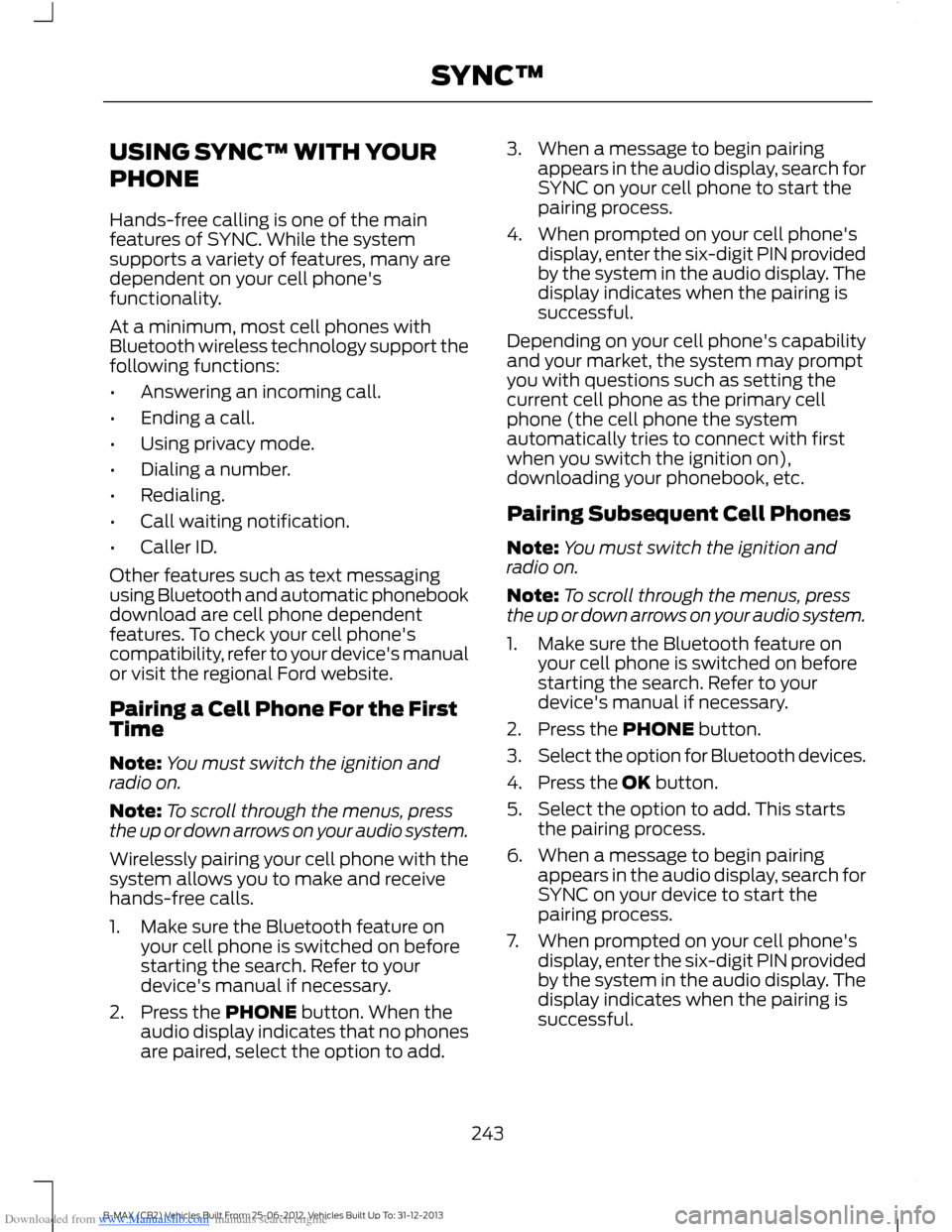
Downloaded from www.Manualslib.com manuals search engine USING SYNC™ WITH YOUR
PHONE
Hands-free calling is one of the mainfeatures of SYNC. While the systemsupports a variety of features, many aredependent on your cell phone'sfunctionality.
At a minimum, most cell phones withBluetooth wireless technology support thefollowing functions:
•Answering an incoming call.
•Ending a call.
•Using privacy mode.
•Dialing a number.
•Redialing.
•Call waiting notification.
•Caller ID.
Other features such as text messagingusing Bluetooth and automatic phonebookdownload are cell phone dependentfeatures. To check your cell phone'scompatibility, refer to your device's manualor visit the regional Ford website.
Pairing a Cell Phone For the FirstTime
Note:You must switch the ignition andradio on.
Note:To scroll through the menus, pressthe up or down arrows on your audio system.
Wirelessly pairing your cell phone with thesystem allows you to make and receivehands-free calls.
1.Make sure the Bluetooth feature onyour cell phone is switched on beforestarting the search. Refer to yourdevice's manual if necessary.
2.Press the PHONE button. When theaudio display indicates that no phonesare paired, select the option to add.
3.When a message to begin pairingappears in the audio display, search forSYNC on your cell phone to start thepairing process.
4.When prompted on your cell phone'sdisplay, enter the six-digit PIN providedby the system in the audio display. Thedisplay indicates when the pairing issuccessful.
Depending on your cell phone's capabilityand your market, the system may promptyou with questions such as setting thecurrent cell phone as the primary cellphone (the cell phone the systemautomatically tries to connect with firstwhen you switch the ignition on),downloading your phonebook, etc.
Pairing Subsequent Cell Phones
Note:You must switch the ignition andradio on.
Note:To scroll through the menus, pressthe up or down arrows on your audio system.
1.Make sure the Bluetooth feature onyour cell phone is switched on beforestarting the search. Refer to yourdevice's manual if necessary.
2.Press the PHONE button.
3.Select the option for Bluetooth devices.
4.Press the OK button.
5.Select the option to add. This startsthe pairing process.
6.When a message to begin pairingappears in the audio display, search forSYNC on your device to start thepairing process.
7.When prompted on your cell phone'sdisplay, enter the six-digit PIN providedby the system in the audio display. Thedisplay indicates when the pairing issuccessful.
243B-MAX (CB2) Vehicles Built From: 25-06-2012, Vehicles Built Up To: 31-12-2013SYNC™
Page 255 of 298
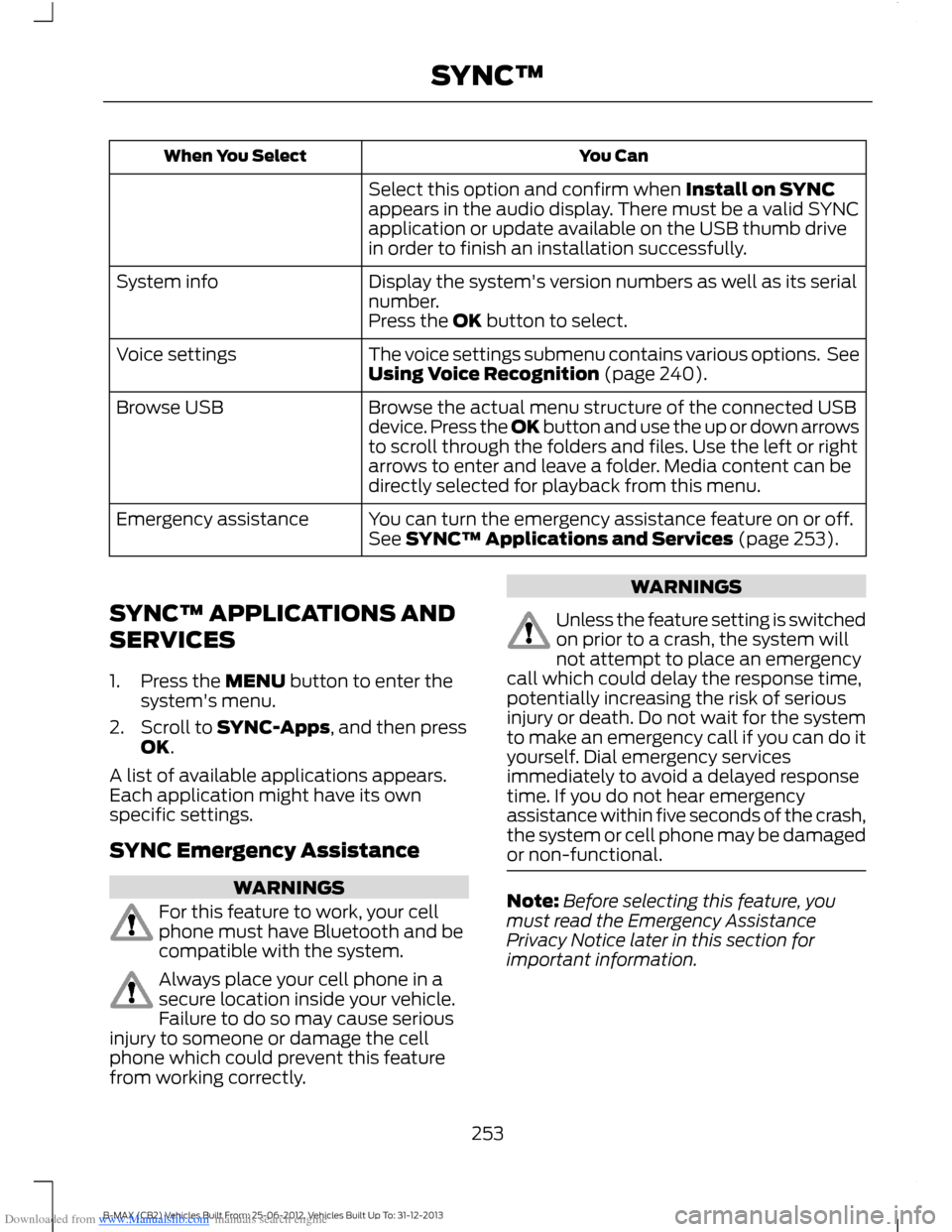
Downloaded from www.Manualslib.com manuals search engine You CanWhen You Select
Select this option and confirm when Install on SYNCappears in the audio display. There must be a valid SYNCapplication or update available on the USB thumb drivein order to finish an installation successfully.
Display the system's version numbers as well as its serialnumber.System info
Press the OK button to select.
The voice settings submenu contains various options. SeeUsing Voice Recognition (page 240).Voice settings
Browse the actual menu structure of the connected USBdevice. Press the OK button and use the up or down arrowsto scroll through the folders and files. Use the left or rightarrows to enter and leave a folder. Media content can bedirectly selected for playback from this menu.
Browse USB
You can turn the emergency assistance feature on or off.See SYNC™ Applications and Services (page 253).Emergency assistance
SYNC™ APPLICATIONS AND
SERVICES
1.Press the MENU button to enter thesystem's menu.
2.Scroll to SYNC-Apps, and then pressOK.
A list of available applications appears.Each application might have its ownspecific settings.
SYNC Emergency Assistance
WARNINGS
For this feature to work, your cellphone must have Bluetooth and becompatible with the system.
Always place your cell phone in asecure location inside your vehicle.Failure to do so may cause seriousinjury to someone or damage the cellphone which could prevent this featurefrom working correctly.
WARNINGS
Unless the feature setting is switchedon prior to a crash, the system willnot attempt to place an emergencycall which could delay the response time,potentially increasing the risk of seriousinjury or death. Do not wait for the systemto make an emergency call if you can do ityourself. Dial emergency servicesimmediately to avoid a delayed responsetime. If you do not hear emergencyassistance within five seconds of the crash,the system or cell phone may be damagedor non-functional.
Note:Before selecting this feature, youmust read the Emergency AssistancePrivacy Notice later in this section forimportant information.
253B-MAX (CB2) Vehicles Built From: 25-06-2012, Vehicles Built Up To: 31-12-2013SYNC™