reset FORD B MAX 2013 1.G Owner's Manual
[x] Cancel search | Manufacturer: FORD, Model Year: 2013, Model line: B MAX, Model: FORD B MAX 2013 1.GPages: 298, PDF Size: 20.63 MB
Page 214 of 298
Downloaded from www.Manualslib.com manuals search engine Note:If traffic announcement is on and youselect a preset or manual tune to a nontraffic announcement station no trafficannouncement will be heard.
Note:When you are listening to a nontraffic announcement station and turntraffic announcement off and on again a TPseek will occur.
Traffic Announcement Volume
Traffic announcements interrupt normalbroadcasts at a preset minimum level thatis usually louder than normal listeningvolumes.
To adjust the preset volume:
•Use the volume control to make thenecessary adjustment during anincoming traffic announcementbroadcast. The display will show thelevel selected.
Ending Traffic Announcements
The audio unit will return to normaloperation at the end of each trafficannouncement. To end the announcementprematurely, press TA or TRAFFIC duringthe announcement.
Note:If you press TA or TRAFFIC at anyother time it will switch all announcementsoff.
Automatic Volume Control
When available, automatic volume controladjusts the volume level to compensatefor engine noise and road speed noise.
1.Press the MENU button.
2.Select AUDIO or AUDIO SETTINGS.
3.Select AVC LEVEL or ADAPTIVEVOL.
4.Use the left or right arrow button toadjust the setting.
5.Press the OK button to confirm yourselection.
6.Press the MENU button to return.
Digital Signal Processing
Digital Signal Processing Occupancy
This feature takes into account thedifferences in distance from the variousspeakers in your vehicle to each seat. Youmust select the correct sitting position forthe audio to be correctly set.
Digital Signal Processing Equalizer
Select the music category that most suitsyour listening preference. The audio outputwill change to enhance the particular styleof music chosen.
Changing the Digital Signal ProcessingSettings
1.Press the MENU button.
2.Select AUDIO or AUDIO SETTINGS.
3.Scroll to the required digital signalprocessing function.
4.Press the OK button.
5.Use the up and down arrow buttons toselect the required setting.
6.Press the OK button to confirm yourselection.
7.Press the MENU button to return.
News Broadcasts
Your audio unit may interrupt normalreception to broadcast news bulletins fromstations on the FM waveband, radio datasystem or other enhanced network linkedstations.
The display will indicate there is anincoming announcement, during newsbroadcasts. When the audio unit interruptsfor a news broadcast the preset volumelevel will be the same as trafficannouncements.
1.Press the MENU button.
212B-MAX (CB2) Vehicles Built From: 25-06-2012, Vehicles Built Up To: 31-12-2013Audio System
Page 219 of 298
Downloaded from www.Manualslib.com manuals search engine Seek Tuning
Select a waveband and briefly press oneof the seek buttons. The unit will stop atthe first station it finds in the direction youhave chosen.
Manual Tuning
1.Press function button 2.
2.Use the left and right arrow buttons totune down or up the waveband in smallincrements or press and hold toincrement quickly, until you find astation you want to listen to.
3.Press OK to continue listening to astation.
Scan Tuning
Scan allows you to listen to a few secondsof each station detected.
1.Press function button 3.
2.Use the seek buttons to scan up ordown the selected waveband.
3.Press function button 3 again or OK tocontinue listening to a station.
Station Preset Buttons
This feature allows you to store yourfavorite stations, they can be recalled byselecting the appropriate waveband andpressing one of the preset buttons.
1.Select a waveband.
2.Tune to the station required.
3.Press and hold one of the presetbuttons. A progress bar and messagewill appear. When the progress barcompletes the station has been stored.The audio unit will also mutemomentarily as confirmation.
You can repeat this on each waveband andfor each preset button.
Note:When you drive to another part of thecountry, stations that broadcast onalternative frequencies, and are stored onpreset buttons, may be updated with thecorrect frequency and station name for thatarea.
Autostore Control
Note:This will store up to a maximum ofthe 10 strongest signals available, eitherfrom the AM or the FM waveband, andoverwrite the previously stored stations. Youcan also store stations manually in the sameway as other wavebands.
Note:You must select either FM AST orAM AST to use this function.
•Press and hold the RADIO button.
•When the search is complete, sound isrestored and the strongest signals arestored on the autostore presets.
Traffic Information Control
Many stations that broadcast on the FMwaveband have a TP code to signify thatthey carry traffic program information.
Turning Traffic Announcements On andOff
Before you can receive trafficannouncements, you must press either theTA or TRAFFIC button. A TA display willappear to show the feature is switched on.
If you are already tuned to a station thatbroadcasts traffic information,TP will alsobe displayed. Otherwise the unit will searchfor a traffic program.
When traffic information is broadcast, itwill automatically interrupt normal radioor CD playback and Traffic announcementwill appear in the display.
If a non-traffic station is selected orrecalled using a preset button, the audiounit will remain on that station unless TAor TRAFFIC is turned off, then on again.
217B-MAX (CB2) Vehicles Built From: 25-06-2012, Vehicles Built Up To: 31-12-2013Audio System
Page 220 of 298
Downloaded from www.Manualslib.com manuals search engine Note:If traffic announcement is on and youselect a preset or manual tune to a nontraffic announcement station no trafficannouncement will be heard.
Note:When you are listening to a nontraffic announcement station and turntraffic announcement off and on again a TPseek will occur.
Traffic Announcement Volume
Traffic announcements interrupt normalbroadcasts at a preset minimum level thatis usually louder than normal listeningvolumes.
To adjust the preset volume:
•Use the volume control to make thenecessary adjustment during anincoming traffic announcementbroadcast. The display will show thelevel selected.
Ending Traffic Announcements
The audio unit will return to normaloperation at the end of each trafficannouncement. To end the announcementprematurely, press TA or TRAFFIC duringthe announcement.
Note:If you press TA or TRAFFIC at anyother time it will switch all announcementsoff.
Automatic Volume Control
When available, automatic volume controladjusts the volume level to compensatefor engine noise and road speed noise.
1.Press the MENU button.
2.Select AUDIO or AUDIO SETTINGS.
3.Select AVC LEVEL or ADAPTIVEVOL.
4.Use the left or right arrow button toadjust the setting.
5.Press the OK button to confirm yourselection.
6.Press the MENU button to return.
Digital Signal Processing
Digital Signal Processing Occupancy
This feature takes into account thedifferences in distance from the variousspeakers in your vehicle to each seat. Youmust select the correct sitting position forthe audio to be correctly set.
Digital Signal Processing Equalizer
Select the music category that most suitsyour listening preference. The audio outputwill change to enhance the particular styleof music chosen.
Changing the Digital Signal ProcessingSettings
1.Press the MENU button.
2.Select AUDIO or AUDIO SETTINGS.
3.Scroll to the required digital signalprocessing function.
4.Press the OK button.
5.Use the up and down arrow buttons toselect the required setting.
6.Press the OK button to confirm yourselection.
7.Press the MENU button to return.
News Broadcasts
Your audio unit may interrupt normalreception to broadcast news bulletins fromstations on the FM waveband, radio datasystem or other enhanced network linkedstations.
The display will indicate there is anincoming announcement, during newsbroadcasts. When the audio unit interruptsfor a news broadcast the preset volumelevel will be the same as trafficannouncements.
1.Press the MENU button.
218B-MAX (CB2) Vehicles Built From: 25-06-2012, Vehicles Built Up To: 31-12-2013Audio System
Page 222 of 298
Downloaded from www.Manualslib.com manuals search engine Note:Coverage differs from region to regionand will influence the quality of reception.It is broadcast nationwide, regionally andlocally.
The following formats are supported:
•DAB
•DAB+
•DMB-Audio (Digital MultimediaBroadcasting).
Ensembles
Ensembles contain a group of radiostations. Each ensemble can consist ofseveral different radio stations.
The radio station name displays below theensemble name.
Note:When you tune from one ensembleto another, it can take a while until thesystem synchronizes to the next ensemble.The system mutes during synchronization.
Selecting Radio Band
DAB1 and DAB2 operate in the same way.You can store up to 10 different presets oneach band.
1.Press the RADIO button.
2.Press the left arrow button to displaythe available wavebands.
3.Select DAB1 or DAB2.
Radio Station Tuning Control
Press the RADIO button and select DAB1or DAB2. Both preset banks operate in thesame way and can store up to 10 differentpreset radio stations.
Note:When you reach the first or last radiostation within an ensemble, further tuningwill skip to the next ensemble. There maybe a delay during this change and the audiowill briefly mute.
Seek Tuning
1.Press a seek button. The system willstop at the first radio station it finds inthe direction chosen.
Radio Station List
This feature displays all the available radiostations in a list.
1.Press function button 1.
2.Press the left or right arrow buttons tochange ensembles. Press the up ordown arrow button to navigate to yourrequired radio station.
3.Press OK to confirm your selection.
Note:The display will only show radiostations in the current ensemble.
Manual Tuning
1.Press function button 2.
2.Press the left or right arrow button totune up or down the waveband in smallincrements. Press and hold to movethrough the waveband quickly.
3.Press OK to confirm your selection.
Note:Seek tuning is also possible withinthis screen.
Radio Station Preset Buttons
This feature allows you to store up to 10favorite radio stations from any ensemblein each preset bank.
1.Select a radio station.
2.Press and hold one of the presetbuttons. A progress bar and messagewill appear. When the progress barcompletes the radio station has beenstored. The system will mutemomentarily as confirmation.
Once stored press a preset button at anytime to select a favourite radio station.
220B-MAX (CB2) Vehicles Built From: 25-06-2012, Vehicles Built Up To: 31-12-2013Audio System
Page 223 of 298
Downloaded from www.Manualslib.com manuals search engine Note:Radio stations stored on the presetbuttons may not always be available if youhave left the coverage area. The system willmute when this happens.
Radio Text
You can display extra information. Forexample; artist name. To switch this optionon, select a radio station and pressfunction button 3.
Note:Extra information may not always beavailable.
Service Linking
If you leave the coverage area of a DABradio station the system will automaticallyswitch to the corresponding FM radiostation.
You can switch this feature on and offusing the information display. See GeneralInformation (page 63).
Note:If a DAB radio station has nocorresponding FM radio station, the audiowill mute when attempting to switch.
Note:The system will display the FMsymbol when DAB and FM radio stationslink.
COMPACT DISC PLAYER -
VEHICLES WITH: AM/FM/CD
Compact Disc Playback
Note:During playback, the display indicatesthe disc, track and time that has elapsedsince the start of the track.
During radio reception, press the CD buttononce to start CD playback.
After a disc is loaded, playback will startimmediately.
Track Selection
•Press the seek down button once toreplay the current track. If pressedwithin two seconds of the start of atrack, the previous track will beselected.
•Press the up or down arrow buttons toselect the required track, then pressthe OK button.
Fast Forward and Reverse
Press and hold the seek down or upbuttons to search backward or forwardwithin the tracks on the disc.
Shuffle and Random
Random track playback, also known asshuffle, plays all tracks on the CD inrandom order.
1.Press the MENU button and select CDMODE.
2.Select SHUFFLE. This enables thefunction to be switched on or off.
When an MP3 CD is playing, optionsinclude SHUFFLE for the whole CD, or toplay all the tracks in the folder in a randomorder.
Repeat Compact Disc Tracks
1.Press the MENU button and select CDMODE.
2.Select REPEAT. This enables thefunction to be switched on or off. Thetrack will replay once ended.
When an MP3 or WMA CD is playing,options include REPEAT for the track, orto repeat all the tracks in the folder.
Compact Disc Track Scanning
The SCAN function allows you to previeweach track for approximately five seconds.
221B-MAX (CB2) Vehicles Built From: 25-06-2012, Vehicles Built Up To: 31-12-2013Audio System
Page 238 of 298
Downloaded from www.Manualslib.com manuals search engine Press the MENU button, select the navigation option and choose any of thefollowing options.
You CanWhen You Select
Set your route options.Route options
Customize the map display for your journey (for examplearrows on map, arrival times and map content).Map display
Customize display information for your journey (forexample signs, lanes and speed limits).Assistance options
Turn the hazard warning feature on or off.
Delete personal data (for example your home address).Personal data
Reset the navigation settings.Reset all settings
Storing Your Home Address
1.Press the NAV button.
2.Select the home address option.
3.Enter the required details using thearrow buttons.
4.Press the confirm function button.
Note:You can display the current homeaddress by pressing the information button.
Note:Your last destination willautomatically display if you go to changeyour home address.
Adding a Favorite
1.Press the NAV button.
2.Scroll to the destination input option.
3.Enter the required details using thearrow buttons.
4.Press the store function button.
Note:If you select store position, this willalso save the destination in your favorites.
Selecting a Favorite
1.Press the NAV button.
2.Select the favorites option.
3.Scroll to the required destination usingthe arrow buttons.
4.Press the OK button to startnavigation.
Adjusting the Navigation Voice Level
You can adjust the voice prompt levelduring an active voice prompt by using thevolume control.
Note:During active route guidance pressingthe information button will repeat the lastnavigation instruction.
Nav Audio Mixing
This feature allows you to adjust thevolume mix between the audio unit andnavigation voice level. See GeneralInformation (page 63).
Tolerant Destination Input
This function will search a number ofdestinations with a similar spelling to whatyou have entered. This is helpful if you areunsure on how to spell a destination.
1.Press the NAV button.
2.Scroll to the destination input option.
236B-MAX (CB2) Vehicles Built From: 25-06-2012, Vehicles Built Up To: 31-12-2013Navigation
Page 242 of 298
Downloaded from www.Manualslib.com manuals search engine Safety Information
WARNING
Driving while distracted can result inloss of vehicle control, crash andinjury. We strongly recommend thatyou use extreme caution when using anydevice that may take your focus off theroad. Your primary responsibility is the safeoperation of your vehicle. We recommendagainst the use of any hand-held devicewhile driving and encourage the use ofvoice-operated systems when possible.Make sure you are aware of all applicablelocal laws that may affect the use ofelectronic devices while driving.
When using SYNC:
•Do not operate playing devices if thepower cords or cables are broken, splitor damaged. Carefully place cords andcables where you cannot step on themor they do not interfere with theoperation of pedals, seats,compartments or safe driving abilities.
•Do not leave playing devices in yourvehicle during extreme conditions as itcould cause them damage. Refer toyour device's manual for furtherinformation.
•Do not attempt to service or repair thesystem. See an authorized dealer.
Privacy Information
When a cell phone is connected to SYNC,the system creates a profile that is linkedto that cell phone. The system creates theprofile to offer you more mobile featuresand to operate more efficiently. Amongother things, this profile may contain dataabout your phonebook, text messages(read and unread) and call history. Thiswill include the history of calls when yourcell phone was not connected to thesystem. If you connect a media player, thesystem creates and retains an index of
supported media content. The system alsorecords a short development log ofapproximately 10 minutes of all recentsystem activity. The log profile and othersystem data may be used to improve thesystem and help diagnose any problemsthat may occur.
The cell phone profile, media player indexand development log will remain in thesystem unless deleted. They are generallyaccessible in your vehicle only when youconnect your cell phone or media player.If you no longer plan to use the system oryour vehicle, we recommend you completea master reset to erase all storedinformation. See Information Displays(page 63).
Special equipment is required to accesssystem data. Access to your vehicle'sSYNC module is also required. We will notaccess the system data for any purposeother than as described without consent.Examples where system data can beaccessed are for a court order, whererequired by law enforcement, othergovernment authorities or other thirdparties acting with lawful authority. Otherparties may seek to access the informationindependently of us. Further privacyinformation is available. See SYNC™Applications and Services (page 253).
USING VOICE RECOGNITION
This system helps you control manyfeatures using voice commands. Thisallows you to keep your hands on thesteering wheel and focus on what is aroundyou.
Helpful Hints
Make sure the interior of your vehicle is asquiet as possible. Wind noise from openwindows and road vibrations may preventthe system from correctly recognizingspoken commands.
240B-MAX (CB2) Vehicles Built From: 25-06-2012, Vehicles Built Up To: 31-12-2013SYNC™
Page 254 of 298
Downloaded from www.Manualslib.com manuals search engine You CanWhen You Select
The system attempts to connect with the primary cellphone every time you switch the ignition on. When a cellphone is selected as primary, it appears first in the list andis marked with an asterisk.
Connect a previously paired cell phone. You can only haveone cell phone connected at a time to use the cell phonefunctionality. When another cell phone is connected, theprevious cell phone will be disconnected from the tele-phone services. The system allows you to use differentBluetooth devices for the cell phone functionality and theBluetooth audio music playback feature at the same time.
Conn.
Select this option to connect to the selected previouslypaired cell phone.
Disconnects the selected cell phone. Select this optionand confirm when asked to. After disconnecting a cellphone, it can be connected again without repeating thefull pairing process.
Discon.
System Settings
1.Press the MENU button.
2.Select the SYNC settings option, thenpress the OK button.
You CanWhen You Select
Check or uncheck this option to turn the Bluetooth inter-face of the system on or off. Select this option then pressthe OK button to change the option's status.
Bluetooth on
Return to the factory default settings. This selection doesnot erase your indexed information (phonebook, callhistory, text messages and paired devices).
Set defaults
Select this option and confirm when Set defaults?appears in the audio display.
Completely erase all information stored on the system(phonebook, call history, text messages and paireddevices) and return to the factory default settings.
Master reset
Select this option and confirm when Master reset?appears in the audio display. The display indicates whencomplete and the system takes you back to the SYNC-Settings menu.
Install applications or software updates you have down-loaded.Install on SYNC
252B-MAX (CB2) Vehicles Built From: 25-06-2012, Vehicles Built Up To: 31-12-2013SYNC™
Page 258 of 298
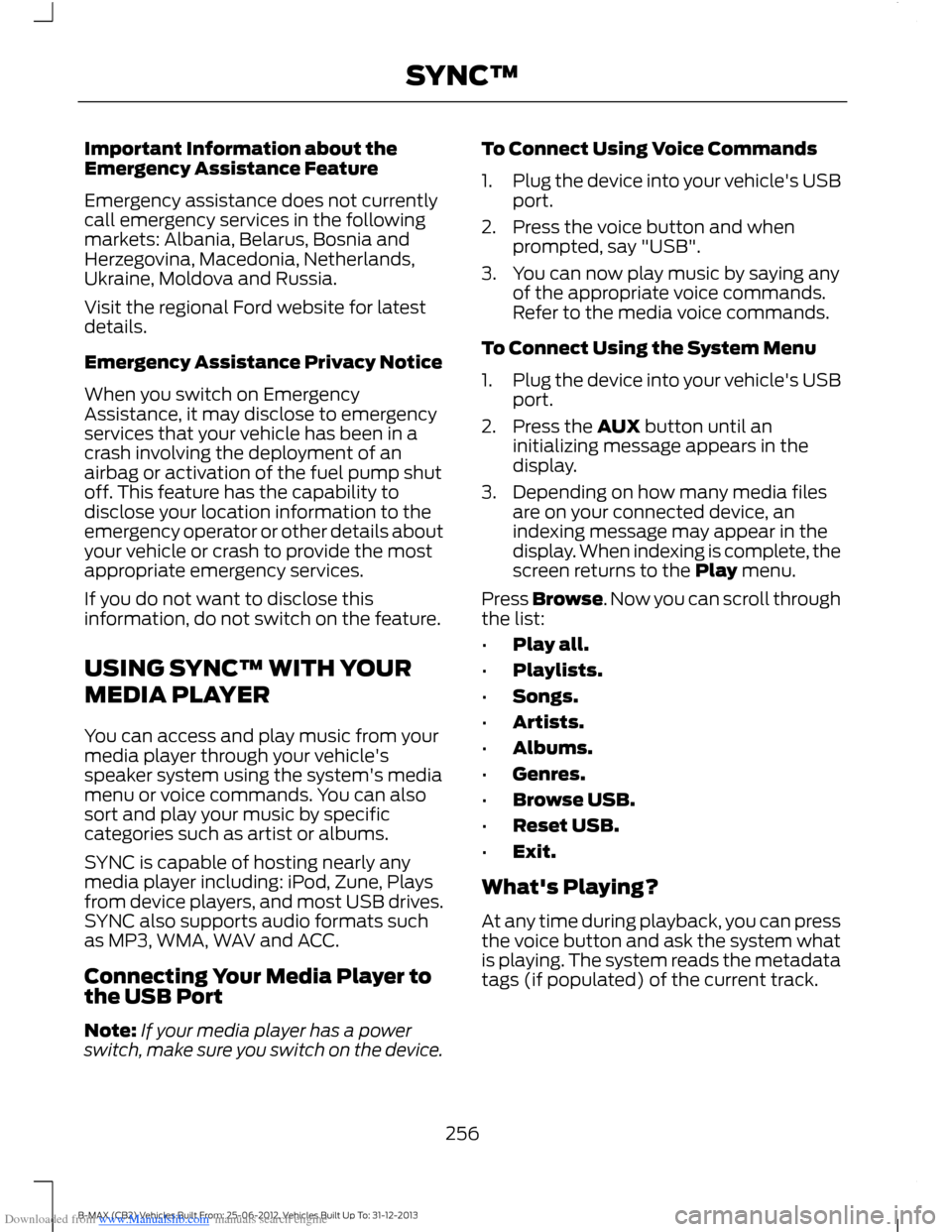
Downloaded from www.Manualslib.com manuals search engine Important Information about theEmergency Assistance Feature
Emergency assistance does not currentlycall emergency services in the followingmarkets: Albania, Belarus, Bosnia andHerzegovina, Macedonia, Netherlands,Ukraine, Moldova and Russia.
Visit the regional Ford website for latestdetails.
Emergency Assistance Privacy Notice
When you switch on EmergencyAssistance, it may disclose to emergencyservices that your vehicle has been in acrash involving the deployment of anairbag or activation of the fuel pump shutoff. This feature has the capability todisclose your location information to theemergency operator or other details aboutyour vehicle or crash to provide the mostappropriate emergency services.
If you do not want to disclose thisinformation, do not switch on the feature.
USING SYNC™ WITH YOUR
MEDIA PLAYER
You can access and play music from yourmedia player through your vehicle'sspeaker system using the system's mediamenu or voice commands. You can alsosort and play your music by specificcategories such as artist or albums.
SYNC is capable of hosting nearly anymedia player including: iPod, Zune, Playsfrom device players, and most USB drives.SYNC also supports audio formats suchas MP3, WMA, WAV and ACC.
Connecting Your Media Player tothe USB Port
Note:If your media player has a powerswitch, make sure you switch on the device.
To Connect Using Voice Commands
1.Plug the device into your vehicle's USBport.
2.Press the voice button and whenprompted, say "USB".
3.You can now play music by saying anyof the appropriate voice commands.Refer to the media voice commands.
To Connect Using the System Menu
1.Plug the device into your vehicle's USBport.
2.Press the AUX button until aninitializing message appears in thedisplay.
3.Depending on how many media filesare on your connected device, anindexing message may appear in thedisplay. When indexing is complete, thescreen returns to the Play menu.
Press Browse. Now you can scroll throughthe list:
•Play all.
•Playlists.
•Songs.
•Artists.
•Albums.
•Genres.
•Browse USB.
•Reset USB.
•Exit.
What's Playing?
At any time during playback, you can pressthe voice button and ask the system whatis playing. The system reads the metadatatags (if populated) of the current track.
256B-MAX (CB2) Vehicles Built From: 25-06-2012, Vehicles Built Up To: 31-12-2013SYNC™
Page 260 of 298
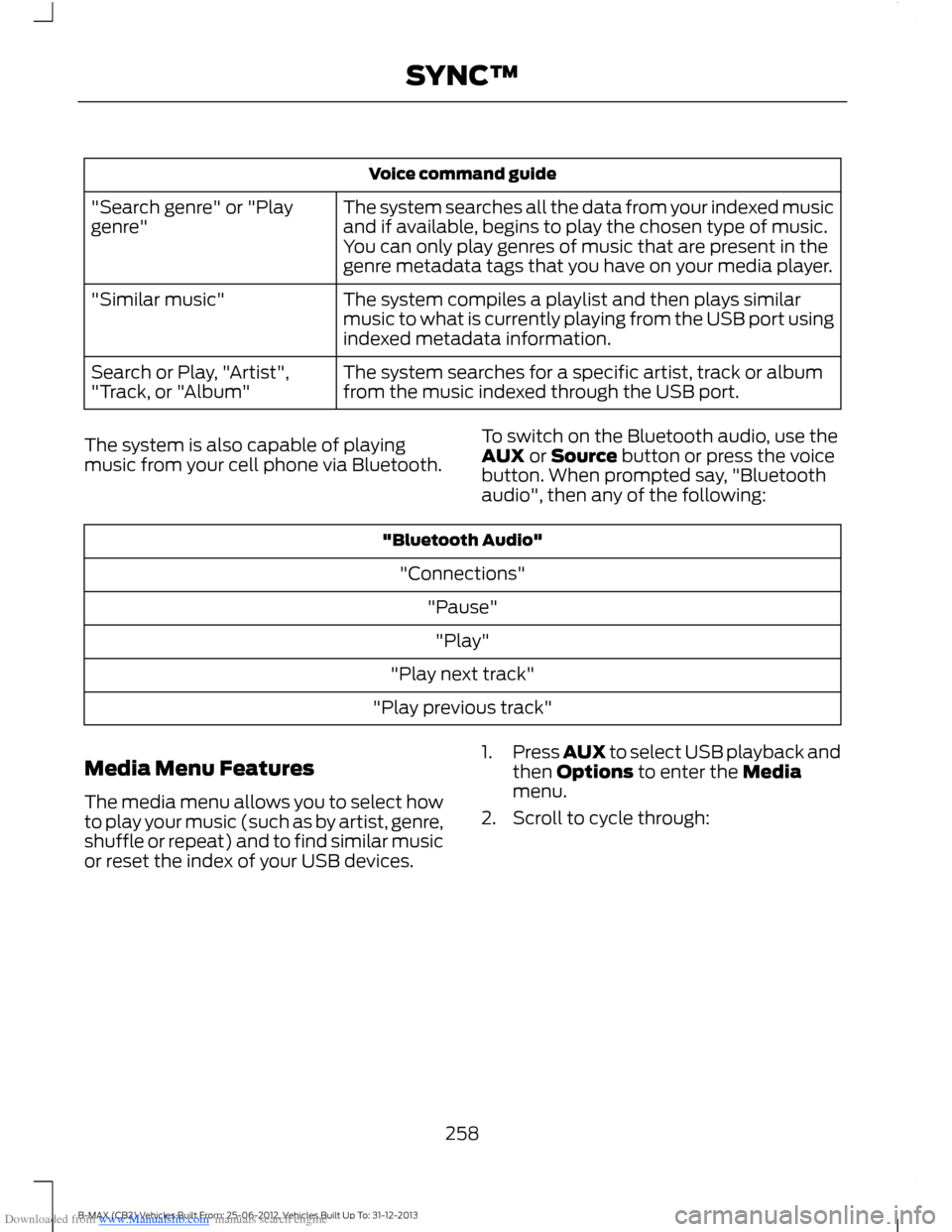
Downloaded from www.Manualslib.com manuals search engine Voice command guide
The system searches all the data from your indexed musicand if available, begins to play the chosen type of music.You can only play genres of music that are present in thegenre metadata tags that you have on your media player.
"Search genre" or "Playgenre"
The system compiles a playlist and then plays similarmusic to what is currently playing from the USB port usingindexed metadata information.
"Similar music"
The system searches for a specific artist, track or albumfrom the music indexed through the USB port.Search or Play, "Artist","Track, or "Album"
The system is also capable of playingmusic from your cell phone via Bluetooth.
To switch on the Bluetooth audio, use theAUX or Source button or press the voicebutton. When prompted say, "Bluetoothaudio", then any of the following:
"Bluetooth Audio"
"Connections"
"Pause"
"Play"
"Play next track"
"Play previous track"
Media Menu Features
The media menu allows you to select howto play your music (such as by artist, genre,shuffle or repeat) and to find similar musicor reset the index of your USB devices.
1.Press AUX to select USB playback andthen Options to enter the Mediamenu.
2.Scroll to cycle through:
258B-MAX (CB2) Vehicles Built From: 25-06-2012, Vehicles Built Up To: 31-12-2013SYNC™