audio FORD B MAX 2013 1.G Workshop Manual
[x] Cancel search | Manufacturer: FORD, Model Year: 2013, Model line: B MAX, Model: FORD B MAX 2013 1.GPages: 298, PDF Size: 20.63 MB
Page 226 of 298
Downloaded from www.Manualslib.com manuals search engine MP3 or WMA Navigation
MP3 tracks may be recorded on the CD inseveral ways. They can all be placed in theroot directory like a conventional audio CD,or they can be placed in folders that mayrepresent, for example, an album, artist, orgenre.
The normal playing sequence on CDs withmultiple folders is:
•Play the tracks within the root (toplevel) first
•Then the tracks in any folder(s) withinthe root
•Then move onto the second folder, andso forth.
To navigate to a track.
1.Press the up or down arrow buttons toenter the track list.
2.Navigate the hierarchy using the arrowbuttons to select another folder ortrack (file).
3.Press OK to select a highlighted track.
MP3 and WMA Display Options
When an MP3 or WMA disc is playing,certain information encoded in each trackcan be displayed. Such information willnormally include:
•The file name.
•The folder name.
•ID3 information which might be thealbum or artist’s name.
The unit will normally show the file namethat is playing. To select one of the otheritems of information, press the INFObutton repeatedly until the required itemis shown in the display.
Note:If the ID3 information selected isunavailable,NO MP3 or WMA TAG will beshown in the display.
CD Text Display Options
When an audio disc with CD text is playing,limited information encoded in each trackcan be displayed. Such information willnormally include:
•The disc name.
•The artist name.
•The track name.
Note:These display options are selectedin the same way as MP3 displays.NO DISCNAME or NO TRACK NAME will be shownin the display if no information has beenencoded.
Ending Compact Disc Playback
To restore radio reception on all units,press the RADIO button.
Note:The CD will not be ejected. The discwill pause at the point where radio receptionwas restored.
To resume CD playback, press the CDbutton again.
COMPACT DISC PLAYER -
VEHICLES WITH:
AM/FM/CD/BLUETOOTH/SONY
AM/FM/CD
Compact Disc Playback
Note:During playback, the display indicatesthe disc, track and time that have elapsedsince the start of the track.
During radio reception, press CD once tostart CD playback.
After a disc is loaded, playback startsimmediately.
224B-MAX (CB2) Vehicles Built From: 25-06-2012, Vehicles Built Up To: 31-12-2013Audio System
Page 227 of 298
Downloaded from www.Manualslib.com manuals search engine Track Selection
•Press the seek down button once toreplay the current track. If pressedwithin two seconds of the start of atrack, the previous track plays.
•Press the up or down arrow buttons toselect the required track, then pressOK.
You can select a track by using the numerickeypad. Dial the required track numberuntil complete (for example, 1 then 2 fortrack 12), or dial the number and directlypress OK.
Fast Forward and Reverse
Press and hold the seek down or upbuttons to search backward or forwardwithin the tracks on the disc.
Shuffle and Random
Random track playback, also known asshuffle, plays all tracks on the CD inrandom order.
Press function button 2.
Note:When an MP3 CD is playing, you canhave the system shuffle tracks for the wholeCD, or within the current folder. Pressingfunction button 2 toggles these options.
Use the seek up or down button to selectthe next track to shuffle, if required.
Repeat Compact Disc Tracks
Press function button 1.
Note:When an MP3 or WMA CD is playing,you can have the system repeat the currenttrack or all tracks within the current folder.Pressing function button 1 toggles theseoptions.
Compact Disc Track Scanning
Press function button 3.
Note:When an MP3 or WMA CD is playing,you can have the system scan tracks on theCD or within the current folder. Pressingfunction button 3 toggles these options.
MP3 and WMA File Playback
MP3 (MPEG 1 Audio Layer-3) or WMA(Windows media audio) is a standardtechnology and format for compressingaudio data. This allows a more efficientuse of the media.
You can play MP3 files recorded onCD-ROM, CD-R and CD-RW formats. Thedisc must be in the ISO 9660 level 1 or level2 format, or Joliet or Romeo in theexpansion format. You can also use a discrecorded in multi session.
ISO 9660 Format
This is the most common internationalstandard for the logical format of files andfolders on a CD-ROM.
There are several specification levels. InLevel 1, file names must be in the 8.3format (no more than eight characters inthe name, no more than three charactersin the extension .MP3 and .WMA) and incapital letters.
Folder names can be no longer than eightcharacters. There can be no more thaneight folder levels (trees). Level 2specifications allow file names up to 31characters long.
Each folder can have up to eight trees.
For Joliet or Romeo in the expansionformat, consider these restrictions whenconfiguring your CD writing software.
Multi Session
This recording method enables adding ofdata using the track-at-once method.
225B-MAX (CB2) Vehicles Built From: 25-06-2012, Vehicles Built Up To: 31-12-2013Audio System
Page 228 of 298
Downloaded from www.Manualslib.com manuals search engine Conventional CDs begin at a CD controlarea called the lead-in and end at an areacalled lead-out. A multi session CD is a CDhaving multiple sessions, with eachsegment from lead-in to lead-out regardedas a single session.
CD-Extra: The format that records audio(audio CD data) as tracks on session 1, andrecords data as tracks on session 2.
Mixed CD: In this format, data records astrack 1 and audio (audio CD data) recordsas track 2.
File Formats
With formats other than ISO 9660 level 1and level 2, folder names or file names maynot display correctly.
When naming, be sure to add the fileextension .MP3 or .WMA to the file name.
If you put the extension .MP3 or .WMA toa file other than MP3 or WMA, the unitcannot recognize the file correctly andgenerates random noise that coulddamage your speakers.
The following discs take a longer time tostart playback.
•A disc recorded with complicated treestructure.
•A disc recorded in multi session.
•A non-finalized disc, where you can addmore data.
Playing a Multi Session Disc
When the first track of the first session isaudio CD data only, the audio CD data ofthe first session plays. Non-audio CD data,MP3 or WMA file information (such astrack number and time) displays with nosound.
When the first track of the first session isnot audio CD data:
•If an MP3 or WMA file is on the disc, thesystem skips these file and other data.Audio CD data is not recognized.
•If no MP3 or WMA file is in the disc,nothing plays. Audio CD data is notrecognized.
MP3 and WMA Files Playback Order
The playback order of the folders and filesare as shown.
Note:The system skips any folder that doesnot include an MP3 or WMA file.
To specify a desired playback order beforethe folder or file name, input the order bynumber (for example, 01 or 02) then recordthe contents onto a disc. The order differsdepending on the writing software.
ID3 Tag Version 2
The following occurs when an MP3 orWMA file containing a tag plays:
226B-MAX (CB2) Vehicles Built From: 25-06-2012, Vehicles Built Up To: 31-12-2013Audio System
Page 229 of 298
Downloaded from www.Manualslib.com manuals search engine •When skipping a portion of a tag (atthe beginning of the track) there is nosound output. Skip time changesdepending on the tag capacity.Example: At 64 kbytes, it is about 2seconds (with RealJukebox).
•The displayed elapsed playing timewhen skipping a portion of the tag isinaccurate. For MP3 files of a bit rateother than 128 kbps, time does notdisplay accurately during playback.
•When an MP3 file is created with MP3conversion software (such asRealJukebox - a registered trademarkof RealNetworks Inc.), the taggenerates automatically.
MP3 or WMA Navigation
You can record MP3 tracks on the CD inseveral ways. You can place them in theroot directory like a conventional audio CD,or in folders that may represent categories,such as album, artist, or genre.
The normal playing sequence on CDs withmultiple folders is:
•Play the tracks within the root (toplevel) first
•Then the tracks in any folder(s) withinthe root
•Then move onto the second folder, andso forth.
To navigate to a track:
1.Press the up or down arrow buttons toenter the track list.
2.Navigate the hierarchy using the arrowbuttons to select another folder ortrack (file).
3.Press OK to select a highlighted track.
MP3 and WMA Display Options
When an MP3 or WMA disc is playing,certain information encoded in each trackcan display. Such information normallyincludes:
•The file name.
•The folder name.
•ID3 information, which might be thealbum or artist name.
The unit normally shows the file name thatis playing. To select one of the other itemsof information, press INFO repeatedly untilthe required item appears in the display.
Note:If the ID3 information selected isunavailable,NO MP3 or WMA TAG appearsin the display.
CD Text Display Options
When an audio disc with CD text is playing,limited information encoded in each trackcan display. Such information normallyincludes:
•The disc name.
•The artist name.
•The track name.
Note:You can select these display optionsin the same way as MP3 displays.NO DISCNAME or NO TRACK NAME appears in thedisplay if there is no encoded information.
Ending Compact Disc Playback
To restore radio reception on all units,press RADIO.
Note:The CD does not eject. The discpauses at the point where radio receptionreturned.
To resume CD playback, press CD again.
227B-MAX (CB2) Vehicles Built From: 25-06-2012, Vehicles Built Up To: 31-12-2013Audio System
Page 230 of 298
Downloaded from www.Manualslib.com manuals search engine AUXILIARY INPUT JACK
WARNINGS
Driving while distracted can result inloss of vehicle control, accident andinjury. We strongly recommend thatyou use extreme caution when using anydevice or feature that may take your focusoff the road. Your primary responsibility isthe safe operation of your vehicle. Werecommend against the use of anyhandheld device while driving andencourage the use of voice-operatedsystems when possible. Make sure you areaware of all applicable local laws that mayaffect the use of electronic devices whiledriving.
For safety reasons, do not connector adjust the settings on yourportable music player while yourvehicle is moving.
Store the portable music player in asecure location, such as the centerconsole or the glove box, when yourvehicle is in moving. Hard objects maybecome projectiles in a collision or suddenstop, which may increase the risk of seriousinjury. The audio extension cable must belong enough to allow the portable musicplayer to be safely stored while yourvehicle is moving.
The auxiliary input jack allows you toconnect and play music from your portablemusic player through your vehicle speakers.You can use any portable music playerdesigned for use with headphones. Youraudio extension cable must have maleone-eighth inch (three and one-halfmillimeter) connectors at each end.
1.Make sure your vehicle is stationarywith the radio and portable musicplayers turned off.
2.Plug the extension cable from theportable music player into the auxiliaryinput jack.
3.Switch the radio on. Select either atuned FM station or a CD.
4.Adjust the volume as desired.
5.Switch the portable music player onand adjust its volume to half itsmaximum level.
6.Press AUX until LINE or LINE INappears in the display. You should hearmusic from your device even if it is low.
7.Adjust the volume on your portablemusic player until it reaches the volumelevel of the FM station or CD. Do thisby switching back and forth betweenthe AUX and FM or CD controls.
228B-MAX (CB2) Vehicles Built From: 25-06-2012, Vehicles Built Up To: 31-12-2013Audio System
Page 231 of 298
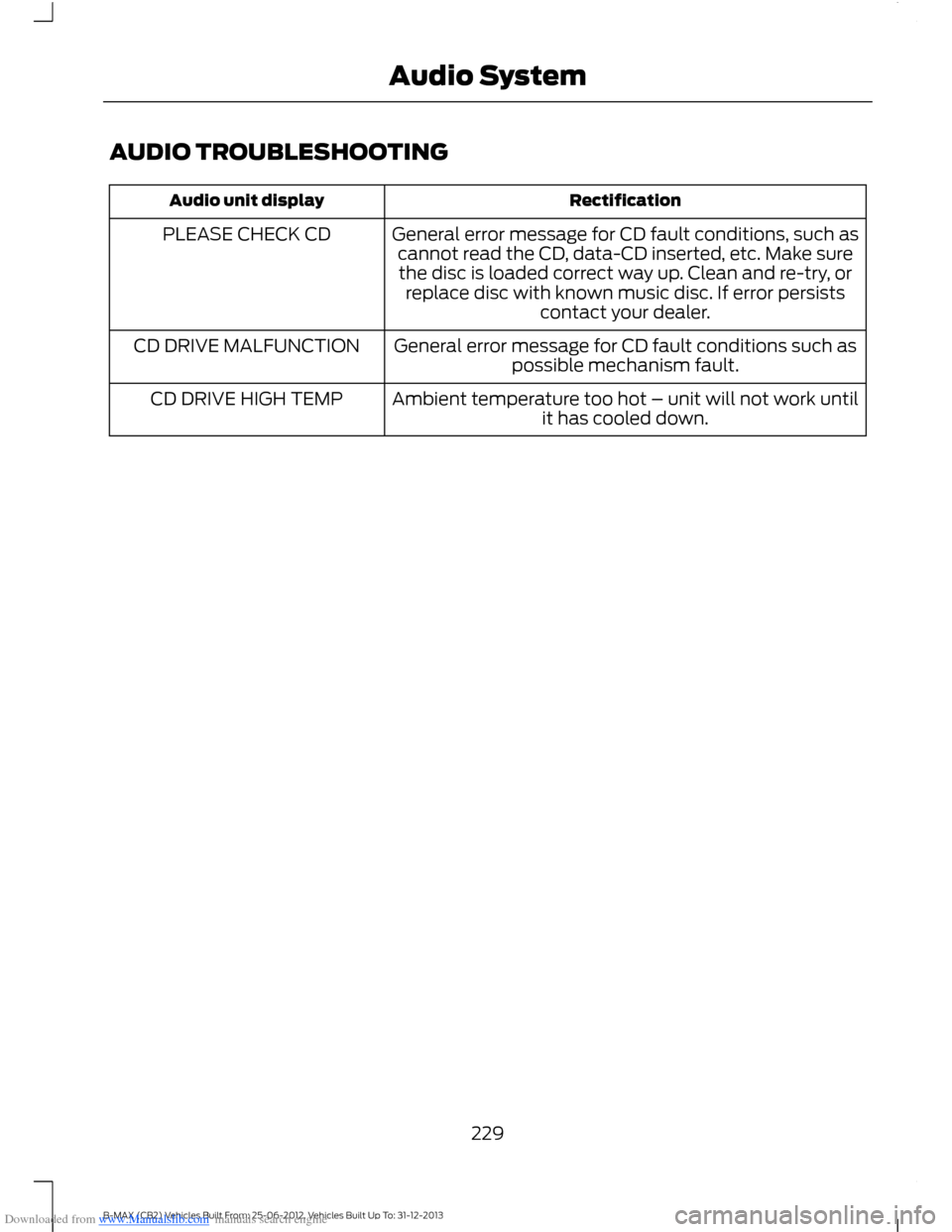
Downloaded from www.Manualslib.com manuals search engine AUDIO TROUBLESHOOTING
RectificationAudio unit display
General error message for CD fault conditions, such ascannot read the CD, data-CD inserted, etc. Make surethe disc is loaded correct way up. Clean and re-try, orreplace disc with known music disc. If error persistscontact your dealer.
PLEASE CHECK CD
General error message for CD fault conditions such aspossible mechanism fault.CD DRIVE MALFUNCTION
Ambient temperature too hot – unit will not work untilit has cooled down.CD DRIVE HIGH TEMP
229B-MAX (CB2) Vehicles Built From: 25-06-2012, Vehicles Built Up To: 31-12-2013Audio System
Page 232 of 298
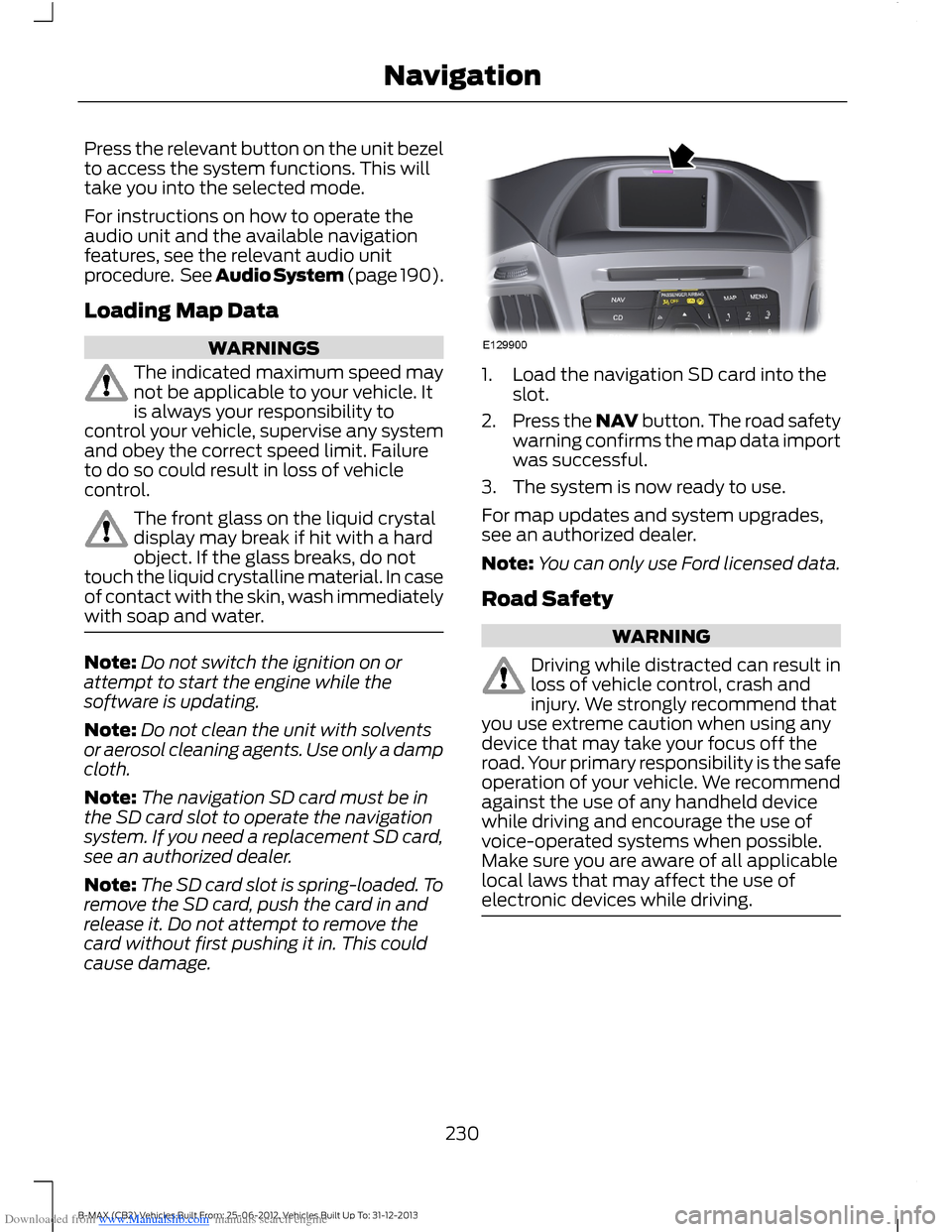
Downloaded from www.Manualslib.com manuals search engine Press the relevant button on the unit bezelto access the system functions. This willtake you into the selected mode.
For instructions on how to operate theaudio unit and the available navigationfeatures, see the relevant audio unitprocedure. See Audio System (page 190).
Loading Map Data
WARNINGS
The indicated maximum speed maynot be applicable to your vehicle. Itis always your responsibility tocontrol your vehicle, supervise any systemand obey the correct speed limit. Failureto do so could result in loss of vehiclecontrol.
The front glass on the liquid crystaldisplay may break if hit with a hardobject. If the glass breaks, do nottouch the liquid crystalline material. In caseof contact with the skin, wash immediatelywith soap and water.
Note:Do not switch the ignition on orattempt to start the engine while thesoftware is updating.
Note:Do not clean the unit with solventsor aerosol cleaning agents. Use only a dampcloth.
Note:The navigation SD card must be inthe SD card slot to operate the navigationsystem. If you need a replacement SD card,see an authorized dealer.
Note:The SD card slot is spring-loaded. Toremove the SD card, push the card in andrelease it. Do not attempt to remove thecard without first pushing it in. This couldcause damage.
1.Load the navigation SD card into theslot.
2.Press the NAV button. The road safetywarning confirms the map data importwas successful.
3.The system is now ready to use.
For map updates and system upgrades,see an authorized dealer.
Note:You can only use Ford licensed data.
Road Safety
WARNING
Driving while distracted can result inloss of vehicle control, crash andinjury. We strongly recommend thatyou use extreme caution when using anydevice that may take your focus off theroad. Your primary responsibility is the safeoperation of your vehicle. We recommendagainst the use of any handheld devicewhile driving and encourage the use ofvoice-operated systems when possible.Make sure you are aware of all applicablelocal laws that may affect the use ofelectronic devices while driving.
230B-MAX (CB2) Vehicles Built From: 25-06-2012, Vehicles Built Up To: 31-12-2013Navigation
Page 238 of 298
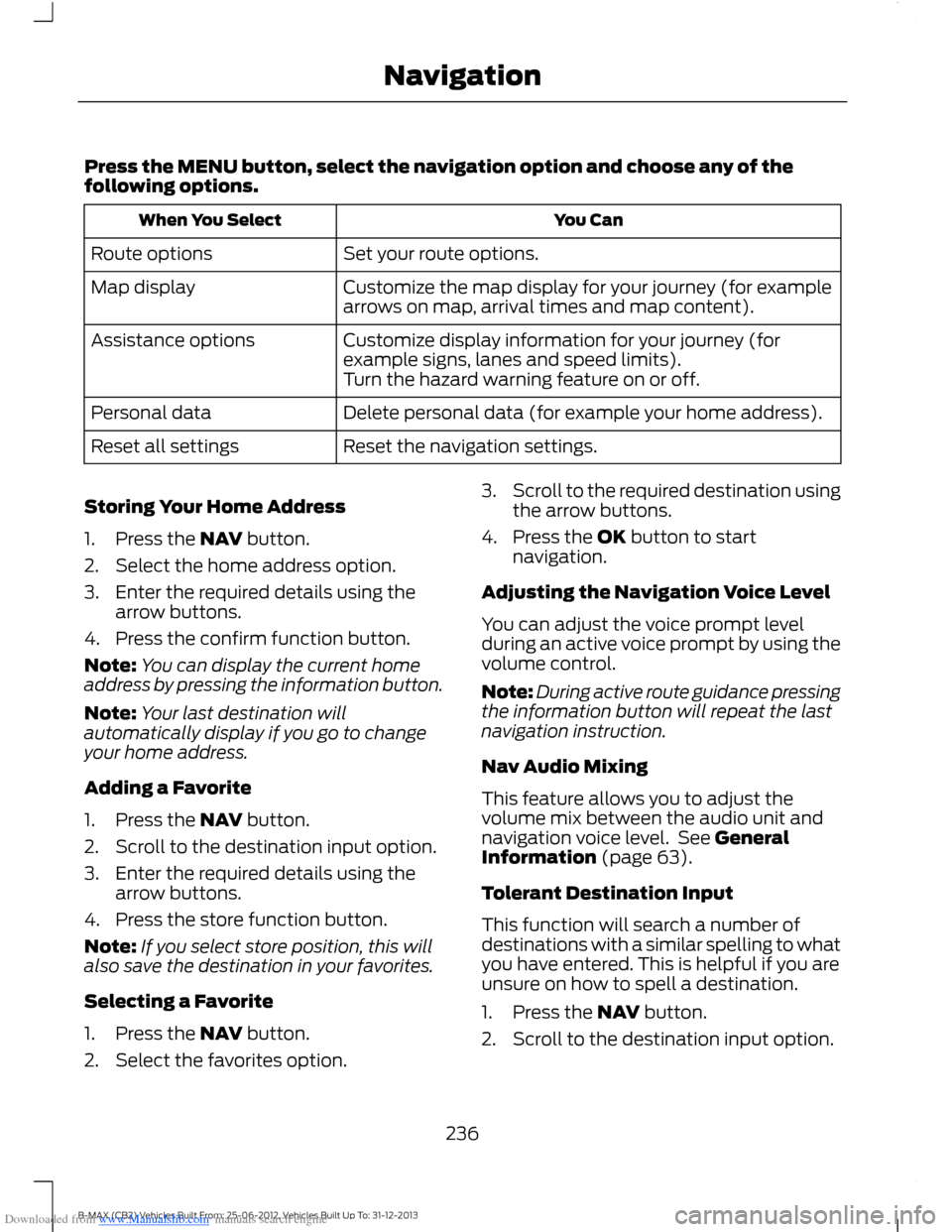
Downloaded from www.Manualslib.com manuals search engine Press the MENU button, select the navigation option and choose any of thefollowing options.
You CanWhen You Select
Set your route options.Route options
Customize the map display for your journey (for examplearrows on map, arrival times and map content).Map display
Customize display information for your journey (forexample signs, lanes and speed limits).Assistance options
Turn the hazard warning feature on or off.
Delete personal data (for example your home address).Personal data
Reset the navigation settings.Reset all settings
Storing Your Home Address
1.Press the NAV button.
2.Select the home address option.
3.Enter the required details using thearrow buttons.
4.Press the confirm function button.
Note:You can display the current homeaddress by pressing the information button.
Note:Your last destination willautomatically display if you go to changeyour home address.
Adding a Favorite
1.Press the NAV button.
2.Scroll to the destination input option.
3.Enter the required details using thearrow buttons.
4.Press the store function button.
Note:If you select store position, this willalso save the destination in your favorites.
Selecting a Favorite
1.Press the NAV button.
2.Select the favorites option.
3.Scroll to the required destination usingthe arrow buttons.
4.Press the OK button to startnavigation.
Adjusting the Navigation Voice Level
You can adjust the voice prompt levelduring an active voice prompt by using thevolume control.
Note:During active route guidance pressingthe information button will repeat the lastnavigation instruction.
Nav Audio Mixing
This feature allows you to adjust thevolume mix between the audio unit andnavigation voice level. See GeneralInformation (page 63).
Tolerant Destination Input
This function will search a number ofdestinations with a similar spelling to whatyou have entered. This is helpful if you areunsure on how to spell a destination.
1.Press the NAV button.
2.Scroll to the destination input option.
236B-MAX (CB2) Vehicles Built From: 25-06-2012, Vehicles Built Up To: 31-12-2013Navigation
Page 239 of 298
Downloaded from www.Manualslib.com manuals search engine 3.Before entering your destination detailsselect Tolerant and then begin toinput your destination.
4.Press the OK button. The system willsearch for destinations with similarspellings.
5.Use the arrow buttons to select adestination from the list and press theOK button to confirm your destination.
Route Displays
Map Display
Press the MAP button to view map mode.This view will show your current locationwith your vehicle in the center shown asan arrow surrounded by a circle. The arrowwill face in the direction of travel.
The information on the top line gives thename of the current road, or the next roadto take if a turn is approaching.
You can change the way the map isdisplayed by altering the zoom andorientation settings. Press function buttonone. The current map scale is shown onthe display.
Map scale settings may be set between0.05 miles to 500 miles or 50 meters to500 kilometers, with an auto setting onthe top. The auto setting continuouslychanges the map scale according tovehicle speed and the road type beingdriven.
You can use the arrow buttons to changethe view to 2D, turn-by-turn, 3D or a cleanview.
Zoom
This feature will automatically increasethe zoom on the map display at timeswhen you are required to make a turn, orperform more complex maneuvers. Shortlyafter the zoom scale will return to theprevious level when in auto mode.
Manual: Press function button one andadjust the setting using the left or rightarrow buttons. Press OK to confirm yoursetting.
Auto: Press function button one and usingthe up or down arrow key select the autooption. Press OK to confirm your setting.
Move
When you are in map mode, press functionbutton two. You can now use the arrowbuttons on the audio unit to move aroundthe map.
Press function button two again to returnto the original view.
Navigation Display
After commencing a navigation route, thedefault screen is the main navigationscreen.
Once an active route is underway, guidancewill be given by on-screen information andvoice prompts. Whichever audio sourceyou wish to leave the unit in, basic turn byturn and distance information will remainon the screen in the form of a graphic inset.You do not need to leave the unit on themain navigation screen when you arenavigating a route. Press the MAP buttonat any time to return to the main navigationscreen. Slightly more detailed informationon your route may be available using themain navigation screen if required.
Hazard Spot Warning
The system supports a hazard spotwarning feature which informs you withvisible and audible feedback abouthazardous traffic areas. You can switchthe system on and off using theinformation and entertainment displaymenu. See Assistance options in thenavigation menu.
Note:This feature is only available incertain countries.
237B-MAX (CB2) Vehicles Built From: 25-06-2012, Vehicles Built Up To: 31-12-2013Navigation
Page 243 of 298
Downloaded from www.Manualslib.com manuals search engine Before giving a voice command, wait forthe system announcement to finishfollowed by a single beep. Any commandspoken before this does not register withthe system.
Speak naturally, without long pausesbetween words.
You can interrupt the system at any timewhile it is speaking by pressing the voicebutton. You can also cancel a voice sessionat any time by pressing and holding thevoice button.
Initiating a Voice Session
Press the voice button. A list ofavailable commands appears inthe display.
If you want toSay
Stream audio from your cell phone."Bluetooth Audio"
Cancel the requested action."Cancel"
Access the device connected to the auxiliary input jack."Line in"
Make calls."Phone"
Return to the main menu."SYNC"
Access the device connected to your USB port."USB"
Adjust the level of voice interaction and feedback."Voice settings"
Hear a list of voice commands available in the currentmode."Help"
System Interaction and Feedback
The system provides feedback throughaudible tones, prompts, questions andspoken confirmations depending on thesituation and your chosen level ofinteraction. You can customize the voicerecognition system to provide more or lessinstruction and feedback.
The default setting is to a higher level ofinteraction in order to help you learn to usethe system. You can change these settingsat any time.
Adjusting the Interaction Level
Press the voice button. Say"Voice settings" when prompted,then any of the following:
The systemWhen you say
Provides less audible interaction and moretone prompts."Interaction mode advanced"
Provides more detailed interaction andguidance."Interaction mode standard"
The system defaults to the standard interaction mode.
241B-MAX (CB2) Vehicles Built From: 25-06-2012, Vehicles Built Up To: 31-12-2013SYNC™