audio FORD B MAX 2013 1.G Manual PDF
[x] Cancel search | Manufacturer: FORD, Model Year: 2013, Model line: B MAX, Model: FORD B MAX 2013 1.GPages: 298, PDF Size: 20.63 MB
Page 258 of 298
Downloaded from www.Manualslib.com manuals search engine Important Information about theEmergency Assistance Feature
Emergency assistance does not currentlycall emergency services in the followingmarkets: Albania, Belarus, Bosnia andHerzegovina, Macedonia, Netherlands,Ukraine, Moldova and Russia.
Visit the regional Ford website for latestdetails.
Emergency Assistance Privacy Notice
When you switch on EmergencyAssistance, it may disclose to emergencyservices that your vehicle has been in acrash involving the deployment of anairbag or activation of the fuel pump shutoff. This feature has the capability todisclose your location information to theemergency operator or other details aboutyour vehicle or crash to provide the mostappropriate emergency services.
If you do not want to disclose thisinformation, do not switch on the feature.
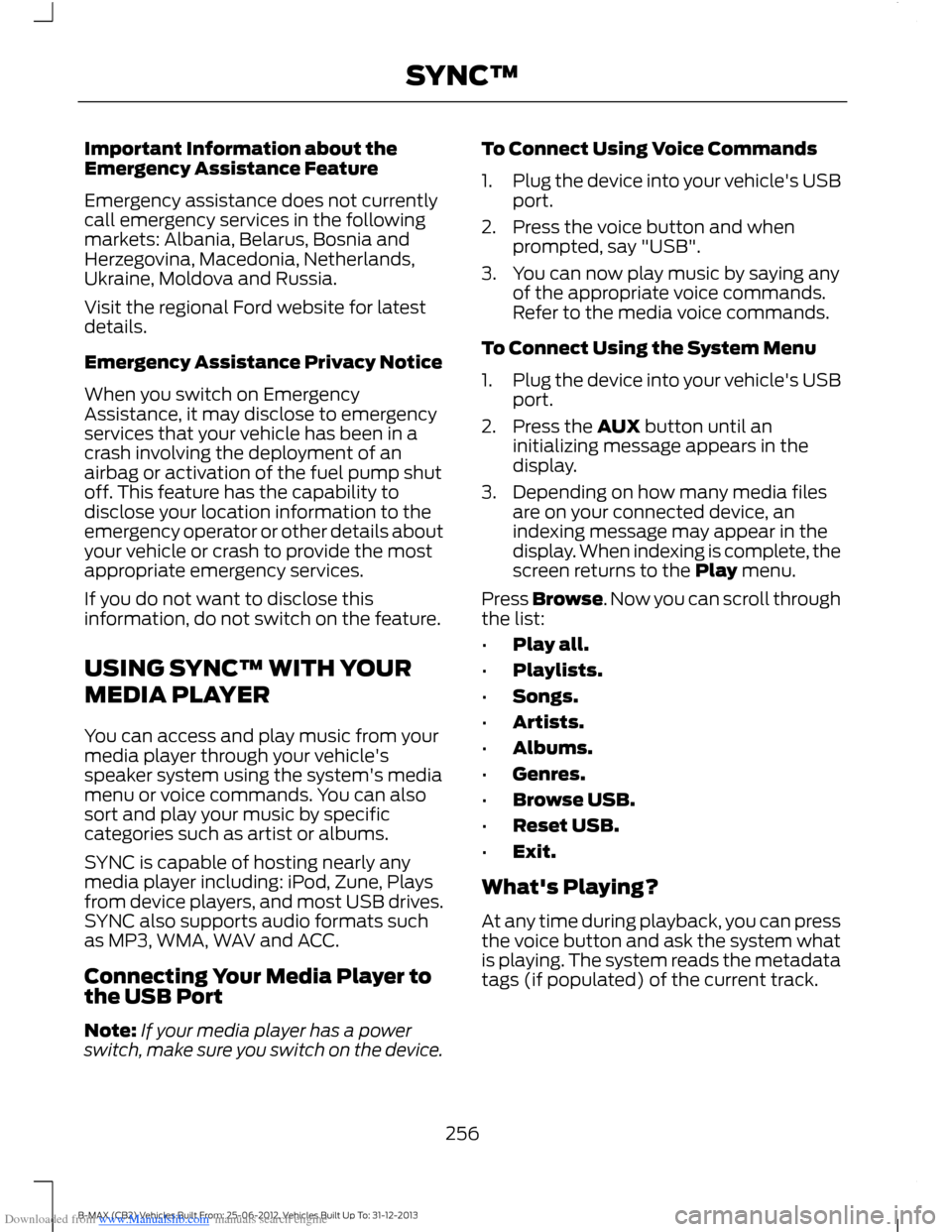
USING SYNC™ WITH YOUR
MEDIA PLAYER
You can access and play music from yourmedia player through your vehicle'sspeaker system using the system's mediamenu or voice commands. You can alsosort and play your music by specificcategories such as artist or albums.
SYNC is capable of hosting nearly anymedia player including: iPod, Zune, Playsfrom device players, and most USB drives.SYNC also supports audio formats suchas MP3, WMA, WAV and ACC.
Connecting Your Media Player tothe USB Port
Note:If your media player has a powerswitch, make sure you switch on the device.
To Connect Using Voice Commands
1.Plug the device into your vehicle's USBport.
2.Press the voice button and whenprompted, say "USB".
3.You can now play music by saying anyof the appropriate voice commands.Refer to the media voice commands.
To Connect Using the System Menu
1.Plug the device into your vehicle's USBport.
2.Press the AUX button until aninitializing message appears in thedisplay.
3.Depending on how many media filesare on your connected device, anindexing message may appear in thedisplay. When indexing is complete, thescreen returns to the Play menu.
Press Browse. Now you can scroll throughthe list:
•Play all.
•Playlists.
•Songs.
•Artists.
•Albums.
•Genres.
•Browse USB.
•Reset USB.
•Exit.
What's Playing?
At any time during playback, you can pressthe voice button and ask the system whatis playing. The system reads the metadatatags (if populated) of the current track.
256B-MAX (CB2) Vehicles Built From: 25-06-2012, Vehicles Built Up To: 31-12-2013SYNC™
Page 260 of 298
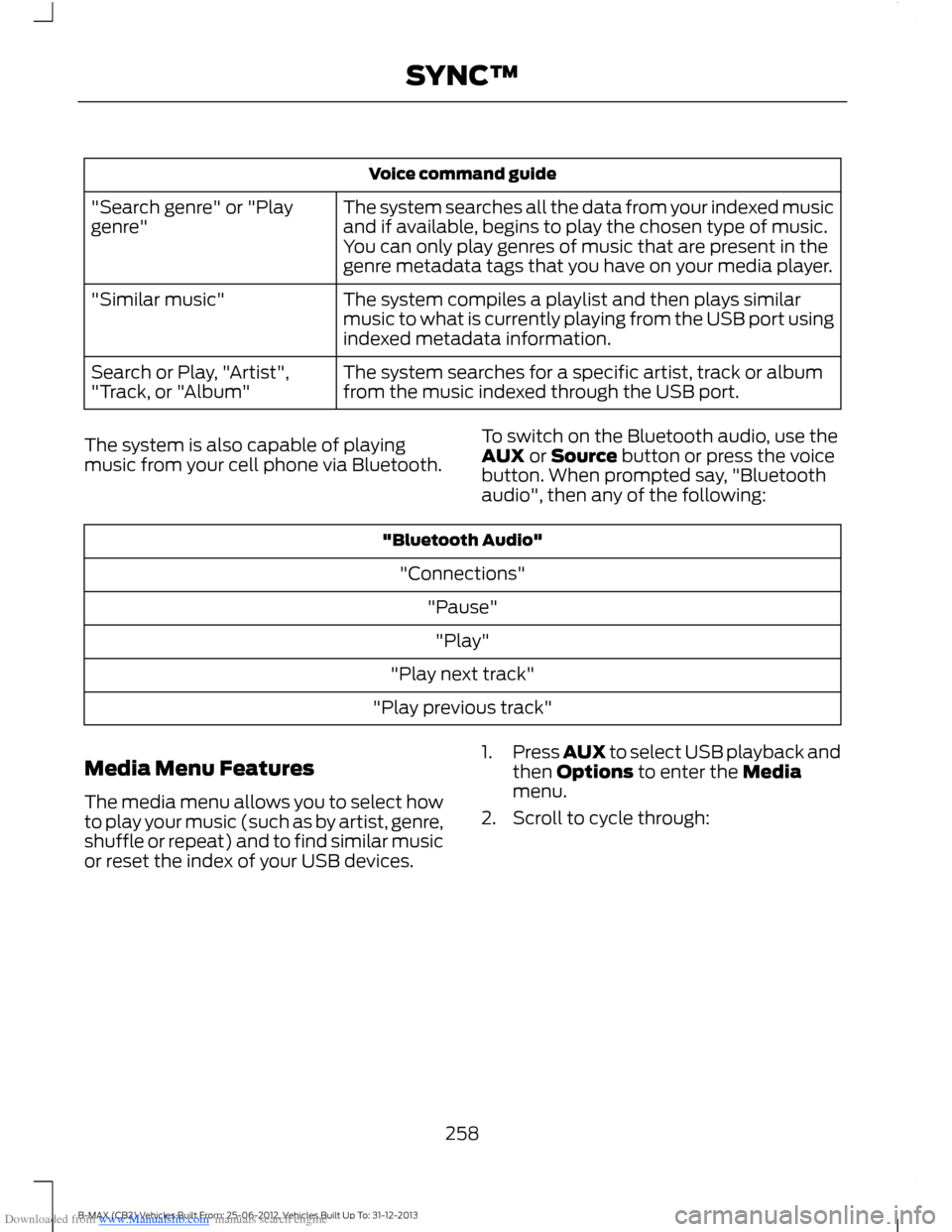
Downloaded from www.Manualslib.com manuals search engine Voice command guide
The system searches all the data from your indexed musicand if available, begins to play the chosen type of music.You can only play genres of music that are present in thegenre metadata tags that you have on your media player.
"Search genre" or "Playgenre"
The system compiles a playlist and then plays similarmusic to what is currently playing from the USB port usingindexed metadata information.
"Similar music"
The system searches for a specific artist, track or albumfrom the music indexed through the USB port.Search or Play, "Artist","Track, or "Album"
The system is also capable of playingmusic from your cell phone via Bluetooth.
To switch on the Bluetooth audio, use theAUX or Source button or press the voicebutton. When prompted say, "Bluetoothaudio", then any of the following:
"Bluetooth Audio"
"Connections"
"Pause"
"Play"
"Play next track"
"Play previous track"
Media Menu Features
The media menu allows you to select howto play your music (such as by artist, genre,shuffle or repeat) and to find similar musicor reset the index of your USB devices.
1.Press AUX to select USB playback andthen Options to enter the Mediamenu.
2.Scroll to cycle through:
258B-MAX (CB2) Vehicles Built From: 25-06-2012, Vehicles Built Up To: 31-12-2013SYNC™
Page 262 of 298
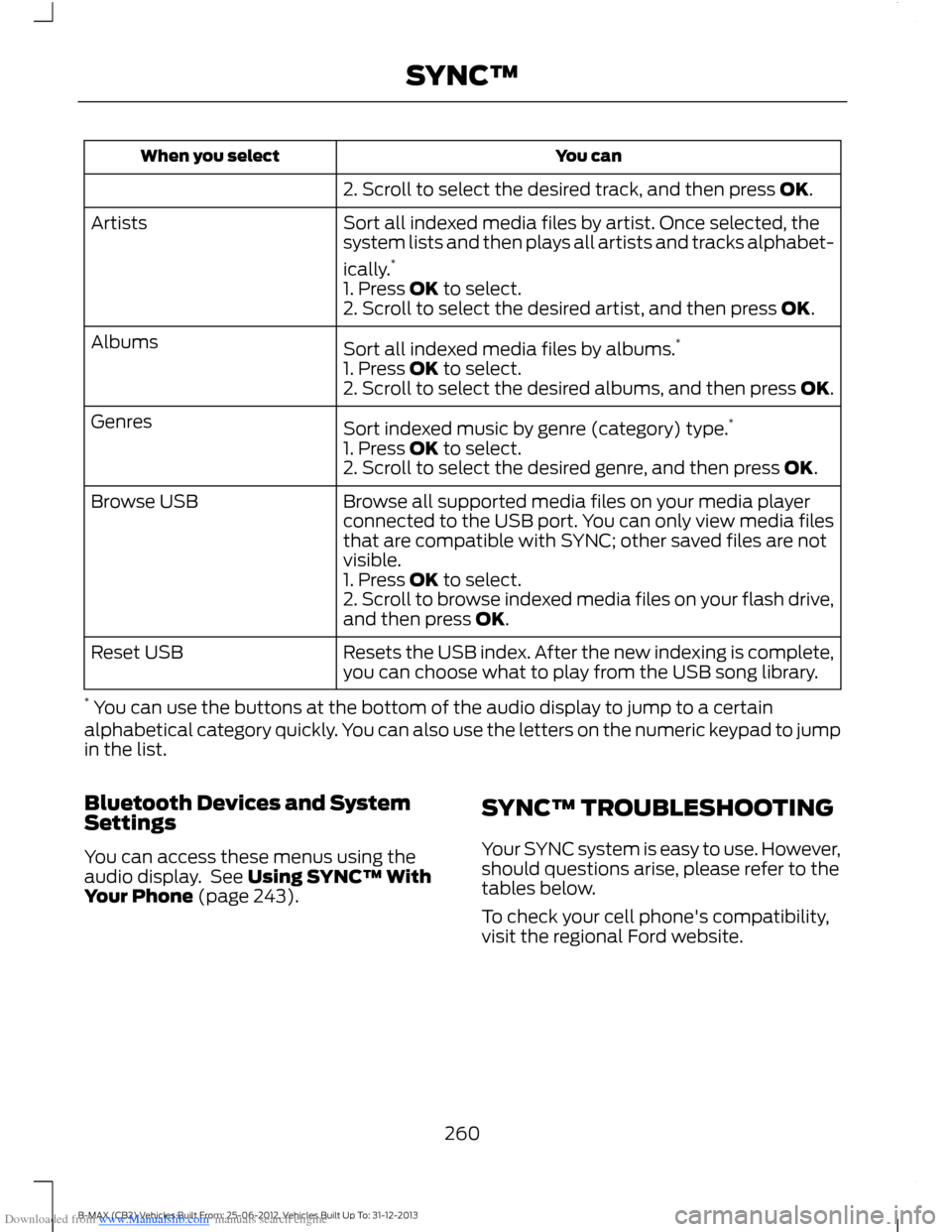
Downloaded from www.Manualslib.com manuals search engine You canWhen you select
2. Scroll to select the desired track, and then press OK.
Sort all indexed media files by artist. Once selected, thesystem lists and then plays all artists and tracks alphabet-
ically.*
Artists
1. Press OK to select.2. Scroll to select the desired artist, and then press OK.
Sort all indexed media files by albums.*Albums
1. Press OK to select.2. Scroll to select the desired albums, and then press OK.
Sort indexed music by genre (category) type.*Genres
1. Press OK to select.2. Scroll to select the desired genre, and then press OK.
Browse all supported media files on your media playerconnected to the USB port. You can only view media filesthat are compatible with SYNC; other saved files are notvisible.
Browse USB
1. Press OK to select.2. Scroll to browse indexed media files on your flash drive,and then press OK.
Resets the USB index. After the new indexing is complete,you can choose what to play from the USB song library.Reset USB
* You can use the buttons at the bottom of the audio display to jump to a certainalphabetical category quickly. You can also use the letters on the numeric keypad to jumpin the list.
Bluetooth Devices and SystemSettings
You can access these menus using theaudio display. See Using SYNC™ WithYour Phone (page 243).
SYNC™ TROUBLESHOOTING
Your SYNC system is easy to use. However,should questions arise, please refer to thetables below.
To check your cell phone's compatibility,visit the regional Ford website.
260B-MAX (CB2) Vehicles Built From: 25-06-2012, Vehicles Built Up To: 31-12-2013SYNC™
Page 263 of 298
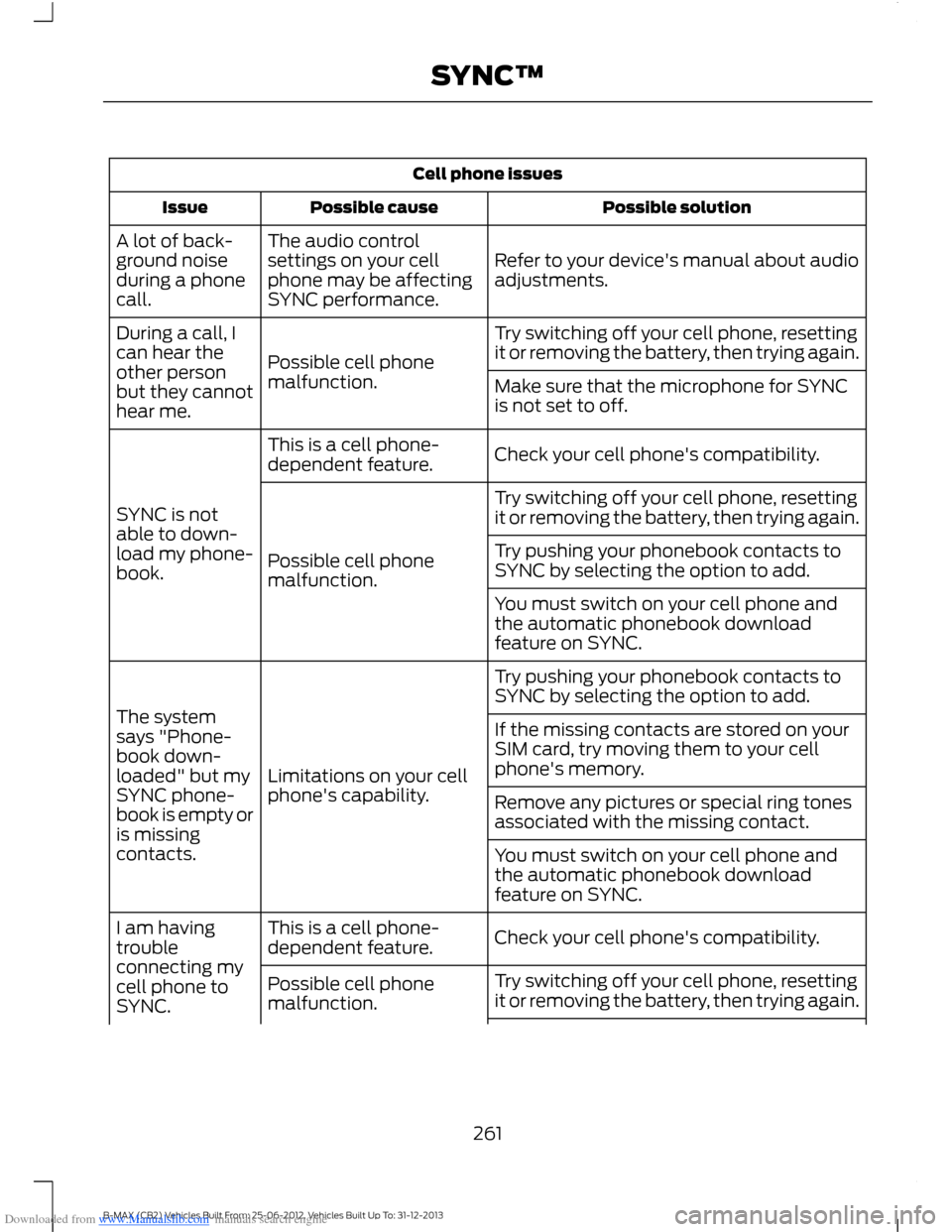
Downloaded from www.Manualslib.com manuals search engine Cell phone issues
Possible solutionPossible causeIssue
Refer to your device's manual about audioadjustments.
The audio controlsettings on your cellphone may be affectingSYNC performance.
A lot of back-ground noiseduring a phonecall.
Try switching off your cell phone, resettingit or removing the battery, then trying again.Possible cell phonemalfunction.
During a call, Ican hear theother personbut they cannothear me.
Make sure that the microphone for SYNCis not set to off.
Check your cell phone's compatibility.This is a cell phone-dependent feature.
SYNC is notable to down-load my phone-book.
Try switching off your cell phone, resettingit or removing the battery, then trying again.
Possible cell phonemalfunction.
Try pushing your phonebook contacts toSYNC by selecting the option to add.
You must switch on your cell phone andthe automatic phonebook downloadfeature on SYNC.
Try pushing your phonebook contacts toSYNC by selecting the option to add.
Limitations on your cellphone's capability.
The systemsays "Phone-book down-loaded" but mySYNC phone-book is empty oris missingcontacts.
If the missing contacts are stored on yourSIM card, try moving them to your cellphone's memory.
Remove any pictures or special ring tonesassociated with the missing contact.
You must switch on your cell phone andthe automatic phonebook downloadfeature on SYNC.
Check your cell phone's compatibility.This is a cell phone-dependent feature.I am havingtroubleconnecting mycell phone toSYNC.
Try switching off your cell phone, resettingit or removing the battery, then trying again.Possible cell phonemalfunction.
261B-MAX (CB2) Vehicles Built From: 25-06-2012, Vehicles Built Up To: 31-12-2013SYNC™
Page 265 of 298
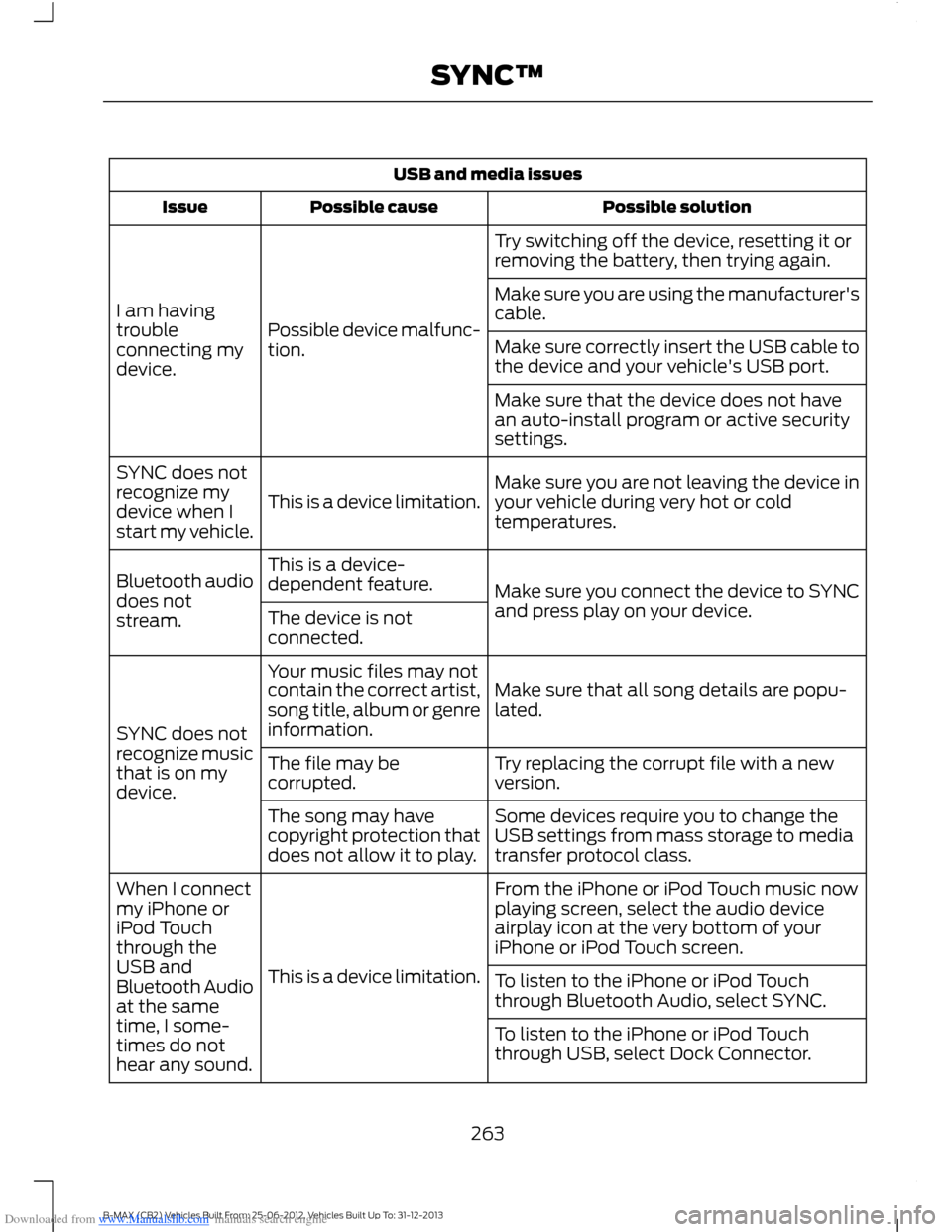
Downloaded from www.Manualslib.com manuals search engine USB and media issues
Possible solutionPossible causeIssue
Try switching off the device, resetting it orremoving the battery, then trying again.
Possible device malfunc-tion.
I am havingtroubleconnecting mydevice.
Make sure you are using the manufacturer'scable.
Make sure correctly insert the USB cable tothe device and your vehicle's USB port.
Make sure that the device does not havean auto-install program or active securitysettings.
Make sure you are not leaving the device inyour vehicle during very hot or coldtemperatures.This is a device limitation.
SYNC does notrecognize mydevice when Istart my vehicle.
Make sure you connect the device to SYNCand press play on your device.
This is a device-dependent feature.Bluetooth audiodoes notstream.The device is notconnected.
Make sure that all song details are popu-lated.
Your music files may notcontain the correct artist,song title, album or genreinformation.SYNC does notrecognize musicthat is on mydevice.
Try replacing the corrupt file with a newversion.The file may becorrupted.
Some devices require you to change theUSB settings from mass storage to mediatransfer protocol class.
The song may havecopyright protection thatdoes not allow it to play.
From the iPhone or iPod Touch music nowplaying screen, select the audio deviceairplay icon at the very bottom of youriPhone or iPod Touch screen.
This is a device limitation.
When I connectmy iPhone oriPod Touchthrough theUSB andBluetooth Audioat the sametime, I some-times do nothear any sound.
To listen to the iPhone or iPod Touchthrough Bluetooth Audio, select SYNC.
To listen to the iPhone or iPod Touchthrough USB, select Dock Connector.
263B-MAX (CB2) Vehicles Built From: 25-06-2012, Vehicles Built Up To: 31-12-2013SYNC™
Page 266 of 298
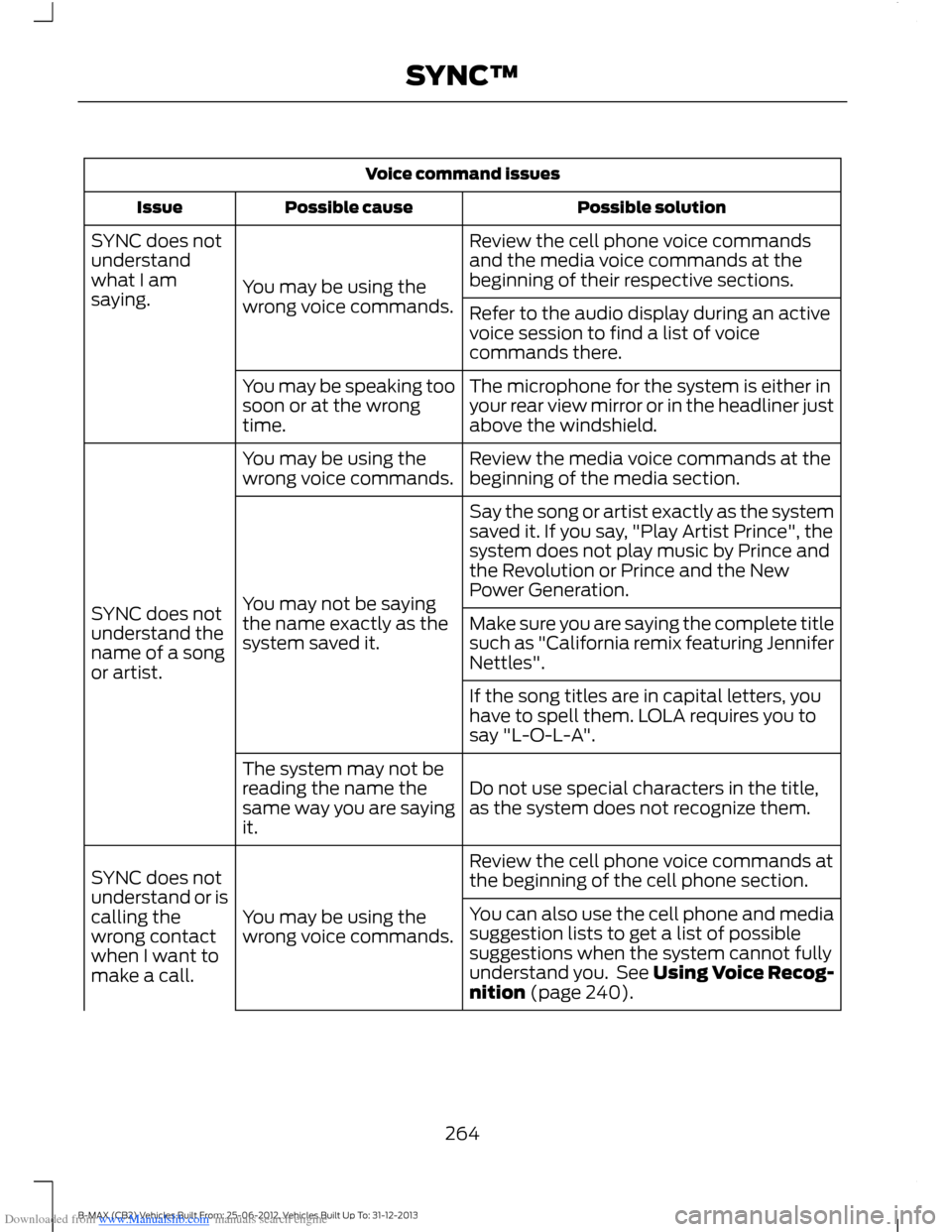
Downloaded from www.Manualslib.com manuals search engine Voice command issues
Possible solutionPossible causeIssue
Review the cell phone voice commandsand the media voice commands at thebeginning of their respective sections.You may be using thewrong voice commands.
SYNC does notunderstandwhat I amsaying.Refer to the audio display during an activevoice session to find a list of voicecommands there.
The microphone for the system is either inyour rear view mirror or in the headliner justabove the windshield.
You may be speaking toosoon or at the wrongtime.
Review the media voice commands at thebeginning of the media section.You may be using thewrong voice commands.
SYNC does notunderstand thename of a songor artist.
Say the song or artist exactly as the systemsaved it. If you say, "Play Artist Prince", thesystem does not play music by Prince andthe Revolution or Prince and the NewPower Generation.You may not be sayingthe name exactly as thesystem saved it.Make sure you are saying the complete titlesuch as "California remix featuring JenniferNettles".
If the song titles are in capital letters, youhave to spell them. LOLA requires you tosay "L-O-L-A".
Do not use special characters in the title,as the system does not recognize them.
The system may not bereading the name thesame way you are sayingit.
Review the cell phone voice commands atthe beginning of the cell phone section.
You may be using thewrong voice commands.
SYNC does notunderstand or iscalling thewrong contactwhen I want tomake a call.
You can also use the cell phone and mediasuggestion lists to get a list of possiblesuggestions when the system cannot fullyunderstand you. See Using Voice Recog-nition (page 240).
264B-MAX (CB2) Vehicles Built From: 25-06-2012, Vehicles Built Up To: 31-12-2013SYNC™
Page 269 of 298
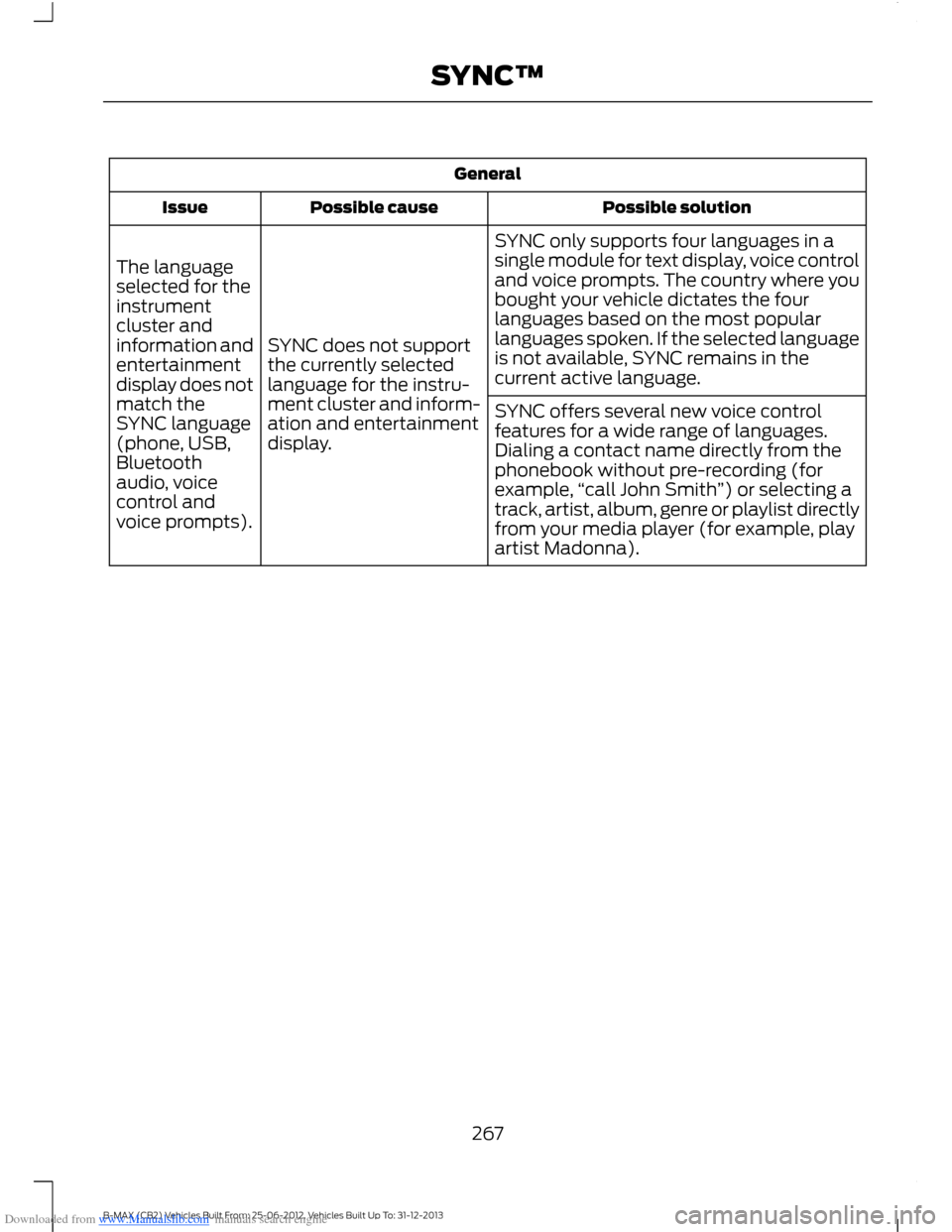
Downloaded from www.Manualslib.com manuals search engine General
Possible solutionPossible causeIssue
SYNC only supports four languages in asingle module for text display, voice controland voice prompts. The country where youbought your vehicle dictates the fourlanguages based on the most popularlanguages spoken. If the selected languageis not available, SYNC remains in thecurrent active language.
SYNC does not supportthe currently selectedlanguage for the instru-ment cluster and inform-ation and entertainmentdisplay.
The languageselected for theinstrumentcluster andinformation andentertainmentdisplay does notmatch theSYNC language(phone, USB,Bluetoothaudio, voicecontrol andvoice prompts).
SYNC offers several new voice controlfeatures for a wide range of languages.Dialing a contact name directly from thephonebook without pre-recording (forexample,“call John Smith”) or selecting atrack, artist, album, genre or playlist directlyfrom your media player (for example, playartist Madonna).
267B-MAX (CB2) Vehicles Built From: 25-06-2012, Vehicles Built Up To: 31-12-2013SYNC™
Page 275 of 298
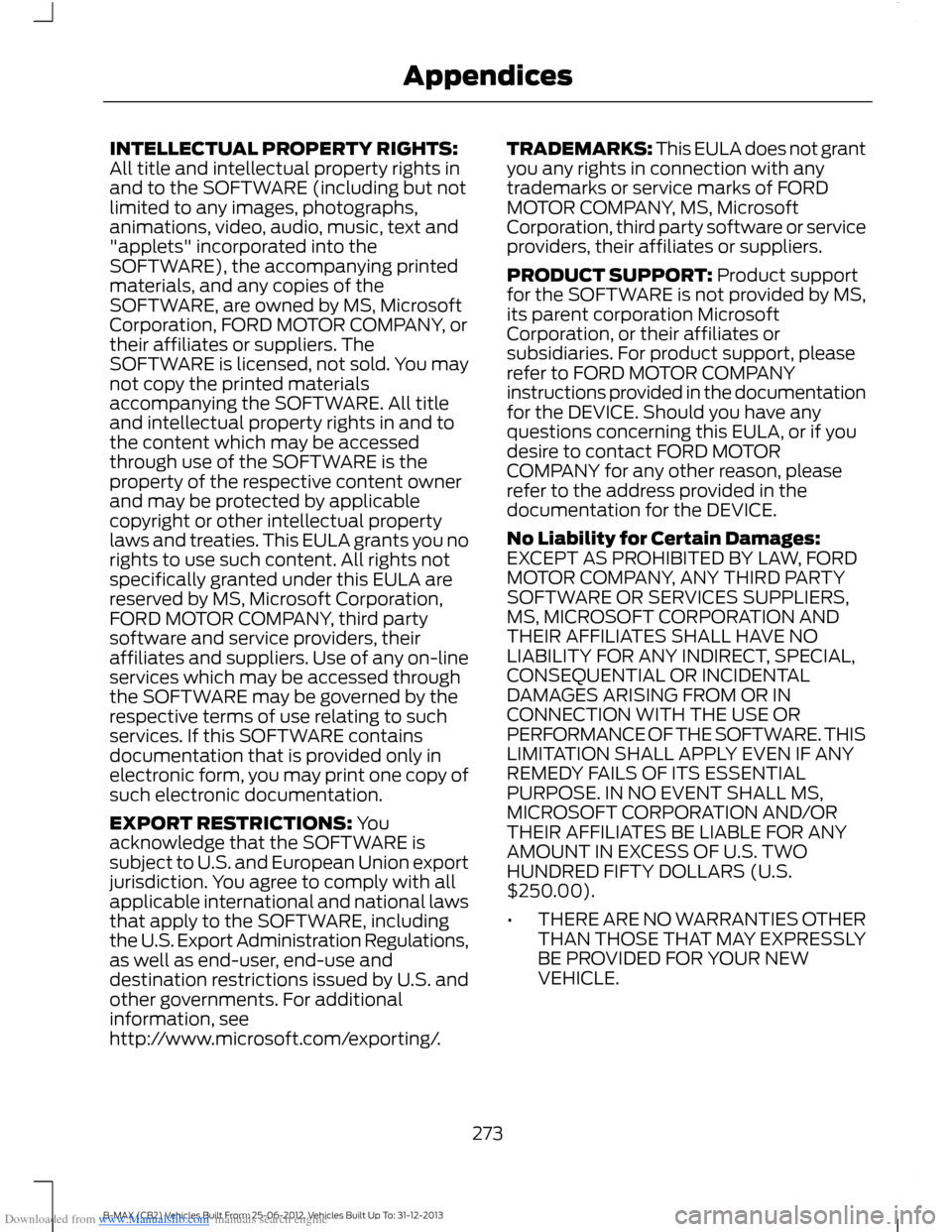
Downloaded from www.Manualslib.com manuals search engine INTELLECTUAL PROPERTY RIGHTS:All title and intellectual property rights inand to the SOFTWARE (including but notlimited to any images, photographs,animations, video, audio, music, text and"applets" incorporated into theSOFTWARE), the accompanying printedmaterials, and any copies of theSOFTWARE, are owned by MS, MicrosoftCorporation, FORD MOTOR COMPANY, ortheir affiliates or suppliers. TheSOFTWARE is licensed, not sold. You maynot copy the printed materialsaccompanying the SOFTWARE. All titleand intellectual property rights in and tothe content which may be accessedthrough use of the SOFTWARE is theproperty of the respective content ownerand may be protected by applicablecopyright or other intellectual propertylaws and treaties. This EULA grants you norights to use such content. All rights notspecifically granted under this EULA arereserved by MS, Microsoft Corporation,FORD MOTOR COMPANY, third partysoftware and service providers, theiraffiliates and suppliers. Use of any on-lineservices which may be accessed throughthe SOFTWARE may be governed by therespective terms of use relating to suchservices. If this SOFTWARE containsdocumentation that is provided only inelectronic form, you may print one copy ofsuch electronic documentation.
EXPORT RESTRICTIONS: Youacknowledge that the SOFTWARE issubject to U.S. and European Union exportjurisdiction. You agree to comply with allapplicable international and national lawsthat apply to the SOFTWARE, includingthe U.S. Export Administration Regulations,as well as end-user, end-use anddestination restrictions issued by U.S. andother governments. For additionalinformation, seehttp://www.microsoft.com/exporting/.
TRADEMARKS: This EULA does not grantyou any rights in connection with anytrademarks or service marks of FORDMOTOR COMPANY, MS, MicrosoftCorporation, third party software or serviceproviders, their affiliates or suppliers.
PRODUCT SUPPORT: Product supportfor the SOFTWARE is not provided by MS,its parent corporation MicrosoftCorporation, or their affiliates orsubsidiaries. For product support, pleaserefer to FORD MOTOR COMPANYinstructions provided in the documentationfor the DEVICE. Should you have anyquestions concerning this EULA, or if youdesire to contact FORD MOTORCOMPANY for any other reason, pleaserefer to the address provided in thedocumentation for the DEVICE.
No Liability for Certain Damages:EXCEPT AS PROHIBITED BY LAW, FORDMOTOR COMPANY, ANY THIRD PARTYSOFTWARE OR SERVICES SUPPLIERS,MS, MICROSOFT CORPORATION ANDTHEIR AFFILIATES SHALL HAVE NOLIABILITY FOR ANY INDIRECT, SPECIAL,CONSEQUENTIAL OR INCIDENTALDAMAGES ARISING FROM OR INCONNECTION WITH THE USE ORPERFORMANCE OF THE SOFTWARE. THISLIMITATION SHALL APPLY EVEN IF ANYREMEDY FAILS OF ITS ESSENTIALPURPOSE. IN NO EVENT SHALL MS,MICROSOFT CORPORATION AND/ORTHEIR AFFILIATES BE LIABLE FOR ANYAMOUNT IN EXCESS OF U.S. TWOHUNDRED FIFTY DOLLARS (U.S.$250.00).
•THERE ARE NO WARRANTIES OTHERTHAN THOSE THAT MAY EXPRESSLYBE PROVIDED FOR YOUR NEWVEHICLE.
273B-MAX (CB2) Vehicles Built From: 25-06-2012, Vehicles Built Up To: 31-12-2013Appendices
Page 278 of 298
Downloaded from www.Manualslib.com manuals search engine places you in an unsafe situation, or directsyou into an area that you consider to beunsafe, do not follow such instructions; (c)do not input destinations, or otherwisemanipulate the TeleNav Software, unlessyour vehicle is stationary and parked; (d)do not use the TeleNav Software for anyillegal, unauthorized, unintended, unsafe,hazardous, or unlawful purposes, or in anymanner inconsistent with this Agreement;(e) arrange all GPS and wireless devicesand cables necessary for use of theTeleNav Software in a secure manner inyour vehicle so that they will not interferewith your driving and will not prevent theoperation of any safety device (such as anairbag).
You agree to indemnify and hold TeleNavharmless against all claims resulting fromany dangerous or otherwise inappropriateuse of the TeleNav Software in any movingvehicle, including as a result of your failureto comply with the directions above.
2. Account Information
You agree: (a) when registering theTeleNav Software, to provide TeleNav withtrue, accurate, current, and completeinformation about yourself, and (b) toinform TeleNav promptly of any changesto such information, and to keep it true,accurate, current and complete.
3. Software License
Subject to your compliance with the termsof this Agreement, TeleNav hereby grantsto you a personal, non-exclusive,non-transferable license (except asexpressly permitted below in connectionwith your permanent transfer of theTeleNav Software license), without theright to sublicense, to use the TeleNavSoftware (in object code form only) inorder to access and use the TeleNavSoftware. This license shall terminate upon
any termination or expiration of thisAgreement. You agree that you will use theTeleNav Software only for your personalbusiness or leisure purposes, and not toprovide commercial navigation services toother parties.
3.1 License Limitations
You agree not to do any of the following:(a) reverse engineer, decompile,disassemble, translate, modify, alter orotherwise change the TeleNav Softwareor any part thereof; (b) attempt to derivethe source code, audio library or structureof the TeleNav Software without the priorexpress written consent of TeleNav; (c)remove from the TeleNav Software, oralter, any of TeleNav's or its suppliers'trademarks, trade names, logos, patent orcopyright notices, or other notices ormarkings; (d) distribute, sublicense orotherwise transfer the TeleNav Softwareto others, except as part of your permanenttransfer of the TeleNav Software; or (e)use the TeleNav Software in any mannerthat (i) infringes the intellectual propertyor proprietary rights, rights of publicity orprivacy or other rights of any party, (ii)violates any law, statute, ordinance orregulation, including but not limited to lawsand regulations related to spamming,privacy, consumer and child protection,obscenity or defamation, or (iii) is harmful,threatening, abusive, harassing, tortuous,defamatory, vulgar, obscene, libelous, orotherwise objectionable; and (f) lease, rentout, or otherwise permit unauthorizedaccess by third parties to the TeleNavSoftware without advanced writtenpermission of TeleNav.
276B-MAX (CB2) Vehicles Built From: 25-06-2012, Vehicles Built Up To: 31-12-2013Appendices
Page 287 of 298
Downloaded from www.Manualslib.com manuals search engine A
A/CSee: Climate Control...........................................75About This Manual...........................................5Protecting the Environment...............................5ABSSee: Brakes...........................................................109ABS driving hintsSee: Hints on Driving With Anti-LockBrakes................................................................109AccessoriesSee: Replacement PartsRecommendation..............................................7Active City Stop..............................................119General Information...........................................119Laser Sensor Information................................120Using Active City Stop.......................................119Adjusting the Headlamps..........................161Adjusting the Steering Wheel....................42Air ConditioningSee: Climate Control...........................................75Air Vents.............................................................75Center Air Vents....................................................75Side Air Vent...........................................................75AlarmSee: Anti-Theft Alarm........................................39Anti-Theft Alarm............................................39Alarm System........................................................39Arming the Alarm................................................40Disarming the Alarm..........................................40Full and Reduced Guard...................................40Triggering the Alarm...........................................40Appendices....................................................268At a Glance..........................................................9Front Exterior Overview........................................9Instrument Panel Overview................................11Rear Exterior Overview........................................14Vehicle Interior Overview...................................10Audible Warnings and Indicators..............61Automatic Transmission....................................61Headlamps On.......................................................61Key Outside Car.....................................................61Low Fuel...................................................................61Safety Belt Minder...............................................62Audio Control...................................................42.....................................................................................42
Audio System................................................190General Information..........................................190Audio System Security...............................219Audio Troubleshooting..............................229Audio unit - Vehicles With:AM/FM/CD/Bluetooth............................196Alternative Frequencies...................................201Automatic Volume Control.............................201Autostore Control.............................................200News Broadcasts...............................................201Regional Mode.....................................................201Sound Button......................................................199Station Preset Buttons...................................200Station Tuning Control.....................................199Traffic Information Control............................200Waveband Button..............................................199Audio unit - Vehicles With:AM/FM/CD/Navigation System..........202Alternative Frequencies...................................207Automatic Volume Control...........................206Autostore Control.............................................206News Broadcasts..............................................206Regional Mode....................................................207Station Preset Buttons....................................205Station Tuning Control....................................205Traffic Information Control............................206Waveband Button.............................................205Audio unit - Vehicles With:AM/FM/CD....................................................191Alternative Frequencies...................................195Automatic Volume Control.............................194Autostore Control...............................................194News Broadcasts...............................................195Regional Mode.....................................................195Sound Button.......................................................193Station Preset Buttons.....................................193Station Tuning Control.....................................193Traffic Information Control.............................194Waveband Button..............................................193
285B-MAX (CB2) Vehicles Built From: 25-06-2012, Vehicles Built Up To: 31-12-2013Index