ECU FORD BRONCO SPORT 2021 Owner's Guide
[x] Cancel search | Manufacturer: FORD, Model Year: 2021, Model line: BRONCO SPORT, Model: FORD BRONCO SPORT 2021Pages: 471, PDF Size: 7 MB
Page 321 of 471
WARNING: Check that the vehicle
jack is not damaged or deformed and
the thread is lubricated and clean. WARNING: To help prevent your
vehicle from moving when changing a
wheel, shift the transmission into park
(P), set the parking brake and use an
appropriate block or wheel chock to
secure the wheel diagonally opposite to
the wheel being changed. For example,
when changing the front left wheel,
place an appropriate block or wheel
chock on the right rear wheel. WARNING:
Always use the jack
provided as original equipment with your
vehicle. If using a jack other than the one
provided, make sure the jack capacity is
adequate for the vehicle weight,
including any vehicle cargo or
modifications. If you are unsure if the jack
capacity is adequate, contact the
authorized dealer. WARNING:
Do not work on your
vehicle when the jack is the only support
as your vehicle could slip off the jack.
Failure to follow this instruction could
result in personal injury or death. WARNING:
Use only the specified
jacking points. If you use other positions,
you may damage the body, steering,
suspension, engine, braking system or
the fuel lines. WARNING:
Never place anything
between the vehicle jack and your
vehicle. WARNING:
Never place anything
between the vehicle jack and the ground. WARNING:
Park your vehicle so
that you do not obstruct the flow of
traffic or place yourself in any danger and
set up a warning triangle. WARNING:
Do not attempt to
change a tire on the side of the vehicle
close to moving traffic. Pull far enough
off the road to avoid the danger of being
hit when operating the jack or changing
the wheel. WARNING:
The jack should be
used on level firm ground wherever
possible. WARNING:
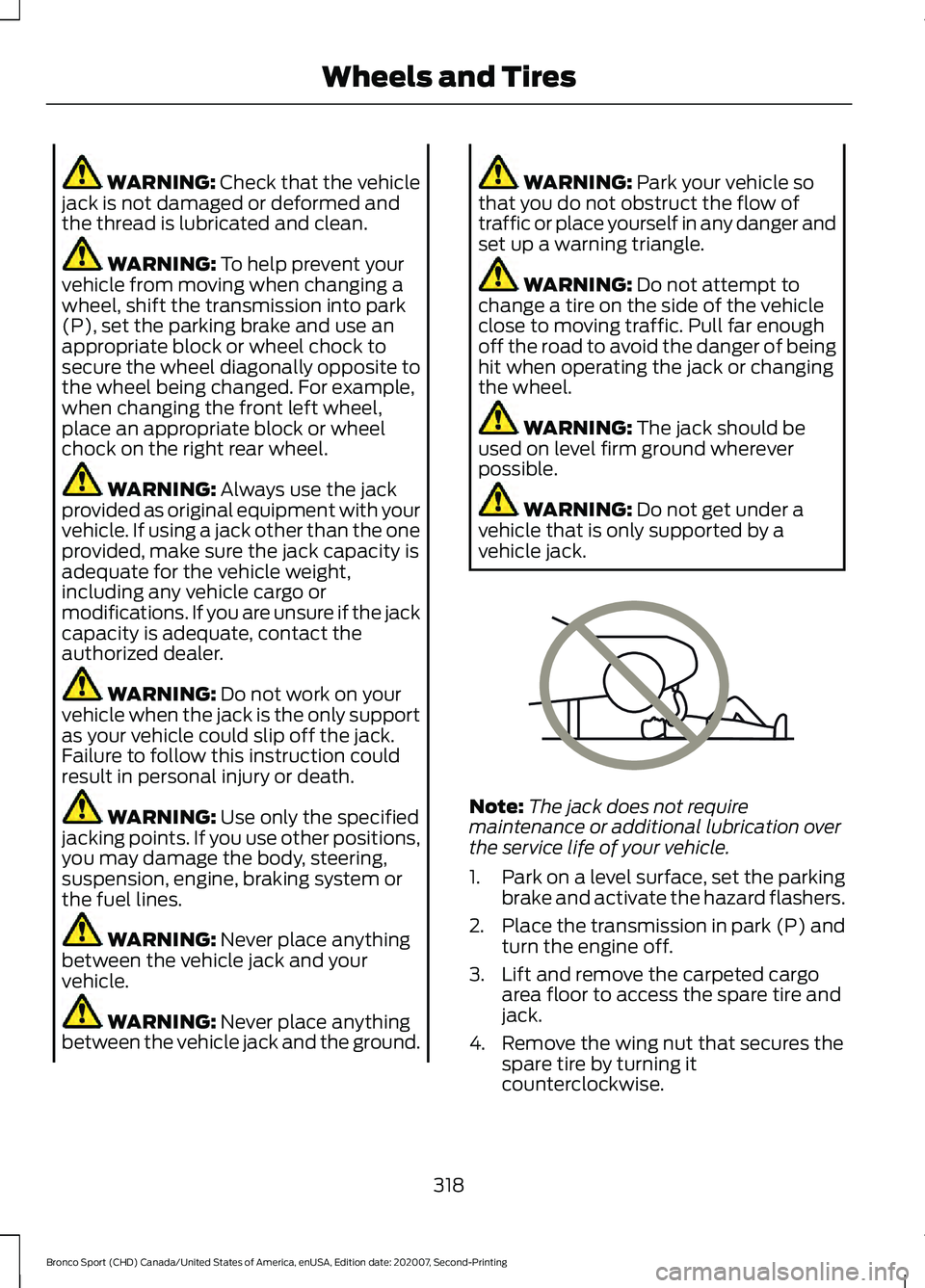
Do not get under a
vehicle that is only supported by a
vehicle jack. Note:
The jack does not require
maintenance or additional lubrication over
the service life of your vehicle.
1. Park on a level surface, set the parking
brake and activate the hazard flashers.
2. Place the transmission in park (P) and
turn the engine off.
3. Lift and remove the carpeted cargo area floor to access the spare tire and
jack.
4. Remove the wing nut that secures the spare tire by turning it
counterclockwise.
318
Bronco Sport (CHD) Canada/United States of America, enUSA, Edition date: 202007, Second-Printing Wheels and TiresE166722
Page 323 of 471
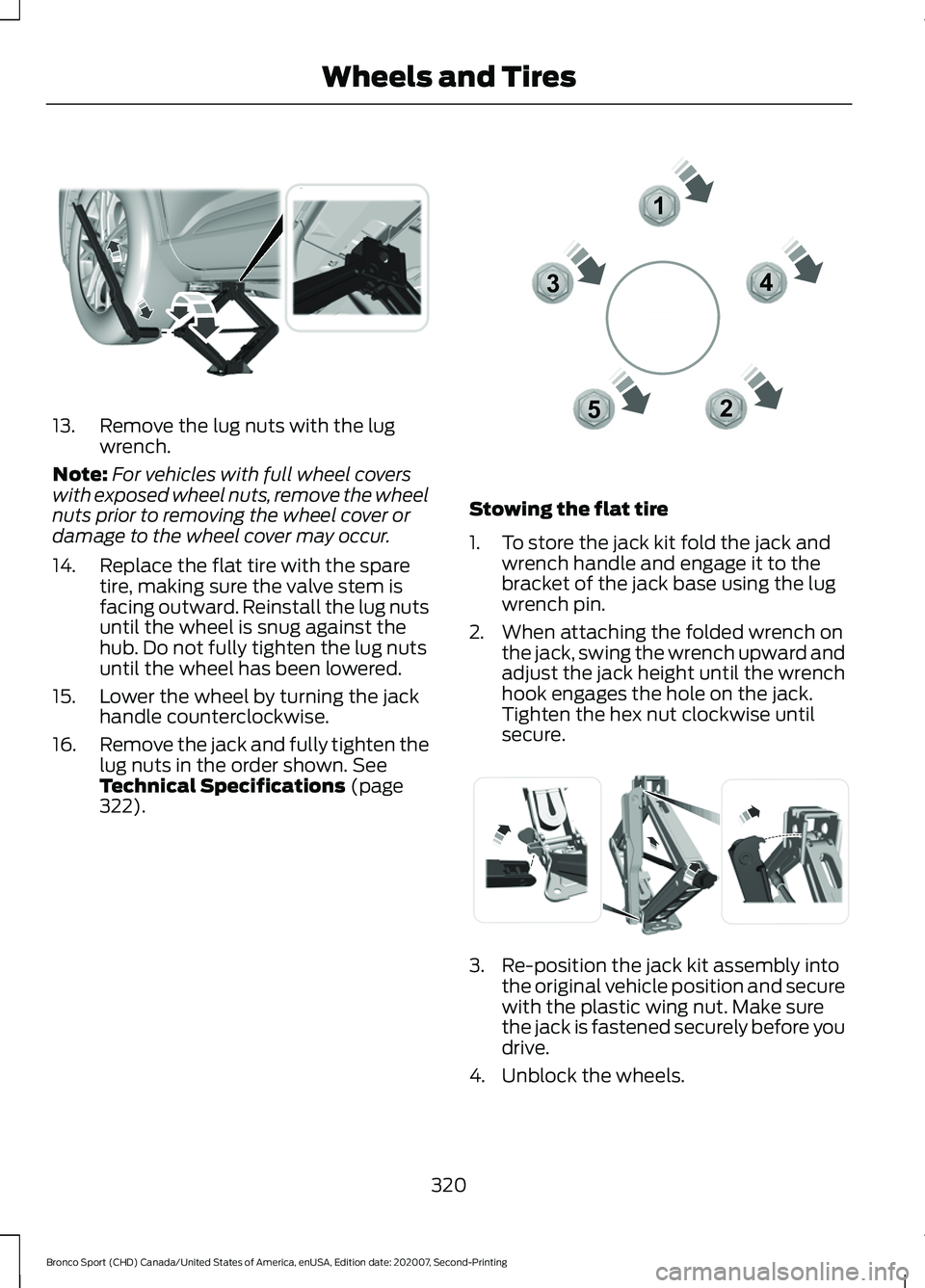
13. Remove the lug nuts with the lug
wrench.
Note: For vehicles with full wheel covers
with exposed wheel nuts, remove the wheel
nuts prior to removing the wheel cover or
damage to the wheel cover may occur.
14. Replace the flat tire with the spare tire, making sure the valve stem is
facing outward. Reinstall the lug nuts
until the wheel is snug against the
hub. Do not fully tighten the lug nuts
until the wheel has been lowered.
15. Lower the wheel by turning the jack handle counterclockwise.
16. Remove the jack and fully tighten the
lug nuts in the order shown. See
Technical Specifications (page
322). Stowing the flat tire
1. To store the jack kit fold the jack and
wrench handle and engage it to the
bracket of the jack base using the lug
wrench pin.
2. When attaching the folded wrench on the jack, swing the wrench upward and
adjust the jack height until the wrench
hook engages the hole on the jack.
Tighten the hex nut clockwise until
secure. 3. Re-position the jack kit assembly into
the original vehicle position and secure
with the plastic wing nut. Make sure
the jack is fastened securely before you
drive.
4. Unblock the wheels.
320
Bronco Sport (CHD) Canada/United States of America, enUSA, Edition date: 202007, Second-Printing Wheels and TiresE294119 12
3
4
5E306781 E294121
Page 324 of 471
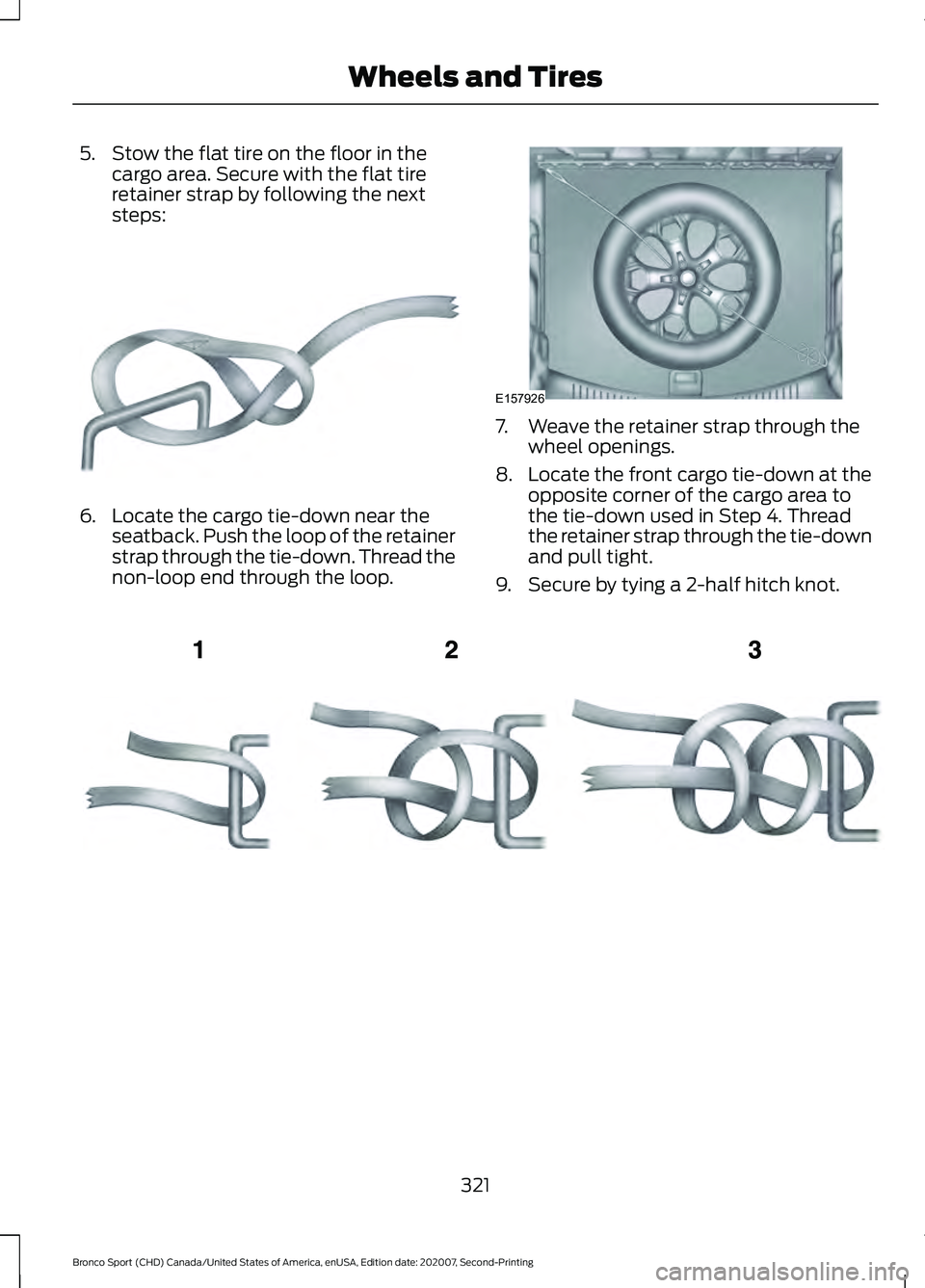
5. Stow the flat tire on the floor in the
cargo area. Secure with the flat tire
retainer strap by following the next
steps: 6. Locate the cargo tie-down near the
seatback. Push the loop of the retainer
strap through the tie-down. Thread the
non-loop end through the loop. 7. Weave the retainer strap through the
wheel openings.
8. Locate the front cargo tie-down at the
opposite corner of the cargo area to
the tie-down used in Step 4. Thread
the retainer strap through the tie-down
and pull tight.
9. Secure by tying a 2-half hitch knot. 321
Bronco Sport (CHD) Canada/United States of America, enUSA, Edition date: 202007, Second-Printing Wheels and TiresE142906 E157926 E143746
Page 325 of 471
TECHNICAL SPECIFICATIONS
Wheel Lug Nut Torque Specifications
WARNING: When you install a wheel, always remove any corrosion, dirt or foreign
materials present on the mounting surfaces of the wheel or the surface of the wheel
hub, brake drum or brake disc that contacts the wheel. Make sure to secure any fasteners
that attach the rotor to the hub so they do not interfere with the mounting surfaces of
the wheel. Installing wheels without correct metal-to-metal contact at the wheel
mounting surfaces can cause the wheel nuts to loosen and the wheel to come off while
your vehicle is in motion, resulting in loss of vehicle control, personal injury or death. Ib-ft (Nm)
*
Bolt size
100 lb.ft (135 Nm)
M12 x 1.5
* Torque specifications are for nut and bolt threads free of dirt and rust. Use only Ford
recommended replacement fasteners.
Retighten the lug nuts to the specified torque within 100 mi (160 km) after any wheel
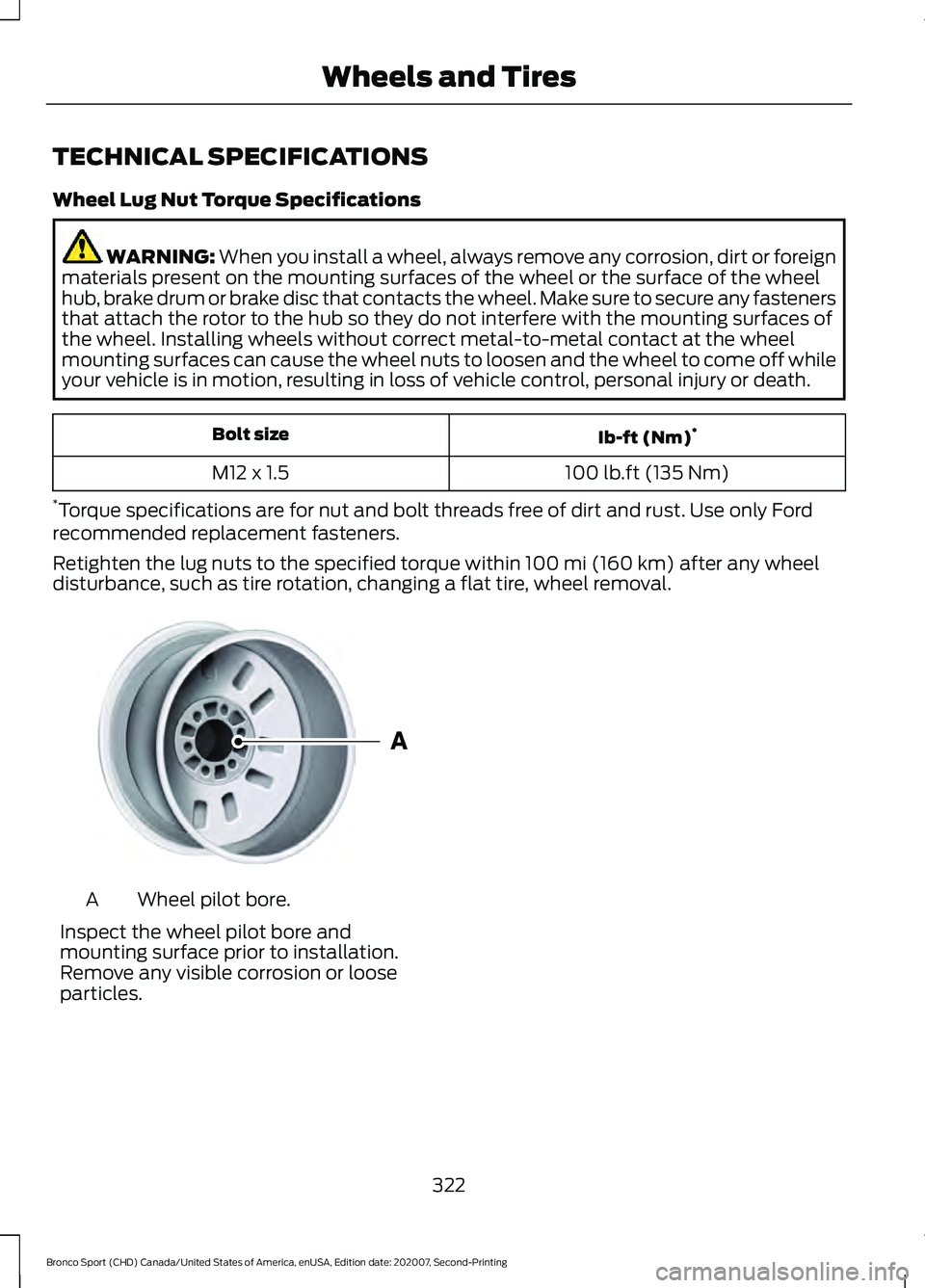
disturbance, such as tire rotation, changing a flat tire, wheel removal. Wheel pilot bore.
A
Inspect the wheel pilot bore and
mounting surface prior to installation.
Remove any visible corrosion or loose
particles.
322
Bronco Sport (CHD) Canada/United States of America, enUSA, Edition date: 202007, Second-Printing Wheels and TiresE145950
Page 341 of 471
2. Press Wi-Fi.
3. Switch
Wi-Fi on.
4. Press
View Available Networks. 5. Select an available Wi-Fi network.
Note:
Enter the network password to
connect to a secure network.
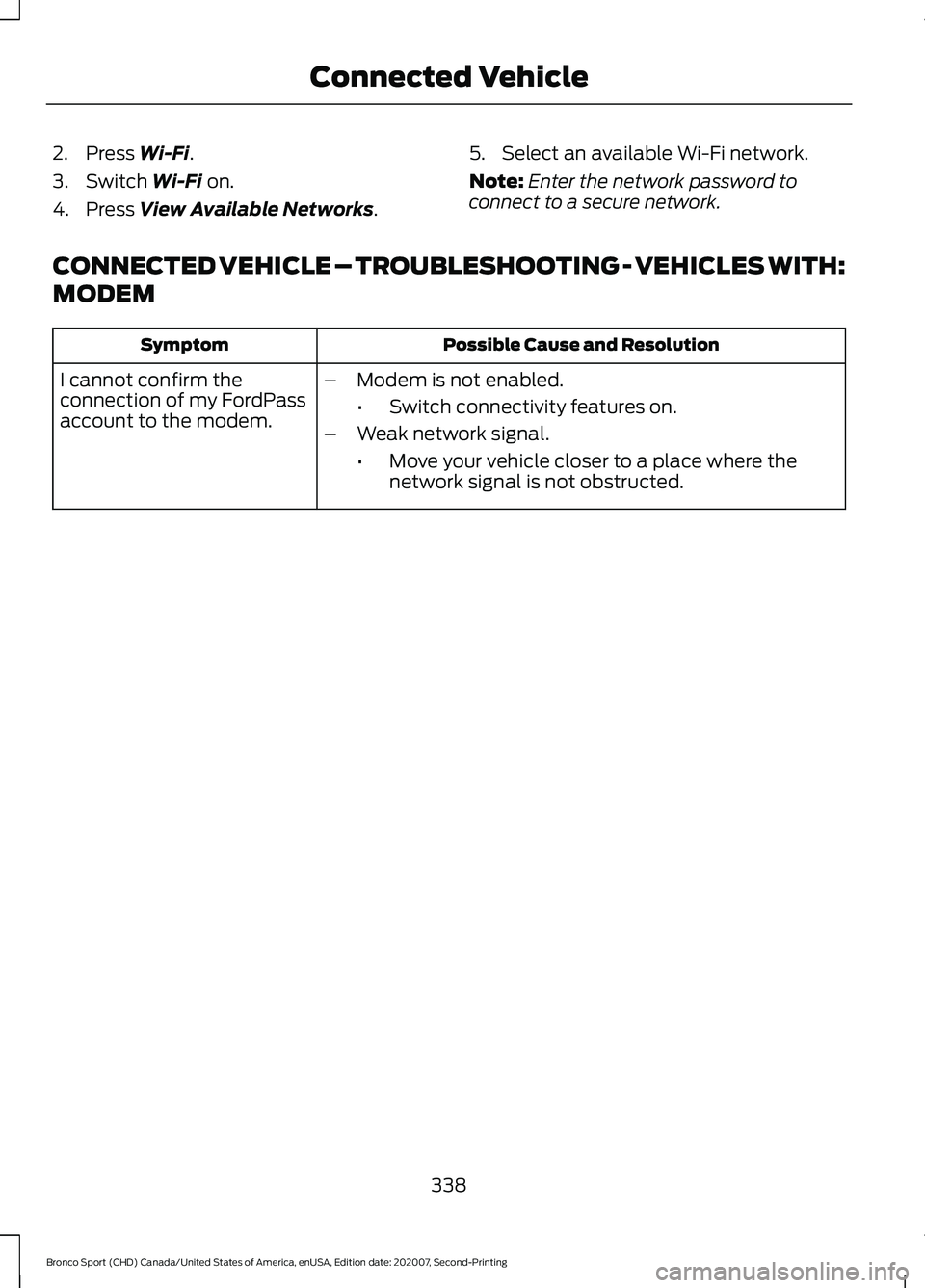
CONNECTED VEHICLE – TROUBLESHOOTING - VEHICLES WITH:
MODEM Possible Cause and Resolution
Symptom
I cannot confirm the
connection of my FordPass
account to the modem. –
Modem is not enabled.
•Switch connectivity features on.
– Weak network signal.
•Move your vehicle closer to a place where the
network signal is not obstructed.
338
Bronco Sport (CHD) Canada/United States of America, enUSA, Edition date: 202007, Second-Printing Connected Vehicle
Page 344 of 471
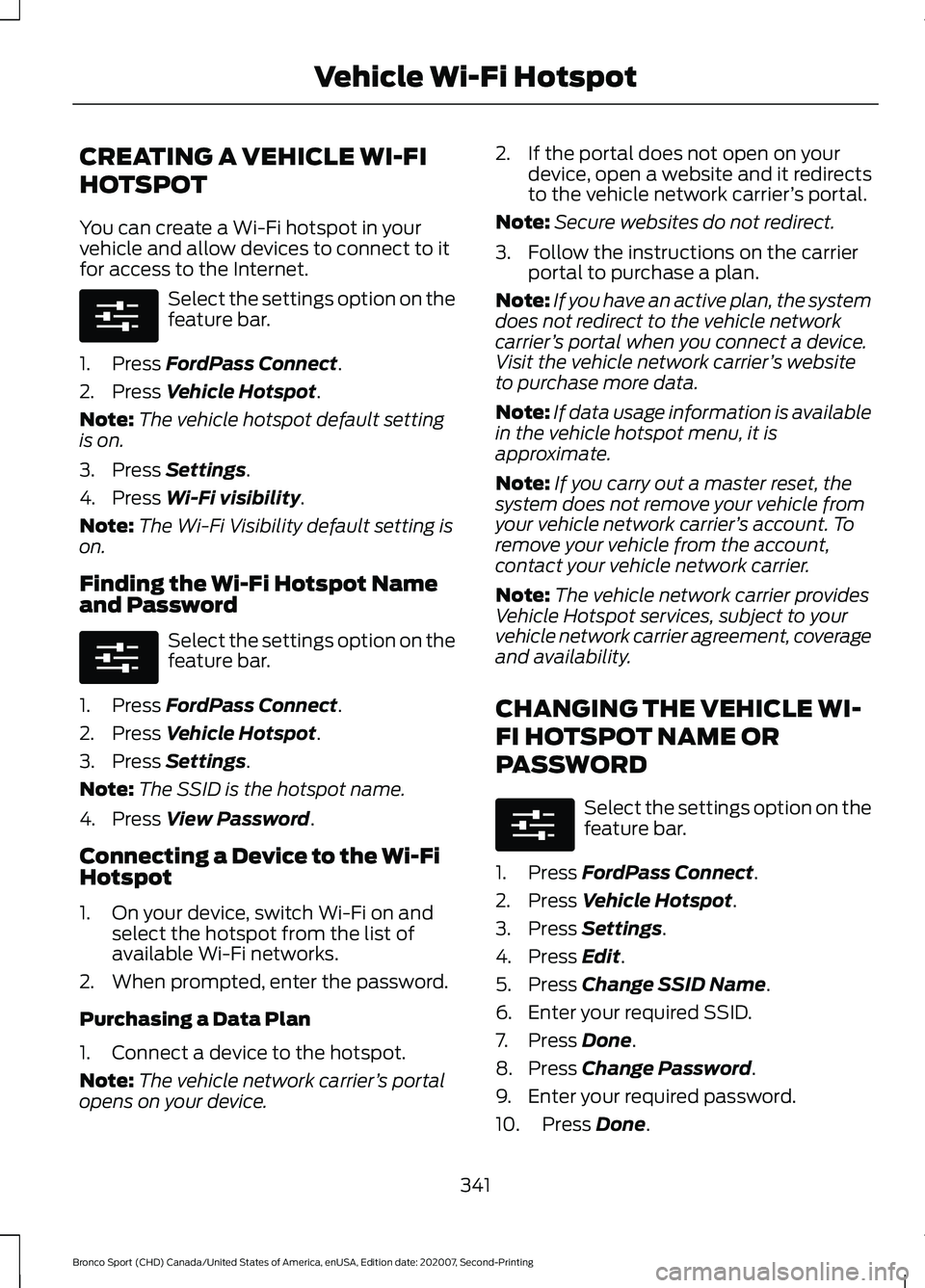
CREATING A VEHICLE WI-FI
HOTSPOT
You can create a Wi-Fi hotspot in your
vehicle and allow devices to connect to it
for access to the Internet.
Select the settings option on the
feature bar.
1. Press FordPass Connect.
2. Press
Vehicle Hotspot.
Note: The vehicle hotspot default setting
is on.
3. Press
Settings.
4. Press
Wi-Fi visibility.
Note: The Wi-Fi Visibility default setting is
on.
Finding the Wi-Fi Hotspot Name
and Password Select the settings option on the
feature bar.
1. Press
FordPass Connect.
2. Press
Vehicle Hotspot.
3. Press
Settings.
Note: The SSID is the hotspot name.
4. Press
View Password.
Connecting a Device to the Wi-Fi
Hotspot
1. On your device, switch Wi-Fi on and select the hotspot from the list of
available Wi-Fi networks.
2. When prompted, enter the password.
Purchasing a Data Plan
1. Connect a device to the hotspot.
Note: The vehicle network carrier ’s portal
opens on your device. 2. If the portal does not open on your
device, open a website and it redirects
to the vehicle network carrier ’s portal.
Note: Secure websites do not redirect.
3. Follow the instructions on the carrier portal to purchase a plan.
Note: If you have an active plan, the system
does not redirect to the vehicle network
carrier ’s portal when you connect a device.
Visit the vehicle network carrier ’s website
to purchase more data.
Note: If data usage information is available
in the vehicle hotspot menu, it is
approximate.
Note: If you carry out a master reset, the
system does not remove your vehicle from
your vehicle network carrier ’s account. To
remove your vehicle from the account,
contact your vehicle network carrier.
Note: The vehicle network carrier provides
Vehicle Hotspot services, subject to your
vehicle network carrier agreement, coverage
and availability.
CHANGING THE VEHICLE WI-
FI HOTSPOT NAME OR
PASSWORD Select the settings option on the
feature bar.
1. Press
FordPass Connect.
2. Press
Vehicle Hotspot.
3. Press
Settings.
4. Press
Edit.
5. Press
Change SSID Name.
6. Enter your required SSID.
7. Press
Done.
8. Press
Change Password.
9. Enter your required password.
10. Press
Done.
341
Bronco Sport (CHD) Canada/United States of America, enUSA, Edition date: 202007, Second-Printing Vehicle Wi-Fi HotspotE280315 E280315 E280315
Page 354 of 471
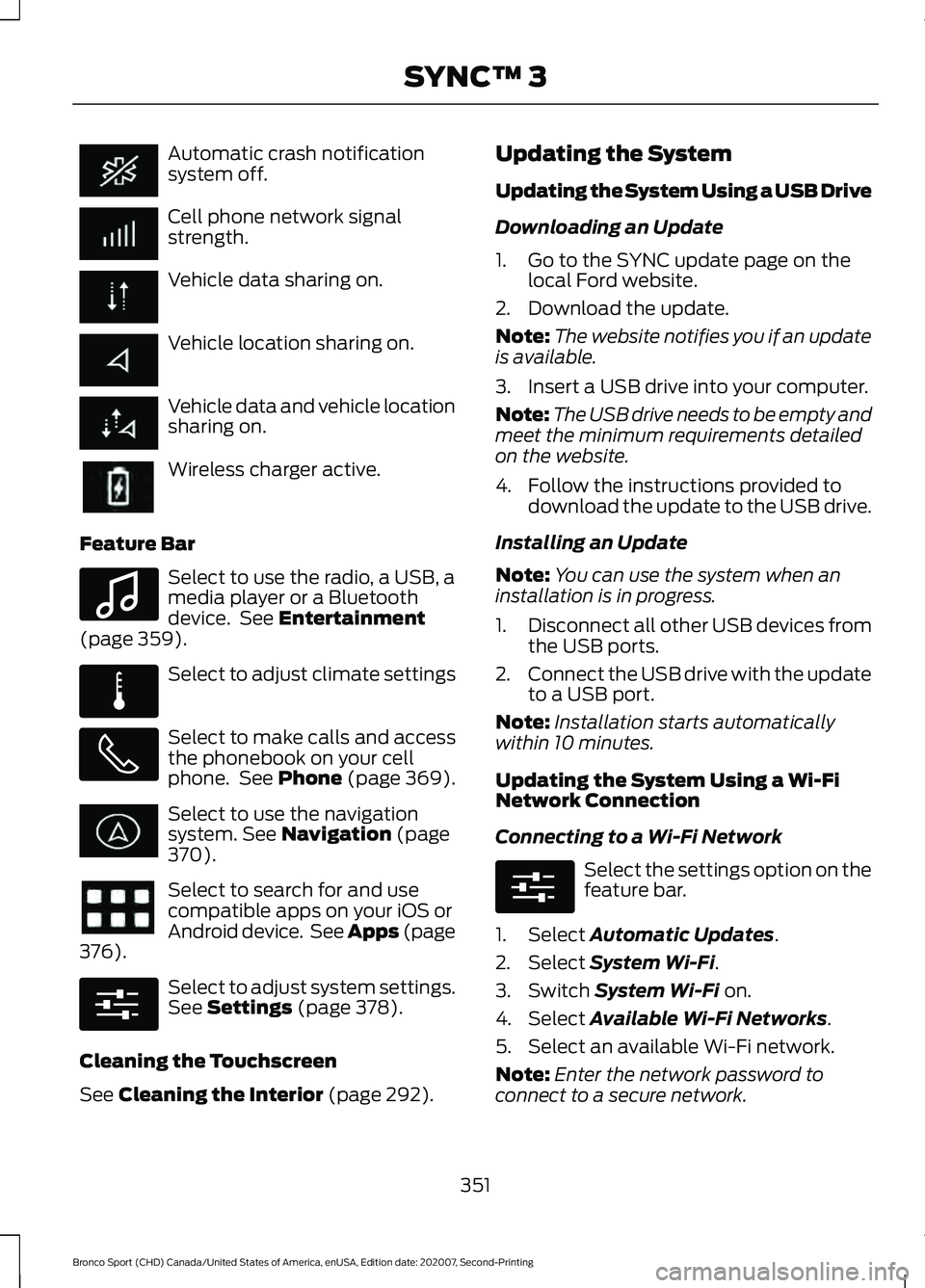
Automatic crash notification
system off.
Cell phone network signal
strength.
Vehicle data sharing on.
Vehicle location sharing on.
Vehicle data and vehicle location
sharing on.
Wireless charger active.
Feature Bar Select to use the radio, a USB, a
media player or a Bluetooth
device. See Entertainment
(page 359). Select to adjust climate settings
Select to make calls and access
the phonebook on your cell
phone. See
Phone (page 369).
Select to use the navigation
system.
See Navigation (page
370). Select to search for and use
compatible apps on your iOS or
Android device. See Apps (page
376
). Select to adjust system settings.
See
Settings (page 378).
Cleaning the Touchscreen
See
Cleaning the Interior (page 292). Updating the System
Updating the System Using a USB Drive
Downloading an Update
1. Go to the SYNC update page on the
local Ford website.
2. Download the update.
Note: The website notifies you if an update
is available.
3. Insert a USB drive into your computer.
Note: The USB drive needs to be empty and
meet the minimum requirements detailed
on the website.
4. Follow the instructions provided to download the update to the USB drive.
Installing an Update
Note: You can use the system when an
installation is in progress.
1. Disconnect all other USB devices from
the USB ports.
2. Connect the USB drive with the update
to a USB port.
Note: Installation starts automatically
within 10 minutes.
Updating the System Using a Wi-Fi
Network Connection
Connecting to a Wi-Fi Network Select the settings option on the
feature bar.
1. Select
Automatic Updates.
2. Select
System Wi-Fi.
3. Switch
System Wi-Fi on.
4. Select
Available Wi-Fi Networks.
5. Select an available Wi-Fi network.
Note: Enter the network password to
connect to a secure network.
351
Bronco Sport (CHD) Canada/United States of America, enUSA, Edition date: 202007, Second-Printing SYNC™ 3 E100027 E283811 E280315 E280315
Page 385 of 471
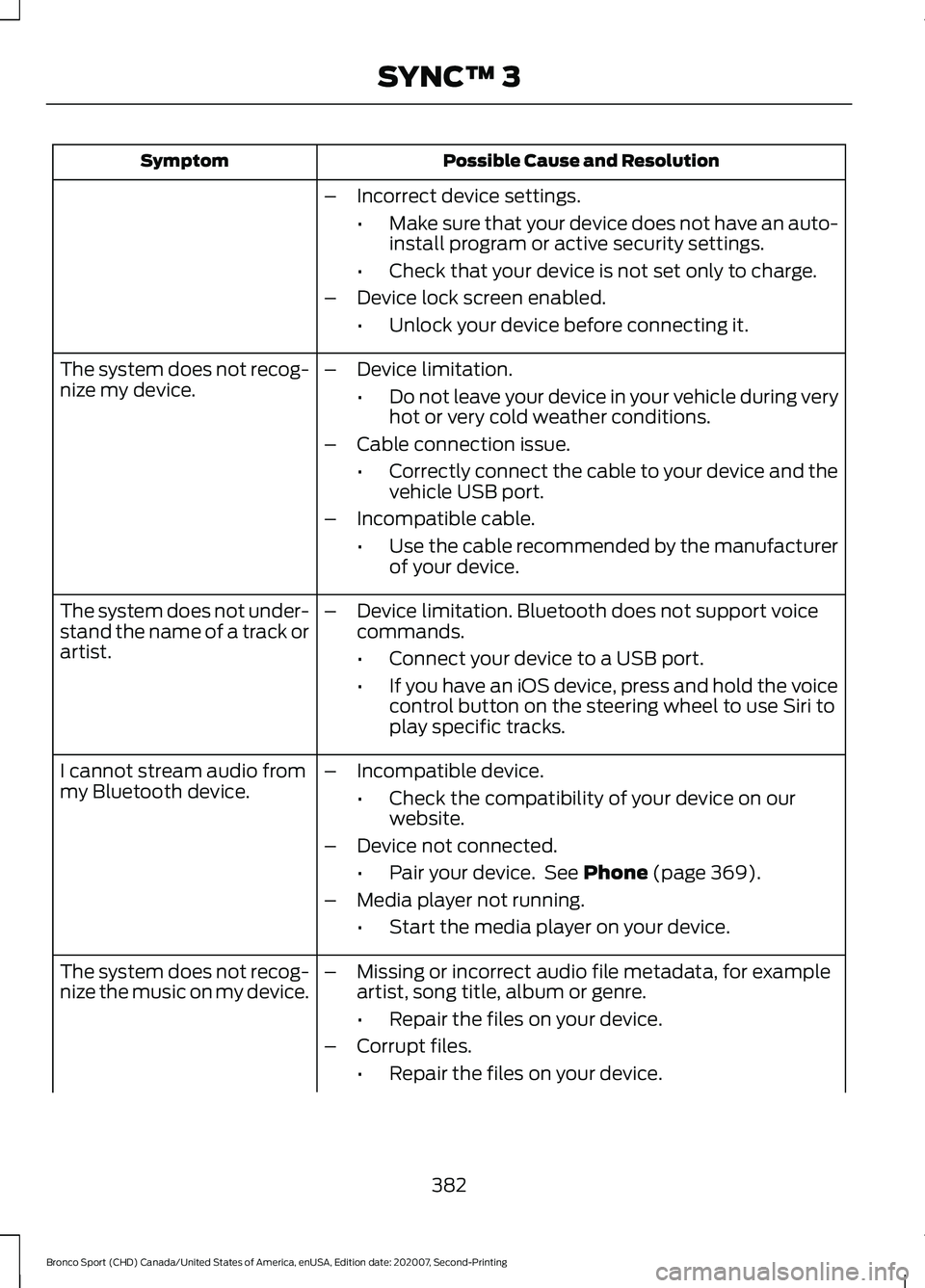
Possible Cause and Resolution
Symptom
–Incorrect device settings.
•Make sure that your device does not have an auto-
install program or active security settings.
• Check that your device is not set only to charge.
– Device lock screen enabled.
•Unlock your device before connecting it.
The system does not recog-
nize my device. –
Device limitation.
•Do not leave your device in your vehicle during very
hot or very cold weather conditions.
– Cable connection issue.
•Correctly connect the cable to your device and the
vehicle USB port.
– Incompatible cable.
•Use the cable recommended by the manufacturer
of your device.
The system does not under-
stand the name of a track or
artist. –
Device limitation. Bluetooth does not support voice
commands.
•Connect your device to a USB port.
• If you have an iOS device, press and hold the voice
control button on the steering wheel to use Siri to
play specific tracks.
I cannot stream audio from
my Bluetooth device. –
Incompatible device.
•Check the compatibility of your device on our
website.
– Device not connected.
•Pair your device. See Phone (page 369).
– Media player not running.
•Start the media player on your device.
The system does not recog-
nize the music on my device. –
Missing or incorrect audio file metadata, for example
artist, song title, album or genre.
•Repair the files on your device.
– Corrupt files.
•Repair the files on your device.
382
Bronco Sport (CHD) Canada/United States of America, enUSA, Edition date: 202007, Second-Printing SYNC™ 3
Page 398 of 471
Less Cost to Properly Maintain Your
Vehicle
Ford Protect extended service plan also
offers a Premium Maintenance Plan that
covers all scheduled maintenance, and
selected wear items. The coverage is
prepaid, so you never have to worry about
the cost of your vehicle
’s maintenance.
Covered maintenance includes:
• Windshield wiper blades.
• Spark plugs.
• The clutch disc (if equipped).
• Brake pads and linings.
• Shock absorbers.
• Struts.
• Engine Belts.
• Engine coolant hoses, clamps and
o-rings.
• Diesel exhaust fluid replenishment (if
equipped).
• Cabin air filter replacement every
20,000 mi (32,000 km) (electric
vehicles only).
Interest Free Finance Options
Just a 5% down payment will provide you
with an affordable, no interest, no fee
payment program allowing you all the
security and benefits Ford Protect
extended service plan has to offer while
paying over time. You are pre-approved
with no credit check or hassles. To learn
more, call our Ford Protect extended
service plan specialists at 800-367-3377.
Ford Protect Extended Service Plan
P.O. Box 321067
Detroit, MI 48232 Ford Protect Extended Service
Plan (CANADA ONLY)
You can get more protection for your
vehicle by purchasing a Ford Protect
extended service plan. Ford Protect
extended service plan is the only service
contract backed by Ford Motor Company
of Canada, Limited. Depending on the plan
you purchase, Ford Protect extended
service plan provides benefits such as:
•
Rental reimbursement.
• Coverage for certain maintenance and
wear items.
• Protection against repair costs after
your New Vehicle Limited Warranty
Coverage expires.
• Roadside Assistance benefits.
There are several Ford Protect extended
service plans available in various time,
distance and deductible combinations.
Each plan is tailored to fit your own driving
needs, including reimbursement for towing
and rental. When you purchase Ford
Protect extended service plan, you receive
added peace-of-mind protection
throughout Canada, the United States and
Mexico, provided by a network of
participating authorized Ford Motor
Company dealers.
Note: Repairs performed outside of Canada
and the United States are not eligible for
Ford Protect extended service plan
coverage.
This information is subject to change. For
more information; visit your local Ford of
Canada dealer or www.ford.ca to find the
Ford Protect extended service plan that is
right for you.
395
Bronco Sport (CHD) Canada/United States of America, enUSA, Edition date: 202007, Second-Printing Ford Protect
Page 419 of 471
1. Safe and Lawful Use
You acknowledge that devoting attention
to the TeleNav Software may pose a risk
of injury or death to you and others in
situations that otherwise require your
undivided attention, and you therefore
agree to comply with the following when
using the TeleNav Software:
(a) observe all traffic laws and otherwise
drive safely;
(b) use your own personal judgment while
driving. If you feel that a route suggested
by the TeleNav Software instructs you to
perform an unsafe or illegal maneuver,
places you in an unsafe situation, or directs
you into an area that you consider to be
unsafe, do not follow such instructions;
(c) do not input destinations, or otherwise
manipulate the TeleNav Software, unless
your vehicle is stationary and parked;
(d) do not use the TeleNav Software for
any illegal, unauthorized, unintended,
unsafe, hazardous, or unlawful purposes,
or in any manner inconsistent with this
Agreement;
(e) arrange all GPS and wireless devices
and cables necessary for use of the
TeleNav Software in a secure manner in
your vehicle so that they will not interfere
with your driving and will not prevent the
operation of any safety device (such as an
airbag).
You agree to indemnify and hold TeleNav
harmless against all claims resulting from
any dangerous or otherwise inappropriate
use of the TeleNav Software in any moving
vehicle, including as a result of your failure
to comply with the directions above.
2. Account Information
You agree: (a) when registering the
TeleNav Software, to provide TeleNav with
true, accurate, current, and complete
information about yourself, and (b) to
inform TeleNav promptly of any changes
to such information, and to keep it true,
accurate, current and complete.
3. Software License
•
Subject to your compliance with the
terms of this Agreement, TeleNav
hereby grants to you a personal,
non-exclusive, non-transferable license
(except as expressly permitted below
in connection with your permanent
transfer of the TeleNav Software
license), without the right to
sublicense, to use the TeleNav
Software (in object code form only) in
order to access and use the TeleNav
Software. This license shall terminate
upon any termination or expiration of
this Agreement. You agree that you will
use the TeleNav Software only for your
personal business or leisure purposes,
and not to provide commercial
navigation services to other parties.
3.1 License Limitations
• (a) reverse engineer, decompile,
disassemble, translate, modify, alter
or otherwise change the TeleNav
Software or any part thereof;
(b)
attempt to derive the source code,
audio library or structure of the
TeleNav Software without the prior
express written consent of TeleNav;
(c)
remove from the TeleNav
Software, or alter, any of TeleNav's or
its suppliers' trademarks, trade names,
logos, patent or copyright notices, or
other notices or markings;
(d)
416
Bronco Sport (CHD) Canada/United States of America, enUSA, Edition date: 202007, Second-Printing Appendices