ECO mode FORD BRONCO SPORT 2021 Manual PDF
[x] Cancel search | Manufacturer: FORD, Model Year: 2021, Model line: BRONCO SPORT, Model: FORD BRONCO SPORT 2021Pages: 471, PDF Size: 7 MB
Page 283 of 471
WARNING: Do not remove the
coolant reservoir cap when the engine is
on or the cooling system is hot. Wait 10
minutes for the cooling system to cool
down. Cover the coolant reservoir cap
with a thick cloth to prevent the
possibility of scalding and slowly remove
the cap. Failure to follow this instruction
could result in personal injury.
Your vehicle has limited engine power
when in the fail-safe mode, drive your
vehicle with caution. Your vehicle does not
maintain high-speed operation and the
engine may operate poorly.
Remember that the engine is capable of
automatically shutting down to prevent
engine damage. In this situation:
1. Pull off the road as soon as safely possible and switch the engine off.
2. If you are a member of a roadside assistance program, we recommend
that you contact your roadside
assistance service provider.
3. If this is not possible, wait a short period for the engine to cool.
4. Check the coolant level. If the coolant level is at or below the minimum mark,
add prediluted coolant immediately.
5. When the engine temperature cools, you can re-start the engine. Have your
vehicle checked as soon as possible to
minimize engine damage.
Note: Driving your vehicle without repair
increases the chance of engine damage. Engine Coolant Temperature
Management (If Equipped) WARNING:
To reduce the risk of
crash and injury, be prepared that the
vehicle speed may reduce and the
vehicle may not be able to accelerate
with full power until the coolant
temperature reduces.
If you tow a trailer with your vehicle, the
engine may temporarily reach a higher
temperature during severe operating
conditions, for example ascending a long
or steep slope in high ambient
temperatures.
At this time, you may notice the coolant
temperature gauge moves toward the red
zone and a message may appear in the
information display.
You could notice a reduction in vehicle
speed caused by reduced engine power in
order to manage the engine coolant
temperature. Your vehicle could enter this
mode if certain high-temperature and
high-load conditions take place. The
amount of speed reduction depends on
vehicle loading, slope and ambient
temperature. If this occurs, there is no
need to stop your vehicle. You can
continue to drive.
The air conditioning may turn on and off
during severe operating conditions to
protect the engine from overheating. When
the coolant temperature decreases to the
normal operating temperature, the air
conditioning turns on.
If the coolant temperature gauge moves
fully into the red zone, or if the coolant
temperature warning or service engine
soon messages appear in your information
display, do the following:
280
Bronco Sport (CHD) Canada/United States of America, enUSA, Edition date: 202007, Second-Printing Maintenance
Page 339 of 471
VEHICLE IDENTIFICATION
NUMBER
Locating the Vehicle Identification
Number
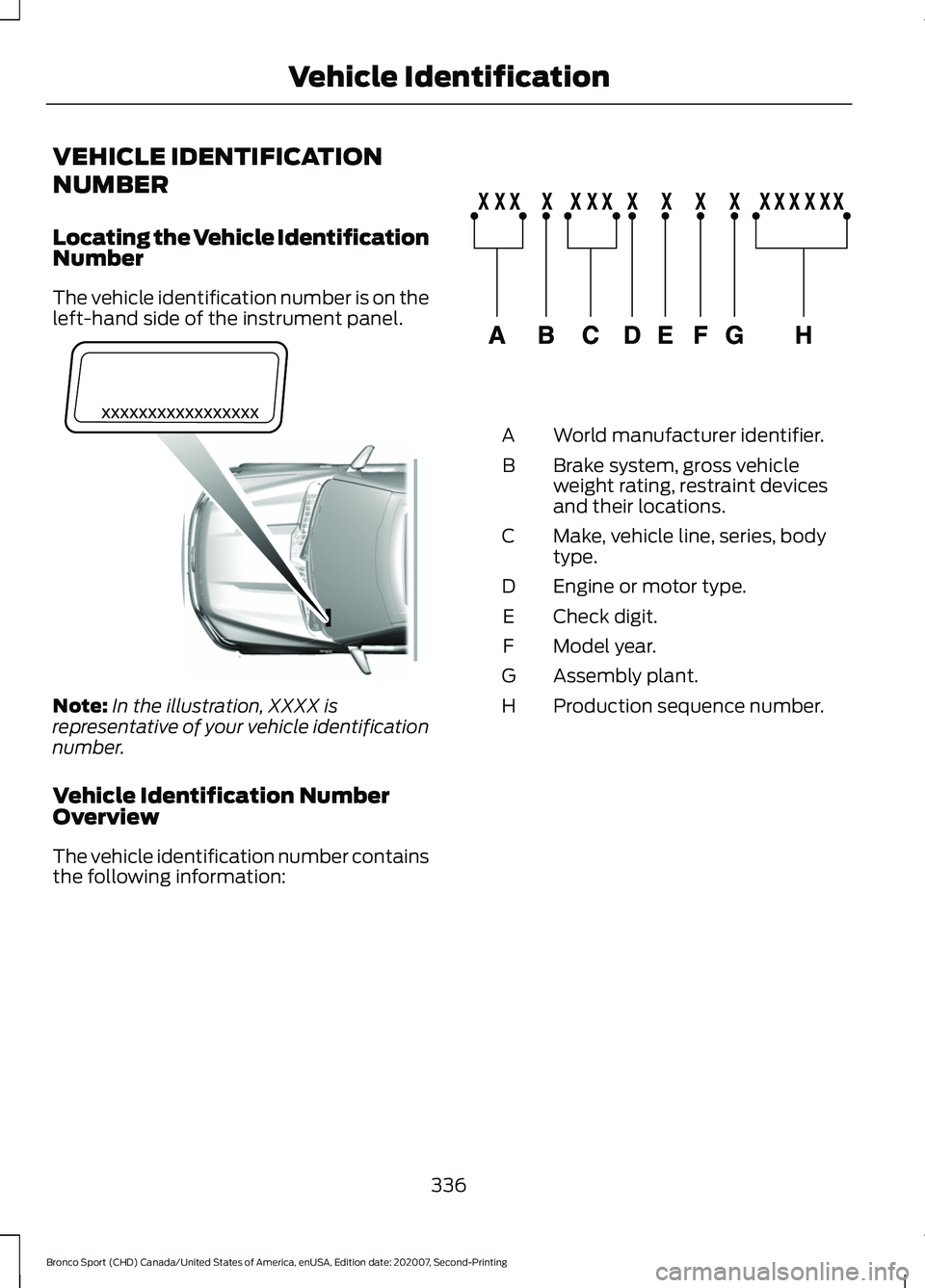
The vehicle identification number is on the
left-hand side of the instrument panel.
Note:
In the illustration, XXXX is
representative of your vehicle identification
number.
Vehicle Identification Number
Overview
The vehicle identification number contains
the following information: World manufacturer identifier.
A
Brake system, gross vehicle
weight rating, restraint devices
and their locations.
B
Make, vehicle line, series, body
type.
C
Engine or motor type.
D
Check digit.
E
Model year.
F
Assembly plant.
G
Production sequence number.
H
336
Bronco Sport (CHD) Canada/United States of America, enUSA, Edition date: 202007, Second-Printing Vehicle IdentificationE311767 E142477
Page 340 of 471
WHAT IS A CONNECTED
VEHICLE
A connected vehicle has technology that
allows your vehicle to connect to a mobile
network and for you to access a range of
features. When used in conjunction with
the FordPass app, it could allow you to
monitor and control your vehicle further,
for example checking the tire pressures,
the fuel level and the vehicle location. For
additional information, refer to the local
Ford website.
CONNECTED VEHICLE
REQUIREMENTS
Connected service and related feature
functionality requires a compatible vehicle
network.
Some remote features require additional
service activation. Log in to your Ford
account for details. Some restrictions, third
party terms and message or data rates
may apply.
CONNECTED VEHICLE
LIMITATIONS
Evolving technology, cellular networks, or
regulations could affect functionality and
availability, or continued provision of some
features. These changes could even stop
some features from functioning.
CONNECTING THE VEHICLE TO
A MOBILE NETWORK -
VEHICLES WITH: MODEM
What Is the Modem The modem allows access to a
range of features built into your
vehicle.
Enabling and Disabling the Modem
1. Press Settings.
2. Press
FordPass Connect.
3. Press
Connectivity Settings.
4. Switch connectivity features on or off.
Connecting FordPass to the
Modem
1. Make sure that the modem is enabled using the vehicle settings menu.
2. Open the FordPass app on your device
and log in.
3. Add your vehicle or select your vehicle if already added.
4. Select the option for vehicle details.
5. Select the option to activate your vehicle.
6. Make sure that the name on the screen
matches the name shown in your
FordPass account.
7. Confirm that FordPass account is connected to the modem.
CONNECTING THE VEHICLE TO
A WI-FI NETWORK - VEHICLES
WITH: SYNC 3
1. Press
Settings.
337
Bronco Sport (CHD) Canada/United States of America, enUSA, Edition date: 202007, Second-Printing Connected Vehicle
Page 341 of 471
2. Press Wi-Fi.
3. Switch
Wi-Fi on.
4. Press
View Available Networks. 5. Select an available Wi-Fi network.
Note:
Enter the network password to
connect to a secure network.
CONNECTED VEHICLE – TROUBLESHOOTING - VEHICLES WITH:
MODEM Possible Cause and Resolution
Symptom
I cannot confirm the
connection of my FordPass
account to the modem. –
Modem is not enabled.
•Switch connectivity features on.
– Weak network signal.
•Move your vehicle closer to a place where the
network signal is not obstructed.
338
Bronco Sport (CHD) Canada/United States of America, enUSA, Edition date: 202007, Second-Printing Connected Vehicle
Page 346 of 471
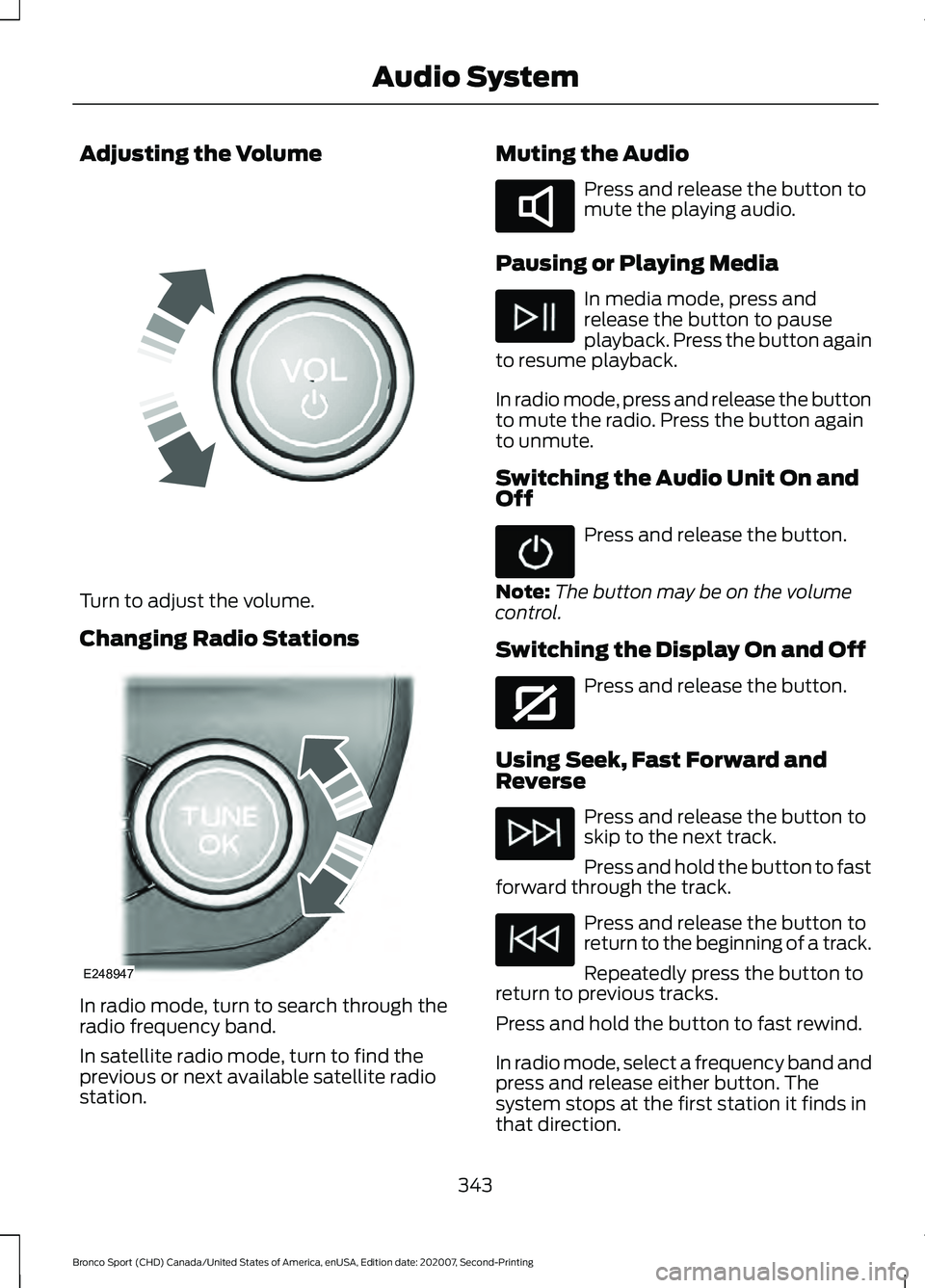
Adjusting the Volume
Turn to adjust the volume.
Changing Radio Stations
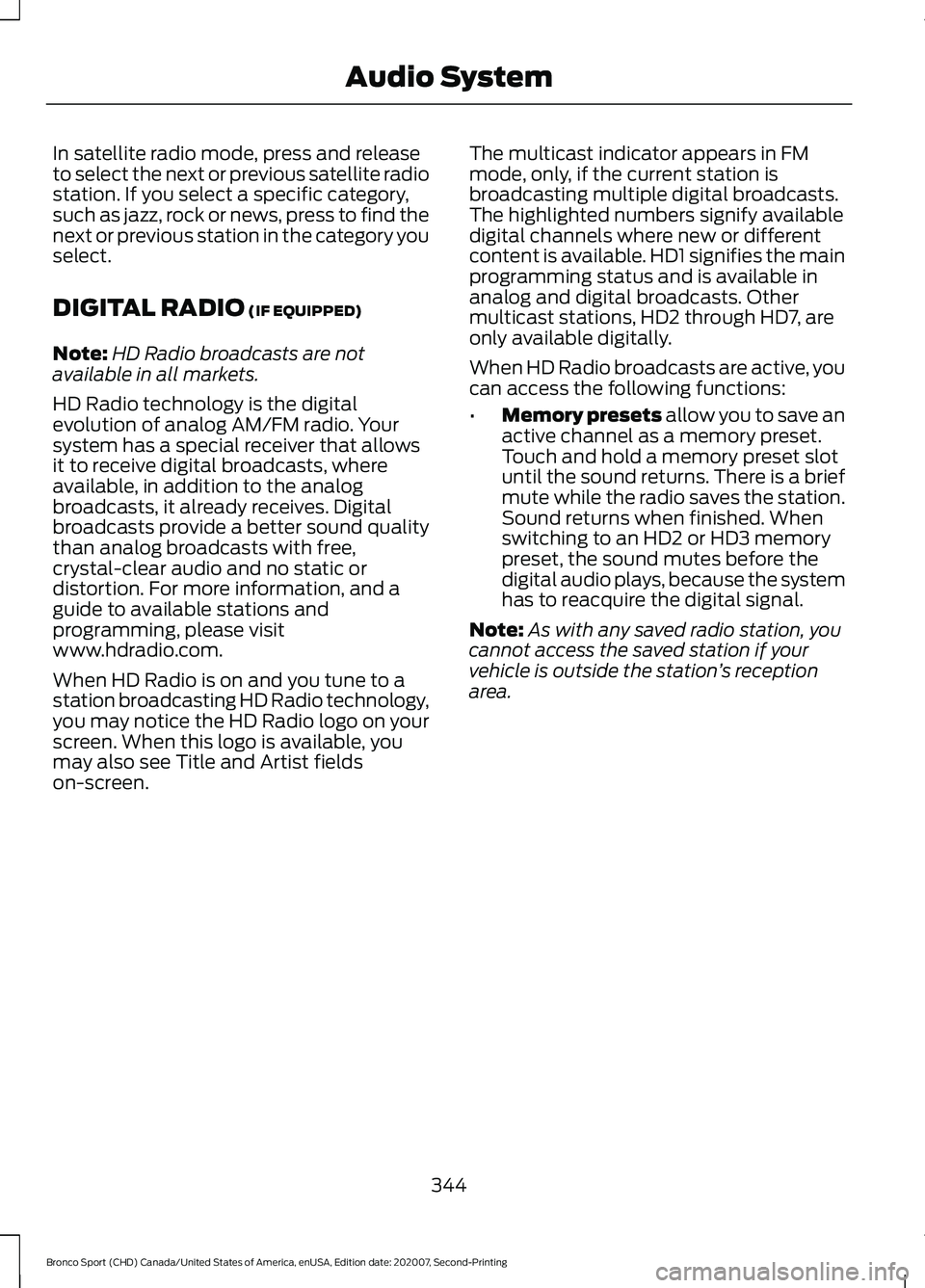
In radio mode, turn to search through the
radio frequency band.
In satellite radio mode, turn to find the
previous or next available satellite radio
station. Muting the Audio Press and release the button to
mute the playing audio.
Pausing or Playing Media In media mode, press and
release the button to pause
playback. Press the button again
to resume playback.
In radio mode, press and release the button
to mute the radio. Press the button again
to unmute.
Switching the Audio Unit On and
Off Press and release the button.
Note: The button may be on the volume
control.
Switching the Display On and Off Press and release the button.
Using Seek, Fast Forward and
Reverse Press and release the button to
skip to the next track.
Press and hold the button to fast
forward through the track. Press and release the button to
return to the beginning of a track.
Repeatedly press the button to
return to previous tracks.
Press and hold the button to fast rewind.
In radio mode, select a frequency band and
press and release either button. The
system stops at the first station it finds in
that direction.
343
Bronco Sport (CHD) Canada/United States of America, enUSA, Edition date: 202007, Second-Printing Audio SystemE248939 E248947 E285283 E272035
Page 347 of 471
In satellite radio mode, press and release
to select the next or previous satellite radio
station. If you select a specific category,
such as jazz, rock or news, press to find the
next or previous station in the category you
select.
DIGITAL RADIO (IF EQUIPPED)
Note: HD Radio broadcasts are not
available in all markets.
HD Radio technology is the digital
evolution of analog AM/FM radio. Your
system has a special receiver that allows
it to receive digital broadcasts, where
available, in addition to the analog
broadcasts, it already receives. Digital
broadcasts provide a better sound quality
than analog broadcasts with free,
crystal-clear audio and no static or
distortion. For more information, and a
guide to available stations and
programming, please visit
www.hdradio.com.
When HD Radio is on and you tune to a
station broadcasting HD Radio technology,
you may notice the HD Radio logo on your
screen. When this logo is available, you
may also see Title and Artist fields
on-screen. The multicast indicator appears in FM
mode, only, if the current station is
broadcasting multiple digital broadcasts.
The highlighted numbers signify available
digital channels where new or different
content is available. HD1 signifies the main
programming status and is available in
analog and digital broadcasts. Other
multicast stations, HD2 through HD7, are
only available digitally.
When HD Radio broadcasts are active, you
can access the following functions:
•
Memory presets
allow you to save an
active channel as a memory preset.
Touch and hold a memory preset slot
until the sound returns. There is a brief
mute while the radio saves the station.
Sound returns when finished. When
switching to an HD2 or HD3 memory
preset, the sound mutes before the
digital audio plays, because the system
has to reacquire the digital signal.
Note: As with any saved radio station, you
cannot access the saved station if your
vehicle is outside the station ’s reception
area.
344
Bronco Sport (CHD) Canada/United States of America, enUSA, Edition date: 202007, Second-Printing Audio System
Page 361 of 471
There are also voice commands that you can use when app(s) are connected to
SYNC 3:
Description
Voice command
At any time, you can say the name of a mobile app to start the
mobile app on SYNC 3.
Say the name of an
app
SYNC 3 will list the available voice commands for the specified
app if the app is running on SYNC 3.
Say the name of an
app, followed by
help
SiriusXM Traffic and Travel Link
Voice Commands (If Equipped)
SiriusXM Traffic and Travel Link may not
be available in all markets. Activation and
a subscription are required.
You can say the following commands to access SiriusXM Traffic and Travel Link: Description
Voice command
Displays a list of traffic incidents.
Show Traffic
Displays the current weather map.
Show Weather Map
Displays a list of fuel prices.
Show Fuel Prices
Displays the 5 day weather forecast.
Show 5 Day Fore-
cast
Help
Voice Settings Commands
You can say the following commands to access the voice settings: Description
Voice command
Allows you to enter the voice settings functionality.
Voice Settings
Sets standard prompting with longer prompts.
Interaction Mode
Standard
Sets advanced prompting with shorter prompts.
Interaction Mode
Advanced
Allows the system to confirm before making a phone call.
Phone Confirmation On
358
Bronco Sport (CHD) Canada/United States of America, enUSA, Edition date: 202007, Second-Printing SYNC™ 3
Page 365 of 471
Action and Description
Menu Item
Replay audio on the current channel. You can replay approx-
imately 45 minutes of audio as long as you remain tuned to
the current station. Changing stations erases the previous
audio.
Replay
When you are in replay mode, you are not
able to select a different preset until you
return to live audio. Pressing this button
returns you to the live broadcast.
Live
Save the current song, artist, or team as a favorite. The system
alerts you when it plays again on any channel.
ALERT
Selecting this button allows you to enable and edit alerts.
Memory Presets
To set a preset, tune to the station then
press and hold one of the memory preset
buttons. The audio mutes briefly while the
system saves the station and returns once
the station is stored. You may be able to add additional preset
pages using the settings option on the
feature bar.
SiriusXM Satellite Radio Reception Factors and Troubleshooting Potential Reception Issues
For optimal reception performance, keep the antenna clear
of snow and ice build-up and keep luggage and other
materials as far away from the antenna as possible.
Antenna obstructions
Hills, mountains, tall buildings, bridges, tunnels, freeway
overpasses, parking garages, dense tree foliage and thunder-
storms can interfere with your reception.
Terrain
When you pass a ground-based broadcast-repeating tower,
a stronger signal may overtake a weaker one and the audio
system may mute.
Station overload
Your display may show ACQUIRING... to indicate the interfer-
ence and the audio system may mute.
Satellite radio signal
interference
362
Bronco Sport (CHD) Canada/United States of America, enUSA, Edition date: 202007, Second-Printing SYNC™ 3
Page 367 of 471
HD Radio technology is the digital
evolution of analog AM/FM radio. Your
system has a special receiver that allows
it to receive digital broadcasts, where
available, in addition to the analog
broadcasts it already receives. Digital
broadcasts provide a better sound quality
than analog broadcasts with free,
crystal-clear audio and no static or
distortion. For more information, and a
guide to available stations and
programming, please visit:
Website
www.hdradio.com
When HD Radio is on and you tune to a
station broadcasting HD Radio technology,
you may notice the following indicators on
your screen: The HD logo is grey when acquiring a digital
station, and then changes to orange when
digital audio is playing. When this logo is
available, you may also see Title and Artist
fields on-screen.
The multicast indicator only appears in FM
mode if the current station is broadcasting
multiple digital broadcasts. The highlighted
numbers signify available digital channels
where new or different content is available.
HD1 signifies the main programming status
and is available in analog and digital
broadcasts. Other multicast stations, HD2
through HD7, are only available digitally.
Note:
There is also an additional feature
for stations that have more than 1 HD
multicast, for example, HD1 or HD2. The HD
logo and Radio text appears as a button.
Pressing this button allows you to cycle
through all of the HD stations on that
specific frequency. For example, if you are
on 101.1 and it has HD1, HD2, HD3, pressing
the button repeatedly causes the radio to
cycle through the HD stations in a cyclic
increasing order.
When HD Radio broadcasts are active, you can access the following functions: Action and Description
Message
Allows you to save an active channel as a memory preset.
Touch and hold a memory preset slot until the sound returns.
There is a brief mute while the radio saves the station. Sound
returns when the channel saves. When switching to an HD2
or HD3 memory preset, the sound mutes before the digital
audio plays, because the system has to reacquire the digital
signal.
Presets
Note: As with any station you save, you cannot access the saved station if your vehicle is
outside the station ’s reception area.
364
Bronco Sport (CHD) Canada/United States of America, enUSA, Edition date: 202007, Second-Printing SYNC™ 3E142616
Page 370 of 471
Function
Button
MP3 CDs: this button allows you to toggle through repeat off,
repeat one track, a small number one displays, and repeat
current folder, a small folder displays.
Select the shuffle symbol to have the audio on the disk play
in random order.
Shuffle
You can use the forward, reverse, pause or
play buttons to control the audio playback. Bluetooth Stereo or USB
Bluetooth Stereo and USB allow you to
access media that you store on your
Bluetooth device or USB device such as
music, audio books or podcasts.
The following buttons are available for Bluetooth and USB: Function
Button
Pressing the repeat button toggles the repeat setting through
three modes: repeat off, button not highlighted, repeat all,
button highlighted, and repeat track, button highlighted with
a small number one.
Repeat
Play the tracks in random order.
Shuffle
You can use the forward, reverse, pause or
play buttons to control the audio playback.
To get more information about the
currently playing track, press the cover art
or Info button. For some devices, SYNC 3 is able to
provide 30-second skip buttons when you
listen to audio books or podcasts. These
buttons allow you to skip forward or
backward within a track.
While playing audio from a USB device you
can look for certain music by selecting the
following: Function
Button
If available, displays the list of tracks in the
Now Playing playlist.
Browse
This option, which is available under
browse, allows you to play all tracks or to
filter the available media into one of the
below categories.
New Search
Play All
367
Bronco Sport (CHD) Canada/United States of America, enUSA, Edition date: 202007, Second-Printing SYNC™ 3