settings FORD BRONCO SPORT 2022 Workshop Manual
[x] Cancel search | Manufacturer: FORD, Model Year: 2022, Model line: BRONCO SPORT, Model: FORD BRONCO SPORT 2022Pages: 494, PDF Size: 8.74 MB
Page 374 of 494
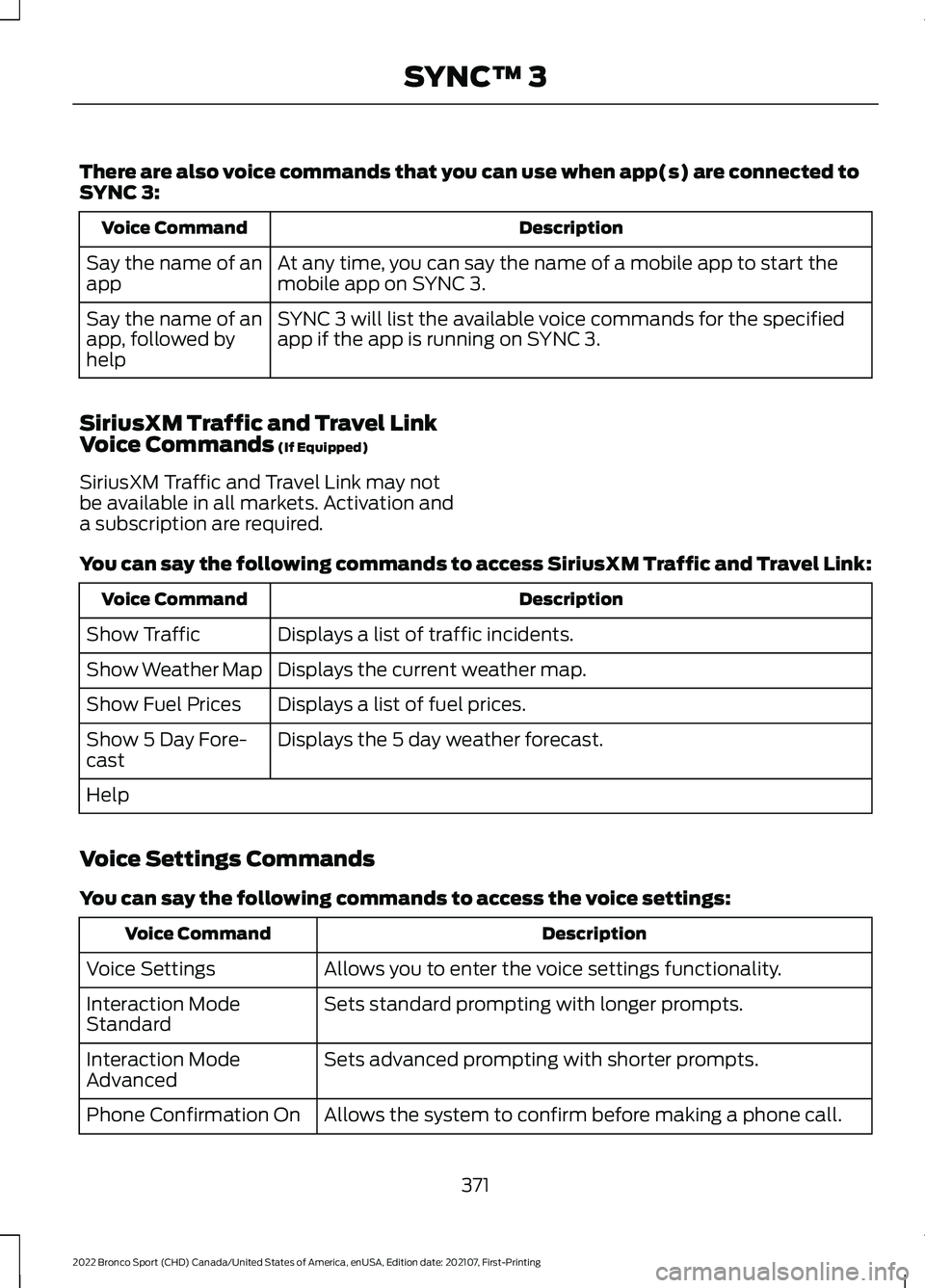
There are also voice commands that you can use when app(s) are connected to
SYNC 3:
Description
Voice Command
At any time, you can say the name of a mobile app to start the
mobile app on SYNC 3.
Say the name of an
app
SYNC 3 will list the available voice commands for the specified
app if the app is running on SYNC 3.
Say the name of an
app, followed by
help
SiriusXM Traffic and Travel Link
Voice Commands (If Equipped)
SiriusXM Traffic and Travel Link may not
be available in all markets. Activation and
a subscription are required.
You can say the following commands to access SiriusXM Traffic and Travel Link: Description
Voice Command
Displays a list of traffic incidents.
Show Traffic
Displays the current weather map.
Show Weather Map
Displays a list of fuel prices.
Show Fuel Prices
Displays the 5 day weather forecast.
Show 5 Day Fore-
cast
Help
Voice Settings Commands
You can say the following commands to access the voice settings: Description
Voice Command
Allows you to enter the voice settings functionality.
Voice Settings
Sets standard prompting with longer prompts.
Interaction Mode
Standard
Sets advanced prompting with shorter prompts.
Interaction Mode
Advanced
Allows the system to confirm before making a phone call.
Phone Confirmation On
371
2022 Bronco Sport (CHD) Canada/United States of America, enUSA, Edition date: 202107, First-Printing SYNC™ 3
Page 375 of 494
Description
Voice Command
The system does not confirm before placing a call.
Phone Confirmation Off
The system displays a short list of available commands.
Voice Command Lists On
The system does not display the list of commands.
Voice Command Lists Off
You can use the volume control to adjust
the volume of the system voice prompts.
While prompt is active, adjust the volume
control up or down to your desired setting.
Note: Depending on the current climate
control settings, the fan speed may
automatically go down while issuing voice
commands or while making and receiving
phone calls via SYNC to reduce the amount
of background noise in the vehicle. The fan
speed will automatically return to normal
operation once the voice session ends. You
can adjust the fan speed during a voice
session, simply press the fan buttons (or
turn the fan knob) to increase or decrease
the fan speed to the setting you prefer.
To disable this automatic fan speed
reduction feature during voice sessions,
press and hold the climate control AC and
Recirculated air buttons simultaneously,
release and then increase fan speed within
2 seconds. To re-enable this feature, repeat
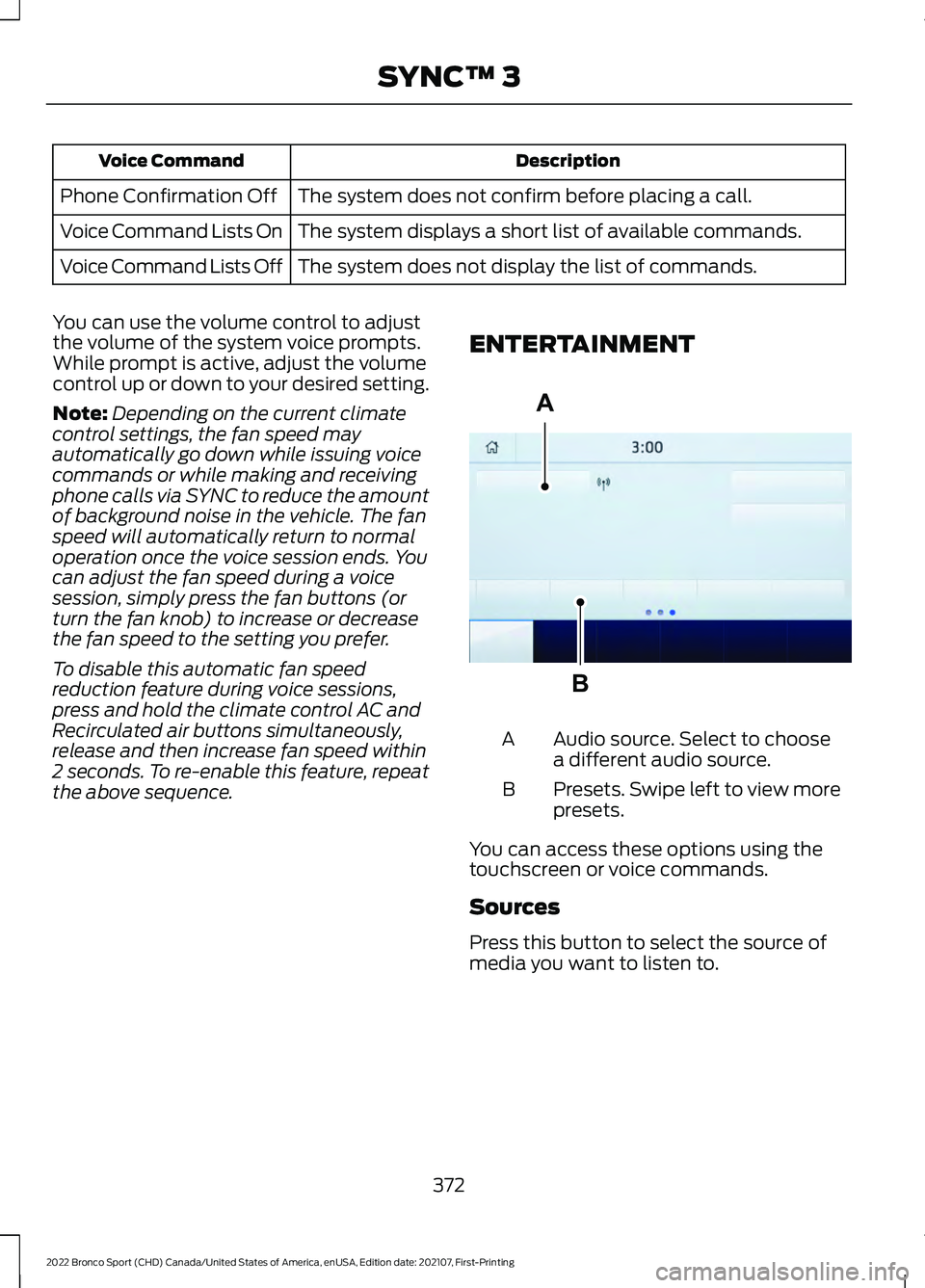
the above sequence. ENTERTAINMENT Audio source. Select to choose
a different audio source.
A
Presets. Swipe left to view more
presets.
B
You can access these options using the
touchscreen or voice commands.
Sources
Press this button to select the source of
media you want to listen to.
372
2022 Bronco Sport (CHD) Canada/United States of America, enUSA, Edition date: 202107, First-Printing SYNC™ 3A
BE293491
Page 376 of 494
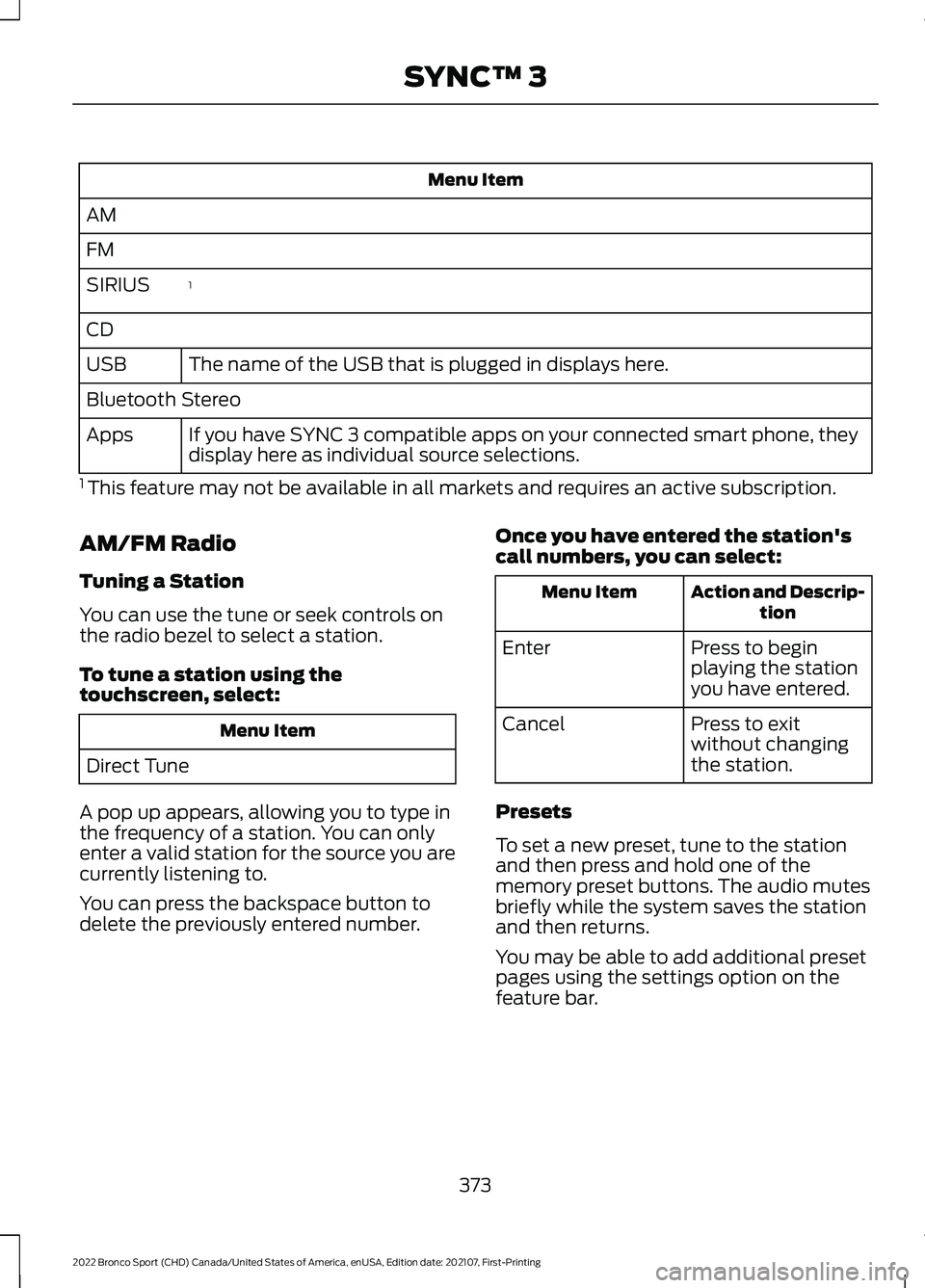
Menu Item
AM
FM 1
SIRIUS
CD
The name of the USB that is plugged in displays here.
USB
Bluetooth Stereo
If you have SYNC 3 compatible apps on your connected smart phone, they
display here as individual source selections.
Apps
1 This feature may not be available in all markets and requires an active subscription.
AM/FM Radio
Tuning a Station
You can use the tune or seek controls on
the radio bezel to select a station.
To tune a station using the
touchscreen, select: Menu Item
Direct Tune
A pop up appears, allowing you to type in
the frequency of a station. You can only
enter a valid station for the source you are
currently listening to.
You can press the backspace button to
delete the previously entered number. Once you have entered the station's
call numbers, you can select: Action and Descrip-
tion
Menu Item
Press to begin
playing the station
you have entered.
Enter
Press to exit
without changing
the station.
Cancel
Presets
To set a new preset, tune to the station
and then press and hold one of the
memory preset buttons. The audio mutes
briefly while the system saves the station
and then returns.
You may be able to add additional preset
pages using the settings option on the
feature bar.
373
2022 Bronco Sport (CHD) Canada/United States of America, enUSA, Edition date: 202107, First-Printing SYNC™ 3
Page 378 of 494
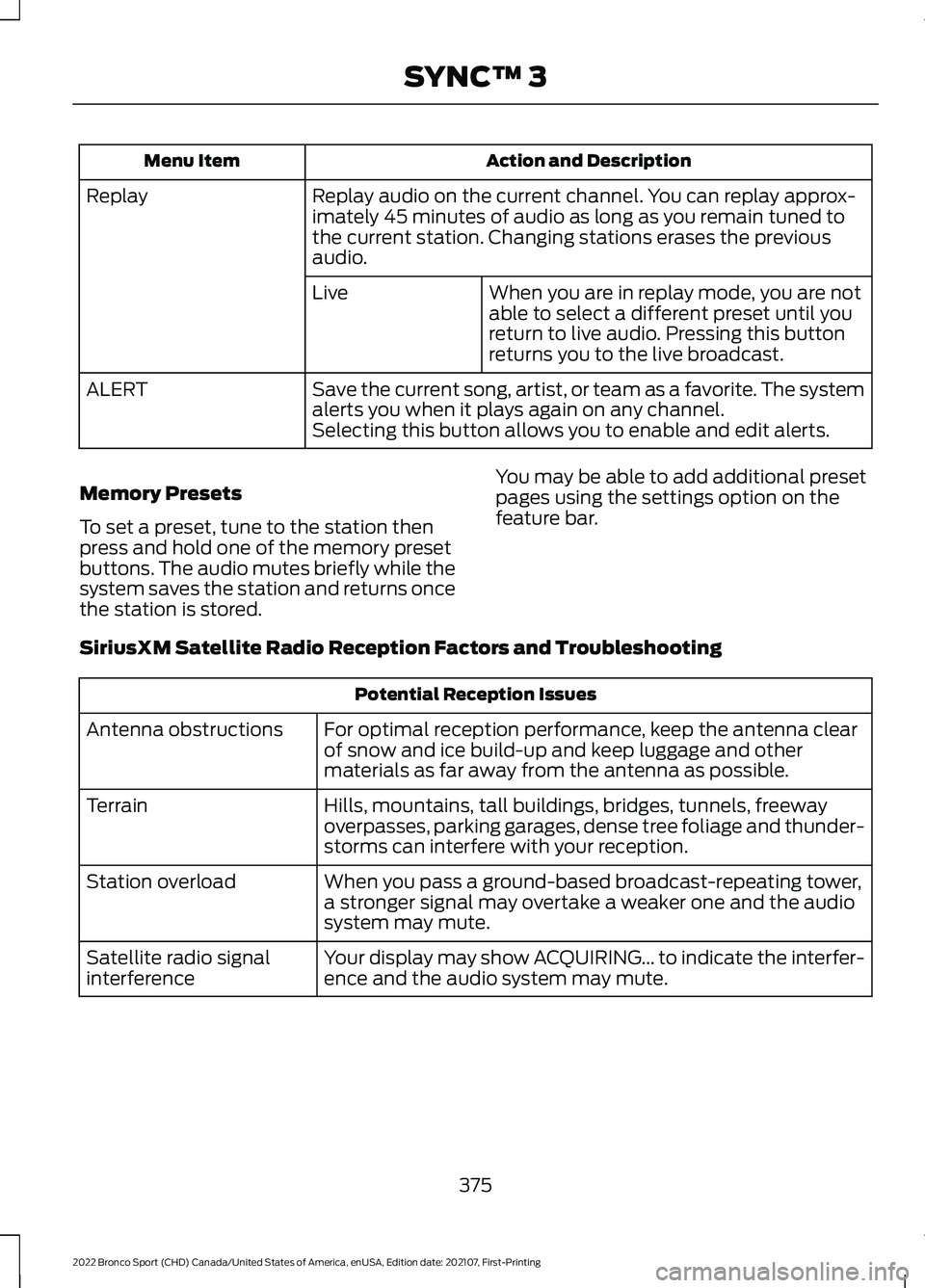
Action and Description
Menu Item
Replay audio on the current channel. You can replay approx-
imately 45 minutes of audio as long as you remain tuned to
the current station. Changing stations erases the previous
audio.
Replay
When you are in replay mode, you are not
able to select a different preset until you
return to live audio. Pressing this button
returns you to the live broadcast.
Live
Save the current song, artist, or team as a favorite. The system
alerts you when it plays again on any channel.
ALERT
Selecting this button allows you to enable and edit alerts.
Memory Presets
To set a preset, tune to the station then
press and hold one of the memory preset
buttons. The audio mutes briefly while the
system saves the station and returns once
the station is stored. You may be able to add additional preset
pages using the settings option on the
feature bar.
SiriusXM Satellite Radio Reception Factors and Troubleshooting Potential Reception Issues
For optimal reception performance, keep the antenna clear
of snow and ice build-up and keep luggage and other
materials as far away from the antenna as possible.
Antenna obstructions
Hills, mountains, tall buildings, bridges, tunnels, freeway
overpasses, parking garages, dense tree foliage and thunder-
storms can interfere with your reception.
Terrain
When you pass a ground-based broadcast-repeating tower,
a stronger signal may overtake a weaker one and the audio
system may mute.
Station overload
Your display may show ACQUIRING... to indicate the interfer-
ence and the audio system may mute.
Satellite radio signal
interference
375
2022 Bronco Sport (CHD) Canada/United States of America, enUSA, Edition date: 202107, First-Printing SYNC™ 3
Page 379 of 494
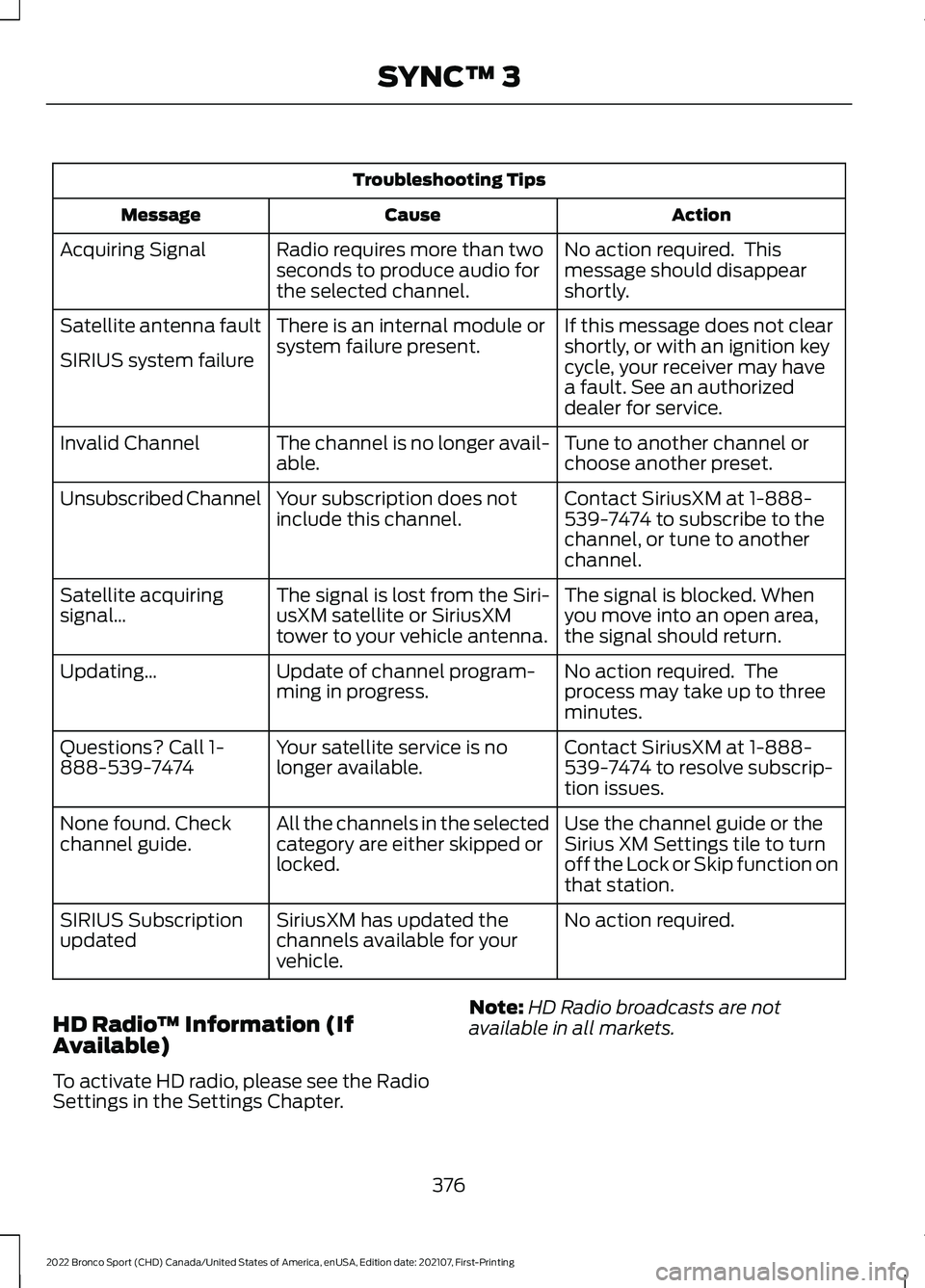
Troubleshooting Tips
Action
Cause
Message
No action required. This
message should disappear
shortly.
Radio requires more than two
seconds to produce audio for
the selected channel.
Acquiring Signal
If this message does not clear
shortly, or with an ignition key
cycle, your receiver may have
a fault. See an authorized
dealer for service.
There is an internal module or
system failure present.
Satellite antenna fault
SIRIUS system failure
Tune to another channel or
choose another preset.
The channel is no longer avail-
able.
Invalid Channel
Contact SiriusXM at 1-888-
539-7474 to subscribe to the
channel, or tune to another
channel.
Your subscription does not
include this channel.
Unsubscribed Channel
The signal is blocked. When
you move into an open area,
the signal should return.
The signal is lost from the Siri-
usXM satellite or SiriusXM
tower to your vehicle antenna.
Satellite acquiring
signal…
No action required. The
process may take up to three
minutes.
Update of channel program-
ming in progress.
Updating…
Contact SiriusXM at 1-888-
539-7474 to resolve subscrip-
tion issues.
Your satellite service is no
longer available.
Questions? Call 1-
888-539-7474
Use the channel guide or the
Sirius XM Settings tile to turn
off the Lock or Skip function on
that station.
All the channels in the selected
category are either skipped or
locked.
None found. Check
channel guide.
No action required.
SiriusXM has updated the
channels available for your
vehicle.
SIRIUS Subscription
updated
HD Radio ™ Information (If
Available)
To activate HD radio, please see the Radio
Settings in the Settings Chapter. Note:
HD Radio broadcasts are not
available in all markets.
376
2022 Bronco Sport (CHD) Canada/United States of America, enUSA, Edition date: 202107, First-Printing SYNC™ 3
Page 385 of 494
SYNC 3 is also able to organize the media
from your USB device by metadata tags.
Metadata tags, which are descriptive
software identifiers embedded in the
media files, provide information about the
file.
If your indexed media files contain no
information embedded in these metadata
tags, SYNC 3 may classify the empty
metadata tags as unknown.
SYNC 3 is capable of indexing up to
50,000 songs per USB device, for up to 10
devices.
PHONE
WARNING: Driving while distracted
can result in loss of vehicle control, crash
and injury. We strongly recommend that
you use extreme caution when using any
device that may take your focus off the
road. Your primary responsibility is the
safe operation of your vehicle. We
recommend against the use of any
hand-held device while driving and
encourage the use of voice-operated
systems when possible. Make sure you
are aware of all applicable local laws
that may affect the use of electronic
devices while driving.
Check the compatibility of your device on
the regional website.
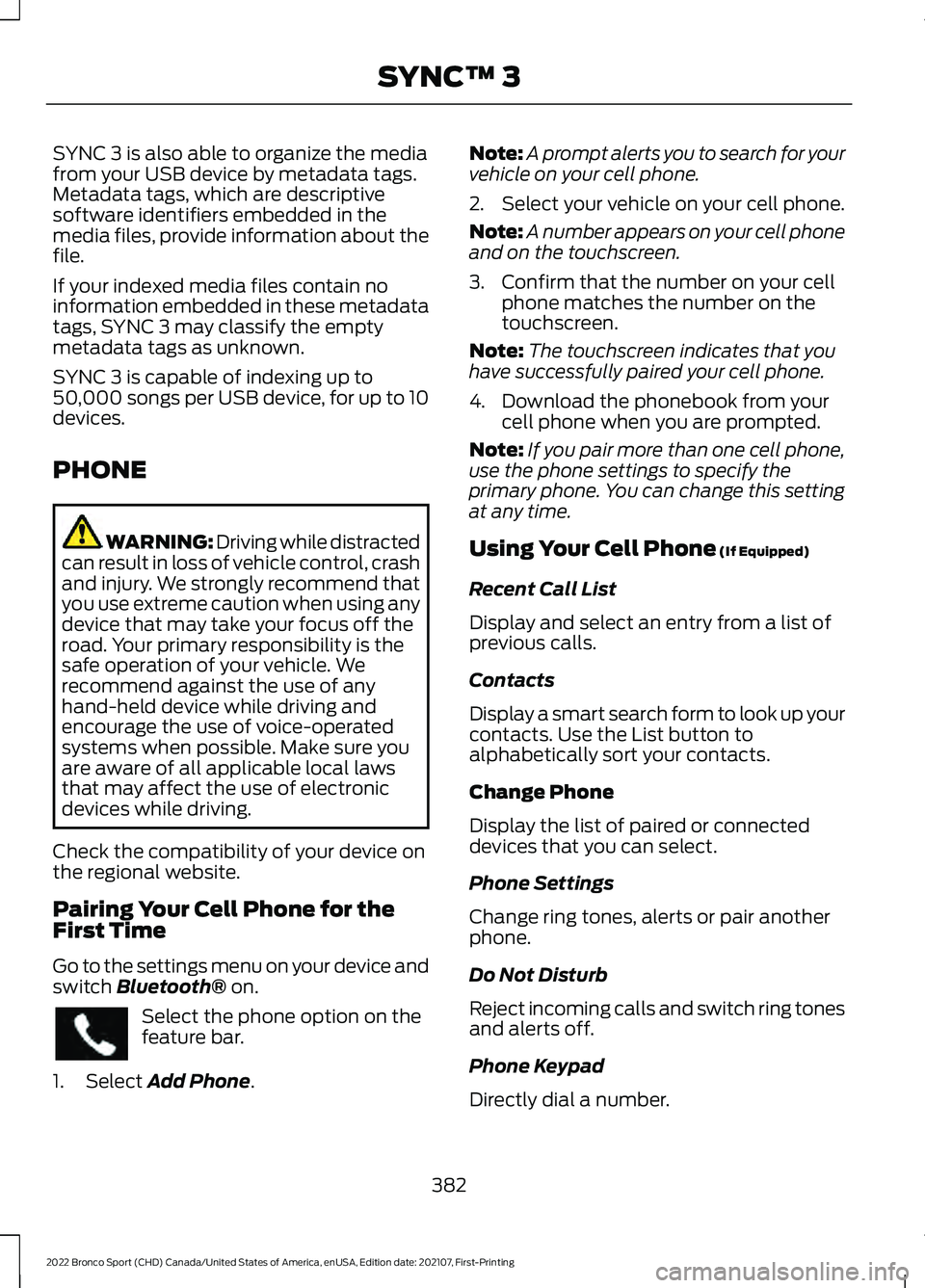
Pairing Your Cell Phone for the
First Time
Go to the settings menu on your device and
switch Bluetooth® on. Select the phone option on the
feature bar.
1. Select
Add Phone. Note:
A prompt alerts you to search for your
vehicle on your cell phone.
2. Select your vehicle on your cell phone.
Note: A number appears on your cell phone
and on the touchscreen.
3. Confirm that the number on your cell phone matches the number on the
touchscreen.
Note: The touchscreen indicates that you
have successfully paired your cell phone.
4. Download the phonebook from your cell phone when you are prompted.
Note: If you pair more than one cell phone,
use the phone settings to specify the
primary phone. You can change this setting
at any time.
Using Your Cell Phone
(If Equipped)
Recent Call List
Display and select an entry from a list of
previous calls.
Contacts
Display a smart search form to look up your
contacts. Use the List button to
alphabetically sort your contacts.
Change Phone
Display the list of paired or connected
devices that you can select.
Phone Settings
Change ring tones, alerts or pair another
phone.
Do Not Disturb
Reject incoming calls and switch ring tones
and alerts off.
Phone Keypad
Directly dial a number.
382
2022 Bronco Sport (CHD) Canada/United States of America, enUSA, Edition date: 202107, First-Printing SYNC™ 3
Page 386 of 494
Mute
Mute the microphone when in a call.
Phone Voice Assistant
Say a command to use the Google or Siri
voice assistant available on your
connected phone to access supported
features.
Text Messaging
Setting Text Message Notification
iOS
1. Go to the settings menu on your cell
phone. 2. Select Bluetooth®.
3. Select the information icon to the right
of your vehicle.
4. Switch text message notification on.
Android
1. Go to the settings menu on your cell phone.
2. Select
Bluetooth®.
3. Select the profiles option.
4. Select the phone profile.
5. Switch text message notification on.
Using Text Messaging Description
Menu Item
Hear the text message.
Hear It
View the text message.
View
Call the sender.
Call
Reply to the text message with a standard text message.
Reply
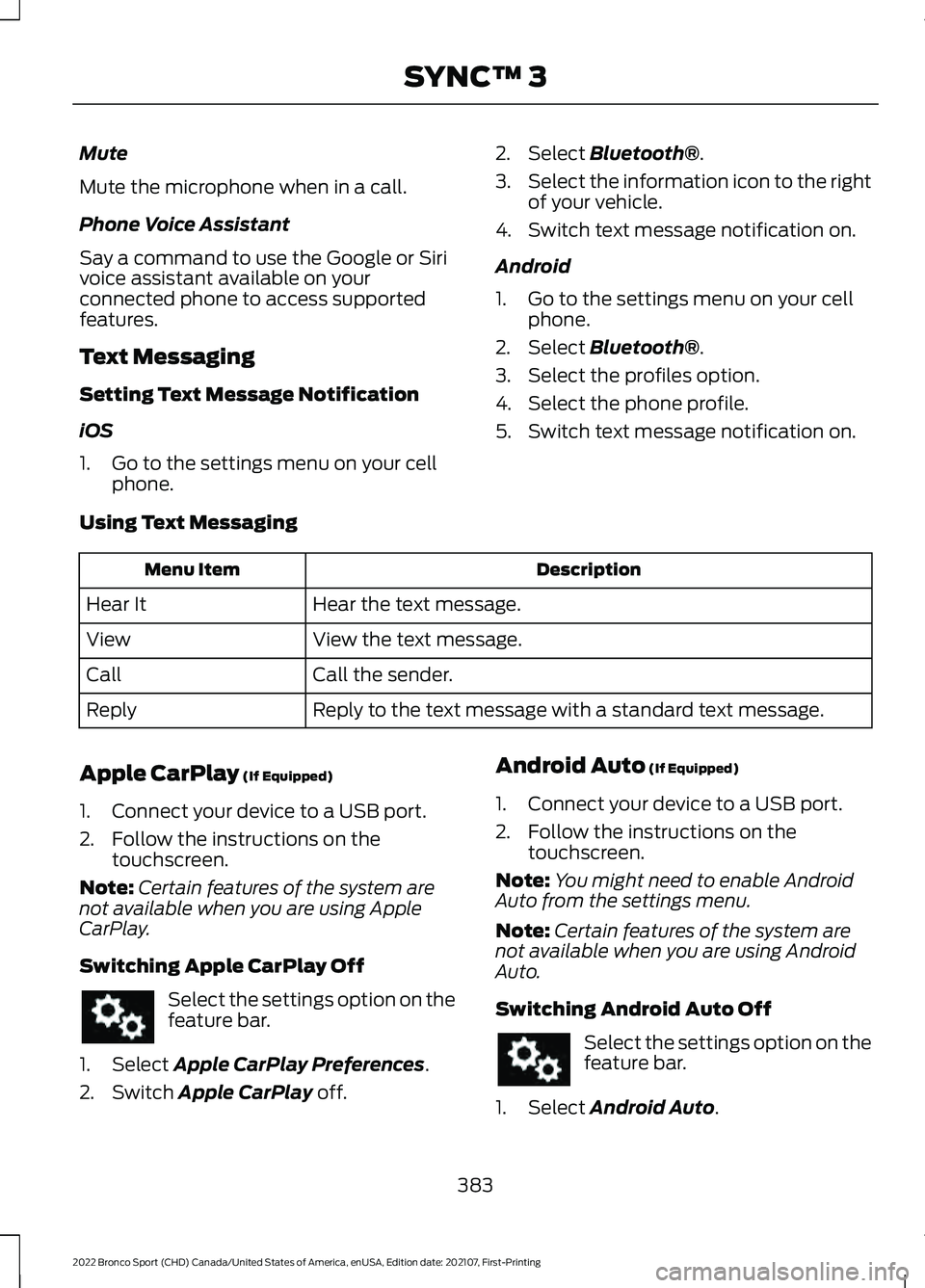
Apple CarPlay
(If Equipped)
1. Connect your device to a USB port.
2. Follow the instructions on the touchscreen.
Note: Certain features of the system are
not available when you are using Apple
CarPlay.
Switching Apple CarPlay Off Select the settings option on the
feature bar.
1. Select
Apple CarPlay Preferences.
2. Switch
Apple CarPlay off. Android Auto
(If Equipped)
1. Connect your device to a USB port.
2. Follow the instructions on the touchscreen.
Note: You might need to enable Android
Auto from the settings menu.
Note: Certain features of the system are
not available when you are using Android
Auto.
Switching Android Auto Off Select the settings option on the
feature bar.
1. Select
Android Auto.
383
2022 Bronco Sport (CHD) Canada/United States of America, enUSA, Edition date: 202107, First-Printing SYNC™ 3
Page 388 of 494
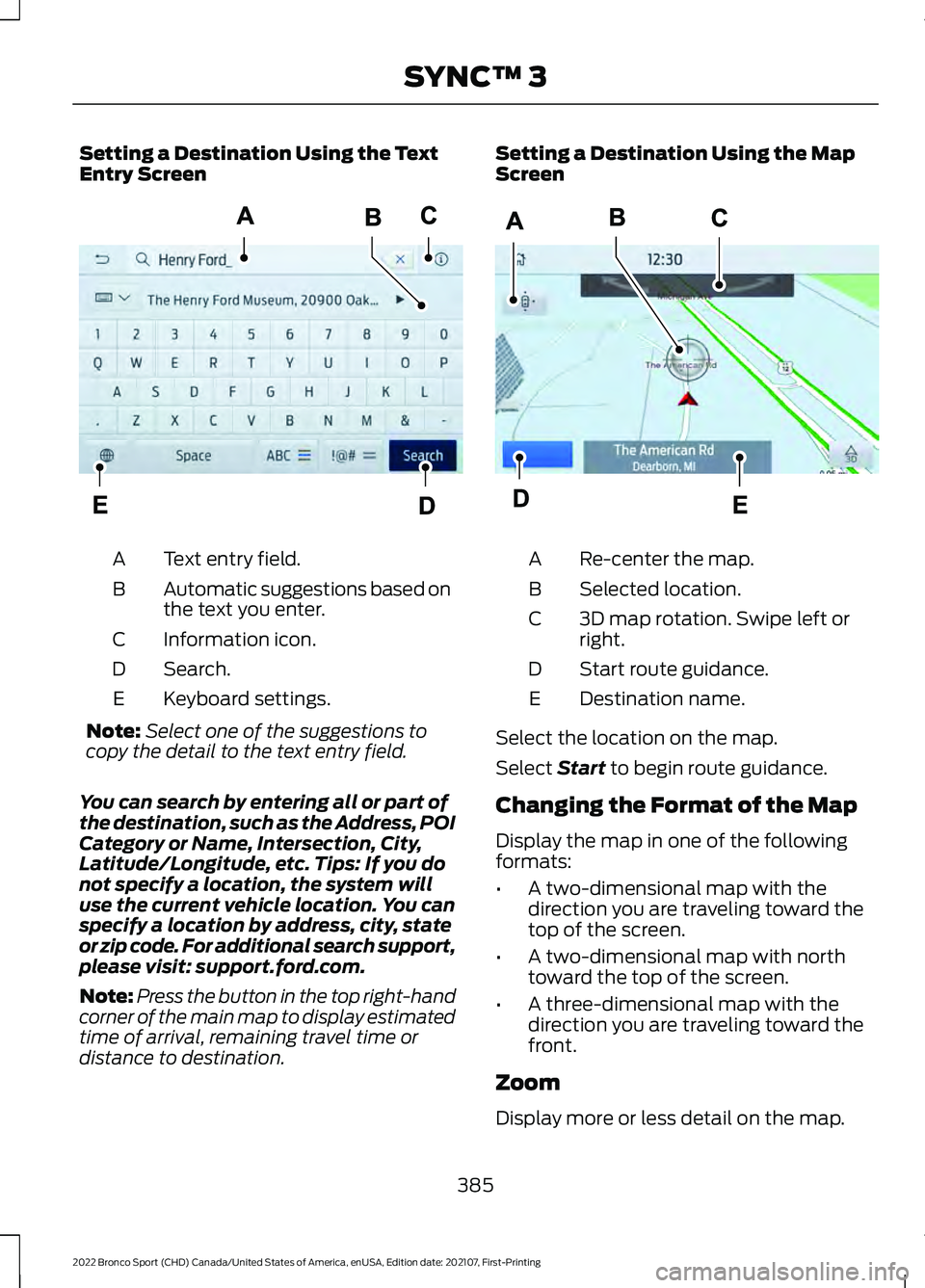
Setting a Destination Using the Text
Entry Screen
Text entry field.
A
Automatic suggestions based on
the text you enter.
B
Information icon.
C
Search.
D
Keyboard settings.
E
Note: Select one of the suggestions to
copy the detail to the text entry field.
You can search by entering all or part of
the destination, such as the Address, POI
Category or Name, Intersection, City,
Latitude/Longitude, etc. Tips: If you do
not specify a location, the system will
use the current vehicle location. You can
specify a location by address, city, state
or zip code. For additional search support,
please visit: support.ford.com.
Note: Press the button in the top right-hand
corner of the main map to display estimated
time of arrival, remaining travel time or
distance to destination. Setting a Destination Using the Map
Screen
Re-center the map.
A
Selected location.
B
3D map rotation. Swipe left or
right.
C
Start route guidance.
D
Destination name.
E
Select the location on the map.
Select Start to begin route guidance.
Changing the Format of the Map
Display the map in one of the following
formats:
• A two-dimensional map with the
direction you are traveling toward the
top of the screen.
• A two-dimensional map with north
toward the top of the screen.
• A three-dimensional map with the
direction you are traveling toward the
front.
Zoom
Display more or less detail on the map.
385
2022 Bronco Sport (CHD) Canada/United States of America, enUSA, Edition date: 202107, First-Printing SYNC™ 3E297558 E297559
Page 390 of 494
Description
Menu Item
Adjust navigation settings. See Settings (page 391).
Navigation Settings
View information about your current location.
Where Am I?
Cancel route guidance.
Cancel Route
View the entire current route on the map.
View Route
View an alternative route compared to your current one.
Detour
Change the order or remove waypoints.
Edit Waypoints
The system determines the order of waypoints for you.
Optimize Order
Go to the next screen and start the new route.
Go
Adjusting the Guidance Prompt
Volume
Turn the volume control when a guidance
prompt plays to adjust the volume.
Note: If you have inadvertently adjusted
the volume to zero, press the turn indicator
button to play the last voice prompt and
then adjust the volume to the desired level.
Muting Guidance Prompts Select the mute option on the
screen to mute guidance
prompts.
Note: The system mutes the next and all
future guidance prompts.
Adding Waypoints
You can add a waypoint to a navigation
route as a destination along your route.
You can add up to five waypoints.
1. Select the search option on the map.
2. Set a destination.
3. Select
Add Waypoint.
4. Select
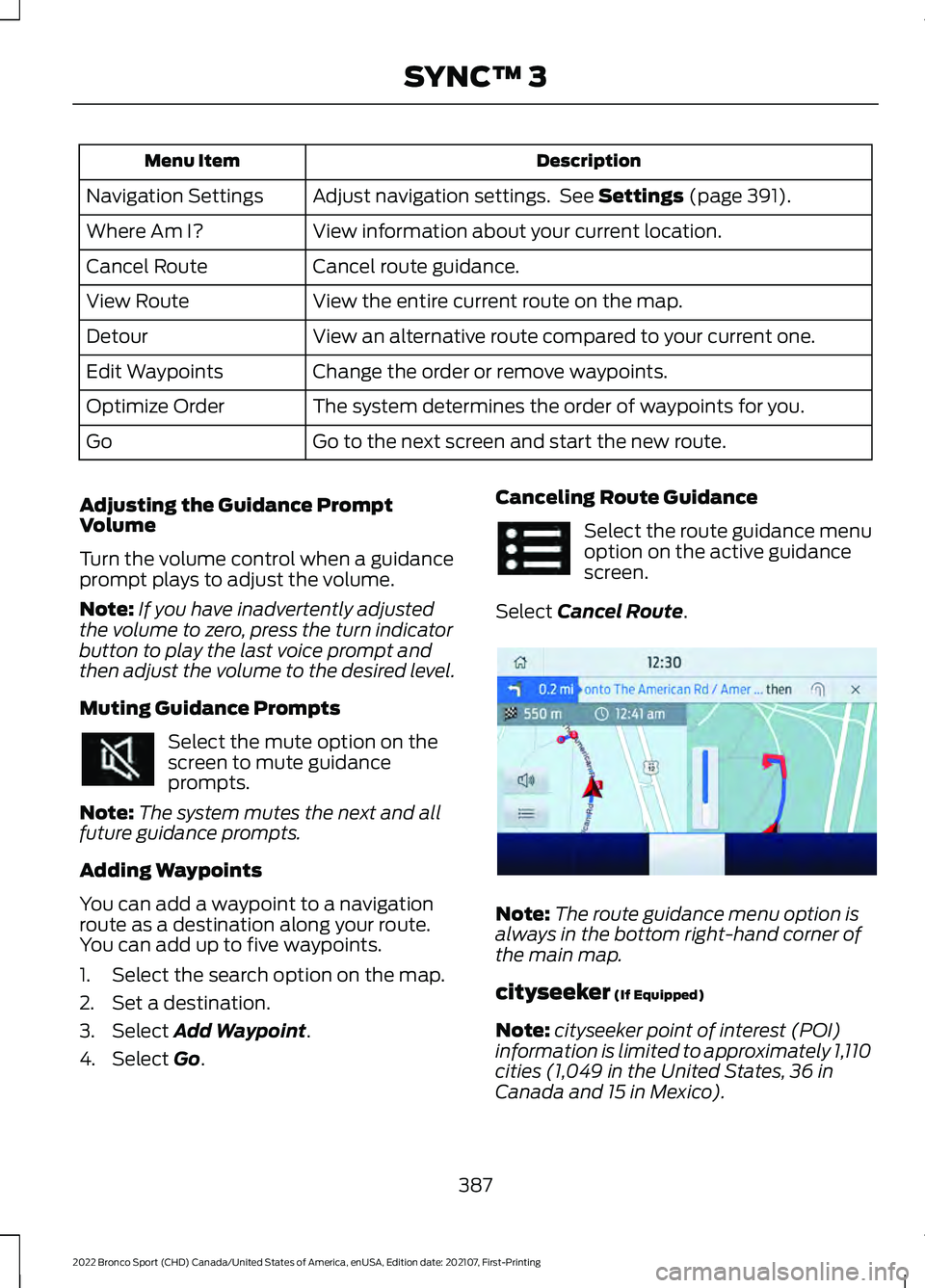
Go. Canceling Route Guidance Select the route guidance menu
option on the active guidance
screen.
Select
Cancel Route. Note:
The route guidance menu option is
always in the bottom right-hand corner of
the main map.
cityseeker
(If Equipped)
Note: cityseeker point of interest (POI)
information is limited to approximately 1,110
cities (1,049 in the United States, 36 in
Canada and 15 in Mexico).
387
2022 Bronco Sport (CHD) Canada/United States of America, enUSA, Edition date: 202107, First-Printing SYNC™ 3 E294817
Page 392 of 494
Navigation Map Accuracy and
Updates
HERE is the digital map provider for the
navigation application. If you find map data
errors, you may report them directly to
HERE by going to www.here.com. HERE
evaluates all reported map errors and
responds with the result of their
investigation by e-mail.
The navigation system map data may
contain inaccurate or incomplete
information due to the passage of time,
changing circumstances, sources used and
the nature of collecting comprehensive
geographic data, any of which may lead to
incorrect results. Inaccurate speed limit
information, turn restrictions and other
road attributes may affect the determined
route and associated guidance
Annual navigation map updates are
available for purchase through your
dealership. Depending on your purchase
agreement, you might be eligible for free
Map update. You can choose to download
the Map data update onto a USB, order a
USB, or use Wi-Fi to deliver automatic
updates. To update your Map data over
Wi-Fi, your vehicle must be connected to
a Wi-Fi access point. Map Data files are
large, so it is highly recommended to
perform the update when free Wi-Fi is
available otherwise high data rates may
apply. For USB updates, free map update
eligibility, and other details, contact
dealers at 1-866-462-8837 in the United
States and Canada or 01-800-557-5539
in Mexico or visit our local website for more
information.
APPS
The system allows you interact with select
mobile apps while keeping your eyes on
the road. Voice commands, your steering
wheel buttons, or a quick tap on your
touchscreen give you advanced control of
compatible mobile apps. You can also
stream your favorite music or podcasts,
share your time of arrival with friends, and
keep connected safely.
When you start an app through the system
for the first time, you could be asked to
grant certain permissions. You can review
and change the permissions that you have
granted at any time when your vehicle is
not moving. We recommend that you
check your data plan before using your
apps through the system. Using them
could result in additional charges. We also
recommend that you check the app
provider's terms and conditions and
privacy policy before using their app. Make
sure that you have an active account for
apps that you want to use through the
system. Some apps will work with no
setup. Others require you to configure
some personal settings before you can use
them.
Note:
For more information about available
apps, visit catalog.ford.com.
Using Apps on an iOS Device Select the apps option on the
feature bar.
1. If your device is connected via USB, switch Apple CarPlay off. See Phone
(page 382).
2. Connect your device to a USB port or pair and connect using Bluetooth.
3. If prompted to enable CarPlay, select Disable
.
4. Start the apps on your device that you want to use through SYNC.
389
2022 Bronco Sport (CHD) Canada/United States of America, enUSA, Edition date: 202107, First-Printing SYNC™ 3