Park FORD C MAX 2015 Manual Online
[x] Cancel search | Manufacturer: FORD, Model Year: 2015, Model line: C MAX, Model: FORD C MAX 2015Pages: 469, PDF Size: 6.16 MB
Page 343 of 469
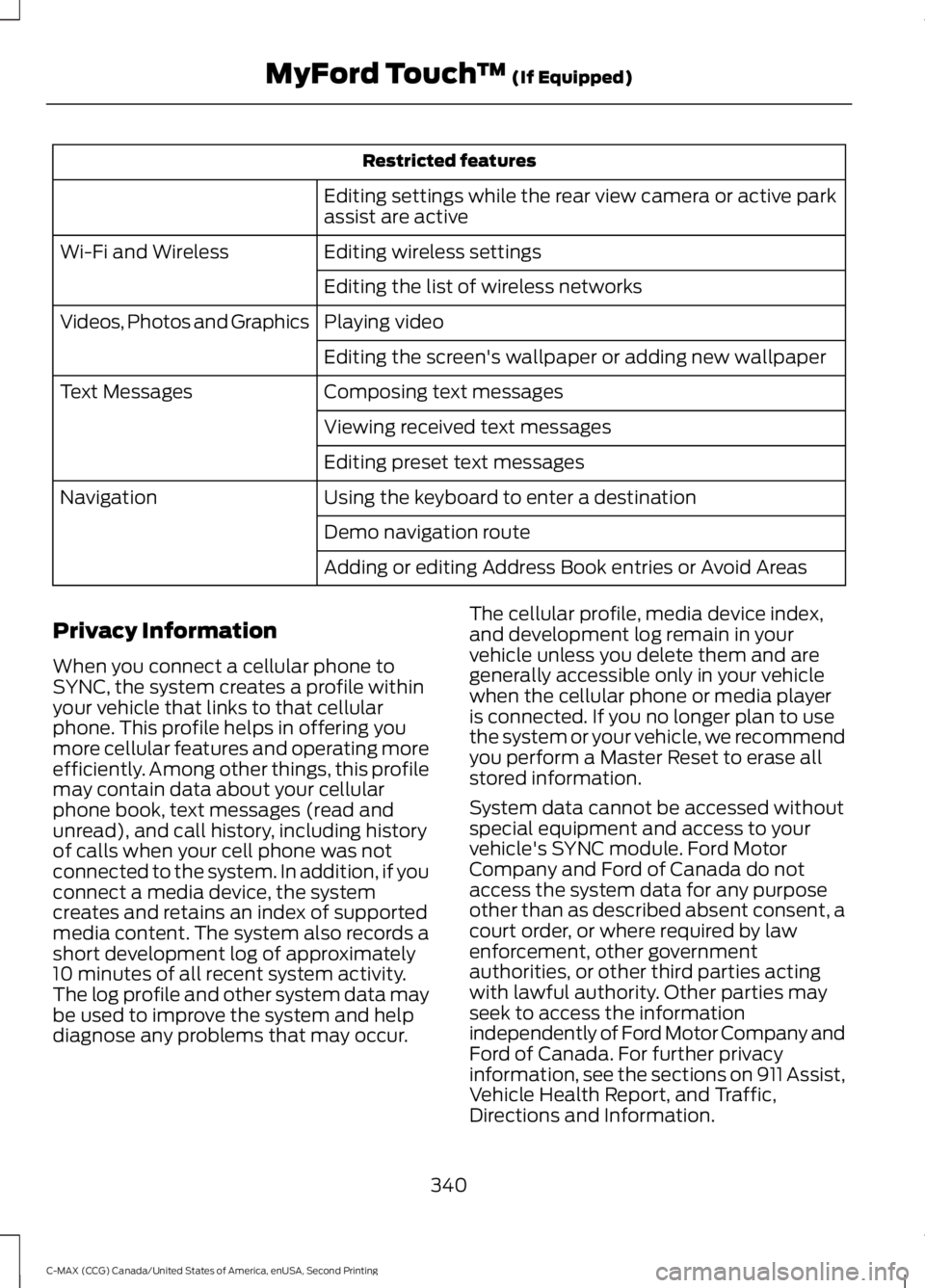
Restricted features
Editing settings while the rear view camera or active park
assist are active
Editing wireless settings
Wi-Fi and Wireless
Editing the list of wireless networks
Playing video
Videos, Photos and Graphics
Editing the screen's wallpaper or adding new wallpaper
Composing text messages
Text Messages
Viewing received text messages
Editing preset text messages
Using the keyboard to enter a destination
Navigation
Demo navigation route
Adding or editing Address Book entries or Avoid Areas
Privacy Information
When you connect a cellular phone to
SYNC, the system creates a profile within
your vehicle that links to that cellular
phone. This profile helps in offering you
more cellular features and operating more
efficiently. Among other things, this profile
may contain data about your cellular
phone book, text messages (read and
unread), and call history, including history
of calls when your cell phone was not
connected to the system. In addition, if you
connect a media device, the system
creates and retains an index of supported
media content. The system also records a
short development log of approximately
10 minutes of all recent system activity.
The log profile and other system data may
be used to improve the system and help
diagnose any problems that may occur. The cellular profile, media device index,
and development log remain in your
vehicle unless you delete them and are
generally accessible only in your vehicle
when the cellular phone or media player
is connected. If you no longer plan to use
the system or your vehicle, we recommend
you perform a Master Reset to erase all
stored information.
System data cannot be accessed without
special equipment and access to your
vehicle's SYNC module. Ford Motor
Company and Ford of Canada do not
access the system data for any purpose
other than as described absent consent, a
court order, or where required by law
enforcement, other government
authorities, or other third parties acting
with lawful authority. Other parties may
seek to access the information
independently of Ford Motor Company and
Ford of Canada. For further privacy
information, see the sections on 911 Assist,
Vehicle Health Report, and Traffic,
Directions and Information.
340
C-MAX (CCG) Canada/United States of America, enUSA, Second Printing MyFord Touch
™ (If Equipped)
Page 350 of 469
Press the Settings icon >
Vehicle > Camera Settings,
then select from the following
settings:
• Enhanced Park Aids
• Rear Camera Delay
You can find more information on the rear
view camera in another chapter. See Rear
View Camera
(page 172).
Enable Valet Mode
Valet mode allows you to lock the system.
No information is accessible until the
system is unlocked with the correct PIN.
You can create your own four-digit PIN to
lock and unlock the system. 1. Press the Settings icon >
Vehicle >
Enable Valet Mode.
2. Enter a four-digit pin twice, as prompted.
After you press Continue, the system locks
until you enter the PIN again.
Note: If the system locks, and you need to
reset the PIN, enter 3681 and the system
unlocks.
Charge Point Light Ring Press the Settings icon >
Vehicle
> Charge Point Light
Ring, then select from the
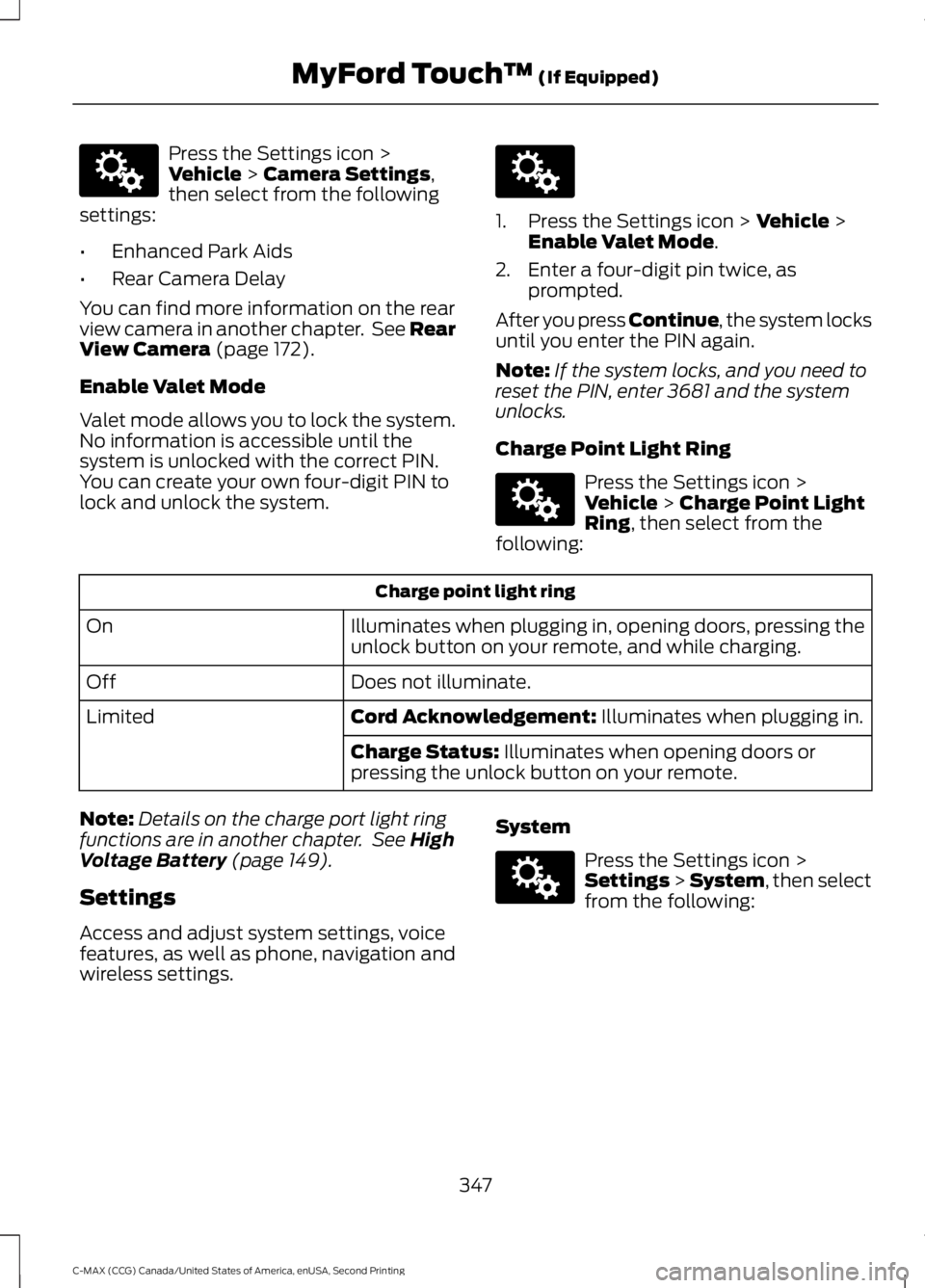
following: Charge point light ring
Illuminates when plugging in, opening doors, pressing the
unlock button on your remote, and while charging.
On
Does not illuminate.
Off
Cord Acknowledgement:
Illuminates when plugging in.
Limited
Charge Status:
Illuminates when opening doors or
pressing the unlock button on your remote.
Note: Details on the charge port light ring
functions are in another chapter. See
High
Voltage Battery (page 149).
Settings
Access and adjust system settings, voice
features, as well as phone, navigation and
wireless settings. System Press the Settings icon >
Settings > System, then select
from the following:
347
C-MAX (CCG) Canada/United States of America, enUSA, Second Printing MyFord Touch
™
(If Equipped)E142607 E142607 E142607 E142607
Page 353 of 469
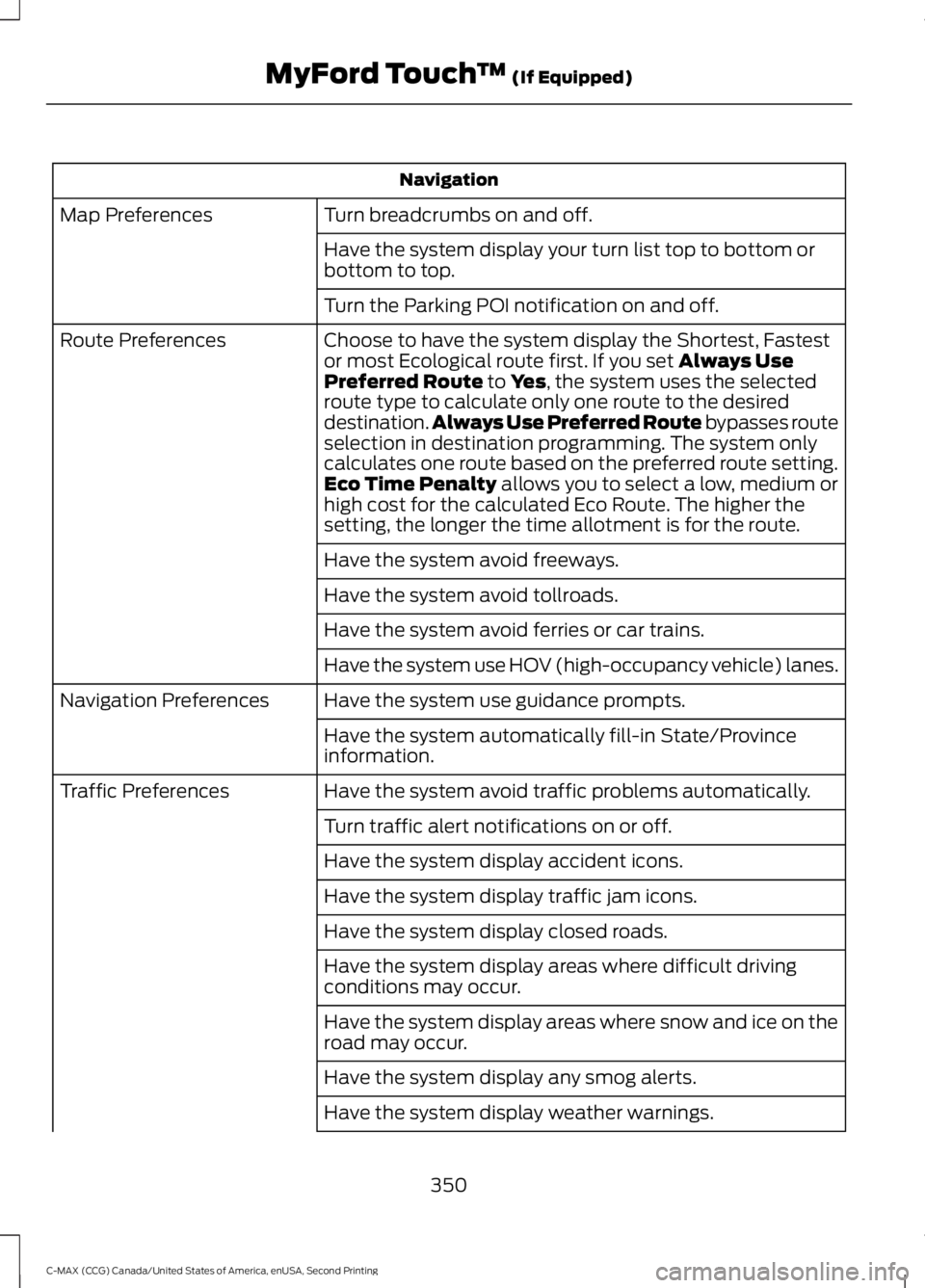
Navigation
Turn breadcrumbs on and off.
Map Preferences
Have the system display your turn list top to bottom or
bottom to top.
Turn the Parking POI notification on and off.
Choose to have the system display the Shortest, Fastest
or most Ecological route first. If you set Always Use
Preferred Route to Yes, the system uses the selected
route type to calculate only one route to the desired
destination. Always Use Preferred Route
bypasses route
selection in destination programming. The system only
calculates one route based on the preferred route setting.
Eco Time Penalty
allows you to select a low, medium or
high cost for the calculated Eco Route. The higher the
setting, the longer the time allotment is for the route.
Route Preferences
Have the system avoid freeways.
Have the system avoid tollroads.
Have the system avoid ferries or car trains.
Have the system use HOV (high-occupancy vehicle) lanes.
Have the system use guidance prompts.
Navigation Preferences
Have the system automatically fill-in State/Province
information.
Have the system avoid traffic problems automatically.
Traffic Preferences
Turn traffic alert notifications on or off.
Have the system display accident icons.
Have the system display traffic jam icons.
Have the system display closed roads.
Have the system display areas where difficult driving
conditions may occur.
Have the system display areas where snow and ice on the
road may occur.
Have the system display any smog alerts.
Have the system display weather warnings.
350
C-MAX (CCG) Canada/United States of America, enUSA, Second Printing MyFord Touch
™
(If Equipped)
Page 355 of 469
Wireless & Internet
Your system has a Wi-Fi feature that
creates a wireless network within your
vehicle, thereby allowing other devices
(such as personal computers or phones)
in your vehicle to speak to each other,
share files or play games. Using this Wi-Fi
feature, everyone in your vehicle can also
access the internet if you have a USB
mobile broadband connection inside your
vehicle, your phone supports personal area
networking or if you park outside a wireless
hotspot. Press the Settings icon >
Settings > Wireless &
Internet, then select from the
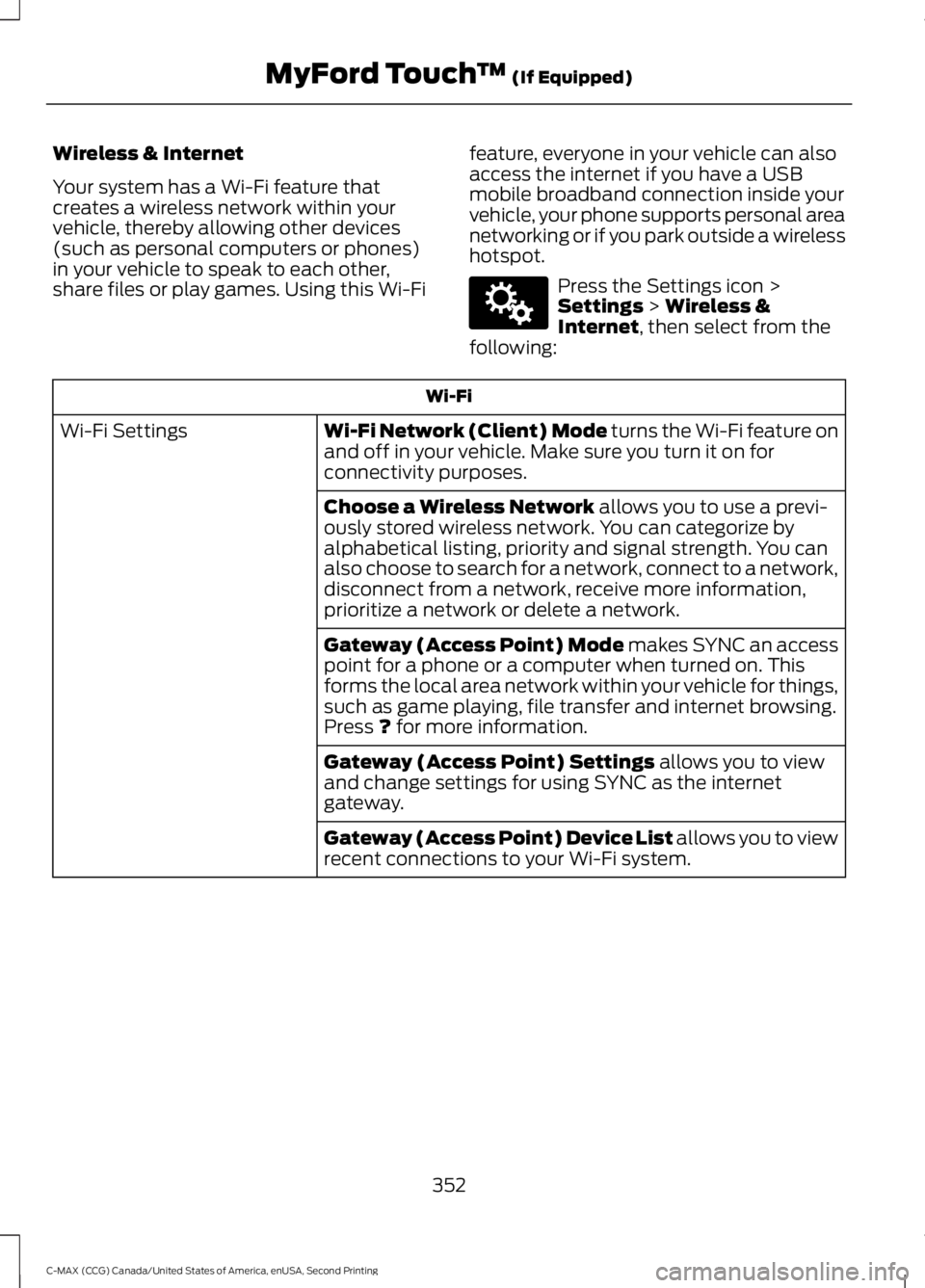
following: Wi-Fi
Wi-Fi Network (Client) Mode
turns the Wi-Fi feature on
and off in your vehicle. Make sure you turn it on for
connectivity purposes.
Wi-Fi Settings
Choose a Wireless Network
allows you to use a previ-
ously stored wireless network. You can categorize by
alphabetical listing, priority and signal strength. You can
also choose to search for a network, connect to a network,
disconnect from a network, receive more information,
prioritize a network or delete a network.
Gateway (Access Point) Mode makes SYNC an access
point for a phone or a computer when turned on. This
forms the local area network within your vehicle for things,
such as game playing, file transfer and internet browsing.
Press
? for more information.
Gateway (Access Point) Settings
allows you to view
and change settings for using SYNC as the internet
gateway.
Gateway (Access Point) Device List allows you to view
recent connections to your Wi-Fi system.
352
C-MAX (CCG) Canada/United States of America, enUSA, Second Printing MyFord Touch
™
(If Equipped)E142607
Page 367 of 469
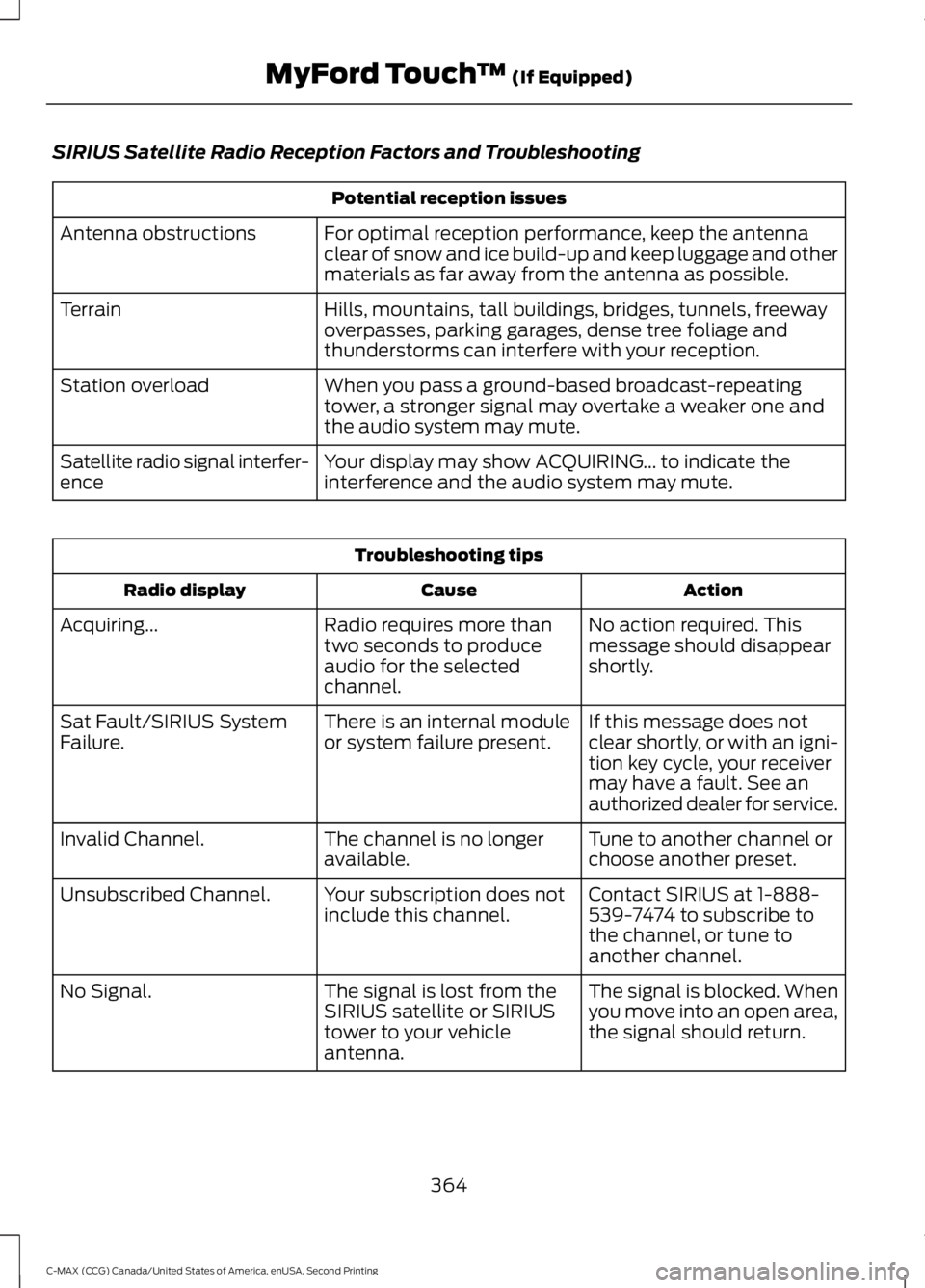
SIRIUS Satellite Radio Reception Factors and Troubleshooting
Potential reception issues
For optimal reception performance, keep the antenna
clear of snow and ice build-up and keep luggage and other
materials as far away from the antenna as possible.
Antenna obstructions
Hills, mountains, tall buildings, bridges, tunnels, freeway
overpasses, parking garages, dense tree foliage and
thunderstorms can interfere with your reception.
Terrain
When you pass a ground-based broadcast-repeating
tower, a stronger signal may overtake a weaker one and
the audio system may mute.
Station overload
Your display may show ACQUIRING... to indicate the
interference and the audio system may mute.
Satellite radio signal interfer-
ence Troubleshooting tips
Action
Cause
Radio display
No action required. This
message should disappear
shortly.
Radio requires more than
two seconds to produce
audio for the selected
channel.
Acquiring...
If this message does not
clear shortly, or with an igni-
tion key cycle, your receiver
may have a fault. See an
authorized dealer for service.
There is an internal module
or system failure present.
Sat Fault/SIRIUS System
Failure.
Tune to another channel or
choose another preset.
The channel is no longer
available.
Invalid Channel.
Contact SIRIUS at 1-888-
539-7474 to subscribe to
the channel, or tune to
another channel.
Your subscription does not
include this channel.
Unsubscribed Channel.
The signal is blocked. When
you move into an open area,
the signal should return.
The signal is lost from the
SIRIUS satellite or SIRIUS
tower to your vehicle
antenna.
No Signal.
364
C-MAX (CCG) Canada/United States of America, enUSA, Second Printing MyFord Touch
™ (If Equipped)
Page 375 of 469
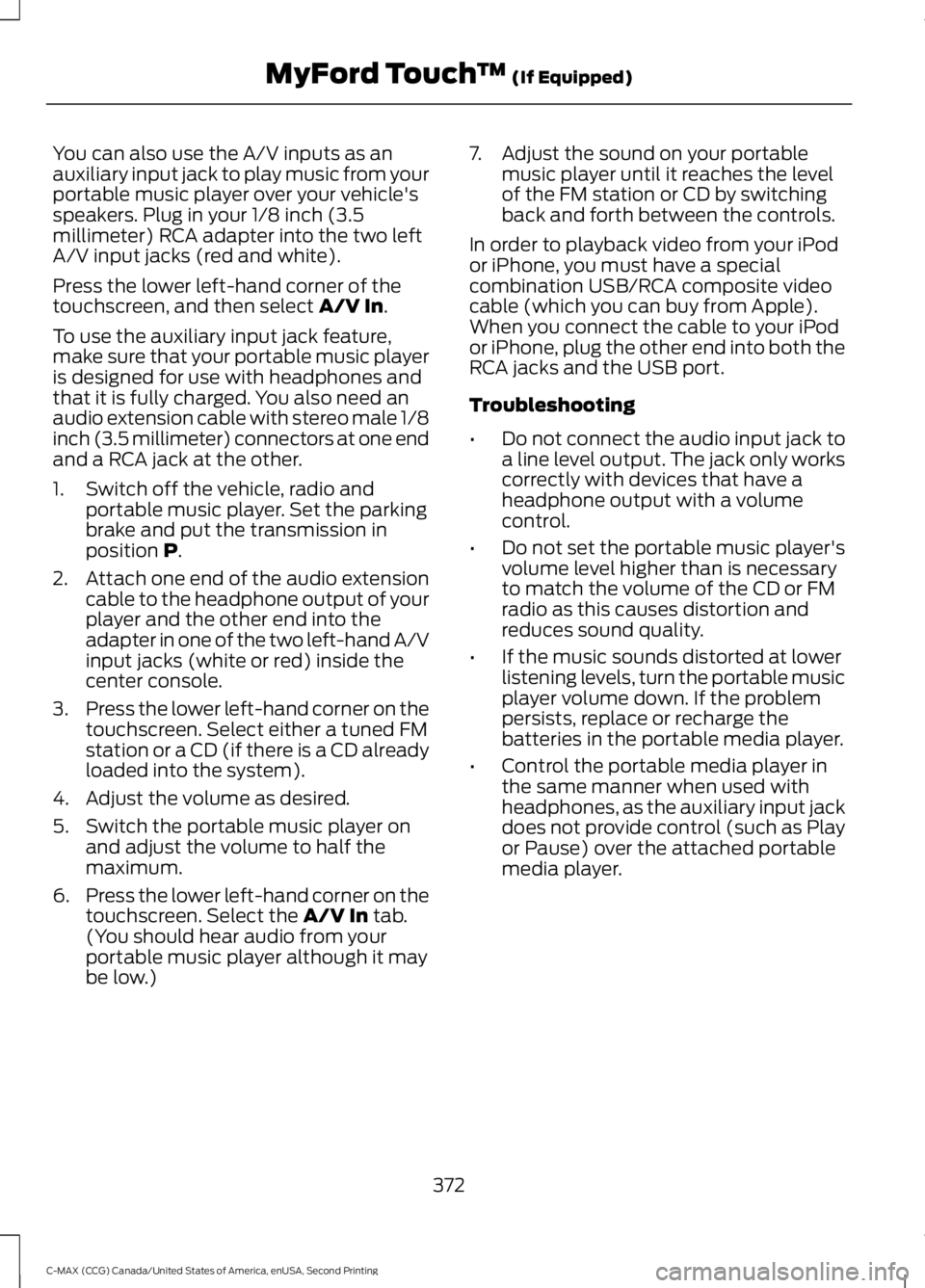
You can also use the A/V inputs as an
auxiliary input jack to play music from your
portable music player over your vehicle's
speakers. Plug in your 1/8 inch (3.5
millimeter) RCA adapter into the two left
A/V input jacks (red and white).
Press the lower left-hand corner of the
touchscreen, and then select A/V In.
To use the auxiliary input jack feature,
make sure that your portable music player
is designed for use with headphones and
that it is fully charged. You also need an
audio extension cable with stereo male 1/8
inch (3.5 millimeter) connectors at one end
and a RCA jack at the other.
1. Switch off the vehicle, radio and portable music player. Set the parking
brake and put the transmission in
position
P.
2. Attach one end of the audio extension
cable to the headphone output of your
player and the other end into the
adapter in one of the two left-hand A/V
input jacks (white or red) inside the
center console.
3. Press the lower left-hand corner on the
touchscreen. Select either a tuned FM
station or a CD (if there is a CD already
loaded into the system).
4. Adjust the volume as desired.
5. Switch the portable music player on and adjust the volume to half the
maximum.
6. Press the lower left-hand corner on the
touchscreen. Select the
A/V In tab.
(You should hear audio from your
portable music player although it may
be low.) 7. Adjust the sound on your portable
music player until it reaches the level
of the FM station or CD by switching
back and forth between the controls.
In order to playback video from your iPod
or iPhone, you must have a special
combination USB/RCA composite video
cable (which you can buy from Apple).
When you connect the cable to your iPod
or iPhone, plug the other end into both the
RCA jacks and the USB port.
Troubleshooting
• Do not connect the audio input jack to
a line level output. The jack only works
correctly with devices that have a
headphone output with a volume
control.
• Do not set the portable music player's
volume level higher than is necessary
to match the volume of the CD or FM
radio as this causes distortion and
reduces sound quality.
• If the music sounds distorted at lower
listening levels, turn the portable music
player volume down. If the problem
persists, replace or recharge the
batteries in the portable media player.
• Control the portable media player in
the same manner when used with
headphones, as the auxiliary input jack
does not provide control (such as Play
or Pause) over the attached portable
media player.
372
C-MAX (CCG) Canada/United States of America, enUSA, Second Printing MyFord Touch
™
(If Equipped)
Page 377 of 469
Pairing Your Phone for the First
Time
WARNING
Driving while distracted can result in
loss of vehicle control, crash and
injury. We strongly recommend that
you use extreme caution when using any
device that may take your focus off the
road. Your primary responsibility is the safe
operation of your vehicle. We recommend
against the use of any handheld device
while driving and encourage the use of
voice-operated systems when possible.
Make sure you are aware of all applicable
local laws that may affect the use of
electronic devices while driving. The first thing you must do to use the
phone features of SYNC is to pair your
Bluetooth-enabled cellular phone with
SYNC. This allows you to use your phone
in a hands-free manner.
Note:
Put the transmission in park (P).
Switch on your vehicle ignition and the radio.
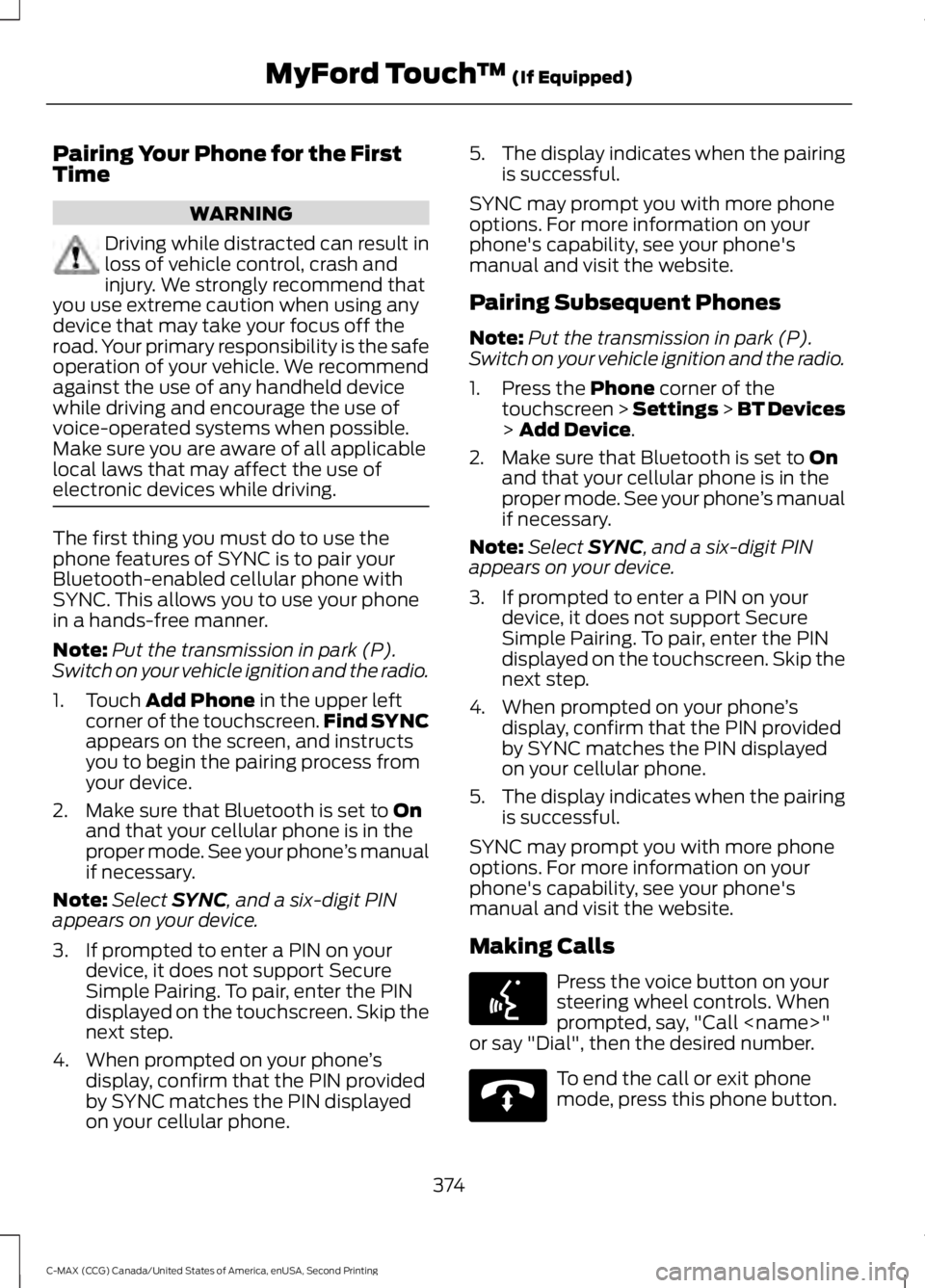
1. Touch Add Phone in the upper left
corner of the touchscreen. Find SYNC
appears on the screen, and instructs
you to begin the pairing process from
your device.
2. Make sure that Bluetooth is set to
On
and that your cellular phone is in the
proper mode. See your phone ’s manual
if necessary.
Note: Select
SYNC, and a six-digit PIN
appears on your device.
3. If prompted to enter a PIN on your device, it does not support Secure
Simple Pairing. To pair, enter the PIN
displayed on the touchscreen. Skip the
next step.
4. When prompted on your phone ’s
display, confirm that the PIN provided
by SYNC matches the PIN displayed
on your cellular phone. 5.
The display indicates when the pairing
is successful.
SYNC may prompt you with more phone
options. For more information on your
phone's capability, see your phone's
manual and visit the website.
Pairing Subsequent Phones
Note: Put the transmission in park (P).
Switch on your vehicle ignition and the radio.
1. Press the
Phone corner of the
touchscreen > Settings > BT Devices
>
Add Device.
2. Make sure that Bluetooth is set to
On
and that your cellular phone is in the
proper mode. See your phone ’s manual
if necessary.
Note: Select
SYNC, and a six-digit PIN
appears on your device.
3. If prompted to enter a PIN on your device, it does not support Secure
Simple Pairing. To pair, enter the PIN
displayed on the touchscreen. Skip the
next step.
4. When prompted on your phone ’s
display, confirm that the PIN provided
by SYNC matches the PIN displayed
on your cellular phone.
5. The display indicates when the pairing
is successful.
SYNC may prompt you with more phone
options. For more information on your
phone's capability, see your phone's
manual and visit the website.
Making Calls Press the voice button on your
steering wheel controls. When
prompted, say, "Call
or say "Dial", then the desired number. To end the call or exit phone
mode, press this phone button.
374
C-MAX (CCG) Canada/United States of America, enUSA, Second Printing MyFord Touch
™
(If Equipped)E142599 E142632
Page 405 of 469
Note:
If your vehicle is on a recognized road
and you do not press the Start Route
button, the system defaults to the Fastest
Route option and begins guidance.
During route guidance, you can press the
talking bubble icon that appears in the
upper right navigation corner (green bar)
if you want the system to repeat route
guidance information. When the system
repeats the last guidance instruction, it
updates the distance to the next guidance
instruction, since it detects when the
vehicle is moving.
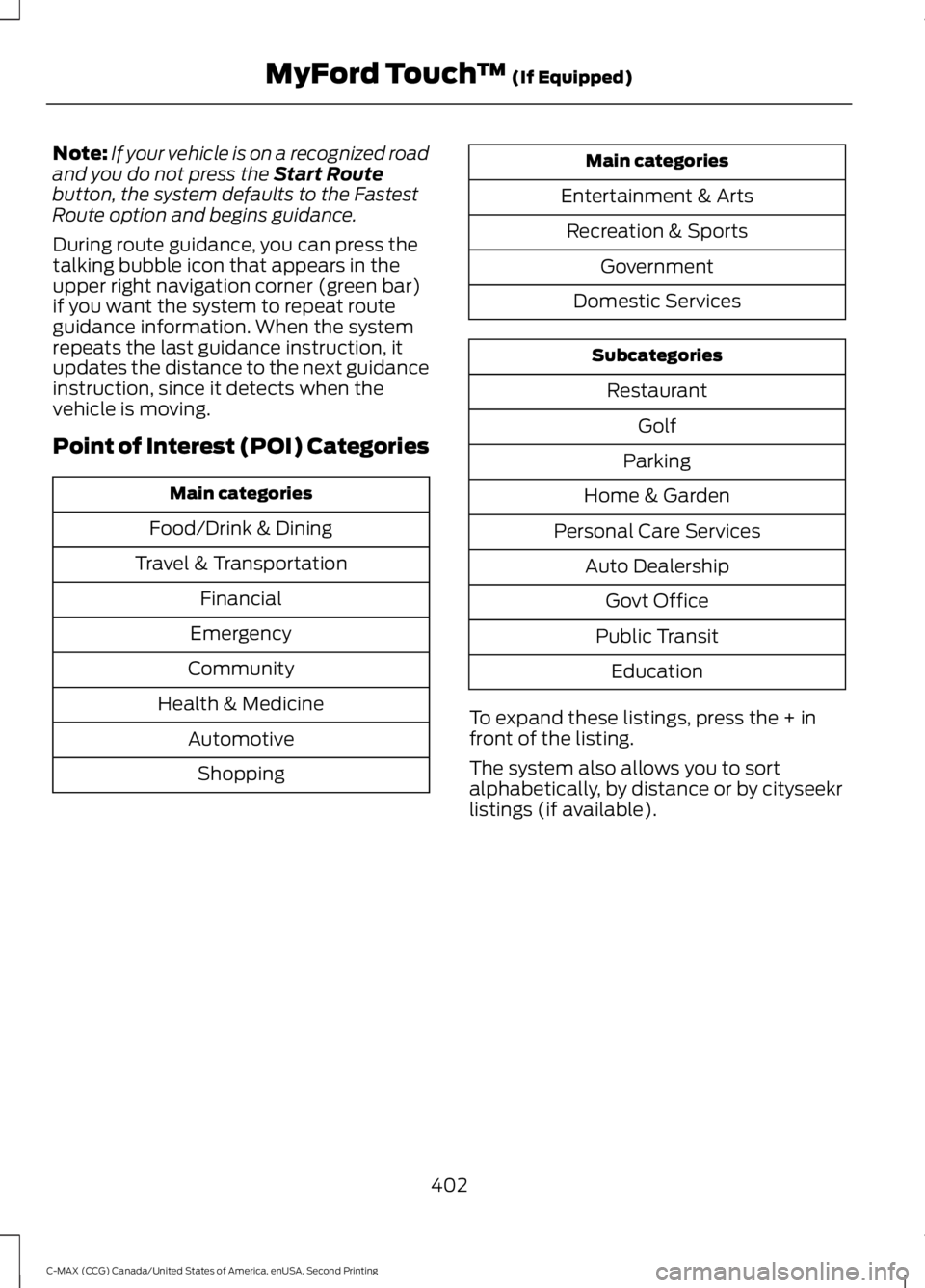
Point of Interest (POI) Categories Main categories
Food/Drink & Dining
Travel & Transportation Financial
Emergency
Community
Health & Medicine AutomotiveShopping Main categories
Entertainment & Arts Recreation & Sports Government
Domestic Services Subcategories
Restaurant Golf
Parking
Home & Garden
Personal Care Services Auto DealershipGovt Office
Public Transit Education
To expand these listings, press the + in
front of the listing.
The system also allows you to sort
alphabetically, by distance or by cityseekr
listings (if available).
402
C-MAX (CCG) Canada/United States of America, enUSA, Second Printing MyFord Touch
™
(If Equipped)
Page 407 of 469
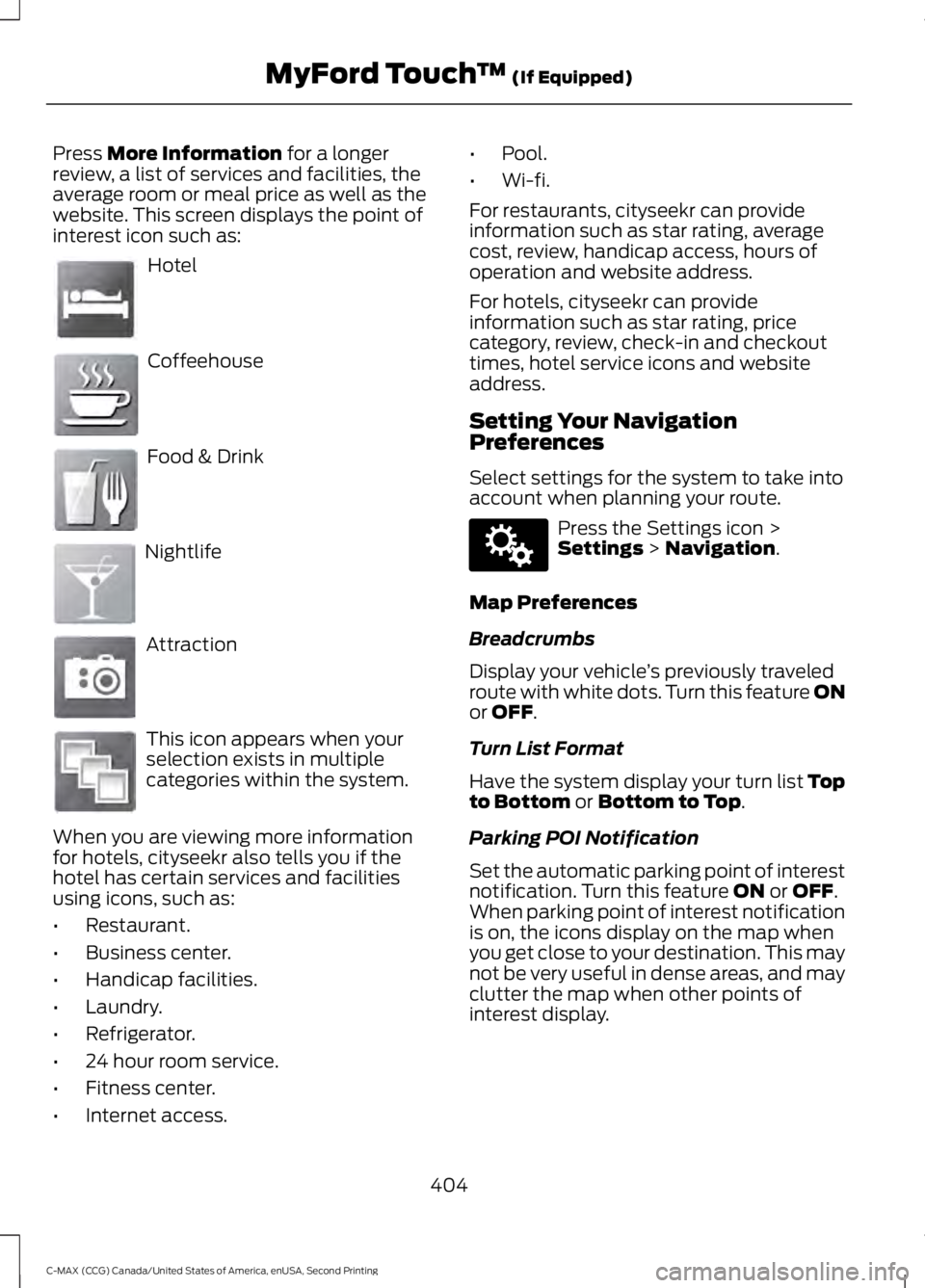
Press More Information for a longer
review, a list of services and facilities, the
average room or meal price as well as the
website. This screen displays the point of
interest icon such as: Hotel
Coffeehouse
Food & Drink
Nightlife
Attraction
This icon appears when your
selection exists in multiple
categories within the system.
When you are viewing more information
for hotels, cityseekr also tells you if the
hotel has certain services and facilities
using icons, such as:
• Restaurant.
• Business center.
• Handicap facilities.
• Laundry.
• Refrigerator.
• 24 hour room service.
• Fitness center.
• Internet access. •
Pool.
• Wi-fi.
For restaurants, cityseekr can provide
information such as star rating, average
cost, review, handicap access, hours of
operation and website address.
For hotels, cityseekr can provide
information such as star rating, price
category, review, check-in and checkout
times, hotel service icons and website
address.
Setting Your Navigation
Preferences
Select settings for the system to take into
account when planning your route. Press the Settings icon >
Settings
> Navigation.
Map Preferences
Breadcrumbs
Display your vehicle ’s previously traveled
route with white dots. Turn this feature ON
or
OFF.
Turn List Format
Have the system display your turn list Top
to Bottom
or Bottom to Top.
Parking POI Notification
Set the automatic parking point of interest
notification. Turn this feature
ON or OFF.
When parking point of interest notification
is on, the icons display on the map when
you get close to your destination. This may
not be very useful in dense areas, and may
clutter the map when other points of
interest display.
404
C-MAX (CCG) Canada/United States of America, enUSA, Second Printing MyFord Touch
™
(If Equipped)E143884 E142636 E142637 E142638 E142639 E142640 E142607
Page 419 of 469
For a complete listing of the
accessories that are available for your
vehicle, please contact your authorized
dealer or visit our online store at:
Web Address
www.Accessories.Ford.com
You can also visit: Web Address
www.Ford.ca
Ford Motor Company will repair or replace
any properly authorized dealer-installed
Ford Genuine Accessory found to be
defective in factory-supplied materials or
workmanship during the warranty period,
as well as any component damaged by the
defective accessories. Ford Motor
Company will warrant your accessory
through the warranty that provides the
greatest benefit:
• 24 months, unlimited mileage.
• The remainder of your new vehicle
limited warranty.
Contact an authorized dealer for details
and a copy of the warranty.
Exterior style
• Hood deflector*.
• Side window deflectors.
• Splash guards.
• Custom graphics*.
Interior style
• Floor mats.
• Accent lighting.
• Cargo area protector. Lifestyle
•
Ash cup or smoker's packages.
• Soft cargo organizers.
• Cargo net*.
• Roof racks and carriers*.
Peace of mind
• Keyless entry keypad.
• Remote start.
• Vehicle security systems.
• Wheel locks.
• Bumper-mounted parking assist
system*.
• Rear bumper protector.
• Car covers.
• Charge cord storage bag*.
*Ford Licensed Accessory. The accessory
manufacturer designs, develops and
therefore warrants Ford Licensed
Accessories, and does not design or test
these accessories to Ford Motor Company
engineering requirements. Contact an
authorized Ford dealer for the
manufacturer's limited warranty details,
and request a copy of the Ford Licensed
Accessories product limited warranty from
the accessory manufacturer.
416
C-MAX (CCG) Canada/United States of America, enUSA, Second Printing Accessories