phone FORD C MAX ENERGI 2016 Service Manual
[x] Cancel search | Manufacturer: FORD, Model Year: 2016, Model line: C MAX ENERGI, Model: FORD C MAX ENERGI 2016Pages: 395, PDF Size: 6.78 MB
Page 323 of 395
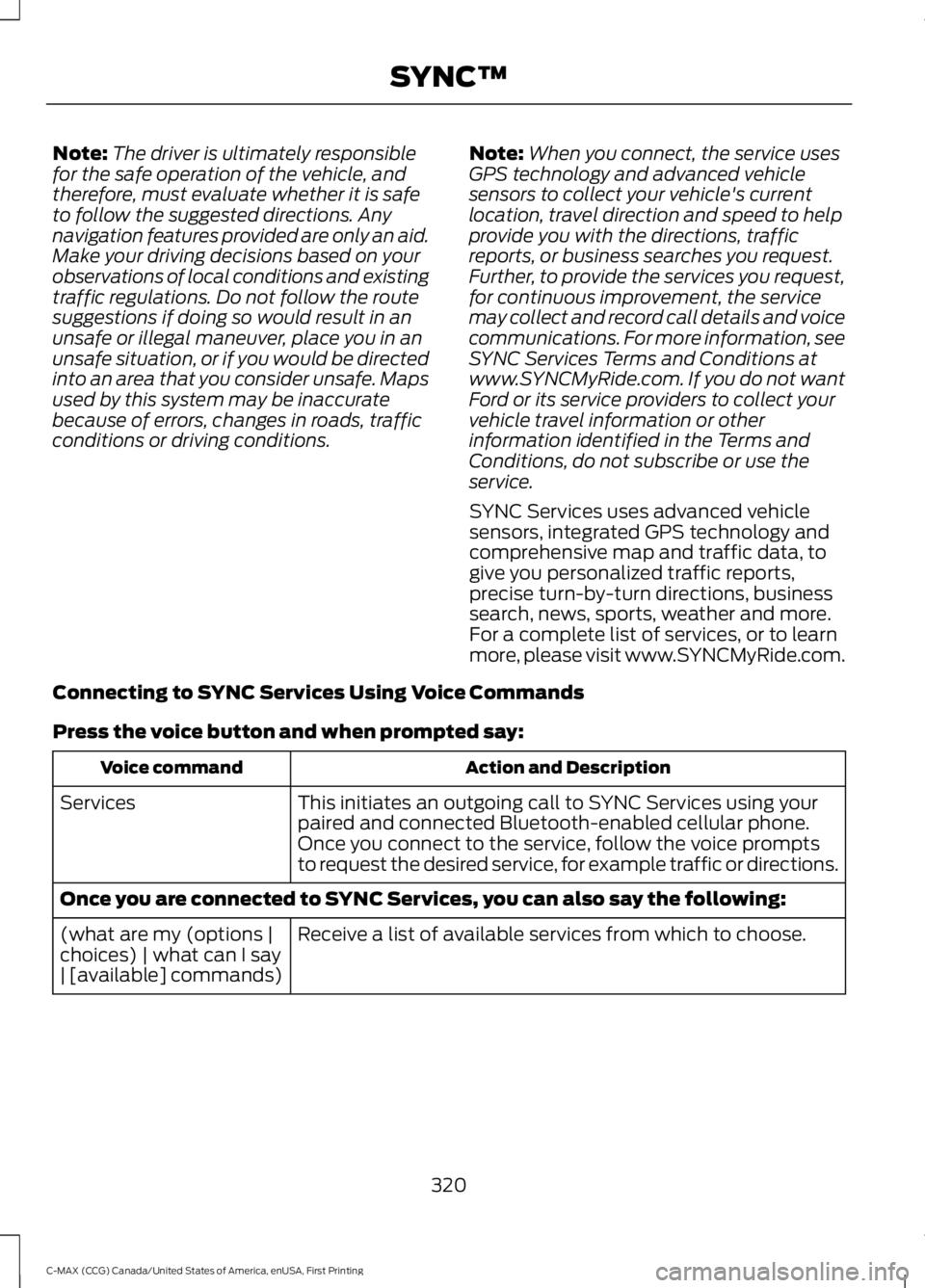
Note:The driver is ultimately responsiblefor the safe operation of the vehicle, andtherefore, must evaluate whether it is safeto follow the suggested directions. Anynavigation features provided are only an aid.Make your driving decisions based on yourobservations of local conditions and existingtraffic regulations. Do not follow the routesuggestions if doing so would result in anunsafe or illegal maneuver, place you in anunsafe situation, or if you would be directedinto an area that you consider unsafe. Mapsused by this system may be inaccuratebecause of errors, changes in roads, trafficconditions or driving conditions.
Note:When you connect, the service usesGPS technology and advanced vehiclesensors to collect your vehicle's currentlocation, travel direction and speed to helpprovide you with the directions, trafficreports, or business searches you request.Further, to provide the services you request,for continuous improvement, the servicemay collect and record call details and voicecommunications. For more information, seeSYNC Services Terms and Conditions atwww.SYNCMyRide.com. If you do not wantFord or its service providers to collect yourvehicle travel information or otherinformation identified in the Terms andConditions, do not subscribe or use theservice.
SYNC Services uses advanced vehiclesensors, integrated GPS technology andcomprehensive map and traffic data, togive you personalized traffic reports,precise turn-by-turn directions, businesssearch, news, sports, weather and more.For a complete list of services, or to learnmore, please visit www.SYNCMyRide.com.
Connecting to SYNC Services Using Voice Commands
Press the voice button and when prompted say:
Action and DescriptionVoice command
This initiates an outgoing call to SYNC Services using yourpaired and connected Bluetooth-enabled cellular phone.Services
Once you connect to the service, follow the voice promptsto request the desired service, for example traffic or directions.
Once you are connected to SYNC Services, you can also say the following:
Receive a list of available services from which to choose.(what are my (options |choices) | what can I say| [available] commands)
320
C-MAX (CCG) Canada/United States of America, enUSA, First Printing
SYNC™
Page 324 of 395
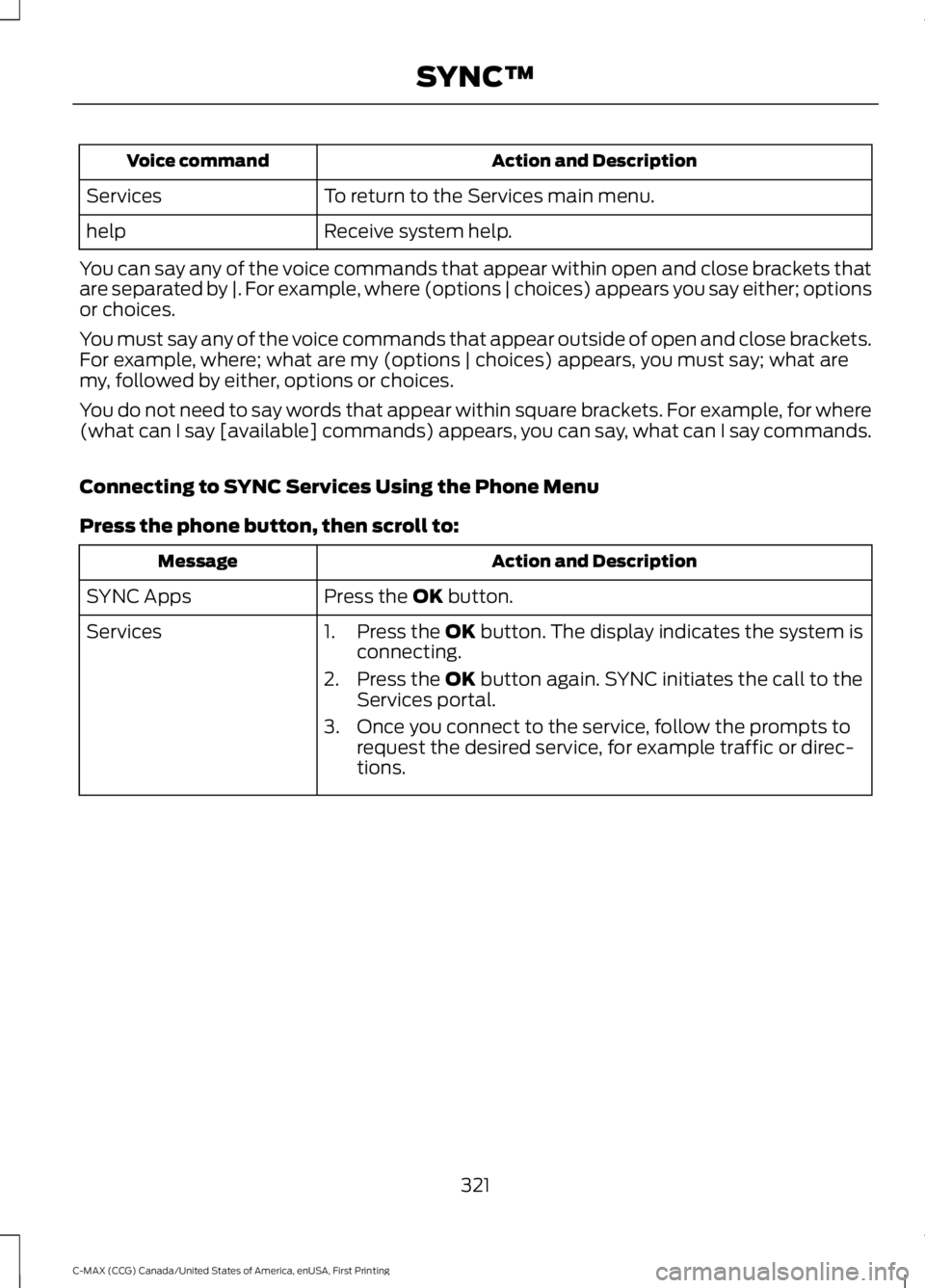
Action and DescriptionVoice command
To return to the Services main menu.Services
Receive system help.help
You can say any of the voice commands that appear within open and close brackets thatare separated by |. For example, where (options | choices) appears you say either; optionsor choices.
You must say any of the voice commands that appear outside of open and close brackets.For example, where; what are my (options | choices) appears, you must say; what aremy, followed by either, options or choices.
You do not need to say words that appear within square brackets. For example, for where(what can I say [available] commands) appears, you can say, what can I say commands.
Connecting to SYNC Services Using the Phone Menu
Press the phone button, then scroll to:
Action and DescriptionMessage
Press the OK button.SYNC Apps
Services1. Press the OK button. The display indicates the system isconnecting.
2. Press the OK button again. SYNC initiates the call to theServices portal.
3. Once you connect to the service, follow the prompts torequest the desired service, for example traffic or direc-tions.
321
C-MAX (CCG) Canada/United States of America, enUSA, First Printing
SYNC™
Page 325 of 395
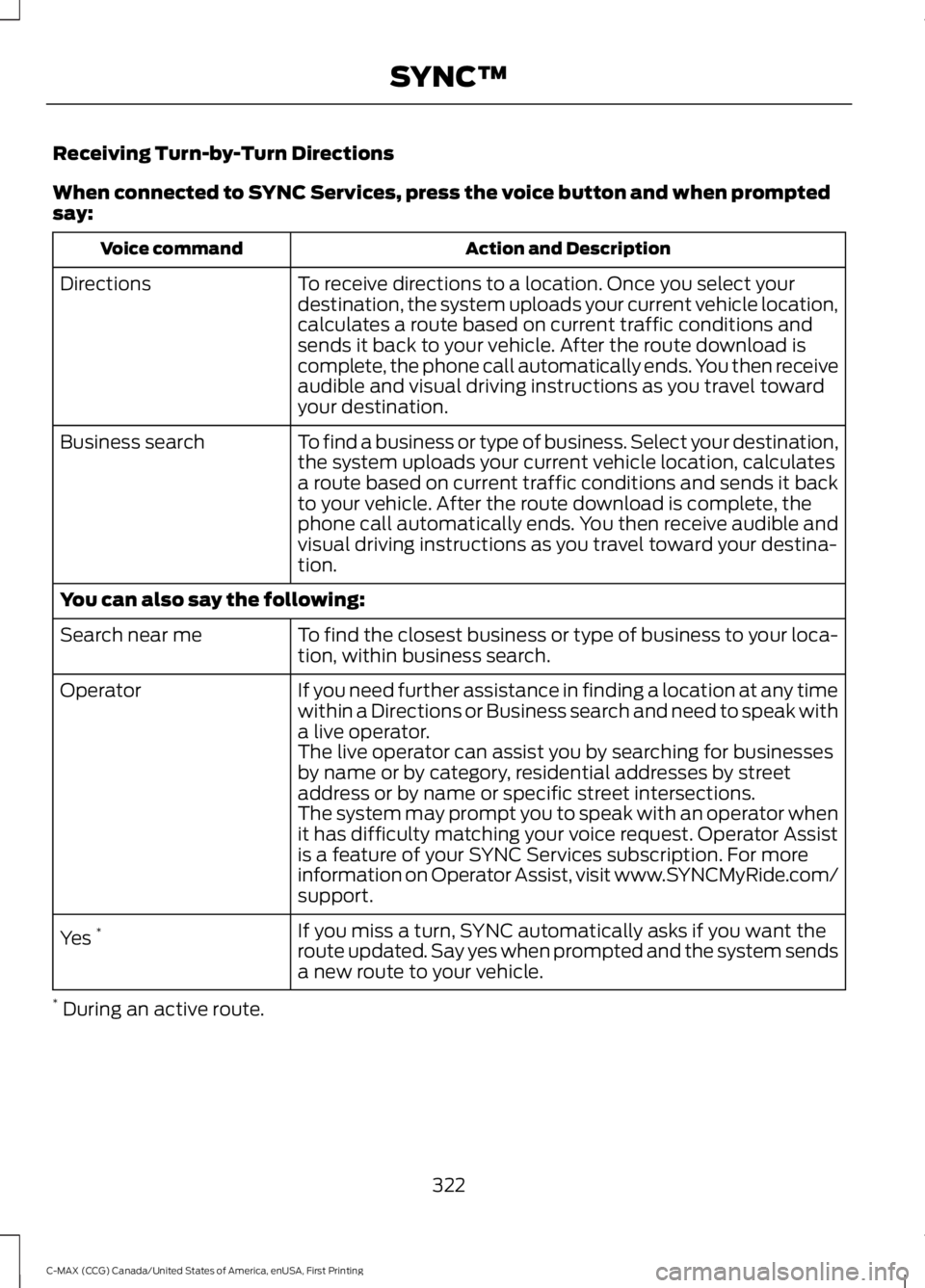
Receiving Turn-by-Turn Directions
When connected to SYNC Services, press the voice button and when promptedsay:
Action and DescriptionVoice command
To receive directions to a location. Once you select yourdestination, the system uploads your current vehicle location,calculates a route based on current traffic conditions andsends it back to your vehicle. After the route download iscomplete, the phone call automatically ends. You then receiveaudible and visual driving instructions as you travel towardyour destination.
Directions
To find a business or type of business. Select your destination,the system uploads your current vehicle location, calculatesa route based on current traffic conditions and sends it backto your vehicle. After the route download is complete, thephone call automatically ends. You then receive audible andvisual driving instructions as you travel toward your destina-tion.
Business search
You can also say the following:
To find the closest business or type of business to your loca-tion, within business search.Search near me
If you need further assistance in finding a location at any timewithin a Directions or Business search and need to speak witha live operator.
Operator
The live operator can assist you by searching for businessesby name or by category, residential addresses by streetaddress or by name or specific street intersections.The system may prompt you to speak with an operator whenit has difficulty matching your voice request. Operator Assistis a feature of your SYNC Services subscription. For moreinformation on Operator Assist, visit www.SYNCMyRide.com/support.
If you miss a turn, SYNC automatically asks if you want theroute updated. Say yes when prompted and the system sendsa new route to your vehicle.
Yes *
* During an active route.
322
C-MAX (CCG) Canada/United States of America, enUSA, First Printing
SYNC™
Page 326 of 395
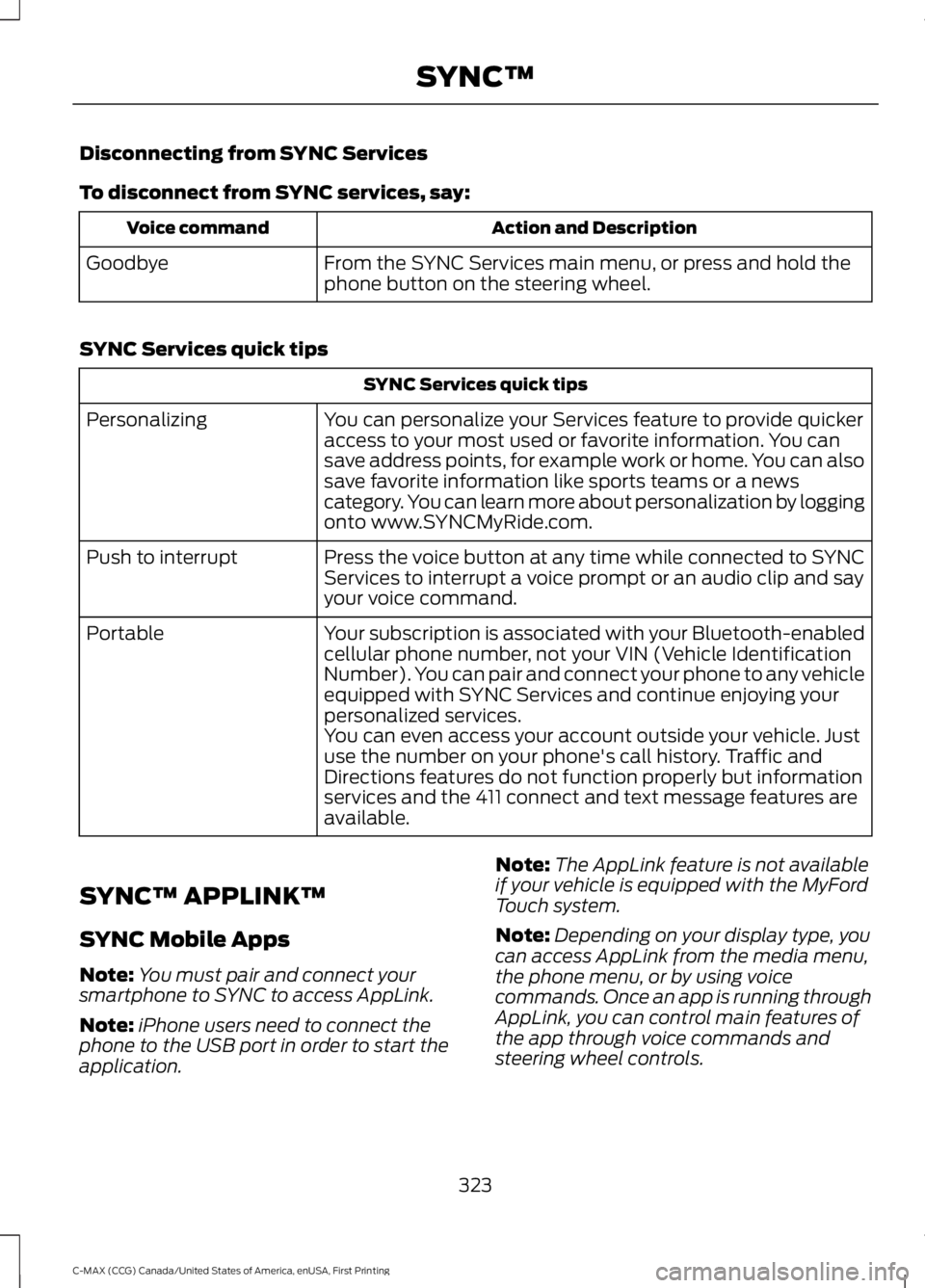
Disconnecting from SYNC Services
To disconnect from SYNC services, say:
Action and DescriptionVoice command
From the SYNC Services main menu, or press and hold thephone button on the steering wheel.Goodbye
SYNC Services quick tips
SYNC Services quick tips
You can personalize your Services feature to provide quickeraccess to your most used or favorite information. You cansave address points, for example work or home. You can alsosave favorite information like sports teams or a newscategory. You can learn more about personalization by loggingonto www.SYNCMyRide.com.
Personalizing
Press the voice button at any time while connected to SYNCServices to interrupt a voice prompt or an audio clip and sayyour voice command.
Push to interrupt
Your subscription is associated with your Bluetooth-enabledcellular phone number, not your VIN (Vehicle IdentificationNumber). You can pair and connect your phone to any vehicleequipped with SYNC Services and continue enjoying yourpersonalized services.
Portable
You can even access your account outside your vehicle. Justuse the number on your phone's call history. Traffic andDirections features do not function properly but informationservices and the 411 connect and text message features areavailable.
SYNC™ APPLINK™
SYNC Mobile Apps
Note:You must pair and connect yoursmartphone to SYNC to access AppLink.
Note:iPhone users need to connect thephone to the USB port in order to start theapplication.
Note:The AppLink feature is not availableif your vehicle is equipped with the MyFordTouch system.
Note:Depending on your display type, youcan access AppLink from the media menu,the phone menu, or by using voicecommands. Once an app is running throughAppLink, you can control main features ofthe app through voice commands andsteering wheel controls.
323
C-MAX (CCG) Canada/United States of America, enUSA, First Printing
SYNC™
Page 327 of 395
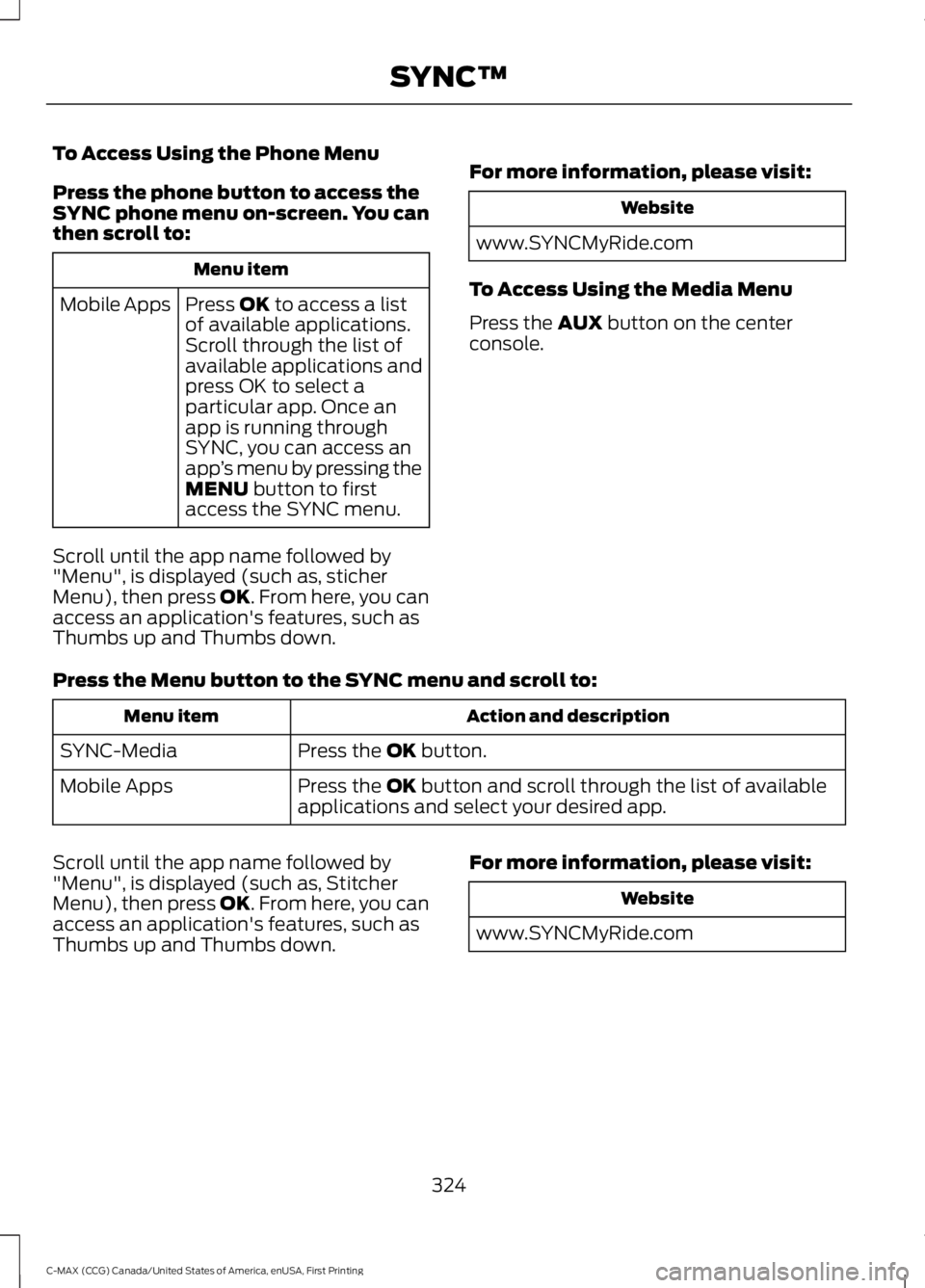
To Access Using the Phone Menu
Press the phone button to access theSYNC phone menu on-screen. You canthen scroll to:
Menu item
Press OK to access a listof available applications.Mobile Apps
Scroll through the list ofavailable applications andpress OK to select aparticular app. Once anapp is running throughSYNC, you can access anapp’s menu by pressing theMENU button to firstaccess the SYNC menu.
Scroll until the app name followed by"Menu", is displayed (such as, sticherMenu), then press OK. From here, you canaccess an application's features, such asThumbs up and Thumbs down.
For more information, please visit:
Website
www.SYNCMyRide.com
To Access Using the Media Menu
Press the AUX button on the centerconsole.
Press the Menu button to the SYNC menu and scroll to:
Action and descriptionMenu item
Press the OK button.SYNC-Media
Press the OK button and scroll through the list of availableapplications and select your desired app.Mobile Apps
Scroll until the app name followed by"Menu", is displayed (such as, StitcherMenu), then press OK. From here, you canaccess an application's features, such asThumbs up and Thumbs down.
For more information, please visit:
Website
www.SYNCMyRide.com
324
C-MAX (CCG) Canada/United States of America, enUSA, First Printing
SYNC™
Page 330 of 395
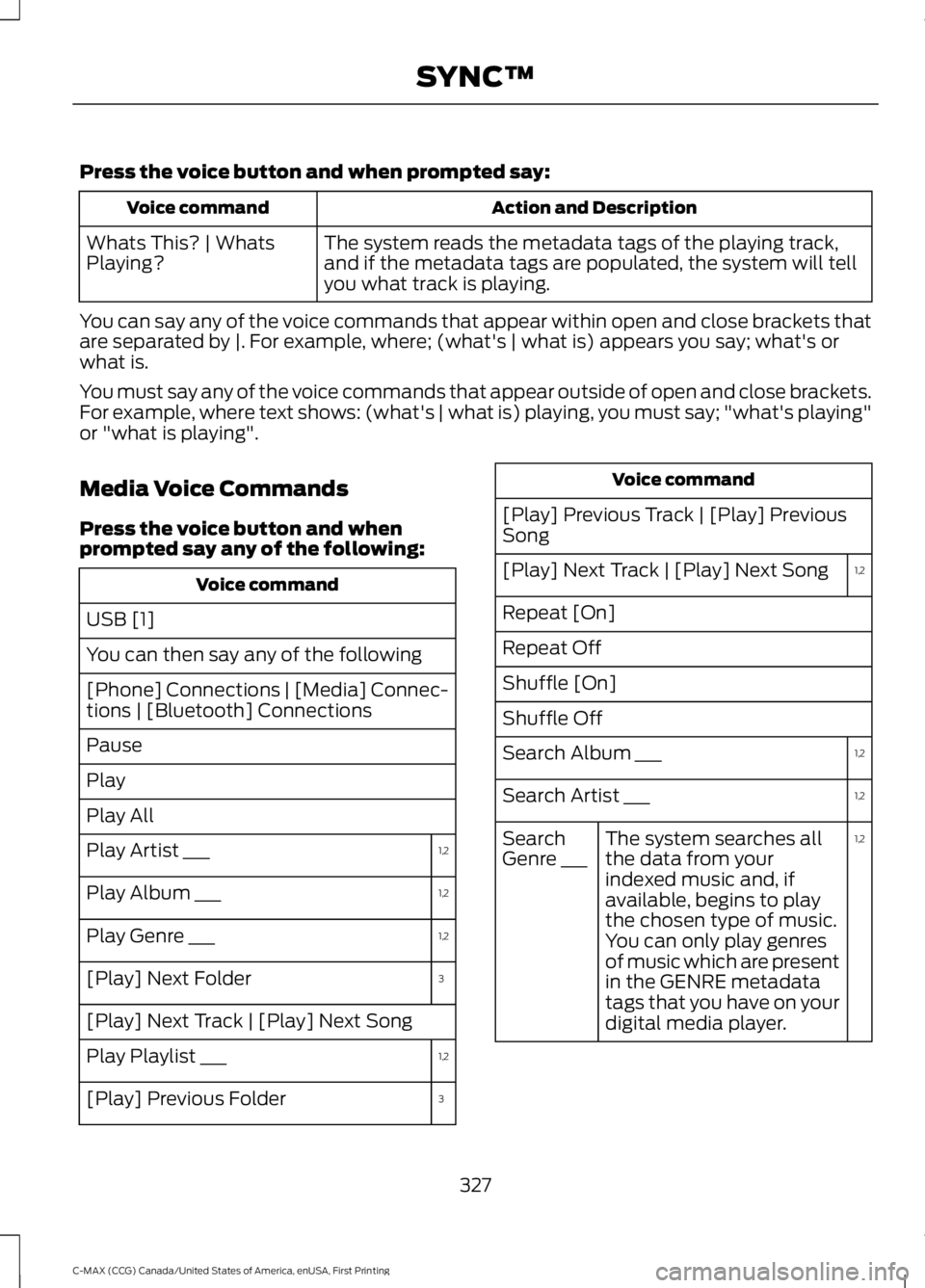
Press the voice button and when prompted say:
Action and DescriptionVoice command
The system reads the metadata tags of the playing track,and if the metadata tags are populated, the system will tellyou what track is playing.
Whats This? | WhatsPlaying?
You can say any of the voice commands that appear within open and close brackets thatare separated by |. For example, where; (what's | what is) appears you say; what's orwhat is.
You must say any of the voice commands that appear outside of open and close brackets.For example, where text shows: (what's | what is) playing, you must say; "what's playing"or "what is playing".
Media Voice Commands
Press the voice button and whenprompted say any of the following:
Voice command
USB [1]
You can then say any of the following
[Phone] Connections | [Media] Connec-tions | [Bluetooth] Connections
Pause
Play
Play All
1,2Play Artist ___
1,2Play Album ___
1,2Play Genre ___
3[Play] Next Folder
[Play] Next Track | [Play] Next Song
1,2Play Playlist ___
3[Play] Previous Folder
Voice command
[Play] Previous Track | [Play] PreviousSong
1,2[Play] Next Track | [Play] Next Song
Repeat [On]
Repeat Off
Shuffle [On]
Shuffle Off
1,2Search Album ___
1,2Search Artist ___
1,2The system searches allthe data from yourindexed music and, ifavailable, begins to playthe chosen type of music.You can only play genresof music which are presentin the GENRE metadatatags that you have on yourdigital media player.
SearchGenre ___
327
C-MAX (CCG) Canada/United States of America, enUSA, First Printing
SYNC™
Page 331 of 395
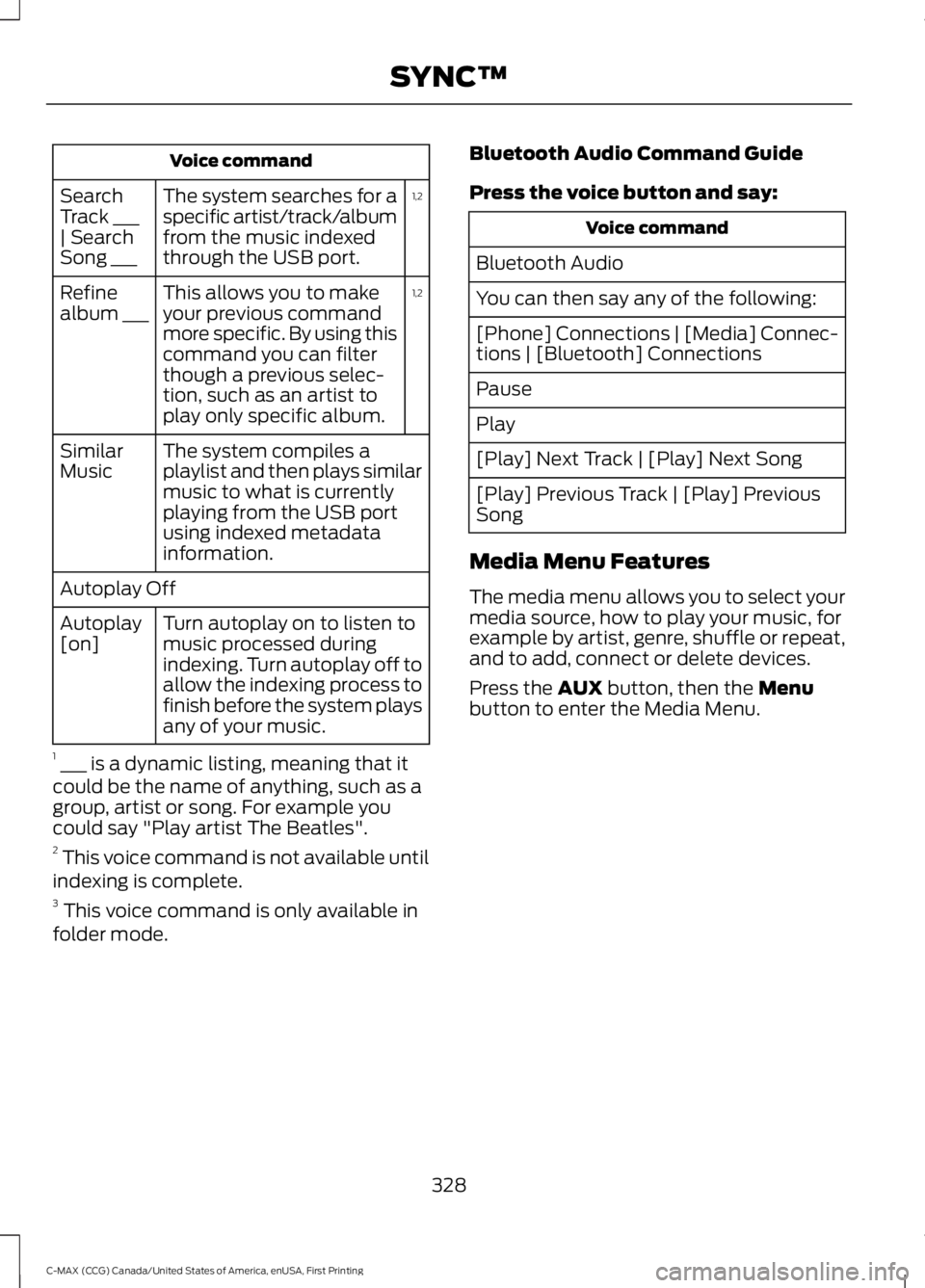
Voice command
1,2The system searches for aspecific artist/track/albumfrom the music indexedthrough the USB port.
SearchTrack ___| SearchSong ___
1,2This allows you to makeyour previous commandmore specific. By using thiscommand you can filterthough a previous selec-tion, such as an artist toplay only specific album.
Refinealbum ___
The system compiles aplaylist and then plays similarmusic to what is currentlyplaying from the USB portusing indexed metadatainformation.
SimilarMusic
Autoplay Off
Turn autoplay on to listen tomusic processed duringindexing. Turn autoplay off toallow the indexing process tofinish before the system playsany of your music.
Autoplay[on]
1 ___ is a dynamic listing, meaning that itcould be the name of anything, such as agroup, artist or song. For example youcould say "Play artist The Beatles".2 This voice command is not available untilindexing is complete.3 This voice command is only available infolder mode.
Bluetooth Audio Command Guide
Press the voice button and say:
Voice command
Bluetooth Audio
You can then say any of the following:
[Phone] Connections | [Media] Connec-tions | [Bluetooth] Connections
Pause
Play
[Play] Next Track | [Play] Next Song
[Play] Previous Track | [Play] PreviousSong
Media Menu Features
The media menu allows you to select yourmedia source, how to play your music, forexample by artist, genre, shuffle or repeat,and to add, connect or delete devices.
Press the AUX button, then the Menubutton to enter the Media Menu.
328
C-MAX (CCG) Canada/United States of America, enUSA, First Printing
SYNC™
Page 332 of 395
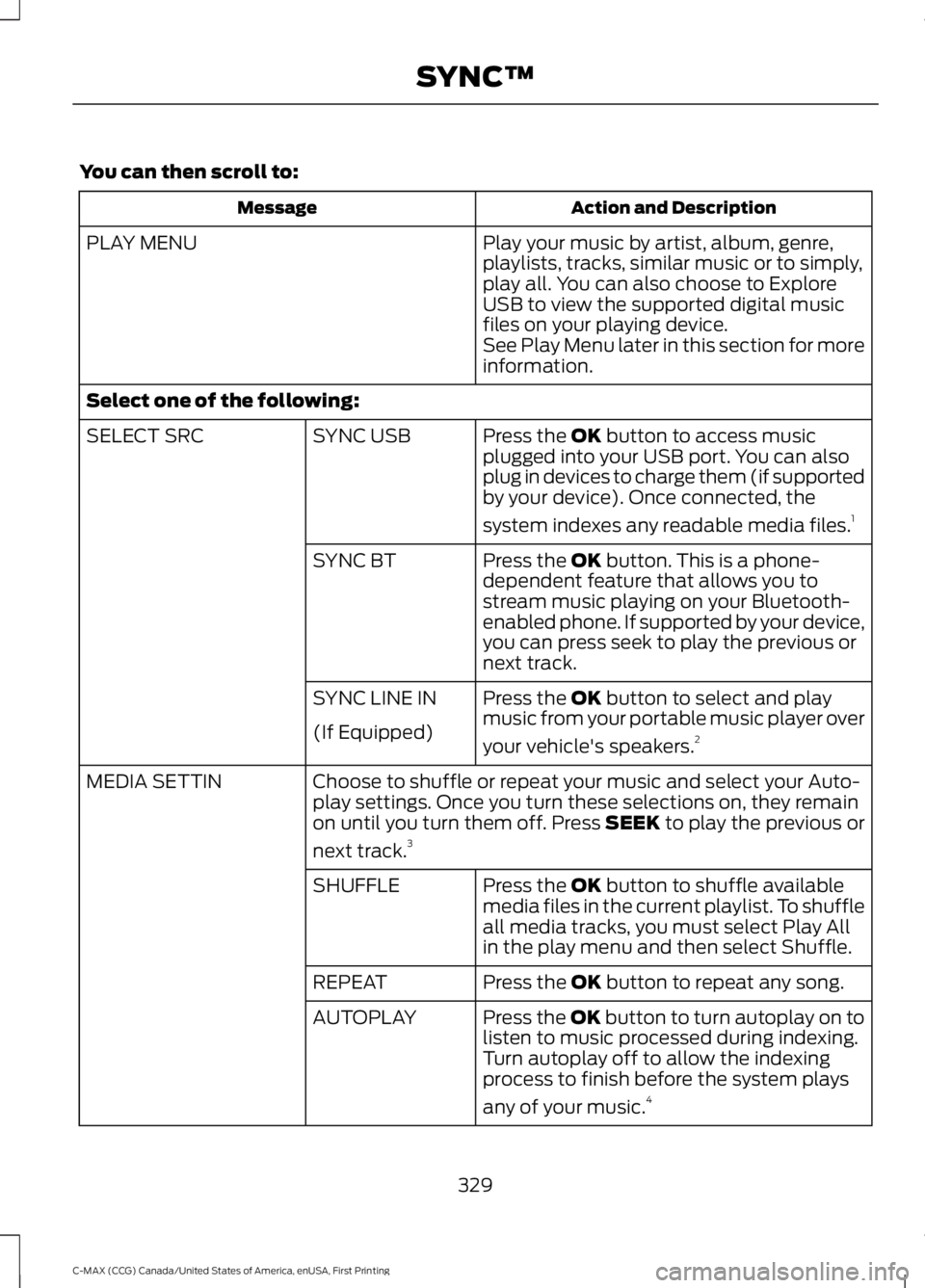
You can then scroll to:
Action and DescriptionMessage
Play your music by artist, album, genre,playlists, tracks, similar music or to simply,play all. You can also choose to ExploreUSB to view the supported digital musicfiles on your playing device.
PLAY MENU
See Play Menu later in this section for moreinformation.
Select one of the following:
Press the OK button to access musicplugged into your USB port. You can alsoplug in devices to charge them (if supportedby your device). Once connected, the
system indexes any readable media files.1
SYNC USBSELECT SRC
Press the OK button. This is a phone-dependent feature that allows you tostream music playing on your Bluetooth-enabled phone. If supported by your device,you can press seek to play the previous ornext track.
SYNC BT
Press the OK button to select and playmusic from your portable music player over
your vehicle's speakers.2
SYNC LINE IN
(If Equipped)
Choose to shuffle or repeat your music and select your Auto-play settings. Once you turn these selections on, they remainon until you turn them off. Press SEEK to play the previous or
next track.3
MEDIA SETTIN
Press the OK button to shuffle availablemedia files in the current playlist. To shuffleall media tracks, you must select Play Allin the play menu and then select Shuffle.
SHUFFLE
Press the OK button to repeat any song.REPEAT
Press the OK button to turn autoplay on tolisten to music processed during indexing.Turn autoplay off to allow the indexingprocess to finish before the system plays
any of your music.4
AUTOPLAY
329
C-MAX (CCG) Canada/United States of America, enUSA, First Printing
SYNC™
Page 333 of 395
Action and DescriptionMessage
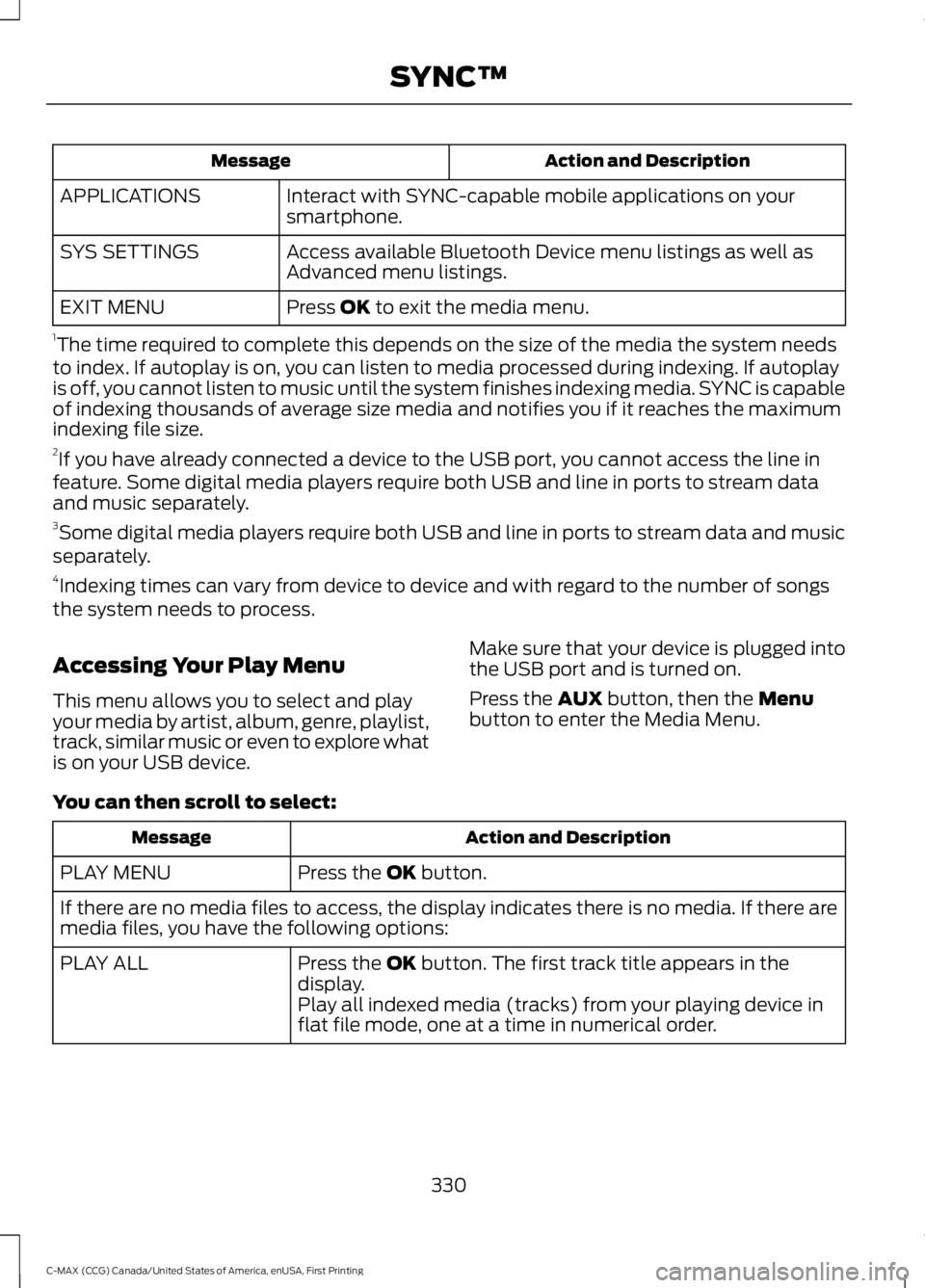
Interact with SYNC-capable mobile applications on yoursmartphone.APPLICATIONS
Access available Bluetooth Device menu listings as well asAdvanced menu listings.SYS SETTINGS
Press OK to exit the media menu.EXIT MENU
1The time required to complete this depends on the size of the media the system needsto index. If autoplay is on, you can listen to media processed during indexing. If autoplayis off, you cannot listen to music until the system finishes indexing media. SYNC is capableof indexing thousands of average size media and notifies you if it reaches the maximumindexing file size.2If you have already connected a device to the USB port, you cannot access the line infeature. Some digital media players require both USB and line in ports to stream dataand music separately.3Some digital media players require both USB and line in ports to stream data and musicseparately.4Indexing times can vary from device to device and with regard to the number of songsthe system needs to process.
Accessing Your Play Menu
This menu allows you to select and playyour media by artist, album, genre, playlist,track, similar music or even to explore whatis on your USB device.
Make sure that your device is plugged intothe USB port and is turned on.
Press the AUX button, then the Menubutton to enter the Media Menu.
You can then scroll to select:
Action and DescriptionMessage
Press the OK button.PLAY MENU
If there are no media files to access, the display indicates there is no media. If there aremedia files, you have the following options:
Press the OK button. The first track title appears in thedisplay.PLAY ALL
Play all indexed media (tracks) from your playing device inflat file mode, one at a time in numerical order.
330
C-MAX (CCG) Canada/United States of America, enUSA, First Printing
SYNC™
Page 336 of 395
Action and DescriptionMessage
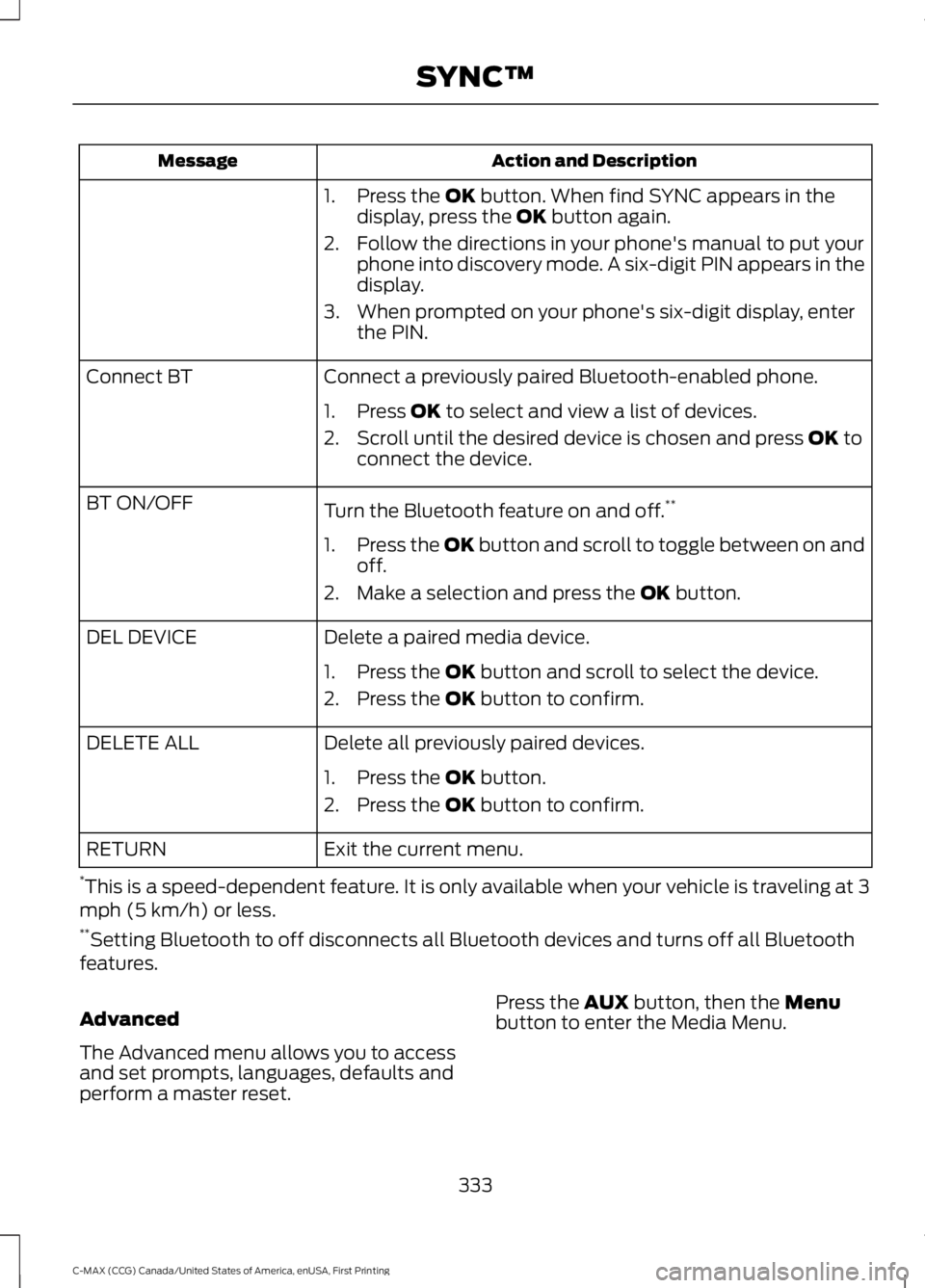
1. Press the OK button. When find SYNC appears in thedisplay, press the OK button again.
2. Follow the directions in your phone's manual to put yourphone into discovery mode. A six-digit PIN appears in thedisplay.
3. When prompted on your phone's six-digit display, enterthe PIN.
Connect a previously paired Bluetooth-enabled phone.Connect BT
1. Press OK to select and view a list of devices.
2. Scroll until the desired device is chosen and press OK toconnect the device.
Turn the Bluetooth feature on and off.**BT ON/OFF
1.Press the OK button and scroll to toggle between on andoff.
2. Make a selection and press the OK button.
Delete a paired media device.DEL DEVICE
1. Press the OK button and scroll to select the device.
2. Press the OK button to confirm.
Delete all previously paired devices.DELETE ALL
1. Press the OK button.
2. Press the OK button to confirm.
Exit the current menu.RETURN
*This is a speed-dependent feature. It is only available when your vehicle is traveling at 3mph (5 km/h) or less.**Setting Bluetooth to off disconnects all Bluetooth devices and turns off all Bluetoothfeatures.
Advanced
The Advanced menu allows you to accessand set prompts, languages, defaults andperform a master reset.
Press the AUX button, then the Menubutton to enter the Media Menu.
333
C-MAX (CCG) Canada/United States of America, enUSA, First Printing
SYNC™