light FORD C MAX HYBRID 2014 2.G Owners Manual
[x] Cancel search | Manufacturer: FORD, Model Year: 2014, Model line: C MAX HYBRID, Model: FORD C MAX HYBRID 2014 2.GPages: 447, PDF Size: 8.06 MB
Page 335 of 447
Press the Settings icon >
Vehicle > Rear View Camera,
then select from the following
settings:
• Rear Camera Delay
• Visual Park Aid Alert
• Guidelines.
You can find more information on the rear
view camera in another chapter. See Rear
View Camera
(page 168).
Enable Valet Mode
Valet mode allows you to lock the system.
No information is accessible until the
system is unlocked with the correct PIN.
You can create your own four-digit PIN to
lock and unlock the system. 1. Press the Settings icon >
Vehicle >
Enable Valet Mode.
2. When prompted, enter a four-digit PIN.
After you press Continue, the system locks
until you enter the PIN again.
Note: If the system locks, and you need to
reset the PIN, enter 3681 and the system
unlocks.
Charge Point Light Ring Press the Settings icon >
Vehicle
> Charge Point Light
Ring, then select from the
following: Charge point light ring
Illuminates when plugging in, opening doors, pressing the
unlock button on your remote, and while charging.
On
Does not illuminate.
Off
Cord Acknowledgement:
Illuminates when plugging in.
Limited
Charge Status:
Illuminates when opening doors or
pressing the unlock button on your remote.
Note: Details on the charge port light ring
functions are in another chapter. See
High
Voltage Battery (page 146).
Settings
Access and adjust system settings, voice
features, as well as phone, navigation and
wireless settings. System Press the Settings icon >
Settings > System, then select
from the following:
333
C-MAX (CCG) MyFord Touch
™
(If Equipped)E142607 E142607 E142607 E142607
Page 345 of 447
![FORD C MAX HYBRID 2014 2.G Owners Manual Sample commands
"Sirius <0-223>" *
"Sports games" *
* This command is only usable if you have
an active subscription to SIRIUS satellite
radio.
** The commands that have [ ] around the
word means th](/img/11/4758/w960_4758-344.png "FORD C MAX HYBRID 2014 2.G Owners Manual Sample commands
\"Sirius <0-223>\" *
\"Sports games\" *
* This command is only usable if you have
an active subscription to SIRIUS satellite
radio.
** The commands that have [ ] around the
word means th")
Sample commands
"Sirius <0-223>" *
"Sports games" *
* This command is only usable if you have
an active subscription to SIRIUS satellite
radio.
** The commands that have [ ] around the
word means that the word is optional. For
example, if you say, "Play Metallica", this
is the same as the voice command, "Play
[artist]
AM/FM Radio Touch the AM or FM tab to listen
to the radio.
To change between AM and FM presets,
just touch the AM or FM tab.
Memory Presets
Save a station by pressing and holding one
of the memory preset areas. There is a brief
mute while the radio saves the station.
Sound returns when finished.
HD Radio
Touch this button to turn HD Radio on. The
light on the button illuminates when the
feature is on. HD Radio allows you to
receive radio broadcasts digitally, where
available, providing free, crystal-clear
sound. See HD Radio information later in
this chapter.
Scan
Touch this button to go to the next strong
AM or FM radio station. The light on the
button illuminates when the feature is on. Options
Sound Settings
Touch this button to adjust settings for:
•
Bass
• Midrange
• Treble
• Balance and Fade
• DSP (Digital Signal processing)
• Occupancy Mode
• Speed Compensated Volume.
Note: Your vehicle may not have all these
sound settings.
Set PTY for Seek/Scan
This allows you to select a category of
music you would like to search for. You can
then choose to either seek or scan for the
stations playing that category.
RDS Text Display
This allows you to view the information
broadcast by FM stations.
AST
AST (Autostore) allows you to have the
system automatically store the six
strongest stations in your current location.
TAG Button
This feature is available when HD Radio is
on, and allows you to tag a song to
download later. When you select On, TAG
appears on-screen when HD Radio is
active. You can touch
TAG to save the
information of the song that is playing.
When you plug in your portable music
player, the information transfers, if
supported by your device. When you are
connected to iTunes, the tags appear to
remind you of the songs you would like to
download. See HD Radio information later
in this chapter.
343
C-MAX (CCG) MyFord Touch
™
(If Equipped)E142611
Page 346 of 447
Direct Tune
Touch this button to manually enter the
desired station number. Touch Enter when
you are done.
HD Radio
™ Information (If Available)
Note: HD Radio broadcasts are not
available in all markets.
HD Radio technology is the digital
evolution of analog AM/FM radio. Your
system has a special receiver that allows
it to receive digital broadcasts (where
available) in addition to the analog
broadcasts, it already receives. Digital
broadcasts provide a better sound quality
than analog broadcasts with free,
crystal-clear audio and no static or
distortion. For more information, and a
guide to available stations and
programming, please visit
www.hdradio.com.
When HD Radio is on and you tune to a
station broadcasting HD Radio technology,
you may notice the following indicators on
your screen: The HD Radio logo blinks when acquiring
a digital station and stays solid when
digital audio is playing. When this logo is
available, you may also see Title and Artist
fields on-screen. The multicast indicator appears in FM
mode (only) if the current station is
broadcasting multiple digital broadcasts.
The highlighted numbers signify available
digital channels where new or different
content is available. HD1 signifies the main
programming status and is available in
analog and digital broadcasts. Other
multicast stations (HD2 through HD7) are
only available digitally.
TAG allows you to save a song to
download later when you are on an
acquired HD Radio station and the feature
is on. To turn the feature on and use it:
1. Press
AM or FM > Options > TAG
Button > On.
2. When you hear a song you like, touch TAG
.
3. The system automatically saves the song's information and transfers it to
your portable music player (if
supported) when you connect it to the
system. The system automatically
transfers the tag to your player (if
already connected) and a pop-up
confirms the transfer.
4. When you access iTunes with your portable music player, the tags appear
to you as a reminder. The system
allows you to tag up to approximately
100 songs. For a list of devices that
support tagging, see
www.SYNCMyRide.com,
www.SYNCMyRide.ca or
www.syncmaroute.ca.
344
C-MAX (CCG) MyFord Touch
™
(If Equipped)E142616
Page 347 of 447
When HD Radio broadcasts are active, you
can access the following functions:
•
Scan allows you to hear a brief
sampling of all available stations. This
feature still works when HD Radio
reception is on, although it does not
scan for HD2-HD7 channels. You may
see the HD logo appear if the station
has a digital broadcast. •
Memory presets
allow you to save an
active channel as a memory preset.
Touch and hold a memory preset slot
until the sound returns. There is a brief
mute while the radio saves the station.
Sound returns when finished. When
switching to an HD2 or HD3 memory
preset, the sound mutes before the
digital audio plays, because the system
has to reacquire the digital signal.
Note: As with any saved radio station, you
cannot access the saved station if your
vehicle is outside the station ’s reception
area.
HD Radio Reception and Station Troubleshooting Potential reception issues
If you are listening to a multicast station and you are on
the fringe of the reception area, the station may mute due
to weak signal strength.
Reception area
If you are listening to HD1, the system switches back to
the analog broadcast until the digital broadcast is available
again. However, if you are listening to any of the possible
HD2-HD7 multicast channels, the station mutes and stays
muted unless it is able to connect to the digital signal
again.
When the system first receives a station (aside from HD2-
HD7 multicast stations), it first plays the station in the
analog version. Once the receiver verifies the station is an
HD Radio station, it shifts to the digital version. Depending
on the station quality, you may hear a slight sound change
when the station changes from analog to digital. Blending
is the shift from analog to digital sound or digital back to
analog sound.
Station blending
In order to provide the best possible
experience, use the contact form to report
any station issues found while listening to
a station broadcasting with HD Radio
technology. Independent entities own and
operate each station. These stations are
responsible for ensuring all audio streams
and data fields are accurate. 345
C-MAX (CCG) MyFord Touch
™
(If Equipped)
Page 369 of 447
The system also alerts you to any conflicts
by highlighting areas of the screen in
yellow. If your battery cannot have a full
charge by the scheduled drive time, the
system highlights your next GO Time and
Charge Complete time and a message
Charge at GO Time: under 100%
appears. This is normal; the vehicle is
informing you of the conflicting situation.
This notification only displays when the
gearshift selector lever is in position P.
Note: Charging occurs as soon as you plug
the vehicle in. The system limits cabin
conditioning to 15 minutes before your GO
Time.
To eliminate the conflict notification
immediately or to prevent a conflict in the
future, try the following:
• Change the present GO Time to occur
later.
• Plug the vehicle into a 240V charging
station instead of the 120V
convenience cord. Higher power
charging yields shorter charge times.
• Plug the vehicle in sooner.
Estimated Charge Time Limits
Battery
This shows you the battery's current
charge displayed as a percentage. A
reading of 100% means the battery has a
full charge. A reading of 0% indicates the
battery has no plug-in energy left.
To fully charge
240V
is the estimated minimum charging
time from the present high-voltage battery
level to full charge (100%). This represents
the shortest amount of time you should
expect the high-voltage battery to
recharge under ideal conditions. Ideal
conditions include a 240V charging station
and a minimum 30A service and
high-voltage battery at a moderate
temperature. Note:
This charging time is only an
estimate. It is normal for your actual charge
duration to be longer.
Note: Some charging stations use lower
voltage (208V), which result in longer
charge times.
120V
is the estimated maximum charging
time from the present high-voltage battery
level to full charge (100%). This represents
the longest amount of time you should
expect the high-voltage battery to
recharge under normal conditions. Normal
conditions include a 120V convenience
cord and 12A service.
Note: This charging time is only an
estimate. It is possible for your actual charge
duration to be longer. This occurs when the
AC line voltage is low and may indicate your
electrical source is not meeting certain
requirements. See
Charging the High
Voltage Battery (page 148).
Value Charge Profile and Mode
Value Charge Profile Name
This is the name of the presently detected
Value Charge Profile. The system detects
a customer defined value charge profile
when the vehicle is within approximately
300 feet (100 meters) of the GPS location
registered for the profile. If the vehicle is
close to more than one charge profile, it
chooses the closest. When the vehicle is
not at a defined profile, it uses the Default
Value
charge profile. The system normally
displays Default Profile while you are
driving because the vehicle is typically
between defined value charge profiles.
Edit
Touch this button to access your Value
Charge profiles settings screen (see Value
Charge Profiles
later in this section).
367
C-MAX (CCG) MyFord Touch
™
(If Equipped)
Page 371 of 447
GO Time Schedule
Touch the Edit button in the My GO Time
section of the Settings screen to see the
GO Time Schedule.
On
This turns on the GO Time schedule.
Off
This turns off the GO Time schedule. This
also turns off the cabin conditioning
function. Use this mode to prevent using
energy for cabin preconditioning when you
leave your vehicle plugged in and don't
plan to use it for a while, such as when on
vacation.
Note: If you choose to perform Value
Charging with the schedule off, the vehicle
schedules charging to finish at the lowest
cost within 24 hours of plugging the vehicle
in.
GO Time 1 and GO Time 2
This displays the GO Time day-of-week
and time. The blue highlighted GO Time is
the present GO Time which the vehicle is
using for charge scheduling and cabin
conditioning. You can schedule two GO
Time events per day for each day of the
week.
• GO Time
allows you to edit the GO
Time and cabin conditioning
temperature.
• --:--
indicates that you can add a GO
Time to this slot.
Note: If you set GO Time 2 to occur before
GO Time 1, a message pops up alerting you.
You need to go back to the previous screen
and change the times so GO Time 1 occurs
before GO Time 2. GO Time and Cabin Conditioning
This screen allows you to enter or change
the GO Time and cabin conditioning
temperature.
Time (+ and -)
These change the hours and minutes of
your GO Time. The minutes change in
increments of five. You can also change
the settings for AM and PM by touching
those buttons.
Cabin Conditioning (+ and -)
These change the setting for your selected
cabin conditioning temperature for this GO
Time event. You can select from four
settings:
•
65°F (18.5°C)
• 72°F (22.0°C)
• 85°F (29.5°C)
• Off.
Note: Cabin conditioning can perform
differently depending on if you plug into a
120V convenience cord or 240V charging
station. The power available for conditioning
is limited to the charging station power
available.
Note: Your vehicle may not always reach
the set cabin temperature due to charging
and ambient temperature conditions. This
is normal operation.
Clear
Touching this button erases the GO Time
and cabin conditioning temperature.
Save
Touching this button stores the GO Time
and temperature settings.
Note: If you select a GO Time, but choose
Off
for the temperature setting, the vehicle
schedules charging to be complete by your
GO Time and does not condition the cabin.
369
C-MAX (CCG) MyFord Touch
™
(If Equipped)
Page 373 of 447
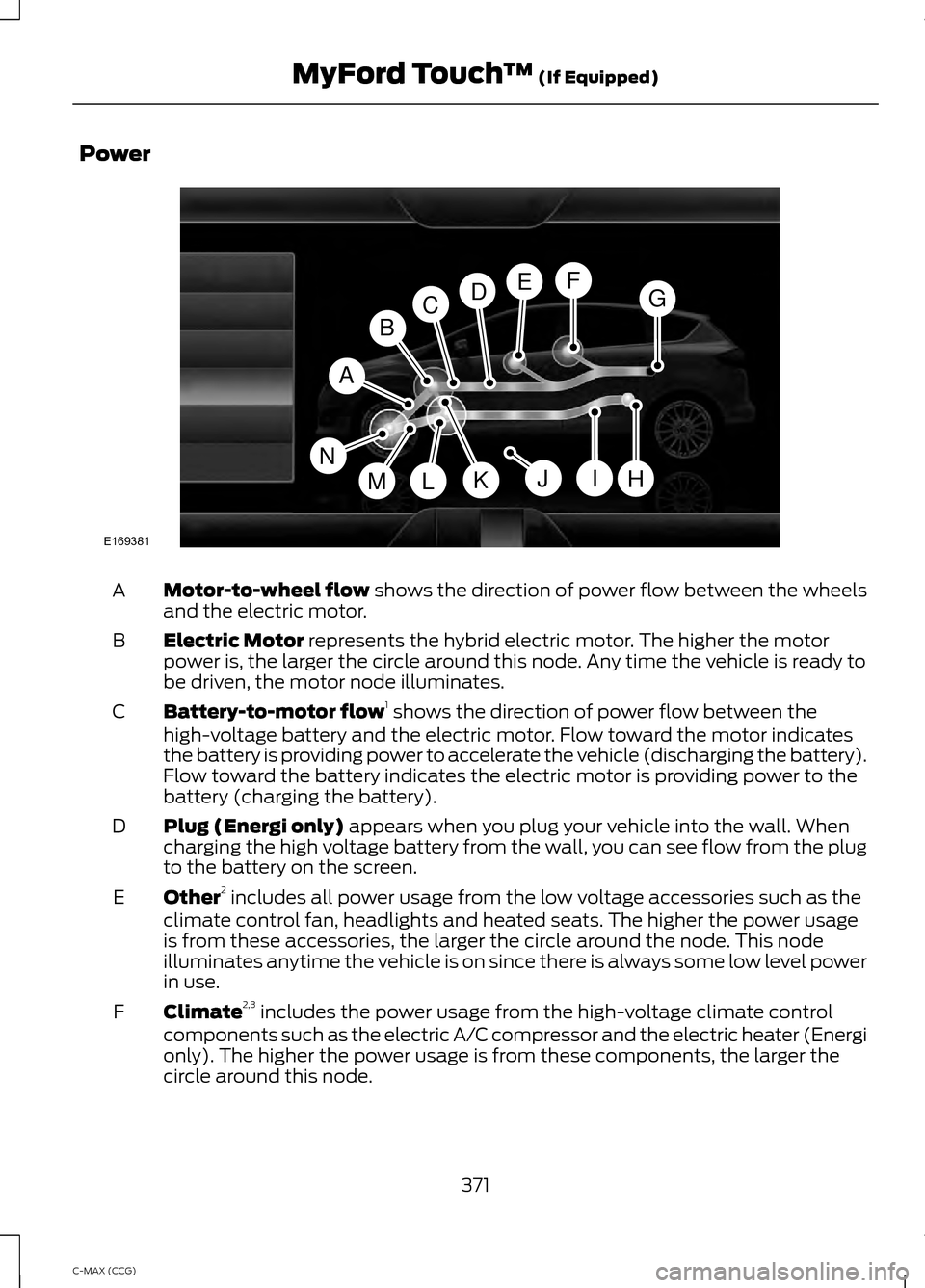
Power
Motor-to-wheel flow shows the direction of power flow between the wheels
and the electric motor.
A
Electric Motor
represents the hybrid electric motor. The higher the motor
power is, the larger the circle around this node. Any time the vehicle is ready to
be driven, the motor node illuminates.
B
Battery-to-motor flow 1
shows the direction of power flow between the
high-voltage battery and the electric motor. Flow toward the motor indicates
the battery is providing power to accelerate the vehicle (discharging the battery).
Flow toward the battery indicates the electric motor is providing power to the
battery (charging the battery).
C
Plug (Energi only)
appears when you plug your vehicle into the wall. When
charging the high voltage battery from the wall, you can see flow from the plug
to the battery on the screen.
D
Other 2
includes all power usage from the low voltage accessories such as the
climate control fan, headlights and heated seats. The higher the power usage
is from these accessories, the larger the circle around the node. This node
illuminates anytime the vehicle is on since there is always some low level power
in use.
E
Climate 2,3
includes the power usage from the high-voltage climate control
components such as the electric A/C compressor and the electric heater (Energi
only). The higher the power usage is from these components, the larger the
circle around this node.
F
371
C-MAX (CCG) MyFord Touch
™
(If Equipped)A
H
DGEF
BC
IKMLJ
E169381
N
Page 374 of 447
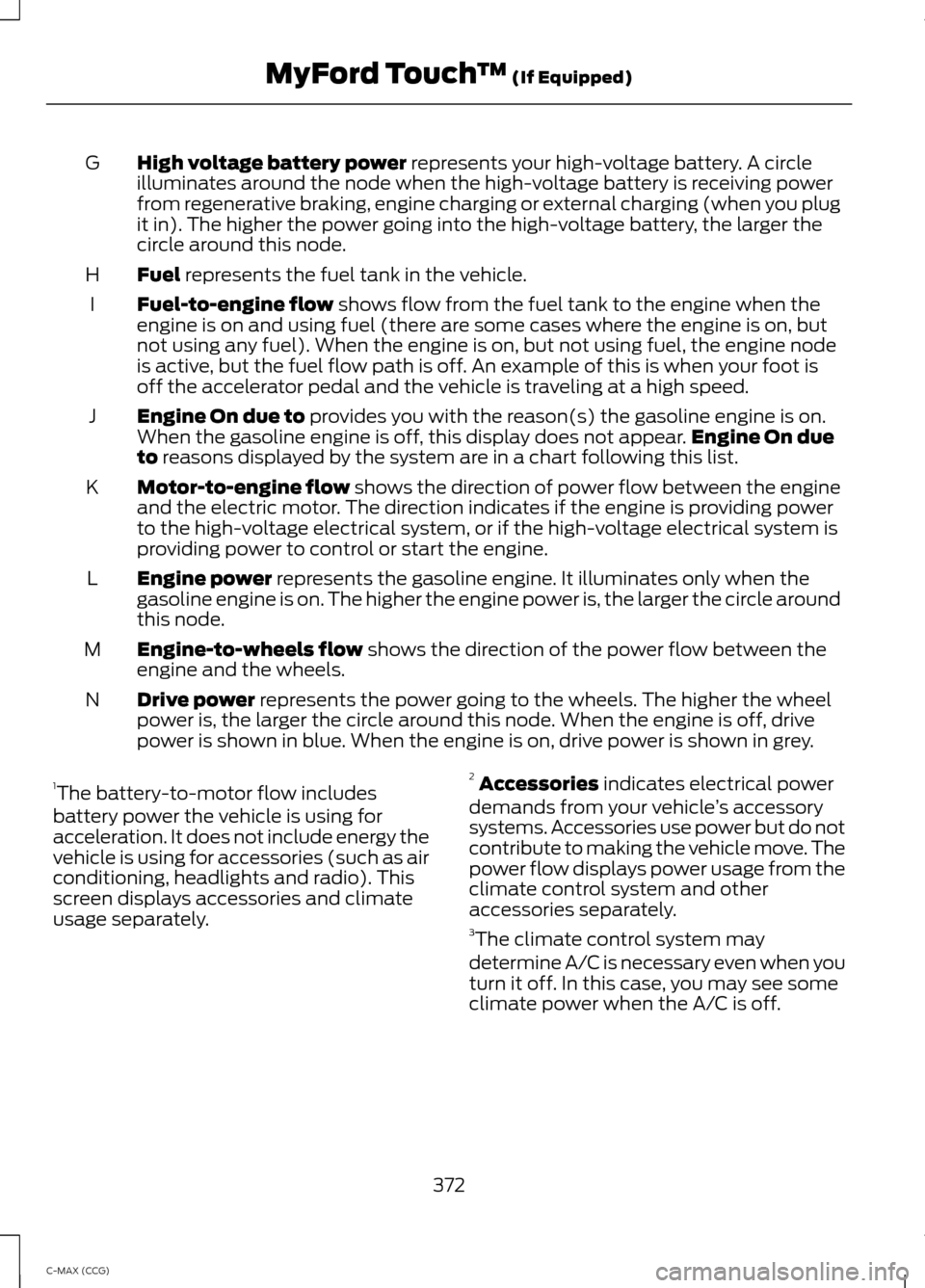
High voltage battery power represents your high-voltage battery. A circle
illuminates around the node when the high-voltage battery is receiving power
from regenerative braking, engine charging or external charging (when you plug
it in). The higher the power going into the high-voltage battery, the larger the
circle around this node.
G
Fuel
represents the fuel tank in the vehicle.
H
Fuel-to-engine flow
shows flow from the fuel tank to the engine when the
engine is on and using fuel (there are some cases where the engine is on, but
not using any fuel). When the engine is on, but not using fuel, the engine node
is active, but the fuel flow path is off. An example of this is when your foot is
off the accelerator pedal and the vehicle is traveling at a high speed.
I
Engine On due to
provides you with the reason(s) the gasoline engine is on.
When the gasoline engine is off, this display does not appear. Engine On due
to
reasons displayed by the system are in a chart following this list.
J
Motor-to-engine flow
shows the direction of power flow between the engine
and the electric motor. The direction indicates if the engine is providing power
to the high-voltage electrical system, or if the high-voltage electrical system is
providing power to control or start the engine.
K
Engine power
represents the gasoline engine. It illuminates only when the
gasoline engine is on. The higher the engine power is, the larger the circle around
this node.
L
Engine-to-wheels flow
shows the direction of the power flow between the
engine and the wheels.
M
Drive power
represents the power going to the wheels. The higher the wheel
power is, the larger the circle around this node. When the engine is off, drive
power is shown in blue. When the engine is on, drive power is shown in grey.
N
1 The battery-to-motor flow includes
battery power the vehicle is using for
acceleration. It does not include energy the
vehicle is using for accessories (such as air
conditioning, headlights and radio). This
screen displays accessories and climate
usage separately. 2
Accessories
indicates electrical power
demands from your vehicle ’s accessory
systems. Accessories use power but do not
contribute to making the vehicle move. The
power flow displays power usage from the
climate control system and other
accessories separately.
3 The climate control system may
determine A/C is necessary even when you
turn it off. In this case, you may see some
climate power when the A/C is off.
372
C-MAX (CCG) MyFord Touch
™
(If Equipped)
Page 390 of 447
1. Enter the necessary information into
the highlighted text fields (in any
order). For address destination entry,
the Go! button appears once you enter
all the necessary information. Pressing
the Go! button makes the address
location appear on the map. If you
choose Previous Destination, the last
20 destinations you have selected
appear.
2. Select
Set as Dest to make this your
destination. You can also choose to set
this as a waypoint (have the system
route to this point on the way to your
current destination) or save it as a
favorite. The system considers any
Avoid Areas
selections in its route
calculation.
3. Choose from up to three different types
of routes, and then select Start Route.
• Fastest: Uses the fastest moving roads
possible.
• Shortest: Uses the shortest distance
possible.
• Eco Route: Uses the most fuel-efficient
route.
You can cancel the route or have the
system demo the route for you. Select
Route Prefs
to set route preferences like
avoiding freeways, tollroads, ferries and
car trains as well as to use or not use
high-occupancy vehicle lanes.
(High-occupancy vehicle lanes are also
known as carpool or diamond lanes.
People who ride in buses, vanpools or
carpools use these lanes.)
Note: If your vehicle is on a recognized road
and you do not press the
Start Route
button, the system defaults to the Fastest
Route option and begins guidance. During route guidance, you can press the
talking bubble icon that appears in the
upper right navigation corner (green bar)
if you want the system to repeat route
guidance information. When the system
repeats the last guidance instruction, it
updates the distance to the next guidance
instruction, since it detects when the
vehicle is moving.
Point of Interest (POI) Categories
Main categories
Food/Drink & Dining
Travel & Transportation Financial
Emergency
Community
Health & Medicine AutomotiveShopping
Entertainment & Arts Recreation & Sports Government
Domestic Services Subcategories
Restaurant Golf
Parking
Home & Garden
Personal Care Services Auto Dealership
388
C-MAX (CCG) MyFord Touch
™
(If Equipped)
Page 391 of 447
Subcategories
Govt Office
Public Transit Education To expand these listings, press the + in
front of the listing.
The system also allows you to sort
alphabetically, by distance or by cityseekr
listings (if available).
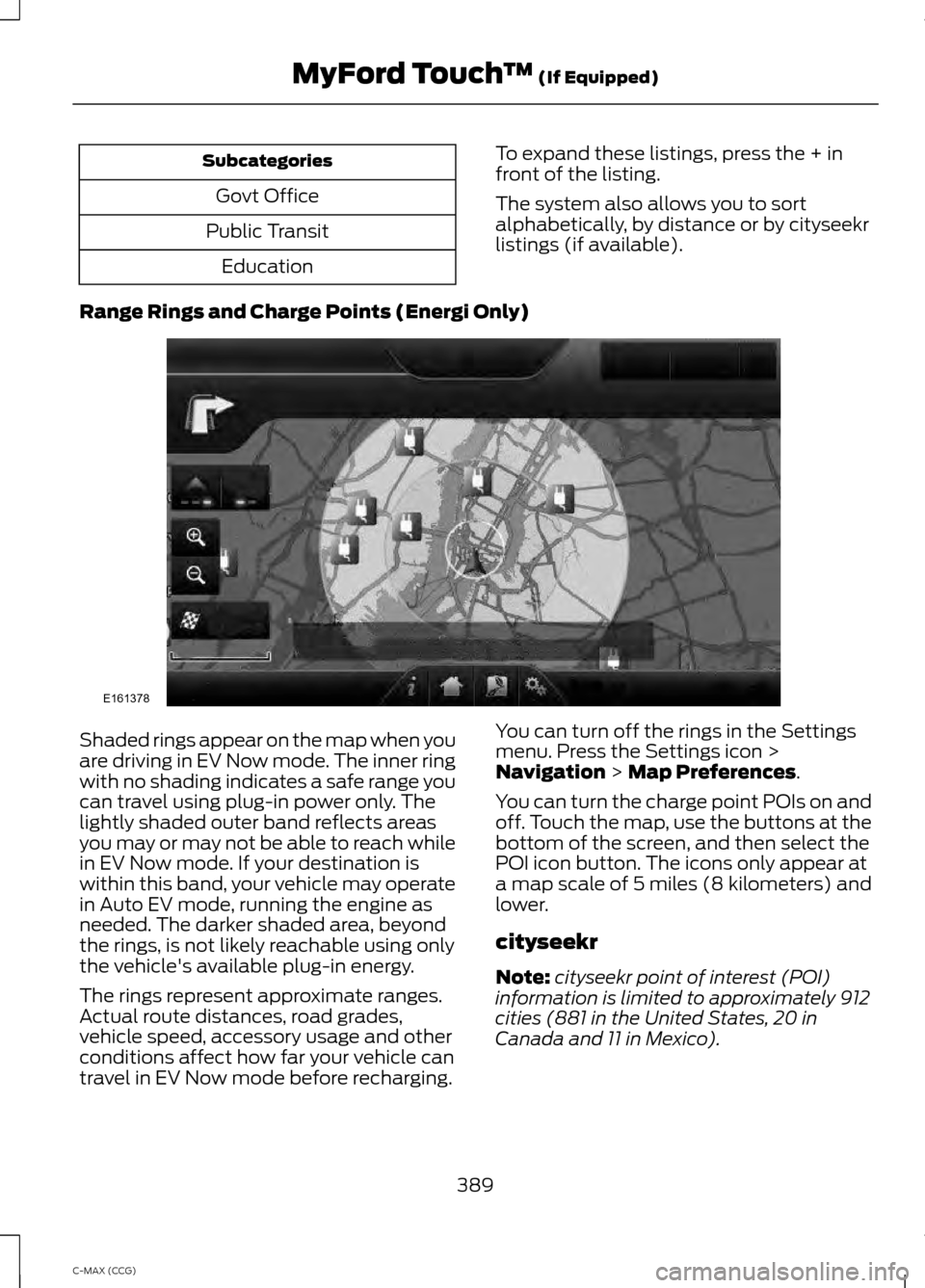
Range Rings and Charge Points (Energi Only) Shaded rings appear on the map when you
are driving in EV Now mode. The inner ring
with no shading indicates a safe range you
can travel using plug-in power only. The
lightly shaded outer band reflects areas
you may or may not be able to reach while
in EV Now mode. If your destination is
within this band, your vehicle may operate
in Auto EV mode, running the engine as
needed. The darker shaded area, beyond
the rings, is not likely reachable using only
the vehicle's available plug-in energy.
The rings represent approximate ranges.
Actual route distances, road grades,
vehicle speed, accessory usage and other
conditions affect how far your vehicle can
travel in EV Now mode before recharging.
You can turn off the rings in the Settings
menu. Press the Settings icon >
Navigation > Map Preferences.
You can turn the charge point POIs on and
off. Touch the map, use the buttons at the
bottom of the screen, and then select the
POI icon button. The icons only appear at
a map scale of 5 miles (8 kilometers) and
lower.
cityseekr
Note: cityseekr point of interest (POI)
information is limited to approximately 912
cities (881 in the United States, 20 in
Canada and 11 in Mexico).
389
C-MAX (CCG) MyFord Touch
™
(If Equipped)E161378