USB port FORD C-MAY HYBRID 2018 Owner's Manual
[x] Cancel search | Manufacturer: FORD, Model Year: 2018, Model line: C-MAY HYBRID, Model: FORD C-MAY HYBRID 2018Pages: 475, PDF Size: 8.09 MB
Page 400 of 475
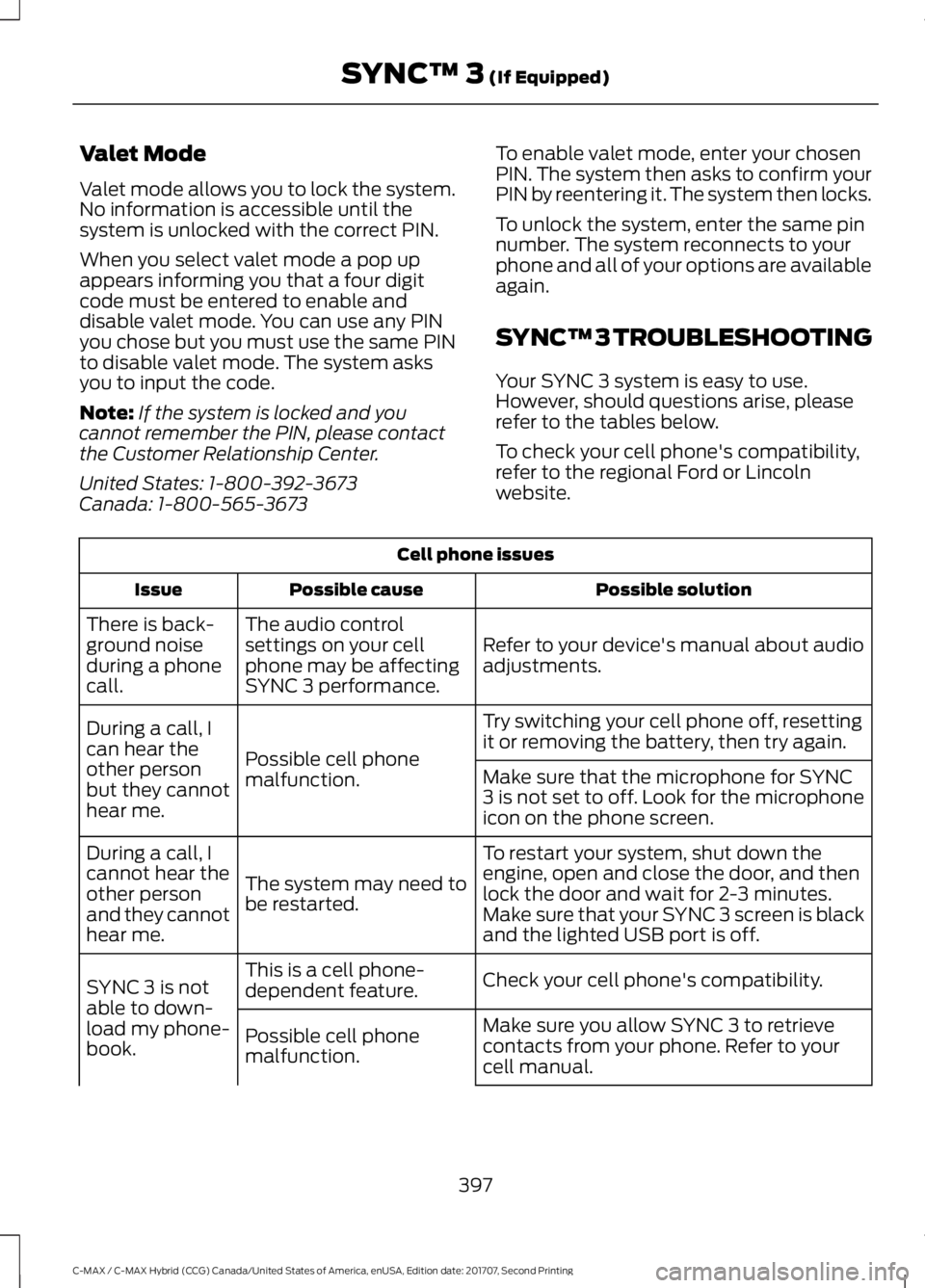
Valet Mode
Valet mode allows you to lock the system.
No information is accessible until the
system is unlocked with the correct PIN.
When you select valet mode a pop up
appears informing you that a four digit
code must be entered to enable and
disable valet mode. You can use any PIN
you chose but you must use the same PIN
to disable valet mode. The system asks
you to input the code.
Note:
If the system is locked and you
cannot remember the PIN, please contact
the Customer Relationship Center.
United States: 1-800-392-3673
Canada: 1-800-565-3673 To enable valet mode, enter your chosen
PIN. The system then asks to confirm your
PIN by reentering it. The system then locks.
To unlock the system, enter the same pin
number. The system reconnects to your
phone and all of your options are available
again.
SYNC™ 3 TROUBLESHOOTING
Your SYNC 3 system is easy to use.
However, should questions arise, please
refer to the tables below.
To check your cell phone's compatibility,
refer to the regional Ford or Lincoln
website.Cell phone issues
Possible solution
Possible cause
Issue
Refer to your device's manual about audio
adjustments.
The audio control
settings on your cell
phone may be affecting
SYNC 3 performance.
There is back-
ground noise
during a phone
call.
Try switching your cell phone off, resetting
it or removing the battery, then try again.
Possible cell phone
malfunction.
During a call, I
can hear the
other person
but they cannot
hear me.
Make sure that the microphone for SYNC
3 is not set to off. Look for the microphone
icon on the phone screen.
To restart your system, shut down the
engine, open and close the door, and then
lock the door and wait for 2-3 minutes.
Make sure that your SYNC 3 screen is black
and the lighted USB port is off.
The system may need to
be restarted.
During a call, I
cannot hear the
other person
and they cannot
hear me.
Check your cell phone's compatibility.
This is a cell phone-
dependent feature.
SYNC 3 is not
able to down-
load my phone-
book. Make sure you allow SYNC 3 to retrieve
contacts from your phone. Refer to your
cell manual.
Possible cell phone
malfunction.
397
C-MAX / C-MAX Hybrid (CCG) Canada/United States of America, enUSA, Edition date: 201707, Second Printing SYNC™ 3 (If Equipped)
Page 403 of 475
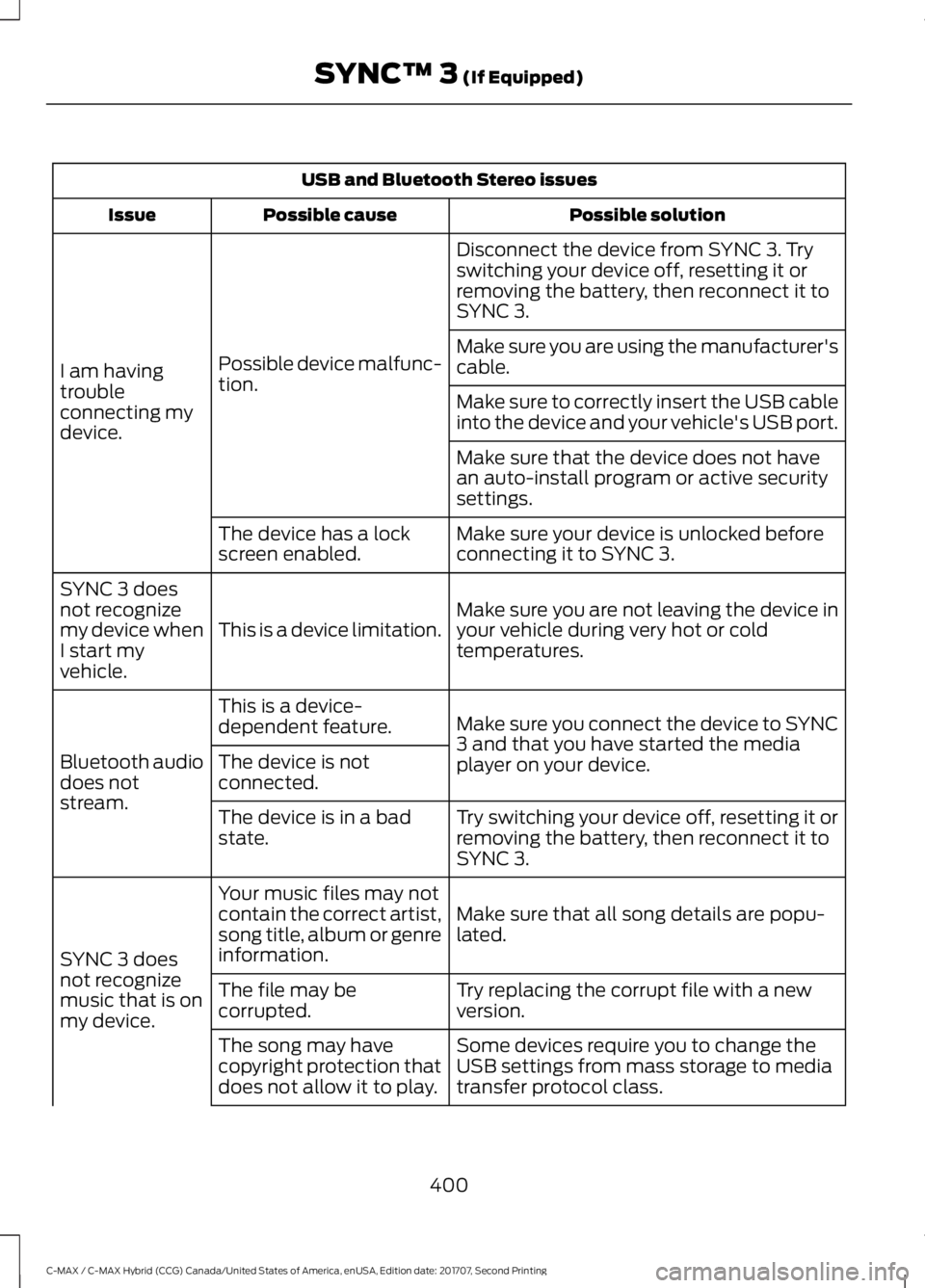
USB and Bluetooth Stereo issues
Possible solution
Possible cause
Issue
Disconnect the device from SYNC 3. Try
switching your device off, resetting it or
removing the battery, then reconnect it to
SYNC 3.
Possible device malfunc-
tion.
I am having
trouble
connecting my
device. Make sure you are using the manufacturer's
cable.
Make sure to correctly insert the USB cable
into the device and your vehicle's USB port.
Make sure that the device does not have
an auto-install program or active security
settings.
Make sure your device is unlocked before
connecting it to SYNC 3.
The device has a lock
screen enabled.
Make sure you are not leaving the device in
your vehicle during very hot or cold
temperatures.
This is a device limitation.
SYNC 3 does
not recognize
my device when
I start my
vehicle.
Make sure you connect the device to SYNC
3 and that you have started the media
player on your device.
This is a device-
dependent feature.
Bluetooth audio
does not
stream. The device is not
connected.
Try switching your device off, resetting it or
removing the battery, then reconnect it to
SYNC 3.
The device is in a bad
state.
Make sure that all song details are popu-
lated.
Your music files may not
contain the correct artist,
song title, album or genre
information.
SYNC 3 does
not recognize
music that is on
my device. Try replacing the corrupt file with a new
version.
The file may be
corrupted.
Some devices require you to change the
USB settings from mass storage to media
transfer protocol class.
The song may have
copyright protection that
does not allow it to play.
400
C-MAX / C-MAX Hybrid (CCG) Canada/United States of America, enUSA, Edition date: 201707, Second Printing SYNC™ 3 (If Equipped)
Page 404 of 475
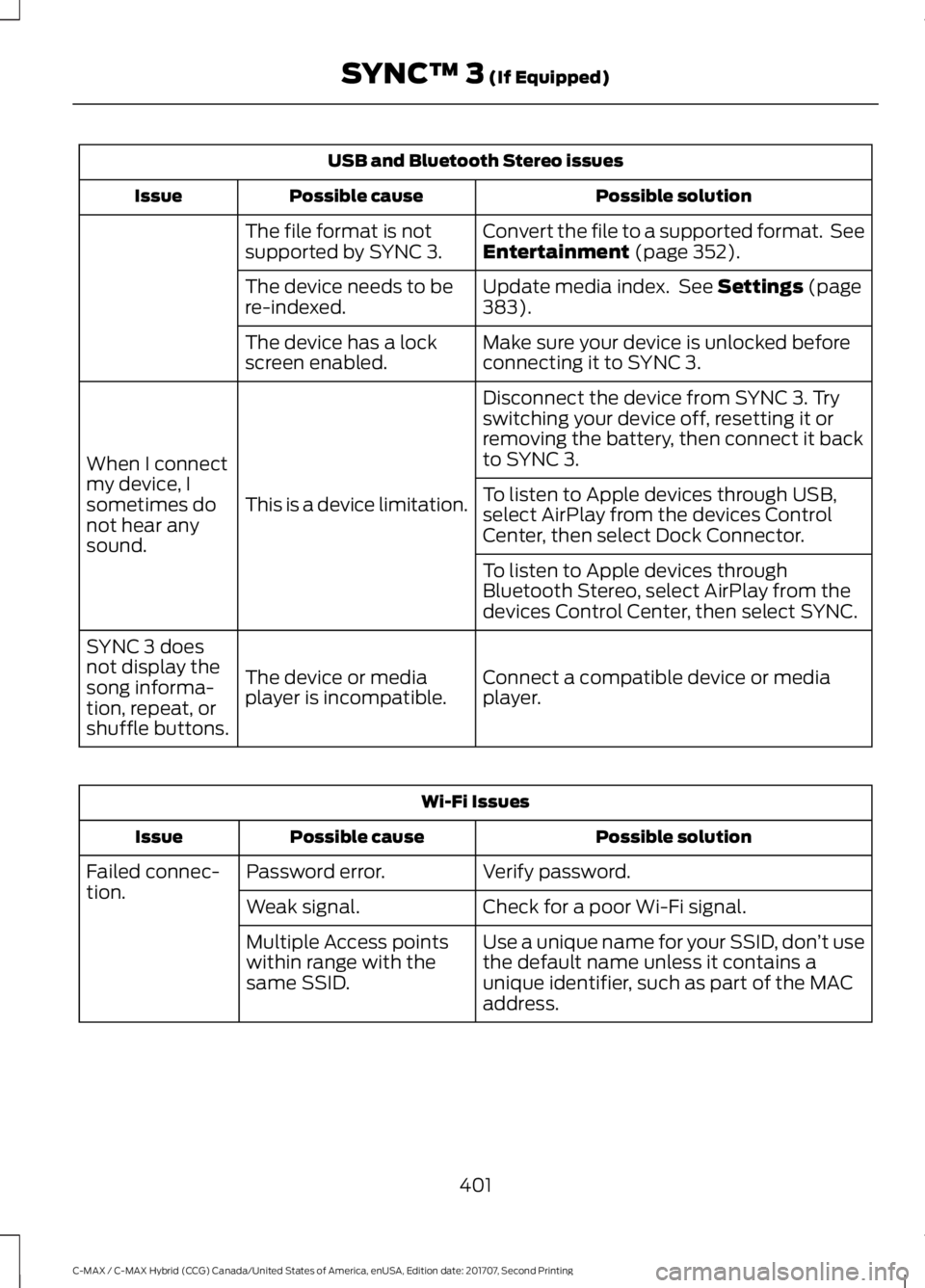
USB and Bluetooth Stereo issues
Possible solution
Possible cause
Issue
Convert the file to a supported format. See
Entertainment (page 352).
The file format is not
supported by SYNC 3.
Update media index. See
Settings (page
383).
The device needs to be
re-indexed.
Make sure your device is unlocked before
connecting it to SYNC 3.
The device has a lock
screen enabled.
Disconnect the device from SYNC 3. Try
switching your device off, resetting it or
removing the battery, then connect it back
to SYNC 3.
This is a device limitation.
When I connect
my device, I
sometimes do
not hear any
sound. To listen to Apple devices through USB,
select AirPlay from the devices Control
Center, then select Dock Connector.
To listen to Apple devices through
Bluetooth Stereo, select AirPlay from the
devices Control Center, then select SYNC.
Connect a compatible device or media
player.
The device or media
player is incompatible.
SYNC 3 does
not display the
song informa-
tion, repeat, or
shuffle buttons. Wi-Fi Issues
Possible solution
Possible cause
Issue
Verify password.
Password error.
Failed connec-
tion.
Check for a poor Wi-Fi signal.
Weak signal.
Use a unique name for your SSID, don ’t use
the default name unless it contains a
unique identifier, such as part of the MAC
address.
Multiple Access points
within range with the
same SSID.
401
C-MAX / C-MAX Hybrid (CCG) Canada/United States of America, enUSA, Edition date: 201707, Second Printing SYNC™ 3
(If Equipped)
Page 407 of 475
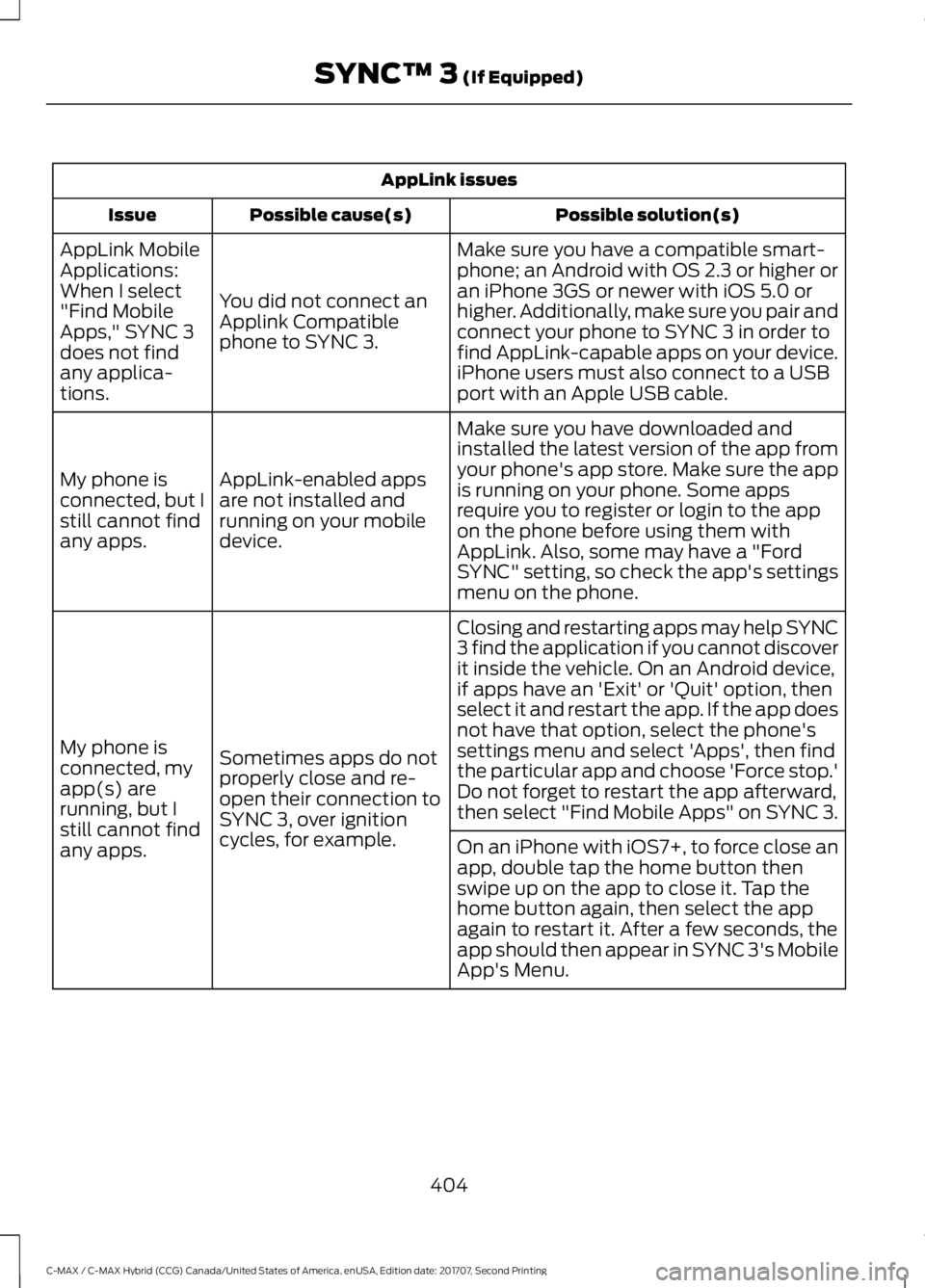
AppLink issues
Possible solution(s)
Possible cause(s)
Issue
Make sure you have a compatible smart-
phone; an Android with OS 2.3 or higher or
an iPhone 3GS or newer with iOS 5.0 or
higher. Additionally, make sure you pair and
connect your phone to SYNC 3 in order to
find AppLink-capable apps on your device.
iPhone users must also connect to a USB
port with an Apple USB cable.
You did not connect an
Applink Compatible
phone to SYNC 3.
AppLink Mobile
Applications:
When I select
"Find Mobile
Apps," SYNC 3
does not find
any applica-
tions.
Make sure you have downloaded and
installed the latest version of the app from
your phone's app store. Make sure the app
is running on your phone. Some apps
require you to register or login to the app
on the phone before using them with
AppLink. Also, some may have a "Ford
SYNC" setting, so check the app's settings
menu on the phone.
AppLink-enabled apps
are not installed and
running on your mobile
device.
My phone is
connected, but I
still cannot find
any apps.
Closing and restarting apps may help SYNC
3 find the application if you cannot discover
it inside the vehicle. On an Android device,
if apps have an 'Exit' or 'Quit' option, then
select it and restart the app. If the app does
not have that option, select the phone's
settings menu and select 'Apps', then find
the particular app and choose 'Force stop.'
Do not forget to restart the app afterward,
then select "Find Mobile Apps" on SYNC 3.
Sometimes apps do not
properly close and re-
open their connection to
SYNC 3, over ignition
cycles, for example.
My phone is
connected, my
app(s) are
running, but I
still cannot find
any apps.
On an iPhone with iOS7+, to force close an
app, double tap the home button then
swipe up on the app to close it. Tap the
home button again, then select the app
again to restart it. After a few seconds, the
app should then appear in SYNC 3's Mobile
App's Menu.
404
C-MAX / C-MAX Hybrid (CCG) Canada/United States of America, enUSA, Edition date: 201707, Second Printing SYNC™ 3 (If Equipped)
Page 408 of 475
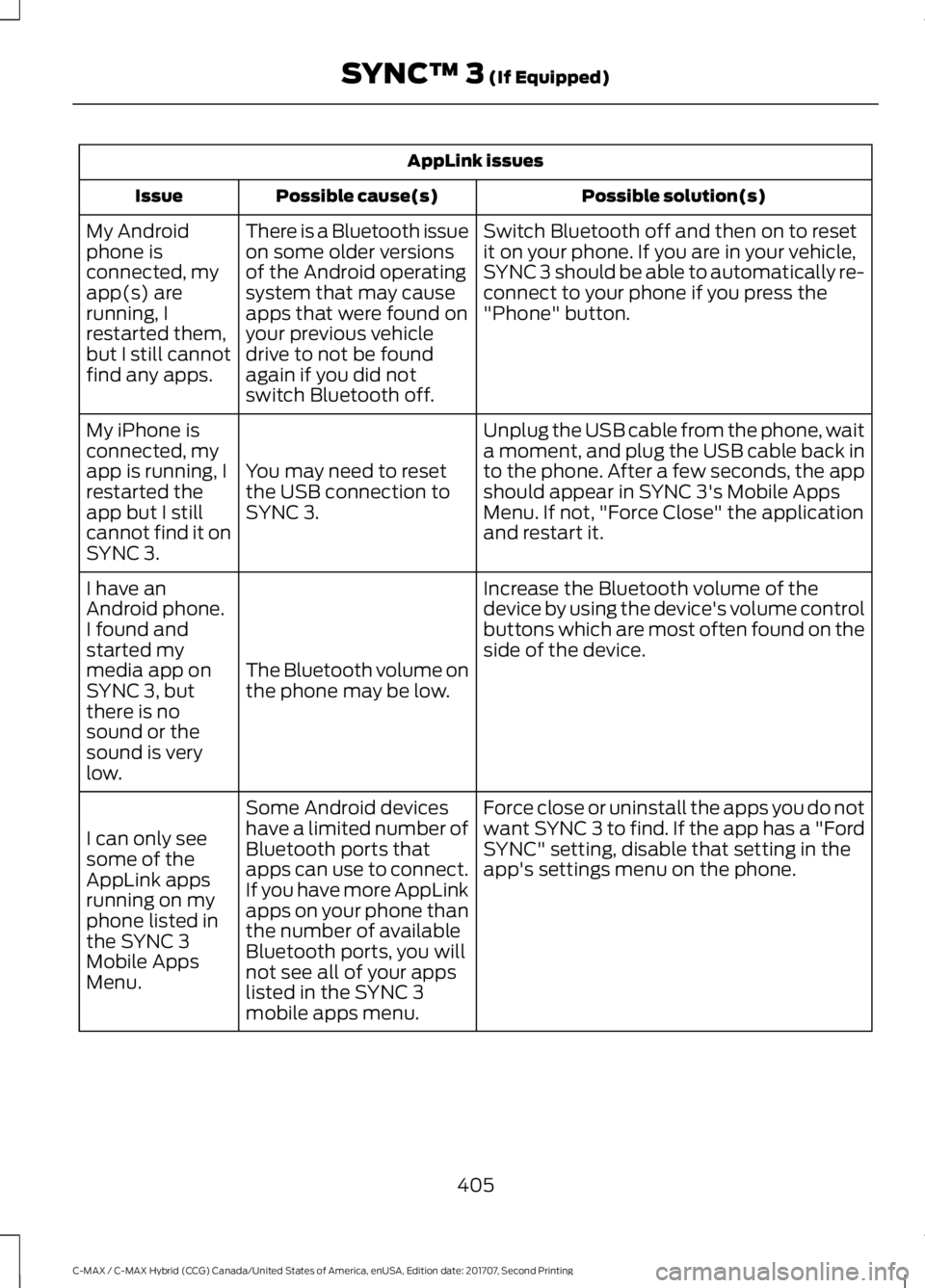
AppLink issues
Possible solution(s)
Possible cause(s)
Issue
Switch Bluetooth off and then on to reset
it on your phone. If you are in your vehicle,
SYNC 3 should be able to automatically re-
connect to your phone if you press the
"Phone" button.
There is a Bluetooth issue
on some older versions
of the Android operating
system that may cause
apps that were found on
your previous vehicle
drive to not be found
again if you did not
switch Bluetooth off.
My Android
phone is
connected, my
app(s) are
running, I
restarted them,
but I still cannot
find any apps.
Unplug the USB cable from the phone, wait
a moment, and plug the USB cable back in
to the phone. After a few seconds, the app
should appear in SYNC 3's Mobile Apps
Menu. If not, "Force Close" the application
and restart it.
You may need to reset
the USB connection to
SYNC 3.
My iPhone is
connected, my
app is running, I
restarted the
app but I still
cannot find it on
SYNC 3.
Increase the Bluetooth volume of the
device by using the device's volume control
buttons which are most often found on the
side of the device.
The Bluetooth volume on
the phone may be low.
I have an
Android phone.
I found and
started my
media app on
SYNC 3, but
there is no
sound or the
sound is very
low.
Force close or uninstall the apps you do not
want SYNC 3 to find. If the app has a "Ford
SYNC" setting, disable that setting in the
app's settings menu on the phone.
Some Android devices
have a limited number of
Bluetooth ports that
apps can use to connect.
If you have more AppLink
apps on your phone than
the number of available
Bluetooth ports, you will
not see all of your apps
listed in the SYNC 3
mobile apps menu.
I can only see
some of the
AppLink apps
running on my
phone listed in
the SYNC 3
Mobile Apps
Menu.
405
C-MAX / C-MAX Hybrid (CCG) Canada/United States of America, enUSA, Edition date: 201707, Second Printing SYNC™ 3 (If Equipped)
Page 413 of 475
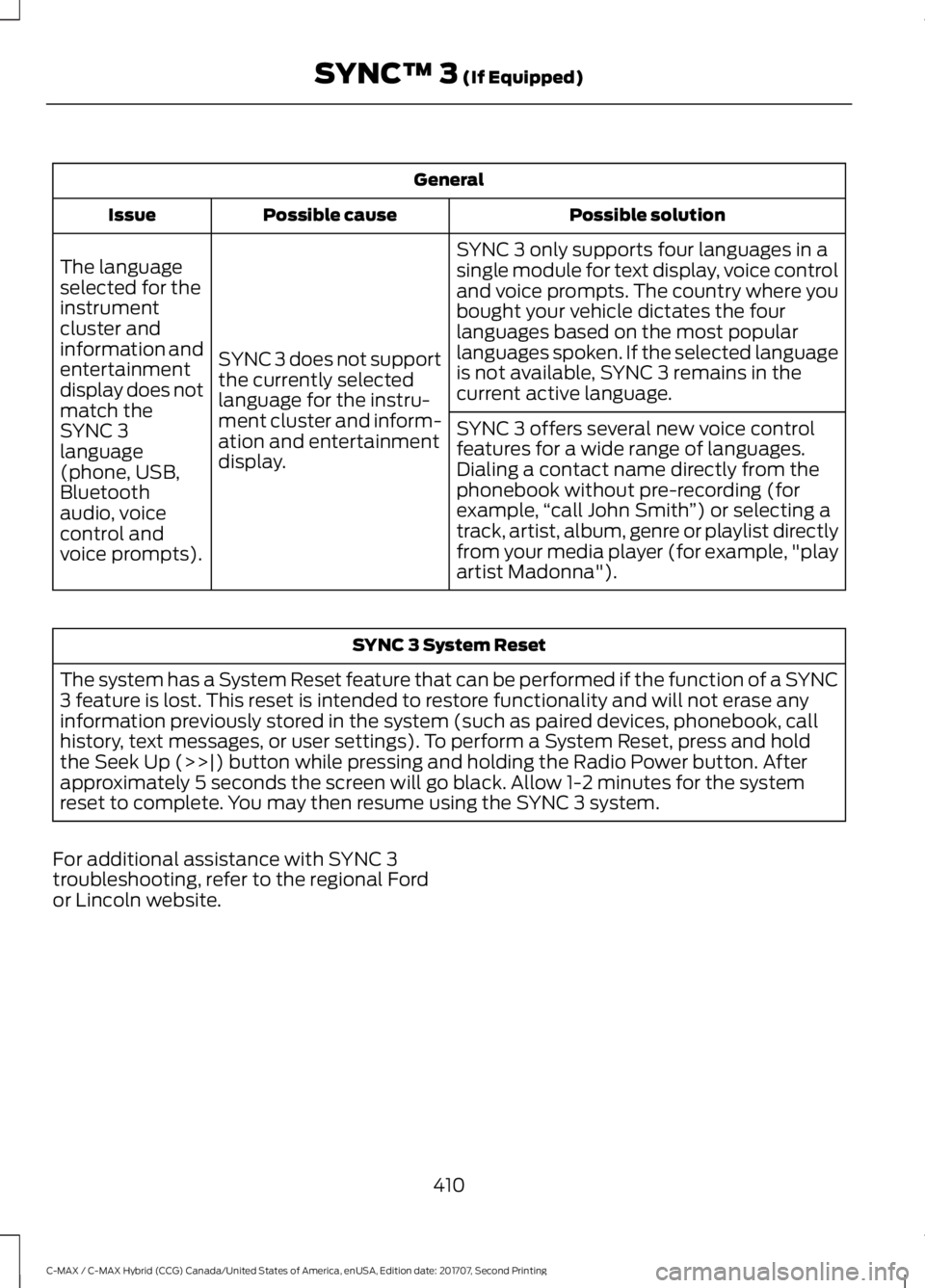
General
Possible solution
Possible cause
Issue
SYNC 3 only supports four languages in a
single module for text display, voice control
and voice prompts. The country where you
bought your vehicle dictates the four
languages based on the most popular
languages spoken. If the selected language
is not available, SYNC 3 remains in the
current active language.
SYNC 3 does not support
the currently selected
language for the instru-
ment cluster and inform-
ation and entertainment
display.
The language
selected for the
instrument
cluster and
information and
entertainment
display does not
match the
SYNC 3
SYNC 3 offers several new voice control
features for a wide range of languages.
Dialing a contact name directly from the
phonebook without pre-recording (for
example,
“call John Smith ”) or selecting a
track, artist, album, genre or playlist directly
from your media player (for example, "play
artist Madonna").
language
(phone, USB,
Bluetooth
audio, voice
control and
voice prompts). SYNC 3 System Reset
The system has a System Reset feature that can be performed if the function of a SYNC
3 feature is lost. This reset is intended to restore functionality and will not erase any
information previously stored in the system (such as paired devices, phonebook, call
history, text messages, or user settings). To perform a System Reset, press and hold
the Seek Up (>>|) button while pressing and holding the Radio Power button. After
approximately 5 seconds the screen will go black. Allow 1-2 minutes for the system
reset to complete. You may then resume using the SYNC 3 system.
For additional assistance with SYNC 3
troubleshooting, refer to the regional Ford
or Lincoln website.
410
C-MAX / C-MAX Hybrid (CCG) Canada/United States of America, enUSA, Edition date: 201707, Second Printing SYNC™ 3 (If Equipped)
Page 468 of 475
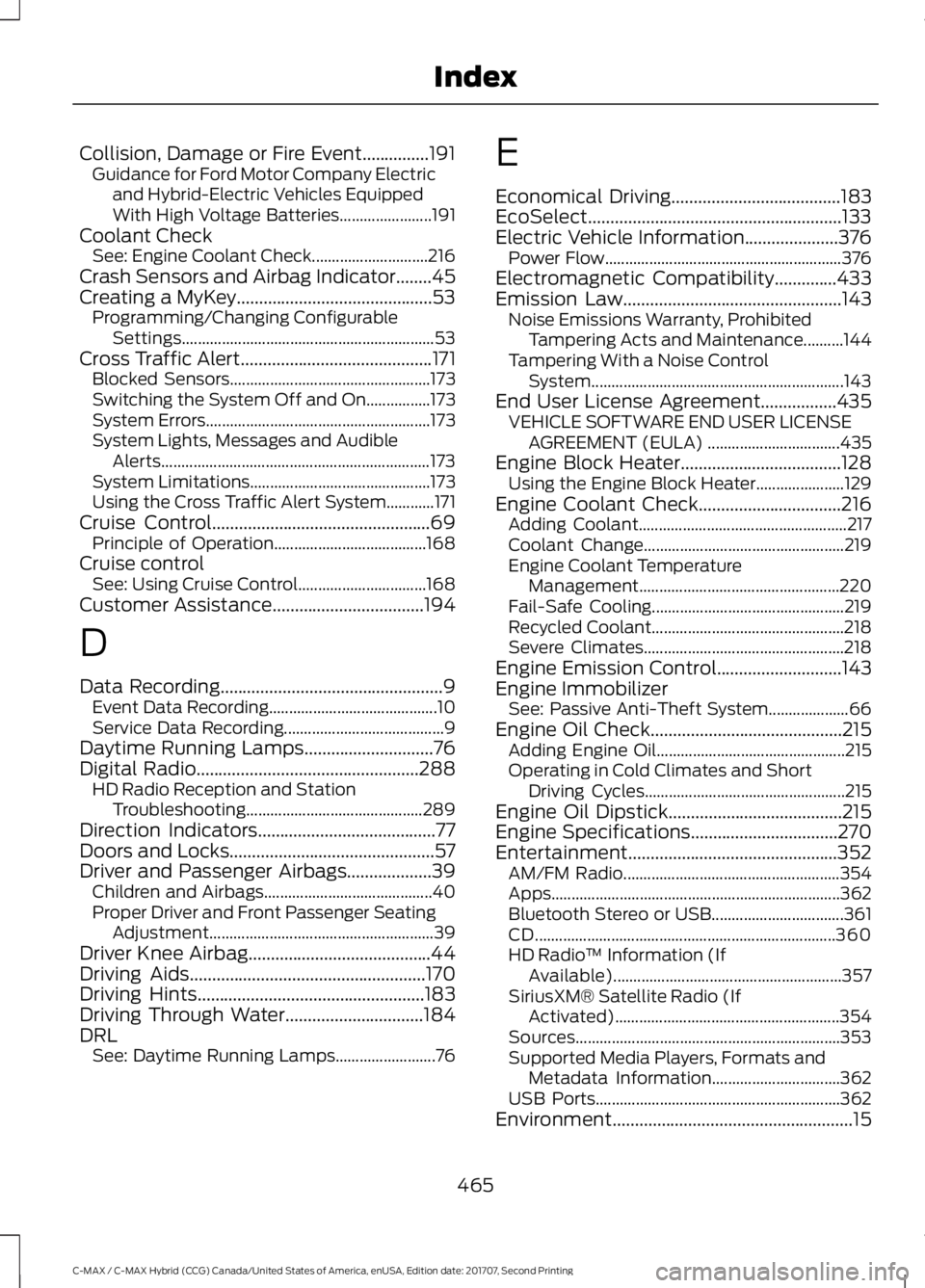
Collision, Damage or Fire Event...............191
Guidance for Ford Motor Company Electric
and Hybrid-Electric Vehicles Equipped
With High Voltage Batteries....................... 191
Coolant Check See: Engine Coolant Check............................. 216
Crash Sensors and Airbag Indicator........45
Creating a MyKey............................................53 Programming/Changing Configurable
Settings............................................................... 53
Cross Traffic Alert
...........................................171
Blocked Sensors.................................................. 173
Switching the System Off and On................173
System Errors........................................................ 173
System Lights, Messages and Audible Alerts................................................................... 173
System Limitations............................................. 173
Using the Cross Traffic Alert System............171
Cruise Control
.................................................69
Principle of Operation...................................... 168
Cruise control See: Using Cruise Control................................ 168
Customer Assistance
..................................194
D
Data Recording
..................................................9
Event Data Recording.......................................... 10
Service Data Recording........................................ 9
Daytime Running Lamps.............................76
Digital Radio
..................................................288
HD Radio Reception and Station
Troubleshooting............................................ 289
Direction Indicators
........................................77
Doors and Locks..............................................57
Driver and Passenger Airbags...................39 Children and Airbags.......................................... 40
Proper Driver and Front Passenger Seating Adjustment........................................................ 39
Driver Knee Airbag
.........................................44
Driving Aids.....................................................170
Driving Hints...................................................183
Driving Through Water...............................184
DRL See: Daytime Running Lamps......................... 76E
Economical Driving
......................................183
EcoSelect.........................................................133
Electric Vehicle Information
.....................376
Power Flow........................................................... 376
Electromagnetic Compatibility
..............433
Emission Law.................................................143 Noise Emissions Warranty, Prohibited
Tampering Acts and Maintenance..........144
Tampering With a Noise Control System............................................................... 143
End User License Agreement
.................435
VEHICLE SOFTWARE END USER LICENSE
AGREEMENT (EULA) ................................. 435
Engine Block Heater
....................................128
Using the Engine Block Heater...................... 129
Engine Coolant Check
................................216
Adding Coolant.................................................... 217
Coolant Change.................................................. 219
Engine Coolant Temperature Management.................................................. 220
Fail-Safe Cooling................................................ 219
Recycled Coolant................................................ 218
Severe Climates.................................................. 218
Engine Emission Control............................143
Engine Immobilizer See: Passive Anti-Theft System.................... 66
Engine Oil Check
...........................................215
Adding Engine Oil............................................... 215
Operating in Cold Climates and Short Driving Cycles.................................................. 215
Engine Oil Dipstick.......................................215
Engine Specifications
.................................270
Entertainment...............................................352 AM/FM Radio...................................................... 354
Apps........................................................................\
362
Bluetooth Stereo or USB................................. 361
CD........................................................................\
... 360
HD Radio ™ Information (If
Available)......................................................... 357
SiriusXM® Satellite Radio (If Activated)........................................................ 354
Sources.................................................................. 353
Supported Media Players, Formats and Metadata Information................................ 362
USB Ports............................................................. 362
Environment
......................................................15
465
C-MAX / C-MAX Hybrid (CCG) Canada/United States of America, enUSA, Edition date: 201707, Second Printing Index
Page 474 of 475
T
Technical Specifications
See: Capacities and Specifications............270
The Better Business Bureau (BBB) Auto Line Program (U.S. Only).......................196
Tire Care..........................................................250 Glossary of Tire Terminology......................... 252
Information About Uniform Tire Quality Grading............................................................. 250
Information Contained on the Tire Sidewall............................................................ 253
Temperature A B C............................................. 251
Traction AA A B C................................................ 251
Treadwear.............................................................. 251
Tire Inflation When Punctured See: Tire Sealant and Inflator Kit.................244
Tire Pressure Monitoring System...........265 Changing Tires With a Tire Pressure
Monitoring System....................................... 266
Understanding Your Tire Pressure Monitoring System ...................................... 266
Tire Repair Kit See: Tire Sealant and Inflator Kit.................244
Tire Sealant and Inflator Kit....................244 First Stage: Inflating the Tire with Sealing
Compound and Air....................................... 246
General Information......................................... 245
Second Stage: Checking Tire Pressure........................................................... 248
Tips for Use of the Kit....................................... 245
What to Do After the Tire has Been Sealed............................................................... 248
What to Do When a Tire Is Punctured........................................................ 246
Tires See: Wheels and Tires..................................... 244
Towing a Trailer..............................................181
Towing the Vehicle on Four Wheels............................................................181
Emergency Towing.............................................. 181
Recreational Towing........................................... 181
Towing...............................................................181
Traction Control............................................156
Principle of Operation....................................... 156
Transmission Code Designation
.............273
Transmission..................................................150
Transporting the Vehicle............................192 U
Under Hood Overview
.................................213
Unique Driving Characteristics.................131
Universal Garage Door Opener
................118
HomeLink Wireless Control System............118
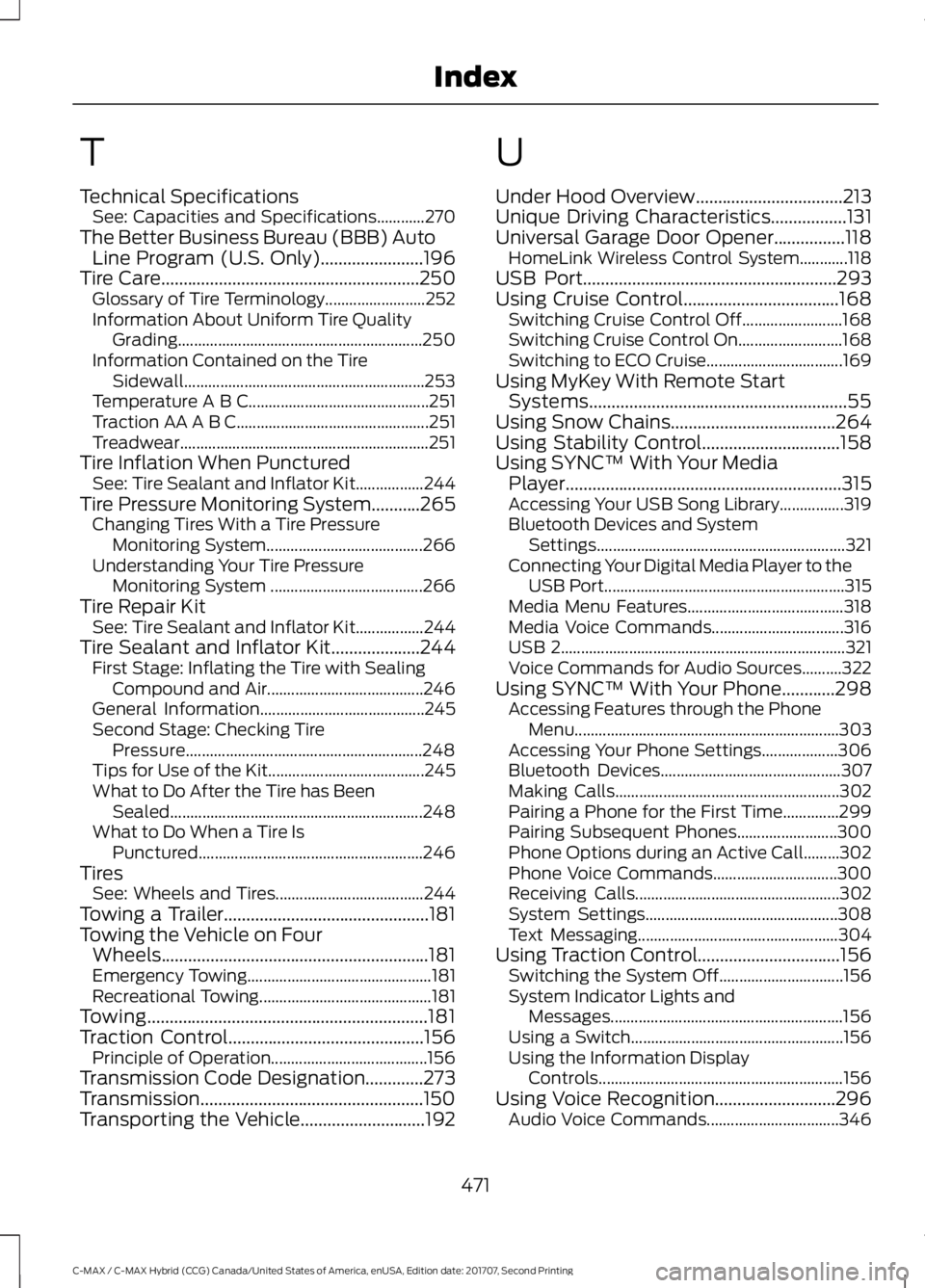
USB Port
.........................................................293
Using Cruise Control...................................168 Switching Cruise Control Off......................... 168
Switching Cruise Control On.......................... 168
Switching to ECO Cruise.................................. 169
Using MyKey With Remote Start Systems..........................................................55
Using Snow Chains
.....................................264
Using Stability Control...............................158
Using SYNC™ With Your Media Player
..............................................................315
Accessing Your USB Song Library................319
Bluetooth Devices and System
Settings.............................................................. 321
Connecting Your Digital Media Player to the USB Port............................................................ 315
Media Menu Features....................................... 318
Media Voice Commands................................. 316
USB 2....................................................................... 321
Voice Commands for Audio Sources..........322
Using SYNC™ With Your Phone
............298
Accessing Features through the Phone
Menu.................................................................. 303
Accessing Your Phone Settings................... 306
Bluetooth Devices............................................. 307
Making Calls........................................................ 302
Pairing a Phone for the First Time..............299
Pairing Subsequent Phones......................... 300
Phone Options during an Active Call.........302
Phone Voice Commands............................... 300
Receiving Calls................................................... 302
System Settings................................................ 308
Text Messaging.................................................. 304
Using Traction Control................................156 Switching the System Off............................... 156
System Indicator Lights and Messages.......................................................... 156
Using a Switch..................................................... 156
Using the Information Display Controls............................................................. 156
Using Voice Recognition
...........................296
Audio Voice Commands................................. 346
471
C-MAX / C-MAX Hybrid (CCG) Canada/United States of America, enUSA, Edition date: 201707, Second Printing Index