phone FORD C-MAY HYBRID 2018 Manual PDF
[x] Cancel search | Manufacturer: FORD, Model Year: 2018, Model line: C-MAY HYBRID, Model: FORD C-MAY HYBRID 2018Pages: 475, PDF Size: 8.09 MB
Page 371 of 475
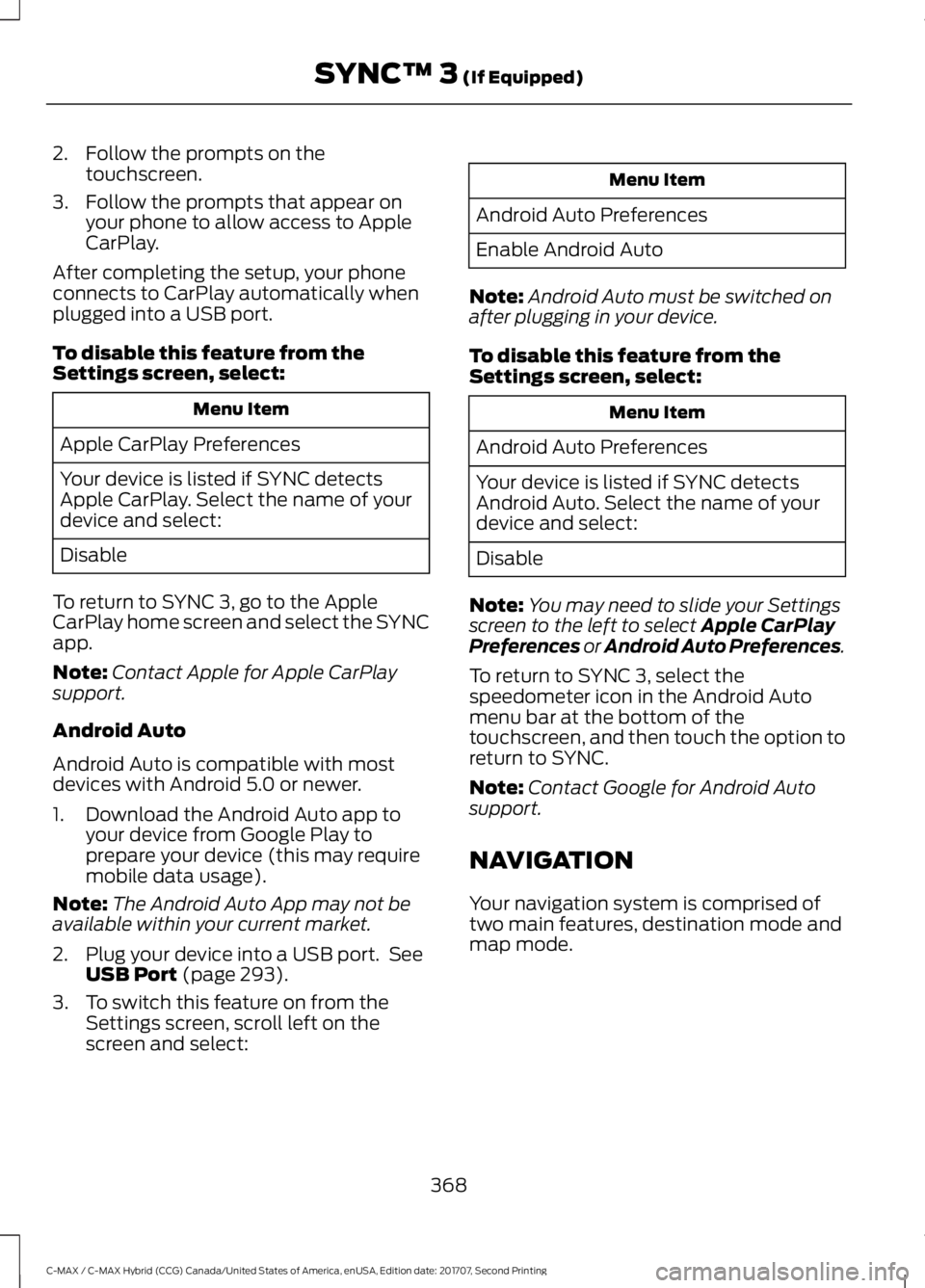
2. Follow the prompts on the
touchscreen.
3. Follow the prompts that appear on your phone to allow access to Apple
CarPlay.
After completing the setup, your phone
connects to CarPlay automatically when
plugged into a USB port.
To disable this feature from the
Settings screen, select: Menu Item
Apple CarPlay Preferences
Your device is listed if SYNC detects
Apple CarPlay. Select the name of your
device and select:
Disable
To return to SYNC 3, go to the Apple
CarPlay home screen and select the SYNC
app.
Note: Contact Apple for Apple CarPlay
support.
Android Auto
Android Auto is compatible with most
devices with Android 5.0 or newer.
1. Download the Android Auto app to your device from Google Play to
prepare your device (this may require
mobile data usage).
Note: The Android Auto App may not be
available within your current market.
2. Plug your device into a USB port. See USB Port (page 293).
3. To switch this feature on from the Settings screen, scroll left on the
screen and select: Menu Item
Android Auto Preferences
Enable Android Auto
Note: Android Auto must be switched on
after plugging in your device.
To disable this feature from the
Settings screen, select: Menu Item
Android Auto Preferences
Your device is listed if SYNC detects
Android Auto. Select the name of your
device and select:
Disable
Note: You may need to slide your Settings
screen to the left to select
Apple CarPlay
Preferences or Android Auto Preferences.
To return to SYNC 3, select the
speedometer icon in the Android Auto
menu bar at the bottom of the
touchscreen, and then touch the option to
return to SYNC.
Note: Contact Google for Android Auto
support.
NAVIGATION
Your navigation system is comprised of
two main features, destination mode and
map mode.
368
C-MAX / C-MAX Hybrid (CCG) Canada/United States of America, enUSA, Edition date: 201707, Second Printing SYNC™ 3
(If Equipped)
Page 378 of 475
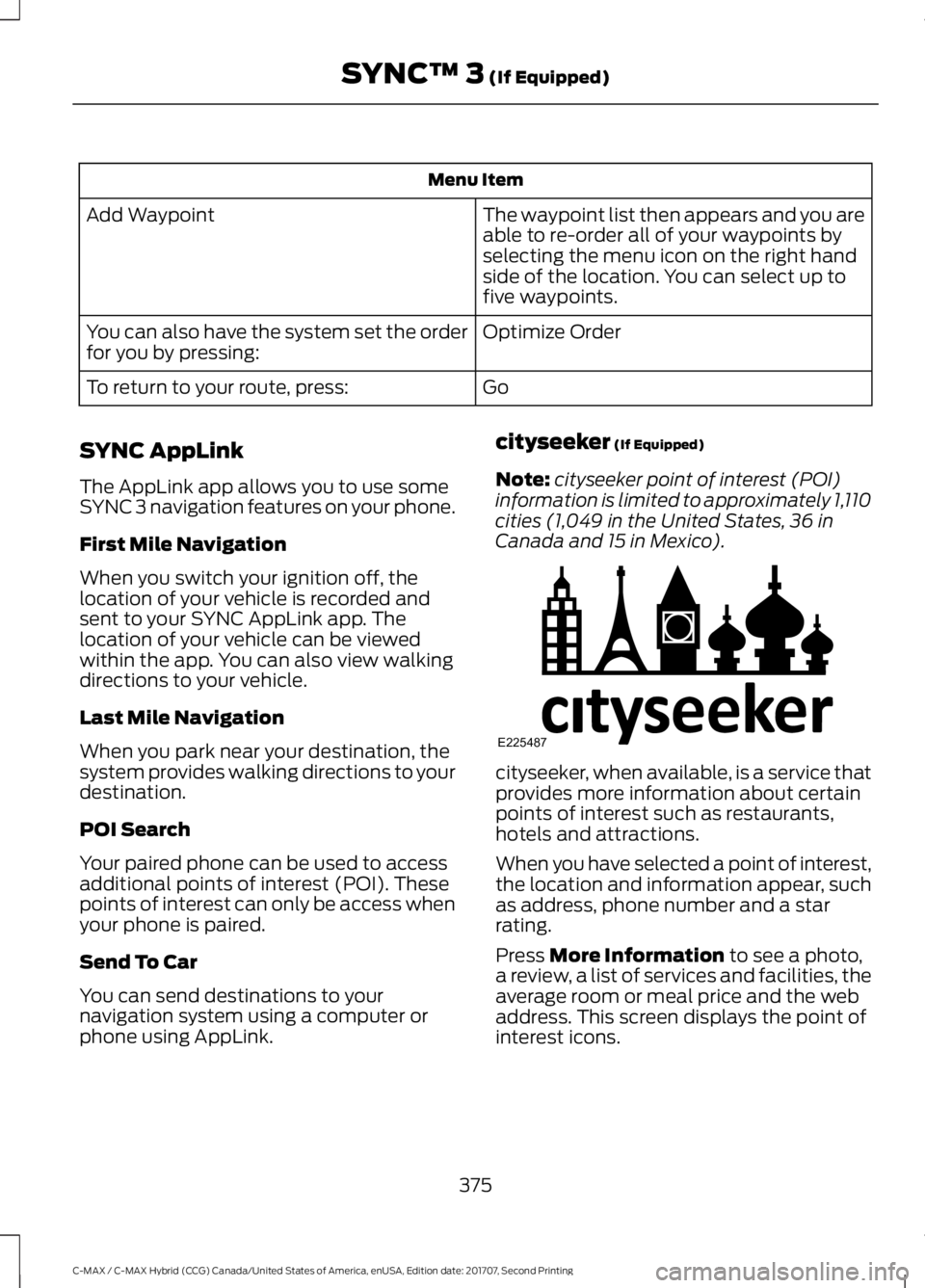
Menu Item
The waypoint list then appears and you are
able to re-order all of your waypoints by
selecting the menu icon on the right hand
side of the location. You can select up to
five waypoints.
Add Waypoint
Optimize Order
You can also have the system set the order
for you by pressing:
Go
To return to your route, press:
SYNC AppLink
The AppLink app allows you to use some
SYNC 3 navigation features on your phone.
First Mile Navigation
When you switch your ignition off, the
location of your vehicle is recorded and
sent to your SYNC AppLink app. The
location of your vehicle can be viewed
within the app. You can also view walking
directions to your vehicle.
Last Mile Navigation
When you park near your destination, the
system provides walking directions to your
destination.
POI Search
Your paired phone can be used to access
additional points of interest (POI). These
points of interest can only be access when
your phone is paired.
Send To Car
You can send destinations to your
navigation system using a computer or
phone using AppLink. cityseeker (If Equipped)
Note: cityseeker point of interest (POI)
information is limited to approximately 1,110
cities (1,049 in the United States, 36 in
Canada and 15 in Mexico). cityseeker, when available, is a service that
provides more information about certain
points of interest such as restaurants,
hotels and attractions.
When you have selected a point of interest,
the location and information appear, such
as address, phone number and a star
rating.
Press
More Information to see a photo,
a review, a list of services and facilities, the
average room or meal price and the web
address. This screen displays the point of
interest icons.
375
C-MAX / C-MAX Hybrid (CCG) Canada/United States of America, enUSA, Edition date: 201707, Second Printing SYNC™ 3
(If Equipped)E225487
Page 383 of 475
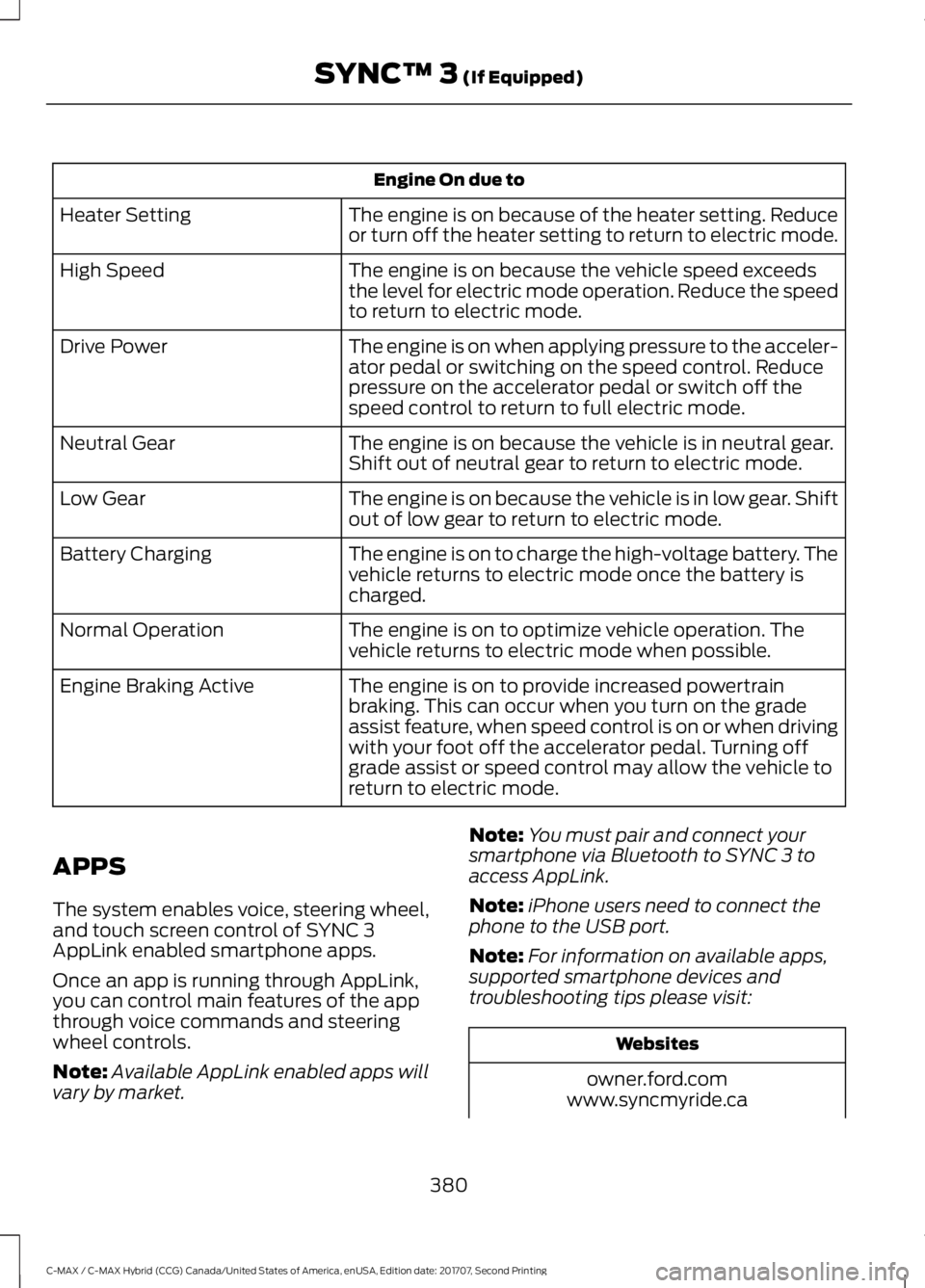
Engine On due to
The engine is on because of the heater setting. Reduce
or turn off the heater setting to return to electric mode.
Heater Setting
The engine is on because the vehicle speed exceeds
the level for electric mode operation. Reduce the speed
to return to electric mode.
High Speed
The engine is on when applying pressure to the acceler-
ator pedal or switching on the speed control. Reduce
pressure on the accelerator pedal or switch off the
speed control to return to full electric mode.
Drive Power
The engine is on because the vehicle is in neutral gear.
Shift out of neutral gear to return to electric mode.
Neutral Gear
The engine is on because the vehicle is in low gear. Shift
out of low gear to return to electric mode.
Low Gear
The engine is on to charge the high-voltage battery. The
vehicle returns to electric mode once the battery is
charged.
Battery Charging
The engine is on to optimize vehicle operation. The
vehicle returns to electric mode when possible.
Normal Operation
The engine is on to provide increased powertrain
braking. This can occur when you turn on the grade
assist feature, when speed control is on or when driving
with your foot off the accelerator pedal. Turning off
grade assist or speed control may allow the vehicle to
return to electric mode.
Engine Braking Active
APPS
The system enables voice, steering wheel,
and touch screen control of SYNC 3
AppLink enabled smartphone apps.
Once an app is running through AppLink,
you can control main features of the app
through voice commands and steering
wheel controls.
Note: Available AppLink enabled apps will
vary by market. Note:
You must pair and connect your
smartphone via Bluetooth to SYNC 3 to
access AppLink.
Note: iPhone users need to connect the
phone to the USB port.
Note: For information on available apps,
supported smartphone devices and
troubleshooting tips please visit: Websites
owner.ford.com
www.syncmyride.ca
380
C-MAX / C-MAX Hybrid (CCG) Canada/United States of America, enUSA, Edition date: 201707, Second Printing SYNC™ 3 (If Equipped)
Page 384 of 475
Websites
www.syncmaroute.ca
Note: Make sure you have an active account
for the app that you have downloaded.
Some apps will work automatically with no
setup. Other apps will want you to configure
your personal settings and personalize your
experience by creating stations or
favorites.We recommend you do this at
home or outside of your vehicle.
Note: We encourage you to review the
smartphone app ’s terms of service and
privacy policies because Ford is not
responsible for your app or its use of data.
Note: AppLink is a native SYNC system
feature. Accessing mobile apps through
AppLink is only possible when Android Auto
or Apple CarPlay are disabled. Some apps
may only be accessible in the car through
AppLink and others only through Android
Auto or Apple CarPlay. Please refer to the
Smartphone Connectivity information to
disable Android Auto or Apple CarPlay.
Note: In order to use an app with SYNC 3,
the app needs to be running in the
background of your phone. If you shut down
the app on your phone, it shuts down the
app on SYNC 3 as well.
Note: If a SYNC 3 AppLink compatible app
is not shown in the Apps Domain, make sure
the required app is running on the mobile
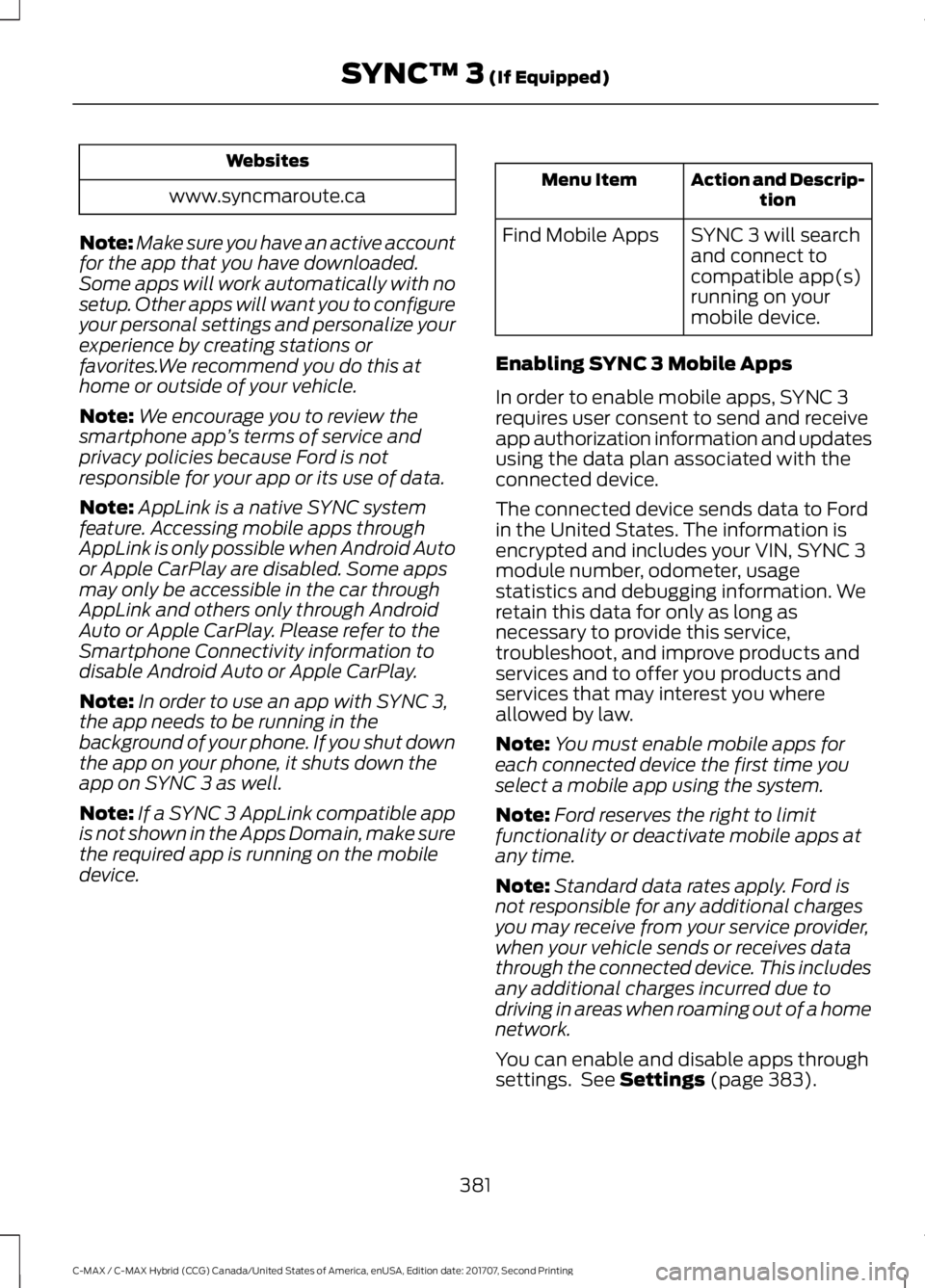
device. Action and Descrip-
tion
Menu Item
SYNC 3 will search
and connect to
compatible app(s)
running on your
mobile device.
Find Mobile Apps
Enabling SYNC 3 Mobile Apps
In order to enable mobile apps, SYNC 3
requires user consent to send and receive
app authorization information and updates
using the data plan associated with the
connected device.
The connected device sends data to Ford
in the United States. The information is
encrypted and includes your VIN, SYNC 3
module number, odometer, usage
statistics and debugging information. We
retain this data for only as long as
necessary to provide this service,
troubleshoot, and improve products and
services and to offer you products and
services that may interest you where
allowed by law.
Note: You must enable mobile apps for
each connected device the first time you
select a mobile app using the system.
Note: Ford reserves the right to limit
functionality or deactivate mobile apps at
any time.
Note: Standard data rates apply. Ford is
not responsible for any additional charges
you may receive from your service provider,
when your vehicle sends or receives data
through the connected device. This includes
any additional charges incurred due to
driving in areas when roaming out of a home
network.
You can enable and disable apps through
settings. See Settings (page 383).
381
C-MAX / C-MAX Hybrid (CCG) Canada/United States of America, enUSA, Edition date: 201707, Second Printing SYNC™ 3
(If Equipped)
Page 388 of 475
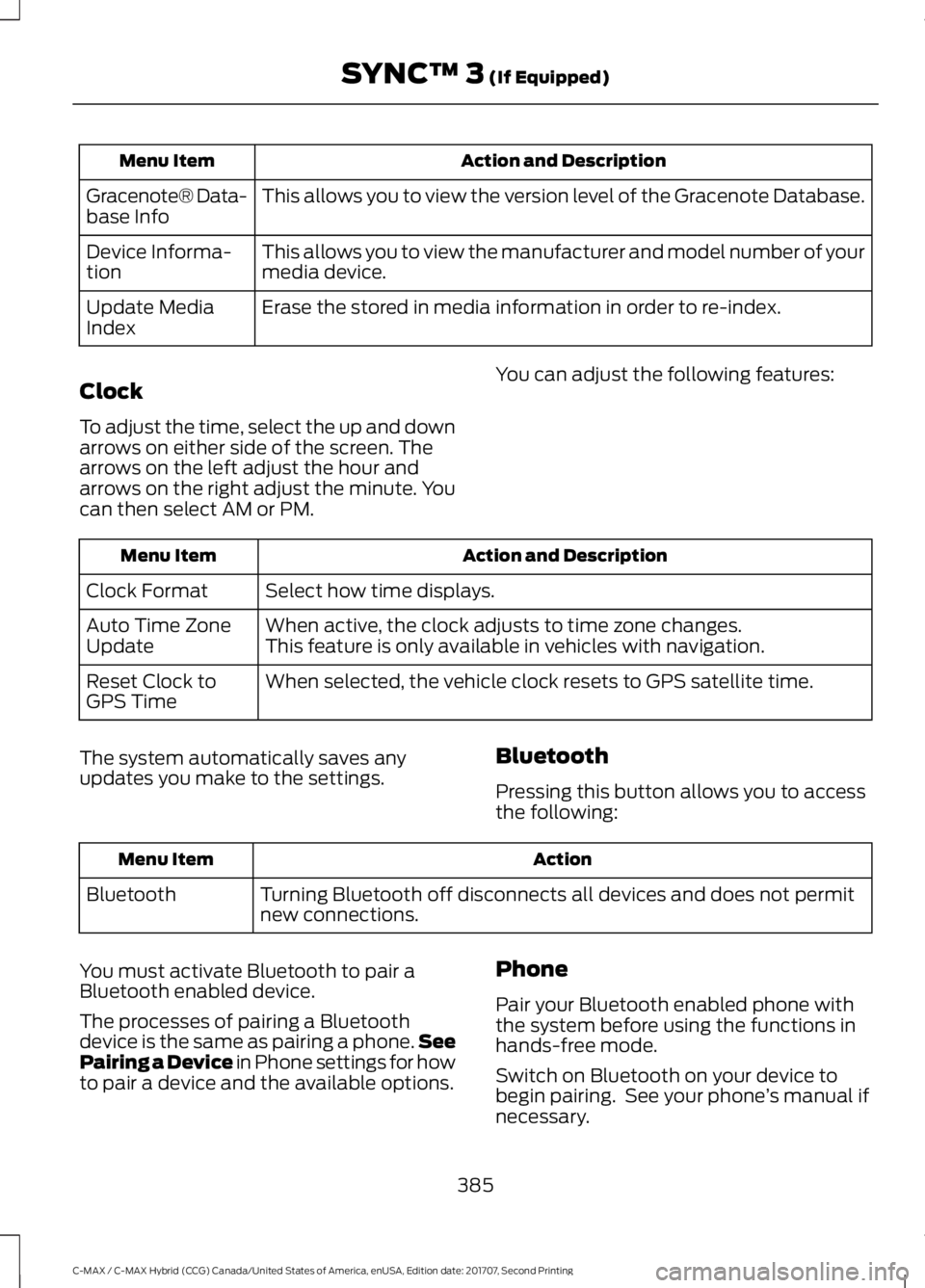
Action and Description
Menu Item
This allows you to view the version level of the Gracenote Database.
Gracenote® Data-
base Info
This allows you to view the manufacturer and model number of your
media device.
Device Informa-
tion
Erase the stored in media information in order to re-index.
Update Media
Index
Clock
To adjust the time, select the up and down
arrows on either side of the screen. The
arrows on the left adjust the hour and
arrows on the right adjust the minute. You
can then select AM or PM. You can adjust the following features: Action and Description
Menu Item
Select how time displays.
Clock Format
When active, the clock adjusts to time zone changes.
Auto Time Zone
Update This feature is only available in vehicles with navigation.
When selected, the vehicle clock resets to GPS satellite time.
Reset Clock to
GPS Time
The system automatically saves any
updates you make to the settings. Bluetooth
Pressing this button allows you to access
the following: Action
Menu Item
Turning Bluetooth off disconnects all devices and does not permit
new connections.
Bluetooth
You must activate Bluetooth to pair a
Bluetooth enabled device.
The processes of pairing a Bluetooth
device is the same as pairing a phone. See
Pairing a Device in Phone settings for how
to pair a device and the available options. Phone
Pair your Bluetooth enabled phone with
the system before using the functions in
hands-free mode.
Switch on Bluetooth on your device to
begin pairing. See your phone
’s manual if
necessary.
385
C-MAX / C-MAX Hybrid (CCG) Canada/United States of America, enUSA, Edition date: 201707, Second Printing SYNC™ 3 (If Equipped)
Page 389 of 475
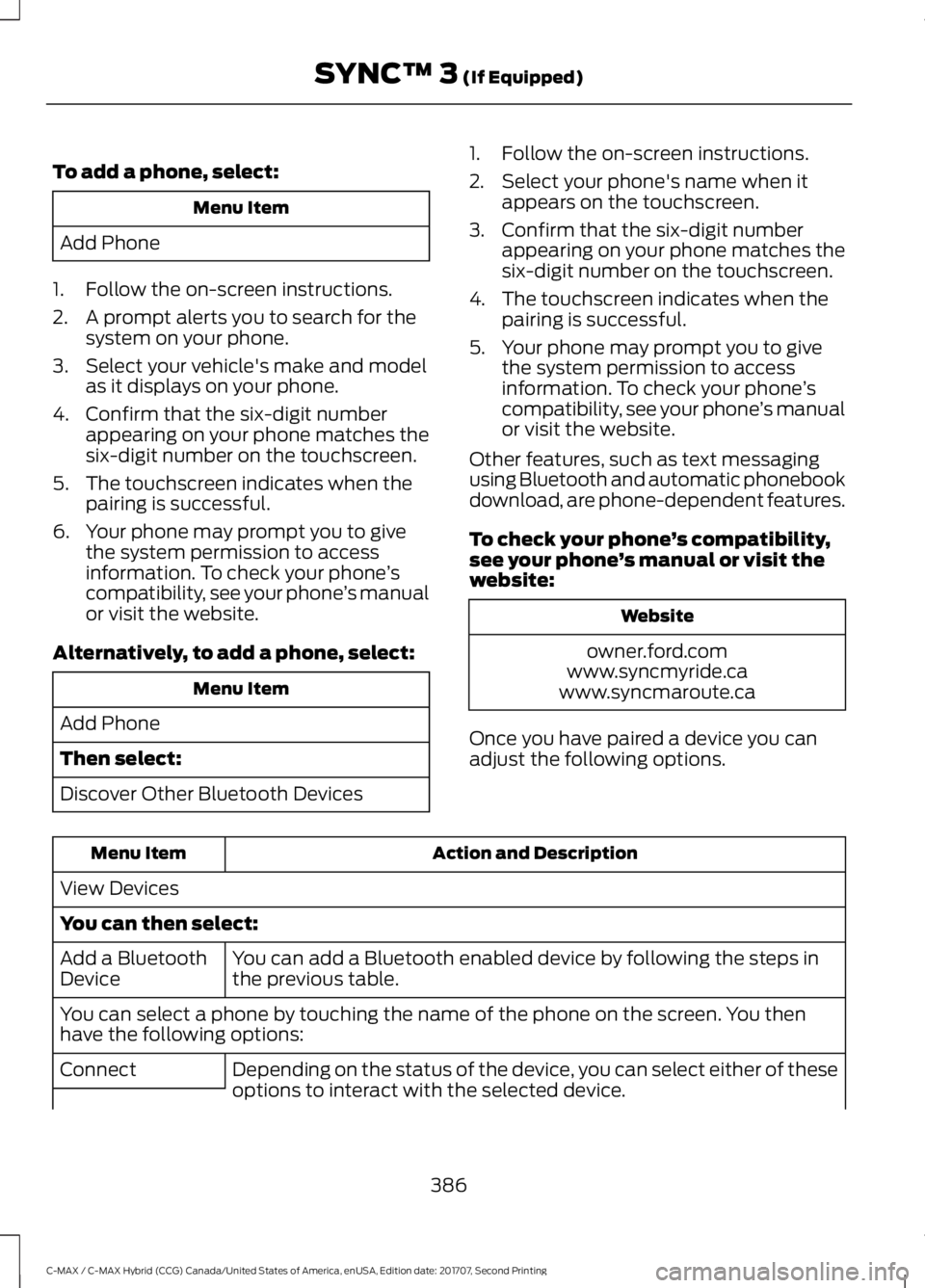
To add a phone, select:
Menu Item
Add Phone
1. Follow the on-screen instructions.
2. A prompt alerts you to search for the system on your phone.
3. Select your vehicle's make and model as it displays on your phone.
4. Confirm that the six-digit number appearing on your phone matches the
six-digit number on the touchscreen.
5. The touchscreen indicates when the pairing is successful.
6. Your phone may prompt you to give the system permission to access
information. To check your phone ’s
compatibility, see your phone ’s manual
or visit the website.
Alternatively, to add a phone, select: Menu Item
Add Phone
Then select:
Discover Other Bluetooth Devices 1. Follow the on-screen instructions.
2. Select your phone's name when it
appears on the touchscreen.
3. Confirm that the six-digit number appearing on your phone matches the
six-digit number on the touchscreen.
4. The touchscreen indicates when the pairing is successful.
5. Your phone may prompt you to give the system permission to access
information. To check your phone ’s
compatibility, see your phone ’s manual
or visit the website.
Other features, such as text messaging
using Bluetooth and automatic phonebook
download, are phone-dependent features.
To check your phone ’s compatibility,
see your phone ’s manual or visit the
website: Website
owner.ford.com
www.syncmyride.ca
www.syncmaroute.ca
Once you have paired a device you can
adjust the following options. Action and Description
Menu Item
View Devices
You can then select: You can add a Bluetooth enabled device by following the steps in
the previous table.
Add a Bluetooth
Device
You can select a phone by touching the name of the phone on the screen. You then
have the following options:
Depending on the status of the device, you can select either of these
options to interact with the selected device.
Connect
386
C-MAX / C-MAX Hybrid (CCG) Canada/United States of America, enUSA, Edition date: 201707, Second Printing SYNC™ 3 (If Equipped)
Page 390 of 475
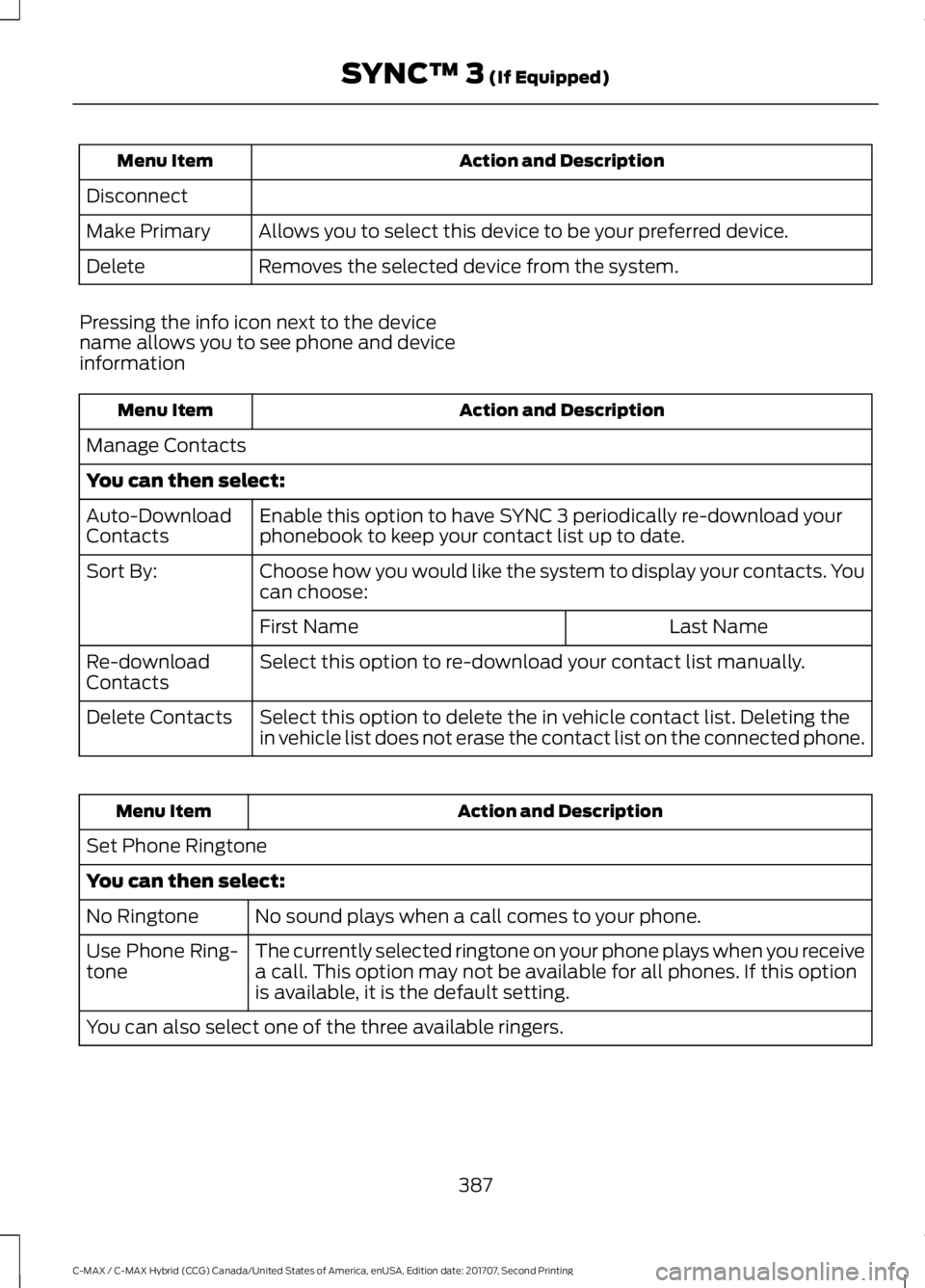
Action and Description
Menu Item
Disconnect Allows you to select this device to be your preferred device.
Make Primary
Removes the selected device from the system.
Delete
Pressing the info icon next to the device
name allows you to see phone and device
information Action and Description
Menu Item
Manage Contacts
You can then select: Enable this option to have SYNC 3 periodically re-download your
phonebook to keep your contact list up to date.
Auto-Download
Contacts
Choose how you would like the system to display your contacts. You
can choose:
Sort By:
Last Name
First Name
Select this option to re-download your contact list manually.
Re-download
Contacts
Select this option to delete the in vehicle contact list. Deleting the
in vehicle list does not erase the contact list on the connected phone.
Delete Contacts Action and Description
Menu Item
Set Phone Ringtone
You can then select: No sound plays when a call comes to your phone.
No Ringtone
The currently selected ringtone on your phone plays when you receive
a call. This option may not be available for all phones. If this option
is available, it is the default setting.
Use Phone Ring-
tone
You can also select one of the three available ringers.
387
C-MAX / C-MAX Hybrid (CCG) Canada/United States of America, enUSA, Edition date: 201707, Second Printing SYNC™ 3 (If Equipped)
Page 391 of 475
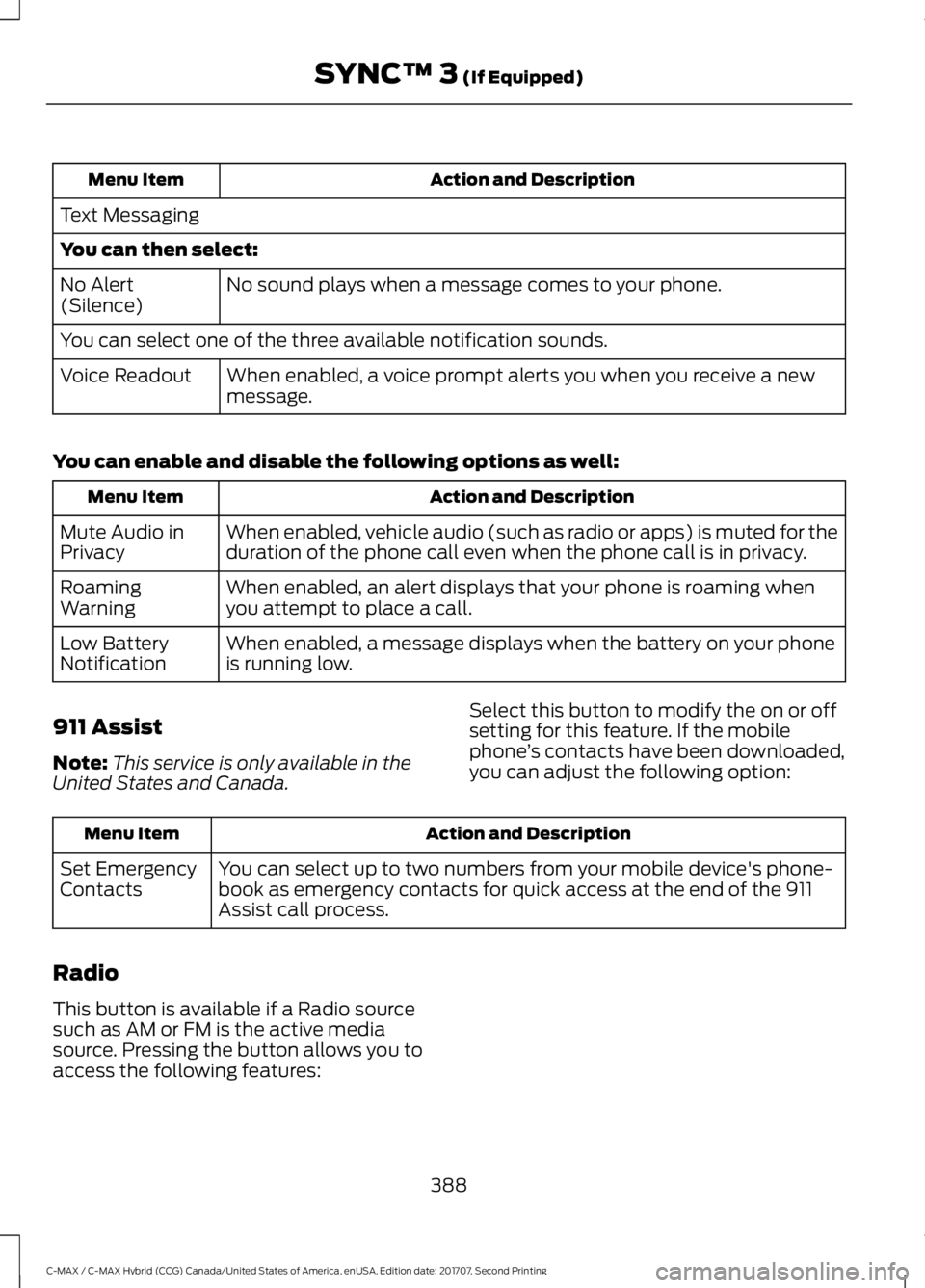
Action and Description
Menu Item
Text Messaging
You can then select: No sound plays when a message comes to your phone.
No Alert
(Silence)
You can select one of the three available notification sounds.
When enabled, a voice prompt alerts you when you receive a new
message.
Voice Readout
You can enable and disable the following options as well: Action and Description
Menu Item
When enabled, vehicle audio (such as radio or apps) is muted for the
duration of the phone call even when the phone call is in privacy.
Mute Audio in
Privacy
When enabled, an alert displays that your phone is roaming when
you attempt to place a call.
Roaming
Warning
When enabled, a message displays when the battery on your phone
is running low.
Low Battery
Notification
911 Assist
Note: This service is only available in the
United States and Canada. Select this button to modify the on or off
setting for this feature. If the mobile
phone
’s contacts have been downloaded,
you can adjust the following option: Action and Description
Menu Item
You can select up to two numbers from your mobile device's phone-
book as emergency contacts for quick access at the end of the 911
Assist call process.
Set Emergency
Contacts
Radio
This button is available if a Radio source
such as AM or FM is the active media
source. Pressing the button allows you to
access the following features:
388
C-MAX / C-MAX Hybrid (CCG) Canada/United States of America, enUSA, Edition date: 201707, Second Printing SYNC™ 3 (If Equipped)
Page 396 of 475
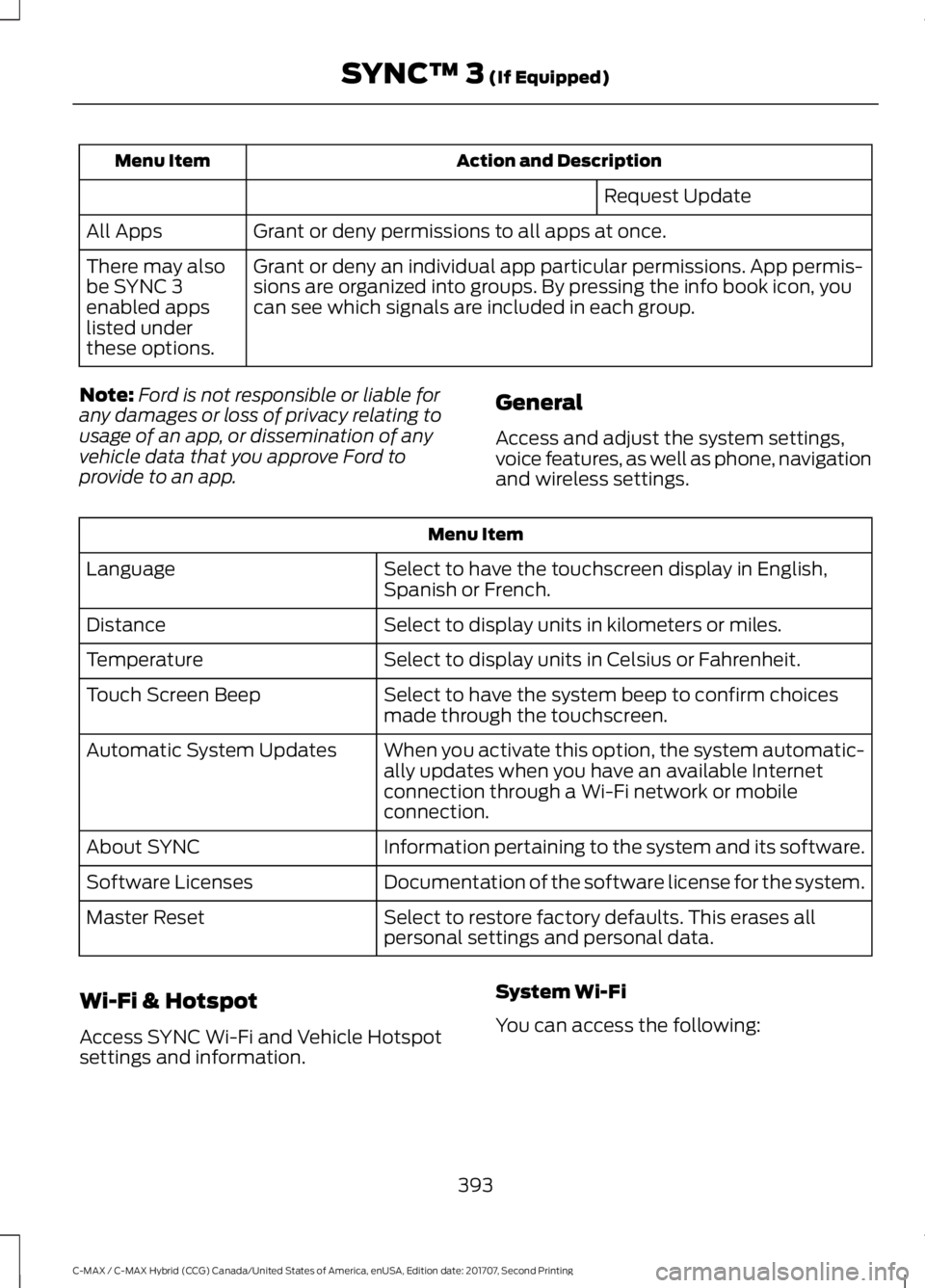
Action and Description
Menu Item
Request Update
Grant or deny permissions to all apps at once.
All Apps
Grant or deny an individual app particular permissions. App permis-
sions are organized into groups. By pressing the info book icon, you
can see which signals are included in each group.
There may also
be SYNC 3
enabled apps
listed under
these options.
Note: Ford is not responsible or liable for
any damages or loss of privacy relating to
usage of an app, or dissemination of any
vehicle data that you approve Ford to
provide to an app. General
Access and adjust the system settings,
voice features, as well as phone, navigation
and wireless settings.Menu Item
Select to have the touchscreen display in English,
Spanish or French.
Language
Select to display units in kilometers or miles.
Distance
Select to display units in Celsius or Fahrenheit.
Temperature
Select to have the system beep to confirm choices
made through the touchscreen.
Touch Screen Beep
When you activate this option, the system automatic-
ally updates when you have an available Internet
connection through a Wi-Fi network or mobile
connection.
Automatic System Updates
Information pertaining to the system and its software.
About SYNC
Documentation of the software license for the system.
Software Licenses
Select to restore factory defaults. This erases all
personal settings and personal data.
Master Reset
Wi-Fi & Hotspot
Access SYNC Wi-Fi and Vehicle Hotspot
settings and information. System Wi-Fi
You can access the following:
393
C-MAX / C-MAX Hybrid (CCG) Canada/United States of America, enUSA, Edition date: 201707, Second Printing SYNC™ 3 (If Equipped)
Page 399 of 475
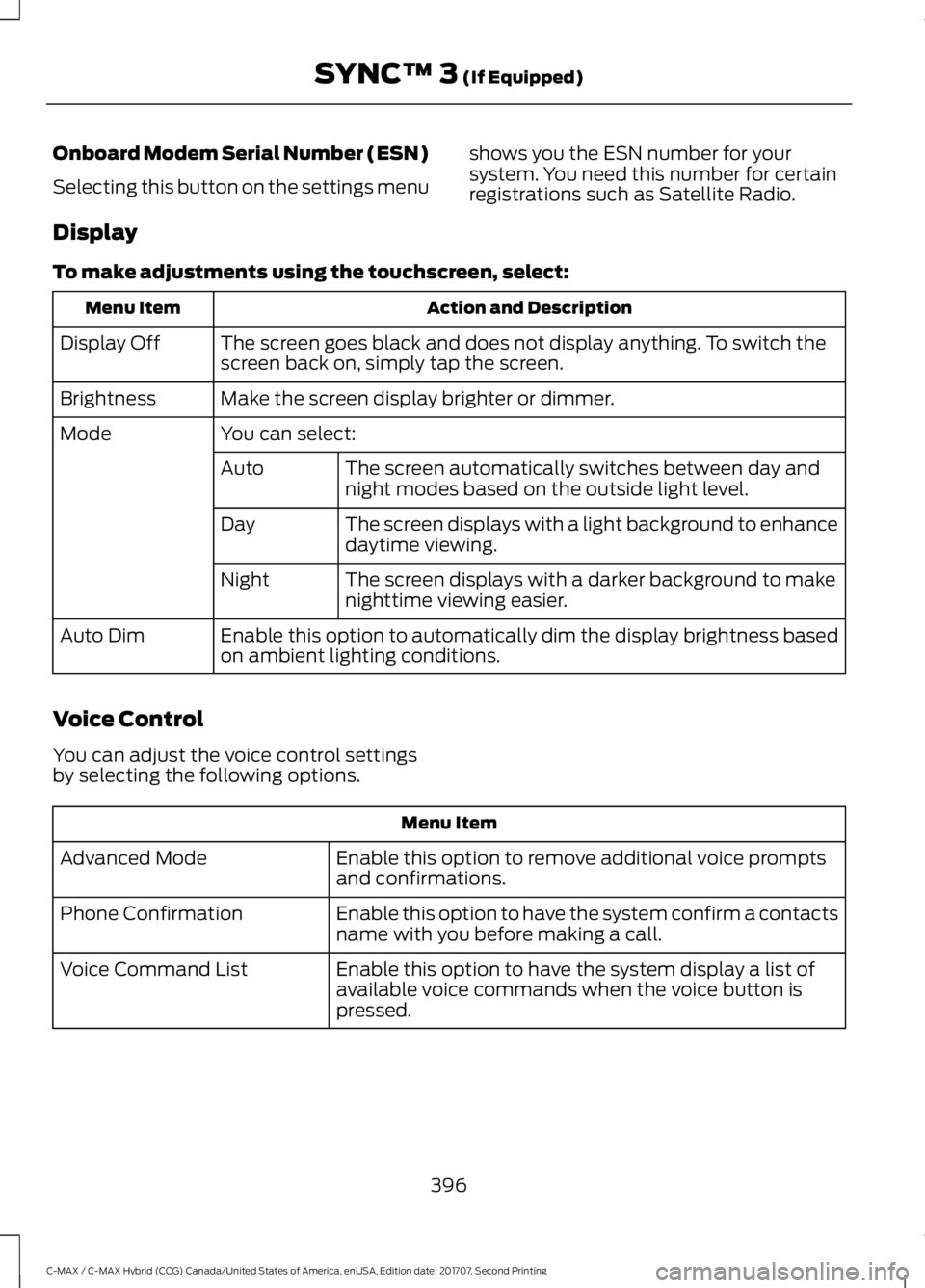
Onboard Modem Serial Number (ESN)
Selecting this button on the settings menu
shows you the ESN number for your
system. You need this number for certain
registrations such as Satellite Radio.
Display
To make adjustments using the touchscreen, select: Action and Description
Menu Item
The screen goes black and does not display anything. To switch the
screen back on, simply tap the screen.
Display Off
Make the screen display brighter or dimmer.
Brightness
You can select:
Mode
The screen automatically switches between day and
night modes based on the outside light level.
Auto
The screen displays with a light background to enhance
daytime viewing.
Day
The screen displays with a darker background to make
nighttime viewing easier.
Night
Enable this option to automatically dim the display brightness based
on ambient lighting conditions.
Auto Dim
Voice Control
You can adjust the voice control settings
by selecting the following options. Menu Item
Enable this option to remove additional voice prompts
and confirmations.
Advanced Mode
Enable this option to have the system confirm a contacts
name with you before making a call.
Phone Confirmation
Enable this option to have the system display a list of
available voice commands when the voice button is
pressed.
Voice Command List
396
C-MAX / C-MAX Hybrid (CCG) Canada/United States of America, enUSA, Edition date: 201707, Second Printing SYNC™ 3 (If Equipped)