ECO mode FORD E-450 2018 Owner's Guide
[x] Cancel search | Manufacturer: FORD, Model Year: 2018, Model line: E-450, Model: FORD E-450 2018Pages: 323, PDF Size: 6.2 MB
Page 220 of 323
SiriusXM satellite radio is a
subscription-based satellite radio service
that broadcasts a variety of music, sports,
news, weather, traffic and entertainment
programming. Your factory-installed
SiriusXM satellite radio system includes
hardware and a limited subscription term,
which begins on the date of sale or lease
of your vehicle. See an authorized dealer
for availability.
For more information on extended
subscription terms (a service fee is
required), the online media player and a
complete list of SiriusXM satellite radio
channels, and other features, please visit
www.siriusxm.com in the United States,
www.siriusxm.ca in Canada, or call
SiriusXM at 1-888-539-7474.
Satellite Radio Electronic Serial
Number (ESN)
You need your ESN to activate, modify or
track your satellite radio account. When in
satellite radio mode, tune to channel 0.
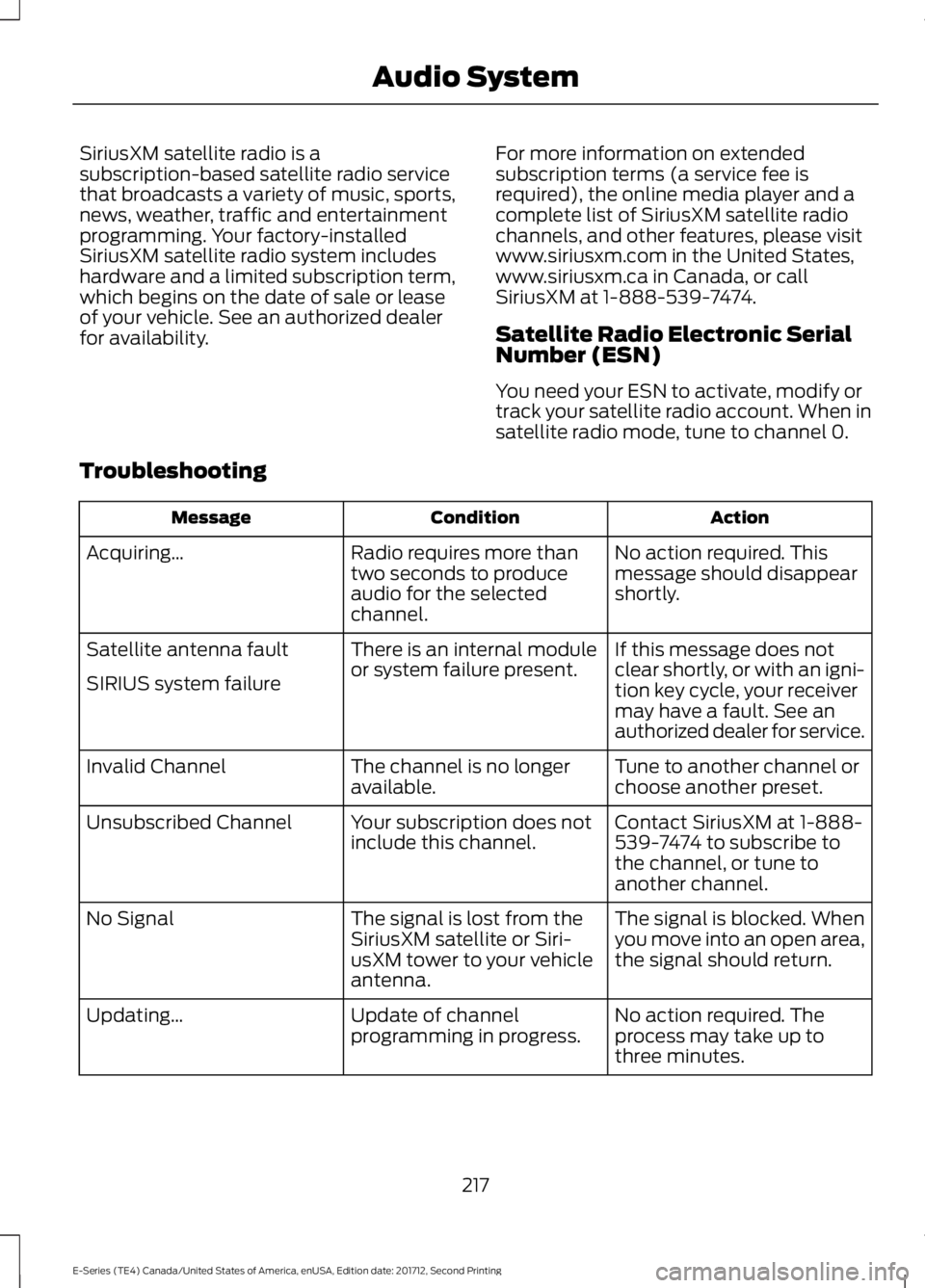
Troubleshooting Action
Condition
Message
No action required. This
message should disappear
shortly.
Radio requires more than
two seconds to produce
audio for the selected
channel.
Acquiring…
If this message does not
clear shortly, or with an igni-
tion key cycle, your receiver
may have a fault. See an
authorized dealer for service.
There is an internal module
or system failure present.
Satellite antenna fault
SIRIUS system failure
Tune to another channel or
choose another preset.
The channel is no longer
available.
Invalid Channel
Contact SiriusXM at 1-888-
539-7474 to subscribe to
the channel, or tune to
another channel.
Your subscription does not
include this channel.
Unsubscribed Channel
The signal is blocked. When
you move into an open area,
the signal should return.
The signal is lost from the
SiriusXM satellite or Siri-
usXM tower to your vehicle
antenna.
No Signal
No action required. The
process may take up to
three minutes.
Update of channel
programming in progress.
Updating…
217
E-Series (TE4) Canada/United States of America, enUSA, Edition date: 201712, Second Printing Audio System
Page 225 of 323
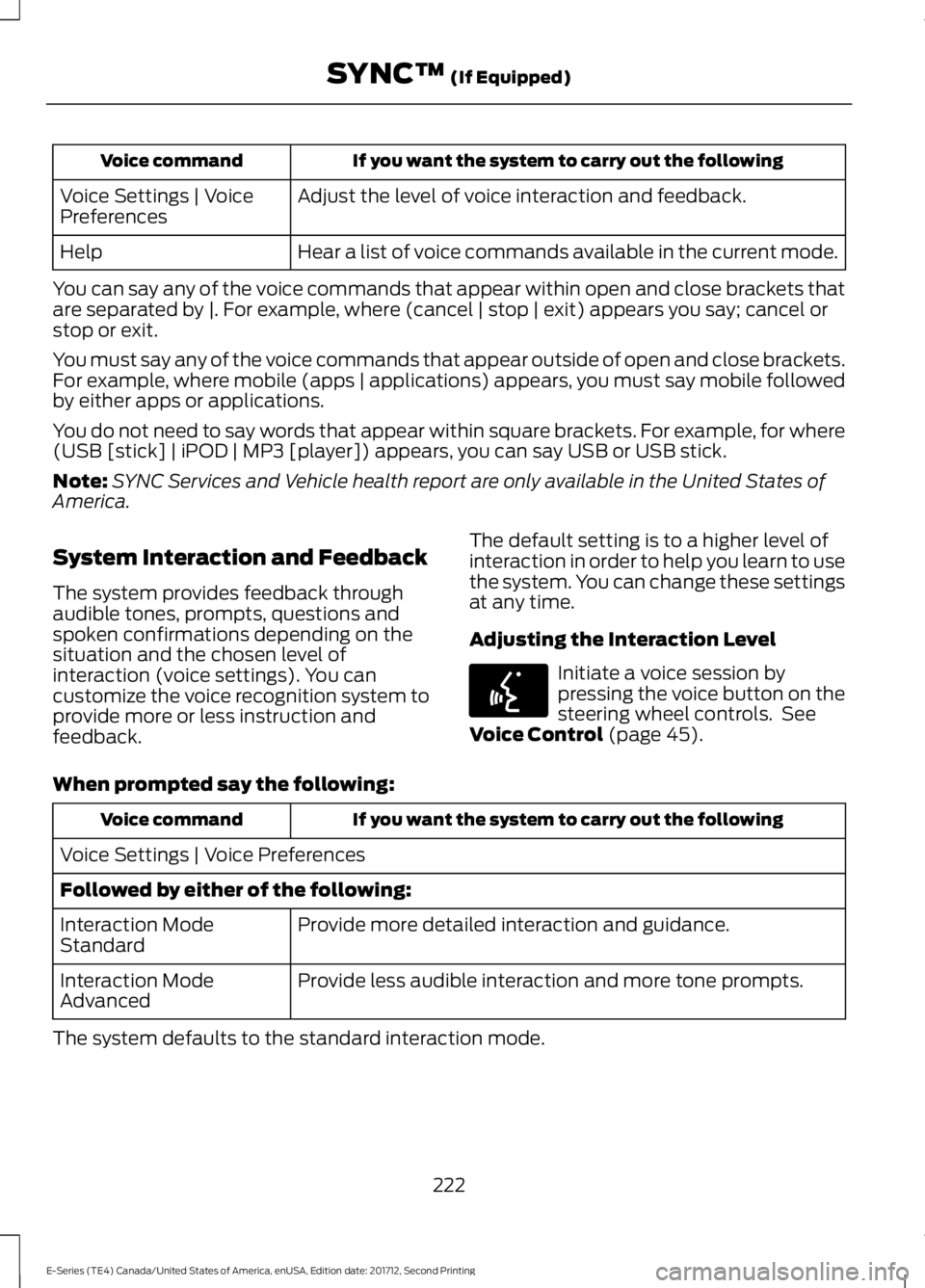
If you want the system to carry out the following
Voice command
Adjust the level of voice interaction and feedback.
Voice Settings | Voice
Preferences
Hear a list of voice commands available in the current mode.
Help
You can say any of the voice commands that appear within open and close brackets that
are separated by |. For example, where (cancel | stop | exit) appears you say; cancel or
stop or exit.
You must say any of the voice commands that appear outside of open and close brackets.
For example, where mobile (apps | applications) appears, you must say mobile followed
by either apps or applications.
You do not need to say words that appear within square brackets. For example, for where
(USB [stick] | iPOD | MP3 [player]) appears, you can say USB or USB stick.
Note: SYNC Services and Vehicle health report are only available in the United States of
America.
System Interaction and Feedback
The system provides feedback through
audible tones, prompts, questions and
spoken confirmations depending on the
situation and the chosen level of
interaction (voice settings). You can
customize the voice recognition system to
provide more or less instruction and
feedback. The default setting is to a higher level of
interaction in order to help you learn to use
the system. You can change these settings
at any time.
Adjusting the Interaction Level Initiate a voice session by
pressing the voice button on the
steering wheel controls. See
Voice Control (page 45).
When prompted say the following: If you want the system to carry out the following
Voice command
Voice Settings | Voice Preferences
Followed by either of the following: Provide more detailed interaction and guidance.
Interaction Mode
Standard
Provide less audible interaction and more tone prompts.
Interaction Mode
Advanced
The system defaults to the standard interaction mode.
222
E-Series (TE4) Canada/United States of America, enUSA, Edition date: 201712, Second Printing SYNC™
(If Equipped)E142599
Page 227 of 323
USING SYNC™ WITH YOUR
PHONE
Hands-free calling is one of the main
features of SYNC. While the system
supports a variety of features, many are
dependent on your cell phone's
functionality. At a minimum, most cell
phones with Bluetooth wireless technology
support the following functions:
•
Answering an incoming call.
• Ending a call.
• Using privacy mode.
• Dialing a number.
• Redialing.
• Call waiting notification.
• Caller identification. Other features, such as text messaging
using Bluetooth and automatic phonebook
download, are cell phone-dependent
features. To check your cell phone's
compatibility, see your cell phone's manual
and visit www.SYNCMyRide.com,
www.SYNCMyRide.ca or
www.syncmaroute.ca.
Pairing Your Cell Phone for the
First Time
Note:
SYNC can support downloading up
to approximately 1000 entries per
Bluetooth-enabled cell phone.
Note: Make sure to switch on the ignition
and the radio. Put the transmission in
position park (P) (automatic transmission)
or neutral with the parking brake applied
(manual transmission).
Note: To scroll through the menus, press
the up and down arrows on your audio
system.
Wirelessly pairing your cell phone with
SYNC allows you to make and receive
hands-free calls.
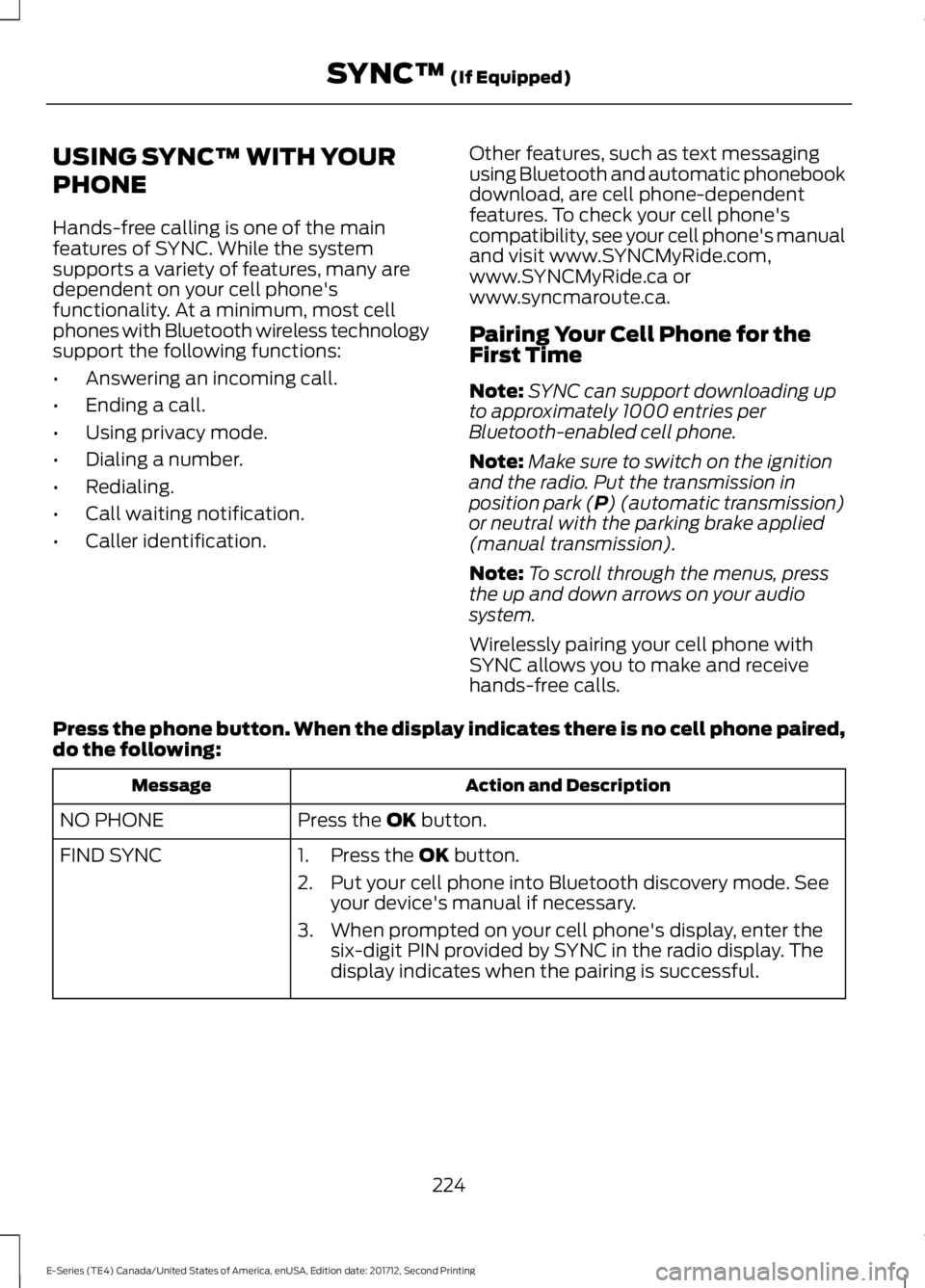
Press the phone button. When the display indicates there is no cell phone paired,
do the following: Action and Description
Message
Press the
OK button.
NO PHONE
FIND SYNC 1. Press the
OK button.
2. Put your cell phone into Bluetooth discovery mode. See your device's manual if necessary.
3. When prompted on your cell phone's display, enter the six-digit PIN provided by SYNC in the radio display. The
display indicates when the pairing is successful.
224
E-Series (TE4) Canada/United States of America, enUSA, Edition date: 201712, Second Printing SYNC™
(If Equipped)
Page 228 of 323
Depending on your cell phone's capability
and your market, the system may prompt
you with questions, such as setting the
current cell phone as the primary cell
phone (the cell phone SYNC automatically
tries to connect with first upon vehicle
start-up) and downloading your
phonebook.
Pairing Subsequent Cell Phones
Note:
To scroll through the menus, press
the up and down arrows on your audio
system.
Note: Make sure to switch on the ignition
and the radio. Put the transmission in
position park (P) (automatic transmission)
or neutral with the parking brake applied
(manual transmission).
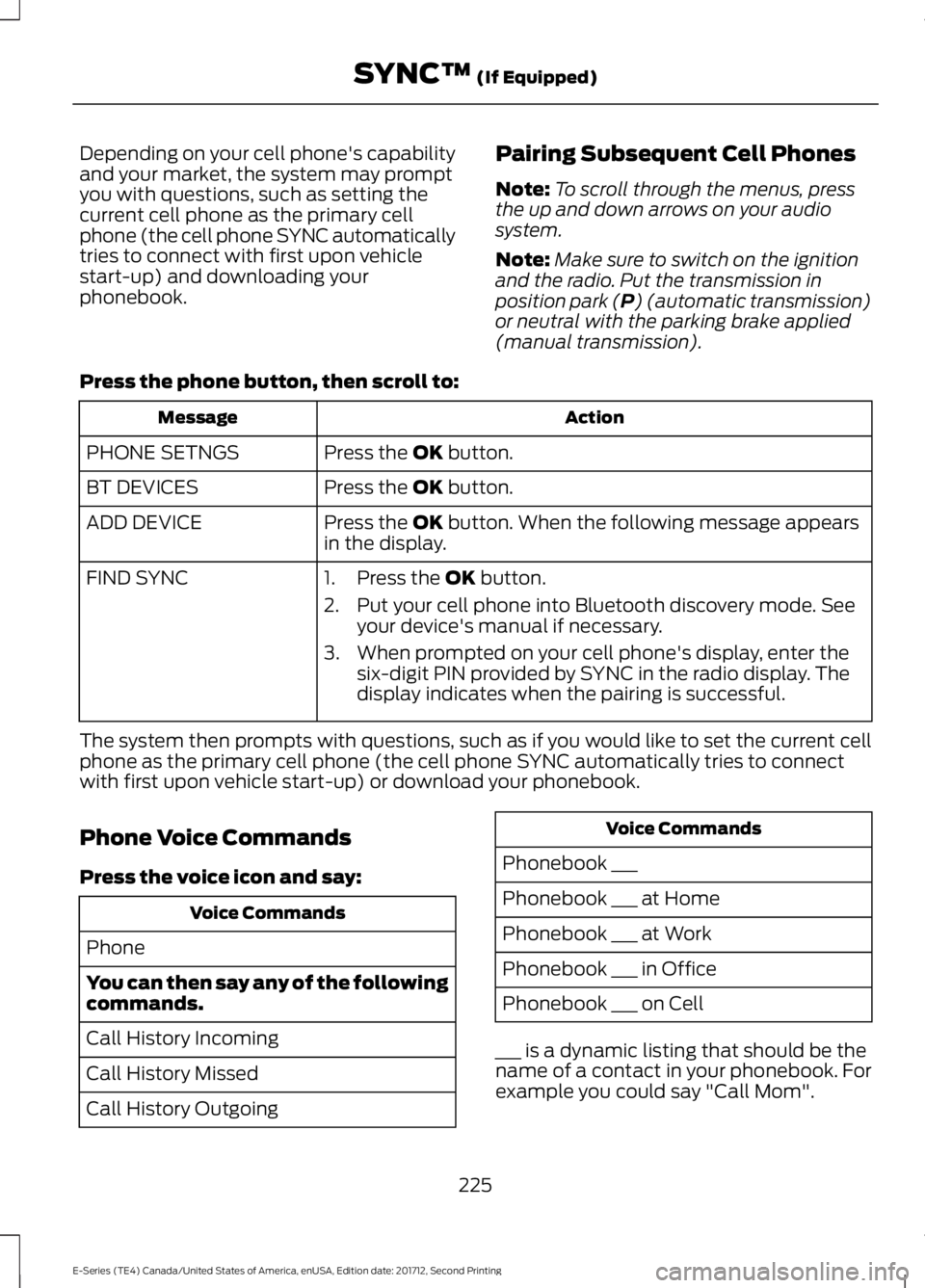
Press the phone button, then scroll to: Action
Message
Press the
OK button.
PHONE SETNGS
Press the
OK button.
BT DEVICES
Press the
OK button. When the following message appears
in the display.
ADD DEVICE
FIND SYNC
1. Press the
OK button.
2. Put your cell phone into Bluetooth discovery mode. See your device's manual if necessary.
3. When prompted on your cell phone's display, enter the six-digit PIN provided by SYNC in the radio display. The
display indicates when the pairing is successful.
The system then prompts with questions, such as if you would like to set the current cell
phone as the primary cell phone (the cell phone SYNC automatically tries to connect
with first upon vehicle start-up) or download your phonebook.
Phone Voice Commands
Press the voice icon and say: Voice Commands
Phone
You can then say any of the following
commands.
Call History Incoming
Call History Missed
Call History Outgoing Voice Commands
Phonebook ___
Phonebook ___ at Home
Phonebook ___ at Work
Phonebook ___ in Office
Phonebook ___ on Cell
___ is a dynamic listing that should be the
name of a contact in your phonebook. For
example you could say "Call Mom".
225
E-Series (TE4) Canada/United States of America, enUSA, Edition date: 201712, Second Printing SYNC™
(If Equipped)
Page 229 of 323
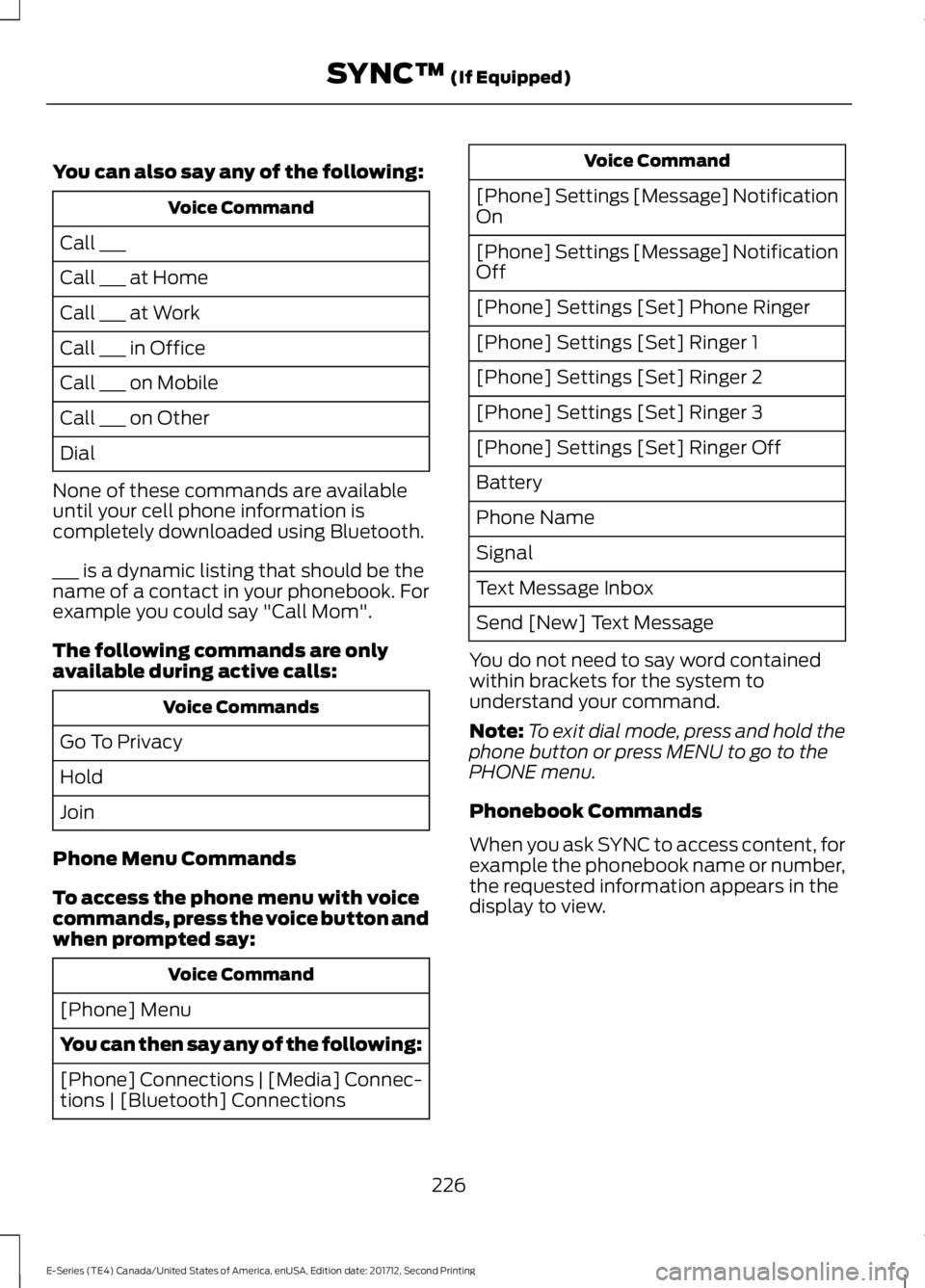
You can also say any of the following:
Voice Command
Call ___
Call ___ at Home
Call ___ at Work
Call ___ in Office
Call ___ on Mobile
Call ___ on Other
Dial
None of these commands are available
until your cell phone information is
completely downloaded using Bluetooth.
___ is a dynamic listing that should be the
name of a contact in your phonebook. For
example you could say "Call Mom".
The following commands are only
available during active calls: Voice Commands
Go To Privacy
Hold
Join
Phone Menu Commands
To access the phone menu with voice
commands, press the voice button and
when prompted say: Voice Command
[Phone] Menu
You can then say any of the following:
[Phone] Connections | [Media] Connec-
tions | [Bluetooth] Connections Voice Command
[Phone] Settings [Message] Notification
On
[Phone] Settings [Message] Notification
Off
[Phone] Settings [Set] Phone Ringer
[Phone] Settings [Set] Ringer 1
[Phone] Settings [Set] Ringer 2
[Phone] Settings [Set] Ringer 3
[Phone] Settings [Set] Ringer Off
Battery
Phone Name
Signal
Text Message Inbox
Send [New] Text Message
You do not need to say word contained
within brackets for the system to
understand your command.
Note: To exit dial mode, press and hold the
phone button or press MENU to go to the
PHONE menu.
Phonebook Commands
When you ask SYNC to access content, for
example the phonebook name or number,
the requested information appears in the
display to view.
226
E-Series (TE4) Canada/United States of America, enUSA, Edition date: 201712, Second Printing SYNC™ (If Equipped)
Page 244 of 323
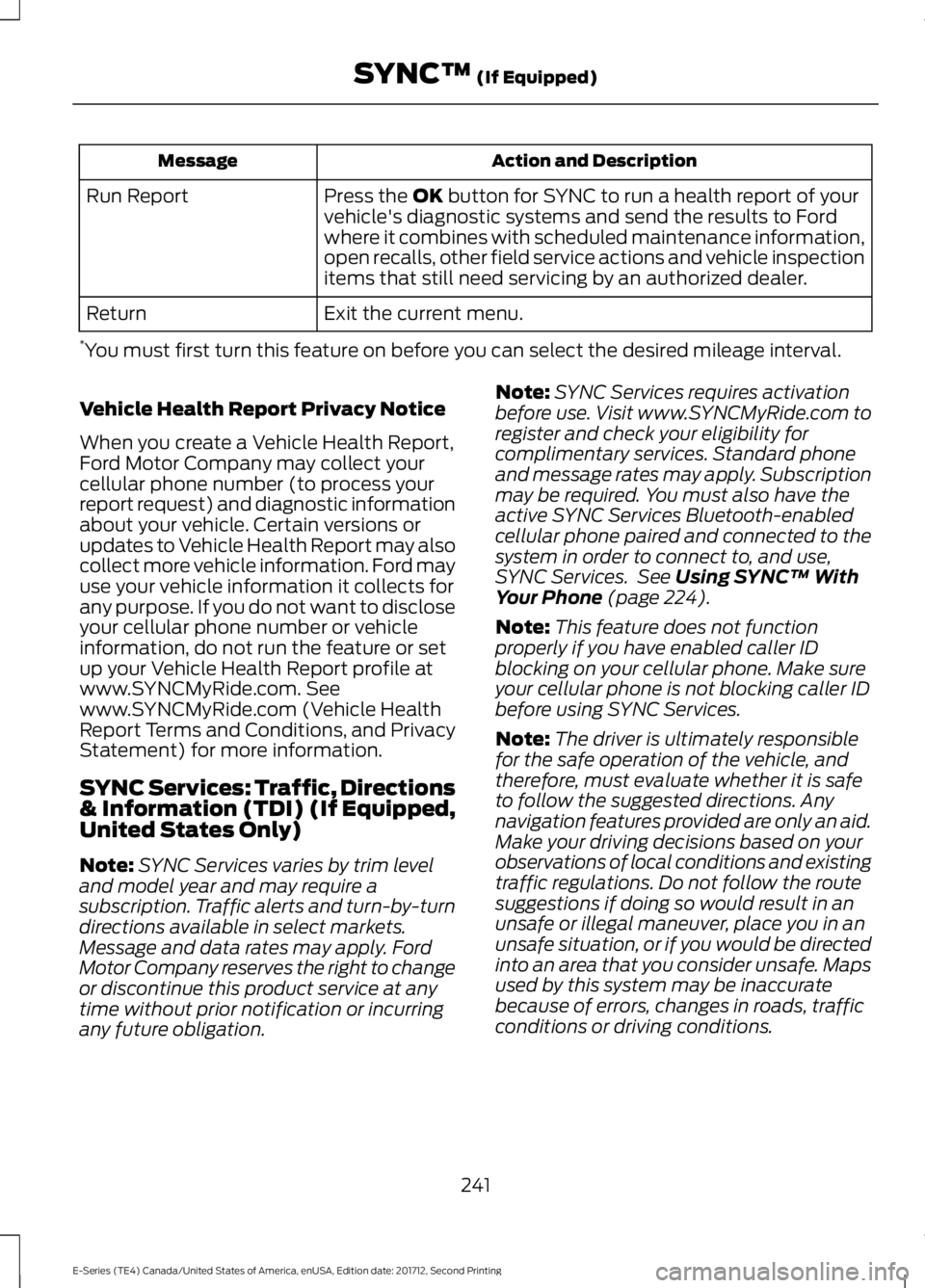
Action and Description
Message
Press the OK button for SYNC to run a health report of your
vehicle's diagnostic systems and send the results to Ford
where it combines with scheduled maintenance information,
open recalls, other field service actions and vehicle inspection
items that still need servicing by an authorized dealer.
Run Report
Exit the current menu.
Return
* You must first turn this feature on before you can select the desired mileage interval.
Vehicle Health Report Privacy Notice
When you create a Vehicle Health Report,
Ford Motor Company may collect your
cellular phone number (to process your
report request) and diagnostic information
about your vehicle. Certain versions or
updates to Vehicle Health Report may also
collect more vehicle information. Ford may
use your vehicle information it collects for
any purpose. If you do not want to disclose
your cellular phone number or vehicle
information, do not run the feature or set
up your Vehicle Health Report profile at
www.SYNCMyRide.com. See
www.SYNCMyRide.com (Vehicle Health
Report Terms and Conditions, and Privacy
Statement) for more information.
SYNC Services: Traffic, Directions
& Information (TDI) (If Equipped,
United States Only)
Note: SYNC Services varies by trim level
and model year and may require a
subscription. Traffic alerts and turn-by-turn
directions available in select markets.
Message and data rates may apply. Ford
Motor Company reserves the right to change
or discontinue this product service at any
time without prior notification or incurring
any future obligation. Note:
SYNC Services requires activation
before use. Visit www.SYNCMyRide.com to
register and check your eligibility for
complimentary services. Standard phone
and message rates may apply. Subscription
may be required. You must also have the
active SYNC Services Bluetooth-enabled
cellular phone paired and connected to the
system in order to connect to, and use,
SYNC Services. See
Using SYNC™ With
Your Phone (page 224).
Note: This feature does not function
properly if you have enabled caller ID
blocking on your cellular phone. Make sure
your cellular phone is not blocking caller ID
before using SYNC Services.
Note: The driver is ultimately responsible
for the safe operation of the vehicle, and
therefore, must evaluate whether it is safe
to follow the suggested directions. Any
navigation features provided are only an aid.
Make your driving decisions based on your
observations of local conditions and existing
traffic regulations. Do not follow the route
suggestions if doing so would result in an
unsafe or illegal maneuver, place you in an
unsafe situation, or if you would be directed
into an area that you consider unsafe. Maps
used by this system may be inaccurate
because of errors, changes in roads, traffic
conditions or driving conditions.
241
E-Series (TE4) Canada/United States of America, enUSA, Edition date: 201712, Second Printing SYNC™
(If Equipped)
Page 252 of 323
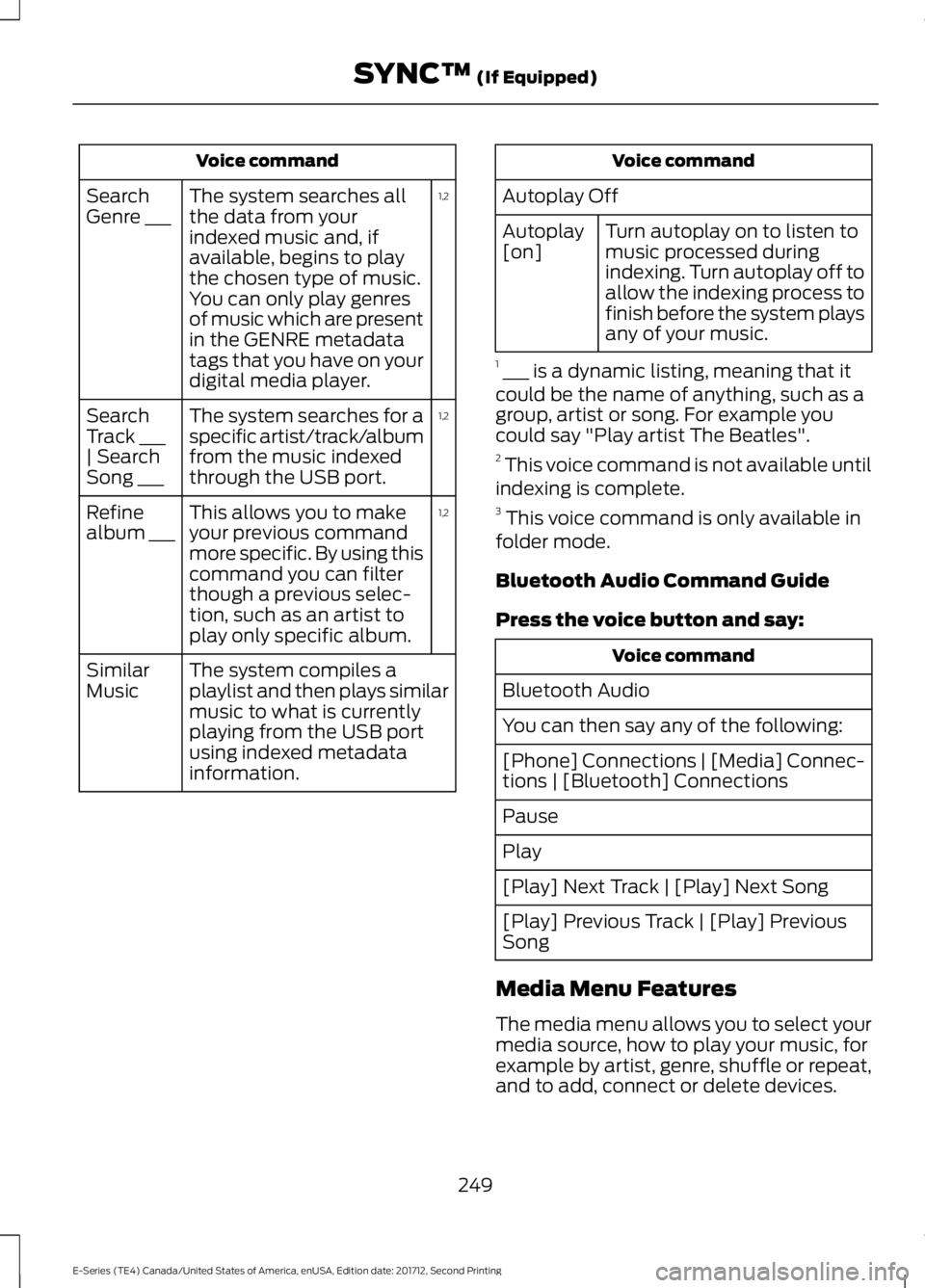
Voice command
1,2
The system searches all
the data from your
indexed music and, if
available, begins to play
the chosen type of music.
You can only play genres
of music which are present
in the GENRE metadata
tags that you have on your
digital media player.
Search
Genre ___
1,2
The system searches for a
specific artist/track/album
from the music indexed
through the USB port.
Search
Track ___
| Search
Song ___
1,2
This allows you to make
your previous command
more specific. By using this
command you can filter
though a previous selec-
tion, such as an artist to
play only specific album.
Refine
album ___
The system compiles a
playlist and then plays similar
music to what is currently
playing from the USB port
using indexed metadata
information.
Similar
Music Voice command
Autoplay Off Turn autoplay on to listen to
music processed during
indexing. Turn autoplay off to
allow the indexing process to
finish before the system plays
any of your music.
Autoplay
[on]
1 ___ is a dynamic listing, meaning that it
could be the name of anything, such as a
group, artist or song. For example you
could say "Play artist The Beatles".
2 This voice command is not available until
indexing is complete.
3 This voice command is only available in
folder mode.
Bluetooth Audio Command Guide
Press the voice button and say: Voice command
Bluetooth Audio
You can then say any of the following:
[Phone] Connections | [Media] Connec-
tions | [Bluetooth] Connections
Pause
Play
[Play] Next Track | [Play] Next Song
[Play] Previous Track | [Play] Previous
Song
Media Menu Features
The media menu allows you to select your
media source, how to play your music, for
example by artist, genre, shuffle or repeat,
and to add, connect or delete devices.
249
E-Series (TE4) Canada/United States of America, enUSA, Edition date: 201712, Second Printing SYNC™ (If Equipped)
Page 255 of 323
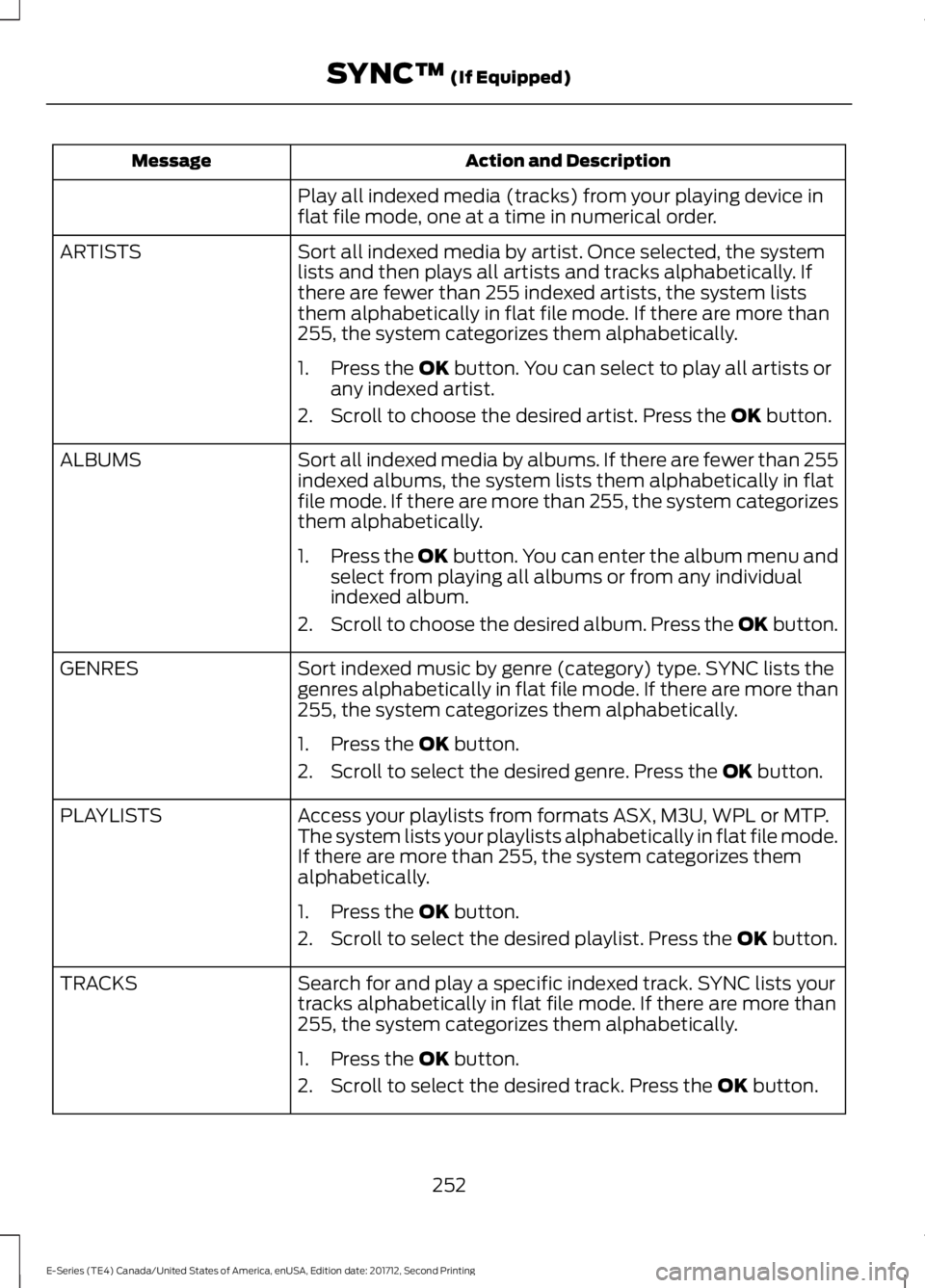
Action and Description
Message
Play all indexed media (tracks) from your playing device in
flat file mode, one at a time in numerical order.
Sort all indexed media by artist. Once selected, the system
lists and then plays all artists and tracks alphabetically. If
there are fewer than 255 indexed artists, the system lists
them alphabetically in flat file mode. If there are more than
255, the system categorizes them alphabetically.
ARTISTS
1. Press the OK button. You can select to play all artists or
any indexed artist.
2. Scroll to choose the desired artist. Press the
OK button.
Sort all indexed media by albums. If there are fewer than 255
indexed albums, the system lists them alphabetically in flat
file mode. If there are more than 255, the system categorizes
them alphabetically.
ALBUMS
1.Press the
OK button. You can enter the album menu and
select from playing all albums or from any individual
indexed album.
2. Scroll to choose the desired album. Press the OK button.
Sort indexed music by genre (category) type. SYNC lists the
genres alphabetically in flat file mode. If there are more than
255, the system categorizes them alphabetically.
GENRES
1. Press the
OK button.
2. Scroll to select the desired genre. Press the
OK button.
Access your playlists from formats ASX, M3U, WPL or MTP.
The system lists your playlists alphabetically in flat file mode.
If there are more than 255, the system categorizes them
alphabetically.
PLAYLISTS
1. Press the
OK button.
2. Scroll to select the desired playlist. Press the
OK button.
Search for and play a specific indexed track. SYNC lists your
tracks alphabetically in flat file mode. If there are more than
255, the system categorizes them alphabetically.
TRACKS
1. Press the
OK button.
2. Scroll to select the desired track. Press the
OK button.
252
E-Series (TE4) Canada/United States of America, enUSA, Edition date: 201712, Second Printing SYNC™
(If Equipped)
Page 256 of 323
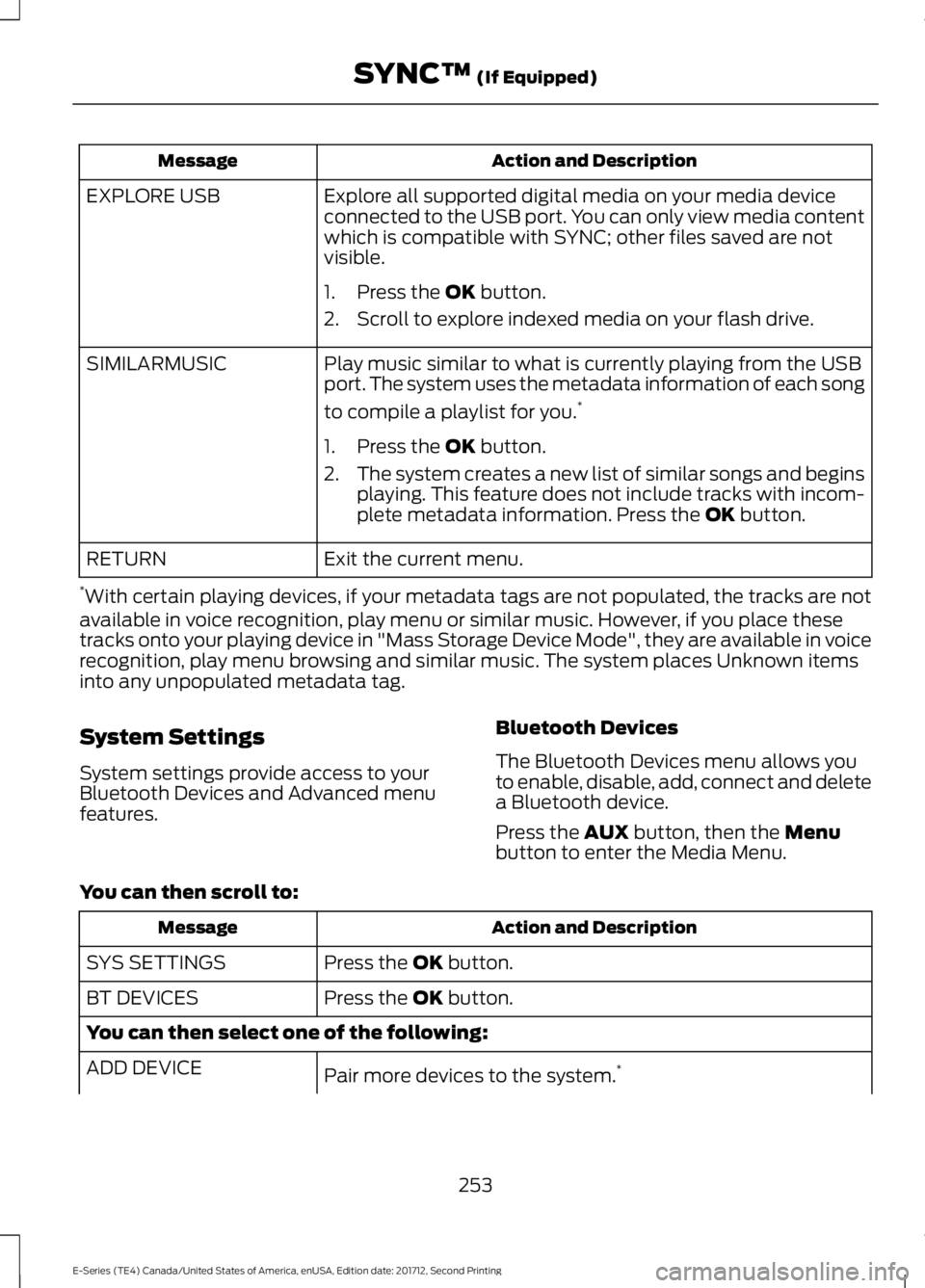
Action and Description
Message
Explore all supported digital media on your media device
connected to the USB port. You can only view media content
which is compatible with SYNC; other files saved are not
visible.
EXPLORE USB
1. Press the OK button.
2. Scroll to explore indexed media on your flash drive.
Play music similar to what is currently playing from the USB
port. The system uses the metadata information of each song
to compile a playlist for you. *
SIMILARMUSIC
1. Press the
OK button.
2. The system creates a new list of similar songs and begins
playing. This feature does not include tracks with incom-
plete metadata information. Press the
OK button.
Exit the current menu.
RETURN
* With certain playing devices, if your metadata tags are not populated, the tracks are not
available in voice recognition, play menu or similar music. However, if you place these
tracks onto your playing device in "Mass Storage Device Mode", they are available in voice
recognition, play menu browsing and similar music. The system places Unknown items
into any unpopulated metadata tag.
System Settings
System settings provide access to your
Bluetooth Devices and Advanced menu
features. Bluetooth Devices
The Bluetooth Devices menu allows you
to enable, disable, add, connect and delete
a Bluetooth device.
Press the
AUX button, then the Menu
button to enter the Media Menu.
You can then scroll to: Action and Description
Message
Press the
OK button.
SYS SETTINGS
Press the
OK button.
BT DEVICES
You can then select one of the following:
Pair more devices to the system. *
ADD DEVICE
253
E-Series (TE4) Canada/United States of America, enUSA, Edition date: 201712, Second Printing SYNC™
(If Equipped)
Page 257 of 323
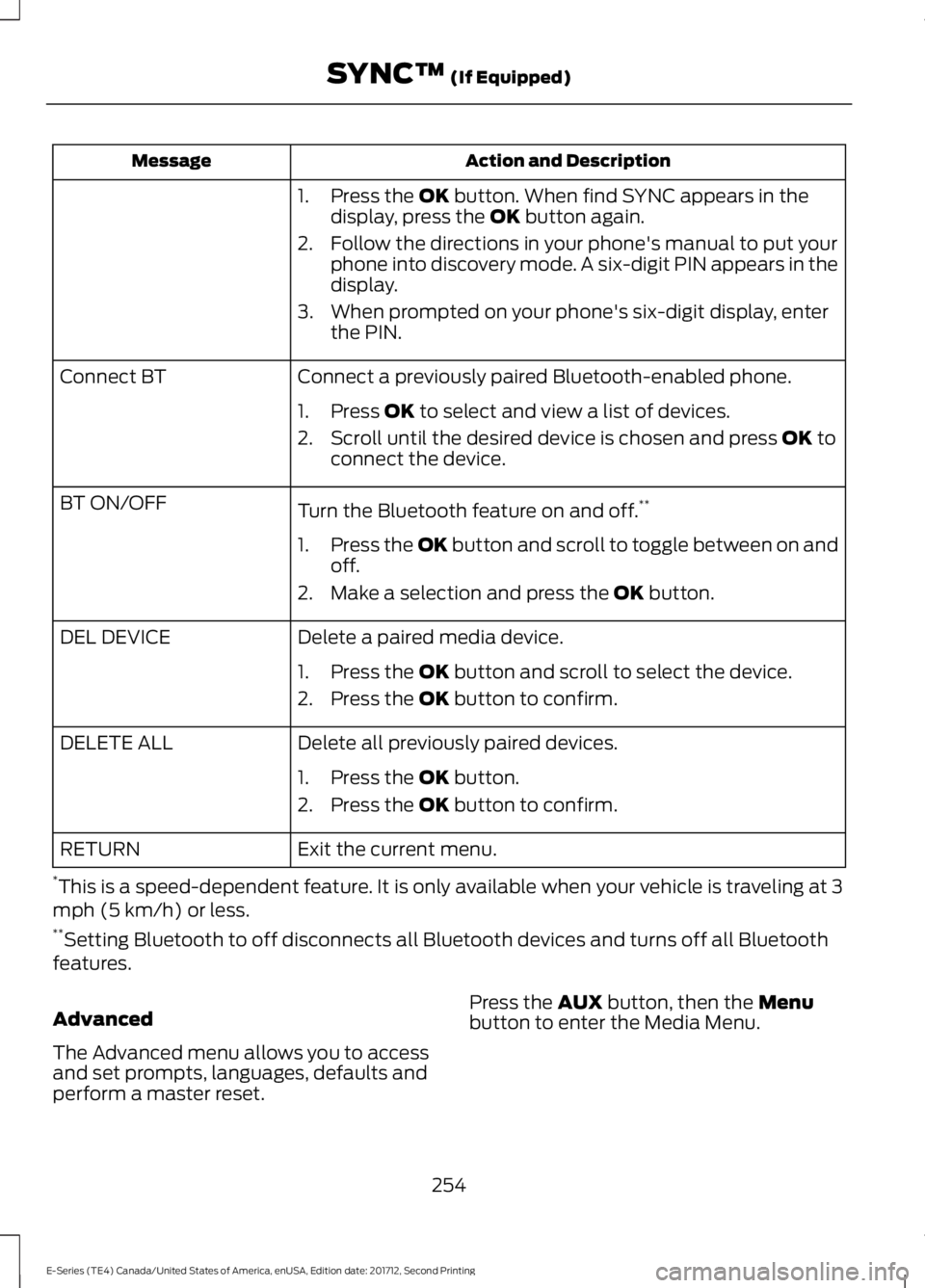
Action and Description
Message
1. Press the OK button. When find SYNC appears in the
display, press the OK button again.
2. Follow the directions in your phone's manual to put your phone into discovery mode. A six-digit PIN appears in the
display.
3. When prompted on your phone's six-digit display, enter the PIN.
Connect a previously paired Bluetooth-enabled phone.
Connect BT
1. Press
OK to select and view a list of devices.
2. Scroll until the desired device is chosen and press
OK to
connect the device.
Turn the Bluetooth feature on and off. **
BT ON/OFF
1.Press the OK button and scroll to toggle between on and
off.
2. Make a selection and press the
OK button.
Delete a paired media device.
DEL DEVICE
1. Press the
OK button and scroll to select the device.
2. Press the
OK button to confirm.
Delete all previously paired devices.
DELETE ALL
1. Press the
OK button.
2. Press the
OK button to confirm.
Exit the current menu.
RETURN
* This is a speed-dependent feature. It is only available when your vehicle is traveling at 3
mph (5 km/h) or less.
** Setting Bluetooth to off disconnects all Bluetooth devices and turns off all Bluetooth
features.
Advanced
The Advanced menu allows you to access
and set prompts, languages, defaults and
perform a master reset. Press the
AUX button, then the Menu
button to enter the Media Menu.
254
E-Series (TE4) Canada/United States of America, enUSA, Edition date: 201712, Second Printing SYNC™
(If Equipped)