phone FORD E-450 2019 Workshop Manual
[x] Cancel search | Manufacturer: FORD, Model Year: 2019, Model line: E-450, Model: FORD E-450 2019Pages: 329, PDF Size: 6.24 MB
Page 271 of 329
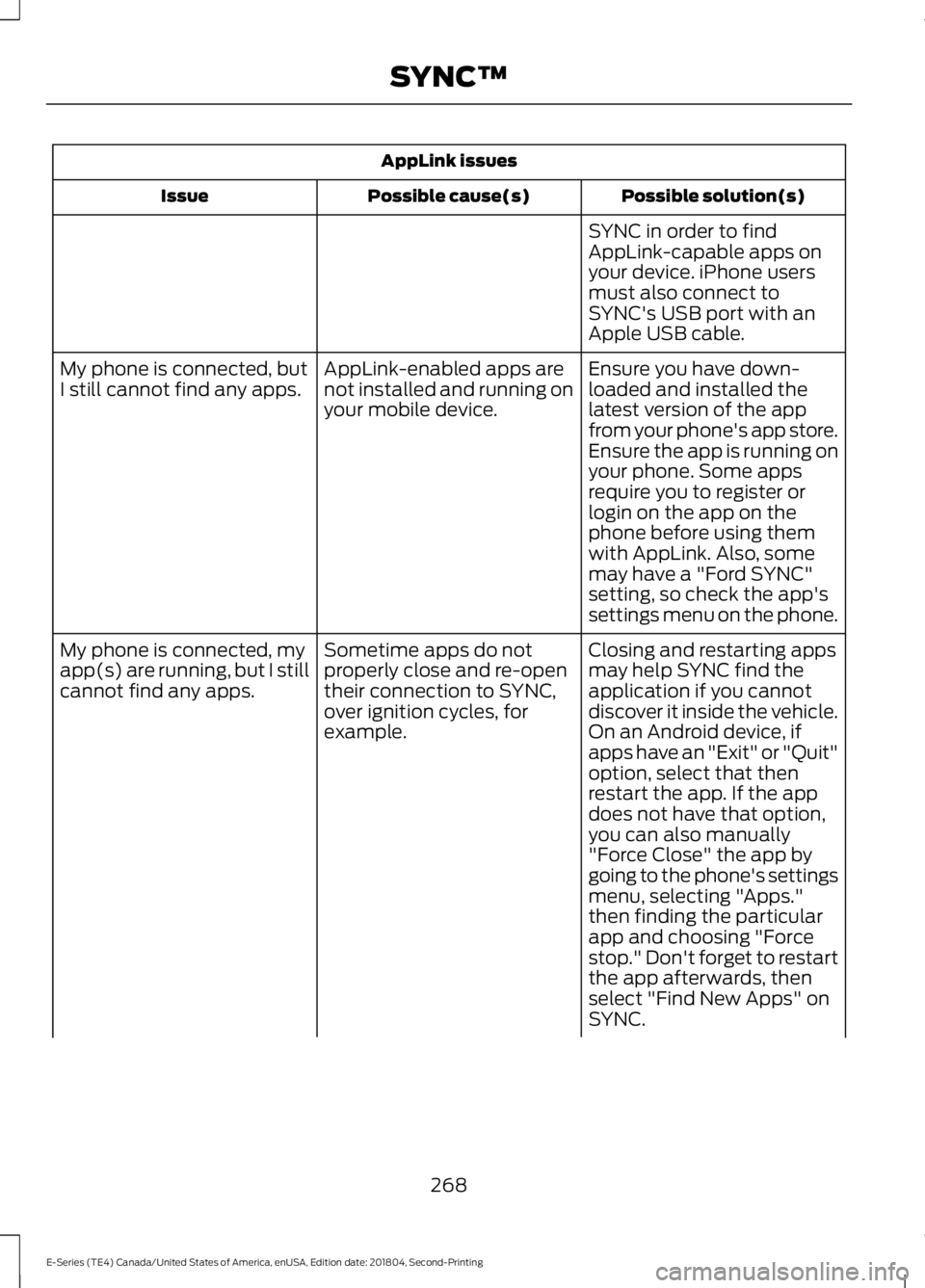
AppLink issues
Possible solution(s)
Possible cause(s)
Issue
SYNC in order to find
AppLink-capable apps on
your device. iPhone users
must also connect to
SYNC's USB port with an
Apple USB cable.
Ensure you have down-
loaded and installed the
latest version of the app
from your phone's app store.
Ensure the app is running on
your phone. Some apps
AppLink-enabled apps are
not installed and running on
your mobile device.
My phone is connected, but
I still cannot find any apps.
require you to register or
login on the app on the
phone before using them
with AppLink. Also, some
may have a "Ford SYNC"
setting, so check the app's
settings menu on the phone.
Closing and restarting apps
may help SYNC find the
application if you cannot
discover it inside the vehicle.
On an Android device, if
apps have an "Exit" or "Quit"
Sometime apps do not
properly close and re-open
their connection to SYNC,
over ignition cycles, for
example.
My phone is connected, my
app(s) are running, but I still
cannot find any apps.
option, select that then
restart the app. If the app
does not have that option,
you can also manually
"Force Close" the app by
going to the phone's settings
menu, selecting "Apps."
then finding the particular
app and choosing "Force
stop." Don't forget to restart
the app afterwards, then
select "Find New Apps" on
SYNC.
268
E-Series (TE4) Canada/United States of America, enUSA, Edition date: 201804, Second-Printing SYNC™
Page 272 of 329
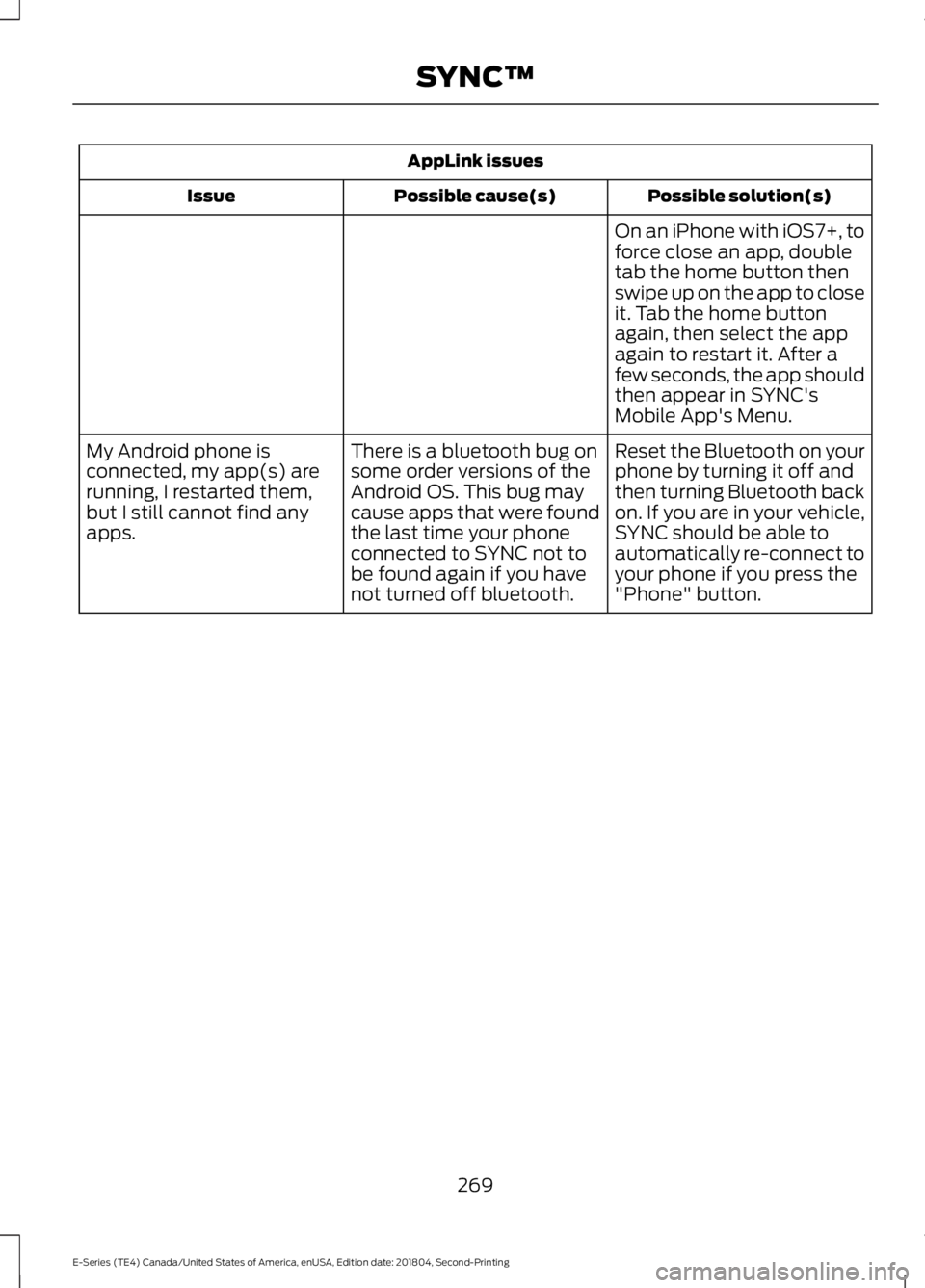
AppLink issues
Possible solution(s)
Possible cause(s)
Issue
On an iPhone with iOS7+, to
force close an app, double
tab the home button then
swipe up on the app to close
it. Tab the home button
again, then select the app
again to restart it. After a
few seconds, the app should
then appear in SYNC's
Mobile App's Menu.
Reset the Bluetooth on your
phone by turning it off and
then turning Bluetooth back
on. If you are in your vehicle,
SYNC should be able to
automatically re-connect to
your phone if you press the
"Phone" button.
There is a bluetooth bug on
some order versions of the
Android OS. This bug may
cause apps that were found
the last time your phone
connected to SYNC not to
be found again if you have
not turned off bluetooth.
My Android phone is
connected, my app(s) are
running, I restarted them,
but I still cannot find any
apps.
269
E-Series (TE4) Canada/United States of America, enUSA, Edition date: 201804, Second-Printing SYNC™
Page 273 of 329
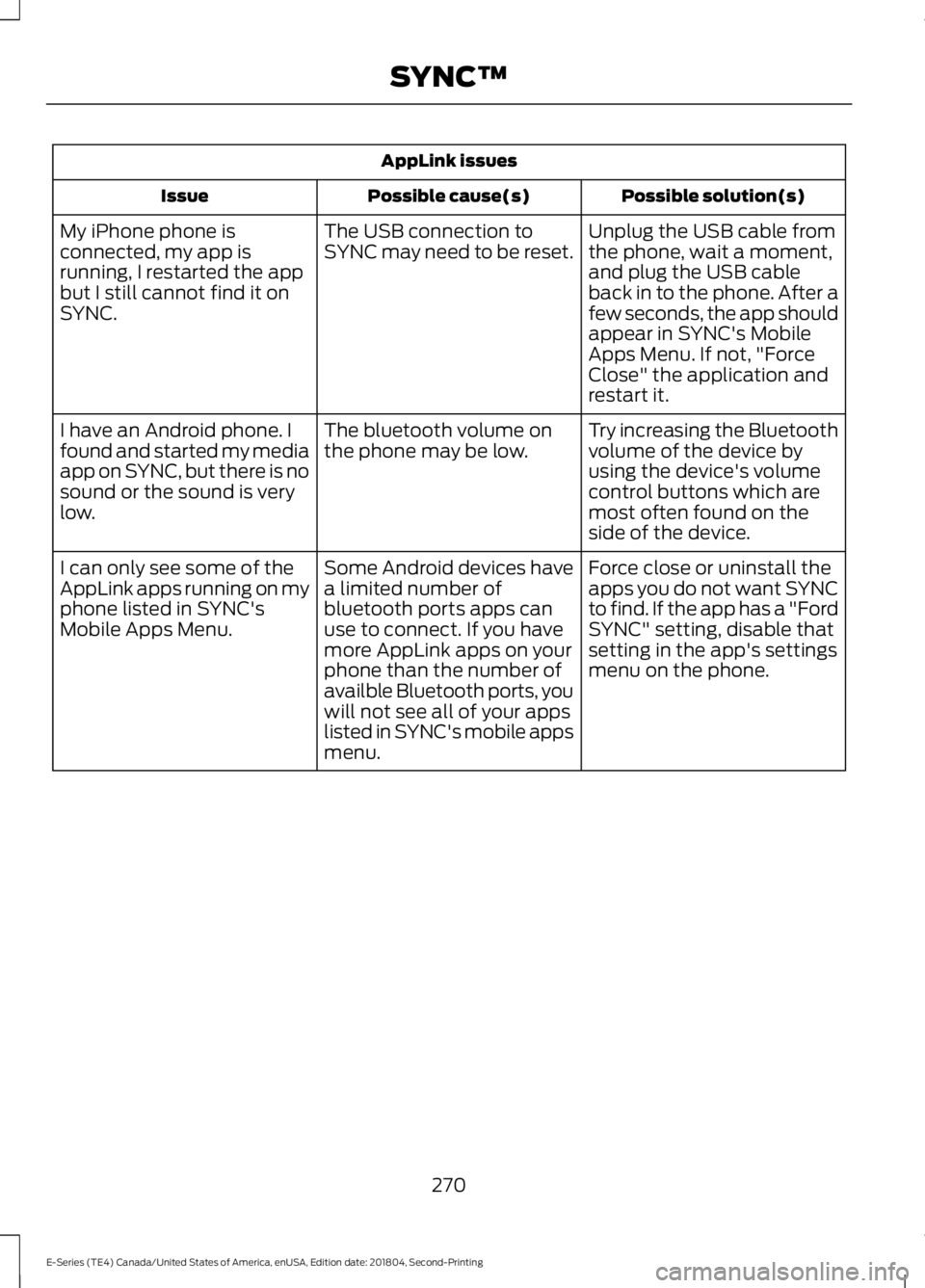
AppLink issues
Possible solution(s)
Possible cause(s)
Issue
Unplug the USB cable from
the phone, wait a moment,
and plug the USB cable
back in to the phone. After a
few seconds, the app should
appear in SYNC's Mobile
Apps Menu. If not, "Force
Close" the application and
restart it.
The USB connection to
SYNC may need to be reset.
My iPhone phone is
connected, my app is
running, I restarted the app
but I still cannot find it on
SYNC.
Try increasing the Bluetooth
volume of the device by
using the device's volume
control buttons which are
most often found on the
side of the device.
The bluetooth volume on
the phone may be low.
I have an Android phone. I
found and started my media
app on SYNC, but there is no
sound or the sound is very
low.
Force close or uninstall the
apps you do not want SYNC
to find. If the app has a "Ford
SYNC" setting, disable that
setting in the app's settings
menu on the phone.
Some Android devices have
a limited number of
bluetooth ports apps can
use to connect. If you have
more AppLink apps on your
phone than the number of
availble Bluetooth ports, you
will not see all of your apps
listed in SYNC's mobile apps
menu.
I can only see some of the
AppLink apps running on my
phone listed in SYNC's
Mobile Apps Menu.
270
E-Series (TE4) Canada/United States of America, enUSA, Edition date: 201804, Second-Printing SYNC™
Page 274 of 329
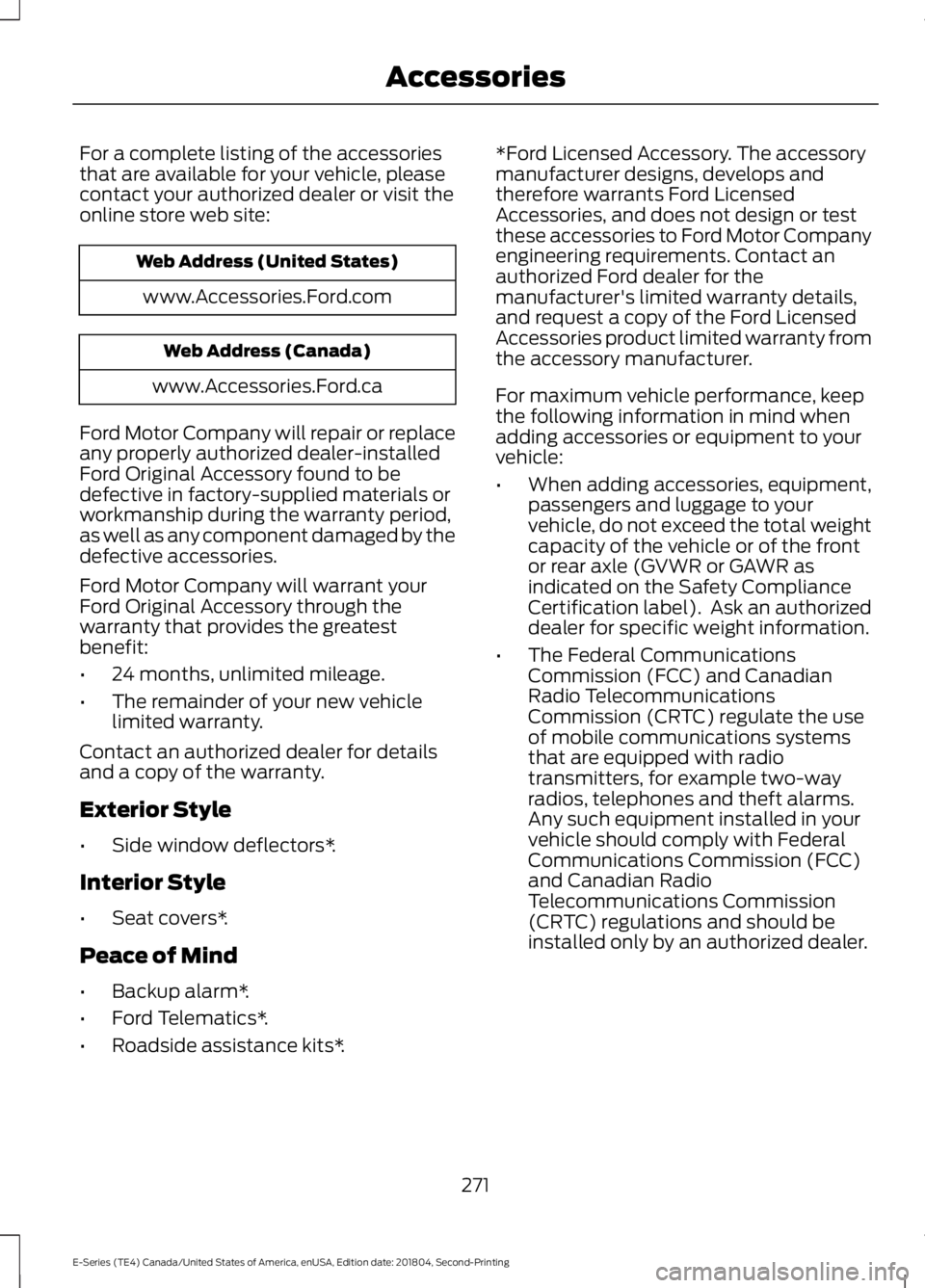
For a complete listing of the accessories
that are available for your vehicle, please
contact your authorized dealer or visit the
online store web site:
Web Address (United States)
www.Accessories.Ford.com Web Address (Canada)
www.Accessories.Ford.ca
Ford Motor Company will repair or replace
any properly authorized dealer-installed
Ford Original Accessory found to be
defective in factory-supplied materials or
workmanship during the warranty period,
as well as any component damaged by the
defective accessories.
Ford Motor Company will warrant your
Ford Original Accessory through the
warranty that provides the greatest
benefit:
• 24 months, unlimited mileage.
• The remainder of your new vehicle
limited warranty.
Contact an authorized dealer for details
and a copy of the warranty.
Exterior Style
• Side window deflectors*.
Interior Style
• Seat covers*.
Peace of Mind
• Backup alarm*.
• Ford Telematics*.
• Roadside assistance kits*. *Ford Licensed Accessory. The accessory
manufacturer designs, develops and
therefore warrants Ford Licensed
Accessories, and does not design or test
these accessories to Ford Motor Company
engineering requirements. Contact an
authorized Ford dealer for the
manufacturer's limited warranty details,
and request a copy of the Ford Licensed
Accessories product limited warranty from
the accessory manufacturer.
For maximum vehicle performance, keep
the following information in mind when
adding accessories or equipment to your
vehicle:
•
When adding accessories, equipment,
passengers and luggage to your
vehicle, do not exceed the total weight
capacity of the vehicle or of the front
or rear axle (GVWR or GAWR as
indicated on the Safety Compliance
Certification label). Ask an authorized
dealer for specific weight information.
• The Federal Communications
Commission (FCC) and Canadian
Radio Telecommunications
Commission (CRTC) regulate the use
of mobile communications systems
that are equipped with radio
transmitters, for example two-way
radios, telephones and theft alarms.
Any such equipment installed in your
vehicle should comply with Federal
Communications Commission (FCC)
and Canadian Radio
Telecommunications Commission
(CRTC) regulations and should be
installed only by an authorized dealer.
271
E-Series (TE4) Canada/United States of America, enUSA, Edition date: 201804, Second-Printing Accessories
Page 275 of 329
•
An authorized dealer needs to install
mobile communications systems.
Improper installation may harm the
operation of your vehicle, particularly
if the manufacturer did not design the
mobile communication system
specifically for automotive use.
• If you or an authorized Ford dealer add
any non-Ford electrical or electronic
accessories or components to your
vehicle, you may adversely affect
battery performance and durability. In
addition, you may also adversely affect
the performance of other electrical
systems in the vehicle.
AUXILIARY SWITCHES
For maximum vehicle performance, keep
the following information in mind when
adding accessories or equipment to your
vehicle:
• When adding accessories, equipment,
passengers and luggage to your
vehicle, do not exceed the total weight
capacity of the vehicle or of the front
or rear axle (GVWR or GAWR as
indicated on the Safety Compliance
Certification label). Ask an authorized
dealer for specific weight information.
• The Federal Communications
Commission (FCC) and Canadian
Radio Telecommunications
Commission (CRTC) regulate the use
of mobile communications systems
equipped with radio transmitters, for
example, two-way radios, telephones
and theft alarms. Any such equipment
installed in your vehicle should comply
with Federal Communications
Commission (FCC) and Canadian
Radio Telecommunications
Commission (CRTC) regulations, and
should be installed by an authorized
dealer. •
An authorized dealer needs to install
mobile communications systems.
Improper installation may harm the
operation of your vehicle, particularly
if the manufacturer did not design the
mobile communication system
specifically for automotive use.
• If you or an authorized Ford dealer add
any non-Ford electrical or electronic
accessories or components to your
vehicle, you may adversely affect
battery performance and durability. In
addition, you may also adversely affect
the performance of other electrical
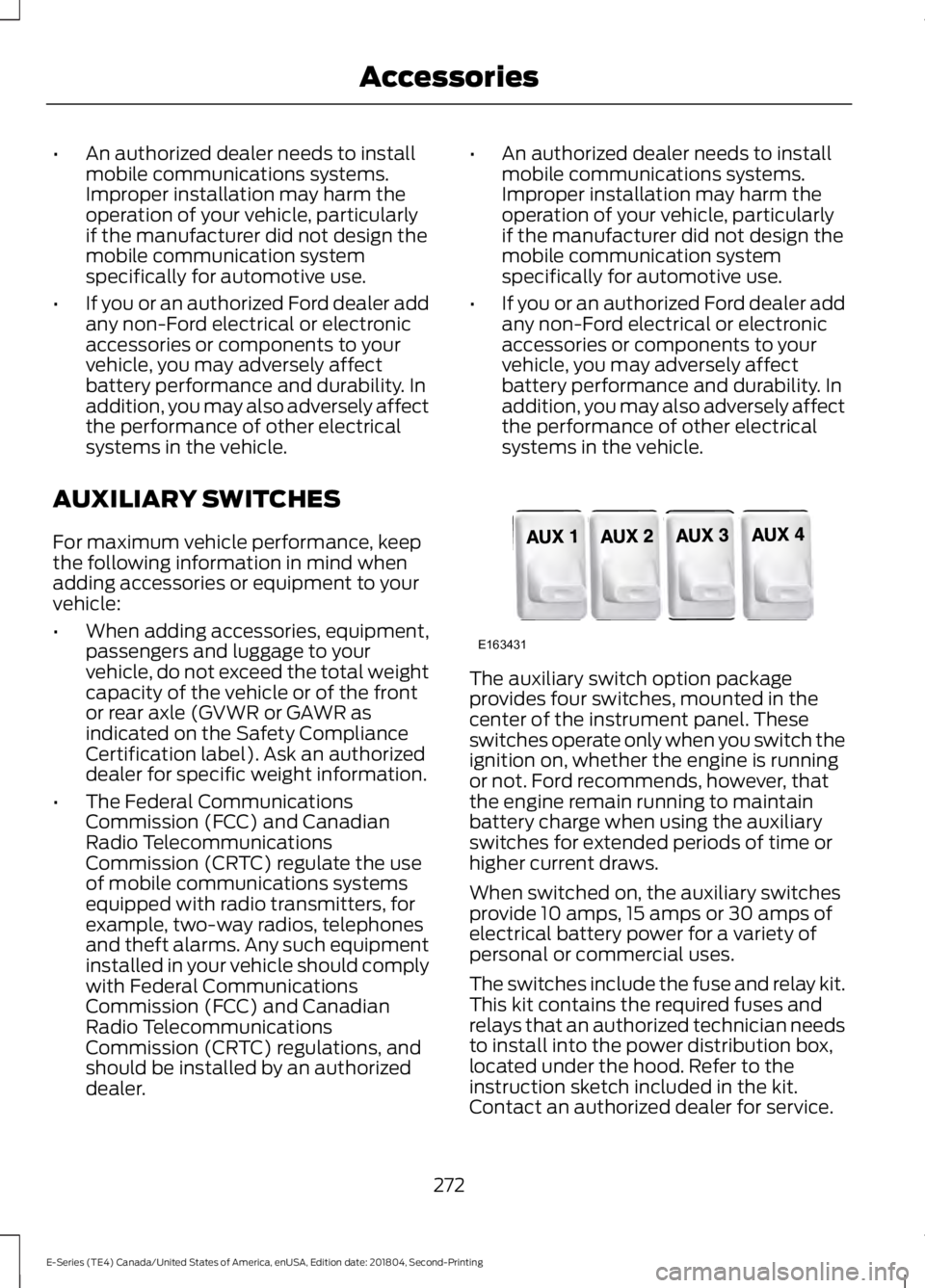
systems in the vehicle. The auxiliary switch option package
provides four switches, mounted in the
center of the instrument panel. These
switches operate only when you switch the
ignition on, whether the engine is running
or not. Ford recommends, however, that
the engine remain running to maintain
battery charge when using the auxiliary
switches for extended periods of time or
higher current draws.
When switched on, the auxiliary switches
provide 10 amps, 15 amps or 30 amps of
electrical battery power for a variety of
personal or commercial uses.
The switches include the fuse and relay kit.
This kit contains the required fuses and
relays that an authorized technician needs
to install into the power distribution box,
located under the hood. Refer to the
instruction sketch included in the kit.
Contact an authorized dealer for service.
272
E-Series (TE4) Canada/United States of America, enUSA, Edition date: 201804, Second-Printing AccessoriesE163431
Page 297 of 329
ELECTROMAGNETIC
COMPATIBILITY
WARNING: Do not place objects
or mount equipment on or near the
airbag cover, on the side of the seatbacks
(of the front seats), or in front seat areas
that may come into contact with a
deploying airbag. Failure to follow these
instructions may increase the risk of
personal injury in the event of a crash. WARNING:
Do not fasten antenna
cables to original vehicle wiring, fuel
pipes and brake pipes. WARNING:
Keep antenna and
power cables at least 4 in (10 cm) from
any electronic modules and airbags.
Note: We test and certify your vehicle to
meet electromagnetic compatibility
legislation (UNECE Regulation 10 or other
applicable local requirements). It is your
responsibility to make sure that any
equipment an authorized dealer installs on
your vehicle complies with applicable local
legislation and other requirements.
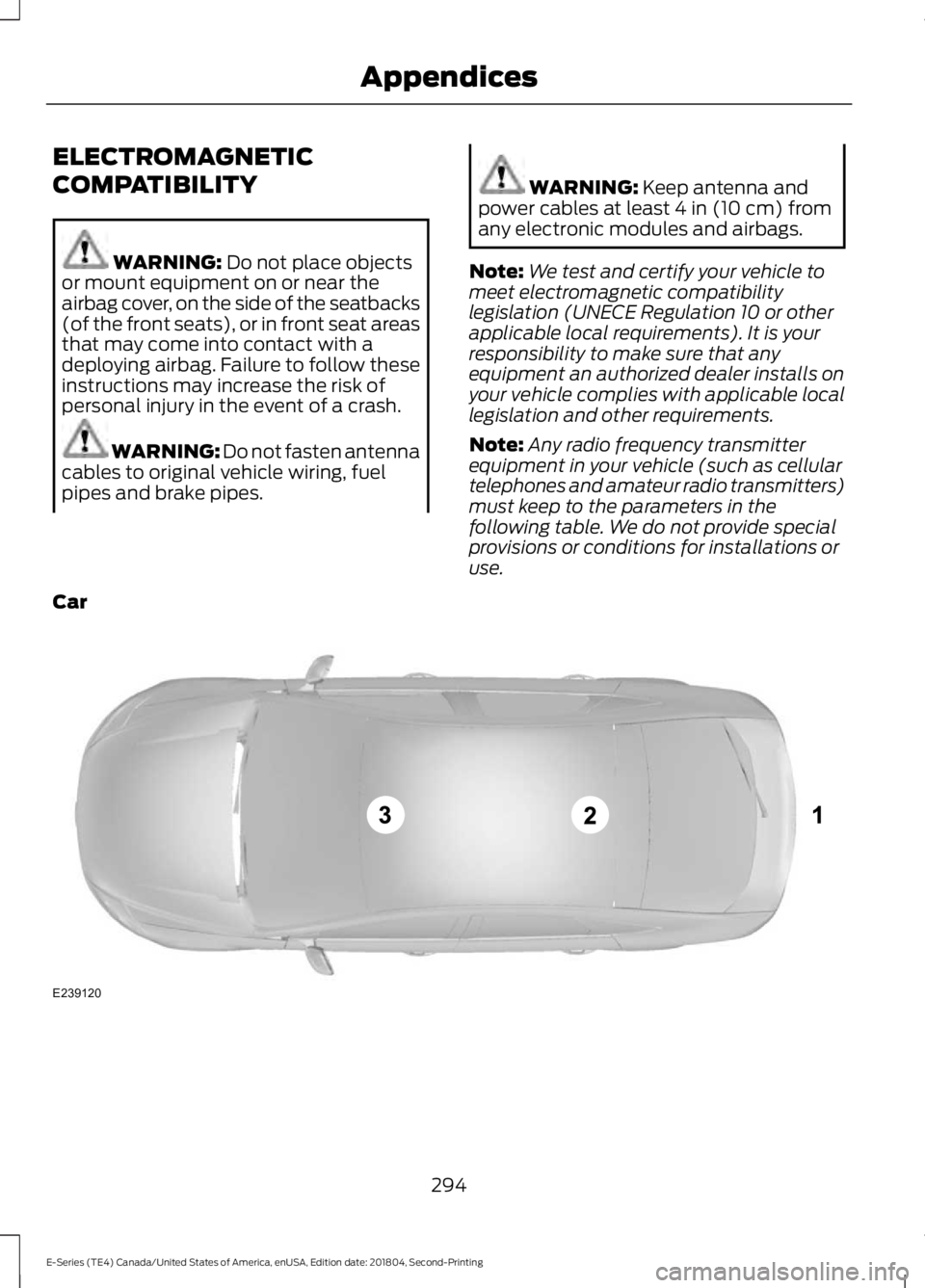
Note: Any radio frequency transmitter
equipment in your vehicle (such as cellular
telephones and amateur radio transmitters)
must keep to the parameters in the
following table. We do not provide special
provisions or conditions for installations or
use.
Car 294
E-Series (TE4) Canada/United States of America, enUSA, Edition date: 201804, Second-Printing AppendicesE239120
Page 310 of 329
9.2 End User Terms Required by NAV2
(Shanghai) Co., Ltd
The data (“Data
”) is provided for your
personal, internal use only and not for
resale. It is protected by copyright, and is
subject to the following terms and
conditions which are agreed to by you, on
the one hand, and NAV2 (Shanghai) Co.,
Ltd (“NAV2”) and its licensors (including
their licensors and suppliers) on the other
hand.
© 20xx. All rights reserved.
Permitted Use.
You agree to use this Data together with
the Telenav Software solely for the internal
business and personal purposes for which
you were licensed, and not for service
bureau, time-sharing or other similar
purposes. Accordingly, but subject to the
restrictions set forth in the following
paragraphs, you agree not to otherwise
reproduce, copy, modify, decompile,
disassemble, create any derivative works
of, or reverse engineer any portion of this
Data, and may not transfer or distribute it
in any form, for any purpose, except to the
extent permitted by mandatory laws.
Restrictions.
Except where you have been specifically
licensed to do so by Telenav, and without
limiting the preceding paragraph, you may
not use this Data (a) with any products,
systems, or applications installed or
otherwise connected to or in
communication with vehicles, capable of
vehicle navigation, positioning, dispatch,
real time route guidance, fleet
management or similar applications; or (b)
with or in communication with any positioning devices or any mobile or
wireless-connected electronic or computer
devices, including without limitation
cellular phones, palmtop and handheld
computers, pagers, and personal digital
assistants or PDAs.
Warning.
The Data may contain inaccurate or
incomplete information due to the passage
of time, changing circumstances, sources
used and the nature of collecting
comprehensive geographic data, any of
which may lead to incorrect results.
No Warranty.
This Data is provided to you
“as is, ” and
you agree to use it at your own risk. Telenav
and its licensors (and their licensors and
suppliers) make no guarantees,
representations or warranties of any kind,
express or implied, arising by law or
otherwise, including but not limited to,
content, quality, accuracy, completeness,
effectiveness, reliability, fitness for a
particular purpose, usefulness, use or
results to be obtained from this Data, or
that the Data or server will be
uninterrupted or error-free.
Disclaimer of Warranty:
TELENAV AND ITS LICENSORS
(INCLUDING THEIR LICENSORS AND
SUPPLIERS) DISCLAIM ANY
WARRANTIES, EXPRESS OR IMPLIED, OF
QUALITY, PERFORMANCE,
MERCHANTABILITY, FITNESS FOR A
PARTICULAR PURPOSE OR
NON-INFRINGEMENT. Some States,
Territories and Countries do not allow
certain warranty exclusions, so to that
extent the above exclusion may not apply
to you.
307
E-Series (TE4) Canada/United States of America, enUSA, Edition date: 201804, Second-Printing Appendices
Page 317 of 329
Product incorporates data which is ©
20XX Telstra Corporation Limited, GM
Holden Limited, Intelematics Australia
Pty Ltd and Continental Pty Ltd.
B. Third Party Notices for Australia. In
addition to the foregoing, the End-User
Terms for any Application containing
RDS-TMC Traffic Codes for Australia
shall contain the following notice:
“Product incorporates traffic location
codes which is © 20XX Telstra Corpora-
tion Limited and its licensors. ”
VII. China Territory
Personal Use Only
You agree to use this Data together with
[insert name of Client Application] for the
solely personal, non-commercial purposes
for which you were licensed, and not for
service bureau, time-sharing or other
similar purposes. Accordingly, but subject
to the restrictions set forth in the following
paragraphs, you may copy this Data only
as necessary for your personal use to (i)
view it, and (ii) save it, provided that you
do not remove any copyright notices that
appear and do not modify the Data in any
way. You agree not to otherwise reproduce,
copy, modify, decompile, disassemble or
reverse engineer any portion of this Data,
and may not transfer or distribute it in any
form, for any purpose, except to the extent
permitted by mandatory laws.
Restrictions
Except where you have been specifically
licensed to do so by NAV2 , and without
limiting the preceding paragraph, you may
not (a) use this Data with any products,
systems, or applications installed or
otherwise connected to or in
communication with vehicles, capable of
vehicle navigation, positioning, dispatch,
real time route guidance, fleet
management or similar applications; or (b) with or in communication with any
positioning devices or any mobile or
wireless-connected electronic or computer
devices, including without limitation
cellular phones, palmtop and handheld
computers, pagers, and personal digital
assistants or PDAs. You agree to cease
using this Data if you fail to comply with
these terms and conditions.
Limited Warranty
NAV2 warrants that (a) the Data will
perform substantially in accordance with
the accompanying written materials for a
period of ninety (90) days from the date
of receipt, and (b) any support services
provided by NAV2 shall be substantially as
described in applicable written materials
provided to you by NAV2, and NAV2’
s
support engineers will make commercially
reasonable efforts to solve any problem
issues.
rigCustomer Remedies
NAV2 and its suppliers’ entire liability and
your exclusive remedy shall be, at NAV2’ s
sole discretion, either (a) return of the price
paid, if any, or (b) repair or replacement of
the Data that do not meet NAV2’ s Limited
Warranty and that are returned to NAV2
with a copy of your receipt. This Limited
Warranty is void if failure of the Data has
resulted from accident, abuse, or
misapplication. Any replacement Data will
be warranted for the remainder of the
original warranty period or thirty (30) days,
whichever is longer. Neither these remedies
nor any product support services offered
by NAV2 are available without proof of
purchase from an authorized international
source.
314
E-Series (TE4) Canada/United States of America, enUSA, Edition date: 201804, Second-Printing Appendices
Page 322 of 329
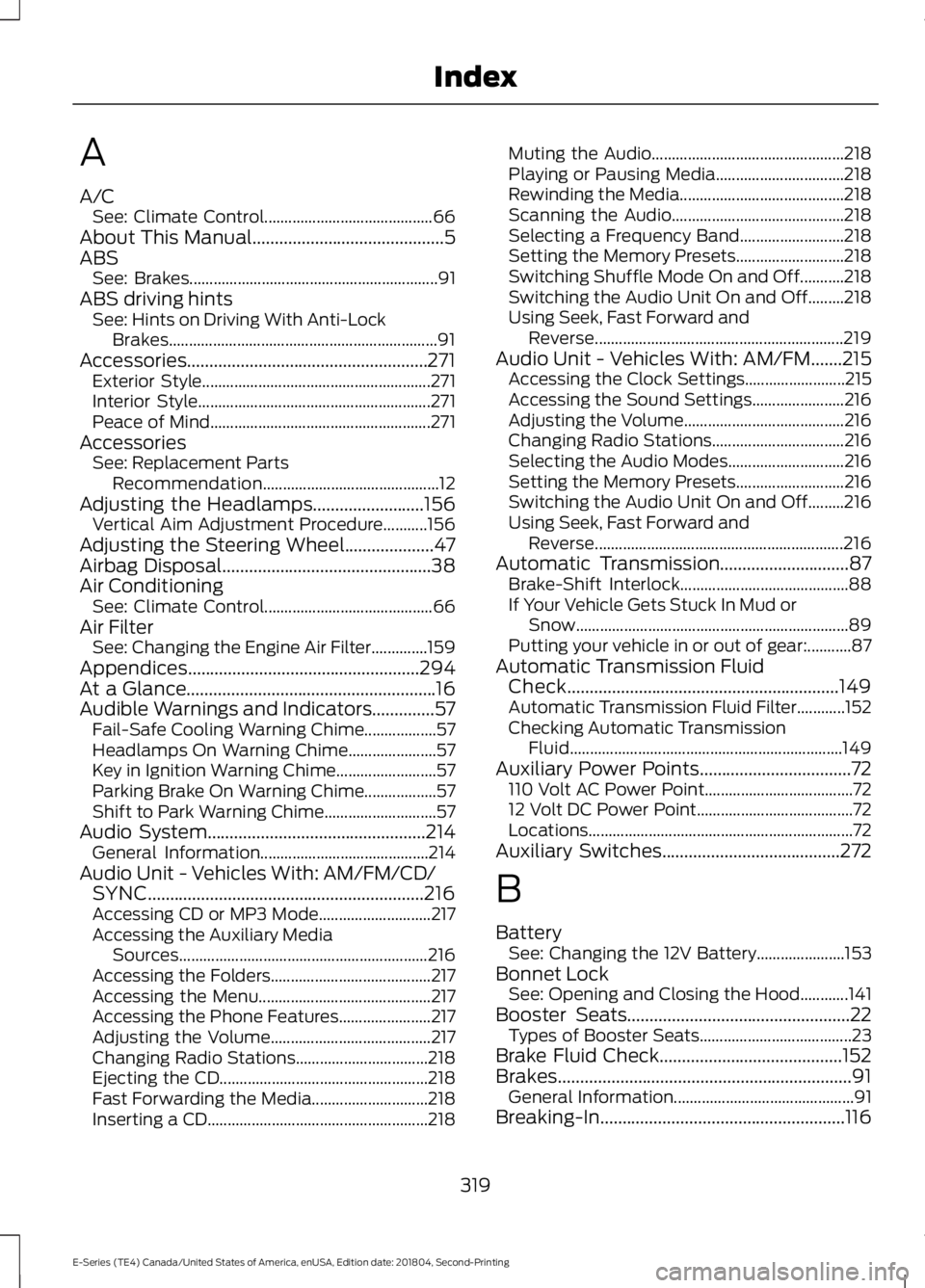
A
A/C
See: Climate Control.......................................... 66
About This Manual...........................................5
ABS See: Brakes.............................................................. 91
ABS driving hints See: Hints on Driving With Anti-Lock
Brakes................................................................... 91
Accessories......................................................271 Exterior Style......................................................... 271
Interior Style.......................................................... 271
Peace of Mind....................................................... 271
Accessories See: Replacement Parts
Recommendation............................................ 12
Adjusting the Headlamps.........................156
Vertical Aim Adjustment Procedure...........156
Adjusting the Steering Wheel....................47
Airbag Disposal
...............................................38
Air Conditioning See: Climate Control.......................................... 66
Air Filter See: Changing the Engine Air Filter..............159
Appendices
....................................................294
At a Glance........................................................16
Audible Warnings and Indicators..............57 Fail-Safe Cooling Warning Chime.................. 57
Headlamps On Warning Chime...................... 57
Key in Ignition Warning Chime......................... 57
Parking Brake On Warning Chime.................. 57
Shift to Park Warning Chime............................ 57
Audio System.................................................214 General Information.......................................... 214
Audio Unit - Vehicles With: AM/FM/CD/ SYNC..............................................................216
Accessing CD or MP3 Mode............................ 217
Accessing the Auxiliary Media Sources.............................................................. 216
Accessing the Folders........................................ 217
Accessing the Menu........................................... 217
Accessing the Phone Features....................... 217
Adjusting the Volume........................................ 217
Changing Radio Stations................................. 218
Ejecting the CD.................................................... 218
Fast Forwarding the Media............................. 218
Inserting a CD....................................................... 218Muting the Audio................................................
218
Playing or Pausing Media................................ 218
Rewinding the Media......................................... 218
Scanning the Audio........................................... 218
Selecting a Frequency Band.......................... 218
Setting the Memory Presets........................... 218
Switching Shuffle Mode On and Off...........218
Switching the Audio Unit On and Off.........218
Using Seek, Fast Forward and Reverse.............................................................. 219
Audio Unit - Vehicles With: AM/FM.......215 Accessing the Clock Settings......................... 215
Accessing the Sound Settings....................... 216
Adjusting the Volume........................................ 216
Changing Radio Stations................................. 216
Selecting the Audio Modes............................. 216
Setting the Memory Presets........................... 216
Switching the Audio Unit On and Off.........216
Using Seek, Fast Forward and Reverse.............................................................. 216
Automatic Transmission.............................87 Brake-Shift Interlock.......................................... 88
If Your Vehicle Gets Stuck In Mud or Snow.................................................................... 89
Putting your vehicle in or out of gear:...........87
Automatic Transmission Fluid Check.............................................................149
Automatic Transmission Fluid Filter............152
Checking Automatic Transmission Fluid.................................................................... 149
Auxiliary Power Points..................................72 110 Volt AC Power Point..................................... 72
12 Volt DC Power Point....................................... 72
Locations.................................................................. 72
Auxiliary Switches
........................................272
B
Battery See: Changing the 12V Battery...................... 153
Bonnet Lock See: Opening and Closing the Hood............141
Booster Seats
..................................................22
Types of Booster Seats...................................... 23
Brake Fluid Check.........................................152
Brakes..................................................................91 General Information............................................. 91
Breaking-In.......................................................116
319
E-Series (TE4) Canada/United States of America, enUSA, Edition date: 201804, Second-Printing Index
Page 328 of 329
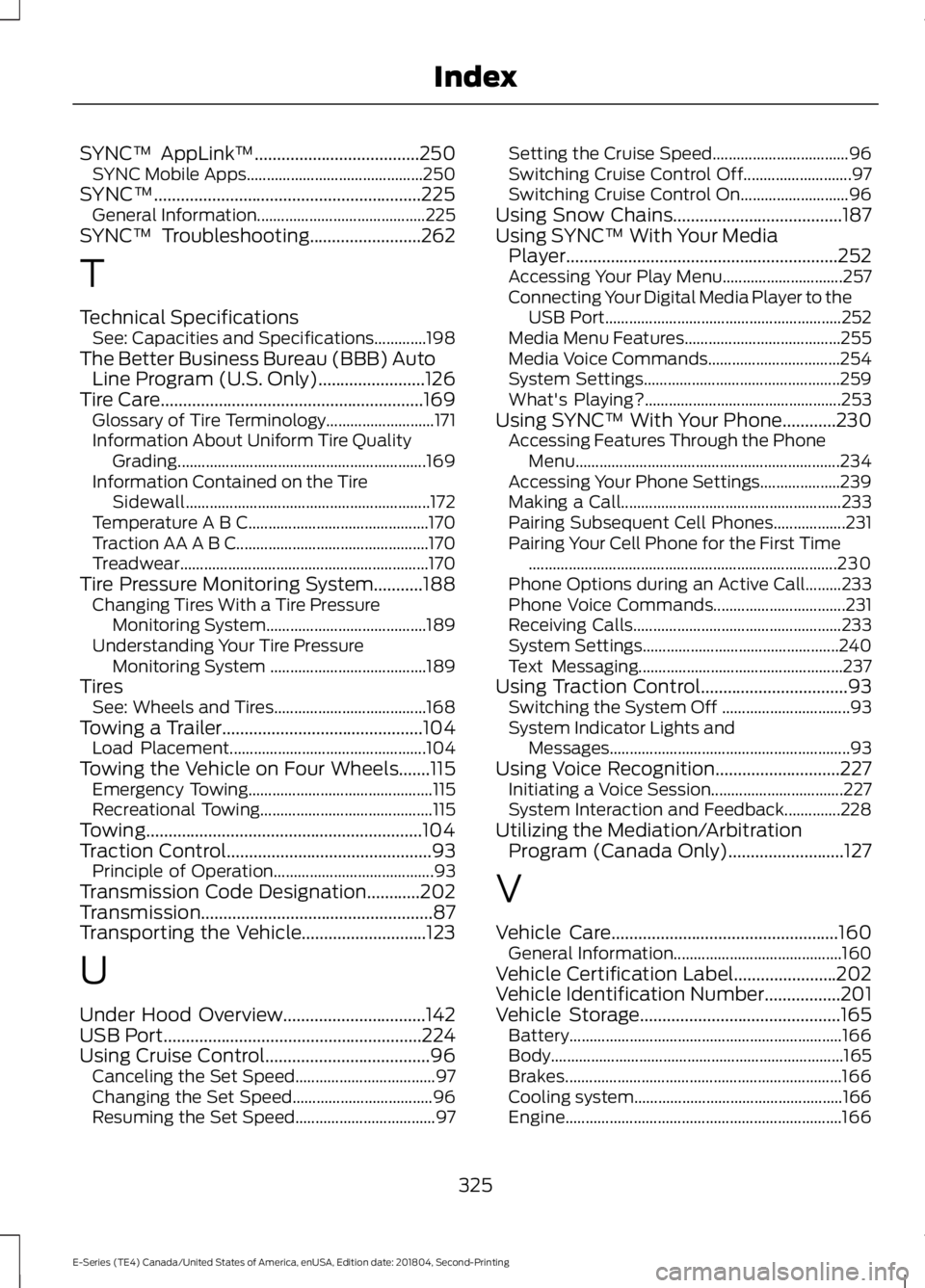
SYNC™ AppLink
™.....................................250
SYNC Mobile Apps............................................ 250
SYNC™............................................................225 General Information.......................................... 225
SYNC™ Troubleshooting
.........................262
T
Technical Specifications See: Capacities and Specifications.............198
The Better Business Bureau (BBB) Auto Line Program (U.S. Only)........................126
Tire Care
...........................................................169
Glossary of Tire Terminology........................... 171
Information About Uniform Tire Quality Grading.............................................................. 169
Information Contained on the Tire Sidewall............................................................. 172
Temperature A B C............................................. 170
Traction AA A B C................................................ 170
Treadwear.............................................................. 170
Tire Pressure Monitoring System...........188 Changing Tires With a Tire Pressure
Monitoring System........................................ 189
Understanding Your Tire Pressure Monitoring System ....................................... 189
Tires See: Wheels and Tires...................................... 168
Towing a Trailer.............................................104 Load Placement................................................. 104
Towing the Vehicle on Four Wheels.......115 Emergency Towing.............................................. 115
Recreational Towing........................................... 115
Towing..............................................................104
Traction Control
..............................................93
Principle of Operation........................................ 93
Transmission Code Designation............202
Transmission....................................................87
Transporting the Vehicle............................123
U
Under Hood Overview................................142
USB Port
..........................................................224
Using Cruise Control.....................................96
Canceling the Set Speed................................... 97
Changing the Set Speed................................... 96
Resuming the Set Speed................................... 97Setting the Cruise Speed..................................
96
Switching Cruise Control Off........................... 97
Switching Cruise Control On........................... 96
Using Snow Chains
......................................187
Using SYNC™ With Your Media Player.............................................................252
Accessing Your Play Menu.............................. 257
Connecting Your Digital Media Player to the USB Port........................................................... 252
Media Menu Features....................................... 255
Media Voice Commands................................. 254
System Settings................................................. 259
What's Playing?................................................. 253
Using SYNC™ With Your Phone
............230
Accessing Features Through the Phone
Menu.................................................................. 234
Accessing Your Phone Settings.................... 239
Making a Call....................................................... 233
Pairing Subsequent Cell Phones.................. 231
Pairing Your Cell Phone for the First Time ........................................................................\
..... 230
Phone Options during an Active Call.........233
Phone Voice Commands................................. 231
Receiving Calls.................................................... 233
System Settings................................................. 240
Text Messaging................................................... 237
Using Traction Control.................................93 Switching the System Off ................................ 93
System Indicator Lights and Messages............................................................ 93
Using Voice Recognition............................227 Initiating a Voice Session................................. 227
System Interaction and Feedback..............228
Utilizing the Mediation/Arbitration Program (Canada Only)..........................127
V
Vehicle Care
...................................................160
General Information.......................................... 160
Vehicle Certification Label
.......................202
Vehicle Identification Number.................201
Vehicle Storage
.............................................165
Battery.................................................................... 166
Body........................................................................\
. 165
Brakes..................................................................... 166
Cooling system.................................................... 166
Engine..................................................................... 166
325
E-Series (TE4) Canada/United States of America, enUSA, Edition date: 201804, Second-Printing Index