sat nav FORD E SERIES 2013 4.G User Guide
[x] Cancel search | Manufacturer: FORD, Model Year: 2013, Model line: E SERIES, Model: FORD E SERIES 2013 4.GPages: 416, PDF Size: 4.29 MB
Page 389 of 416
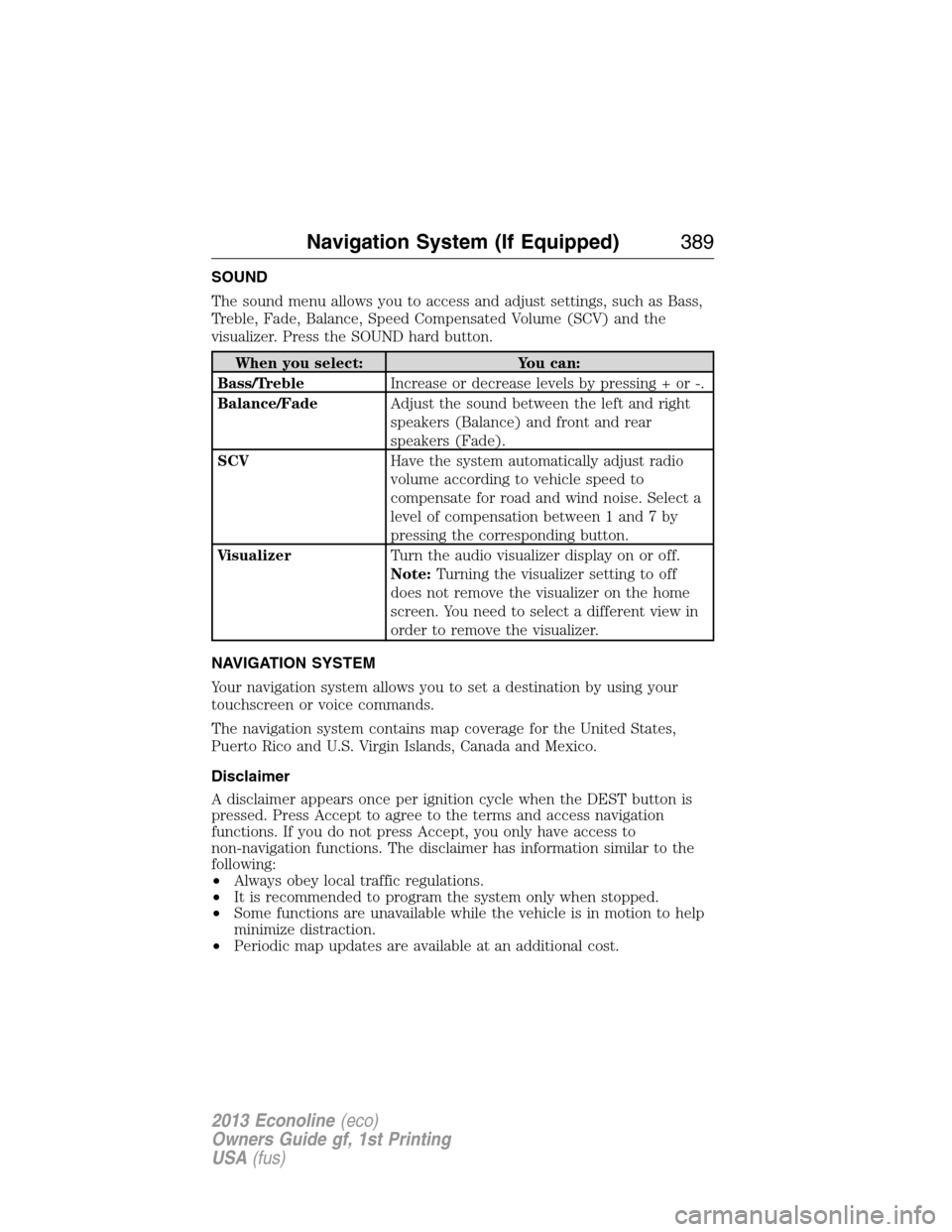
SOUND
The sound menu allows you to access and adjust settings, such as Bass,
Treble, Fade, Balance, Speed Compensated Volume (SCV) and the
visualizer. Press the SOUND hard button.
When you select: You can:
Bass/TrebleIncrease or decrease levels by pressing + or -.
Balance/FadeAdjust the sound between the left and right
speakers (Balance) and front and rear
speakers (Fade).
SCVHave the system automatically adjust radio
volume according to vehicle speed to
compensate for road and wind noise. Select a
level of compensation between 1 and 7 by
pressing the corresponding button.
VisualizerTurn the audio visualizer display on or off.
Note:Turning the visualizer setting to off
does not remove the visualizer on the home
screen. You need to select a different view in
order to remove the visualizer.
NAVIGATION SYSTEM
Your navigation system allows you to set a destination by using your
touchscreen or voice commands.
The navigation system contains map coverage for the United States,
Puerto Rico and U.S. Virgin Islands, Canada and Mexico.
Disclaimer
A disclaimer appears once per ignition cycle when the DEST button is
pressed. Press Accept to agree to the terms and access navigation
functions. If you do not press Accept, you only have access to
non-navigation functions. The disclaimer has information similar to the
following:
•Always obey local traffic regulations.
•It is recommended to program the system only when stopped.
•Some functions are unavailable while the vehicle is in motion to help
minimize distraction.
•Periodic map updates are available at an additional cost.
Navigation System (If Equipped)389
2013 Econoline(eco)
Owners Guide gf, 1st Printing
USA(fus)
Page 393 of 416
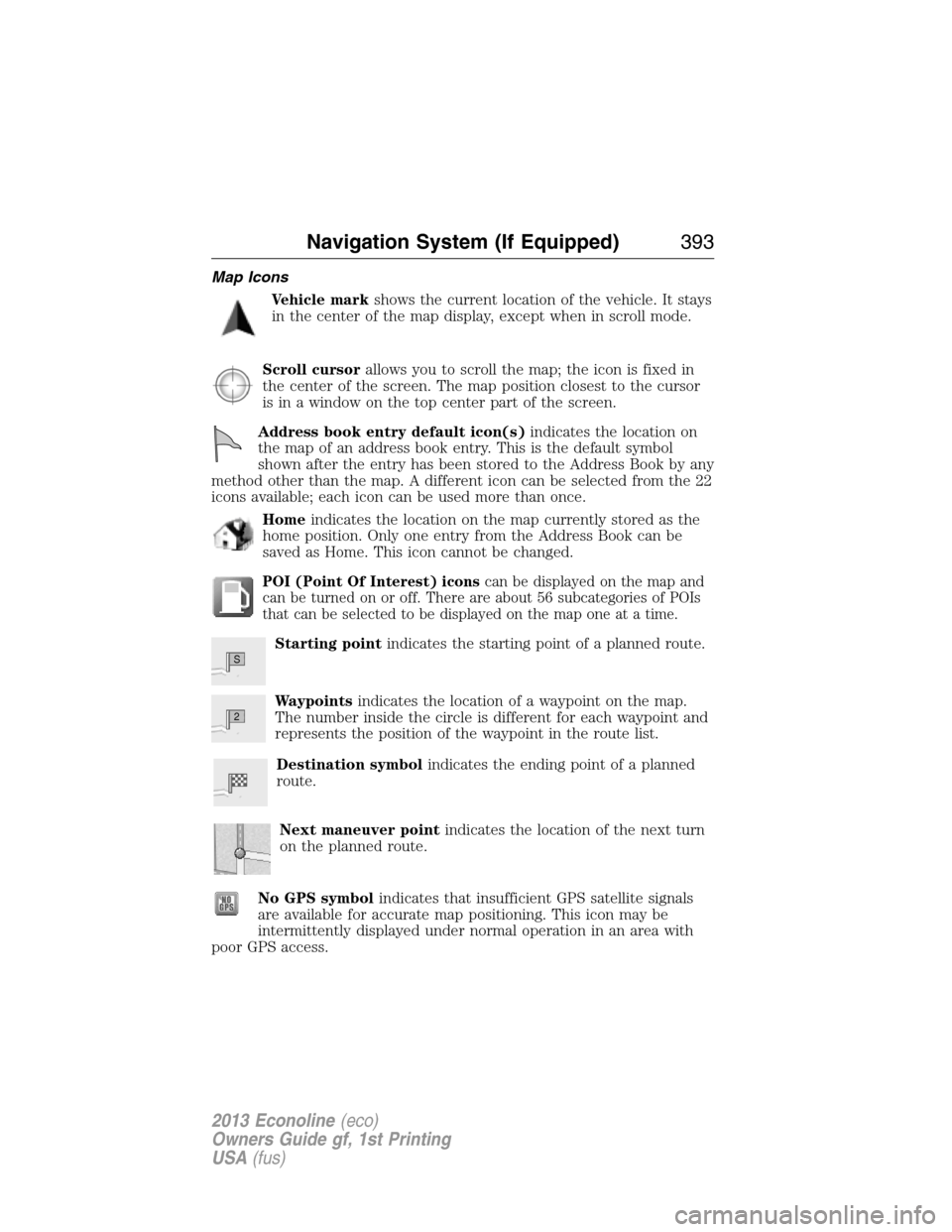
Map Icons
Vehicle markshows the current location of the vehicle. It stays
in the center of the map display, except when in scroll mode.
Scroll cursorallows you to scroll the map; the icon is fixed in
the center of the screen. The map position closest to the cursor
is in a window on the top center part of the screen.
Address book entry default icon(s)indicates the location on
the map of an address book entry. This is the default symbol
shown after the entry has been stored to the Address Book by any
method other than the map. A different icon can be selected from the 22
icons available; each icon can be used more than once.
Homeindicates the location on the map currently stored as the
home position. Only one entry from the Address Book can be
saved as Home. This icon cannot be changed.
POI (Point Of Interest) iconscan be displayed on the map and
can be turned on or off. There are about 56 subcategories of POIs
that can be selected to be displayed on the map one at a time.
Starting pointindicates the starting point of a planned route.
Waypointsindicates the location of a waypoint on the map.
The number inside the circle is different for each waypoint and
represents the position of the waypoint in the route list.
Destination symbolindicates the ending point of a planned
route.
Next maneuver pointindicates the location of the next turn
on the planned route.
No GPS symbolindicates that insufficient GPS satellite signals
are available for accurate map positioning. This icon may be
intermittently displayed under normal operation in an area with
poor GPS access.S
2
Navigation System (If Equipped)393
2013 Econoline(eco)
Owners Guide gf, 1st Printing
USA(fus)