ECO mode FORD E SERIES 2014 4.G Service Manual
[x] Cancel search | Manufacturer: FORD, Model Year: 2014, Model line: E SERIES, Model: FORD E SERIES 2014 4.GPages: 438, PDF Size: 5.12 MB
Page 310 of 438
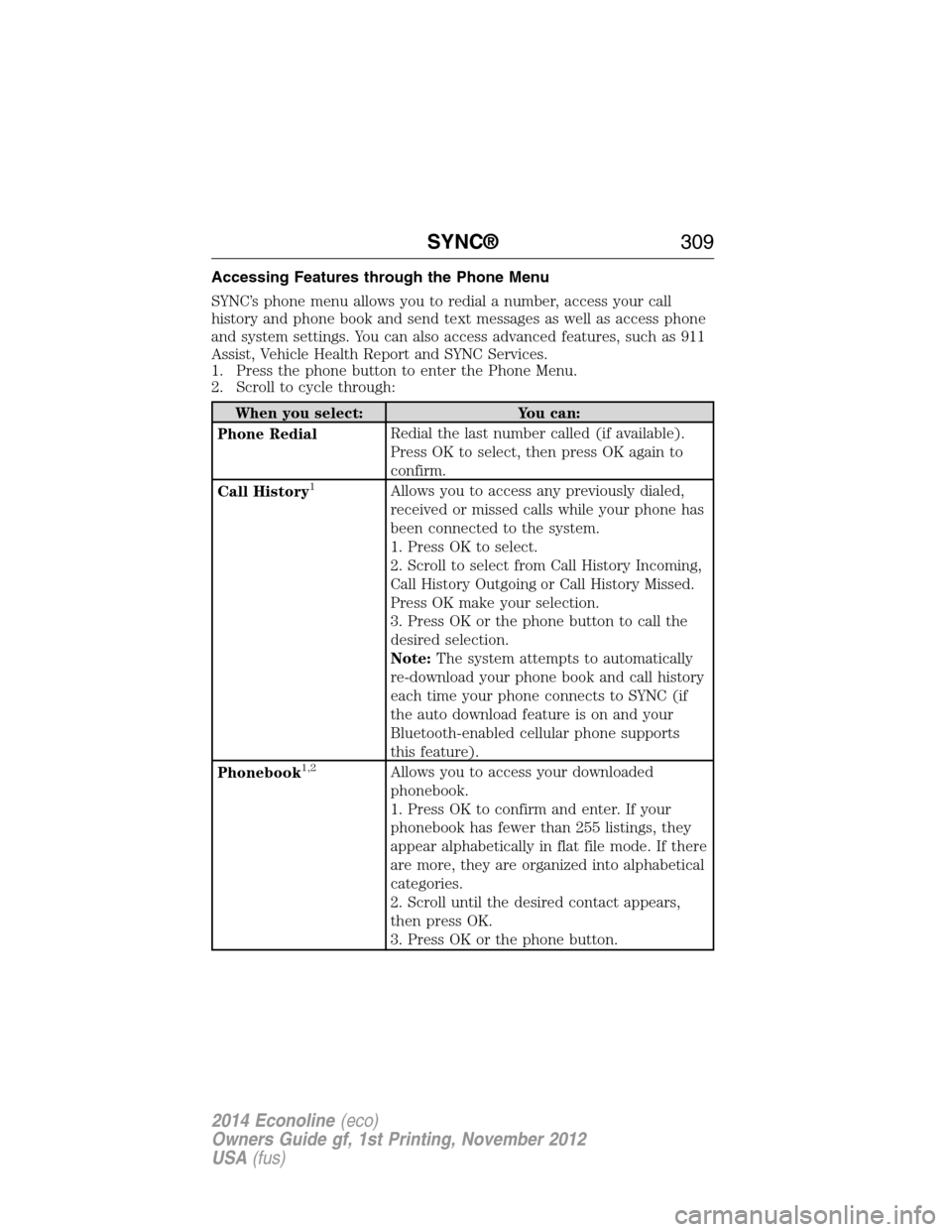
Accessing Features through the Phone Menu
SYNC’s phone menu allows you to redial a number, access your call
history and phone book and send text messages as well as access phone
and system settings. You can also access advanced features, such as 911
Assist, Vehicle Health Report and SYNC Services.
1. Press the phone button to enter the Phone Menu.
2. Scroll to cycle through:
When you select: You can:
Phone RedialRedial the last number called (if available).
Press OK to select, then press OK again to
confirm.
Call History
1Allows you to access any previously dialed,
received or missed calls while your phone has
been connected to the system.
1. Press OK to select.
2. Scroll to select from Call History Incoming,
Call History Outgoing or Call History Missed.
Press OK make your selection.
3. Press OK or the phone button to call the
desired selection.
Note:The system attempts to automatically
re-download your phone book and call history
each time your phone connects to SYNC (if
the auto download feature is on and your
Bluetooth-enabled cellular phone supports
this feature).
Phonebook
1,2Allows you to access your downloaded
phonebook.
1. Press OK to confirm and enter. If your
phonebook has fewer than 255 listings, they
appear alphabetically in flat file mode. If there
are more, they are organized into alphabetical
categories.
2. Scroll until the desired contact appears,
then press OK.
3. Press OK or the phone button.
SYNC®309
2014 Econoline(eco)
Owners Guide gf, 1st Printing, November 2012
USA(fus)
Page 330 of 438
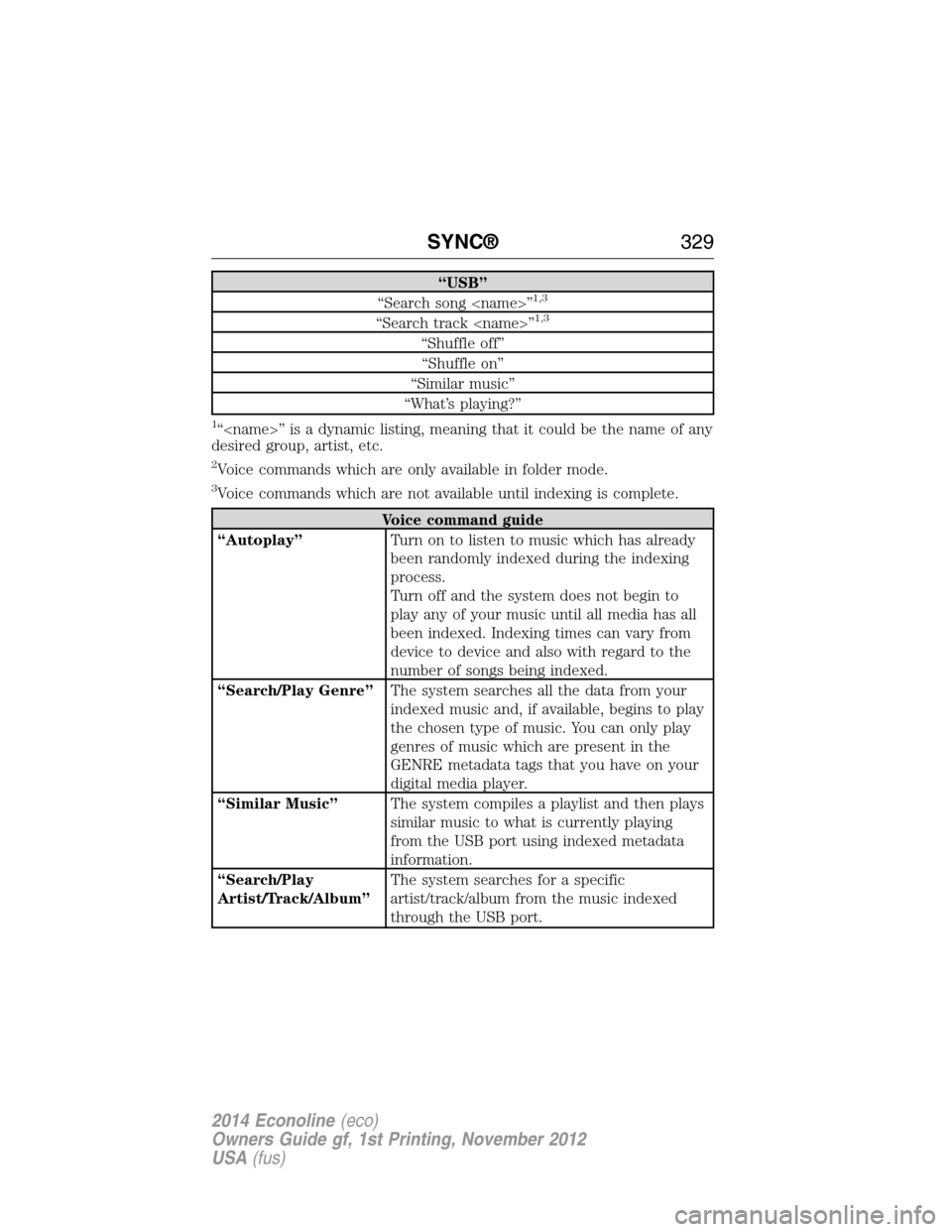
“USB”
“Search song
“Search track
“Shuffle off”
“Shuffle on”
“Similar music”
“What’s playing?”
1“
desired group, artist, etc.
2Voice commands which are only available in folder mode.
3Voice commands which are not available until indexing is complete.
Voice command guide
“Autoplay”Turn on to listen to music which has already
been randomly indexed during the indexing
process.
Turn off and the system does not begin to
play any of your music until all media has all
been indexed. Indexing times can vary from
device to device and also with regard to the
number of songs being indexed.
“Search/Play Genre”The system searches all the data from your
indexed music and, if available, begins to play
the chosen type of music. You can only play
genres of music which are present in the
GENRE metadata tags that you have on your
digital media player.
“Similar Music”The system compiles a playlist and then plays
similar music to what is currently playing
from the USB port using indexed metadata
information.
“Search/Play
Artist/Track/Album”The system searches for a specific
artist/track/album from the music indexed
through the USB port.
SYNC®329
2014 Econoline(eco)
Owners Guide gf, 1st Printing, November 2012
USA(fus)
Page 334 of 438
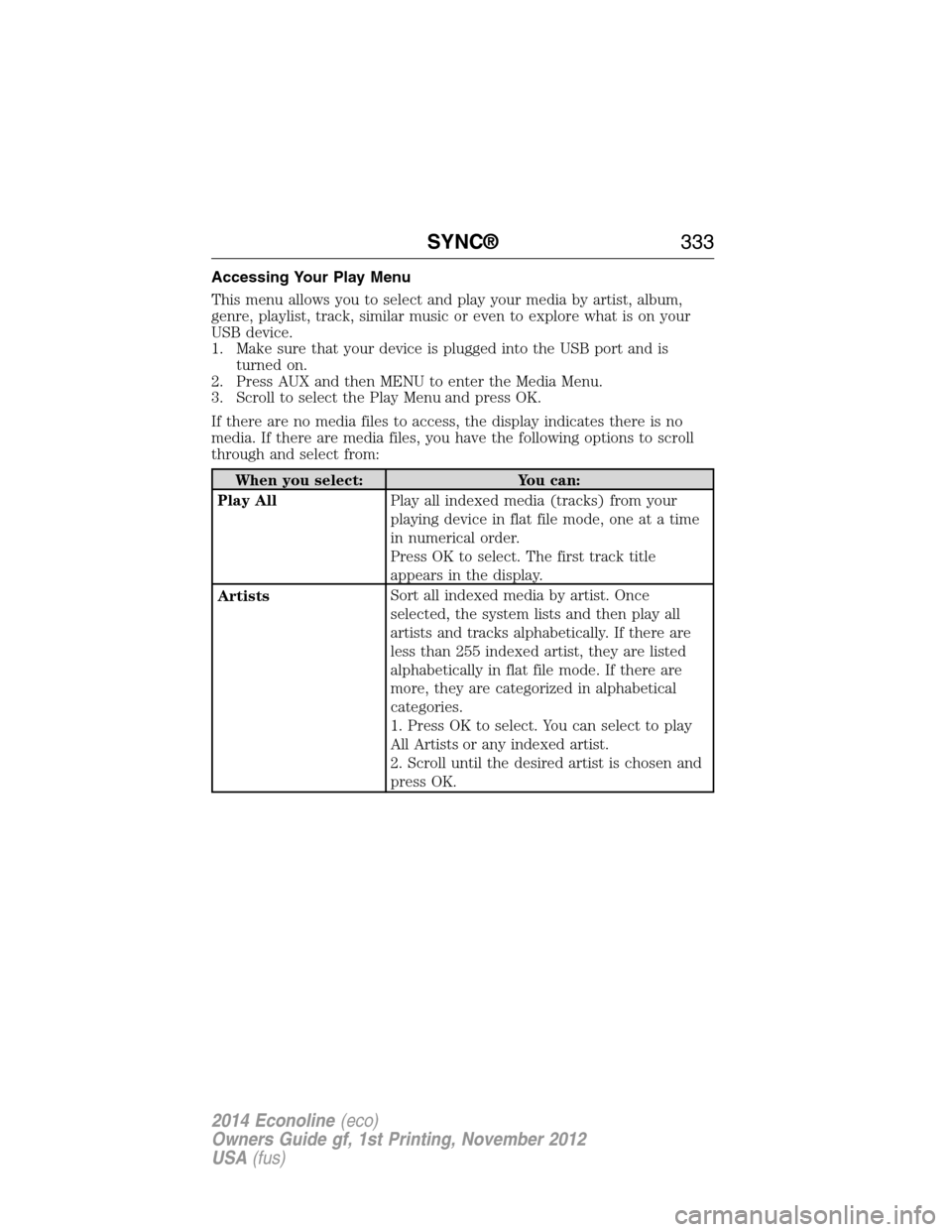
Accessing Your Play Menu
This menu allows you to select and play your media by artist, album,
genre, playlist, track, similar music or even to explore what is on your
USB device.
1. Make sure that your device is plugged into the USB port and is
turned on.
2. Press AUX and then MENU to enter the Media Menu.
3. Scroll to select the Play Menu and press OK.
If there are no media files to access, the display indicates there is no
media. If there are media files, you have the following options to scroll
through and select from:
When you select: You can:
Play AllPlay all indexed media (tracks) from your
playing device in flat file mode, one at a time
in numerical order.
Press OK to select. The first track title
appears in the display.
ArtistsSort all indexed media by artist. Once
selected, the system lists and then play all
artists and tracks alphabetically. If there are
less than 255 indexed artist, they are listed
alphabetically in flat file mode. If there are
more, they are categorized in alphabetical
categories.
1. Press OK to select. You can select to play
All Artists or any indexed artist.
2. Scroll until the desired artist is chosen and
press OK.
SYNC®333
2014 Econoline(eco)
Owners Guide gf, 1st Printing, November 2012
USA(fus)
Page 335 of 438
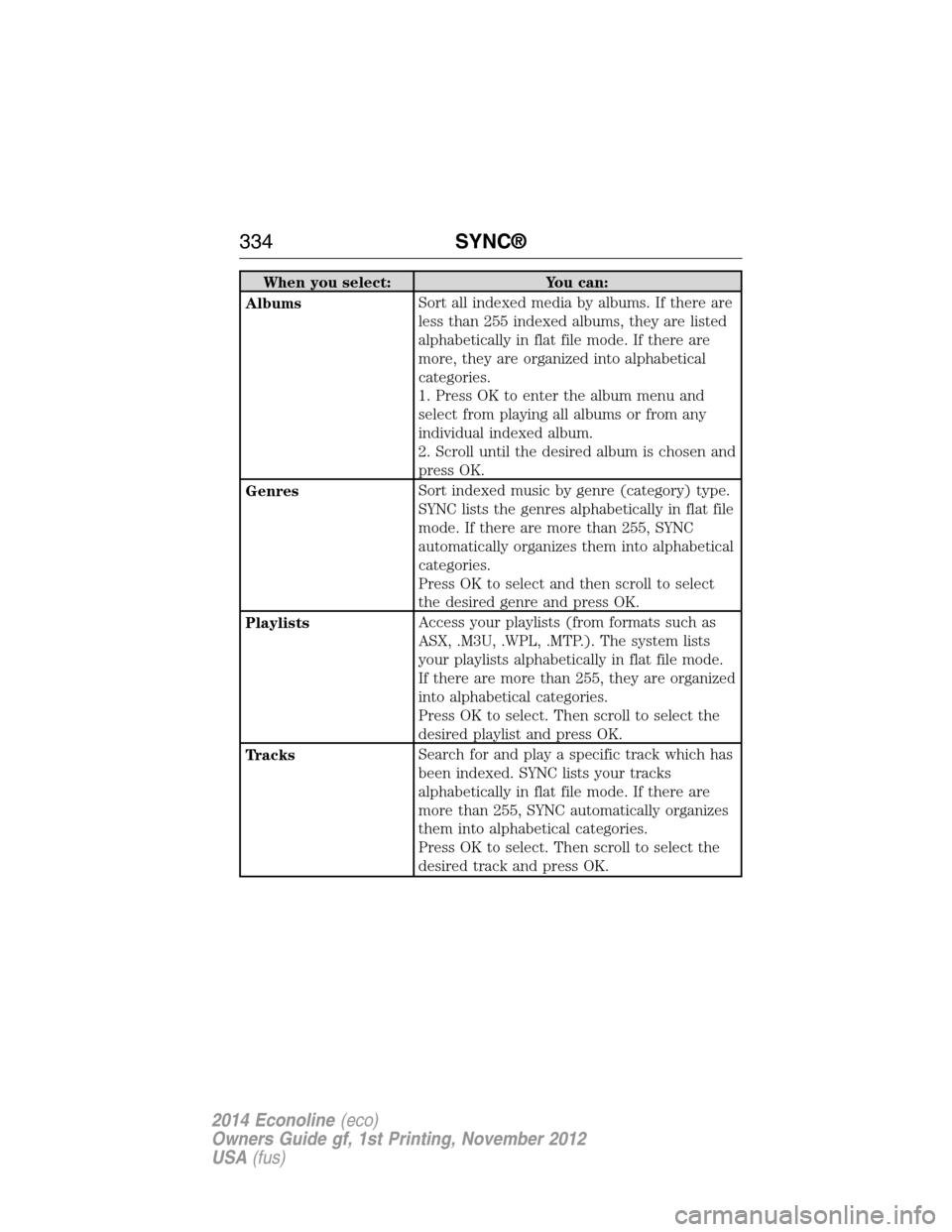
When you select: You can:
AlbumsSort all indexed media by albums. If there are
less than 255 indexed albums, they are listed
alphabetically in flat file mode. If there are
more, they are organized into alphabetical
categories.
1. Press OK to enter the album menu and
select from playing all albums or from any
individual indexed album.
2. Scroll until the desired album is chosen and
press OK.
GenresSort indexed music by genre (category) type.
SYNC lists the genres alphabetically in flat file
mode. If there are more than 255, SYNC
automatically organizes them into alphabetical
categories.
Press OK to select and then scroll to select
the desired genre and press OK.
PlaylistsAccess your playlists (from formats such as
ASX, .M3U, .WPL, .MTP.). The system lists
your playlists alphabetically in flat file mode.
If there are more than 255, they are organized
into alphabetical categories.
Press OK to select. Then scroll to select the
desired playlist and press OK.
TracksSearch for and play a specific track which has
been indexed. SYNC lists your tracks
alphabetically in flat file mode. If there are
more than 255, SYNC automatically organizes
them into alphabetical categories.
Press OK to select. Then scroll to select the
desired track and press OK.
334SYNC®
2014 Econoline(eco)
Owners Guide gf, 1st Printing, November 2012
USA(fus)
Page 336 of 438
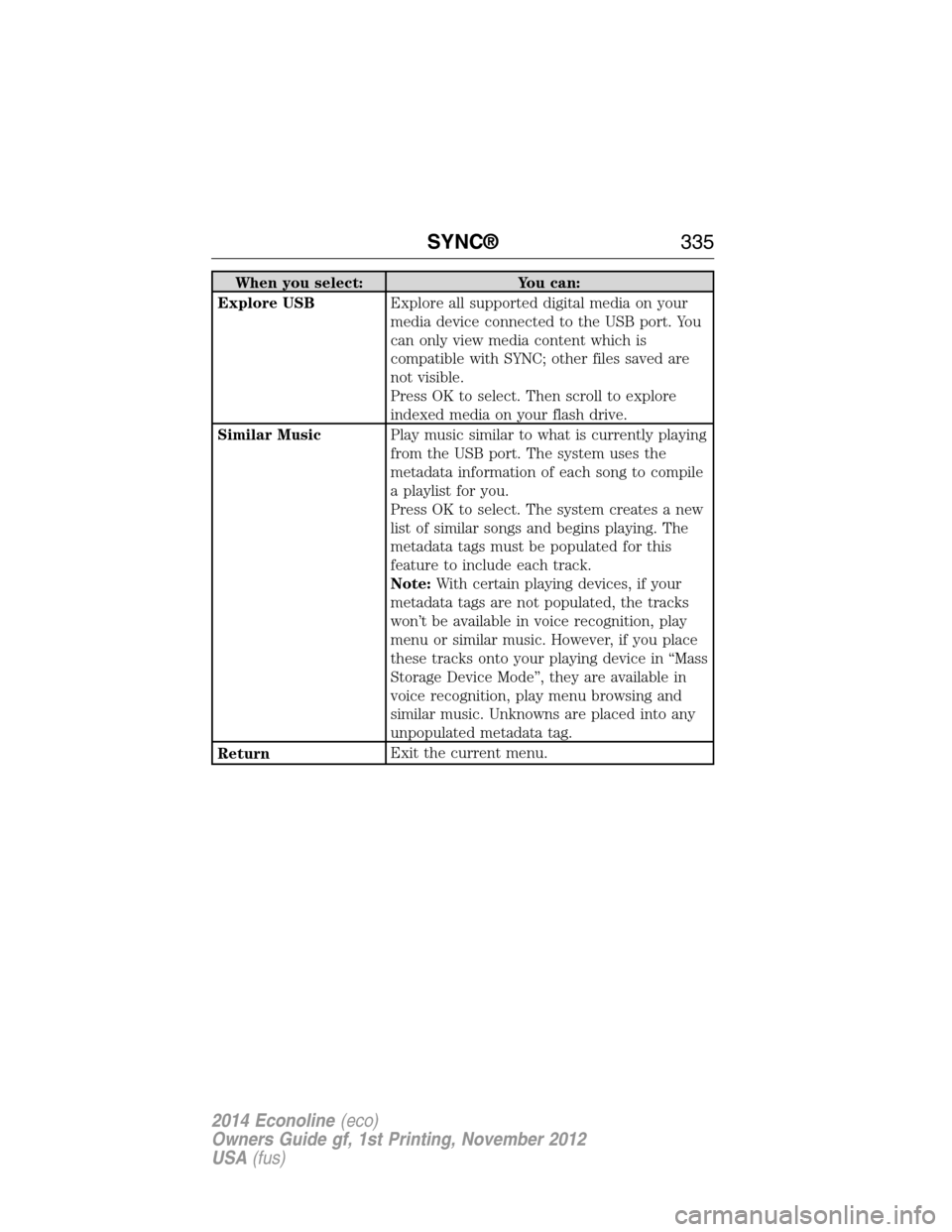
When you select: You can:
Explore USBExplore all supported digital media on your
media device connected to the USB port. You
can only view media content which is
compatible with SYNC; other files saved are
not visible.
Press OK to select. Then scroll to explore
indexed media on your flash drive.
Similar MusicPlay music similar to what is currently playing
from the USB port. The system uses the
metadata information of each song to compile
a playlist for you.
Press OK to select. The system creates a new
list of similar songs and begins playing. The
metadata tags must be populated for this
feature to include each track.
Note:With certain playing devices, if your
metadata tags are not populated, the tracks
won’t be available in voice recognition, play
menu or similar music. However, if you place
these tracks onto your playing device in “Mass
Storage Device Mode”, they are available in
voice recognition, play menu browsing and
similar music. Unknowns are placed into any
unpopulated metadata tag.
ReturnExit the current menu.
SYNC®335
2014 Econoline(eco)
Owners Guide gf, 1st Printing, November 2012
USA(fus)
Page 337 of 438
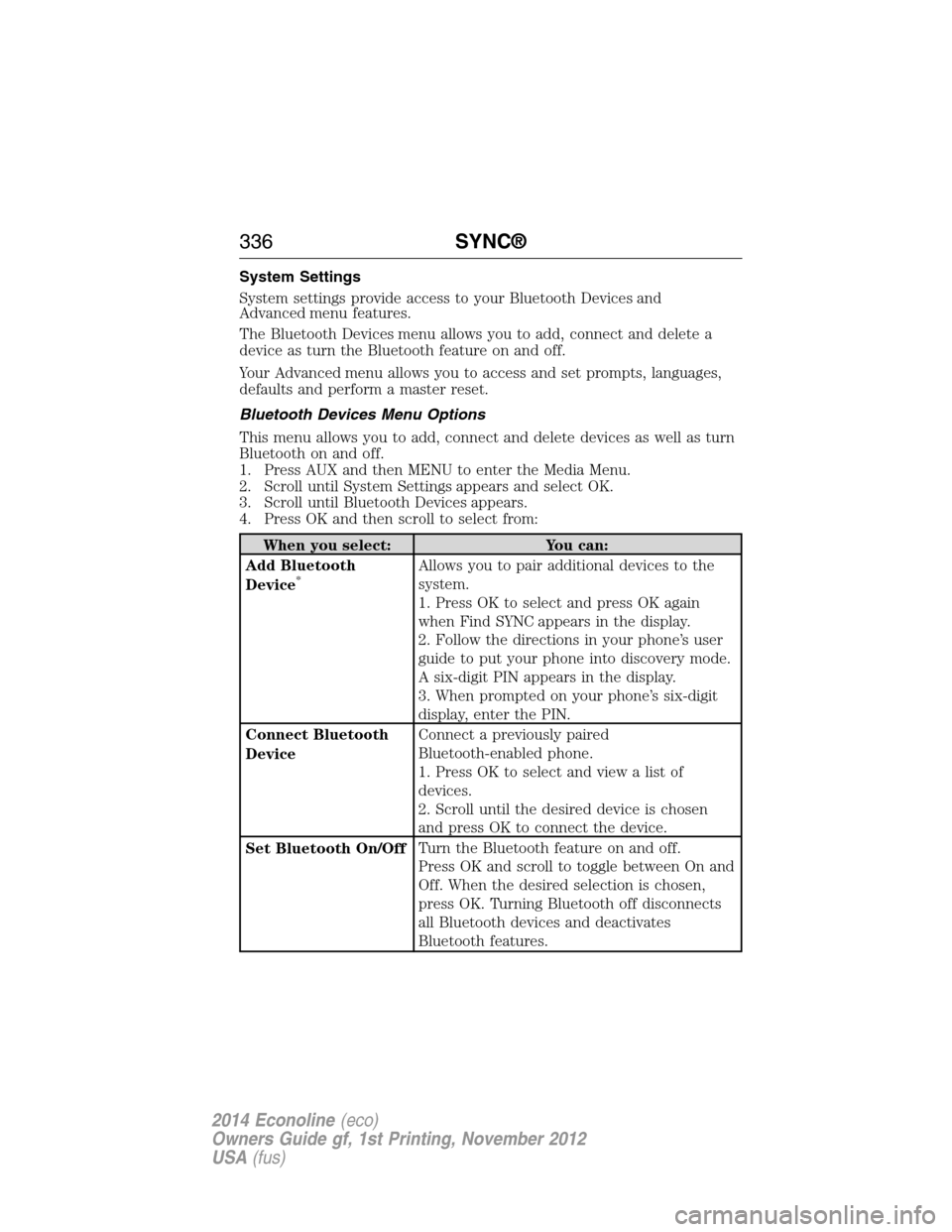
System Settings
System settings provide access to your Bluetooth Devices and
Advanced menu features.
The Bluetooth Devices menu allows you to add, connect and delete a
device as turn the Bluetooth feature on and off.
Your Advanced menu allows you to access and set prompts, languages,
defaults and perform a master reset.
Bluetooth Devices Menu Options
This menu allows you to add, connect and delete devices as well as turn
Bluetooth on and off.
1. Press AUX and then MENU to enter the Media Menu.
2. Scroll until System Settings appears and select OK.
3. Scroll until Bluetooth Devices appears.
4. Press OK and then scroll to select from:
When you select: You can:
Add Bluetooth
Device
*Allows you to pair additional devices to the
system.
1. Press OK to select and press OK again
when Find SYNC appears in the display.
2. Follow the directions in your phone’s user
guide to put your phone into discovery mode.
A six-digit PIN appears in the display.
3. When prompted on your phone’s six-digit
display, enter the PIN.
Connect Bluetooth
DeviceConnect a previously paired
Bluetooth-enabled phone.
1. Press OK to select and view a list of
devices.
2. Scroll until the desired device is chosen
and press OK to connect the device.
Set Bluetooth On/OffTurn the Bluetooth feature on and off.
Press OK and scroll to toggle between On and
Off. When the desired selection is chosen,
press OK. Turning Bluetooth off disconnects
all Bluetooth devices and deactivates
Bluetooth features.
336SYNC®
2014 Econoline(eco)
Owners Guide gf, 1st Printing, November 2012
USA(fus)
Page 347 of 438
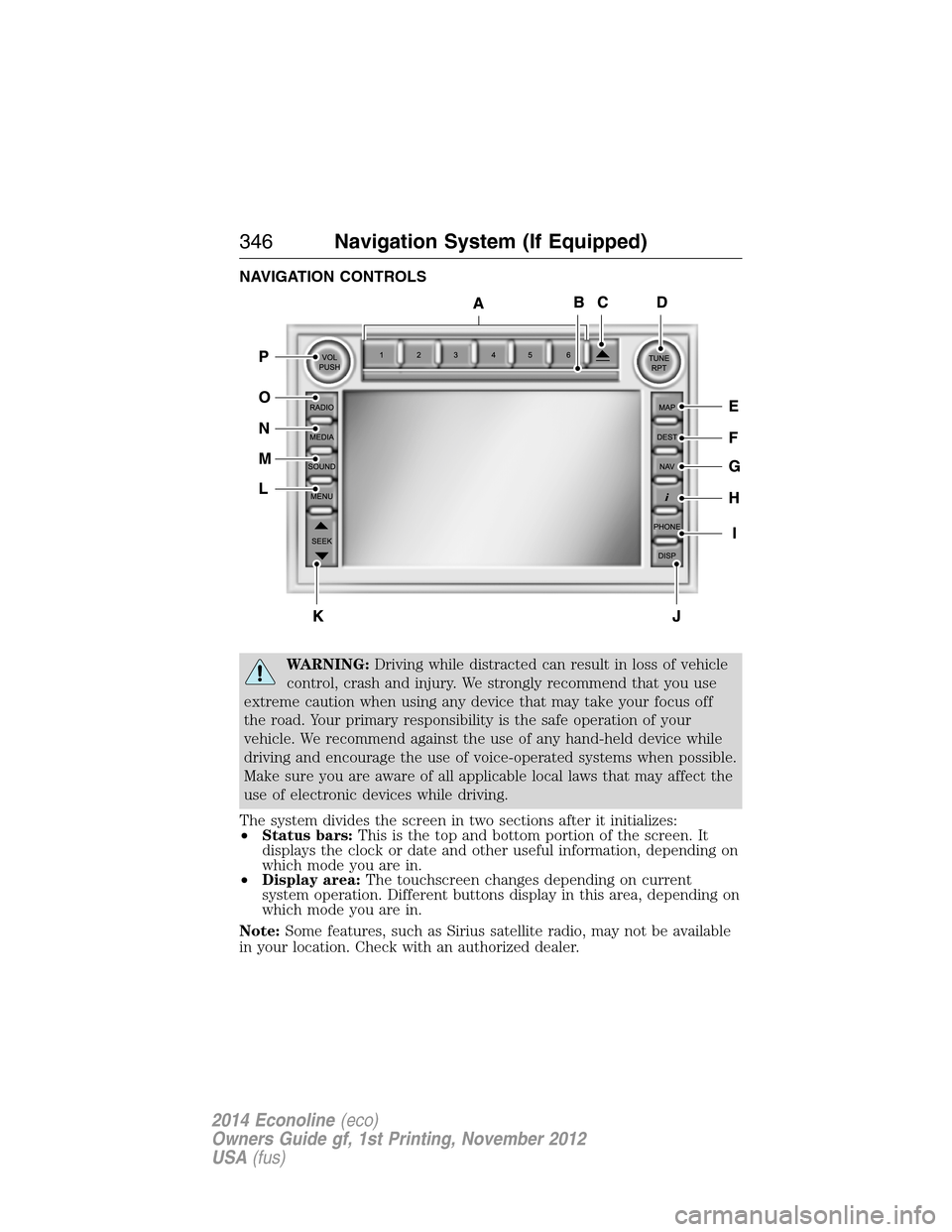
NAVIGATION CONTROLS
WARNING:Driving while distracted can result in loss of vehicle
control, crash and injury. We strongly recommend that you use
extreme caution when using any device that may take your focus off
the road. Your primary responsibility is the safe operation of your
vehicle. We recommend against the use of any hand-held device while
driving and encourage the use of voice-operated systems when possible.
Make sure you are aware of all applicable local laws that may affect the
use of electronic devices while driving.
The system divides the screen in two sections after it initializes:
•Status bars:This is the top and bottom portion of the screen. It
displays the clock or date and other useful information, depending on
which mode you are in.
•Display area:The touchscreen changes depending on current
system operation. Different buttons display in this area, depending on
which mode you are in.
Note:Some features, such as Sirius satellite radio, may not be available
in your location. Check with an authorized dealer.
346Navigation System (If Equipped)
2014 Econoline(eco)
Owners Guide gf, 1st Printing, November 2012
USA(fus)
Page 348 of 438
A.Memory presets:
•Store your favorite radio stations. To store a radio station, tune to the
station, then press and hold a preset button until sound returns.
•In radio and satellite radio mode, press a button to access your saved
presets or channels.
B.CD and DVD slot:Insert a CD or DVD, label side up.
C.Eject:Press this button to eject a CD or DVD from the system.
D.TUNE RPT:
•In radio or satellite radio mode, turn the control to advance in
individual increments up or down the frequency band to the desired
station.
•In MP3 mode, turn the control to advance to the next or previous
folder.
•In navigation mode, press this button to hear the last spoken
navigation guidance prompt.
E.MAP:
•Press this button to access the navigation map.
•Press while the map display is active to center the map on the
current vehicle position. Press while the map display and route are
active to see the different map guidance views.
F.DEST:
•Press this button to access the destination entry menu.
•Press while the destination entry menu is active to show additional
destination entry techniques.
G.N AV:
•Press this button to access the navigation menu.
•Press while the navigation menu is active to access the navigation
menu tabs.
H.I (Information):Press this button to access features such as Where
am I?, Sirius Travel Link, Calendar, System Info and Help.
I.PHONE:Press this button to access the SYNC phone menu.
J.DISP:Press this button to select a display mode: On, Status Bar Only,
and Off.
K.SEEK:
•In radio and satellite radio mode, press the arrow buttons to find
previous or next available stations or channels within the currently
selected Category or Genre.
•In CD and DVD modes, press the arrow buttons to select the previous
or next track or chapter.
Navigation System (If Equipped)347
2014 Econoline(eco)
Owners Guide gf, 1st Printing, November 2012
USA(fus)
Page 349 of 438
L.MENU:
•Press this button to access the system menu.
•Press while the system menu is active to access the menu tabs of
Display, Clock, Feedback Settings, System Settings and Valet Mode.
M.SOUND:
•Press this button to access the sound menu.
•Press while the sound menu is active to access the menu tabs of
Bass/Treble, Balance/Fade, SCV (Speed Compensated Volume), DSP
(Digital Signal Processing) and Visualizer.
N.MEDIA:
•Press this button to access the media menu.
•Press while the media menu is active to access the available sources
of CD/DVD, Jukebox and User Device.
O.RADIO:
•Press this button to access the radio menu.
•Press while the radio menu is active to access the available sources of
AM, FM1, FM2, SAT1, SAT2, and SAT3.
P.VOL:Press and hold this button to turn the system off and on. Turn
the control to adjust the volume.
Note:If a navigation route is active when the navigation system is off,
the system resumes the route when you turn the system on.
DISPLAY MODE
You can choose to turn your screen on or off and if you would like to
view the status bars on the top and bottom of the screen. Press DISP to
see the options.
Display Mode Voice Commands
The following voice commands are available in display mode. If
you are not in display mode, press the voice button on the
steering wheel. When prompted, say “Display mode” and then
any of the following commands.
Display mode voice commands
“Display on”
“Display off”
“Status bar”
“Brighter”
“Dimmer”
“Day”
348Navigation System (If Equipped)
2014 Econoline(eco)
Owners Guide gf, 1st Printing, November 2012
USA(fus)
Page 350 of 438
Display mode voice commands
“Night”
“Auto”
“Help”
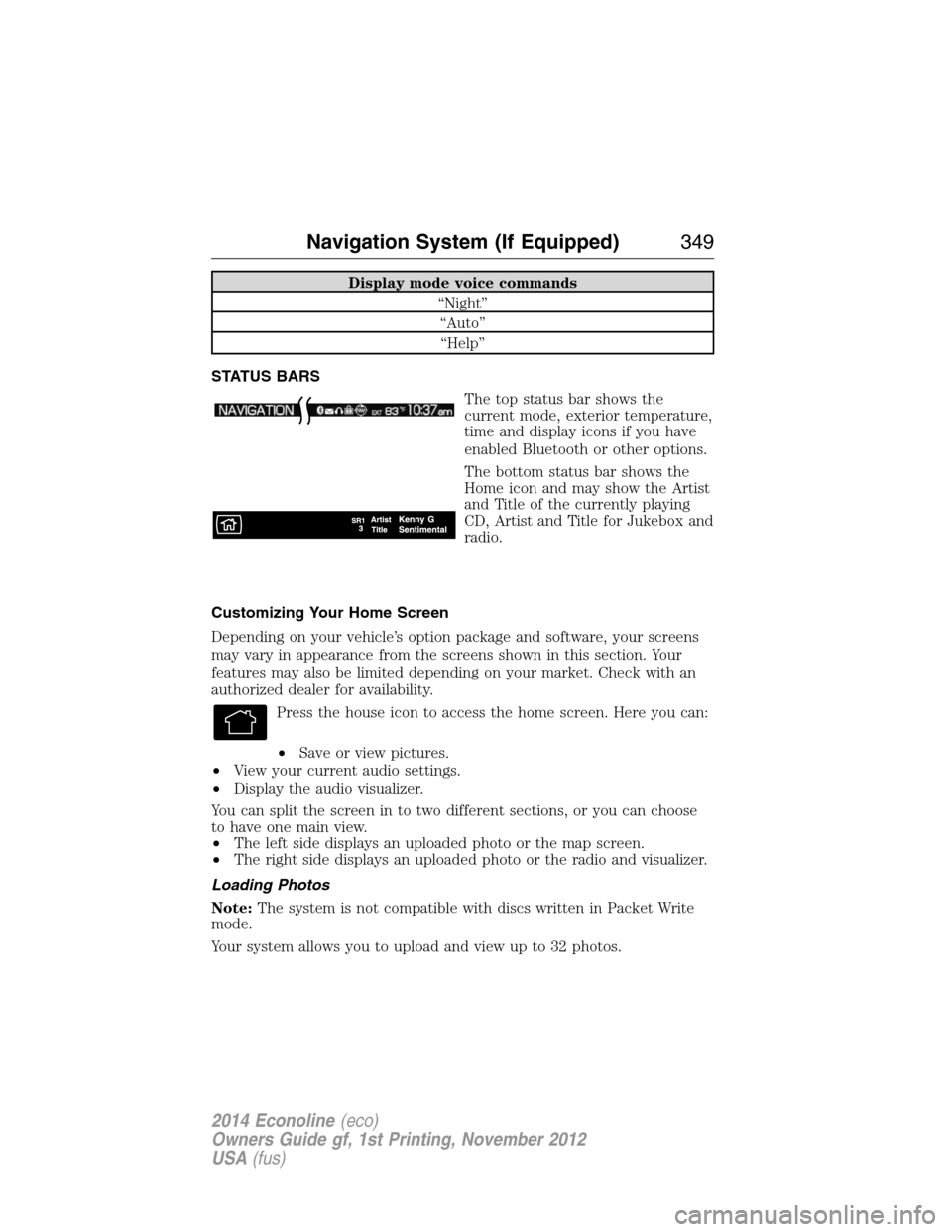
STATUS BARS
The top status bar shows the
current mode, exterior temperature,
time and display icons if you have
enabled Bluetooth or other options.
The bottom status bar shows the
Home icon and may show the Artist
and Title of the currently playing
CD, Artist and Title for Jukebox and
radio.
Customizing Your Home Screen
Depending on your vehicle’s option package and software, your screens
may vary in appearance from the screens shown in this section. Your
features may also be limited depending on your market. Check with an
authorized dealer for availability.
Press the house icon to access the home screen. Here you can:
•Save or view pictures.
•View your current audio settings.
•Display the audio visualizer.
You can split the screen in to two different sections, or you can choose
to have one main view.
•The left side displays an uploaded photo or the map screen.
•The right side displays an uploaded photo or the radio and visualizer.
Loading Photos
Note:The system is not compatible with discs written in Packet Write
mode.
Your system allows you to upload and view up to 32 photos.
Navigation System (If Equipped)349
2014 Econoline(eco)
Owners Guide gf, 1st Printing, November 2012
USA(fus)