ECO mode FORD ECOSPORT 2019 Workshop Manual
[x] Cancel search | Manufacturer: FORD, Model Year: 2019, Model line: ECOSPORT, Model: FORD ECOSPORT 2019Pages: 458, PDF Size: 16.79 MB
Page 346 of 458
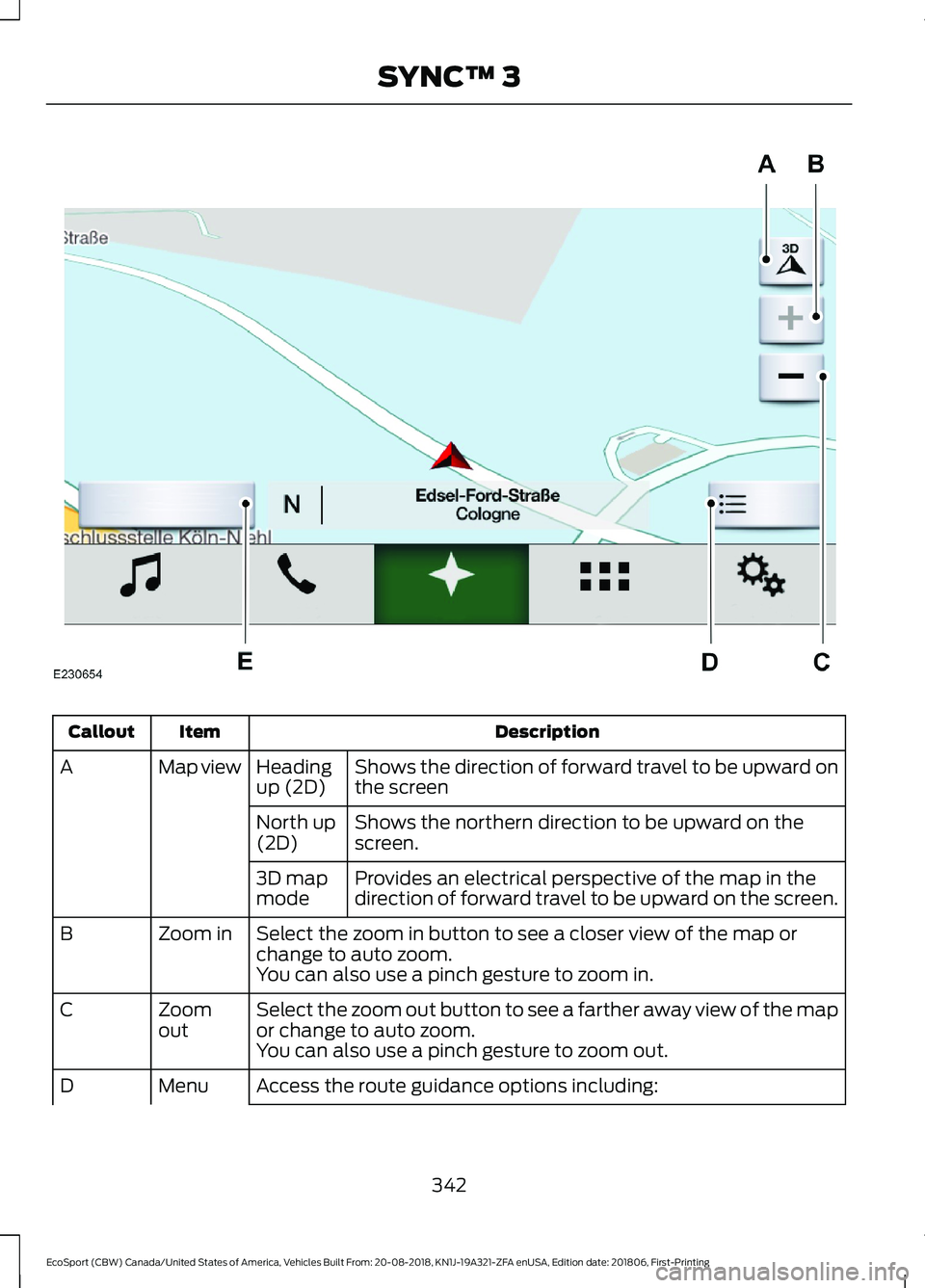
DescriptionItemCallout
Shows the direction of forward travel to be upward onthe screenHeadingup (2D)Map viewA
Shows the northern direction to be upward on thescreen.North up(2D)
Provides an electrical perspective of the map in thedirection of forward travel to be upward on the screen.3D mapmode
Select the zoom in button to see a closer view of the map orchange to auto zoom.Zoom inB
You can also use a pinch gesture to zoom in.
Select the zoom out button to see a farther away view of the mapor change to auto zoom.ZoomoutC
You can also use a pinch gesture to zoom out.
Access the route guidance options including:MenuD
342
EcoSport (CBW) Canada/United States of America, Vehicles Built From: 20-08-2018, KN1J-19A321-ZFA enUSA, Edition date: 201806, First-PrintingSYNC™ 3
Page 347 of 458
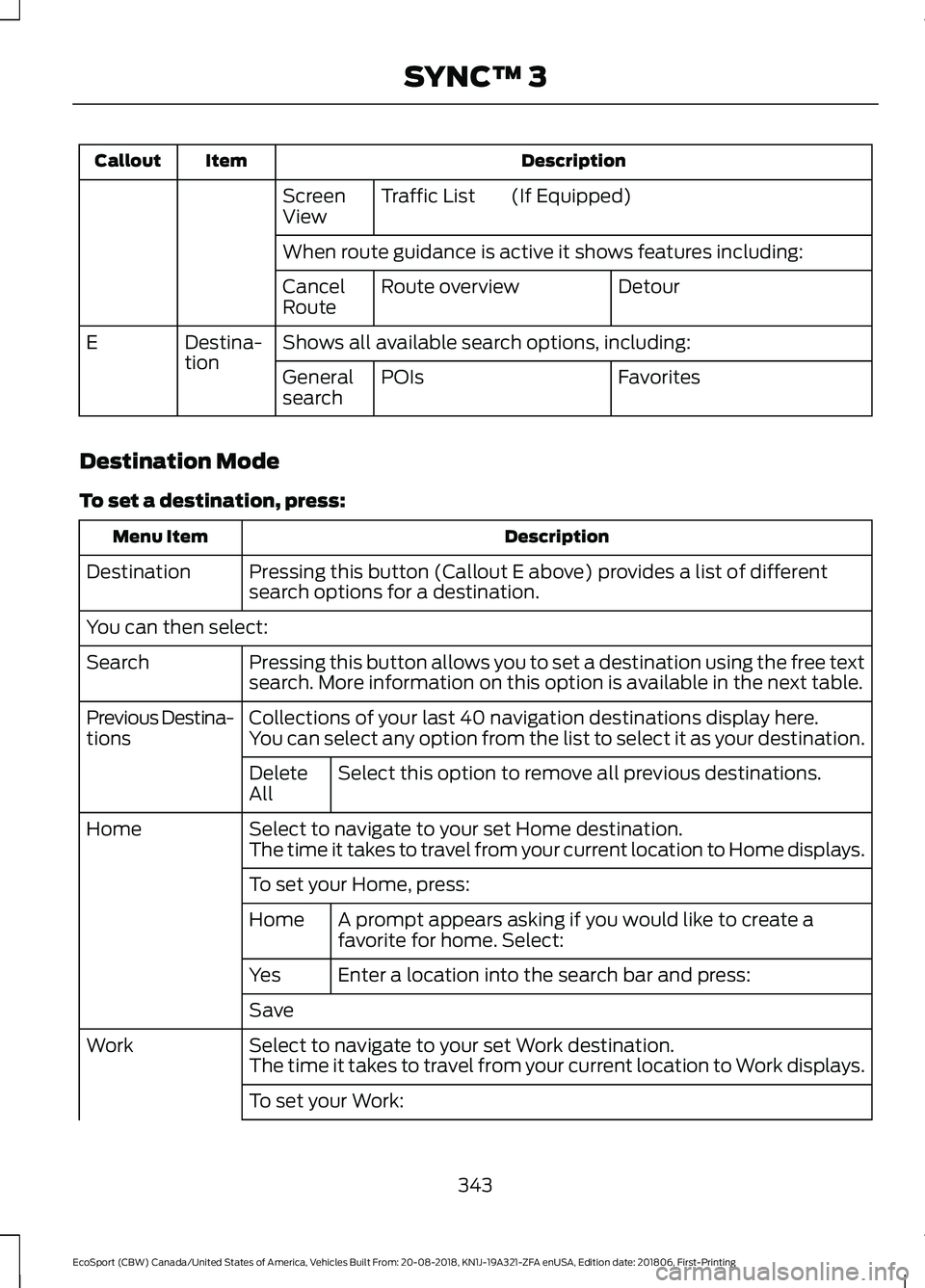
DescriptionItemCallout
(If Equipped)Traffic ListScreenView
When route guidance is active it shows features including:
DetourRoute overviewCancelRoute
Shows all available search options, including:Destina-tionE
FavoritesPOIsGeneralsearch
Destination Mode
To set a destination, press:
DescriptionMenu Item
Pressing this button (Callout E above) provides a list of differentsearch options for a destination.Destination
You can then select:
Pressing this button allows you to set a destination using the free textsearch. More information on this option is available in the next table.Search
Collections of your last 40 navigation destinations display here.Previous Destina-tionsYou can select any option from the list to select it as your destination.
Select this option to remove all previous destinations.DeleteAll
Select to navigate to your set Home destination.HomeThe time it takes to travel from your current location to Home displays.
To set your Home, press:
A prompt appears asking if you would like to create afavorite for home. Select:Home
Enter a location into the search bar and press:Yes
Save
Select to navigate to your set Work destination.WorkThe time it takes to travel from your current location to Work displays.
To set your Work:
343
EcoSport (CBW) Canada/United States of America, Vehicles Built From: 20-08-2018, KN1J-19A321-ZFA enUSA, Edition date: 201806, First-PrintingSYNC™ 3
Page 350 of 458
DescriptionItemCallout
or
ZIP Code
Point of Interest
(name or category)
Intersection
(street 1 / street 2)(street 1 and street 2)(street 1 & street 2)(street 1 @ street 2)(street 1 at street 2)
Latitude and Longitude
(##.###### , ##.######)This is in a decimal degrees format, one to six decimalplaces are accepted.
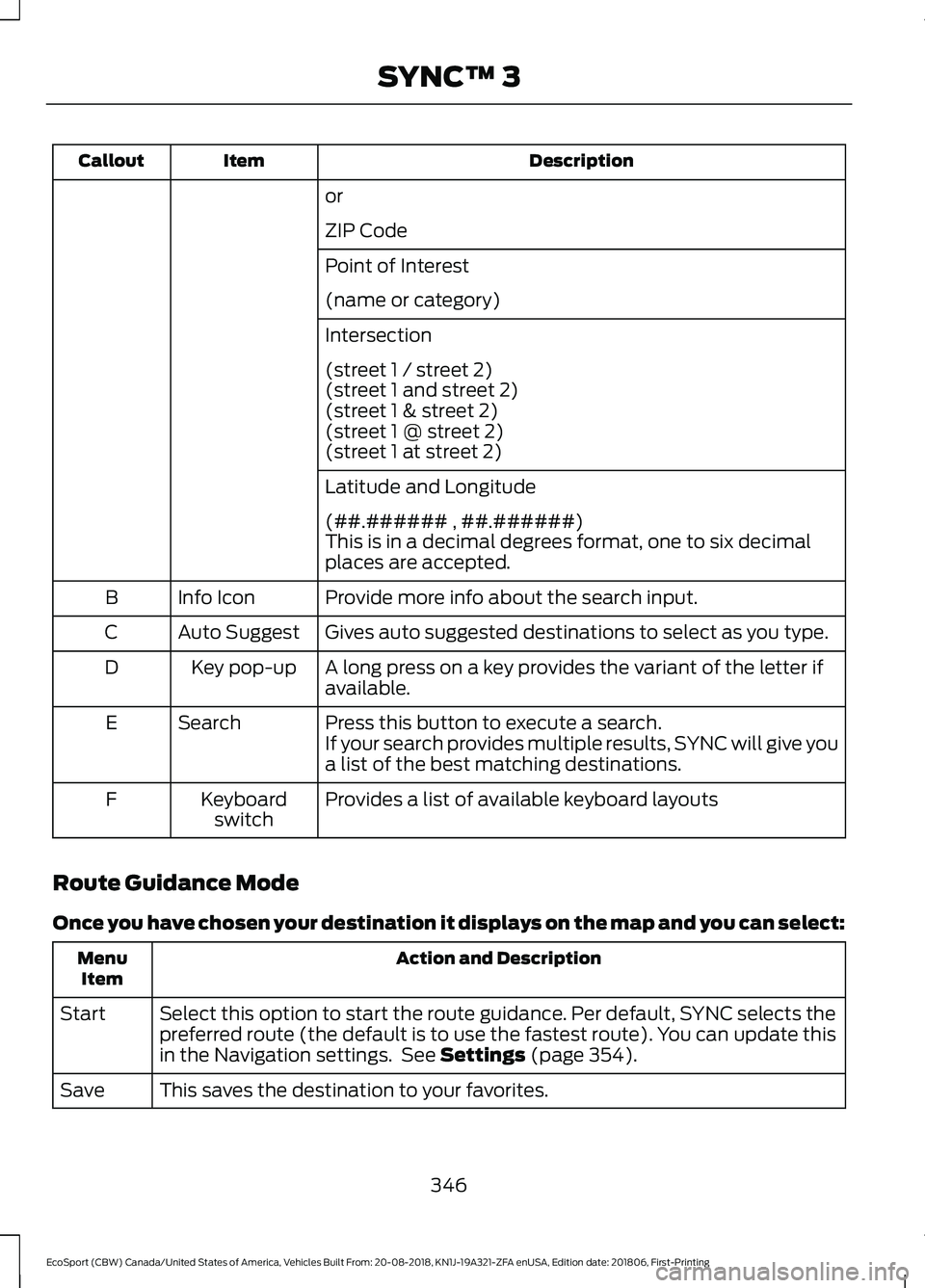
Provide more info about the search input.Info IconB
Gives auto suggested destinations to select as you type.Auto SuggestC
A long press on a key provides the variant of the letter ifavailable.Key pop-upD
Press this button to execute a search.SearchEIf your search provides multiple results, SYNC will give youa list of the best matching destinations.
Provides a list of available keyboard layoutsKeyboardswitchF
Route Guidance Mode
Once you have chosen your destination it displays on the map and you can select:
Action and DescriptionMenuItem
Select this option to start the route guidance. Per default, SYNC selects thepreferred route (the default is to use the fastest route). You can update thisin the Navigation settings. See Settings (page 354).
Start
This saves the destination to your favorites.Save
346
EcoSport (CBW) Canada/United States of America, Vehicles Built From: 20-08-2018, KN1J-19A321-ZFA enUSA, Edition date: 201806, First-PrintingSYNC™ 3
Page 352 of 458
DescriptionItemCallout
Note: If your vehicle is low on charge or fuel, station iconsautomatically display on the map.
Press this icon to switch between estimated time of arrival,distance to destination or time to destination.Estimated Timeof ArrivalC
Displays the current road if available.Bottom BarD
Press this button to mute the voice guidance instructions.MuteEYou can select between three guidance prompt options.See Settings (page 354).
Note:To change the voice prompt volume,turn the volume knob when a voice guidanceprompt plays.
Map search Mode
348
EcoSport (CBW) Canada/United States of America, Vehicles Built From: 20-08-2018, KN1J-19A321-ZFA enUSA, Edition date: 201806, First-PrintingSYNC™ 3
Page 353 of 458
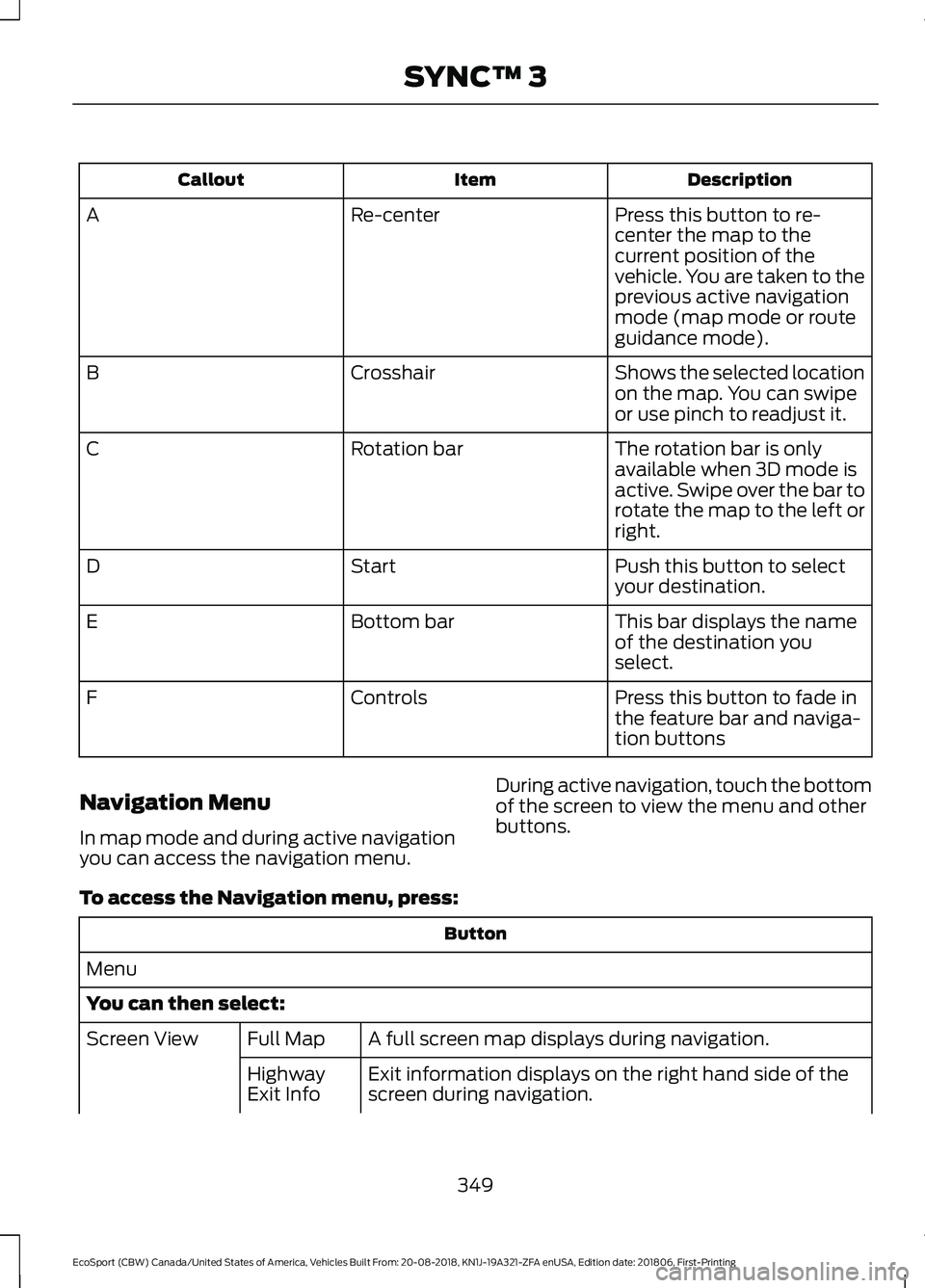
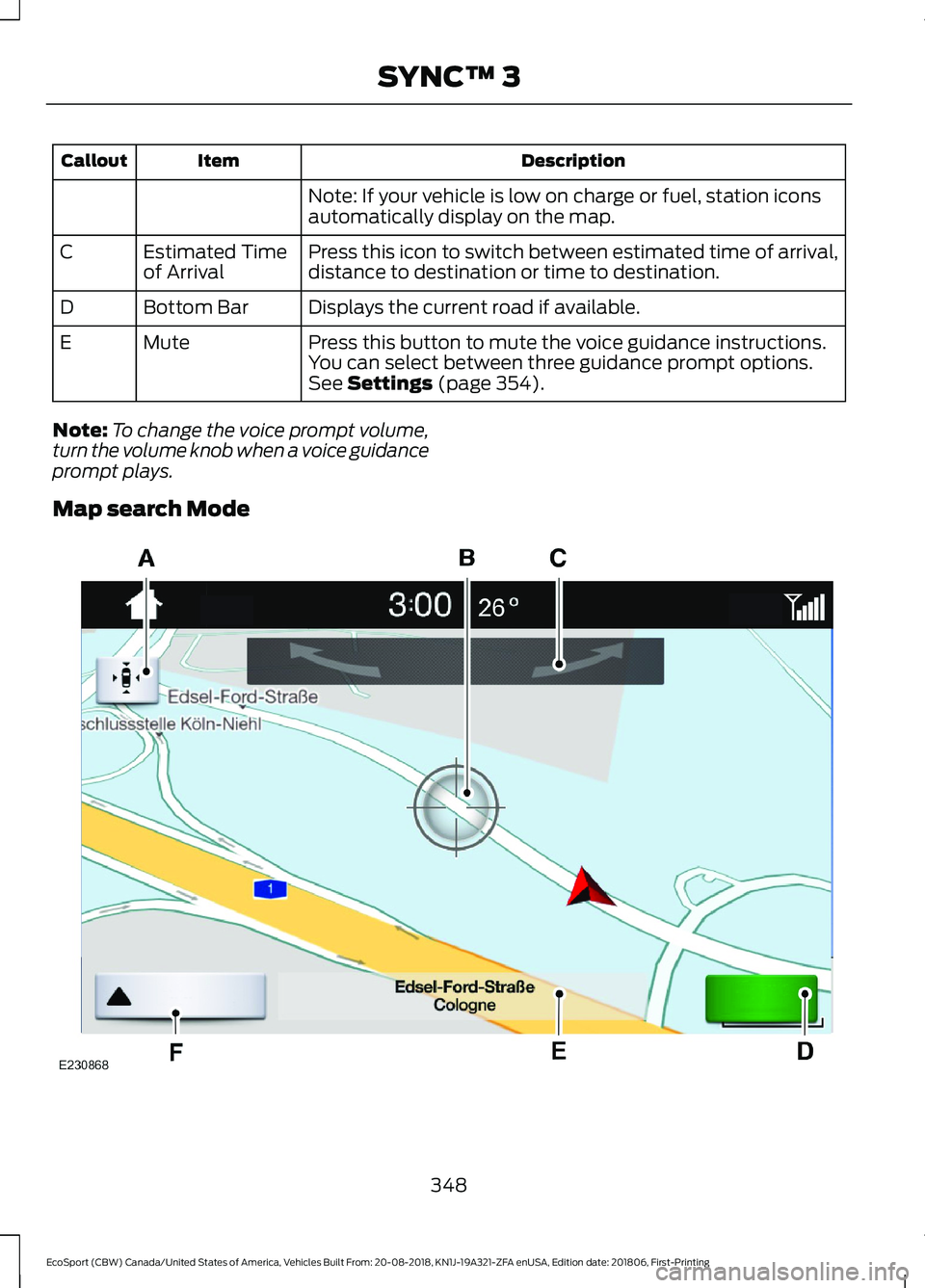
DescriptionItemCallout
Press this button to re-center the map to thecurrent position of thevehicle. You are taken to theprevious active navigationmode (map mode or routeguidance mode).
Re-centerA
Shows the selected locationon the map. You can swipeor use pinch to readjust it.
CrosshairB
The rotation bar is onlyavailable when 3D mode isactive. Swipe over the bar torotate the map to the left orright.
Rotation barC
Push this button to selectyour destination.StartD
This bar displays the nameof the destination youselect.
Bottom barE
Press this button to fade inthe feature bar and naviga-tion buttons
ControlsF
Navigation Menu
In map mode and during active navigationyou can access the navigation menu.
During active navigation, touch the bottomof the screen to view the menu and otherbuttons.
To access the Navigation menu, press:
Button
Menu
You can then select:
A full screen map displays during navigation.Full MapScreen View
Exit information displays on the right hand side of thescreen during navigation.HighwayExit Info
349
EcoSport (CBW) Canada/United States of America, Vehicles Built From: 20-08-2018, KN1J-19A321-ZFA enUSA, Edition date: 201806, First-PrintingSYNC™ 3
Page 354 of 458
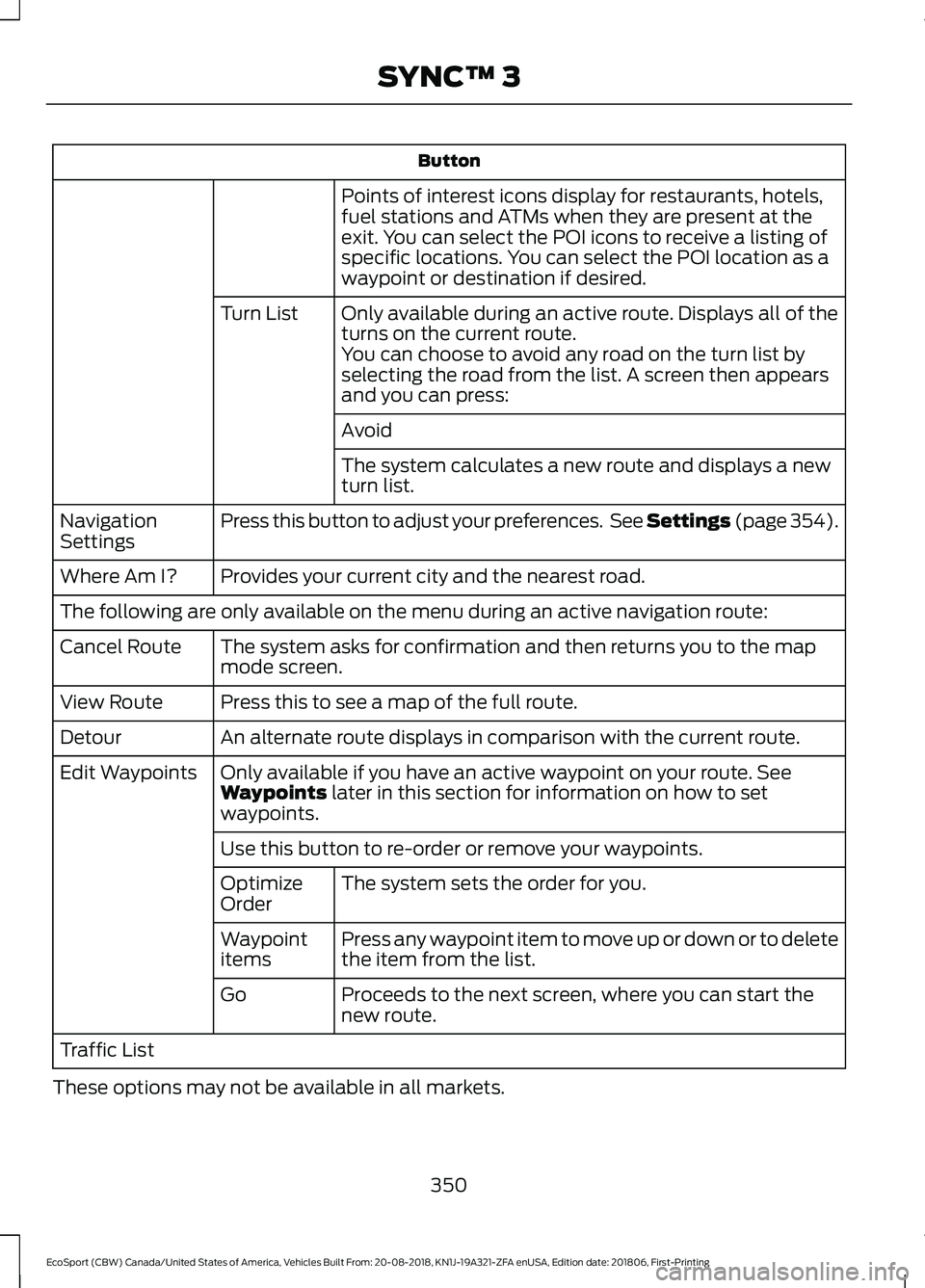
Button
Points of interest icons display for restaurants, hotels,fuel stations and ATMs when they are present at theexit. You can select the POI icons to receive a listing ofspecific locations. You can select the POI location as awaypoint or destination if desired.
Only available during an active route. Displays all of theturns on the current route.Turn List
You can choose to avoid any road on the turn list byselecting the road from the list. A screen then appearsand you can press:
Avoid
The system calculates a new route and displays a newturn list.
Press this button to adjust your preferences. See Settings (page 354).NavigationSettings
Provides your current city and the nearest road.Where Am I?
The following are only available on the menu during an active navigation route:
The system asks for confirmation and then returns you to the mapmode screen.Cancel Route
Press this to see a map of the full route.View Route
An alternate route displays in comparison with the current route.Detour
Only available if you have an active waypoint on your route. SeeWaypoints later in this section for information on how to setwaypoints.
Edit Waypoints
Use this button to re-order or remove your waypoints.
The system sets the order for you.OptimizeOrder
Press any waypoint item to move up or down or to deletethe item from the list.Waypointitems
Proceeds to the next screen, where you can start thenew route.Go
Traffic List
These options may not be available in all markets.
350
EcoSport (CBW) Canada/United States of America, Vehicles Built From: 20-08-2018, KN1J-19A321-ZFA enUSA, Edition date: 201806, First-PrintingSYNC™ 3
Page 358 of 458
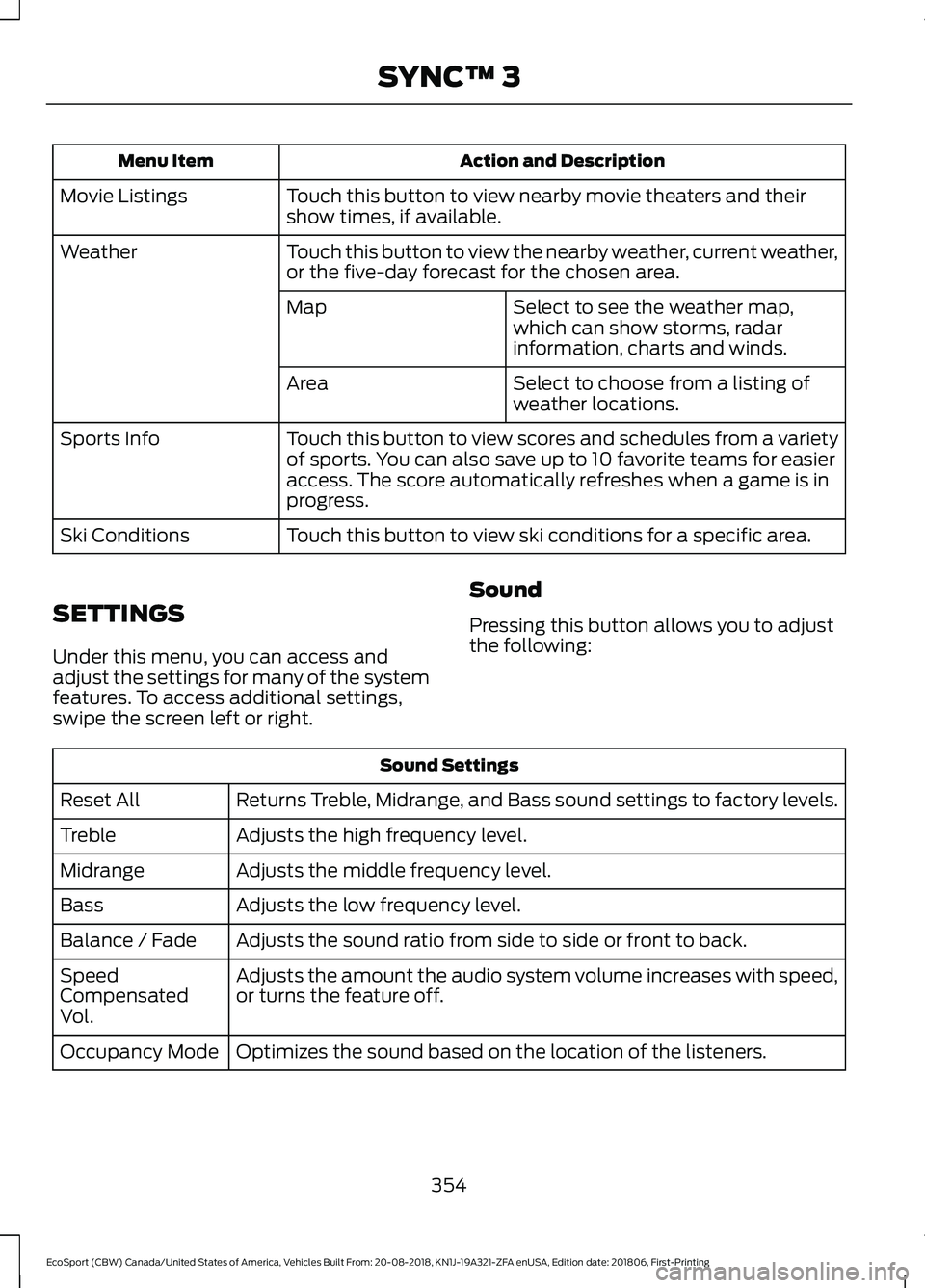
Action and DescriptionMenu Item
Touch this button to view nearby movie theaters and theirshow times, if available.Movie Listings
Touch this button to view the nearby weather, current weather,or the five-day forecast for the chosen area.Weather
Select to see the weather map,which can show storms, radarinformation, charts and winds.
Map
Select to choose from a listing ofweather locations.Area
Touch this button to view scores and schedules from a varietyof sports. You can also save up to 10 favorite teams for easieraccess. The score automatically refreshes when a game is inprogress.
Sports Info
Touch this button to view ski conditions for a specific area.Ski Conditions
SETTINGS
Under this menu, you can access andadjust the settings for many of the systemfeatures. To access additional settings,swipe the screen left or right.
Sound
Pressing this button allows you to adjustthe following:
Sound Settings
Returns Treble, Midrange, and Bass sound settings to factory levels.Reset All
Adjusts the high frequency level.Treble
Adjusts the middle frequency level.Midrange
Adjusts the low frequency level.Bass
Adjusts the sound ratio from side to side or front to back.Balance / Fade
Adjusts the amount the audio system volume increases with speed,or turns the feature off.SpeedCompensatedVol.
Optimizes the sound based on the location of the listeners.Occupancy Mode
354
EcoSport (CBW) Canada/United States of America, Vehicles Built From: 20-08-2018, KN1J-19A321-ZFA enUSA, Edition date: 201806, First-PrintingSYNC™ 3
Page 359 of 458
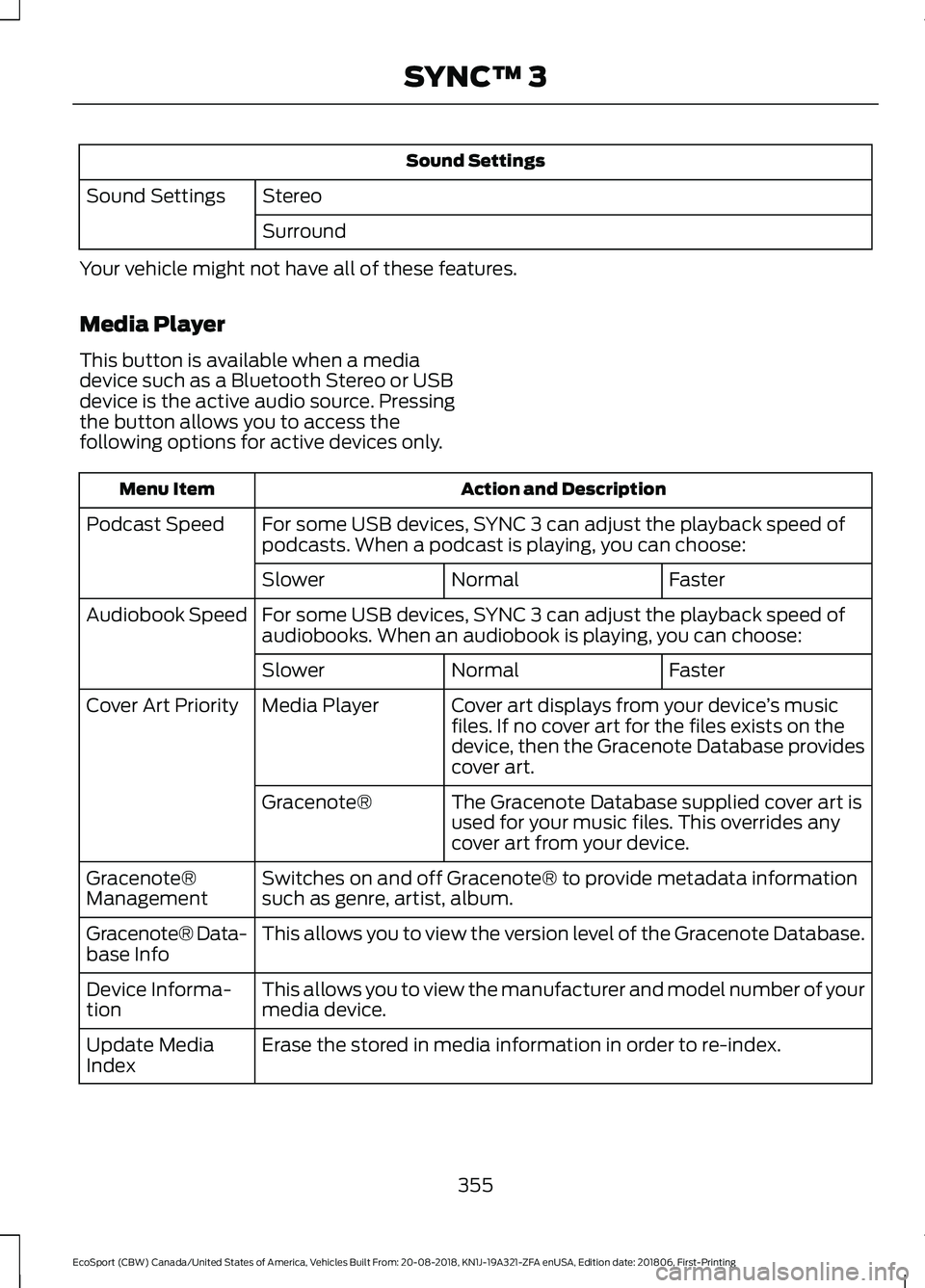
Sound Settings
StereoSound Settings
Surround
Your vehicle might not have all of these features.
Media Player
This button is available when a mediadevice such as a Bluetooth Stereo or USBdevice is the active audio source. Pressingthe button allows you to access thefollowing options for active devices only.
Action and DescriptionMenu Item
For some USB devices, SYNC 3 can adjust the playback speed ofpodcasts. When a podcast is playing, you can choose:Podcast Speed
FasterNormalSlower
For some USB devices, SYNC 3 can adjust the playback speed ofaudiobooks. When an audiobook is playing, you can choose:Audiobook Speed
FasterNormalSlower
Cover art displays from your device’s musicfiles. If no cover art for the files exists on thedevice, then the Gracenote Database providescover art.
Media PlayerCover Art Priority
The Gracenote Database supplied cover art isused for your music files. This overrides anycover art from your device.
Gracenote®
Switches on and off Gracenote® to provide metadata informationsuch as genre, artist, album.Gracenote®Management
This allows you to view the version level of the Gracenote Database.Gracenote® Data-base Info
This allows you to view the manufacturer and model number of yourmedia device.Device Informa-tion
Erase the stored in media information in order to re-index.Update MediaIndex
355
EcoSport (CBW) Canada/United States of America, Vehicles Built From: 20-08-2018, KN1J-19A321-ZFA enUSA, Edition date: 201806, First-PrintingSYNC™ 3
Page 360 of 458
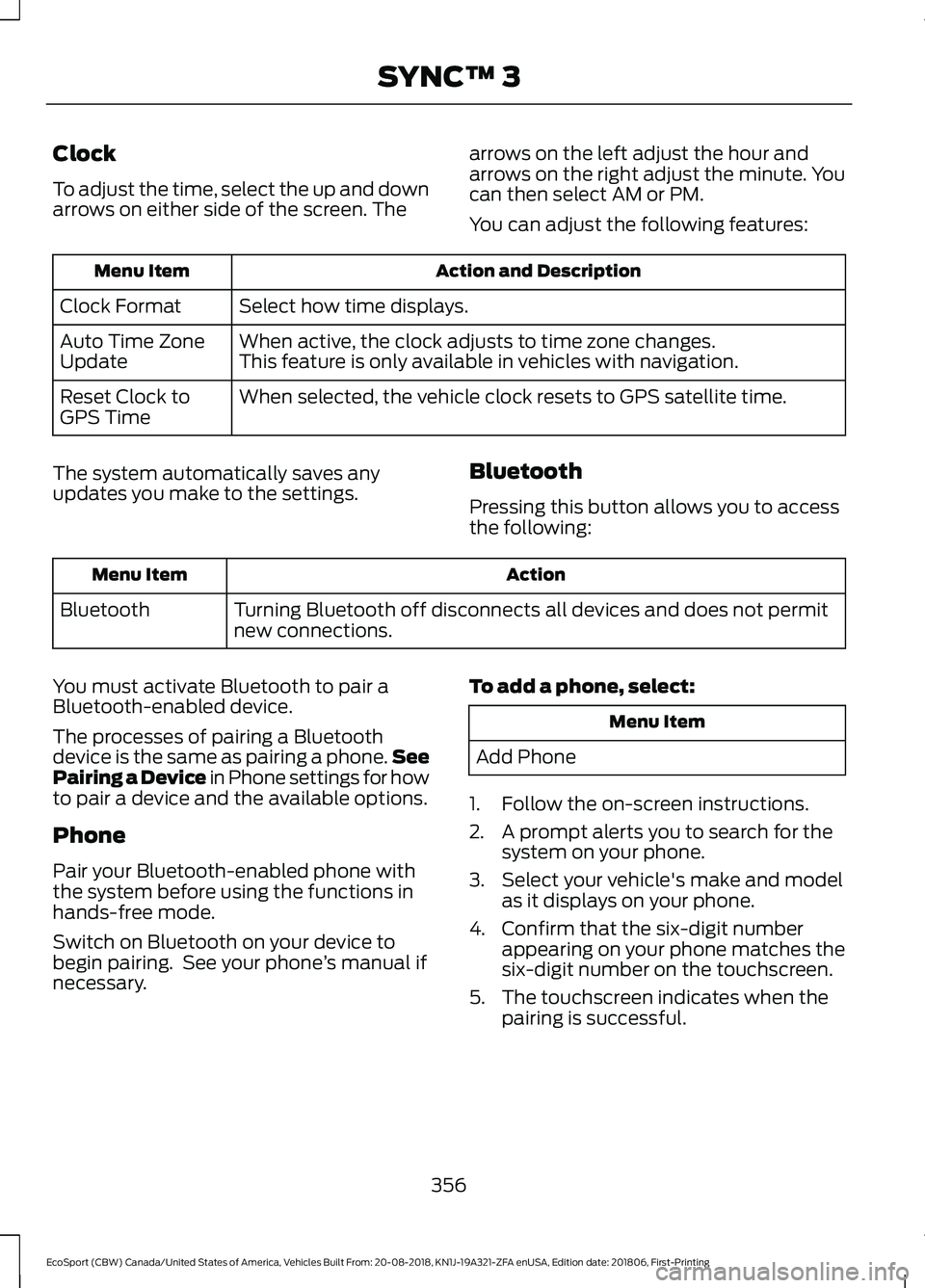
Clock
To adjust the time, select the up and downarrows on either side of the screen. The
arrows on the left adjust the hour andarrows on the right adjust the minute. Youcan then select AM or PM.
You can adjust the following features:
Action and DescriptionMenu Item
Select how time displays.Clock Format
When active, the clock adjusts to time zone changes.Auto Time ZoneUpdateThis feature is only available in vehicles with navigation.
When selected, the vehicle clock resets to GPS satellite time.Reset Clock toGPS Time
The system automatically saves anyupdates you make to the settings.Bluetooth
Pressing this button allows you to accessthe following:
ActionMenu Item
Turning Bluetooth off disconnects all devices and does not permitnew connections.Bluetooth
You must activate Bluetooth to pair aBluetooth-enabled device.
The processes of pairing a Bluetoothdevice is the same as pairing a phone.SeePairing a Device in Phone settings for howto pair a device and the available options.
Phone
Pair your Bluetooth-enabled phone withthe system before using the functions inhands-free mode.
Switch on Bluetooth on your device tobegin pairing. See your phone’s manual ifnecessary.
To add a phone, select:
Menu Item
Add Phone
1.Follow the on-screen instructions.
2.A prompt alerts you to search for thesystem on your phone.
3.Select your vehicle's make and modelas it displays on your phone.
4.Confirm that the six-digit numberappearing on your phone matches thesix-digit number on the touchscreen.
5.The touchscreen indicates when thepairing is successful.
356
EcoSport (CBW) Canada/United States of America, Vehicles Built From: 20-08-2018, KN1J-19A321-ZFA enUSA, Edition date: 201806, First-PrintingSYNC™ 3
Page 365 of 458
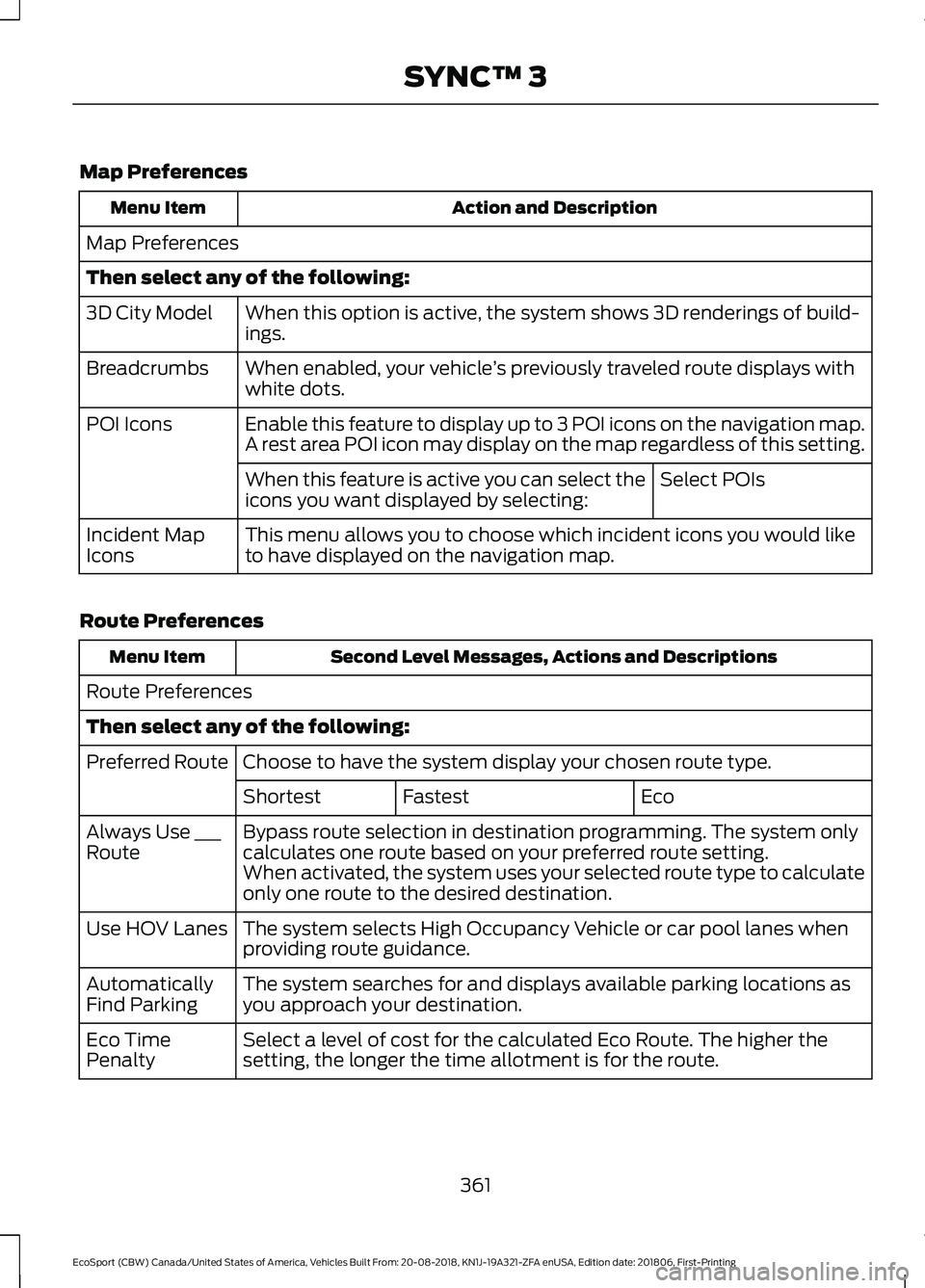
Map Preferences
Action and DescriptionMenu Item
Map Preferences
Then select any of the following:
When this option is active, the system shows 3D renderings of build-ings.3D City Model
When enabled, your vehicle’s previously traveled route displays withwhite dots.Breadcrumbs
Enable this feature to display up to 3 POI icons on the navigation map.POI IconsA rest area POI icon may display on the map regardless of this setting.
Select POIsWhen this feature is active you can select theicons you want displayed by selecting:
This menu allows you to choose which incident icons you would liketo have displayed on the navigation map.Incident MapIcons
Route Preferences
Second Level Messages, Actions and DescriptionsMenu Item
Route Preferences
Then select any of the following:
Choose to have the system display your chosen route type.Preferred Route
EcoFastestShortest
Bypass route selection in destination programming. The system onlycalculates one route based on your preferred route setting.Always Use ___RouteWhen activated, the system uses your selected route type to calculateonly one route to the desired destination.
The system selects High Occupancy Vehicle or car pool lanes whenproviding route guidance.Use HOV Lanes
The system searches for and displays available parking locations asyou approach your destination.AutomaticallyFind Parking
Select a level of cost for the calculated Eco Route. The higher thesetting, the longer the time allotment is for the route.Eco TimePenalty
361
EcoSport (CBW) Canada/United States of America, Vehicles Built From: 20-08-2018, KN1J-19A321-ZFA enUSA, Edition date: 201806, First-PrintingSYNC™ 3