tow FORD EDGE 2014 1.G Workshop Manual
[x] Cancel search | Manufacturer: FORD, Model Year: 2014, Model line: EDGE, Model: FORD EDGE 2014 1.GPages: 540, PDF Size: 7.52 MB
Page 340 of 540
Item Capacity Ford part nameFord part number /
Ford specification
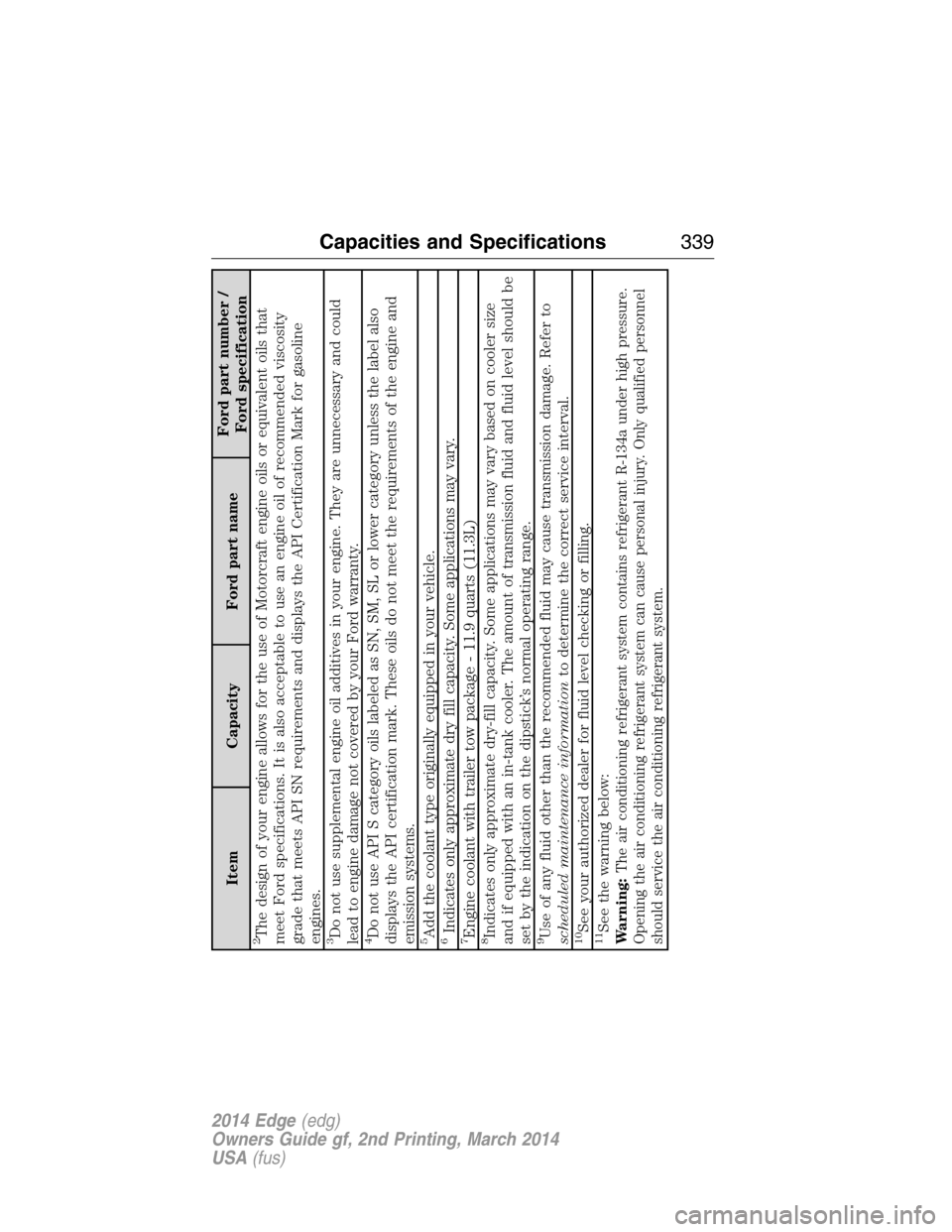
2The design of your engine allows for the use of Motorcraft engine oils or equivalent oils that
meet Ford specifications. It is also acceptable to use an engine oil of recommended viscosity
grade that meets API SN requirements and displays the API Certification Mark for gasoline
engines.3Do not use supplemental engine oil additives in your engine. They are unnecessary and could
lead to engine damage not covered by your Ford warranty.4Do not use API S category oils labeled as SN, SM, SL or lower category unless the label also
displays the API certification mark. These oils do not meet the requirements of the engine and
emission systems.5Add the coolant type originally equipped in your vehicle.6Indicates only approximate dry fill capacity. Some applications may vary.7Engine coolant with trailer tow package - 11.9 quarts (11.3L)8Indicates only approximate dry-fill capacity. Some applications may vary based on cooler size
and if equipped with an in-tank cooler. The amount of transmission fluid and fluid level should be
set by the indication on the dipstick’s normal operating range.9Use of any fluid other than the recommended fluid may cause transmission damage. Refer to
scheduled maintenance informationto determine the correct service interval.10See your authorized dealer for fluid level checking or filling.11See the warning below:
Warning:
The air conditioning refrigerant system contains refrigerant R-134a under high pressure.
Opening the air conditioning refrigerant system can cause personal injury. Only qualified personnel
should service the air conditioning refrigerant system.
Capacities and Specifications339
2014 Edge(edg)
Owners Guide gf, 2nd Printing, March 2014
USA(fus)
Page 348 of 540
Extended Rental Benefits
If your vehicle is kept overnight for covered repairs, you are eligible for
rental car coverage, including Bumper to Bumper warranty repairs, or
Field Service Actions.
Roadside Assistance
Exclusive 24/7 roadside assistance, including:
•Towing, flat-tire change and battery jump starts.
•Out of fuel and lock-out assistance.
•Travel expense reimbursement for lodging, meals and rental car.
•Destination assistance for taxi, shuttle, rental car coverage and
emergency transportation.
Transferable Coverage
If you sell your vehicle before your Ford Extended Service Plan coverage
expires, you can transfer any remaining coverage to the new owner.
Whenever you sell your vehicle, prospective buyers may have a higher
degree of confidence that vehicle was properly maintained with Ford
ESP, thereby improving resale value!
Avoid the Rising cost of vehicle maintenance
Ford Extended Service Plan also offers a Premium Maintenance Plan
that covers all scheduled maintenance, and selected wear items. The
coverage is prepaid, so you never have to worry about affording your
vehicle’s maintenance. It covers regular checkups, routine inspections,
preventative care and replacement of select items that require periodic
attention for normal wear:
•Windshield Wiper Blades.
•Spark Plugs (except in California).
•The Clutch Disc.
•Brake Pads and Linings.
•Shock Absorbers.
•Belts and Hoses.
•Diesel Exhaust Fluid Replenishment.
Extended Service Plan347
2014 Edge(edg)
Owners Guide gf, 2nd Printing, March 2014
USA(fus)
Page 349 of 540
Interest Free Finance Options Available
Take advantage of our interest free installment payment plan. Just a 10%
down payment will provide you with an affordable, no interest, no fee
payment program allowing you all the security and benefits Ford ESP
has to offer while paying over time. You are pre-approved with no credit
checks, no hassles! To learn more, call our Ford ESP specialists at
800-367-3377.
Ford ESP
PO Box 8072
Royal Oak Michigan 48068-0039
SERVICE PLANS (CANADA ONLY)
You can get more protection for your vehicle by purchasing a Ford
Extended Service Plan. Ford Extended Service Plan is the only service
contract backed by Ford Motor Company of Canada, Limited. Depending
on the plan you purchase, Ford Extended Service Plan provides benefits
such as:
•Rental reimbursement.
•Coverage for certain maintenance and wear items.
•Protection against repair costs after your New Vehicle Limited
Warranty Coverage expires.
•Roadside Assistance benefits.
There are several Ford Extended Service Plans available in various time,
distance and deductible combinations. Each plan is tailored to fit your
own driving needs, including reimbursement for towing and rental. When
you purchase Ford Extended Service Plan, you receive added
peace-of-mind protection throughout Canada and the United States,
provided by a network of participating Ford Motor Company dealers.
Note:Repairs performed outside of Canada and the United States are
not eligible for Ford Extended Service Plan coverage.
This information is subject to change. For more information, visit your
local Ford of Canada dealer or www.ford.ca to find the Ford Extended
Service Plan that is right for you.
348Extended Service Plan
2014 Edge(edg)
Owners Guide gf, 2nd Printing, March 2014
USA(fus)
Page 350 of 540
GENERAL INFORMATION
Radio Frequencies and Reception Factors
AM and FM frequencies are established by the Federal Communications
Commission (FCC) and the Canadian Radio and Telecommunications
Commission (CRTC). Those frequencies are:
AM: 530, 540–1700, 1710 kHz
FM: 87.9–107.7, 107.9 MHz
Radio reception factors
Distance and
strengthThe further you travel from an FM station, the
weaker the signal and the weaker the reception.
TerrainHills, mountains, tall buildings, bridges, tunnels,
freeway overpasses, parking garages, dense tree
foliage and thunderstorms can interfere with the
reception.
Station overloadWhen you pass a ground-based broadcast
repeating tower, a stronger signal may overtake
a weaker one and result in the audio system
muting.
CD and CD Player Information
Note:CD units play commercially pressed 4.75-inch (12 centimeter)
audio compact discs only. Due to technical incompatibility, certain
recordable and re-recordable compact discs may not function correctly
when used in Ford CD players.
Note:Do not insert CDs with homemade paper (adhesive) labels into
the CD player as the label may peel and cause the CD to become
jammed. You should use a permanent felt tip marker rather than
adhesive labels on your homemade CDs. Ballpoint pens may damage
CDs. Please contact your authorized dealer for further information.
Note:Do not use any irregularly shaped discs or discs with a scratch
protection film attached.
Always handle discs by their edges only. Clean the disc with an approved
CD cleaner only. Wipe it from the center of the disc toward the edge.
Do not clean in a circular motion.
Do not expose discs to direct sunlight or heat sources for extended periods.
Audio System349
2014 Edge(edg)
Owners Guide gf, 2nd Printing, March 2014
USA(fus)
Page 363 of 540
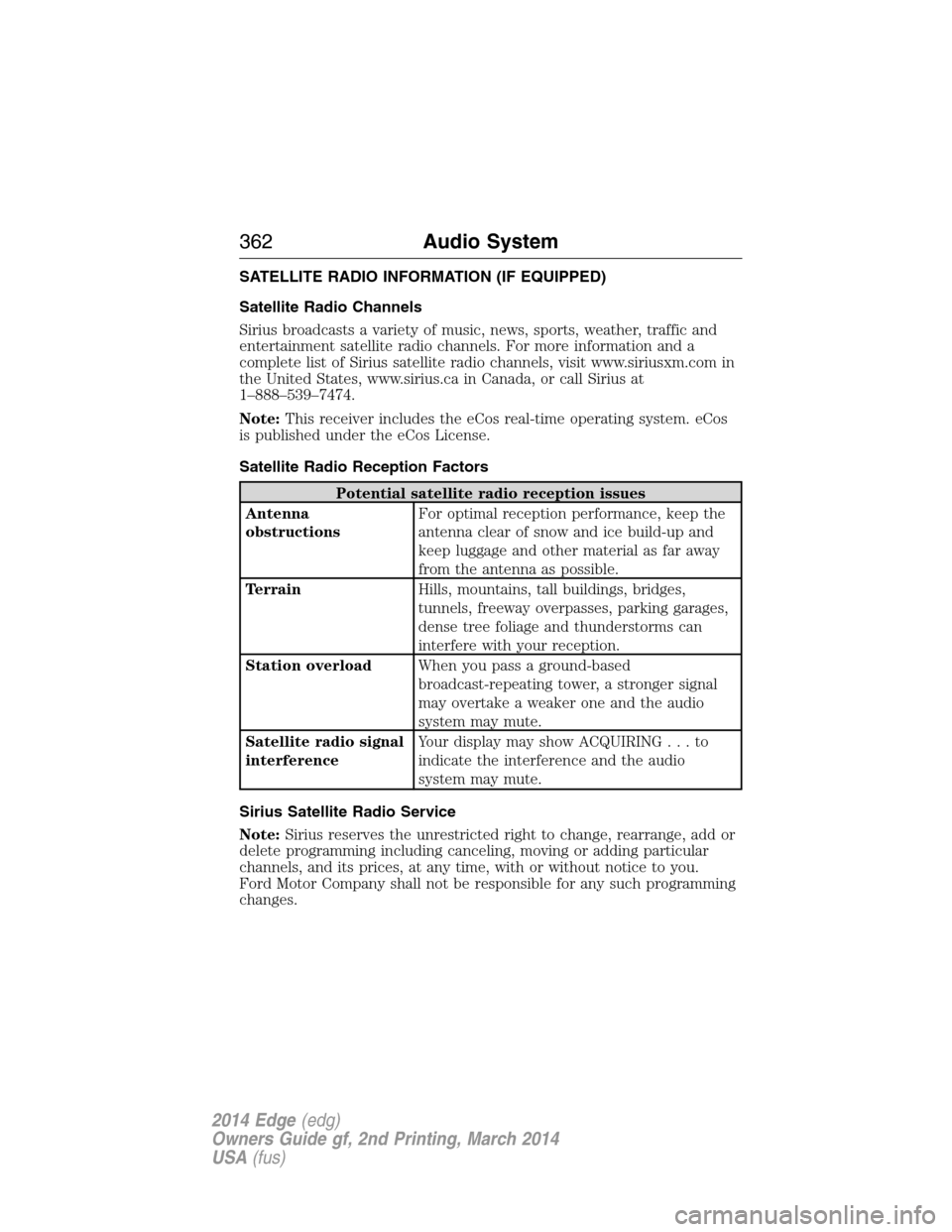
SATELLITE RADIO INFORMATION (IF EQUIPPED)
Satellite Radio Channels
Sirius broadcasts a variety of music, news, sports, weather, traffic and
entertainment satellite radio channels. For more information and a
complete list of Sirius satellite radio channels, visit www.siriusxm.com in
the United States, www.sirius.ca in Canada, or call Sirius at
1–888–539–7474.
Note:This receiver includes the eCos real-time operating system. eCos
is published under the eCos License.
Satellite Radio Reception Factors
Potential satellite radio reception issues
Antenna
obstructionsFor optimal reception performance, keep the
antenna clear of snow and ice build-up and
keep luggage and other material as far away
from the antenna as possible.
TerrainHills, mountains, tall buildings, bridges,
tunnels, freeway overpasses, parking garages,
dense tree foliage and thunderstorms can
interfere with your reception.
Station overloadWhen you pass a ground-based
broadcast-repeating tower, a stronger signal
may overtake a weaker one and the audio
system may mute.
Satellite radio signal
interferenceYour display may show ACQUIRING...to
indicate the interference and the audio
system may mute.
Sirius Satellite Radio Service
Note:Sirius reserves the unrestricted right to change, rearrange, add or
delete programming including canceling, moving or adding particular
channels, and its prices, at any time, with or without notice to you.
Ford Motor Company shall not be responsible for any such programming
changes.
362Audio System
2014 Edge(edg)
Owners Guide gf, 2nd Printing, March 2014
USA(fus)
Page 365 of 540
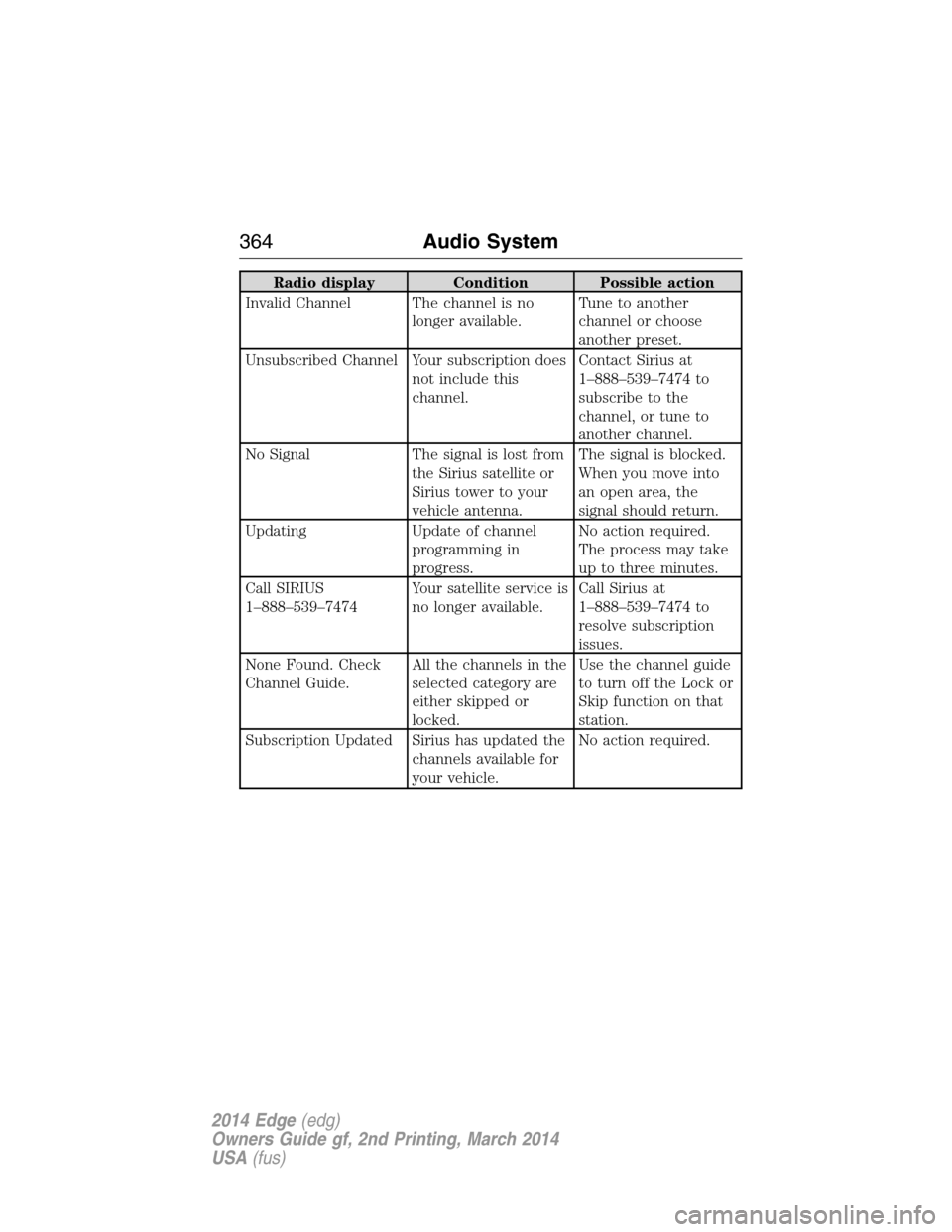
Radio display Condition Possible action
Invalid Channel The channel is no
longer available.Tune to another
channel or choose
another preset.
Unsubscribed Channel Your subscription does
not include this
channel.Contact Sirius at
1–888–539–7474 to
subscribe to the
channel, or tune to
another channel.
No Signal The signal is lost from
the Sirius satellite or
Sirius tower to your
vehicle antenna.The signal is blocked.
When you move into
an open area, the
signal should return.
Updating Update of channel
programming in
progress.No action required.
The process may take
up to three minutes.
Call SIRIUS
1–888–539–7474Your satellite service is
no longer available.Call Sirius at
1–888–539–7474 to
resolve subscription
issues.
None Found. Check
Channel Guide.All the channels in the
selected category are
either skipped or
locked.Use the channel guide
to turn off the Lock or
Skip function on that
station.
Subscription Updated Sirius has updated the
channels available for
your vehicle.No action required.
364Audio System
2014 Edge(edg)
Owners Guide gf, 2nd Printing, March 2014
USA(fus)
Page 395 of 540
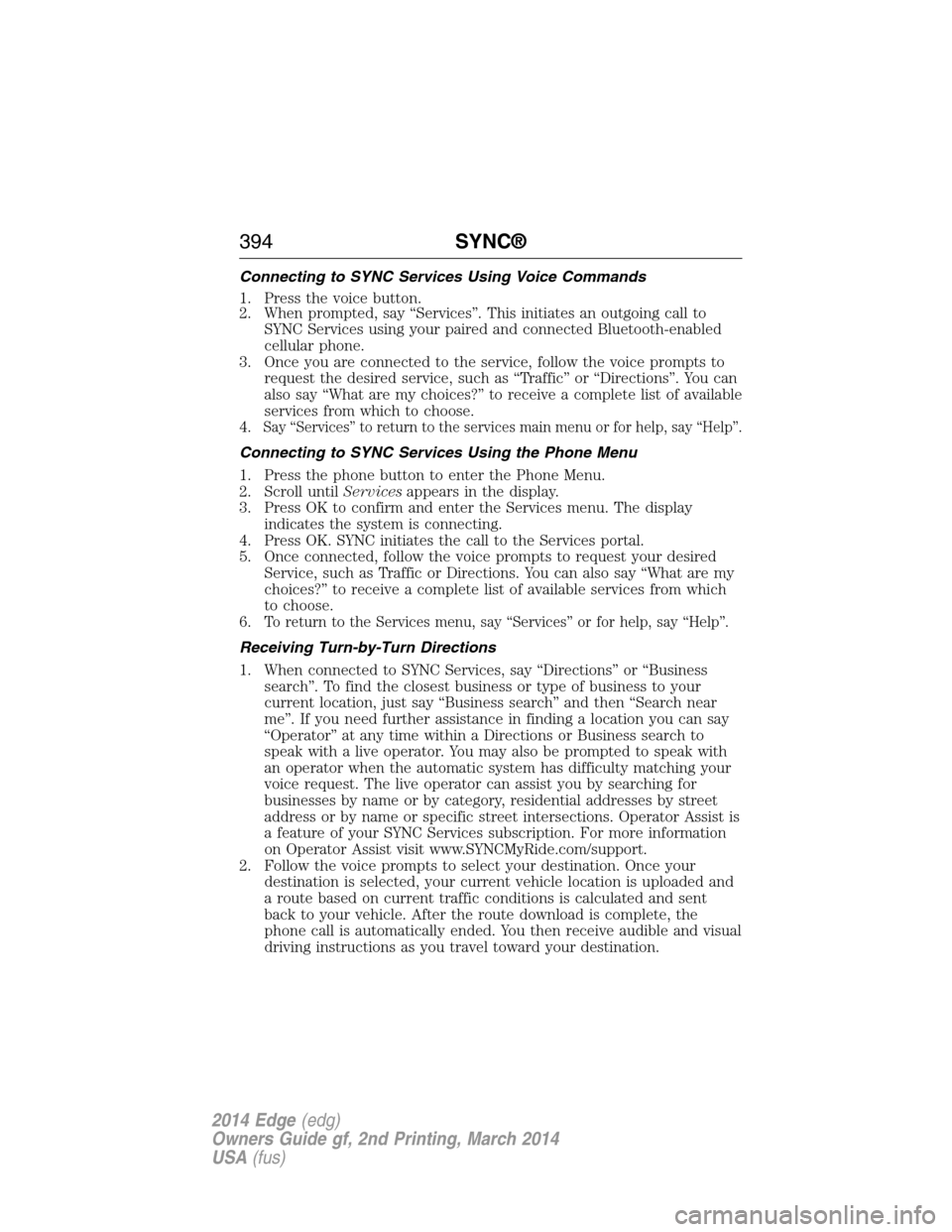
Connecting to SYNC Services Using Voice Commands
1. Press the voice button.
2. When prompted, say “Services”. This initiates an outgoing call to
SYNC Services using your paired and connected Bluetooth-enabled
cellular phone.
3. Once you are connected to the service, follow the voice prompts to
request the desired service, such as “Traffic” or “Directions”. You can
also say “What are my choices?” to receive a complete list of available
services from which to choose.
4.
Say “Services” to return to the services main menu or for help, say “Help”.
Connecting to SYNC Services Using the Phone Menu
1. Press the phone button to enter the Phone Menu.
2. Scroll untilServicesappears in the display.
3. Press OK to confirm and enter the Services menu. The display
indicates the system is connecting.
4. Press OK. SYNC initiates the call to the Services portal.
5. Once connected, follow the voice prompts to request your desired
Service, such as Traffic or Directions. You can also say “What are my
choices?” to receive a complete list of available services from which
to choose.
6.
To return to the Services menu, say “Services” or for help, say “Help”.
Receiving Turn-by-Turn Directions
1. When connected to SYNC Services, say “Directions” or “Business
search”. To find the closest business or type of business to your
current location, just say “Business search” and then “Search near
me”. If you need further assistance in finding a location you can say
“Operator” at any time within a Directions or Business search to
speak with a live operator. You may also be prompted to speak with
an operator when the automatic system has difficulty matching your
voice request. The live operator can assist you by searching for
businesses by name or by category, residential addresses by street
address or by name or specific street intersections. Operator Assist is
a feature of your SYNC Services subscription. For more information
on Operator Assist visit www.SYNCMyRide.com/support.
2. Follow the voice prompts to select your destination. Once your
destination is selected, your current vehicle location is uploaded and
a route based on current traffic conditions is calculated and sent
back to your vehicle. After the route download is complete, the
phone call is automatically ended. You then receive audible and visual
driving instructions as you travel toward your destination.
394SYNC®
2014 Edge(edg)
Owners Guide gf, 2nd Printing, March 2014
USA(fus)
Page 443 of 540
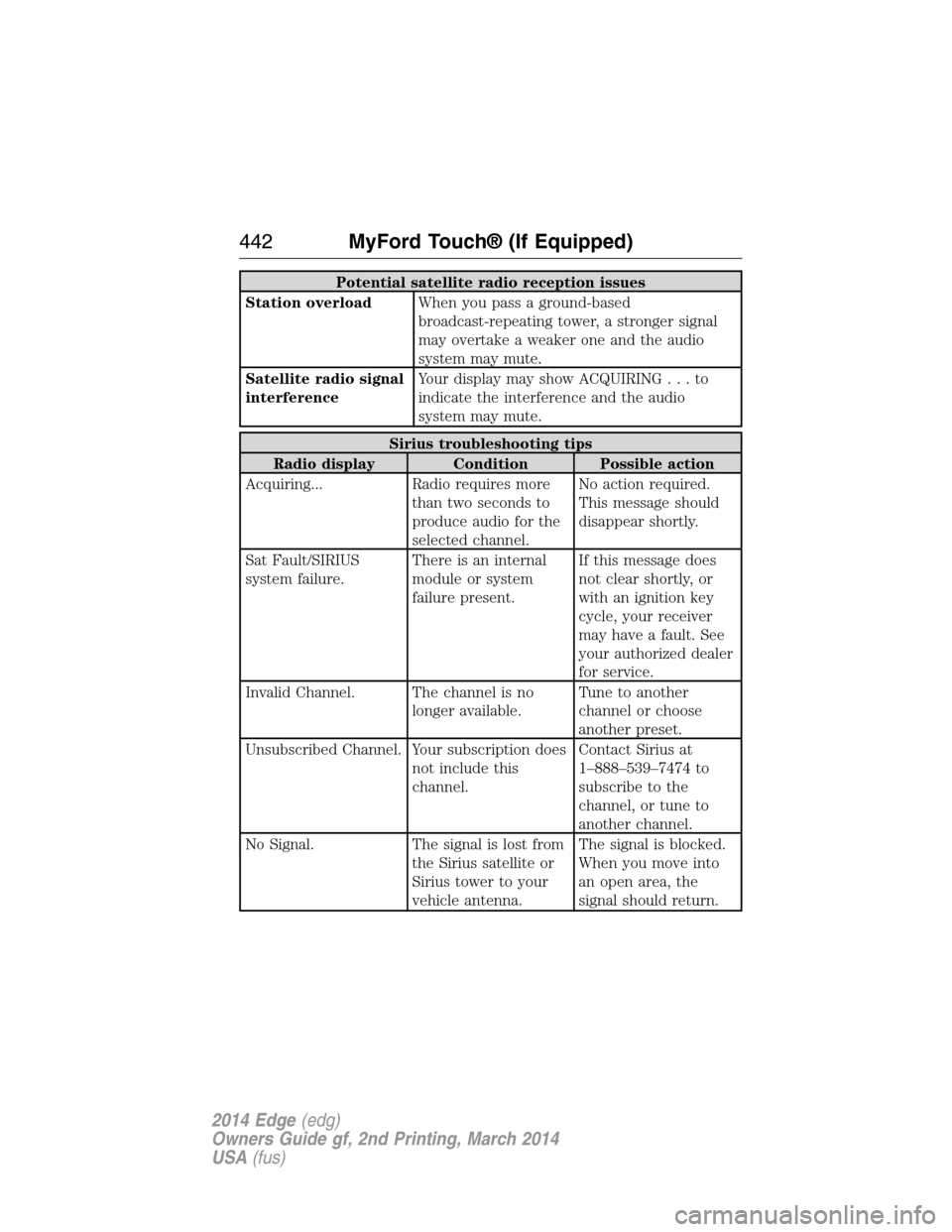
Potential satellite radio reception issues
Station overloadWhen you pass a ground-based
broadcast-repeating tower, a stronger signal
may overtake a weaker one and the audio
system may mute.
Satellite radio signal
interferenceYour display may show ACQUIRING...to
indicate the interference and the audio
system may mute.
Sirius troubleshooting tips
Radio display Condition Possible action
Acquiring... Radio requires more
than two seconds to
produce audio for the
selected channel.No action required.
This message should
disappear shortly.
Sat Fault/SIRIUS
system failure.There is an internal
module or system
failure present.If this message does
not clear shortly, or
with an ignition key
cycle, your receiver
may have a fault. See
your authorized dealer
for service.
Invalid Channel. The channel is no
longer available.Tune to another
channel or choose
another preset.
Unsubscribed Channel. Your subscription does
not include this
channel.Contact Sirius at
1–888–539–7474 to
subscribe to the
channel, or tune to
another channel.
No Signal. The signal is lost from
the Sirius satellite or
Sirius tower to your
vehicle antenna.The signal is blocked.
When you move into
an open area, the
signal should return.
442MyFord Touch® (If Equipped)
2014 Edge(edg)
Owners Guide gf, 2nd Printing, March 2014
USA(fus)
Page 491 of 540
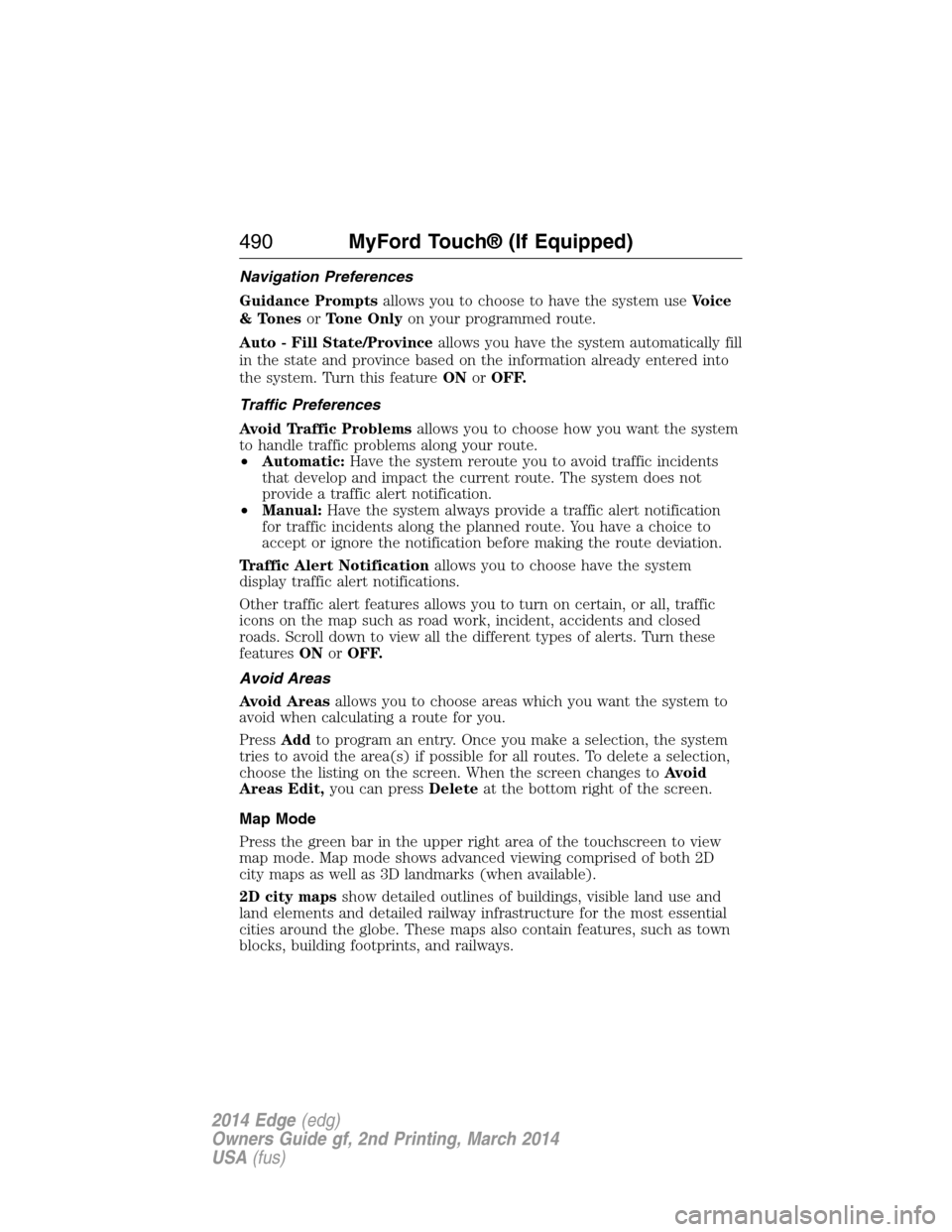
Navigation Preferences
Guidance Promptsallows you to choose to have the system useVoice
& TonesorTone Onlyon your programmed route.
Auto - Fill State/Provinceallows you have the system automatically fill
in the state and province based on the information already entered into
the system. Turn this featureONorOFF.
Traffic Preferences
Avoid Traffic Problemsallows you to choose how you want the system
to handle traffic problems along your route.
•Automatic:Have the system reroute you to avoid traffic incidents
that develop and impact the current route. The system does not
provide a traffic alert notification.
•Manual:Have the system always provide a traffic alert notification
for traffic incidents along the planned route. You have a choice to
accept or ignore the notification before making the route deviation.
Traffic Alert Notificationallows you to choose have the system
display traffic alert notifications.
Other traffic alert features allows you to turn on certain, or all, traffic
icons on the map such as road work, incident, accidents and closed
roads. Scroll down to view all the different types of alerts. Turn these
featuresONorOFF.
Avoid Areas
Avoid Areasallows you to choose areas which you want the system to
avoid when calculating a route for you.
PressAddto program an entry. Once you make a selection, the system
tries to avoid the area(s) if possible for all routes. To delete a selection,
choose the listing on the screen. When the screen changes toAvoid
Areas Edit,you can pressDeleteat the bottom right of the screen.
Map Mode
Press the green bar in the upper right area of the touchscreen to view
map mode. Map mode shows advanced viewing comprised of both 2D
city maps as well as 3D landmarks (when available).
2D city mapsshow detailed outlines of buildings, visible land use and
land elements and detailed railway infrastructure for the most essential
cities around the globe. These maps also contain features, such as town
blocks, building footprints, and railways.
490MyFord Touch® (If Equipped)
2014 Edge(edg)
Owners Guide gf, 2nd Printing, March 2014
USA(fus)
Page 496 of 540
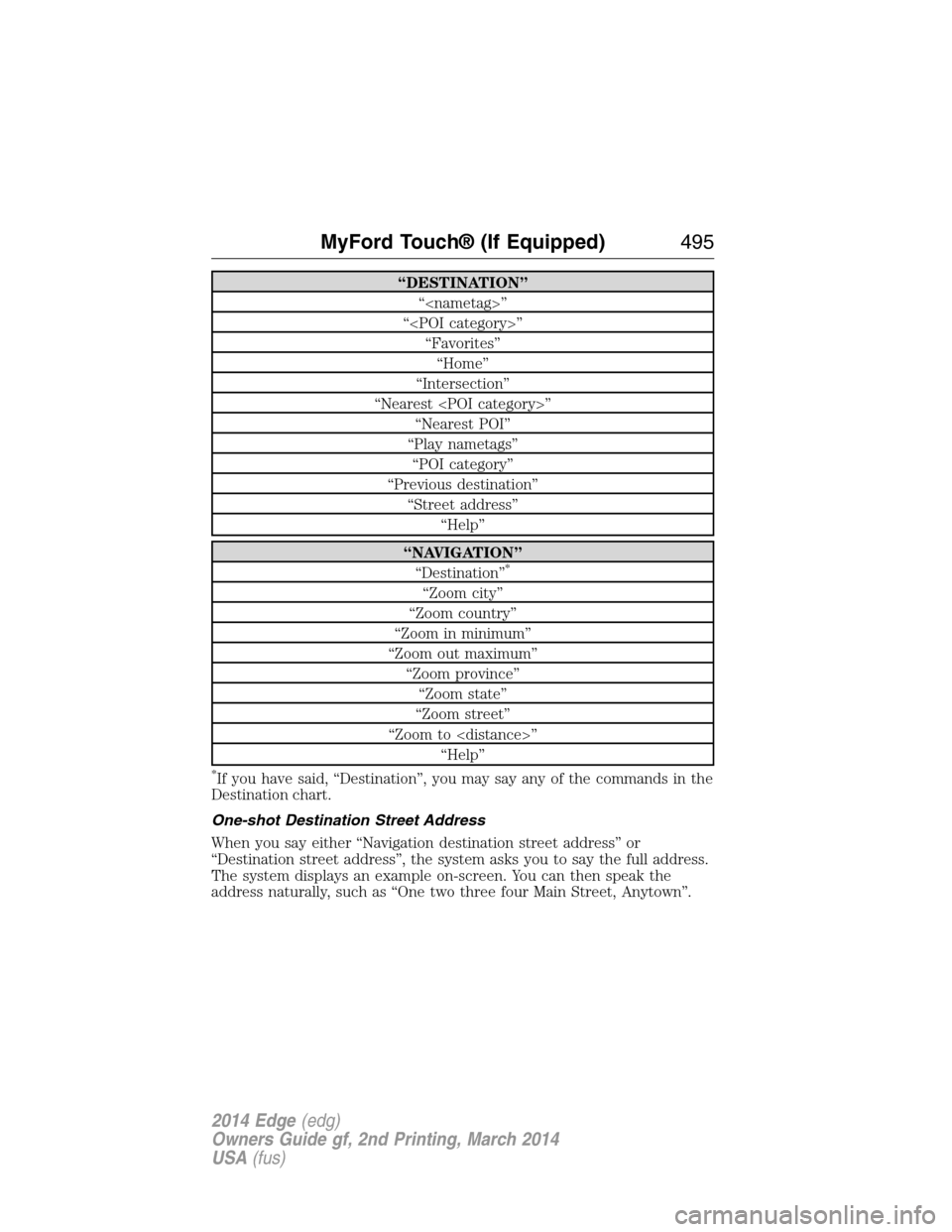
“DESTINATION”
“
“
“Favorites”
“Home”
“Intersection”
“Nearest
“Nearest POI”
“Play nametags”
“POI category”
“Previous destination”
“Street address”
“Help”
“NAVIGATION”
“Destination”*
“Zoom city”
“Zoom country”
“Zoom in minimum”
“Zoom out maximum”
“Zoom province”
“Zoom state”
“Zoom street”
“Zoom to
“Help”
*If you have said, “Destination”, you may say any of the commands in the
Destination chart.
One-shot Destination Street Address
When you say either “Navigation destination street address” or
“Destination street address”, the system asks you to say the full address.
The system displays an example on-screen. You can then speak the
address naturally, such as “One two three four Main Street, Anytown”.
MyFord Touch® (If Equipped)495
2014 Edge(edg)
Owners Guide gf, 2nd Printing, March 2014
USA(fus)