ECO mode FORD EDGE 2015 2.G User Guide
[x] Cancel search | Manufacturer: FORD, Model Year: 2015, Model line: EDGE, Model: FORD EDGE 2015 2.GPages: 508, PDF Size: 6.2 MB
Page 105 of 508
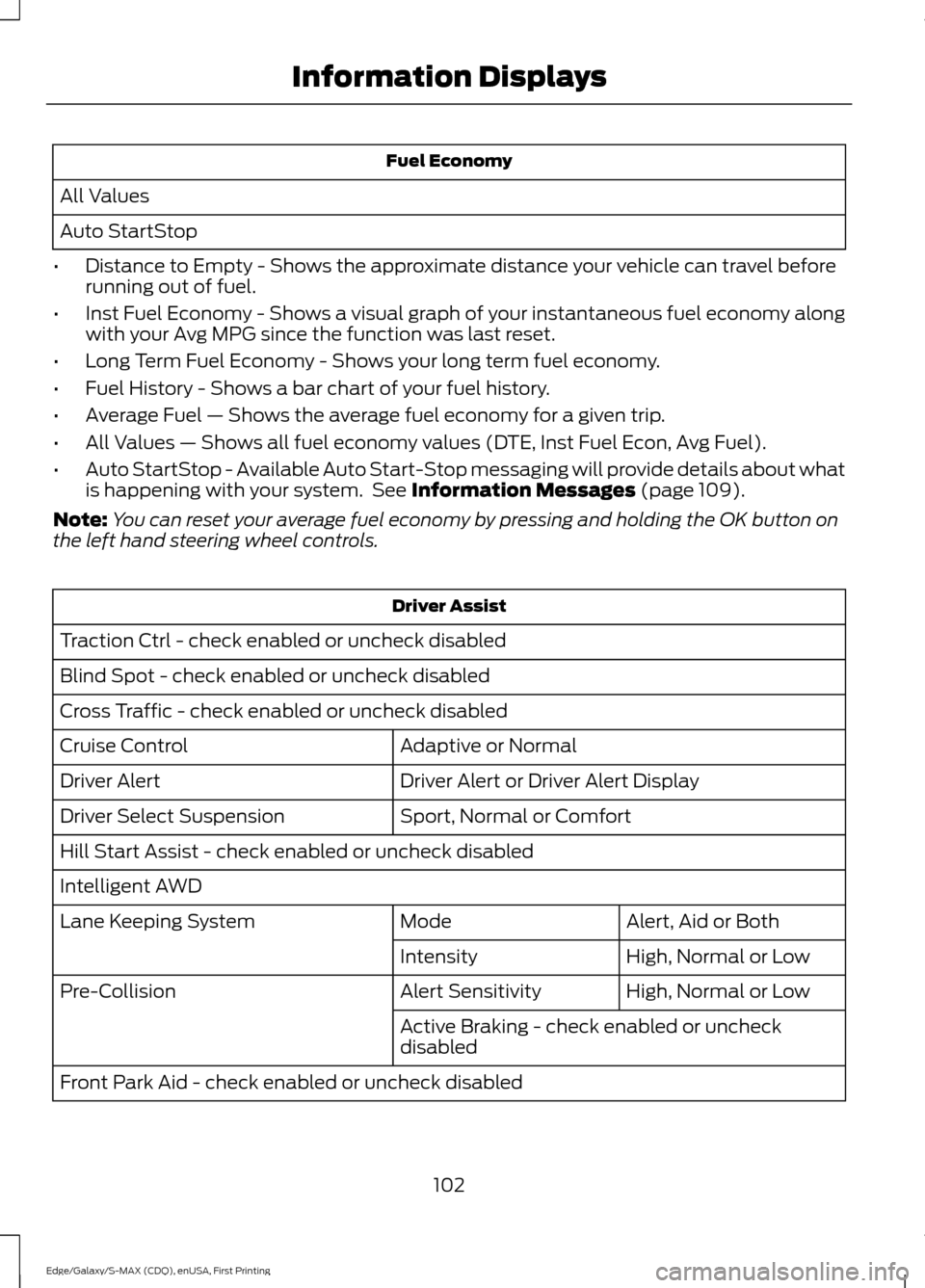
Fuel Economy
All Values
Auto StartStop
• Distance to Empty - Shows the approximate distance your vehicle can travel before
running out of fuel.
• Inst Fuel Economy - Shows a visual graph of your instantaneous fuel economy along
with your Avg MPG since the function was last reset.
• Long Term Fuel Economy - Shows your long term fuel economy.
• Fuel History - Shows a bar chart of your fuel history.
• Average Fuel — Shows the average fuel economy for a given trip.
• All Values — Shows all fuel economy values (DTE, Inst Fuel Econ, Avg Fuel).
• Auto StartStop - Available Auto Start-Stop messaging will provide details about what
is happening with your system. See Information Messages (page 109).
Note: You can reset your average fuel economy by pressing and holding the OK button on
the left hand steering wheel controls. Driver Assist
Traction Ctrl - check enabled or uncheck disabled
Blind Spot - check enabled or uncheck disabled
Cross Traffic - check enabled or uncheck disabled Adaptive or Normal
Cruise Control
Driver Alert or Driver Alert Display
Driver Alert
Sport, Normal or Comfort
Driver Select Suspension
Hill Start Assist - check enabled or uncheck disabled
Intelligent AWD
Alert, Aid or Both
Mode
Lane Keeping System
High, Normal or Low
Intensity
High, Normal or Low
Alert Sensitivity
Pre-Collision
Active Braking - check enabled or uncheck
disabled
Front Park Aid - check enabled or uncheck disabled
102
Edge/Galaxy/S-MAX (CDQ), enUSA, First Printing Information Displays
Page 108 of 508
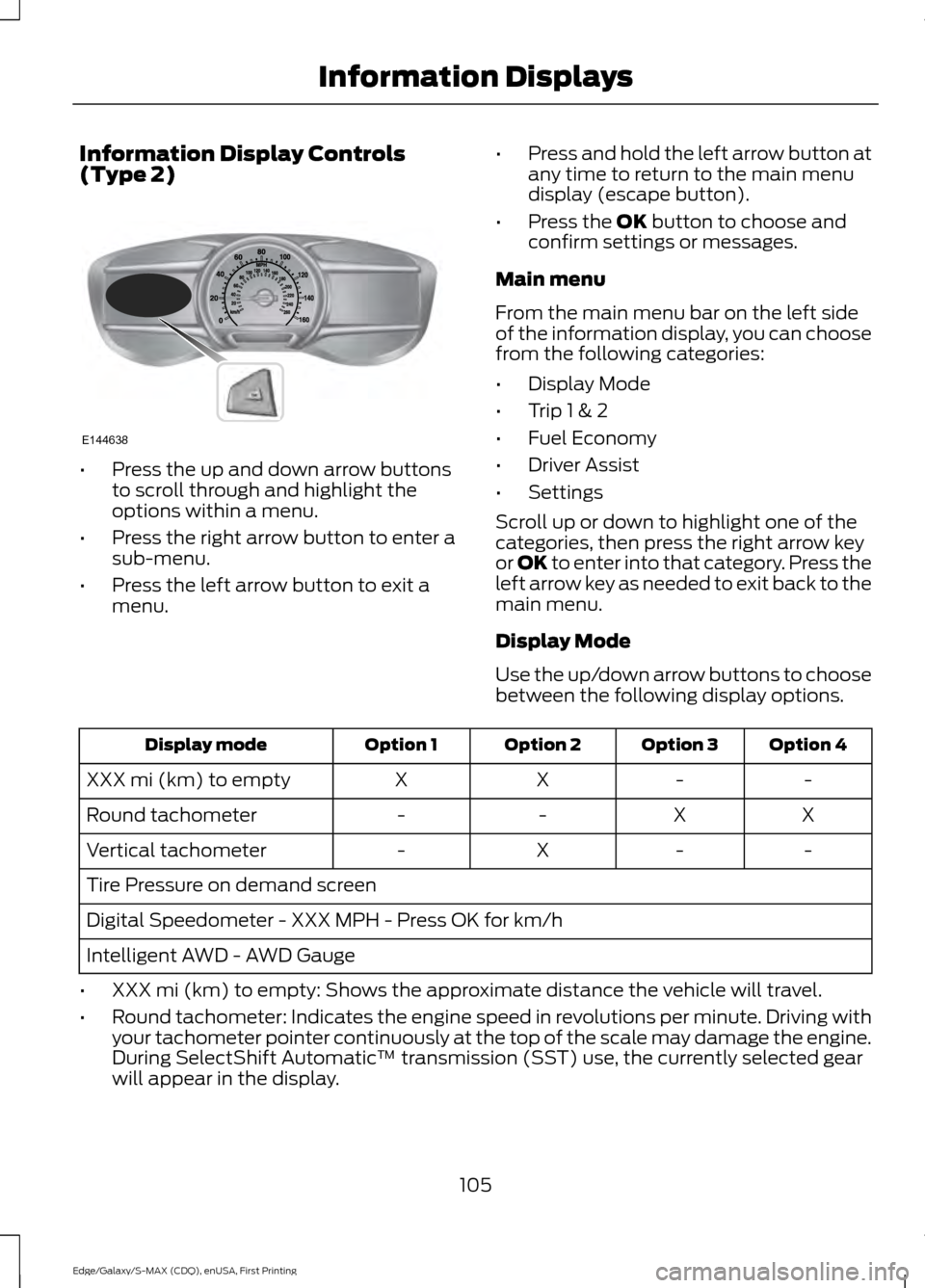
Information Display Controls
(Type 2)
•
Press the up and down arrow buttons
to scroll through and highlight the
options within a menu.
• Press the right arrow button to enter a
sub-menu.
• Press the left arrow button to exit a
menu. •
Press and hold the left arrow button at
any time to return to the main menu
display (escape button).
• Press the OK button to choose and
confirm settings or messages.
Main menu
From the main menu bar on the left side
of the information display, you can choose
from the following categories:
• Display Mode
• Trip 1 & 2
• Fuel Economy
• Driver Assist
• Settings
Scroll up or down to highlight one of the
categories, then press the right arrow key
or OK to enter into that category. Press the
left arrow key as needed to exit back to the
main menu.
Display Mode
Use the up/down arrow buttons to choose
between the following display options. Option 4
Option 3
Option 2
Option 1
Display mode
-
-
X
X
XXX mi (km) to empty
X
X
-
-
Round tachometer
-
-
X
-
Vertical tachometer
Tire Pressure on demand screen
Digital Speedometer - XXX MPH - Press OK for km/h
Intelligent AWD - AWD Gauge
• XXX mi (km) to empty: Shows the approximate distance the vehicle will travel.
• Round tachometer: Indicates the engine speed in revolutions per minute. Driving with
your tachometer pointer continuously at the top of the scale may damage the engine.
During SelectShift Automatic ™ transmission (SST) use, the currently selected gear
will appear in the display.
105
Edge/Galaxy/S-MAX (CDQ), enUSA, First Printing Information DisplaysE144638
Page 109 of 508
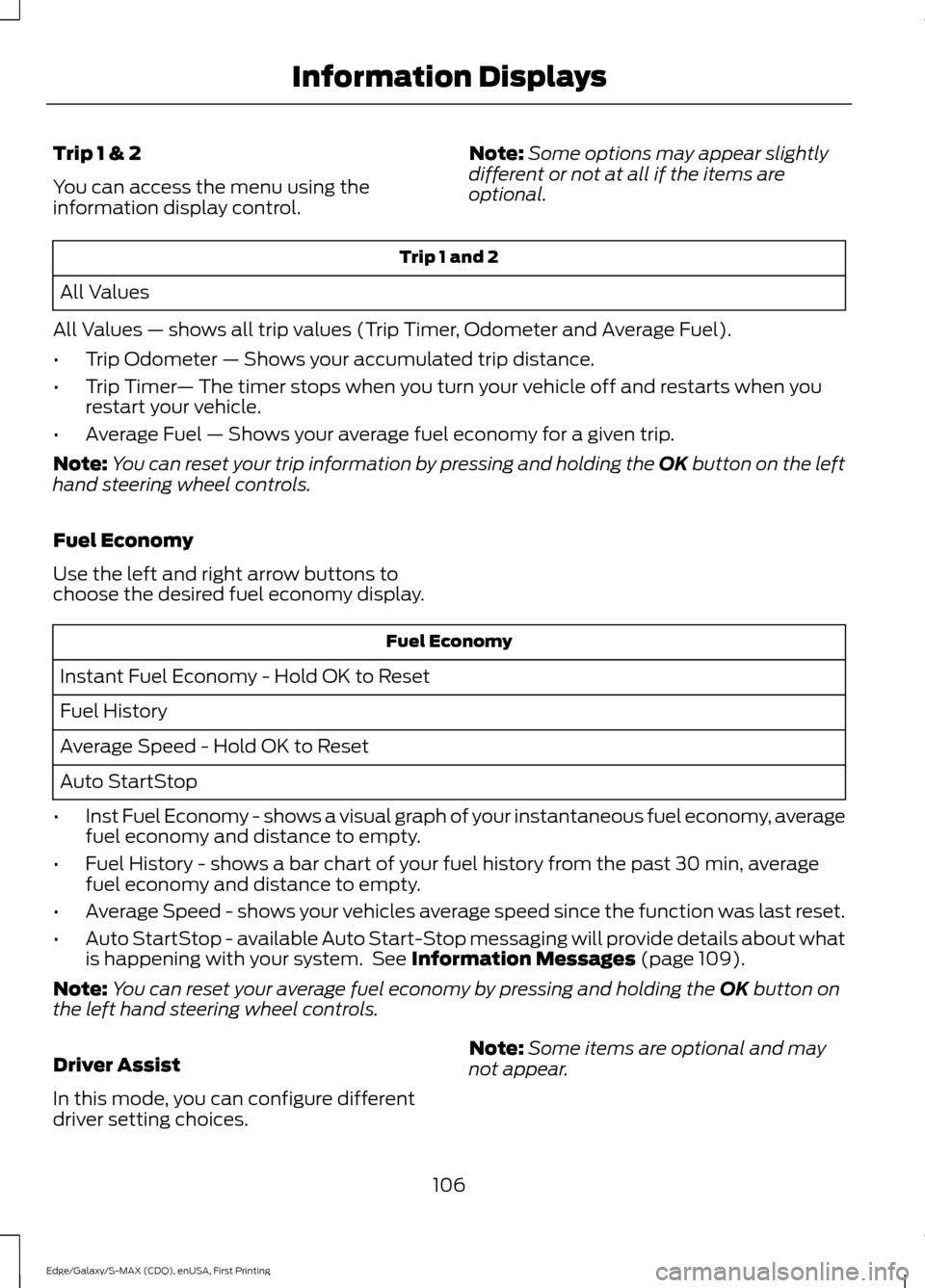
Trip 1 & 2
You can access the menu using the
information display control.
Note:
Some options may appear slightly
different or not at all if the items are
optional. Trip 1 and 2
All Values
All Values — shows all trip values (Trip Timer, Odometer and Average Fuel).
• Trip Odometer — Shows your accumulated trip distance.
• Trip Timer — The timer stops when you turn your vehicle off and restarts when you
restart your vehicle.
• Average Fuel — Shows your average fuel economy for a given trip.
Note: You can reset your trip information by pressing and holding the OK button on the left
hand steering wheel controls.
Fuel Economy
Use the left and right arrow buttons to
choose the desired fuel economy display. Fuel Economy
Instant Fuel Economy - Hold OK to Reset
Fuel History
Average Speed - Hold OK to Reset
Auto StartStop
• Inst Fuel Economy - shows a visual graph of your instantaneous fuel economy, average
fuel economy and distance to empty.
• Fuel History - shows a bar chart of your fuel history from the past 30 min, average
fuel economy and distance to empty.
• Average Speed - shows your vehicles average speed since the function was last reset.
• Auto StartStop - available Auto Start-Stop messaging will provide details about what
is happening with your system. See Information Messages (page 109).
Note: You can reset your average fuel economy by pressing and holding the
OK button on
the left hand steering wheel controls.
Driver Assist
In this mode, you can configure different
driver setting choices. Note:
Some items are optional and may
not appear.
106
Edge/Galaxy/S-MAX (CDQ), enUSA, First Printing Information Displays
Page 130 of 508
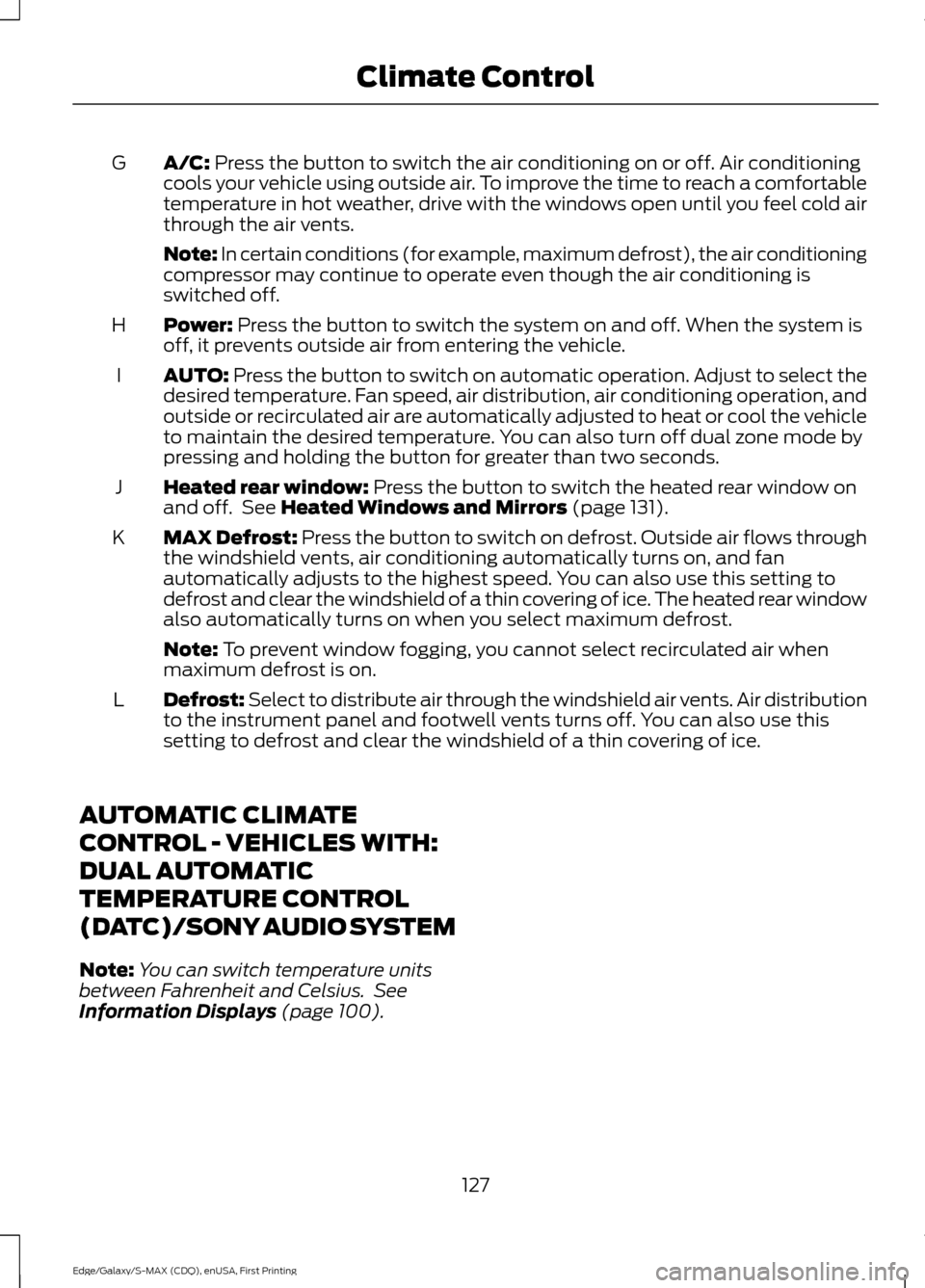
A/C: Press the button to switch the air conditioning on or off. Air conditioning
cools your vehicle using outside air. To improve the time to reach a comfortable
temperature in hot weather, drive with the windows open until you feel cold air
through the air vents.
G
Note: In certain conditions (for example, maximum defrost), the air conditioning
compressor may continue to operate even though the air conditioning is
switched off.
Power:
Press the button to switch the system on and off. When the system is
off, it prevents outside air from entering the vehicle.
H
AUTO:
Press the button to switch on automatic operation. Adjust to select the
desired temperature. Fan speed, air distribution, air conditioning operation, and
outside or recirculated air are automatically adjusted to heat or cool the vehicle
to maintain the desired temperature. You can also turn off dual zone mode by
pressing and holding the button for greater than two seconds.
I
Heated rear window:
Press the button to switch the heated rear window on
and off. See Heated Windows and Mirrors (page 131).
J
MAX Defrost: Press the button to switch on defrost. Outside air flows through
the windshield vents, air conditioning automatically turns on, and fan
automatically adjusts to the highest speed. You can also use this setting to
defrost and clear the windshield of a thin covering of ice. The heated rear window
also automatically turns on when you select maximum defrost.
K
Note:
To prevent window fogging, you cannot select recirculated air when
maximum defrost is on.
Defrost: Select to distribute air through the windshield air vents. Air distribution
to the instrument panel and footwell vents turns off. You can also use this
setting to defrost and clear the windshield of a thin covering of ice.
L
AUTOMATIC CLIMATE
CONTROL - VEHICLES WITH:
DUAL AUTOMATIC
TEMPERATURE CONTROL
(DATC)/SONY AUDIO SYSTEM
Note: You can switch temperature units
between Fahrenheit and Celsius. See
Information Displays
(page 100).
127
Edge/Galaxy/S-MAX (CDQ), enUSA, First Printing Climate Control
Page 148 of 508
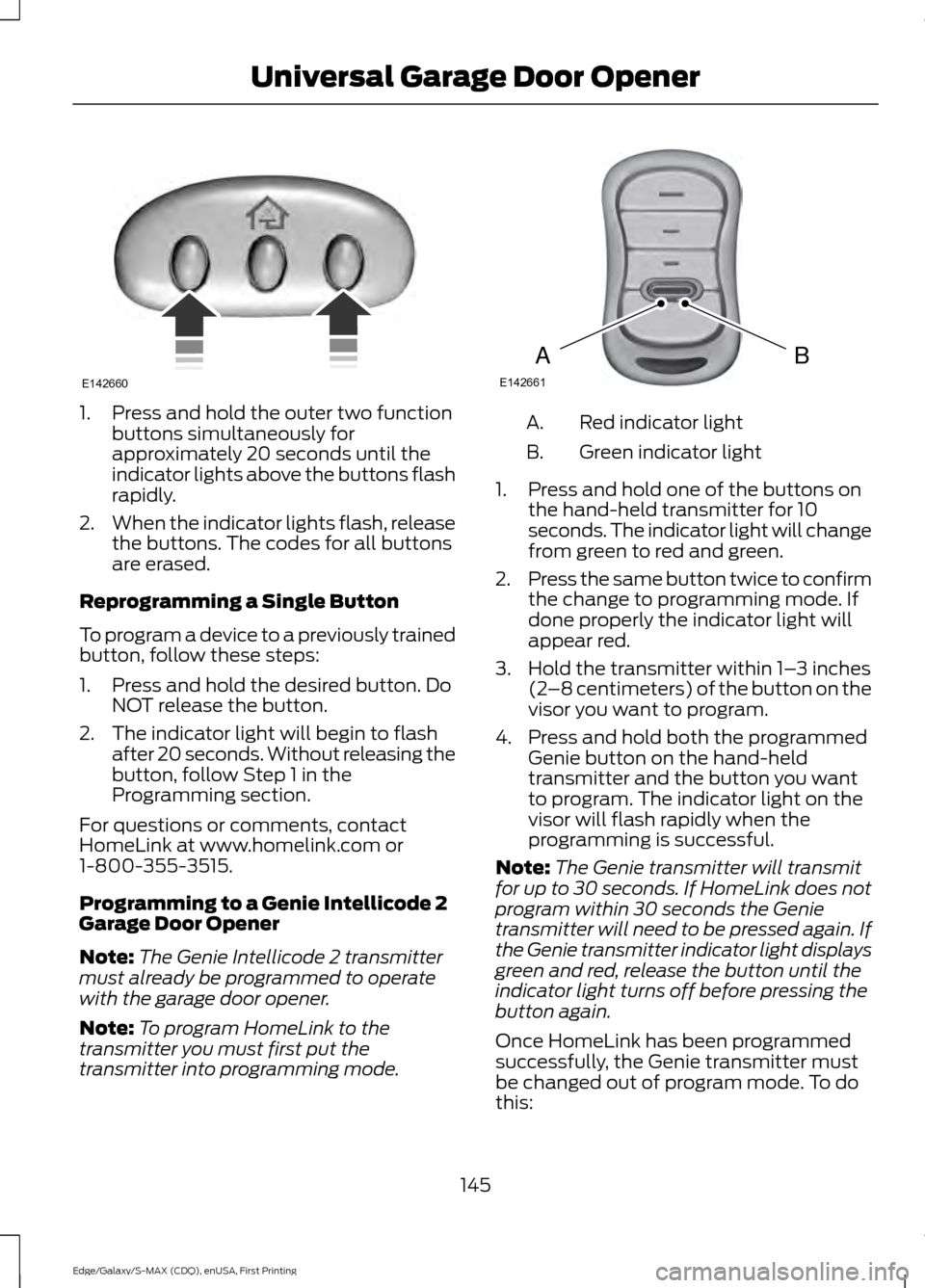
1. Press and hold the outer two function
buttons simultaneously for
approximately 20 seconds until the
indicator lights above the buttons flash
rapidly.
2. When the indicator lights flash, release
the buttons. The codes for all buttons
are erased.
Reprogramming a Single Button
To program a device to a previously trained
button, follow these steps:
1. Press and hold the desired button. Do NOT release the button.
2. The indicator light will begin to flash after 20 seconds. Without releasing the
button, follow Step 1 in the
Programming section.
For questions or comments, contact
HomeLink at www.homelink.com or
1-800-355-3515.
Programming to a Genie Intellicode 2
Garage Door Opener
Note: The Genie Intellicode 2 transmitter
must already be programmed to operate
with the garage door opener.
Note: To program HomeLink to the
transmitter you must first put the
transmitter into programming mode. Red indicator light
A.
Green indicator light
B.
1. Press and hold one of the buttons on the hand-held transmitter for 10
seconds. The indicator light will change
from green to red and green.
2. Press the same button twice to confirm
the change to programming mode. If
done properly the indicator light will
appear red.
3. Hold the transmitter within 1– 3 inches
(2 –8 centimeters) of the button on the
visor you want to program.
4. Press and hold both the programmed Genie button on the hand-held
transmitter and the button you want
to program. The indicator light on the
visor will flash rapidly when the
programming is successful.
Note: The Genie transmitter will transmit
for up to 30 seconds. If HomeLink does not
program within 30 seconds the Genie
transmitter will need to be pressed again. If
the Genie transmitter indicator light displays
green and red, release the button until the
indicator light turns off before pressing the
button again.
Once HomeLink has been programmed
successfully, the Genie transmitter must
be changed out of program mode. To do
this:
145
Edge/Galaxy/S-MAX (CDQ), enUSA, First Printing Universal Garage Door OpenerE142660 BAE142661
Page 149 of 508
1. Press and hold the previously
programmed Genie button on the
hand-held transmitter for 10 seconds.
The indicator light will change from red
to red and green.
2. Press the same button twice to confirm
the change. If done correctly the
indicator light will turn green.
Programming HomeLink to the Genie
Intellicode Garage Door Opener Motor
Note: You may need a ladder to access the
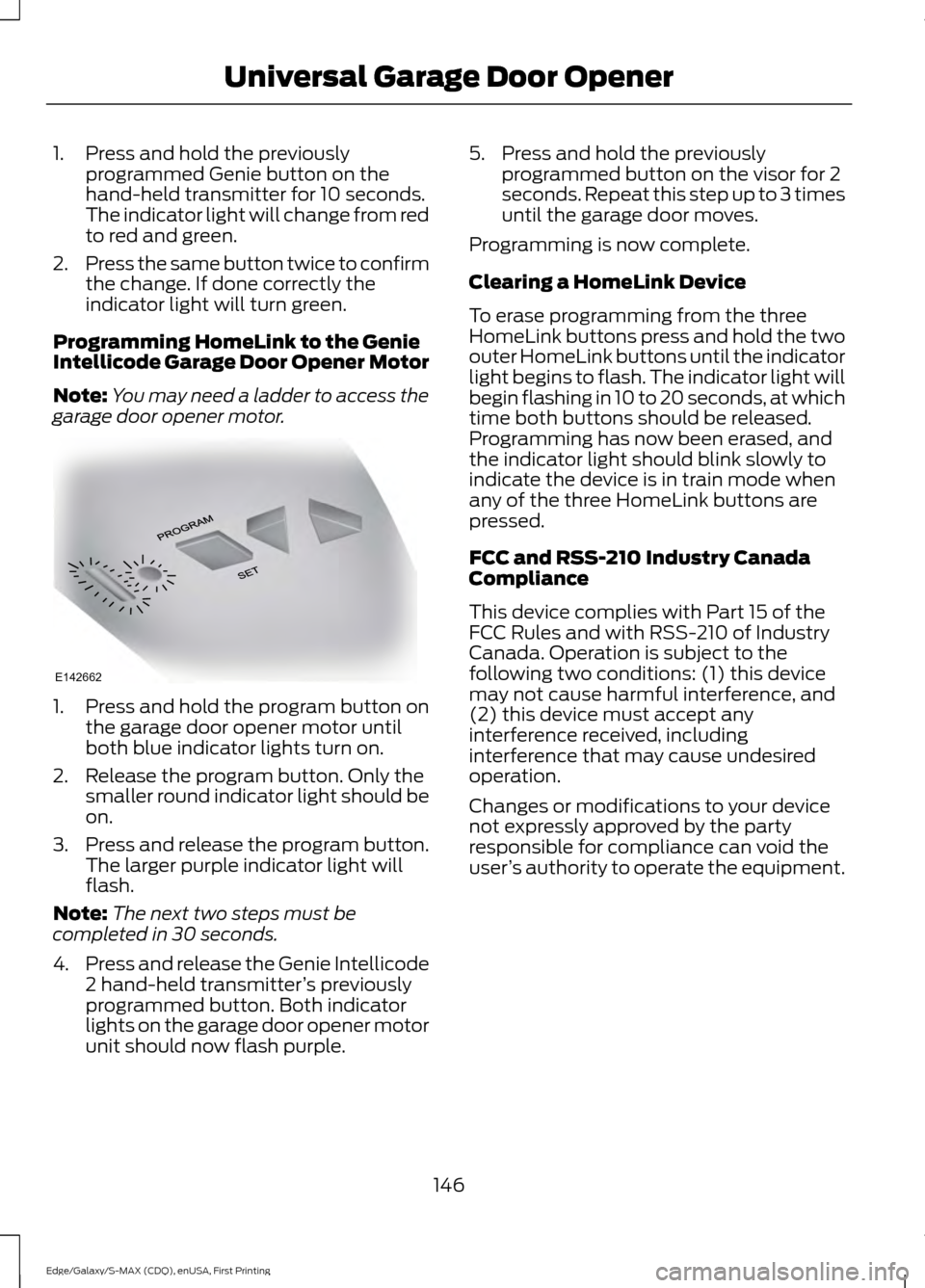
garage door opener motor. 1. Press and hold the program button on
the garage door opener motor until
both blue indicator lights turn on.
2. Release the program button. Only the smaller round indicator light should be
on.
3. Press and release the program button.
The larger purple indicator light will
flash.
Note: The next two steps must be
completed in 30 seconds.
4. Press and release the Genie Intellicode
2 hand-held transmitter ’s previously
programmed button. Both indicator
lights on the garage door opener motor
unit should now flash purple. 5. Press and hold the previously
programmed button on the visor for 2
seconds. Repeat this step up to 3 times
until the garage door moves.
Programming is now complete.
Clearing a HomeLink Device
To erase programming from the three
HomeLink buttons press and hold the two
outer HomeLink buttons until the indicator
light begins to flash. The indicator light will
begin flashing in 10 to 20 seconds, at which
time both buttons should be released.
Programming has now been erased, and
the indicator light should blink slowly to
indicate the device is in train mode when
any of the three HomeLink buttons are
pressed.
FCC and RSS-210 Industry Canada
Compliance
This device complies with Part 15 of the
FCC Rules and with RSS-210 of Industry
Canada. Operation is subject to the
following two conditions: (1) this device
may not cause harmful interference, and
(2) this device must accept any
interference received, including
interference that may cause undesired
operation.
Changes or modifications to your device
not expressly approved by the party
responsible for compliance can void the
user ’s authority to operate the equipment.
146
Edge/Galaxy/S-MAX (CDQ), enUSA, First Printing Universal Garage Door OpenerE142662
Page 154 of 508
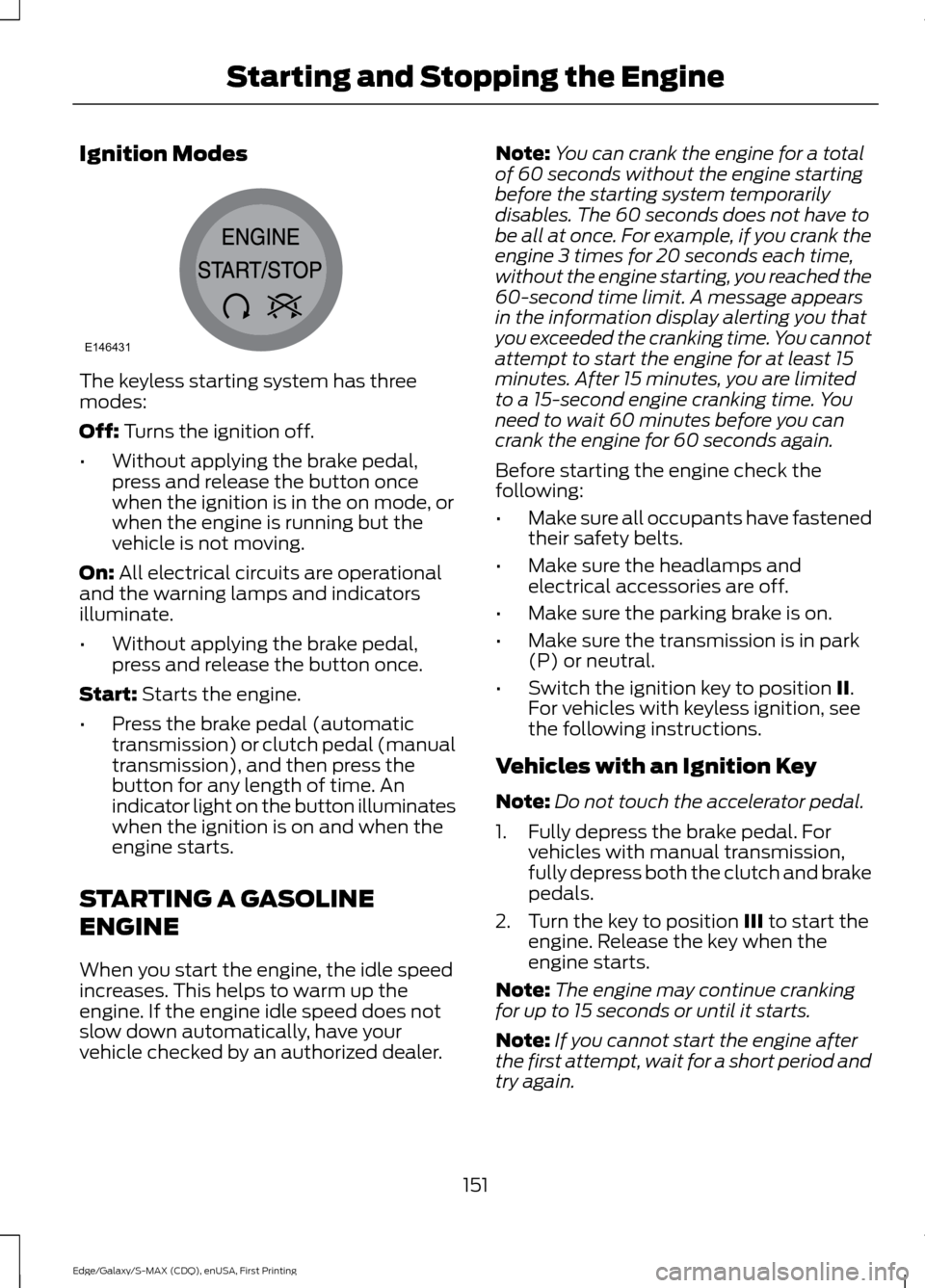
Ignition Modes
The keyless starting system has three
modes:
Off: Turns the ignition off.
• Without applying the brake pedal,
press and release the button once
when the ignition is in the on mode, or
when the engine is running but the
vehicle is not moving.
On:
All electrical circuits are operational
and the warning lamps and indicators
illuminate.
• Without applying the brake pedal,
press and release the button once.
Start:
Starts the engine.
• Press the brake pedal (automatic
transmission) or clutch pedal (manual
transmission), and then press the
button for any length of time. An
indicator light on the button illuminates
when the ignition is on and when the
engine starts.
STARTING A GASOLINE
ENGINE
When you start the engine, the idle speed
increases. This helps to warm up the
engine. If the engine idle speed does not
slow down automatically, have your
vehicle checked by an authorized dealer. Note:
You can crank the engine for a total
of 60 seconds without the engine starting
before the starting system temporarily
disables. The 60 seconds does not have to
be all at once. For example, if you crank the
engine 3 times for 20 seconds each time,
without the engine starting, you reached the
60-second time limit. A message appears
in the information display alerting you that
you exceeded the cranking time. You cannot
attempt to start the engine for at least 15
minutes. After 15 minutes, you are limited
to a 15-second engine cranking time. You
need to wait 60 minutes before you can
crank the engine for 60 seconds again.
Before starting the engine check the
following:
• Make sure all occupants have fastened
their safety belts.
• Make sure the headlamps and
electrical accessories are off.
• Make sure the parking brake is on.
• Make sure the transmission is in park
(P) or neutral.
• Switch the ignition key to position II.
For vehicles with keyless ignition, see
the following instructions.
Vehicles with an Ignition Key
Note: Do not touch the accelerator pedal.
1. Fully depress the brake pedal. For vehicles with manual transmission,
fully depress both the clutch and brake
pedals.
2. Turn the key to position
III to start the
engine. Release the key when the
engine starts.
Note: The engine may continue cranking
for up to 15 seconds or until it starts.
Note: If you cannot start the engine after
the first attempt, wait for a short period and
try again.
151
Edge/Galaxy/S-MAX (CDQ), enUSA, First Printing Starting and Stopping the EngineE146431
Page 173 of 508
USING ALL-WHEEL DRIVE
All-wheel drive uses all four wheels to
power the vehicle. This increases traction,
enabling you to drive over terrain and road
conditions that a conventional two-wheel
drive vehicle cannot. The AWD system is
active all the time and requires no input
from the operator.
Note:
Your AWD vehicle is not intended for
off-road use. The AWD feature gives your
vehicle some limited off-road capabilities
in which driving surfaces are relatively level,
obstruction-free and otherwise similar to
normal on-road driving conditions.
Operating your vehicle under other than
those conditions could subject the vehicle
to excessive stress which might result in
damage which is not covered under your
warranty.
Note: A warning message will be displayed
in the information display when an AWD
system fault is present See Information
Messages (page 109). An AWD system fault
will cause the AWD system to default to
front-wheel drive only mode. When this
warning message is displayed, have your
vehicle serviced at an authorized dealer
Note: A warning message will be displayed
in the information display if the AWD system
has overheated
See Information
Messages (page 109). This condition may
occur if the vehicle was operated in extreme
conditions with excessive wheel slip, such
as deep sand. To resume normal AWD
function as soon as possible, stop the
vehicle in a safe location and stop the
engine for at least 10 minutes. After the
engine has been restarted and the AWD
system has adequately cooled, the warning
message will turn off and normal AWD
function will return. Do not use a spare tire of a different size
other than the tire provided. If the
mini-spare tire is installed, the AWD
system may disable automatically and
enter front-wheel drive only mode to
protect driveline components. This
condition will be indicated by a warning in
the information display See Information
Messages (page 109). If there is a warning
message in the information display from
using the spare tire, this indicator should
turn off after reinstalling the repaired or
replaced normal road tire and cycling the
ignition off and on. It is recommended to
reinstall the repaired or replaced road tire
as soon as possible. Major dissimilar tire
sizes between the front and rear axles
could cause the AWD system to stop
functioning and default to front-wheel
drive or damage the AWD system.
Driving In Special Conditions With
All-Wheel Drive (AWD)
AWD vehicles are equipped for driving on
sand, snow, mud and rough roads and have
operating characteristics that are
somewhat different from conventional
vehicles, both on and off the highway.
Under severe operating conditions, the A/C
may cycle on and off to protect
overheating of the engine.
Basic operating principles in special
conditions
•
Drive slower in strong crosswinds which
can affect the normal steering
characteristics of your vehicle.
• Be extremely careful when driving on
pavement made slippery by loose sand,
water, gravel, snow or ice.
170
Edge/Galaxy/S-MAX (CDQ), enUSA, First Printing All-Wheel Drive
(If Equipped)
Page 207 of 508
The current assessment of your alertness
indicates that you should rest as soon as
safely possible.
The status bar will travel from left to right
as the calculated alertness level
decreases. As the rest icon is approached
the color turns from green to yellow to red.
The yellow position indicates the first
warning is active and the red position
indicates the second warning is active.
Note:
If you have recently received a
warning; you should consider resting, even
if the current assessment is within the
typical range.
Note: If the camera sensor cannot track the
road lane markings or if your vehicle speed
drops below approximately 40 mph
(64 km/h), the alertness level will change
to grey for a short time and the information
display will inform you that the system is
unavailable.
Resetting the System
You can reset the system by either:
• Switching the ignition off and on.
• Stopping the vehicle and then opening
and closing the driver ’s door.
LANE KEEPING SYSTEM
(If
Equipped) WARNINGS
The system does not relieve you of
your responsibility to drive with due
care and attention. WARNINGS
At all times you are responsible for
controlling your vehicle, supervising
the system and intervening if
required. If the sensor becomes blocked the
system may not function.
In cold and severe weather
conditions the system may not
function. Rain, snow, spray can all
limit sensor performance. Large contrasts in lighting can limit
sensor performance.
The system will not operate if the
sensor cannot track the road lane
markings.
The vehicle should be taken to an
authorized dealer for inspection if
damage occurs in the immediate
area surrounding the sensor. Note:
The system works above
40 mph
(64 km/h).
Note: The system works as long as the
camera can detect one lane marking.
Note: The system may not function if the
camera is blocked or there is damage to the
windshield.
Note: When Aid mode is on and the system
detects no steering activity for a short
period, the system will alert you to put your
hands on the steering wheel. The system
may detect a light grip or touch on the
steering wheel as hands off driving.
The system notifies you to stay in your lane
through the steering system and the
instrument cluster display when the front
camera detects an unintentional drift out
of your lane is likely to occur. The system
automatically detects and tracks the road
lane markings using a camera mounted
behind the interior rear view mirror.
204
Edge/Galaxy/S-MAX (CDQ), enUSA, First Printing Driving AidsE131359
Page 210 of 508
Why is the feature not available (line markings are gray) when I can see the lane markings
on the road?
Staying too close to the lane marking
Driving at high speeds in curves
Previous feature activation happened within the last one second
Ambiguous lane markings (mainly in construction zones)
Rapid transition from light to dark or vice versa
Sudden offset in lane markings
ABS or AdvanceTrac activation
Camera blockage due to dirt, grime, fog, frost or water on the windshield
Driving too close to the vehicle in front of you
Transitioning between no lane markings to lane markings or vice versa
Standing water on the road
Faint lane markings (partial yellow lane markings on concrete roads)
Lane width too narrow or too wide
Camera not calibrated after a windshield replacement
Driving on tight roads or on uneven roads Why does the vehicle not come back into the middle of the lane always, as expected, in
the Aid or Aid + Alert mode?
High cross winds
Large road crown
Rough roads, grooves, shoulder drop-offs
Heavy uneven loading of the vehicle or improper tire inflation pressure
If the tires have been exchanged (including snow tires), or the suspension has been
modified
207
Edge/Galaxy/S-MAX (CDQ), enUSA, First Printing Driving Aids