USB FORD EDGE 2015 2.G User Guide
[x] Cancel search | Manufacturer: FORD, Model Year: 2015, Model line: EDGE, Model: FORD EDGE 2015 2.GPages: 508, PDF Size: 6.2 MB
Page 378 of 508
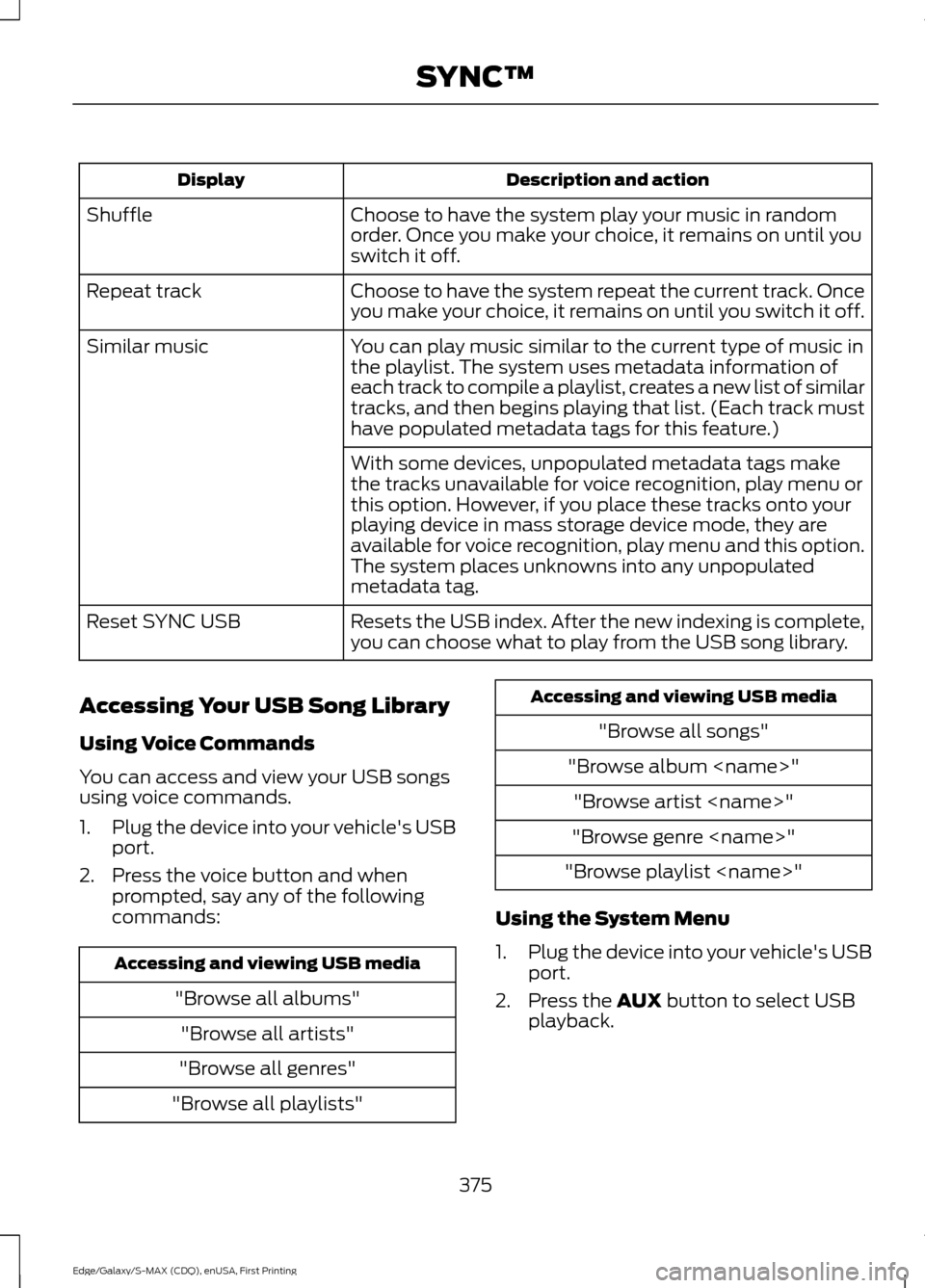
Description and action
Display
Choose to have the system play your music in random
order. Once you make your choice, it remains on until you
switch it off.
Shuffle
Choose to have the system repeat the current track. Once
you make your choice, it remains on until you switch it off.
Repeat track
You can play music similar to the current type of music in
the playlist. The system uses metadata information of
each track to compile a playlist, creates a new list of similar
tracks, and then begins playing that list. (Each track must
have populated metadata tags for this feature.)
Similar music
With some devices, unpopulated metadata tags make
the tracks unavailable for voice recognition, play menu or
this option. However, if you place these tracks onto your
playing device in mass storage device mode, they are
available for voice recognition, play menu and this option.
The system places unknowns into any unpopulated
metadata tag.
Resets the USB index. After the new indexing is complete,
you can choose what to play from the USB song library.
Reset SYNC USB
Accessing Your USB Song Library
Using Voice Commands
You can access and view your USB songs
using voice commands.
1. Plug the device into your vehicle's USB
port.
2. Press the voice button and when prompted, say any of the following
commands: Accessing and viewing USB media
"Browse all albums""Browse all artists"
"Browse all genres"
"Browse all playlists" Accessing and viewing USB media
"Browse all songs"
"Browse album
"Browse genre
"Browse playlist
Using the System Menu
1. Plug the device into your vehicle's USB
port.
2. Press the AUX button to select USB
playback.
375
Edge/Galaxy/S-MAX (CDQ), enUSA, First Printing SYNC™
Page 379 of 508
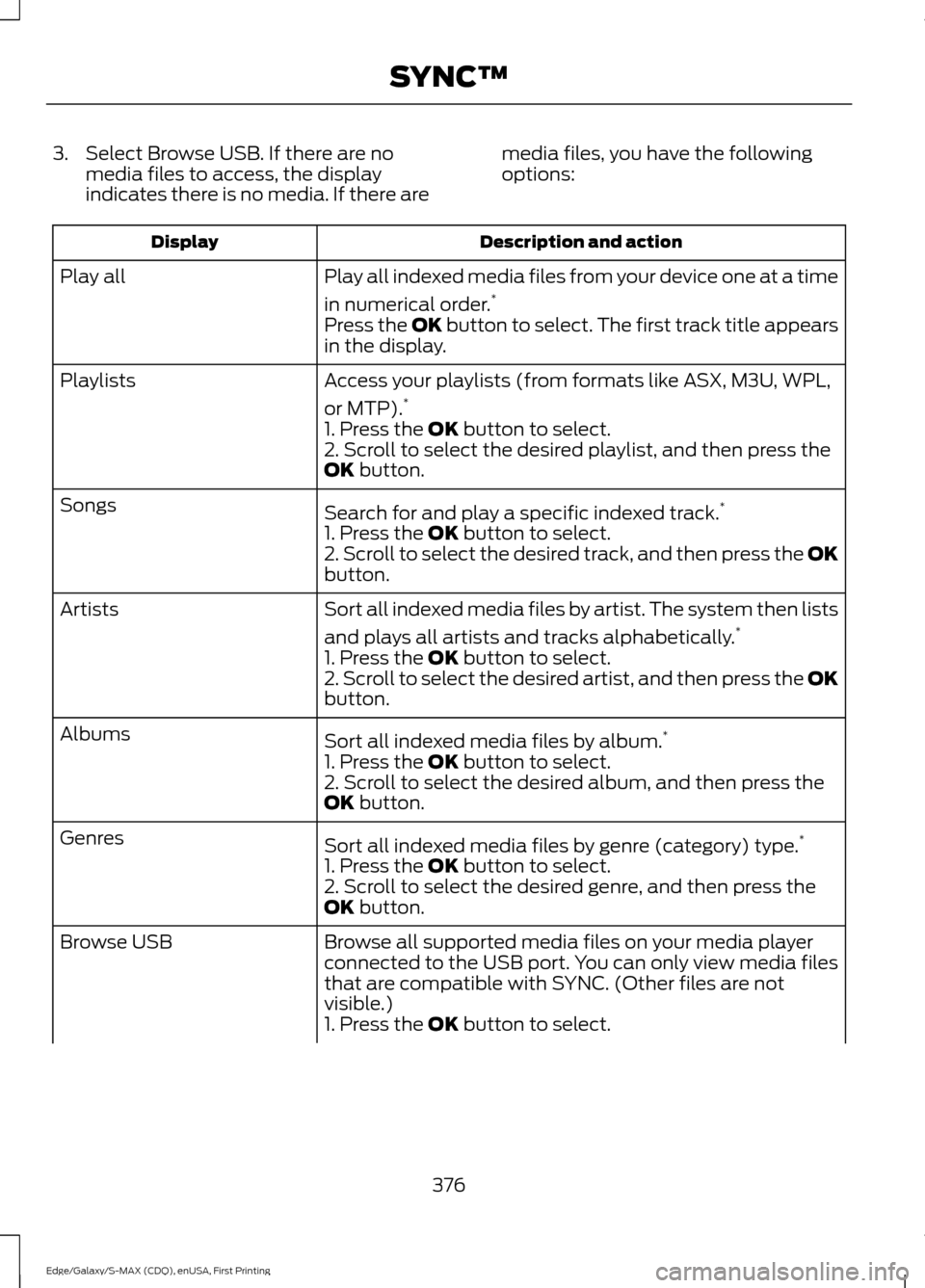
3. Select Browse USB. If there are no
media files to access, the display
indicates there is no media. If there are media files, you have the following
options: Description and action
Display
Play all indexed media files from your device one at a time
in numerical order.*
Play all
Press the OK button to select. The first track title appears
in the display.
Access your playlists (from formats like ASX, M3U, WPL,
or MTP).*
Playlists
1. Press the OK button to select.
2. Scroll to select the desired playlist, and then press the
OK
button.
Search for and play a specific indexed track. *
Songs
1. Press the
OK button to select.
2. Scroll to select the desired track, and then press the OK
button.
Sort all indexed media files by artist. The system then lists
and plays all artists and tracks alphabetically. *
Artists
1. Press the
OK button to select.
2. Scroll to select the desired artist, and then press the OK
button.
Sort all indexed media files by album. *
Albums
1. Press the
OK button to select.
2. Scroll to select the desired album, and then press the
OK
button.
Sort all indexed media files by genre (category) type. *
Genres
1. Press the
OK button to select.
2. Scroll to select the desired genre, and then press the
OK
button.
Browse all supported media files on your media player
connected to the USB port. You can only view media files
that are compatible with SYNC. (Other files are not
visible.)
Browse USB
1. Press the
OK button to select.
376
Edge/Galaxy/S-MAX (CDQ), enUSA, First Printing SYNC™
Page 380 of 508
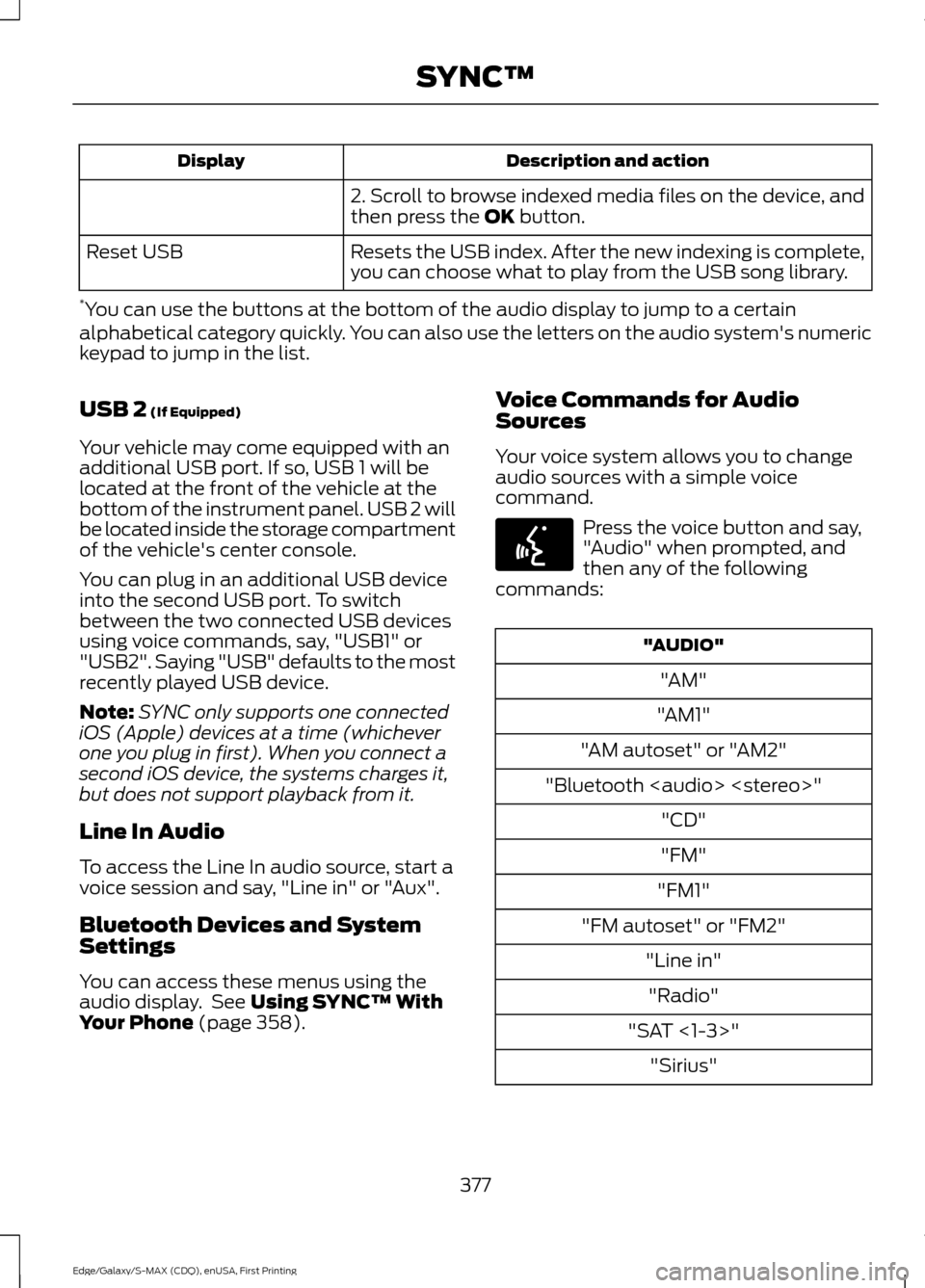
Description and action
Display
2. Scroll to browse indexed media files on the device, and
then press the OK button.
Resets the USB index. After the new indexing is complete,
you can choose what to play from the USB song library.
Reset USB
* You can use the buttons at the bottom of the audio display to jump to a certain
alphabetical category quickly. You can also use the letters on the audio system's numeric
keypad to jump in the list.
USB 2
(If Equipped)
Your vehicle may come equipped with an
additional USB port. If so, USB 1 will be
located at the front of the vehicle at the
bottom of the instrument panel. USB 2 will
be located inside the storage compartment
of the vehicle's center console.
You can plug in an additional USB device
into the second USB port. To switch
between the two connected USB devices
using voice commands, say, "USB1" or
"USB2". Saying "USB" defaults to the most
recently played USB device.
Note: SYNC only supports one connected
iOS (Apple) devices at a time (whichever
one you plug in first). When you connect a
second iOS device, the systems charges it,
but does not support playback from it.
Line In Audio
To access the Line In audio source, start a
voice session and say, "Line in" or "Aux".
Bluetooth Devices and System
Settings
You can access these menus using the
audio display. See
Using SYNC™ With
Your Phone (page 358). Voice Commands for Audio
Sources
Your voice system allows you to change
audio sources with a simple voice
command. Press the voice button and say,
"Audio" when prompted, and
then any of the following
commands: "AUDIO"
"AM"
"AM1"
"AM autoset" or "AM2"
"Bluetooth
Page 381 of 508
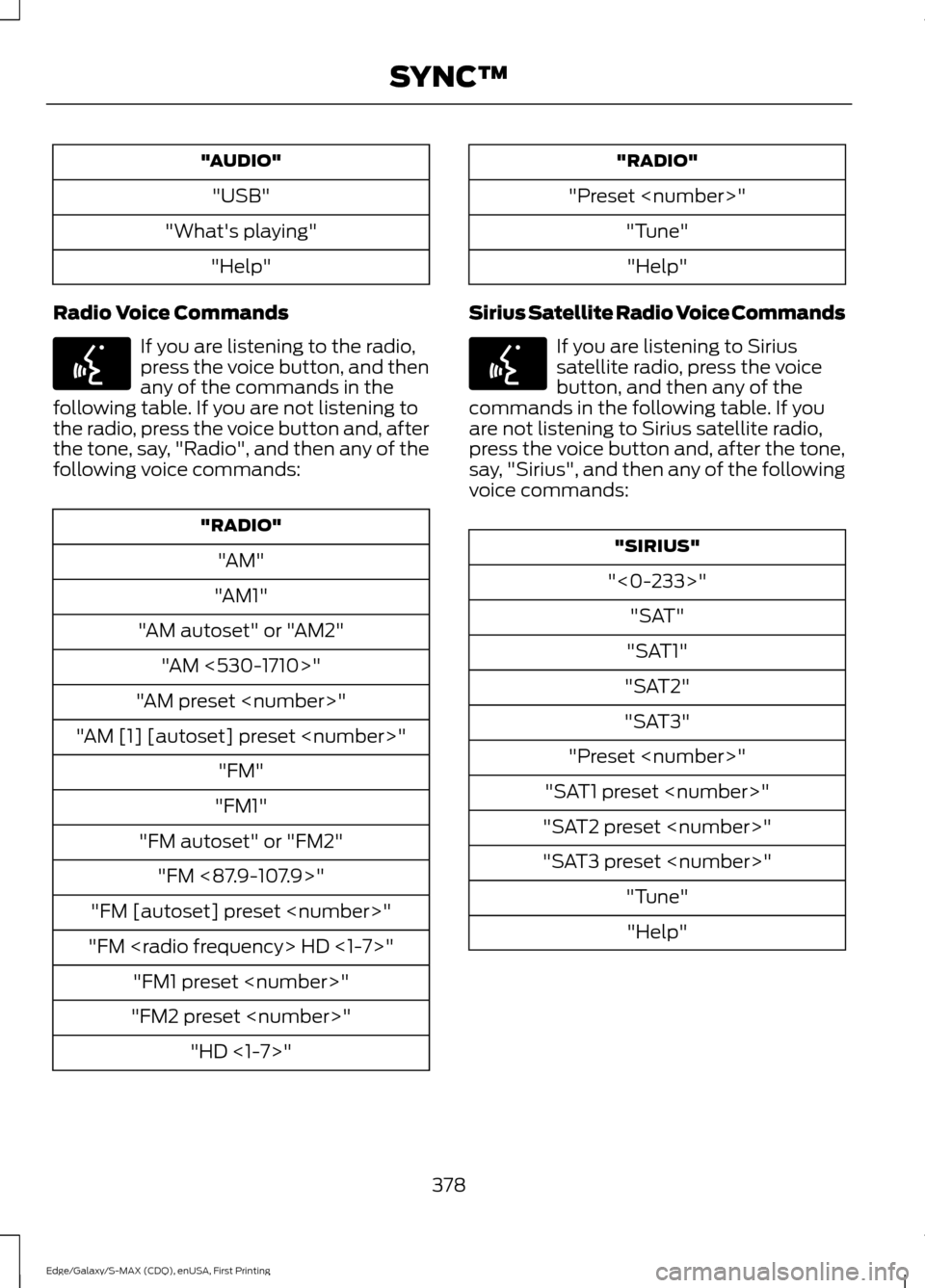
"AUDIO"
"USB"
"What's playing" "Help"
Radio Voice Commands If you are listening to the radio,
press the voice button, and then
any of the commands in the
following table. If you are not listening to
the radio, press the voice button and, after
the tone, say, "Radio", and then any of the
following voice commands: "RADIO"
"AM"
"AM1"
"AM autoset" or "AM2" "AM <530-1710>"
"AM preset
"AM [1] [autoset] preset
"FM1"
"FM autoset" or "FM2" "FM <87.9-107.9>"
"FM [autoset] preset
"FM
"FM2 preset
"Preset
Sirius Satellite Radio Voice Commands If you are listening to Sirius
satellite radio, press the voice
button, and then any of the
commands in the following table. If you
are not listening to Sirius satellite radio,
press the voice button and, after the tone,
say, "Sirius", and then any of the following
voice commands: "SIRIUS"
"<0-233>" "SAT"
"SAT1"
"SAT2"
"SAT3"
"Preset
"SAT1 preset
"SAT2 preset
"SAT3 preset
378
Edge/Galaxy/S-MAX (CDQ), enUSA, First Printing SYNC™E142599 E142599
Page 384 of 508
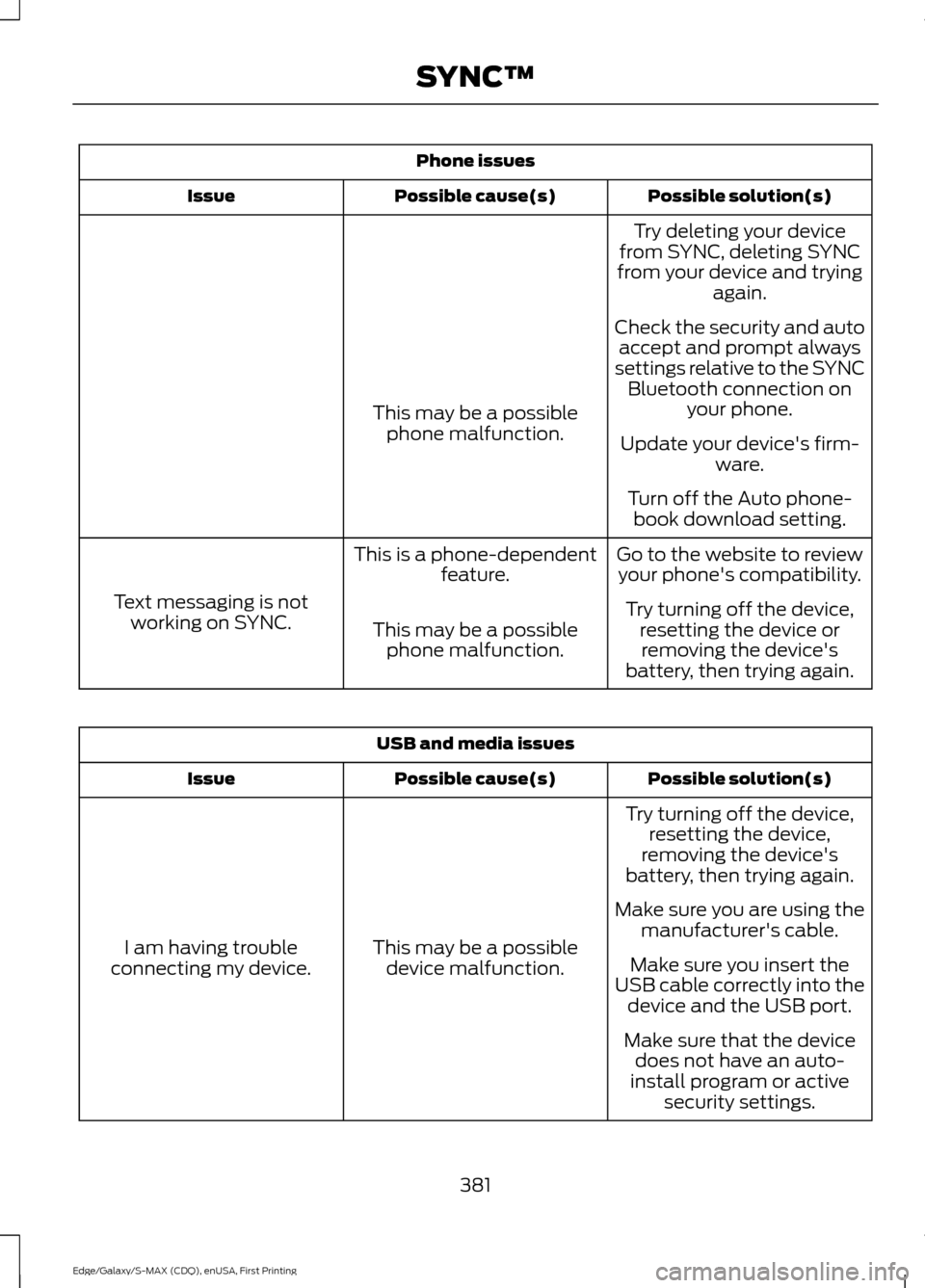
Phone issues
Possible solution(s)
Possible cause(s)
Issue
Try deleting your device
from SYNC, deleting SYNC
from your device and trying again.
Check the security and auto accept and prompt always
settings relative to the SYNC Bluetooth connection on your phone.
This may be a possible
phone malfunction. Update your device's firm-
ware.
Turn off the Auto phone- book download setting.
Go to the website to review your phone's compatibility.
This is a phone-dependent
feature.
Text messaging is not working on SYNC. Try turning off the device,
resetting the device orremoving the device's
battery, then trying again.
This may be a possible
phone malfunction. USB and media issues
Possible solution(s)
Possible cause(s)
Issue
Try turning off the device,resetting the device,
removing the device's
battery, then trying again.
This may be a possible device malfunction.
I am having trouble
connecting my device. Make sure you are using the
manufacturer's cable.
Make sure you insert the
USB cable correctly into the device and the USB port.
Make sure that the device does not have an auto-
install program or active security settings.
381
Edge/Galaxy/S-MAX (CDQ), enUSA, First Printing SYNC™
Page 385 of 508
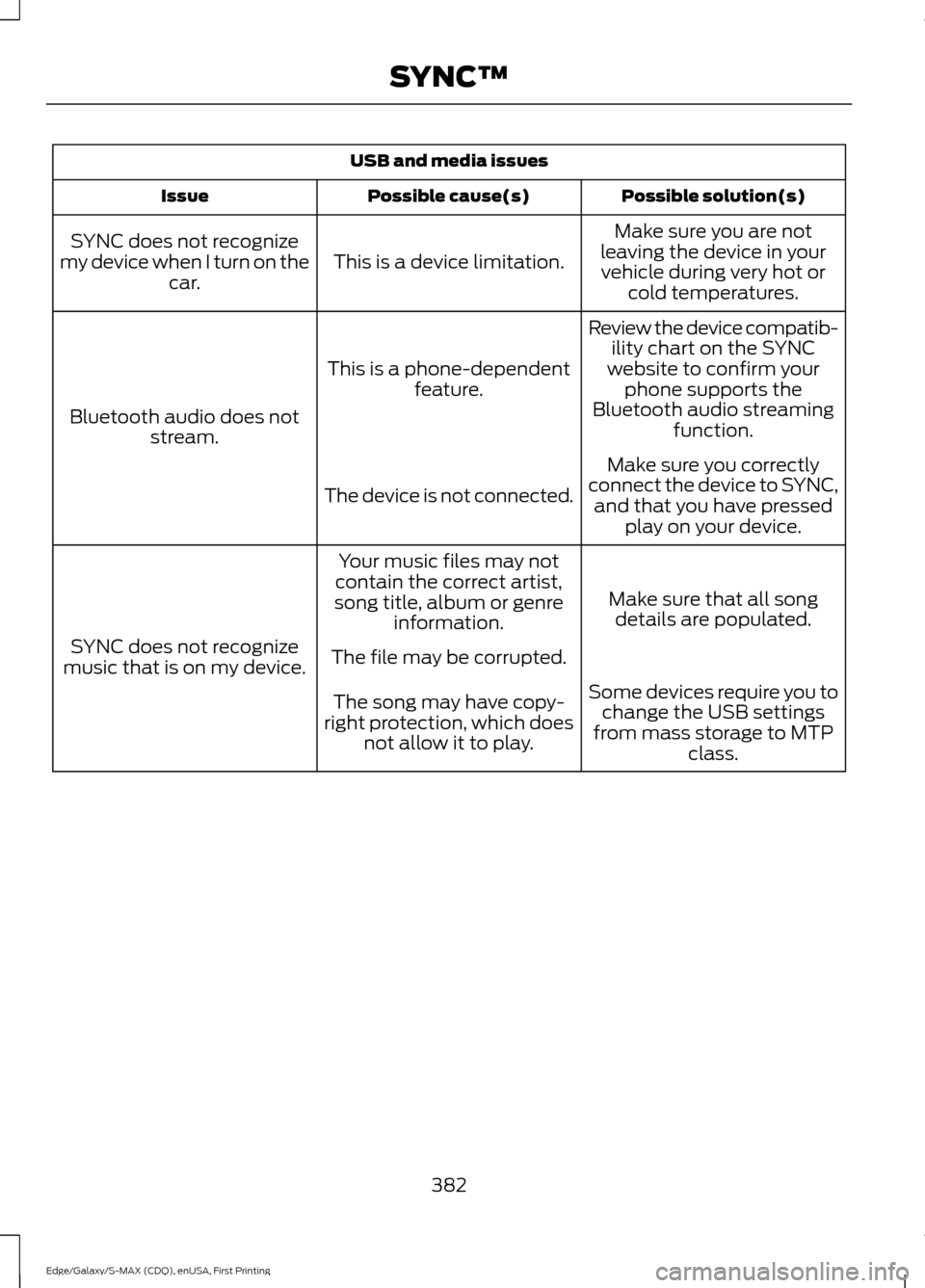
USB and media issues
Possible solution(s)
Possible cause(s)
Issue
Make sure you are not
leaving the device in your vehicle during very hot or cold temperatures.
This is a device limitation.
SYNC does not recognize
my device when I turn on the car.
Review the device compatib-ility chart on the SYNC
website to confirm your phone supports the
Bluetooth audio streaming function.
This is a phone-dependent
feature.
Bluetooth audio does not stream.
Make sure you correctly
connect the device to SYNC, and that you have pressed play on your device.
The device is not connected.
Make sure that all songdetails are populated.
Your music files may not
contain the correct artist,
song title, album or genre information.
SYNC does not recognize
music that is on my device. The file may be corrupted.
Some devices require you tochange the USB settings
from mass storage to MTP class.
The song may have copy-
right protection, which does not allow it to play.
382
Edge/Galaxy/S-MAX (CDQ), enUSA, First Printing SYNC™
Page 388 of 508
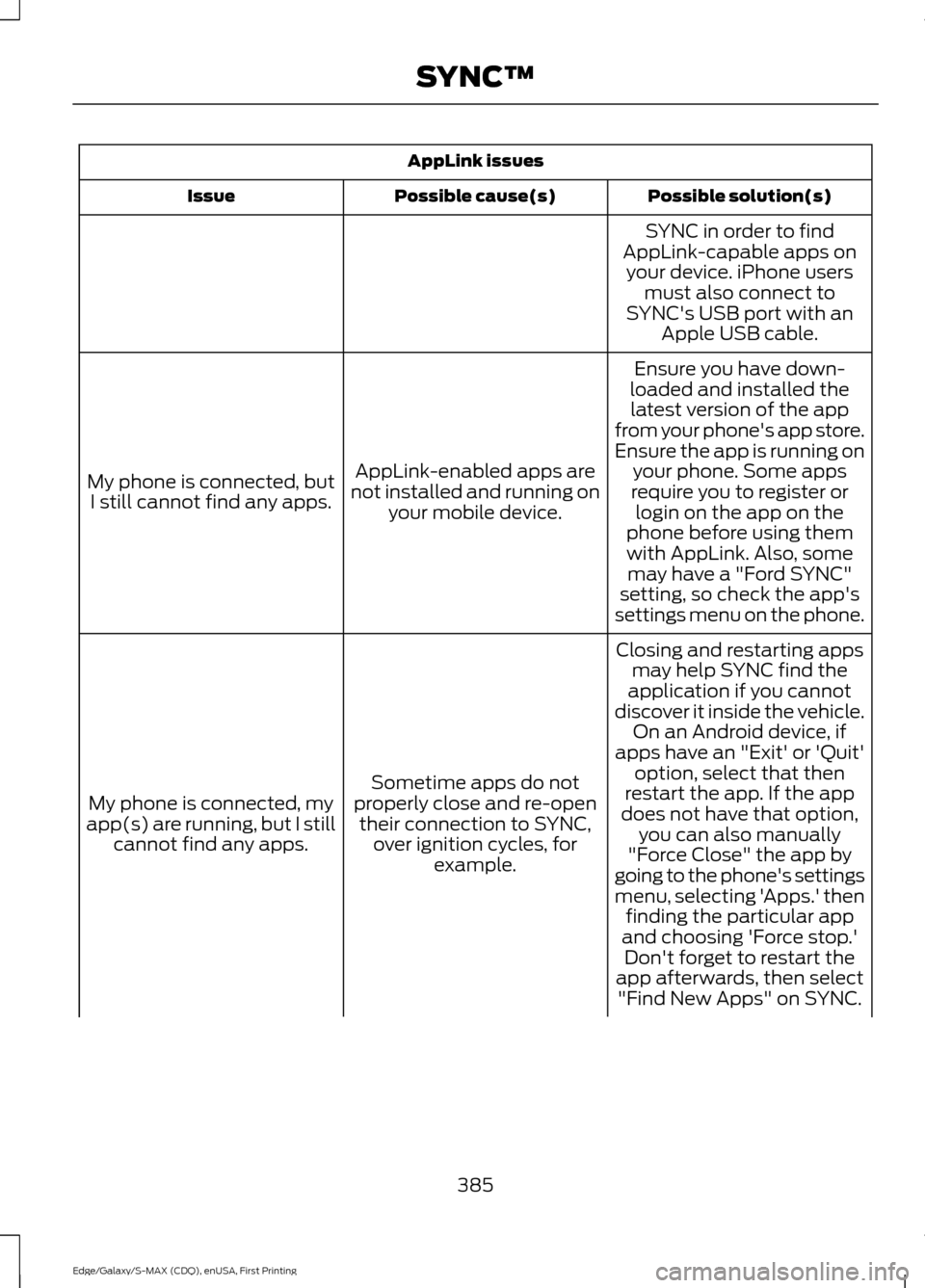
AppLink issues
Possible solution(s)
Possible cause(s)
Issue
SYNC in order to find
AppLink-capable apps on your device. iPhone users must also connect to
SYNC's USB port with an Apple USB cable.
Ensure you have down-
loaded and installed the latest version of the app
from your phone's app store.
Ensure the app is running on your phone. Some apps
AppLink-enabled apps are
not installed and running on your mobile device.
My phone is connected, but
I still cannot find any apps. require you to register or
login on the app on the
phone before using them with AppLink. Also, some may have a "Ford SYNC"
setting, so check the app's
settings menu on the phone.
Closing and restarting apps may help SYNC find the
application if you cannot
discover it inside the vehicle. On an Android device, if
apps have an "Exit' or 'Quit'
Sometime apps do not
properly close and re-open their connection to SYNC, over ignition cycles, for example.
My phone is connected, my
app(s) are running, but I still cannot find any apps. option, select that then
restart the app. If the app
does not have that option, you can also manually
"Force Close" the app by
going to the phone's settings
menu, selecting 'Apps.' then finding the particular app
and choosing 'Force stop.' Don't forget to restart the
app afterwards, then select "Find New Apps" on SYNC.
385
Edge/Galaxy/S-MAX (CDQ), enUSA, First Printing SYNC™
Page 390 of 508
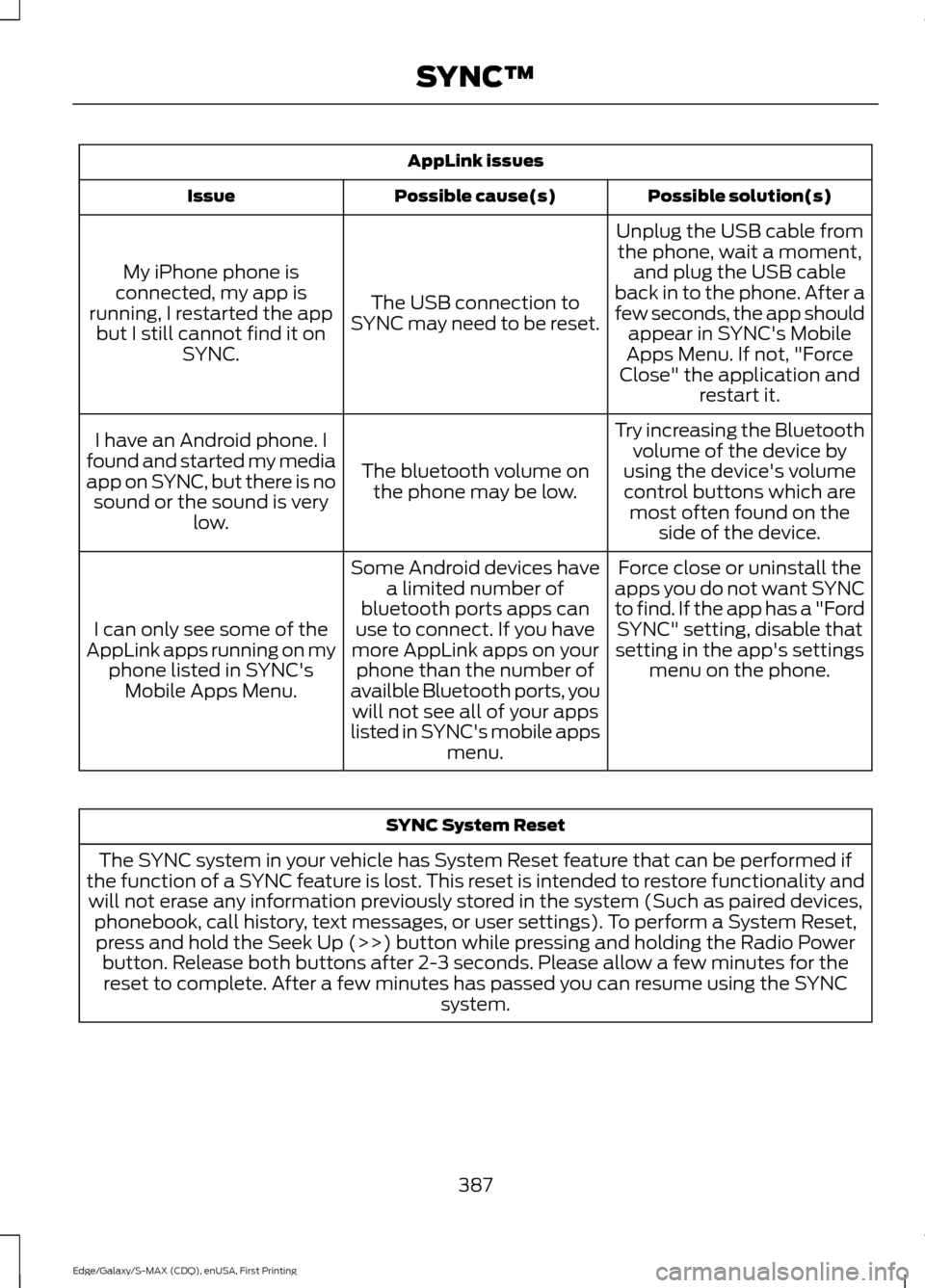
AppLink issues
Possible solution(s)
Possible cause(s)
Issue
Unplug the USB cable fromthe phone, wait a moment, and plug the USB cable
back in to the phone. After a
few seconds, the app should appear in SYNC's Mobile
Apps Menu. If not, "Force
Close" the application and restart it.
The USB connection to
SYNC may need to be reset.
My iPhone phone is
connected, my app is
running, I restarted the app but I still cannot find it on SYNC.
Try increasing the Bluetoothvolume of the device by
using the device's volume control buttons which are most often found on the side of the device.
The bluetooth volume on
the phone may be low.
I have an Android phone. I
found and started my media
app on SYNC, but there is no sound or the sound is very low.
Force close or uninstall the
apps you do not want SYNC
to find. If the app has a "Ford SYNC" setting, disable that
setting in the app's settings menu on the phone.
Some Android devices have
a limited number of
bluetooth ports apps can
use to connect. If you have
more AppLink apps on your phone than the number of
availble Bluetooth ports, you will not see all of your apps
listed in SYNC's mobile apps menu.
I can only see some of the
AppLink apps running on my phone listed in SYNC'sMobile Apps Menu. SYNC System Reset
The SYNC system in your vehicle has System Reset feature that can be performed if
the function of a SYNC feature is lost. This reset is intended to restore functionality and will not erase any information previously stored in the system (Such as paired devices, phonebook, call history, text messages, or user settings). To perform a System Reset,press and hold the Seek Up (>>) button while pressing and holding the Radio Power button. Release both buttons after 2-3 seconds. Please allow a few minutes for thereset to complete. After a few minutes has passed you can resume using the SYNC system.
387
Edge/Galaxy/S-MAX (CDQ), enUSA, First Printing SYNC™
Page 393 of 508
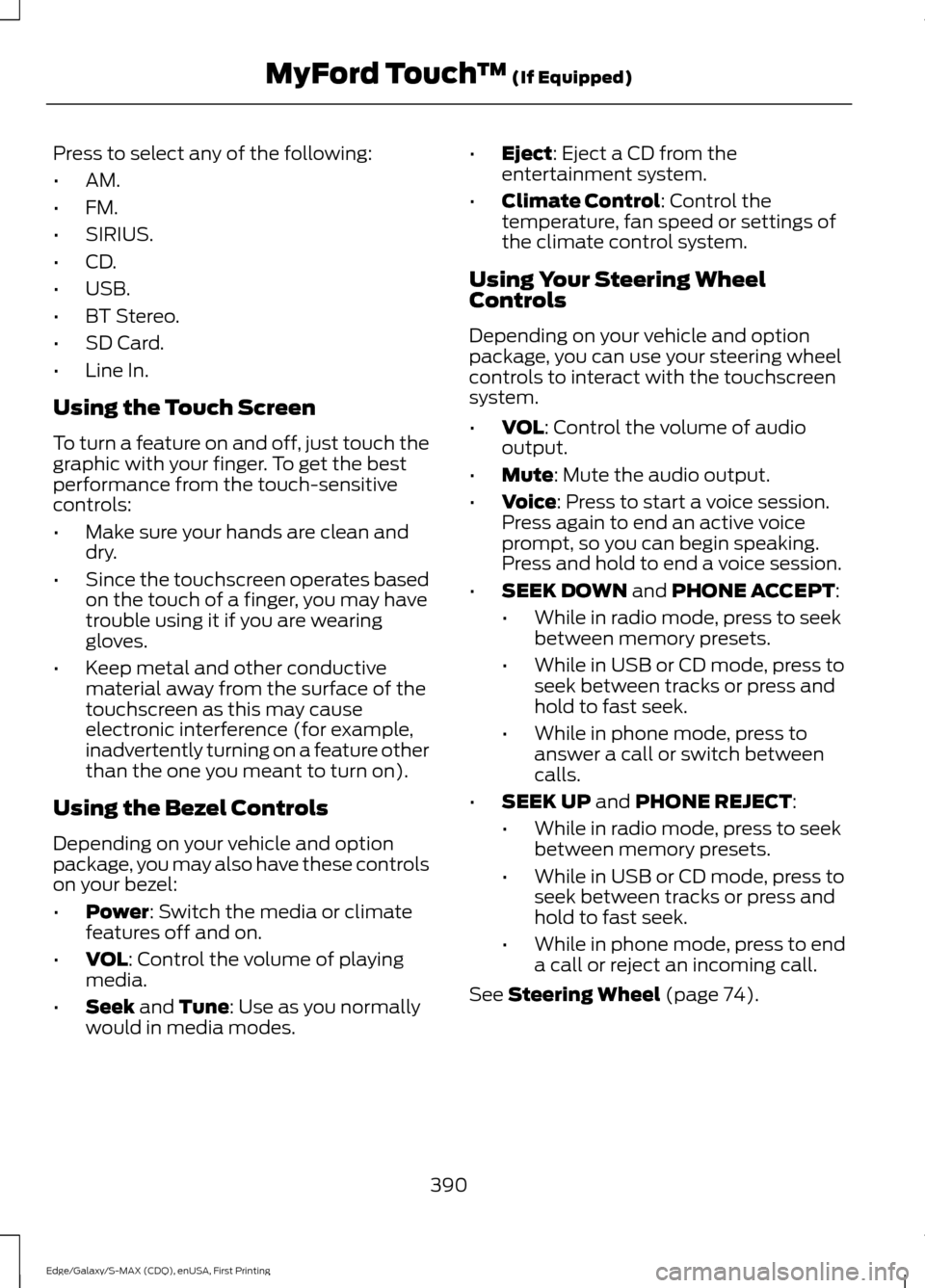
Press to select any of the following:
•
AM.
• FM.
• SIRIUS.
• CD.
• USB.
• BT Stereo.
• SD Card.
• Line In.
Using the Touch Screen
To turn a feature on and off, just touch the
graphic with your finger. To get the best
performance from the touch-sensitive
controls:
• Make sure your hands are clean and
dry.
• Since the touchscreen operates based
on the touch of a finger, you may have
trouble using it if you are wearing
gloves.
• Keep metal and other conductive
material away from the surface of the
touchscreen as this may cause
electronic interference (for example,
inadvertently turning on a feature other
than the one you meant to turn on).
Using the Bezel Controls
Depending on your vehicle and option
package, you may also have these controls
on your bezel:
• Power: Switch the media or climate
features off and on.
• VOL
: Control the volume of playing
media.
• Seek
and Tune: Use as you normally
would in media modes. •
Eject
: Eject a CD from the
entertainment system.
• Climate Control
: Control the
temperature, fan speed or settings of
the climate control system.
Using Your Steering Wheel
Controls
Depending on your vehicle and option
package, you can use your steering wheel
controls to interact with the touchscreen
system.
• VOL
: Control the volume of audio
output.
• Mute
: Mute the audio output.
• Voice
: Press to start a voice session.
Press again to end an active voice
prompt, so you can begin speaking.
Press and hold to end a voice session.
• SEEK DOWN
and PHONE ACCEPT:
• While in radio mode, press to seek
between memory presets.
• While in USB or CD mode, press to
seek between tracks or press and
hold to fast seek.
• While in phone mode, press to
answer a call or switch between
calls.
• SEEK UP
and PHONE REJECT:
• While in radio mode, press to seek
between memory presets.
• While in USB or CD mode, press to
seek between tracks or press and
hold to fast seek.
• While in phone mode, press to end
a call or reject an incoming call.
See
Steering Wheel (page 74).
390
Edge/Galaxy/S-MAX (CDQ), enUSA, First Printing MyFord Touch
™
(If Equipped)
Page 395 of 508
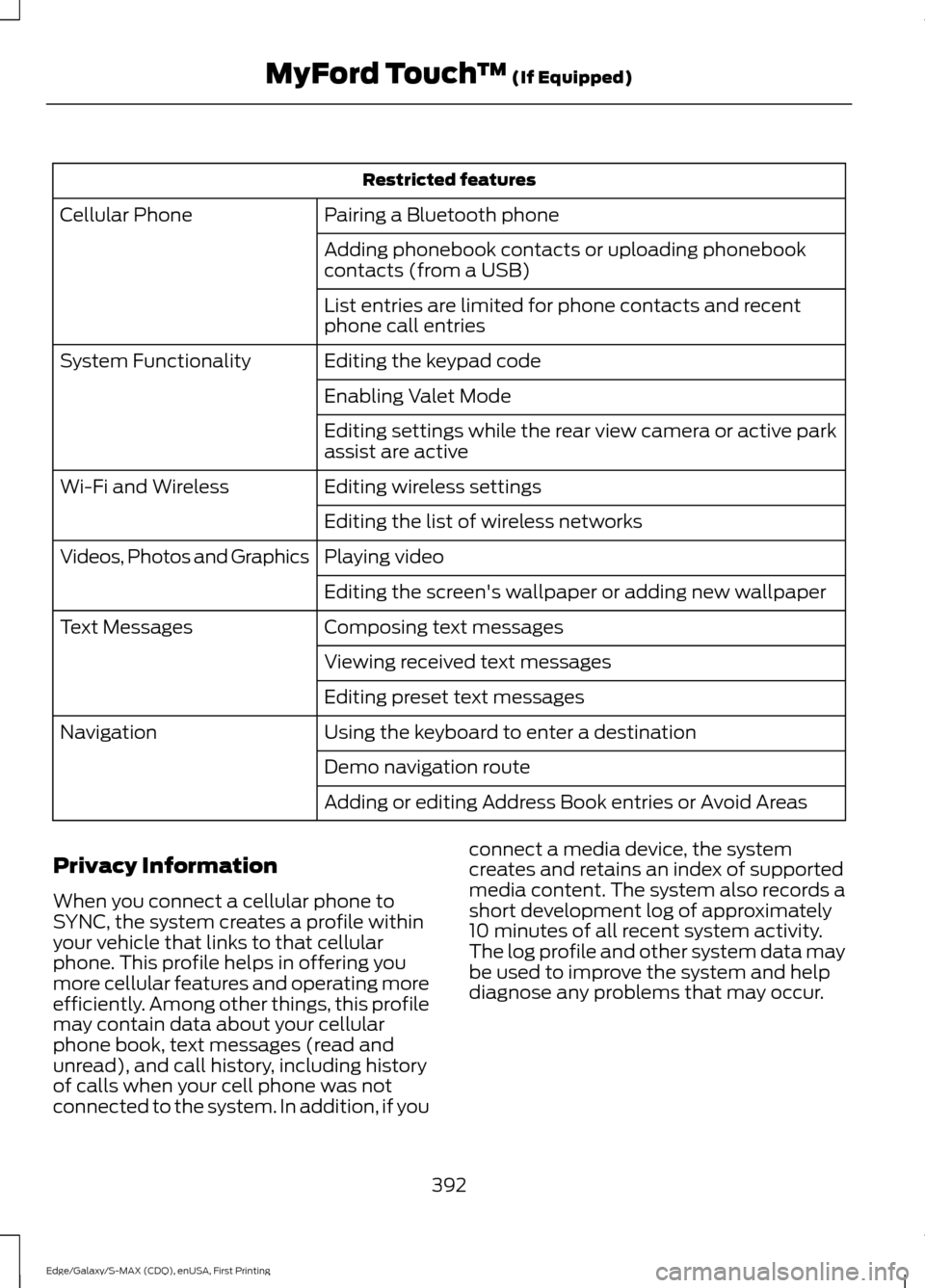
Restricted features
Pairing a Bluetooth phone
Cellular Phone
Adding phonebook contacts or uploading phonebook
contacts (from a USB)
List entries are limited for phone contacts and recent
phone call entries
Editing the keypad code
System Functionality
Enabling Valet Mode
Editing settings while the rear view camera or active park
assist are active
Editing wireless settings
Wi-Fi and Wireless
Editing the list of wireless networks
Playing video
Videos, Photos and Graphics
Editing the screen's wallpaper or adding new wallpaper
Composing text messages
Text Messages
Viewing received text messages
Editing preset text messages
Using the keyboard to enter a destination
Navigation
Demo navigation route
Adding or editing Address Book entries or Avoid Areas
Privacy Information
When you connect a cellular phone to
SYNC, the system creates a profile within
your vehicle that links to that cellular
phone. This profile helps in offering you
more cellular features and operating more
efficiently. Among other things, this profile
may contain data about your cellular
phone book, text messages (read and
unread), and call history, including history
of calls when your cell phone was not
connected to the system. In addition, if you connect a media device, the system
creates and retains an index of supported
media content. The system also records a
short development log of approximately
10 minutes of all recent system activity.
The log profile and other system data may
be used to improve the system and help
diagnose any problems that may occur.
392
Edge/Galaxy/S-MAX (CDQ), enUSA, First Printing MyFord Touch
™ (If Equipped)