center console FORD EDGE 2015 2.G User Guide
[x] Cancel search | Manufacturer: FORD, Model Year: 2015, Model line: EDGE, Model: FORD EDGE 2015 2.GPages: 508, PDF Size: 6.2 MB
Page 190 of 508
ACTIVE PARK ASSIST (If Equipped)
Parallel Parking, Perpendicular
Parking, Park Out Assist
WARNINGS
You must remain in your vehicle
when the system turns on. At all
times, you are responsible for
controlling your vehicle, supervising the
system and intervening if required. Failure
to take care may result in the loss of
control of your vehicle, serious personal
injury or death. The sensors may not detect objects
in heavy rain or other conditions that
cause disruptive reflections.
Note:
The driver is always responsible for
controlling the vehicle, supervising the
system and intervening if required by
grabbing the steering wheel or pushing the
active park assist button.
The system detects an available parallel
or perpendicular parking space and
automatically steers your vehicle into the
space (hands-free) while you control the
accelerator, gearshift and brakes. The
system visually and audibly guides you to
park your vehicle.
If you are uncomfortable with the proximity
to any vehicle or object, you may choose
to override the system.
Park Out Assist automatically steers your
vehicle out of a parallel parking space
(hands-free) while you control the
accelerator, gearshift and brakes. The
system visually and audibly guides you to
enter traffic.
Note: The blindspot information system
does not detect traffic alongside or behind
your vehicle during a park assist maneuver. The system may not correctly operate in
any of the following conditions:
•
You use a spare tire or a tire
significantly worn more than the other
tires.
• You use a unauthorized tire size.
• You try to park on a tight curve.
• Something passes between the front
bumper and the parking space (a
pedestrian or cyclist).
• The edge of the neighboring parked
vehicle is high off the ground (for
example, a bus, tow truck or flatbed
truck).
• The weather conditions are poor
(heavy rain, snow, fog, etc).
Note: Keep the sensors, located on the
bumper or fascia, free from snow, ice and
large accumulations of dirt. Covered sensors
can affect the system's accuracy. Do not
clean the sensors with sharp objects.
Note: The sensors may not detect objects
with surfaces that absorb ultrasonic waves
or cause ultrasonic interference (motorcycle
exhaust, truck air brakes or horns).
Do not use the system if:
• You have attached a foreign object
(bike rack or trailer) to the front or rear
of your vehicle or close to the sensors.
• You have attached an overhanging
object (surfboard) to the roof.
• A foreign object damages or obstructs
the front or rear bumper or side
sensors.
• The correct tire size is not in use on your
vehicle (for example, a mini-spare tire).
Using Active Park Assist - Parallel
Parking Press the button located on the
center console near the gearshift
lever or the right side of the
center stack once.
187
Edge/Galaxy/S-MAX (CDQ), enUSA, First Printing Parking Aids (If Equipped)E146186
Page 192 of 508
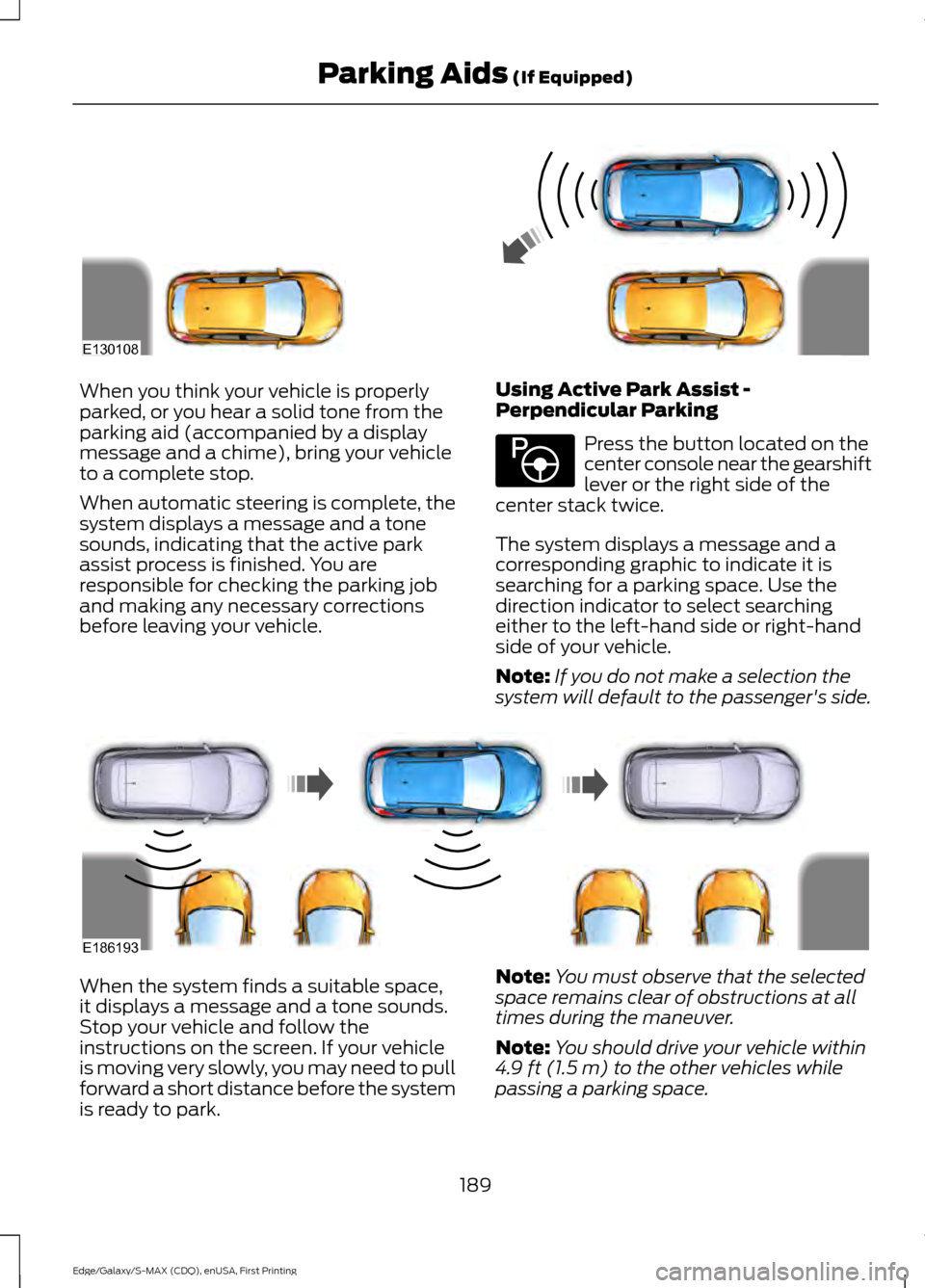
When you think your vehicle is properly
parked, or you hear a solid tone from the
parking aid (accompanied by a display
message and a chime), bring your vehicle
to a complete stop.
When automatic steering is complete, the
system displays a message and a tone
sounds, indicating that the active park
assist process is finished. You are
responsible for checking the parking job
and making any necessary corrections
before leaving your vehicle.
Using Active Park Assist -
Perpendicular Parking Press the button located on the
center console near the gearshift
lever or the right side of the
center stack twice.
The system displays a message and a
corresponding graphic to indicate it is
searching for a parking space. Use the
direction indicator to select searching
either to the left-hand side or right-hand
side of your vehicle.
Note: If you do not make a selection the
system will default to the passenger's side. When the system finds a suitable space,
it displays a message and a tone sounds.
Stop your vehicle and follow the
instructions on the screen. If your vehicle
is moving very slowly, you may need to pull
forward a short distance before the system
is ready to park.
Note:
You must observe that the selected
space remains clear of obstructions at all
times during the maneuver.
Note: You should drive your vehicle within
4.9 ft (1.5 m) to the other vehicles while
passing a parking space.
189
Edge/Galaxy/S-MAX (CDQ), enUSA, First Printing Parking Aids
(If Equipped)E130108 E146186 E186193
Page 355 of 508
AUDIO INPUT JACK
WARNINGS
Driving while distracted can result in
loss of vehicle control, crash and
injury. We strongly recommend that
you use extreme caution when using any
device that may take your focus off the
road. Your primary responsibility is the safe
operation of your vehicle. We recommend
against the use of any hand-held device
while driving and encourage the use of
voice-operated systems when possible.
Make sure you are aware of all applicable
local laws that may affect the use of
electronic devices while driving. For safety reasons, do not connect
or adjust the settings on your
portable music player while your
vehicle is moving. Store the portable music player in a
secure location, such as the center
console or the glove box, when your
vehicle is moving. Hard objects may
become projectiles in a collision or sudden
stop, which may increase the risk of serious
injury. The audio extension cable must be
long enough to allow the portable music
player to be safely stored while your
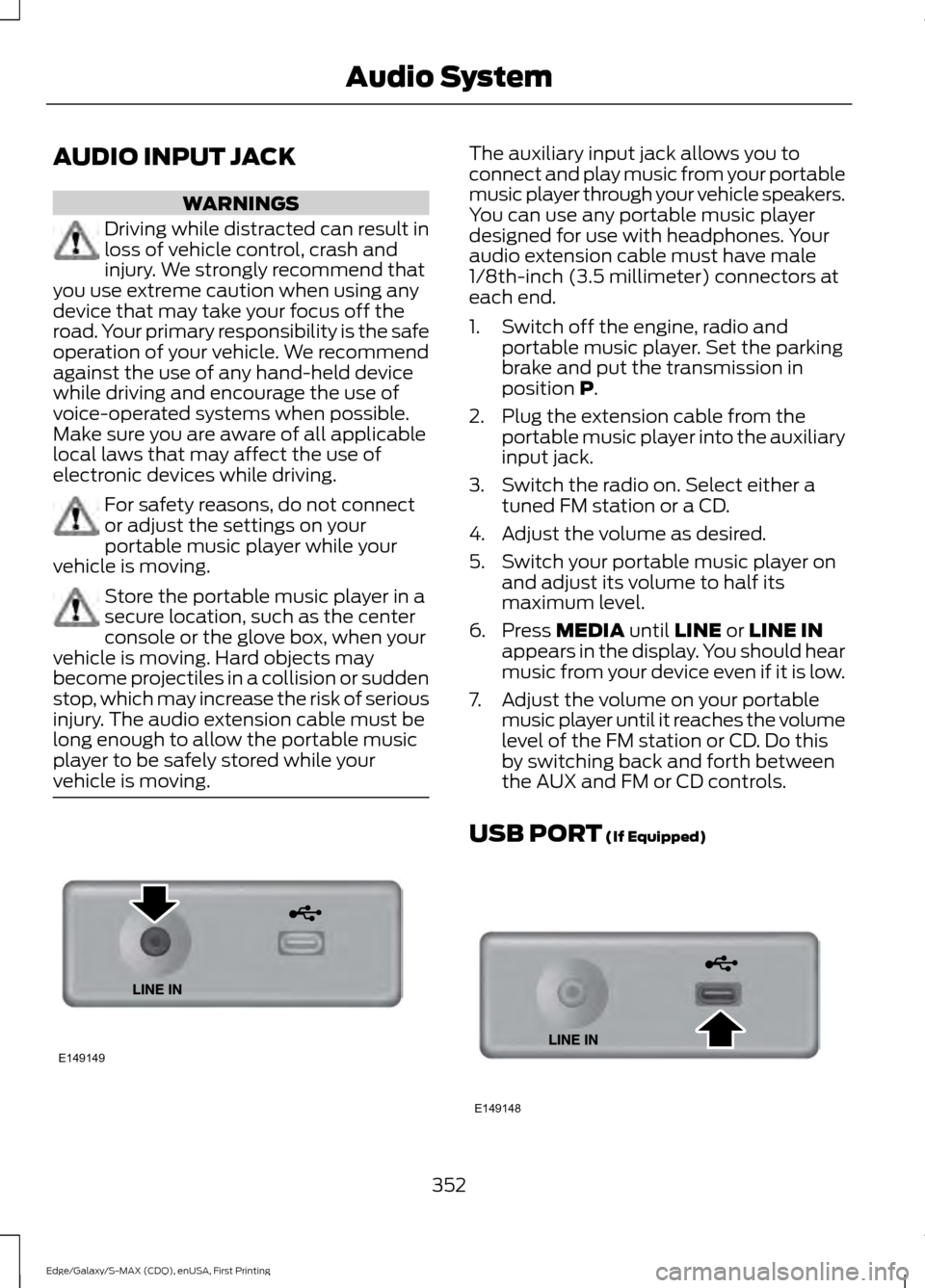
vehicle is moving. The auxiliary input jack allows you to
connect and play music from your portable
music player through your vehicle speakers.
You can use any portable music player
designed for use with headphones. Your
audio extension cable must have male
1/8th-inch (3.5 millimeter) connectors at
each end.
1. Switch off the engine, radio and
portable music player. Set the parking
brake and put the transmission in
position P.
2. Plug the extension cable from the portable music player into the auxiliary
input jack.
3. Switch the radio on. Select either a tuned FM station or a CD.
4. Adjust the volume as desired.
5. Switch your portable music player on and adjust its volume to half its
maximum level.
6. Press
MEDIA until LINE or LINE IN
appears in the display. You should hear
music from your device even if it is low.
7. Adjust the volume on your portable music player until it reaches the volume
level of the FM station or CD. Do this
by switching back and forth between
the AUX and FM or CD controls.
USB PORT
(If Equipped) 352
Edge/Galaxy/S-MAX (CDQ), enUSA, First Printing Audio SystemE149149 E149148
Page 380 of 508
Description and action
Display
2. Scroll to browse indexed media files on the device, and
then press the OK button.
Resets the USB index. After the new indexing is complete,
you can choose what to play from the USB song library.
Reset USB
* You can use the buttons at the bottom of the audio display to jump to a certain
alphabetical category quickly. You can also use the letters on the audio system's numeric
keypad to jump in the list.
USB 2
(If Equipped)
Your vehicle may come equipped with an
additional USB port. If so, USB 1 will be
located at the front of the vehicle at the
bottom of the instrument panel. USB 2 will
be located inside the storage compartment
of the vehicle's center console.
You can plug in an additional USB device
into the second USB port. To switch
between the two connected USB devices
using voice commands, say, "USB1" or
"USB2". Saying "USB" defaults to the most
recently played USB device.
Note: SYNC only supports one connected
iOS (Apple) devices at a time (whichever
one you plug in first). When you connect a
second iOS device, the systems charges it,
but does not support playback from it.
Line In Audio
To access the Line In audio source, start a
voice session and say, "Line in" or "Aux".
Bluetooth Devices and System
Settings
You can access these menus using the
audio display. See
Using SYNC™ With
Your Phone (page 358). Voice Commands for Audio
Sources
Your voice system allows you to change
audio sources with a simple voice
command. Press the voice button and say,
"Audio" when prompted, and
then any of the following
commands: "AUDIO"
"AM"
"AM1"
"AM autoset" or "AM2"
"Bluetooth
Page 422 of 508
Browse
Touch this button to look through all
available CD tracks.
CD Voice Commands
If you are listening to a CD, press
the voice button on the steering
wheel controls. When prompted,
say any of the following commands.
If you are not listening to a CD, press the
voice button and, after the tone, say "CD",
then any of the following commands. "CD"
"Pause" "Play"
"Play next track"
"Play previous track" "Play track <1-512>" "Repeat"
"Repeat folder" *
"Repeat off"
"Repeat track" "Shuffle"
"Shuffle CD" *
"Shuffle folder" *
"Shuffle off" "Help"
* This applies to WMA or MP3 files only. SD Card Slot and USB Port
SD Card
Note:
Your SD card slot is spring-loaded.
To remove the SD card, press the card in
and the system ejects it. Do not attempt to
pull the card to remove it as this could cause
damage.
Note: The navigation system also uses this
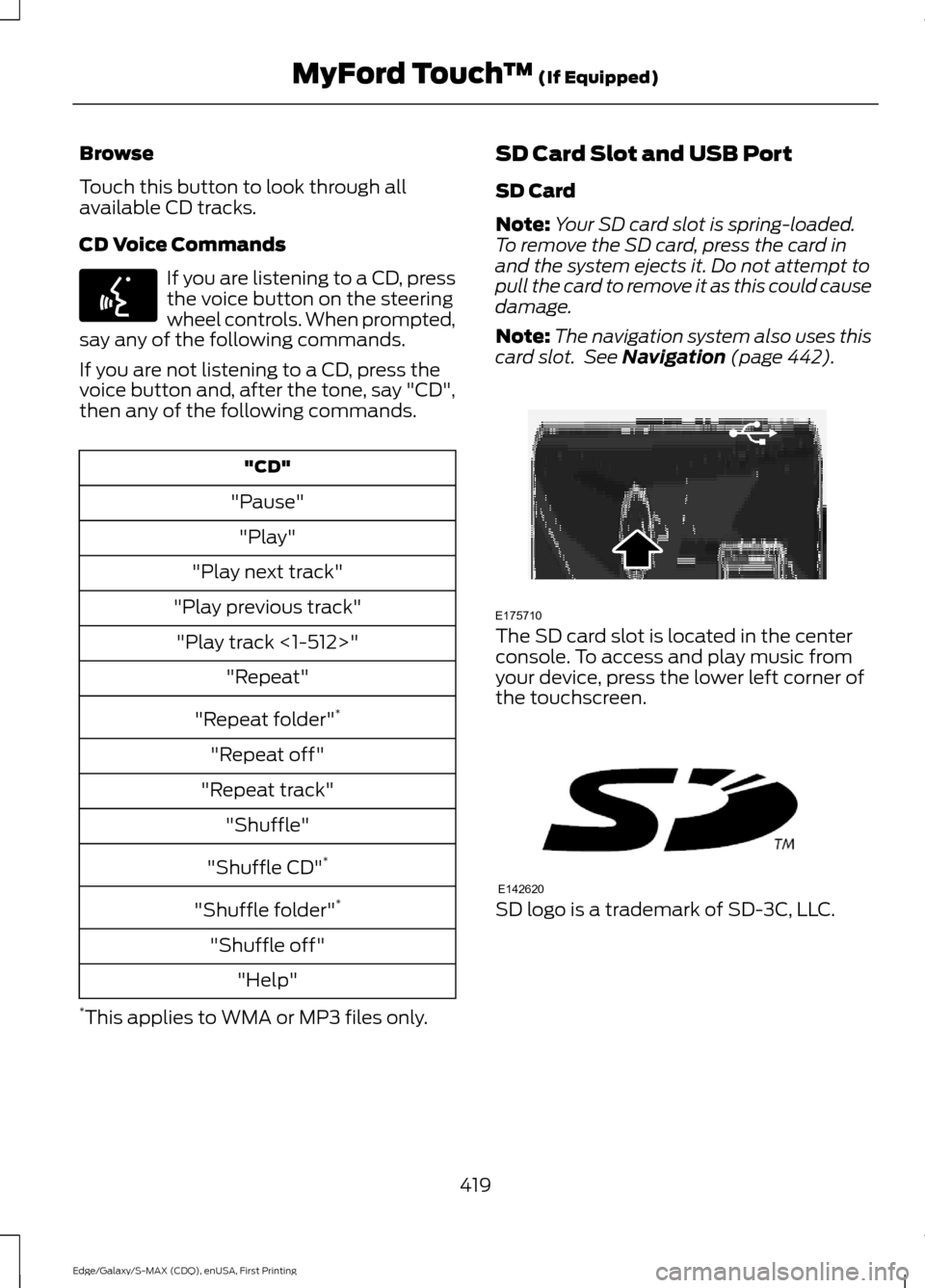
card slot. See Navigation (page 442). The SD card slot is located in the center
console. To access and play music from
your device, press the lower left corner of
the touchscreen.
SD logo is a trademark of SD-3C, LLC.
419
Edge/Galaxy/S-MAX (CDQ), enUSA, First Printing MyFord Touch
™
(If Equipped)E142599 E175710 E142620
Page 423 of 508
USB Port
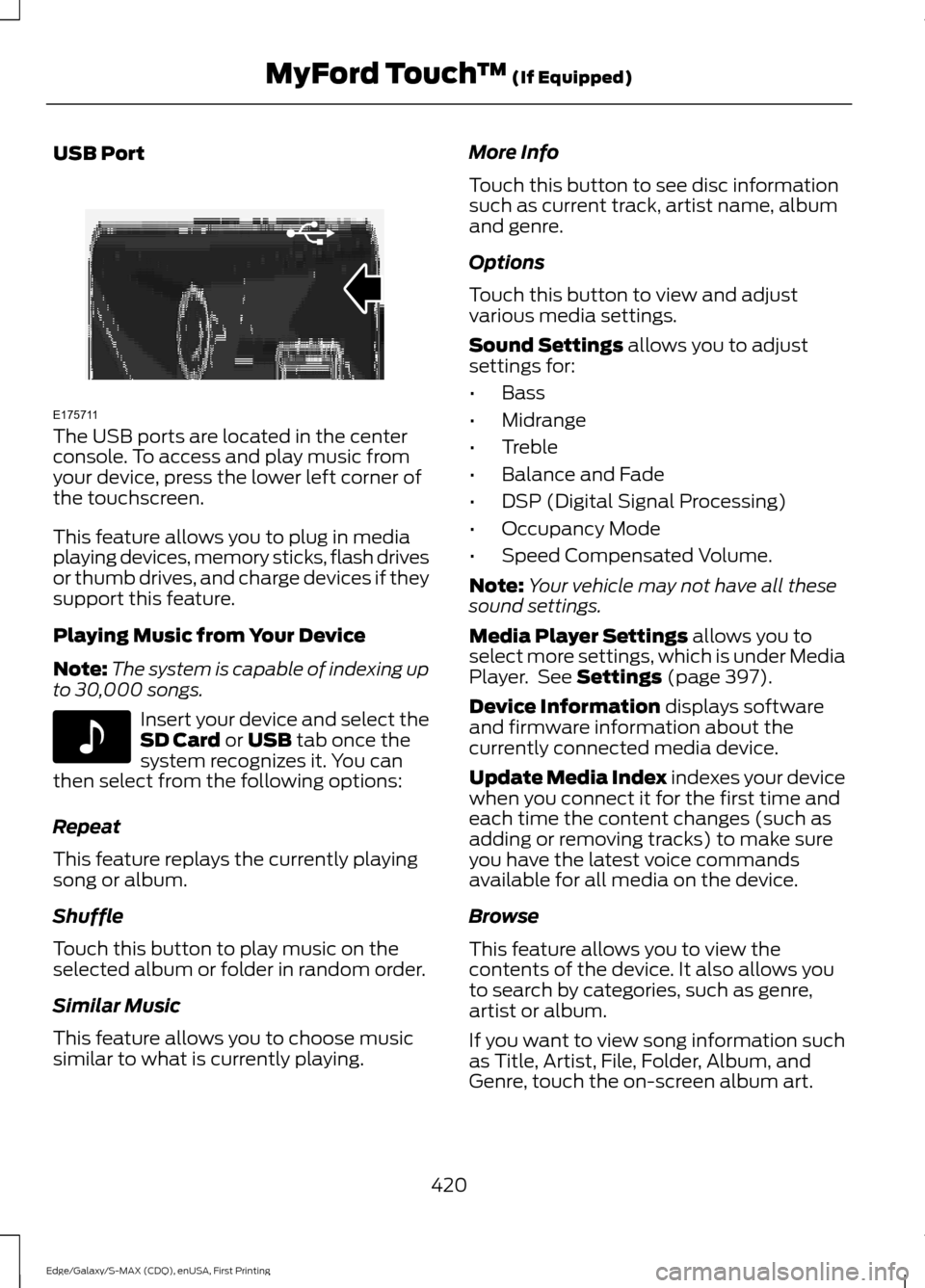
The USB ports are located in the center
console. To access and play music from
your device, press the lower left corner of
the touchscreen.
This feature allows you to plug in media
playing devices, memory sticks, flash drives
or thumb drives, and charge devices if they
support this feature.
Playing Music from Your Device
Note:
The system is capable of indexing up
to 30,000 songs. Insert your device and select the
SD Card or USB tab once the
system recognizes it. You can
then select from the following options:
Repeat
This feature replays the currently playing
song or album.
Shuffle
Touch this button to play music on the
selected album or folder in random order.
Similar Music
This feature allows you to choose music
similar to what is currently playing. More Info
Touch this button to see disc information
such as current track, artist name, album
and genre.
Options
Touch this button to view and adjust
various media settings.
Sound Settings
allows you to adjust
settings for:
• Bass
• Midrange
• Treble
• Balance and Fade
• DSP (Digital Signal Processing)
• Occupancy Mode
• Speed Compensated Volume.
Note: Your vehicle may not have all these
sound settings.
Media Player Settings
allows you to
select more settings, which is under Media
Player. See
Settings (page 397).
Device Information
displays software
and firmware information about the
currently connected media device.
Update Media Index indexes your device
when you connect it for the first time and
each time the content changes (such as
adding or removing tracks) to make sure
you have the latest voice commands
available for all media on the device.
Browse
This feature allows you to view the
contents of the device. It also allows you
to search by categories, such as genre,
artist or album.
If you want to view song information such
as Title, Artist, File, Folder, Album, and
Genre, touch the on-screen album art.
420
Edge/Galaxy/S-MAX (CDQ), enUSA, First Printing MyFord Touch
™
(If Equipped)E175711 E142611
Page 426 of 508
Bluetooth Audio Voice Commands
If you are listening to a Bluetooth
audio device, press the voice
button on the steering wheel
control. When prompted, say "Next song",
"Pause", "Play" or "Previous song".
If you are not listening to a Bluetooth audio
device, press the voice button and, after
the tone, say "Next song", "Pause", "Play"
or "Previous song".
Line In WARNINGS
Driving while distracted can result in
loss of vehicle control, crash and
injury. We strongly recommend that
you use extreme caution when using any
device that may take your focus off the
road. Your primary responsibility is the safe
operation of your vehicle. We recommend
against the use of any handheld device
while driving and encourage the use of
voice-operated systems when possible.
Make sure you are aware of all applicable
local laws that may affect the use of
electronic devices while driving. For safety reasons, do not connect
or adjust the settings on your
portable music player while your
vehicle is moving. Store the portable music player in a
secure location, such as the center
console or the glove box, when your
vehicle is moving. Hard objects may
become projectiles in a crash or sudden
stop, which may increase the risk of serious
injury. The audio extension cable must be
long enough to allow the portable music
player to be safely stored while your
vehicle is moving. Your auxiliary input jack allows you to play
music from your portable music player over
your vehicle's speakers. The jack is located
in your center console.
Press the lower left corner of the
touchscreen, and then select Line In.
To use the auxiliary input jack feature,
make sure that your portable music player
is designed for use with headphones and
that it is fully charged. You also need an
audio extension cable with stereo male
1/8-inch (3.5 millimeter) connectors at
both ends.
1. Switch off the engine, radio and portable music player. Set the parking
brake and put the transmission in
position
P.
2. Attach one end of the audio extension
cable to the headphone output of your
player and the other end into the
adapter in one of the jacks inside the
center console.
3. Press the lower left corner on the touchscreen. Select either a tuned FM
station or a CD (if there is a CD already
loaded into the system).
4. Adjust the volume as desired.
5. Turn the portable music player on and adjust the volume to ½ the maximum.
6. Press the lower left corner on the touchscreen. Select the
Line In tab.
(You should hear audio from your
portable music player although it may
be low.)
7. Adjust the sound on your portable music player until it reaches the level
of the FM station or CD by switching
back and forth between the controls.
423
Edge/Galaxy/S-MAX (CDQ), enUSA, First Printing MyFord Touch
™
(If Equipped)E142599
Page 499 of 508
Auto-Start-Stop...........................................156
Disabling Auto StartStop................................. 157
Enabling Auto StartStop................................. 156
Autowipers........................................................78
Auxiliary Power Points................................147 110 Volt AC Power Point.................................... 147
12 Volt DC Power Point...................................... 147
Locations................................................................ 147
AWD See: All-Wheel Drive.......................................... 170
B
Blind Spot Information System.............208 Blind Spot Information System (BLIS ™)
with Cross Traffic Alert............................... 208
Bonnet Lock See: Opening and Closing the Hood..........258
Booster Seats..................................................24 Types of Booster Seats...................................... 25
Brake Fluid Check........................................268
Brakes................................................................175 General Information........................................... 175
Breaking-In.....................................................234
Bulb Specification Chart...........................276
C
Cabin Air Filter.................................................131
California Proposition 65..............................11
Capacities and Specifications - 2.0L EcoBoost™.................................................328
Specifications..................................................... 329
Capacities and Specifications - 2.7L EcoBoost™..................................................331
Specifications...................................................... 332
Capacities and Specifications - 3.5L.................................................................335
Specifications..................................................... 336
Capacities and Specifications.................321
Cargo Nets.......................................................217
Car Wash See: Cleaning the Exterior............................... 279
Center Console
..............................................149
Changing a Bulb...........................................274
Headlamp............................................................. 275
LED Lamps........................................................... 275
License Plate Lamp........................................... 276Changing a Fuse...........................................257
Fuses....................................................................... 257
Changing a Road Wheel............................315 Dissimilar Spare Wheel and Tire Assembly
Information...................................................... 315
Stowing the flat tire .......................................... 318
Tire Change Procedure..................................... 316
Changing the 12V Battery.........................269
Changing the Engine Air Filter.................278
Changing the Wiper Blades.......................271 Service Position................................................... 271
Checking MyKey System Status
...............57
Checking the Wiper Blades.......................271
Child Restraint and Safety Belt Maintenance
.................................................36
Child Safety.......................................................15
General Information............................................. 15
Child Safety Locks..........................................27 Left-Hand Side..................................................... 28
Right-Hand Side................................................... 28
Child Seat Positioning..................................26
Cleaning Leather Seats.............................282
Cleaning Products
.......................................279
Cleaning the Alloy Wheels.......................283
Cleaning the Engine...................................280
Cleaning the Exterior
..................................279
Exterior Chrome Parts...................................... 279
Exterior Plastic Parts........................................ 280
Stripes or Graphics........................................... 280
Underbody........................................................... 280
Cleaning the Instrument Panel and Instrument Cluster Lens.........................281
Cleaning the Interior....................................281
Cleaning the Windows and Wiper Blades............................................................281
Clearing All MyKeys.......................................55
Climate
............................................................439
Climate Control Voice Commands..............441
Climate Control
.............................................124
Climate Controlled Seats...........................141 Cooled Seats......................................................... 141
Cold Weather Precautions.......................234
Collision Warning System..........................212 PRINCIPLE OF OPERATION............................ 212
Coolant Check See: Engine Coolant Check............................ 263
Crash Sensors and Airbag Indicator
........45
496
Edge/Galaxy/S-MAX (CDQ), enUSA, First Printing Index