sport mode FORD EDGE 2015 2.G User Guide
[x] Cancel search | Manufacturer: FORD, Model Year: 2015, Model line: EDGE, Model: FORD EDGE 2015 2.GPages: 508, PDF Size: 6.2 MB
Page 412 of 508
![FORD EDGE 2015 2.G User Guide Sample commands
"Sirius <0-223>" *
"Sports games" *
* This command is only usable if you have
an active subscription to SIRIUS satellite
radio.
** The commands that have [ ] around the
word means th](/img/11/4847/w960_4847-411.png "FORD EDGE 2015 2.G User Guide Sample commands
\"Sirius <0-223>\" *
\"Sports games\" *
* This command is only usable if you have
an active subscription to SIRIUS satellite
radio.
** The commands that have [ ] around the
word means th")
Sample commands
"Sirius <0-223>" *
"Sports games" *
* This command is only usable if you have
an active subscription to SIRIUS satellite
radio.
** The commands that have [ ] around the
word means that the word is optional. For
example, if you say, "Play Metallica", this
is the same as the voice command, "Play
[artist]
AM/FM Radio Touch the AM or FM tab to listen
to the radio.
To change between AM and FM presets,
just touch the AM or FM tab.
Memory Presets
Save a station by pressing and holding one
of the memory preset areas. There is a brief
mute while the radio saves the station.
Sound returns when finished.
HD Radio
Touch this button to turn HD Radio on. The
light on the button illuminates when the
feature is on. HD Radio allows you to
receive radio broadcasts digitally, where
available, providing free, crystal-clear
sound. See HD Radio information later in
this chapter.
Scan
Touch this button to go to the next strong
AM or FM radio station. The light on the
button illuminates when the feature is on. Options
Sound Settings
Touch this button to adjust settings for:
•
Bass
• Midrange
• Treble
• Balance and Fade
• DSP (Digital Signal Processing)
• Occupancy Mode
• Speed Compensated Volume.
Note: Your vehicle may not have all these
sound settings.
Set PTY for Seek/Scan
This allows you to select a category of
music you would like to search for. You can
then choose to either seek or scan for the
stations playing that category.
RDS Text Display
This allows you to view the information
broadcast by FM stations.
AST
AST (Autostore) allows you to have the
system automatically store the six
strongest stations in your current location.
TAG Button
This feature is available when HD Radio is
on, and allows you to tag a song to
download later. When you select On, TAG
appears on-screen when HD Radio is
active. You can touch
TAG to save the
information of the song that is playing.
When you plug in your portable music
player, the information transfers, if
supported by your device. When you are
connected to iTunes, the tags appear to
remind you of the songs you would like to
download. See HD Radio information later
in this chapter.
409
Edge/Galaxy/S-MAX (CDQ), enUSA, First Printing MyFord Touch
™
(If Equipped)E142611
Page 417 of 508
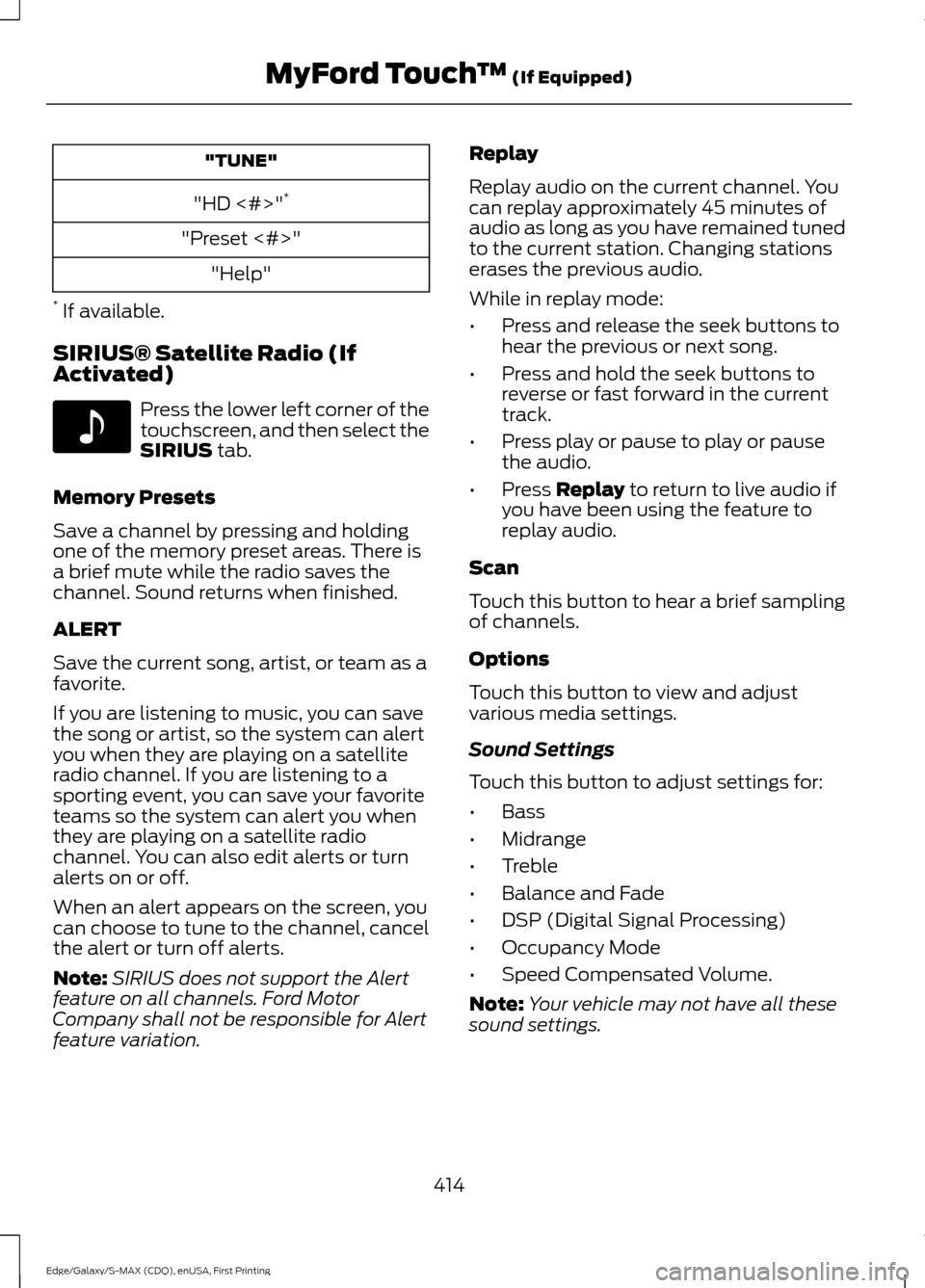
"TUNE"
"HD <#>" *
"Preset <#>" "Help"
* If available.
SIRIUS® Satellite Radio (If
Activated) Press the lower left corner of the
touchscreen, and then select the
SIRIUS tab.
Memory Presets
Save a channel by pressing and holding
one of the memory preset areas. There is
a brief mute while the radio saves the
channel. Sound returns when finished.
ALERT
Save the current song, artist, or team as a
favorite.
If you are listening to music, you can save
the song or artist, so the system can alert
you when they are playing on a satellite
radio channel. If you are listening to a
sporting event, you can save your favorite
teams so the system can alert you when
they are playing on a satellite radio
channel. You can also edit alerts or turn
alerts on or off.
When an alert appears on the screen, you
can choose to tune to the channel, cancel
the alert or turn off alerts.
Note: SIRIUS does not support the Alert
feature on all channels. Ford Motor
Company shall not be responsible for Alert
feature variation. Replay
Replay audio on the current channel. You
can replay approximately 45 minutes of
audio as long as you have remained tuned
to the current station. Changing stations
erases the previous audio.
While in replay mode:
•
Press and release the seek buttons to
hear the previous or next song.
• Press and hold the seek buttons to
reverse or fast forward in the current
track.
• Press play or pause to play or pause
the audio.
• Press
Replay to return to live audio if
you have been using the feature to
replay audio.
Scan
Touch this button to hear a brief sampling
of channels.
Options
Touch this button to view and adjust
various media settings.
Sound Settings
Touch this button to adjust settings for:
• Bass
• Midrange
• Treble
• Balance and Fade
• DSP (Digital Signal Processing)
• Occupancy Mode
• Speed Compensated Volume.
Note: Your vehicle may not have all these
sound settings.
414
Edge/Galaxy/S-MAX (CDQ), enUSA, First Printing MyFord Touch
™
(If Equipped)E142611
Page 421 of 508
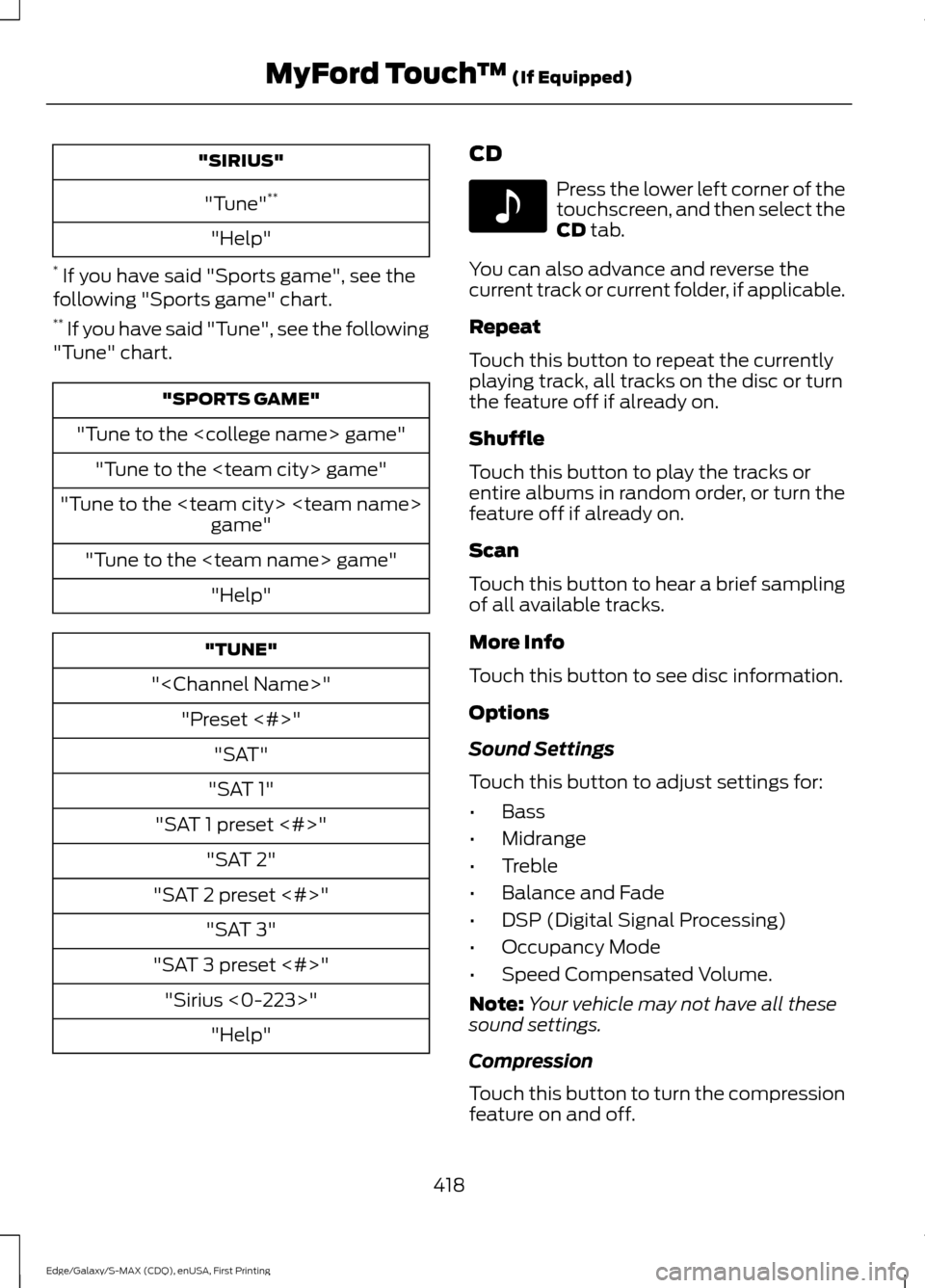
"SIRIUS"
"Tune" **
"Help"
* If you have said "Sports game", see the
following "Sports game" chart.
** If you have said "Tune", see the following
"Tune" chart. "SPORTS GAME"
"Tune to the
"Tune to the
"Tune to the
"
"SAT 1"
"SAT 1 preset <#>" "SAT 2"
"SAT 2 preset <#>" "SAT 3"
"SAT 3 preset <#>" "Sirius <0-223>" "Help" CD Press the lower left corner of the
touchscreen, and then select the
CD tab.
You can also advance and reverse the
current track or current folder, if applicable.
Repeat
Touch this button to repeat the currently
playing track, all tracks on the disc or turn
the feature off if already on.
Shuffle
Touch this button to play the tracks or
entire albums in random order, or turn the
feature off if already on.
Scan
Touch this button to hear a brief sampling
of all available tracks.
More Info
Touch this button to see disc information.
Options
Sound Settings
Touch this button to adjust settings for:
• Bass
• Midrange
• Treble
• Balance and Fade
• DSP (Digital Signal Processing)
• Occupancy Mode
• Speed Compensated Volume.
Note: Your vehicle may not have all these
sound settings.
Compression
Touch this button to turn the compression
feature on and off.
418
Edge/Galaxy/S-MAX (CDQ), enUSA, First Printing MyFord Touch
™
(If Equipped)E142611