Crash FORD EDGE 2015 2.G Workshop Manual
[x] Cancel search | Manufacturer: FORD, Model Year: 2015, Model line: EDGE, Model: FORD EDGE 2015 2.GPages: 508, PDF Size: 6.2 MB
Page 391 of 508
GENERAL INFORMATION WARNING
Driving while distracted can result in
loss of vehicle control, crash and
injury. We strongly recommend that
you use extreme caution when using any
device that may take your focus off the
road. Your primary responsibility is the safe
operation of your vehicle. We recommend
against the use of any hand-held device
while driving and encourage the use of
voice-operated systems when possible.
Make sure you are aware of all applicable
local laws that may affect the use of
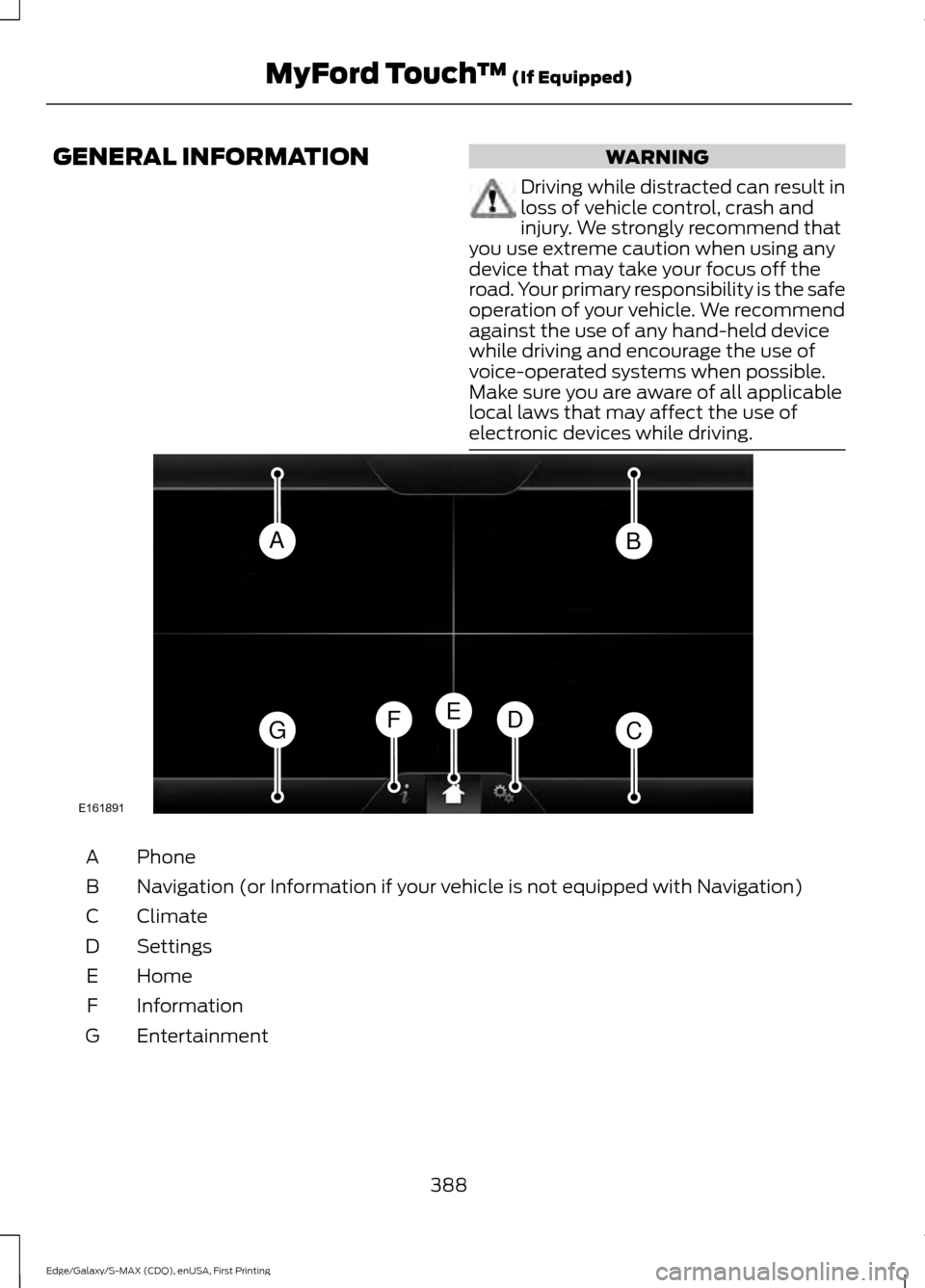
electronic devices while driving. Phone
A
Navigation (or Information if your vehicle is not equipped with Navigation)
B
Climate
C
Settings
D
Home
E
Information
F
Entertainment
G
388
Edge/Galaxy/S-MAX (CDQ), enUSA, First Printing MyFord Touch
™ (If Equipped)AB
GCDFE
E161891
Page 394 of 508
Cleaning the Touchscreen Display
Use a clean, soft cloth such as one used
for cleaning glasses. If dirt or fingerprints
are still visible, apply a small amount of
alcohol to the cloth. Do not pour or spray
alcohol onto the display. Do not use
detergent or any type of solvent to clean
the display.
Support
The SYNC support team is available to
help you with any questions you are not
able to answer on your own.
Monday-Saturday, 8:30am-9:00pm EST.
Sunday, 10:30am-7:30pm EST.
In the United States, call: 1-800-392-3673.
In Canada, call: 1-800-565-3673.
Times are subject to change due to
holidays.
Safety Information
WARNING
Driving while distracted can result in
loss of vehicle control, crash and
injury. We strongly recommend that
you use extreme caution when using any
device that may take your focus off the
road. Your primary responsibility is the safe
operation of your vehicle. We recommend
against the use of any hand-held device
while driving and encourage the use of
voice-operated systems when possible.
Make sure you are aware of all applicable
local laws that may affect the use of
electronic devices while driving. •
Do not attempt to service or repair the
system. See an authorized dealer.
• Do not operate playing devices if the
power cords or cables are broken, split
or damaged. Place cords and cables
out of the way, so they do not interfere
with the operation of pedals, seats,
compartments or safe driving abilities.
• Do not leave playing devices in your
vehicle during extreme conditions as it
could cause them damage. See your
device's user guide for further
information.
• For your safety, some SYNC functions
are speed-dependent. Their use is
limited to when your vehicle is traveling
at speeds under 3 mph (5 km/h).
Make sure that you review your device's
manual before using it with SYNC.
Speed-restricted Features
Some features of this system may be too
difficult to use while your vehicle is moving
so they are restricted from use unless your
vehicle is stationary.
• Screens crowded with information,
such as Point of Interest reviews and
ratings, SIRIUS Travel Link sports
scores, movie times or ski conditions.
• Any action that requires you to use a
keyboard is restricted, such as entering
a navigation destination or editing
information.
• All lists are limited so the user can view
fewer entries (such as phone contacts
or recent phone call entries).
See the following chart for more specific
examples.
391
Edge/Galaxy/S-MAX (CDQ), enUSA, First Printing MyFord Touch
™ (If Equipped)
Page 426 of 508
Bluetooth Audio Voice Commands
If you are listening to a Bluetooth
audio device, press the voice
button on the steering wheel
control. When prompted, say "Next song",
"Pause", "Play" or "Previous song".
If you are not listening to a Bluetooth audio
device, press the voice button and, after
the tone, say "Next song", "Pause", "Play"
or "Previous song".
Line In WARNINGS
Driving while distracted can result in
loss of vehicle control, crash and
injury. We strongly recommend that
you use extreme caution when using any
device that may take your focus off the
road. Your primary responsibility is the safe
operation of your vehicle. We recommend
against the use of any handheld device
while driving and encourage the use of
voice-operated systems when possible.
Make sure you are aware of all applicable
local laws that may affect the use of
electronic devices while driving. For safety reasons, do not connect
or adjust the settings on your
portable music player while your
vehicle is moving. Store the portable music player in a
secure location, such as the center
console or the glove box, when your
vehicle is moving. Hard objects may
become projectiles in a crash or sudden
stop, which may increase the risk of serious
injury. The audio extension cable must be
long enough to allow the portable music
player to be safely stored while your
vehicle is moving. Your auxiliary input jack allows you to play
music from your portable music player over
your vehicle's speakers. The jack is located
in your center console.
Press the lower left corner of the
touchscreen, and then select Line In.
To use the auxiliary input jack feature,
make sure that your portable music player
is designed for use with headphones and
that it is fully charged. You also need an
audio extension cable with stereo male
1/8-inch (3.5 millimeter) connectors at
both ends.
1. Switch off the engine, radio and portable music player. Set the parking
brake and put the transmission in
position
P.
2. Attach one end of the audio extension
cable to the headphone output of your
player and the other end into the
adapter in one of the jacks inside the
center console.
3. Press the lower left corner on the touchscreen. Select either a tuned FM
station or a CD (if there is a CD already
loaded into the system).
4. Adjust the volume as desired.
5. Turn the portable music player on and adjust the volume to ½ the maximum.
6. Press the lower left corner on the touchscreen. Select the
Line In tab.
(You should hear audio from your
portable music player although it may
be low.)
7. Adjust the sound on your portable music player until it reaches the level
of the FM station or CD by switching
back and forth between the controls.
423
Edge/Galaxy/S-MAX (CDQ), enUSA, First Printing MyFord Touch
™
(If Equipped)E142599
Page 428 of 508
Hands-free calling is one of the main
features of SYNC. Once you pair your
phone, you can access many options using
the touchscreen or voice commands. While
the system supports a variety of features,
many are dependent on your cellular
phone
’s functionality.
At a minimum, most cellular phones with
Bluetooth wireless technology support the
following functions:
• Answering an incoming call.
• Ending a call.
• Using privacy mode.
• Dialing a number.
• Redialing.
• Call waiting notification.
• Caller ID.
Other features, such as text messaging
using Bluetooth and automatic phonebook
download, are phone-dependent features.
To check your phone ’s compatibility, see
your phone ’s user manual and visit
www.SYNCMyRide.com,
www.SYNCMyRide.ca or
www.syncmaroute.ca.
Pairing Your Phone for the First
Time WARNING
Driving while distracted can result in
loss of vehicle control, crash and
injury. We strongly recommend that
you use extreme caution when using any
device that may take your focus off the
road. Your primary responsibility is the safe
operation of your vehicle. We recommend
against the use of any handheld device
while driving and encourage the use of
voice-operated systems when possible.
Make sure you are aware of all applicable
local laws that may affect the use of
electronic devices while driving. The first thing you must do to use the
phone features of SYNC is to pair your
Bluetooth-enabled cellular phone with
SYNC. This allows you to use your phone
in a hands-free manner.
Note:
Put the transmission in park (P).
Switch on your vehicle ignition and the radio.
1. Touch Add Phone in the upper left
corner of the touchscreen. Find SYNC
appears on the screen, and instructs
you to begin the pairing process from
your device.
2. Make sure that Bluetooth is set to
On
and that your cellular phone is in the
proper mode. See your phone ’s manual
if necessary.
Note: Select
SYNC, and a six-digit PIN
appears on your device.
3. If prompted to enter a PIN on your device, it does not support Secure
Simple Pairing. To pair, enter the PIN
displayed on the touchscreen. Skip the
next step.
4. When prompted on your phone ’s
display, confirm that the PIN provided
by SYNC matches the PIN displayed
on your cellular phone.
5. The display indicates when the pairing
is successful.
SYNC may prompt you with more phone
options. For more information on your
phone's capability, see your phone's
manual and visit the website.
Pairing Subsequent Phones
Note: Put the transmission in park (P).
Switch on your vehicle ignition and the radio.
1. Press the
Phone corner of the
touchscreen > Settings > BT Devices
>
Add Device.
425
Edge/Galaxy/S-MAX (CDQ), enUSA, First Printing MyFord Touch
™
(If Equipped)
Page 436 of 508
SYNC Services quick tips
You can personalize your Services feature to provide
quicker access to your most used or favorite information.
You can save address points, such as work or home. You
can also save favorite information like sports teams, such
as Detroit Lions, or a news category. You can learn more
about personalization by logging onto
www.SYNCMyRide.com.
Personalizing
Press the voice button at any time (while connected to
SYNC Services) to interrupt a voice prompt or an audio
clip (such as a sports report) and say your voice command.
Push to interrupt
Your subscription is associated with your Bluetooth-
enabled cellular phone number, not your VIN (Vehicle
Identification Number). You can pair and connect your
phone to any vehicle equipped with SYNC Services and
continue enjoying your personalized services.
Portable
SYNC Services Voice Commands When a route has been
downloaded (non-navigation
systems), press the voice button
on the steering wheel controls. When
prompted, say any of the following
commands: "SERVICES"
"Cancel route"
"Navigation voice off" "Navigation voice on" "Next turn"
"Route status"
"Route summary" "Services"
"Update route" "Help" Sirius Travel Link (If Equipped) WARNING
Driving while distracted can result in
loss of vehicle control, crash and
injury. We strongly recommend that
you use extreme caution when using any
device that may take your focus off the
road. Your primary responsibility is the safe
operation of your vehicle. We recommend
against the use of any handheld device
while driving and encourage the use of
voice-operated systems when possible.
Make sure you are aware of all applicable
local laws that may affect the use of
electronic devices while driving. Note:
In order to use Sirius Travel Link, your
vehicle must be equipped with navigation
and your navigation SD card must be in the
SD card slot.
Note: This feature is only available in the
United States.
433
Edge/Galaxy/S-MAX (CDQ), enUSA, First Printing MyFord Touch
™
(If Equipped)E142599
Page 439 of 508
Additional sports-related voice
commands
"WNBA schedule" "WNBA scores" "Help"
Alerts If your vehicle is equipped with
Navigation, touch the I
(Information) button to access
these features. If your vehicle is not
equipped with Navigation, touch the corner
of the touchscreen with the green tab.
Press Alerts, and then choose from any
of the following services:
• View
the complete message.
• Delete
the message.
• Delete All
messages.
This screen displays any system messages
(such as an SD card fault).
Note: The system alerts you to any
messages by turning the information icon
yellow. After you read or delete the
messages, the icon returns to white.
Calendar If your vehicle is equipped with
Navigation, touch the I
(Information) button to access
these features. If your vehicle is not
equipped with Navigation, touch the corner
of the touchscreen with the green tab.
Press
Calendar. You can view the current
calendar by day, week or month. 911 Assist
(If Equipped) WARNINGS
Unless the 911 Assist setting is set on
before a crash, the system will not
dial for help, which could delay
response time, potentially increasing the
risk of serious injury or death after a crash. Do not wait for 911 Assist to make an
emergency call if you can do it
yourself. Dial emergency services
immediately to avoid delayed response
time, which could increase the risk of
serious injury or death after a crash. If you
do not hear 911 Assist within five seconds
of the crash, the system or phone may be
damaged or non-functional. Always place your phone in a secure
location in your vehicle so it does not
become a projectile or damaged in
a crash. Failure to do so may cause serious
injury to someone or damage the phone,
which could prevent 911 Assist from
working properly. Note:
The SYNC 911 Assist feature must be
set on prior to the incident.
Note: Before setting this feature on, make
sure that you read the 911 Assist Privacy
Notice later in this section for important
information.
Note: If any user turns 911 Assist on or off,
that setting applies for all paired phones. If
911 Assist is turned off, either a voice
message plays or a display message (or
icon) comes on (or both) when your vehicle
is started after a previously paired phone
connects.
Note: Every phone operates differently.
While SYNC 911 Assist works with most
cellular phones, some may have trouble
using this feature.
436
Edge/Galaxy/S-MAX (CDQ), enUSA, First Printing MyFord Touch
™
(If Equipped)E142608 E142608
Page 440 of 508
If a crash deploys an airbag, excluding knee
airbags and rear inflatable safety belts
where fitted or activates the fuel pump
shut-off, your SYNC-equipped vehicle may
be able to contact emergency services by
dialing 911 through a paired and connected
Bluetooth-enabled phone. You can learn
more about the 911 Assist feature, visit
www.SYNCMyRide.com,
www.SYNCMyRide.ca or
www.syncmaroute.ca.
See Supplementary Restraints System
(page 38). Important information
regarding airbag deployment is in this
chapter.
See
Roadside Emergencies (page 237).
Important information regarding the fuel
pump shut-off is in this chapter.
Setting 911 Assist On If your vehicle is equipped with
Navigation, touch the i
(Information) button to access
these features. If your vehicle is not
equipped with Navigation, touch the corner
of the touchscreen with the green tab.
Touch
Apps > 911 Assist, then select On. You can also access 911 Assist
by:
• Pressing the Settings icon >
Settings
> Phone > 911 Assist, or
• Pressing the Settings icon > Help > 911
Assist
.
To make sure that 911 Assist works
properly:
• SYNC must be powered and working
properly at the time of the incident and
throughout feature activation and use.
• The 911 Assist feature must be set on
prior to the incident. •
You must pair and connect a
Bluetooth-enabled and compatible
phone to SYNC.
• A connected Bluetooth-enabled phone
must have the ability to make and
maintain an outgoing call at the time
of the incident.
• A connected Bluetooth-enabled phone
must have adequate network coverage,
battery power and signal strength.
• The vehicle must have battery power
and be located in the United States,
Canada or in a territory in which 911 is
the emergency number.
In the Event of a Crash
Not all crashes deploy an airbag or activate
the fuel pump shut-off (which would
trigger 911 Assist); however, SYNC tries to
contact emergency services if 911 Assist
triggers. If a connected phone sustains
damage or loses connection to SYNC,
SYNC searches for, and tries to connect
to, any available previously paired phone
and tries to make the call to 911.
Before making the call:
• SYNC provides a short window of time
(approximately 10 seconds) to cancel
the call. If you fail to cancel the call,
SYNC attempts to dial 911.
• SYNC says the following, or a similar
message: "SYNC will attempt to call
911, to cancel the call, press Cancel on
your screen or press and hold the
phone button on your steering wheel."
If you do not cancel the call, and SYNC
makes a successful call, a pre-recorded
message plays for the 911 operator, and
then the occupant(s) in your vehicle is able
to talk with the operator. Be prepared to
provide your name, phone number and
location immediately, because not all 911
systems are capable of receiving this
information electronically.
437
Edge/Galaxy/S-MAX (CDQ), enUSA, First Printing MyFord Touch
™
(If Equipped)E142608 E142607
Page 441 of 508
911 Assist May Not Work If:
•
Your cellular phone or 911 Assist
hardware sustains damage in a crash.
• The vehicle's battery or the SYNC
system has no power.
• The phones(s) previously paired or
connected to the system are thrown
from the vehicle.
911 Assist Privacy Notice
When you turn on 911 Assist, it may
disclose to emergency services that your
vehicle has been in a crash involving the
deployment of an airbag or activation of
the fuel pump shut-off. Certain versions or
updates to 911 Assist may also be capable
of electronically or verbally disclosing to
911 operators your vehicle location or other
details about your vehicle or crash to assist
911 operators to provide the most
appropriate emergency services. If you do
not want to disclose this information, do
not turn the feature on.
Vehicle Health Report (If
Equipped, United States Only) WARNING
Always follow scheduled
maintenance instructions, regularly
inspect your vehicle, and seek repair
for any damage or problem you suspect.
Vehicle Health Report supplements, but
cannot replace, normal maintenance and
vehicle inspection. Vehicle Health Report
only monitors certain systems
electronically monitored by your vehicle
and will not monitor or report the status
of any other system, (such as brake lining
wear). Failure to perform scheduled
maintenance and regularly inspect your
vehicle may result in vehicle damage and
serious injury. Note:
Your Vehicle Health Report feature
requires activation prior to use. Visit
www.SYNCMyRide.com to register. There
is no fee or subscription associated with
Vehicle Health Report, but you must register
to use this feature.
Note: This feature may not function
properly if you have enabled caller ID
blocking on your cellular phone. Before
running a report, review the Vehicle Health
Report Privacy Notice.
Note: In order to allow a break-in period for
your vehicle, you may not be able to create
a Vehicle Health Report until your vehicle
odometer has reached 200 miles.
Note: Cellular phone and SMS charges may
apply when making a report.
Register for Vehicle Health Report and set
your report preferences at
www.SYNCMyRide.com. After registering,
you can request a Vehicle Health Report
(inside your vehicle). Return to your
account at www.SYNCMyRide.com to view
your report. You can also choose for SYNC
to remind you automatically to run reports
at specific mileage intervals. Cellular phone
airtime usage may apply when reporting.
The system allows you to check your
vehicle ’s overall health in the form of a
diagnostic report card. The Vehicle Health
Report contains valuable information, for
example:
• Vehicle diagnostic information.
• Scheduled maintenance.
• Open recalls and Field Service Actions.
• Items noted during vehicle inspections
by your authorized dealer that still need
servicing.
Making a Report If you want to run a report by
using the touchscreen, touch
Apps > Vehicle Health Report.
438
Edge/Galaxy/S-MAX (CDQ), enUSA, First Printing MyFord Touch
™ (If Equipped)E142608
Page 499 of 508
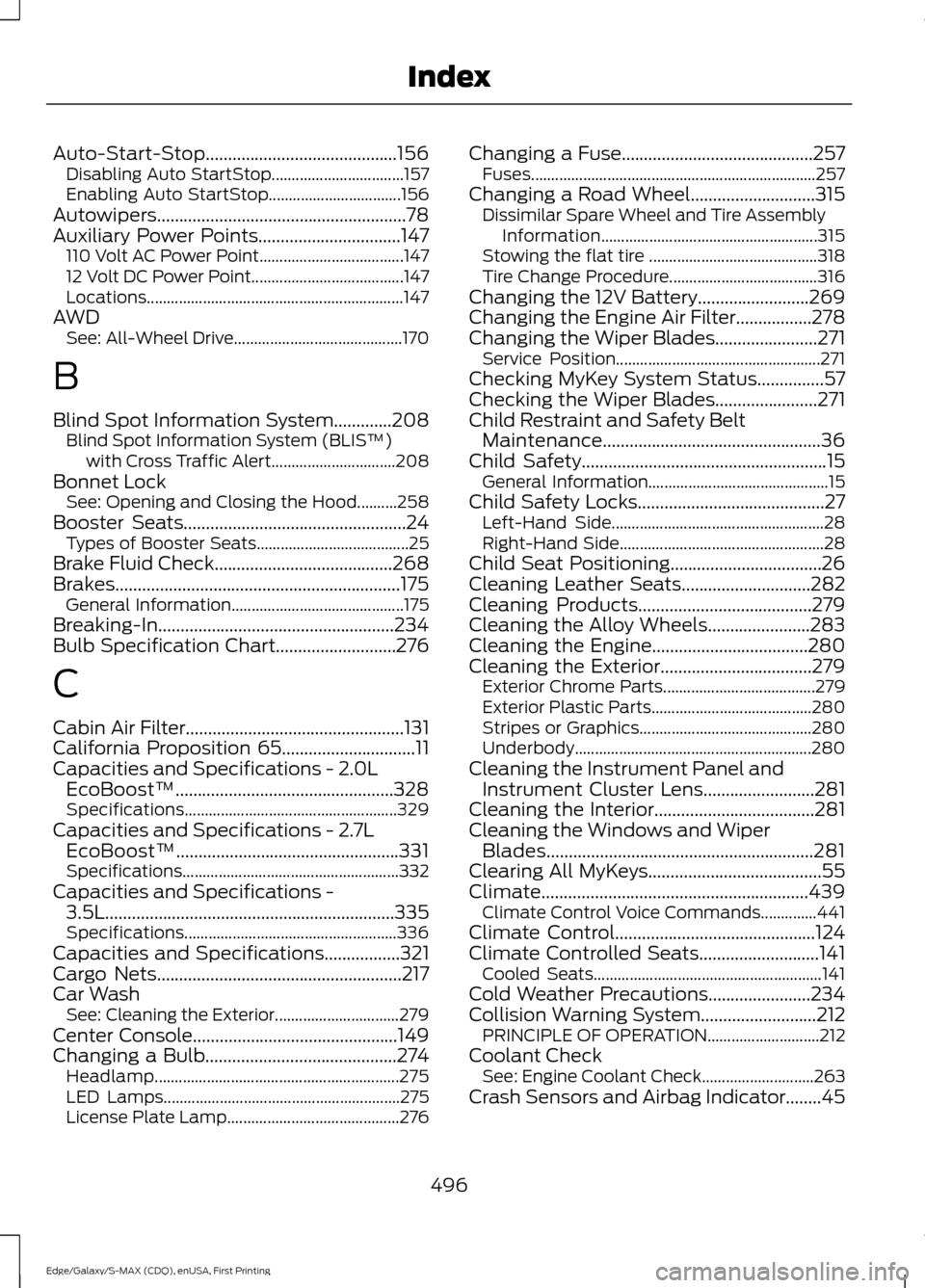
Auto-Start-Stop...........................................156
Disabling Auto StartStop................................. 157
Enabling Auto StartStop................................. 156
Autowipers........................................................78
Auxiliary Power Points................................147 110 Volt AC Power Point.................................... 147
12 Volt DC Power Point...................................... 147
Locations................................................................ 147
AWD See: All-Wheel Drive.......................................... 170
B
Blind Spot Information System.............208 Blind Spot Information System (BLIS ™)
with Cross Traffic Alert............................... 208
Bonnet Lock See: Opening and Closing the Hood..........258
Booster Seats..................................................24 Types of Booster Seats...................................... 25
Brake Fluid Check........................................268
Brakes................................................................175 General Information........................................... 175
Breaking-In.....................................................234
Bulb Specification Chart...........................276
C
Cabin Air Filter.................................................131
California Proposition 65..............................11
Capacities and Specifications - 2.0L EcoBoost™.................................................328
Specifications..................................................... 329
Capacities and Specifications - 2.7L EcoBoost™..................................................331
Specifications...................................................... 332
Capacities and Specifications - 3.5L.................................................................335
Specifications..................................................... 336
Capacities and Specifications.................321
Cargo Nets.......................................................217
Car Wash See: Cleaning the Exterior............................... 279
Center Console
..............................................149
Changing a Bulb...........................................274
Headlamp............................................................. 275
LED Lamps........................................................... 275
License Plate Lamp........................................... 276Changing a Fuse...........................................257
Fuses....................................................................... 257
Changing a Road Wheel............................315 Dissimilar Spare Wheel and Tire Assembly
Information...................................................... 315
Stowing the flat tire .......................................... 318
Tire Change Procedure..................................... 316
Changing the 12V Battery.........................269
Changing the Engine Air Filter.................278
Changing the Wiper Blades.......................271 Service Position................................................... 271
Checking MyKey System Status
...............57
Checking the Wiper Blades.......................271
Child Restraint and Safety Belt Maintenance
.................................................36
Child Safety.......................................................15
General Information............................................. 15
Child Safety Locks..........................................27 Left-Hand Side..................................................... 28
Right-Hand Side................................................... 28
Child Seat Positioning..................................26
Cleaning Leather Seats.............................282
Cleaning Products
.......................................279
Cleaning the Alloy Wheels.......................283
Cleaning the Engine...................................280
Cleaning the Exterior
..................................279
Exterior Chrome Parts...................................... 279
Exterior Plastic Parts........................................ 280
Stripes or Graphics........................................... 280
Underbody........................................................... 280
Cleaning the Instrument Panel and Instrument Cluster Lens.........................281
Cleaning the Interior....................................281
Cleaning the Windows and Wiper Blades............................................................281
Clearing All MyKeys.......................................55
Climate
............................................................439
Climate Control Voice Commands..............441
Climate Control
.............................................124
Climate Controlled Seats...........................141 Cooled Seats......................................................... 141
Cold Weather Precautions.......................234
Collision Warning System..........................212 PRINCIPLE OF OPERATION............................ 212
Coolant Check See: Engine Coolant Check............................ 263
Crash Sensors and Airbag Indicator
........45
496
Edge/Galaxy/S-MAX (CDQ), enUSA, First Printing Index
Page 504 of 508
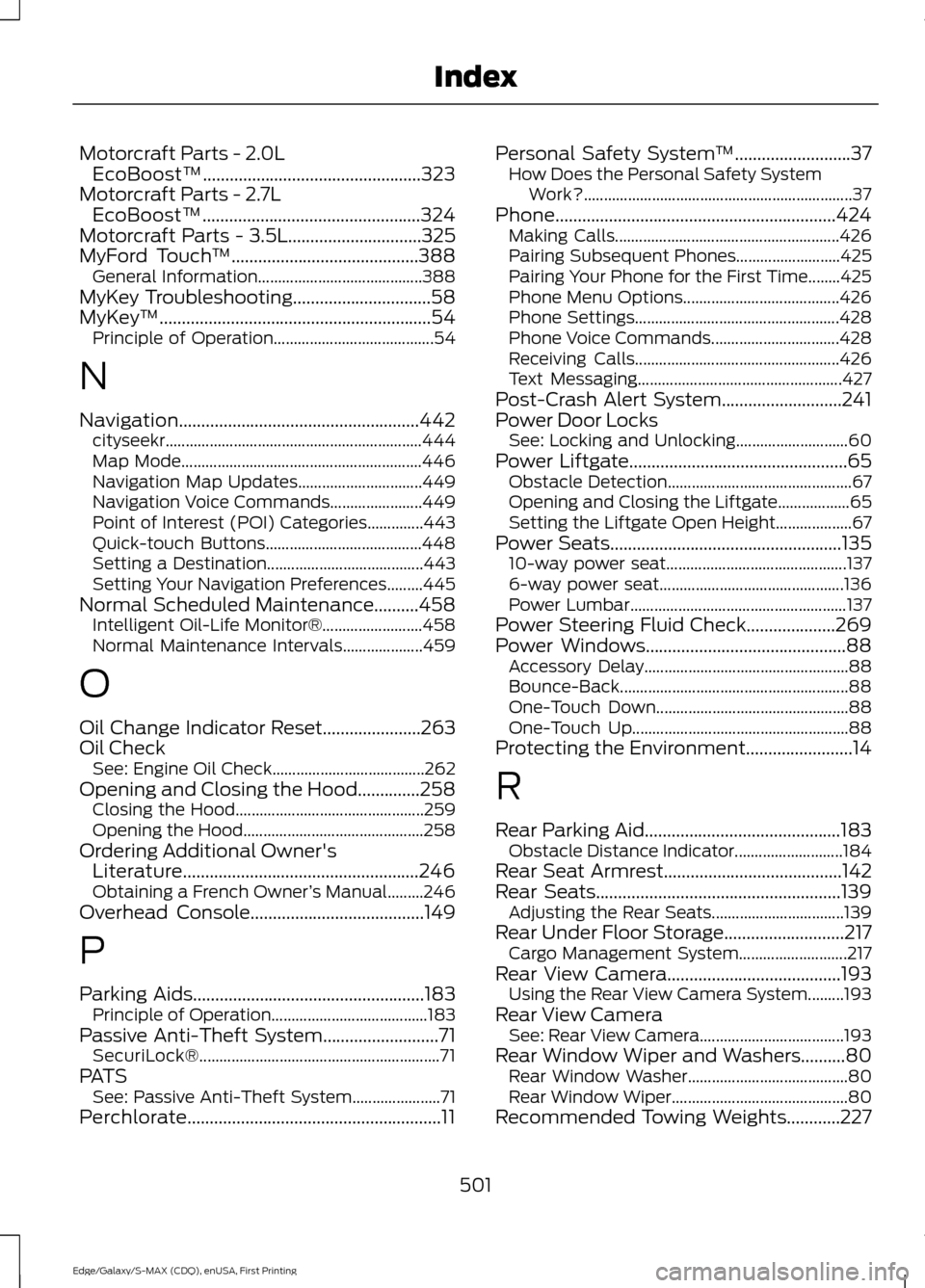
Motorcraft Parts - 2.0L
EcoBoost™.................................................323
Motorcraft Parts - 2.7L EcoBoost™.................................................324
Motorcraft Parts - 3.5L..............................325
MyFord Touch ™..........................................388
General Information......................................... 388
MyKey Troubleshooting...............................58
MyKey ™
.............................................................54
Principle of Operation........................................ 54
N
Navigation......................................................442 cityseekr................................................................ 444
Map Mode............................................................ 446
Navigation Map Updates............................... 449
Navigation Voice Commands....................... 449
Point of Interest (POI) Categories..............443
Quick-touch Buttons....................................... 448
Setting a Destination....................................... 443
Setting Your Navigation Preferences.........445
Normal Scheduled Maintenance..........458 Intelligent Oil-Life Monitor®......................... 458
Normal Maintenance Intervals.................... 459
O
Oil Change Indicator Reset......................263
Oil Check See: Engine Oil Check...................................... 262
Opening and Closing the Hood..............258 Closing the Hood............................................... 259
Opening the Hood............................................. 258
Ordering Additional Owner's Literature.....................................................246
Obtaining a French Owner ’s Manual.........246
Overhead Console.......................................149
P
Parking Aids....................................................183 Principle of Operation....................................... 183
Passive Anti-Theft System..........................71 SecuriLock®............................................................ 71
PATS See: Passive Anti-Theft System...................... 71
Perchlorate.........................................................11 Personal Safety System
™
..........................37
How Does the Personal Safety System
Work?................................................................... 37
Phone...............................................................424 Making Calls........................................................ 426
Pairing Subsequent Phones.......................... 425
Pairing Your Phone for the First Time........425
Phone Menu Options....................................... 426
Phone Settings................................................... 428
Phone Voice Commands................................ 428
Receiving Calls................................................... 426
Text Messaging................................................... 427
Post-Crash Alert System...........................241
Power Door Locks See: Locking and Unlocking............................ 60
Power Liftgate.................................................65 Obstacle Detection.............................................. 67
Opening and Closing the Liftgate.................. 65
Setting the Liftgate Open Height................... 67
Power Seats....................................................135 10-way power seat............................................. 137
6-way power seat.............................................. 136
Power Lumbar...................................................... 137
Power Steering Fluid Check....................269
Power Windows.............................................88 Accessory Delay................................................... 88
Bounce-Back......................................................... 88
One-Touch Down................................................ 88
One-Touch Up...................................................... 88
Protecting the Environment........................14
R
Rear Parking Aid............................................183 Obstacle Distance Indicator........................... 184
Rear Seat Armrest
........................................142
Rear Seats.......................................................139 Adjusting the Rear Seats................................. 139
Rear Under Floor Storage
...........................217
Cargo Management System........................... 217
Rear View Camera
.......................................193
Using the Rear View Camera System.........193
Rear View Camera See: Rear View Camera.................................... 193
Rear Window Wiper and Washers..........80 Rear Window Washer........................................ 80
Rear Window Wiper............................................ 80
Recommended Towing Weights............227
501
Edge/Galaxy/S-MAX (CDQ), enUSA, First Printing Index