phone FORD EDGE 2015 2.G Workshop Manual
[x] Cancel search | Manufacturer: FORD, Model Year: 2015, Model line: EDGE, Model: FORD EDGE 2015 2.GPages: 508, PDF Size: 6.2 MB
Page 399 of 508
Voice Settings
Voice settings allow you to customize the
level of system interaction, help and
feedback. The system defaults to standard
interaction that uses candidate lists and
confirmation prompts as these provide the
highest level of guidance and feedback.
•
Interaction Mode: Novice mode
provides detailed interaction and
guidance while the advanced mode
has less audible interaction and more
tone prompts.
• Confirmation Prompts:
The system
uses these short questions to confirm
your voice request. If turned off, the
system simply makes a best guess as
to what you requested. The system
may still occasionally ask you to
confirm settings.
• Phone and Media Candidate Lists:
Candidate lists are lists of possible
results from your voice commands. The
system creates these lists when it has
the same confidence level of several
options based on your voice command.
To access these settings using the
touchscreen:
1. Press the Settings icon >
Settings >
then Voice Control.
2. Select from the following:
• Interaction Mode
• Confirmation Prompts
• Media Candidate Lists
• Phone Candidate Lists
• Voice Control Volume. To access these settings using voice
commands:
1. Press the voice icon. Wait for the
prompt "Please say a command".
Another tone sounds to let you know
the system is listening.
2. Say any of the following commands: Voice settings using voice commands
"Confirmation prompts off""Confirmation prompts on"
"Interaction mode advanced" "Interaction mode novice"
"Media candidate lists off" "Media candidate lists on"
"Phone candidate lists off" "Phone candidate lists on" "Help"
Using Voice Commands with the
Touchscreen Options
Your voice system has a dual mode feature
which allows you to switch between using
voice commands and making on-screen
selections. This is available only when the
system displays a list of candidates
generated during a voice session. For
example, when entering in a street address
or trying to call a contact from the phone
you paired to the system.
396
Edge/Galaxy/S-MAX (CDQ), enUSA, First Printing MyFord Touch
™
(If Equipped)
Page 403 of 508
Settings
Access and adjust system settings, voice
features, as well as phone, navigation and
wireless settings.
System Press the Settings icon >
Settings > System, then select
from the following: System
Select to have the touchscreen display in English, Spanish
or French.
Language
Select to display units in kilometers or miles.
Distance
Select to display units in Celsius or Fahrenheit.
Temperature
Adjust the volume of voice prompts from the system.
System Prompt Volume
Select to have the system beep to confirm choices made
through the touchscreen.
Touch Screen Button Beep
Select to have the system beep to confirm button choices
made through the climate or audio system.
Touch Panel Button Beep
Have the touchscreen keyboard display in QWERTY or
ABC format.
Keyboard Layout
Install any downloaded applications or view the current
software licenses.
Install Applications
Select to restore factory defaults. This erases all personal
settings and personal data.
Master Reset
Voice Control Press the Settings icon >
Settings
> Voice Control, then
select from the following:
400
Edge/Galaxy/S-MAX (CDQ), enUSA, First Printing MyFord Touch
™
(If Equipped)E142607 E142607
Page 404 of 508
Voice control
Standard interaction mode provides more detailed inter-
action and guidance. Advanced mode has less audible
interaction and more tone prompts.
Interaction Mode
Have the system ask you short questions if it has not
clearly heard or understood your request. *
Confirmation Prompts
Candidate lists are possible results from your voice
commands. The system simply makes a best guess at
your request with these turned off.
Media Candidate Lists
Candidate lists are possible results from your voice
commands. The system simply makes a best guess at
your request with these turned off.
Phone Candidate Lists
This allows you to adjust the system ’s voice volume level.
Voice Control Volume
* Even with confirmation prompts turned off, the system may occasionally ask you to
confirm settings.
Media Player Press the Settings icon >
Settings > Media Player, then
select from the following: Media player
When this feature is on, the system automatically switches
to the media source upon initial connection. This allows
you to listen to music during the indexing process. When
this feature is off, the system does not automatically
switch to the inserted media source.
Autoplay
Select to connect, disconnect, add or delete a device. You
can also set a device as your favorite so that the system
automatically attempts to connect to that device at every
ignition cycle.
Bluetooth Devices
When this feature is on, the system automatically indexes
media on your connected Bluetooth device.
Index Bluetooth Audio
Devices
401
Edge/Galaxy/S-MAX (CDQ), enUSA, First Printing MyFord Touch
™
(If Equipped)E142607
Page 406 of 508
Navigation
Have the system automatically fill in State/Province
information.
Have the system display areas where roadwork occurs.
Traffic Preferences
Have the system display incident icons.
Have the system display areas where difficult driving
conditions may occur.
Have the system display areas where snow and ice on the
road may occur.
Have the system display any smog alerts.
Have the system display weather warnings.
Have the system display where there may be reduced
visibility.
Have the system switch on your radio for traffic
announcements.
Have the system avoid traffic problems automatically.
Switch traffic alert notifications on and off.
Have the system display accident icons.
Have the system display traffic jam icons.
Have the system display closed roads.
Enter specific areas that you would like to avoid on
planned navigation routes.
Avoid Areas
Phone Press the Settings icon >
Settings > Phone, then select
from the following:
403
Edge/Galaxy/S-MAX (CDQ), enUSA, First Printing MyFord Touch
™
(If Equipped)E142607
Page 407 of 508
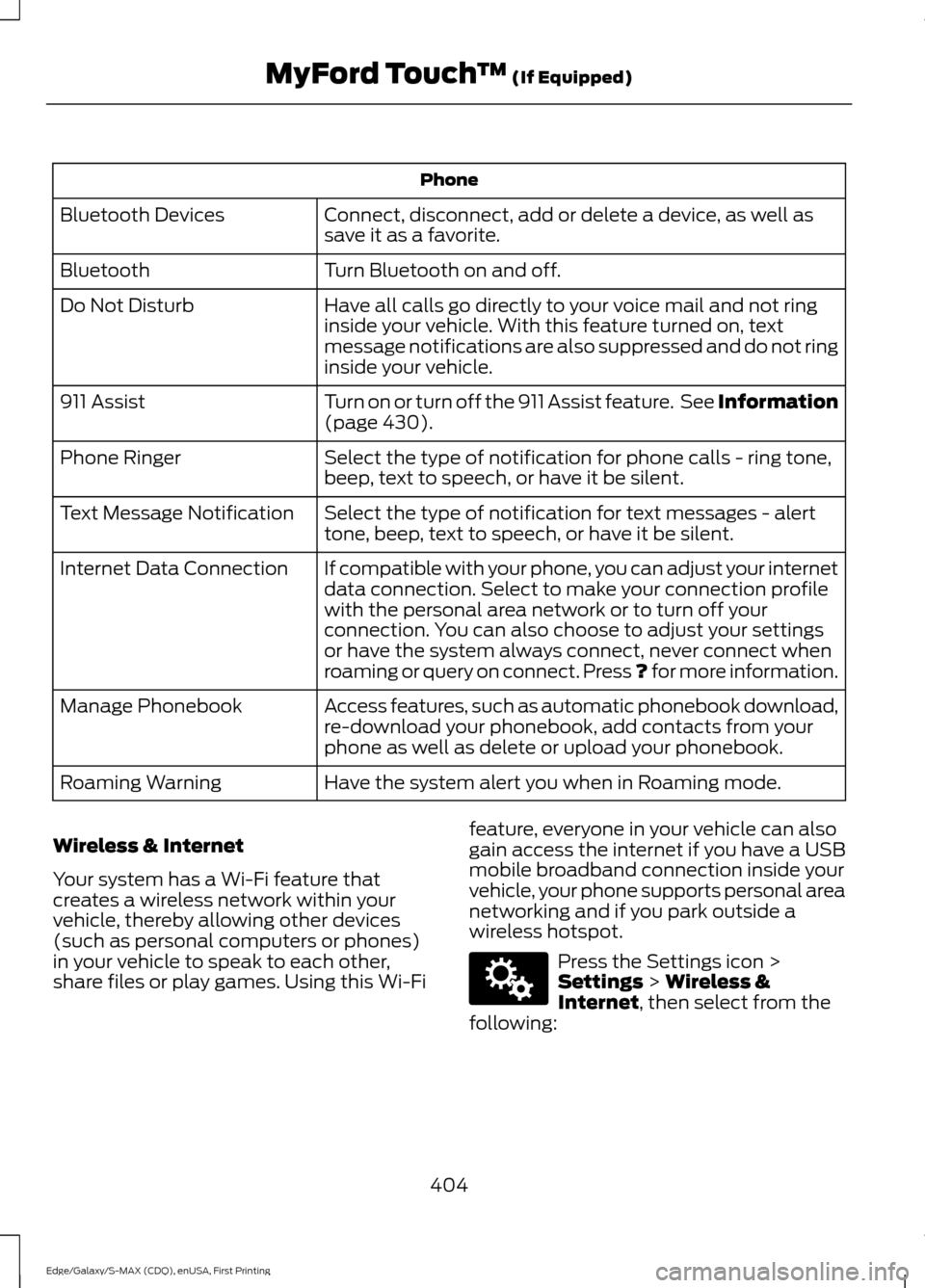
Phone
Connect, disconnect, add or delete a device, as well as
save it as a favorite.
Bluetooth Devices
Turn Bluetooth on and off.
Bluetooth
Have all calls go directly to your voice mail and not ring
inside your vehicle. With this feature turned on, text
message notifications are also suppressed and do not ring
inside your vehicle.
Do Not Disturb
Turn on or turn off the 911 Assist feature. See Information
(page 430).
911 Assist
Select the type of notification for phone calls - ring tone,
beep, text to speech, or have it be silent.
Phone Ringer
Select the type of notification for text messages - alert
tone, beep, text to speech, or have it be silent.
Text Message Notification
If compatible with your phone, you can adjust your internet
data connection. Select to make your connection profile
with the personal area network or to turn off your
connection. You can also choose to adjust your settings
or have the system always connect, never connect when
roaming or query on connect. Press ? for more information.
Internet Data Connection
Access features, such as automatic phonebook download,
re-download your phonebook, add contacts from your
phone as well as delete or upload your phonebook.
Manage Phonebook
Have the system alert you when in Roaming mode.
Roaming Warning
Wireless & Internet
Your system has a Wi-Fi feature that
creates a wireless network within your
vehicle, thereby allowing other devices
(such as personal computers or phones)
in your vehicle to speak to each other,
share files or play games. Using this Wi-Fi feature, everyone in your vehicle can also
gain access the internet if you have a USB
mobile broadband connection inside your
vehicle, your phone supports personal area
networking and if you park outside a
wireless hotspot. Press the Settings icon >
Settings
> Wireless &
Internet, then select from the
following:
404
Edge/Galaxy/S-MAX (CDQ), enUSA, First Printing MyFord Touch
™
(If Equipped)E142607
Page 408 of 508
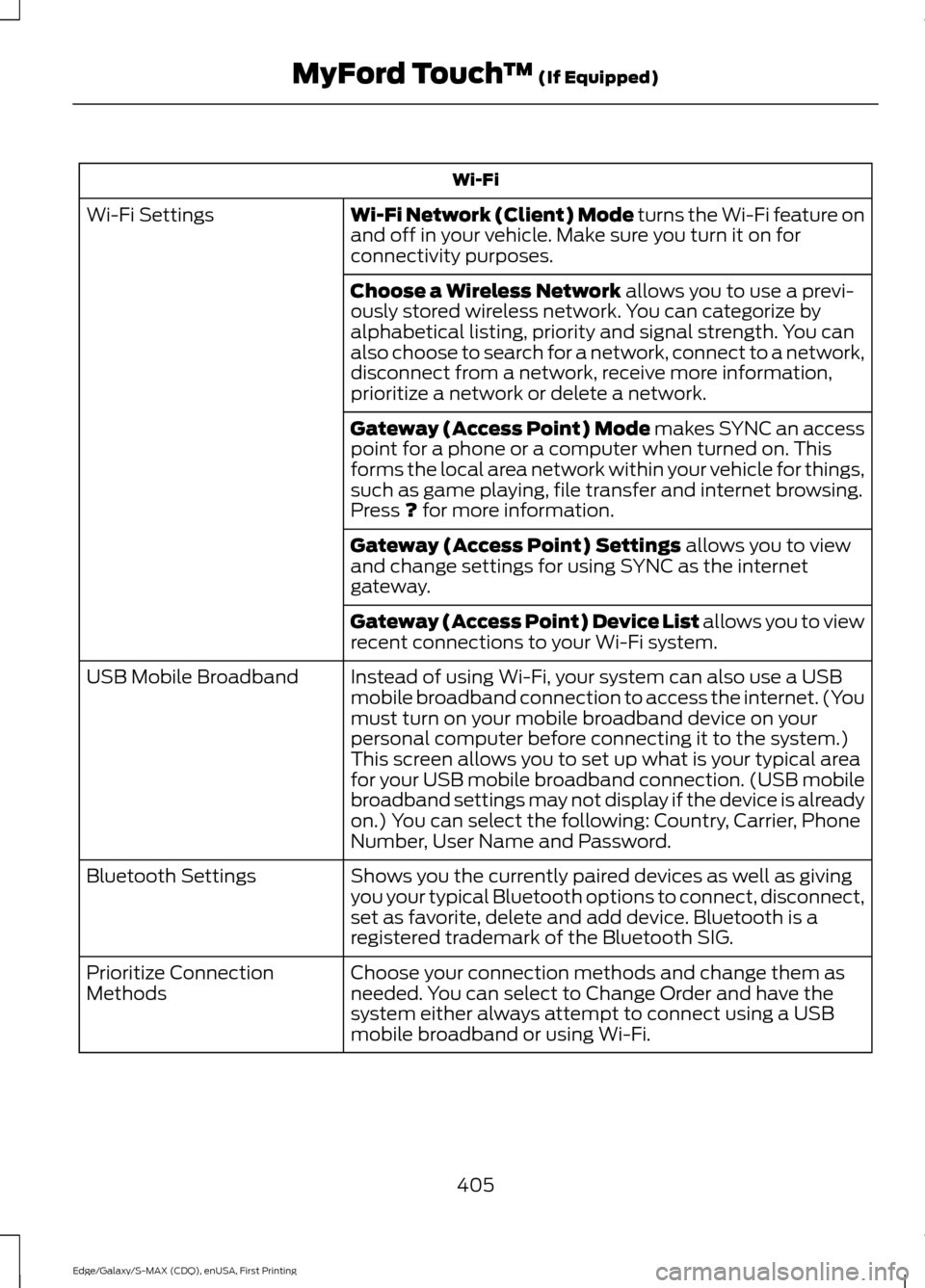
Wi-Fi
Wi-Fi Network (Client) Mode turns the Wi-Fi feature on
and off in your vehicle. Make sure you turn it on for
connectivity purposes.
Wi-Fi Settings
Choose a Wireless Network
allows you to use a previ-
ously stored wireless network. You can categorize by
alphabetical listing, priority and signal strength. You can
also choose to search for a network, connect to a network,
disconnect from a network, receive more information,
prioritize a network or delete a network.
Gateway (Access Point) Mode makes SYNC an access
point for a phone or a computer when turned on. This
forms the local area network within your vehicle for things,
such as game playing, file transfer and internet browsing.
Press
? for more information.
Gateway (Access Point) Settings
allows you to view
and change settings for using SYNC as the internet
gateway.
Gateway (Access Point) Device List allows you to view
recent connections to your Wi-Fi system.
Instead of using Wi-Fi, your system can also use a USB
mobile broadband connection to access the internet. (You
must turn on your mobile broadband device on your
personal computer before connecting it to the system.)
This screen allows you to set up what is your typical area
for your USB mobile broadband connection. (USB mobile
broadband settings may not display if the device is already
on.) You can select the following: Country, Carrier, Phone
Number, User Name and Password.
USB Mobile Broadband
Shows you the currently paired devices as well as giving
you your typical Bluetooth options to connect, disconnect,
set as favorite, delete and add device. Bluetooth is a
registered trademark of the Bluetooth SIG.
Bluetooth Settings
Choose your connection methods and change them as
needed. You can select to Change Order and have the
system either always attempt to connect using a USB
mobile broadband or using Wi-Fi.
Prioritize Connection
Methods
405
Edge/Galaxy/S-MAX (CDQ), enUSA, First Printing MyFord Touch
™
(If Equipped)
Page 409 of 508
The Wi-Fi CERTIFIED Logo is a certification
mark of the Wi-Fi Alliance.
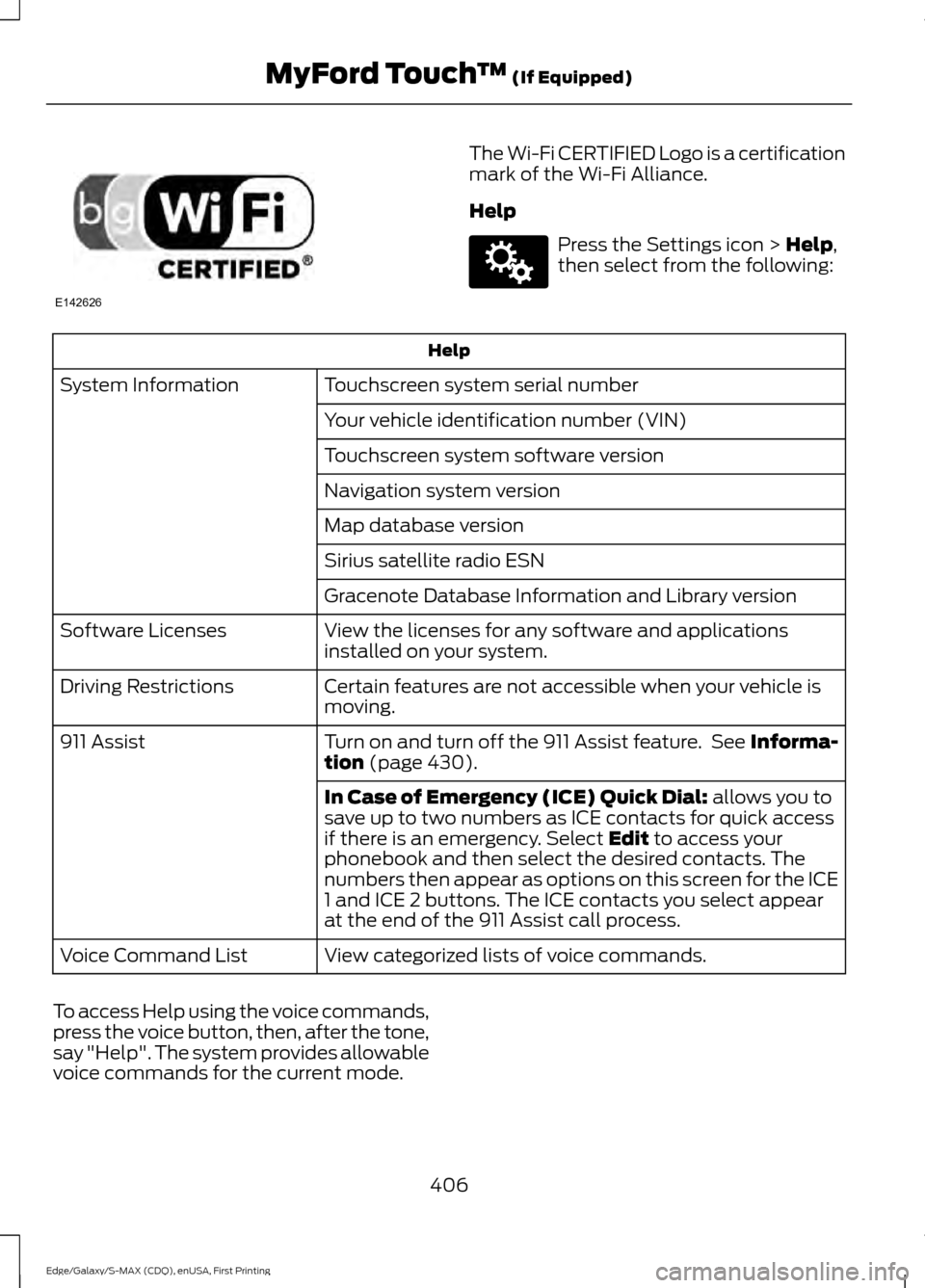
Help
Press the Settings icon > Help,
then select from the following: Help
Touchscreen system serial number
System Information
Your vehicle identification number (VIN)
Touchscreen system software version
Navigation system version
Map database version
Sirius satellite radio ESN
Gracenote Database Information and Library version
View the licenses for any software and applications
installed on your system.
Software Licenses
Certain features are not accessible when your vehicle is
moving.
Driving Restrictions
Turn on and turn off the 911 Assist feature. See
Informa-
tion (page 430).
911 Assist
In Case of Emergency (ICE) Quick Dial:
allows you to
save up to two numbers as ICE contacts for quick access
if there is an emergency. Select
Edit to access your
phonebook and then select the desired contacts. The
numbers then appear as options on this screen for the ICE
1 and ICE 2 buttons. The ICE contacts you select appear
at the end of the 911 Assist call process.
View categorized lists of voice commands.
Voice Command List
To access Help using the voice commands,
press the voice button, then, after the tone,
say "Help". The system provides allowable
voice commands for the current mode.
406
Edge/Galaxy/S-MAX (CDQ), enUSA, First Printing MyFord Touch
™
(If Equipped)E142626 E142607
Page 425 of 508
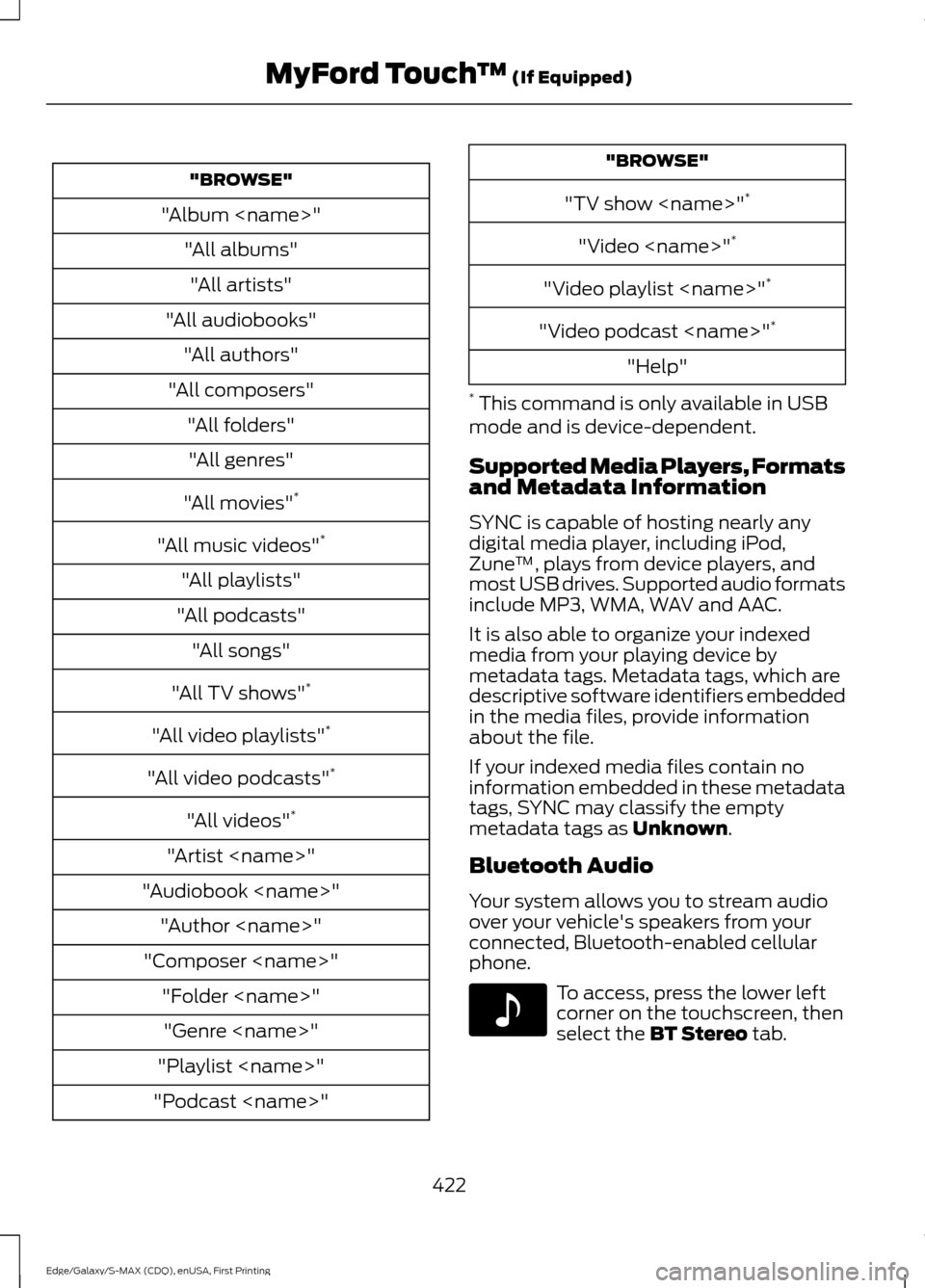
"BROWSE"
"Album
"All audiobooks" "All authors"
"All composers" "All folders""All genres"
"All movies" *
"All music videos" *
"All playlists"
"All podcasts" "All songs"
"All TV shows" *
"All video playlists" *
"All video podcasts" *
"All videos" *
"Artist
"Audiobook
"Composer
"Playlist
"Podcast
"TV show
"Video
"Video playlist
"Video podcast
"Help"
* This command is only available in USB
mode and is device-dependent.
Supported Media Players, Formats
and Metadata Information
SYNC is capable of hosting nearly any
digital media player, including iPod,
Zune ™, plays from device players, and
most USB drives. Supported audio formats
include MP3, WMA, WAV and AAC.
It is also able to organize your indexed
media from your playing device by
metadata tags. Metadata tags, which are
descriptive software identifiers embedded
in the media files, provide information
about the file.
If your indexed media files contain no
information embedded in these metadata
tags, SYNC may classify the empty
metadata tags as Unknown.
Bluetooth Audio
Your system allows you to stream audio
over your vehicle's speakers from your
connected, Bluetooth-enabled cellular
phone. To access, press the lower left
corner on the touchscreen, then
select the
BT Stereo tab.
422
Edge/Galaxy/S-MAX (CDQ), enUSA, First Printing MyFord Touch
™
(If Equipped)E142611
Page 426 of 508
Bluetooth Audio Voice Commands
If you are listening to a Bluetooth
audio device, press the voice
button on the steering wheel
control. When prompted, say "Next song",
"Pause", "Play" or "Previous song".
If you are not listening to a Bluetooth audio
device, press the voice button and, after
the tone, say "Next song", "Pause", "Play"
or "Previous song".
Line In WARNINGS
Driving while distracted can result in
loss of vehicle control, crash and
injury. We strongly recommend that
you use extreme caution when using any
device that may take your focus off the
road. Your primary responsibility is the safe
operation of your vehicle. We recommend
against the use of any handheld device
while driving and encourage the use of
voice-operated systems when possible.
Make sure you are aware of all applicable
local laws that may affect the use of
electronic devices while driving. For safety reasons, do not connect
or adjust the settings on your
portable music player while your
vehicle is moving. Store the portable music player in a
secure location, such as the center
console or the glove box, when your
vehicle is moving. Hard objects may
become projectiles in a crash or sudden
stop, which may increase the risk of serious
injury. The audio extension cable must be
long enough to allow the portable music
player to be safely stored while your
vehicle is moving. Your auxiliary input jack allows you to play
music from your portable music player over
your vehicle's speakers. The jack is located
in your center console.
Press the lower left corner of the
touchscreen, and then select Line In.
To use the auxiliary input jack feature,
make sure that your portable music player
is designed for use with headphones and
that it is fully charged. You also need an
audio extension cable with stereo male
1/8-inch (3.5 millimeter) connectors at
both ends.
1. Switch off the engine, radio and portable music player. Set the parking
brake and put the transmission in
position
P.
2. Attach one end of the audio extension
cable to the headphone output of your
player and the other end into the
adapter in one of the jacks inside the
center console.
3. Press the lower left corner on the touchscreen. Select either a tuned FM
station or a CD (if there is a CD already
loaded into the system).
4. Adjust the volume as desired.
5. Turn the portable music player on and adjust the volume to ½ the maximum.
6. Press the lower left corner on the touchscreen. Select the
Line In tab.
(You should hear audio from your
portable music player although it may
be low.)
7. Adjust the sound on your portable music player until it reaches the level
of the FM station or CD by switching
back and forth between the controls.
423
Edge/Galaxy/S-MAX (CDQ), enUSA, First Printing MyFord Touch
™
(If Equipped)E142599
Page 427 of 508
Troubleshooting
•
Do not connect the audio input jack to
a line level output. The jack only works
correctly with devices that have a
headphone output with a volume
control.
• Do not set the portable music player's
volume level higher than is necessary
to match the volume of the CD or FM
radio as this causes distortion and
reduces sound quality. •
If the music sounds distorted at lower
listening levels, turn the portable music
player volume down. If the problem
persists, replace or recharge the
batteries in the portable media player.
• Control the portable media player in
the same manner when used with
headphones, as the auxiliary input jack
does not provide control (such as Play
or Pause) over the attached portable
media player.
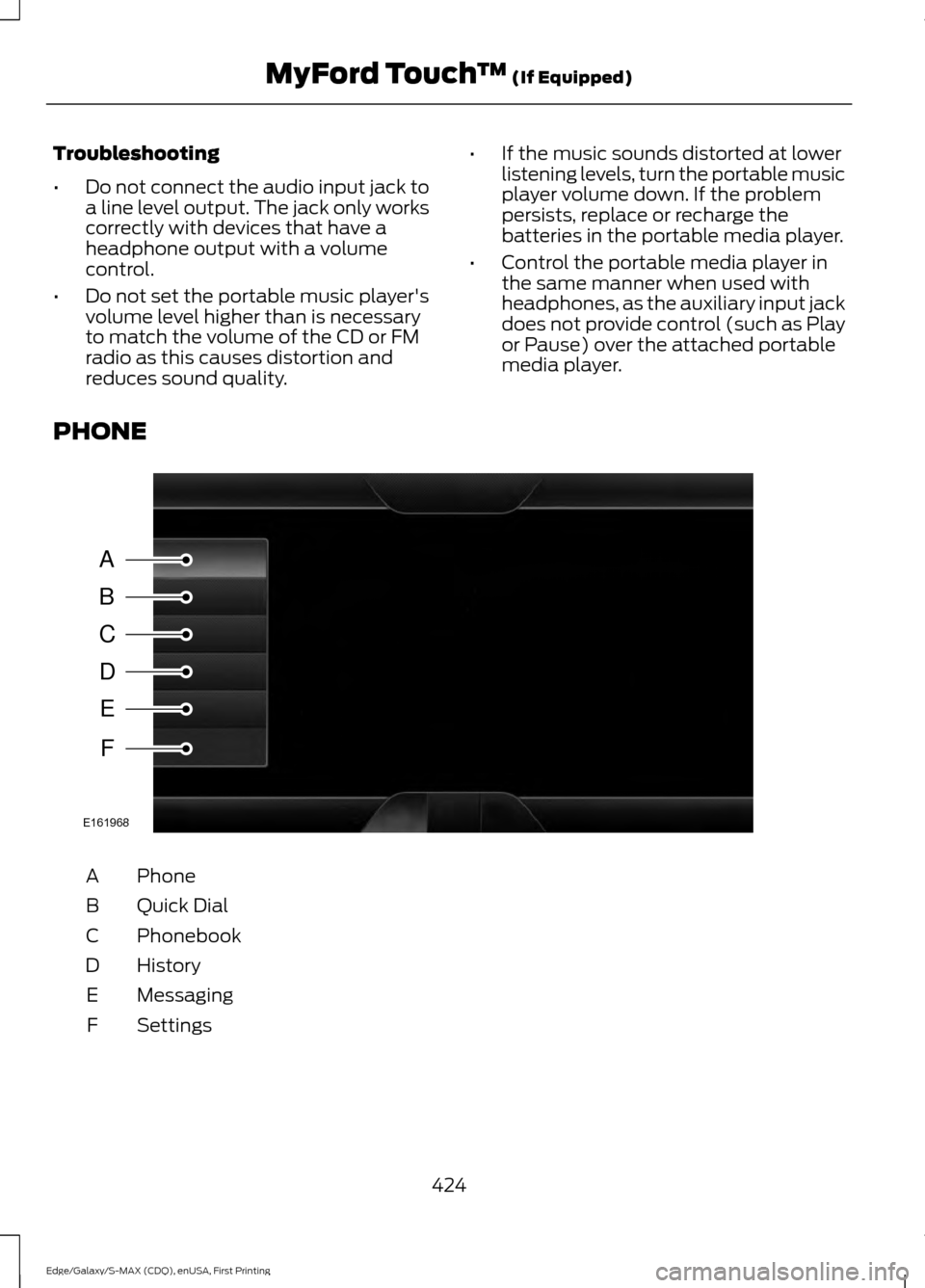
PHONE Phone
A
Quick Dial
B
Phonebook
C
History
D
Messaging
E
Settings
F
424
Edge/Galaxy/S-MAX (CDQ), enUSA, First Printing MyFord Touch
™ (If Equipped)A
B
C
D
E
F
E161968