AUX FORD EDGE 2015 2.G Owners Manual
[x] Cancel search | Manufacturer: FORD, Model Year: 2015, Model line: EDGE, Model: FORD EDGE 2015 2.GPages: 508, PDF Size: 6.2 MB
Page 5 of 508
Audio Control...................................................75
Audio Control...................................................76
Voice Control....................................................76
Cruise Control
..................................................76
Information Display Control........................77
Heated Steering Wheel
................................77
Wipers and Washers
Windshield Wipers
.........................................78
Autowipers........................................................78
Windshield Washers
.....................................79
Rear Window Wiper and Washers..........80
Lighting
General Information
.......................................81
Lighting Control
...............................................81
Autolamps........................................................82
Instrument Lighting Dimmer.....................83
Headlamp Exit Delay....................................83
Daytime Running Lamps
.............................83
Automatic High Beam Control.................84
Direction Indicators
.......................................85
Interior Lamps
.................................................85
Ambient Lighting
............................................87
Windows and Mirrors
Power Windows.............................................88
Global Opening
..............................................88
Exterior Mirrors................................................89
Interior Mirror...................................................90
Sun Visors
..........................................................91
Moonroof............................................................91
Instrument Cluster
Gauges...............................................................93
Warning Lamps and Indicators
................95
Audible Warnings and Indicators
.............98 Information Displays
General Information...................................100
Information Messages...............................109
Climate Control
Manual Climate Control -
Vehicles With:
Electronic Manual Temperature
Control (EMTC).........................................124
Automatic Climate Control -
Vehicles
With: Dual Automatic Temperature
Control (DATC)
.........................................126
Automatic Climate Control -
Vehicles
With: Dual Automatic Temperature
Control (DATC)/
Sony Audio
System..........................................................127
Hints on Controlling the Interior Climate.........................................................129
Heated Windows and Mirrors...................131
Cabin Air Filter.................................................131
Remote Start
...................................................131
Seats
Sitting in the Correct Position..................133
Head Restraints
.............................................133
Manual Seats
.................................................135
Power Seats....................................................135
Memory Function
..........................................137
Rear Seats.......................................................139
Heated Seats
.................................................140
Climate Controlled Seats...........................141
Rear Seat Armrest........................................142
Universal Garage Door Opener
Universal Garage Door Opener...............143
Auxiliary Power Points
Auxiliary Power Points................................147
Storage Compartments
Center Console..............................................149
2
Edge/Galaxy/S-MAX (CDQ), enUSA, First Printing Table of Contents
Page 150 of 508
12 Volt DC Power Point
WARNING
Do not plug optional electrical
accessories into the cigar lighter
socket (if equipped). Improper use
of the lighter can cause damage not
covered by your warranty, and can result
in fire or serious injury. Note:
If used when the vehicle is not
running, the battery will discharge. There
may be insufficient power to restart your
vehicle.
Note: Do not insert objects other than an
accessory plug into the power point. This
will damage the outlet and blow the fuse.
Note: Do not hang any type of accessory or
accessory bracket from the plug.
Note: Do not use the power point over the
vehicle capacity of 12 volt DC 180 watts or
a fuse may blow.
Note: Do not use the power point for
operating a cigar lighter element.
Note: Improper use of the power point can
cause damage not covered by your
warranty.
Note: Always keep the power point caps
closed when not in use.
Run the vehicle for full capacity use of the
power point. To prevent the battery from
discharging accidentally:
• Do not use the power point longer than
necessary when the vehicle is not
running.
• Do not leave devices plugged in
overnight or when you park your vehicle
for extended periods.
Locations
Power points may be in the following
locations: •
On the center console.
• Inside the center console.
• On the rear of the console.
• In the cargo area.
110 Volt AC Power Point (If Equipped) WARNING
Do not keep electrical devices
plugged in the power point whenever
the device is not in use. Do not use
any extension cord with the 110 volt AC
power point, since it will defeat the safety
protection design. Doing so my cause the
power point to overload due to powering
multiple devices that can reach beyond
the 150 watt load limit and could result in
fire or serious injury. Note:
Keep the vehicle running to use the
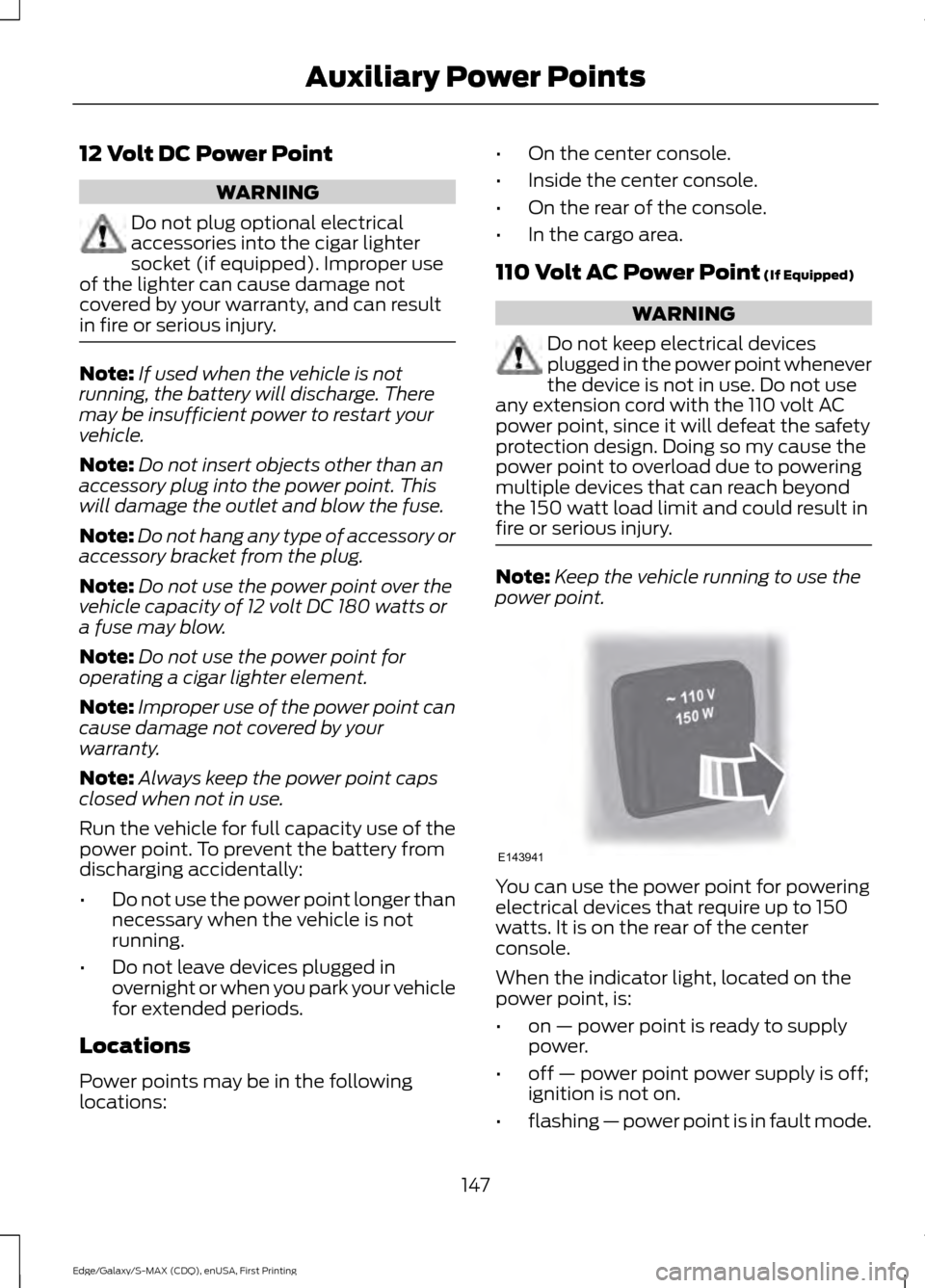
power point. You can use the power point for powering
electrical devices that require up to 150
watts. It is on the rear of the center
console.
When the indicator light, located on the
power point, is:
•
on — power point is ready to supply
power.
• off — power point power supply is off;
ignition is not on.
• flashing — power point is in fault mode.
147
Edge/Galaxy/S-MAX (CDQ), enUSA, First Printing Auxiliary Power PointsE143941
Page 151 of 508
The power point temporarily turns off
power if it exceeds the 150 watt limit. It can
also switch to a fault mode if it detects
overloading, overheating, or shorting
conditions. For overloading and shorting
conditions, unplug your device and switch
the ignition off then on. For an overheating
condition, let the system cool off first.
Switch the ignition off then on.
Do not use the power point for certain
electric devices, including:
•
Cathode ray tube type televisions
• Motor loads, for example vacuum
cleaners, electric saws and other
electric power tools, or
compressor-driven refrigerators
• Measuring devices which process
precise data, for example medical
equipment or measuring equipment
• Other appliances requiring an
extremely stable power supply, for
example microcomputer-controlled
electric blankets or touch sensor lamps
148
Edge/Galaxy/S-MAX (CDQ), enUSA, First Printing Auxiliary Power Points
Page 152 of 508
CENTER CONSOLE
Stow items in the cupholder carefully as
items may become loose during hard
braking, acceleration or collisions, including
hot drinks which may spill.
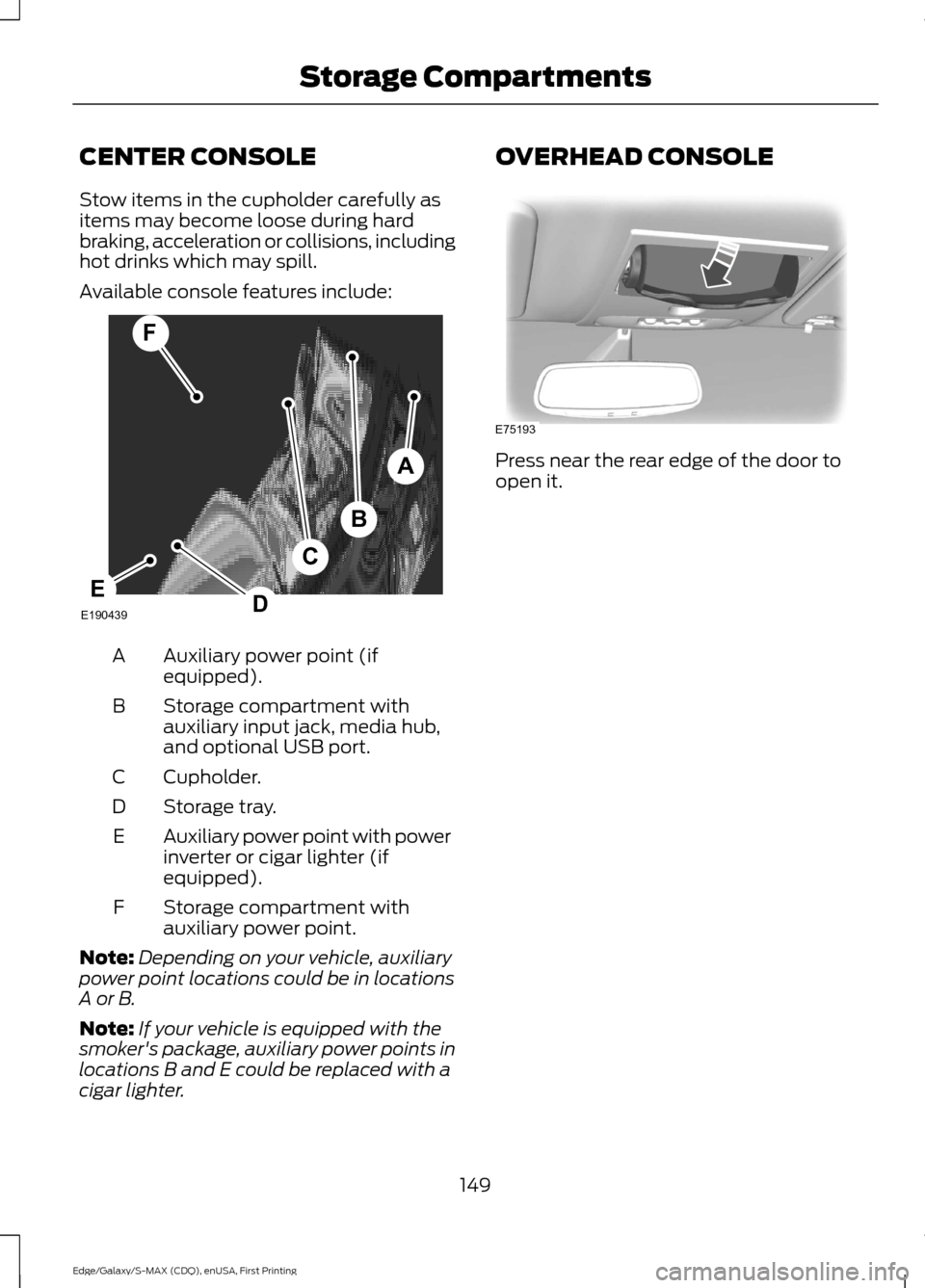
Available console features include:
Auxiliary power point (if
equipped).
A
Storage compartment with
auxiliary input jack, media hub,
and optional USB port.
B
Cupholder.
C
Storage tray.
D
Auxiliary power point with power
inverter or cigar lighter (if
equipped).
E
Storage compartment with
auxiliary power point.
F
Note: Depending on your vehicle, auxiliary
power point locations could be in locations
A or B.
Note: If your vehicle is equipped with the
smoker's package, auxiliary power points in
locations B and E could be replaced with a
cigar lighter. OVERHEAD CONSOLE
Press near the rear edge of the door to
open it.
149
Edge/Galaxy/S-MAX (CDQ), enUSA, First Printing Storage CompartmentsA
B
F
C
DEE190439 E75193
Page 345 of 508
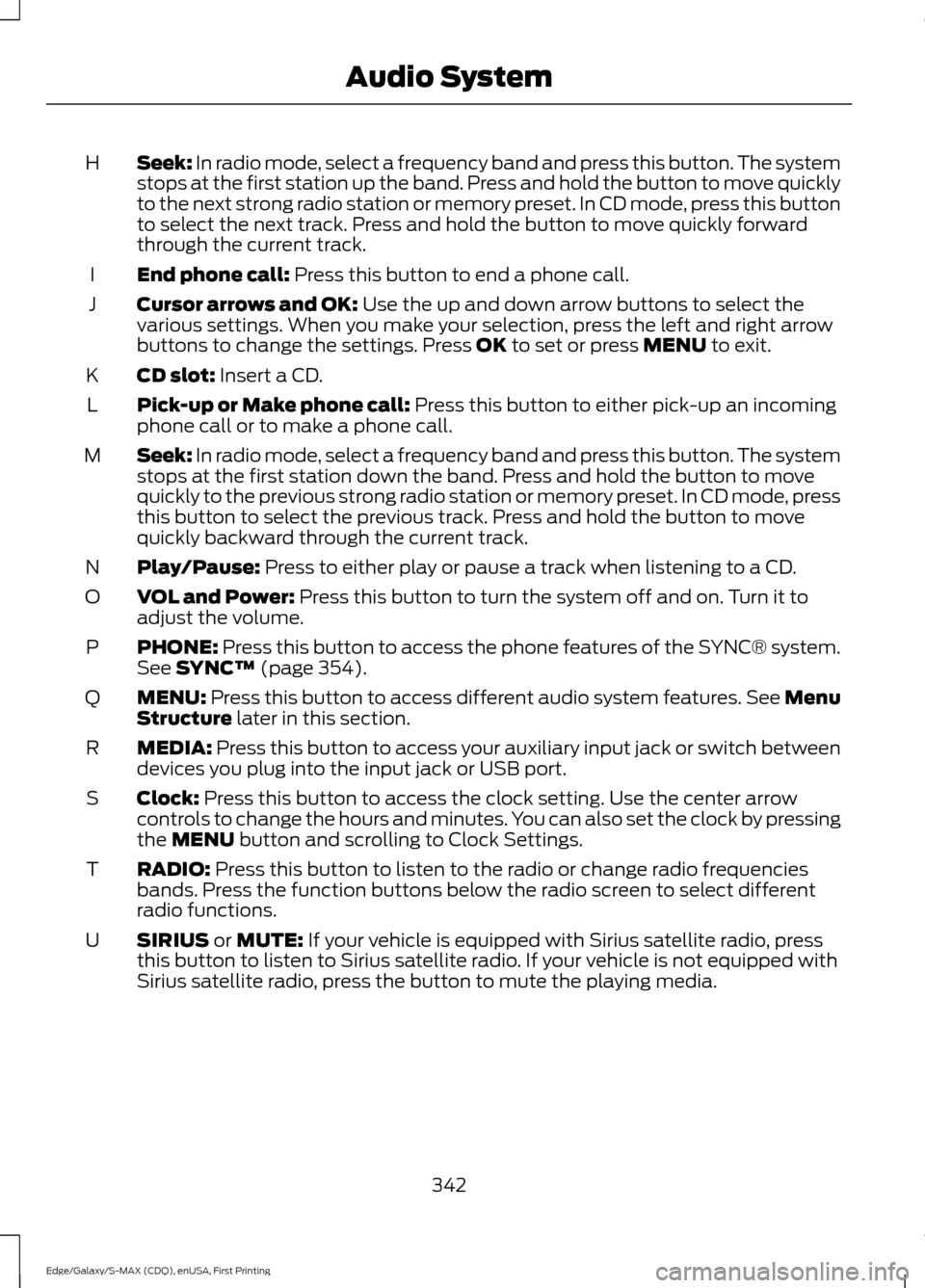
Seek: In radio mode, select a frequency band and press this button. The system
stops at the first station up the band. Press and hold the button to move quickly
to the next strong radio station or memory preset. In CD mode, press this button
to select the next track. Press and hold the button to move quickly forward
through the current track.
H
End phone call:
Press this button to end a phone call.
I
Cursor arrows and OK:
Use the up and down arrow buttons to select the
various settings. When you make your selection, press the left and right arrow
buttons to change the settings. Press
OK to set or press MENU to exit.
J
CD slot:
Insert a CD.
K
Pick-up or Make phone call:
Press this button to either pick-up an incoming
phone call or to make a phone call.
L
Seek:
In radio mode, select a frequency band and press this button. The system
stops at the first station down the band. Press and hold the button to move
quickly to the previous strong radio station or memory preset. In CD mode, press
this button to select the previous track. Press and hold the button to move
quickly backward through the current track.
M
Play/Pause:
Press to either play or pause a track when listening to a CD.
N
VOL and Power:
Press this button to turn the system off and on. Turn it to
adjust the volume.
O
PHONE:
Press this button to access the phone features of the SYNC® system.
See SYNC™ (page 354).
P
MENU:
Press this button to access different audio system features. See Menu
Structure later in this section.
Q
MEDIA:
Press this button to access your auxiliary input jack or switch between
devices you plug into the input jack or USB port.
R
Clock:
Press this button to access the clock setting. Use the center arrow
controls to change the hours and minutes. You can also set the clock by pressing
the
MENU button and scrolling to Clock Settings.
S
RADIO:
Press this button to listen to the radio or change radio frequencies
bands. Press the function buttons below the radio screen to select different
radio functions.
T
SIRIUS
or MUTE: If your vehicle is equipped with Sirius satellite radio, press
this button to listen to Sirius satellite radio. If your vehicle is not equipped with
Sirius satellite radio, press the button to mute the playing media.
U
342
Edge/Galaxy/S-MAX (CDQ), enUSA, First Printing Audio System
Page 355 of 508
AUDIO INPUT JACK
WARNINGS
Driving while distracted can result in
loss of vehicle control, crash and
injury. We strongly recommend that
you use extreme caution when using any
device that may take your focus off the
road. Your primary responsibility is the safe
operation of your vehicle. We recommend
against the use of any hand-held device
while driving and encourage the use of
voice-operated systems when possible.
Make sure you are aware of all applicable
local laws that may affect the use of
electronic devices while driving. For safety reasons, do not connect
or adjust the settings on your
portable music player while your
vehicle is moving. Store the portable music player in a
secure location, such as the center
console or the glove box, when your
vehicle is moving. Hard objects may
become projectiles in a collision or sudden
stop, which may increase the risk of serious
injury. The audio extension cable must be
long enough to allow the portable music
player to be safely stored while your
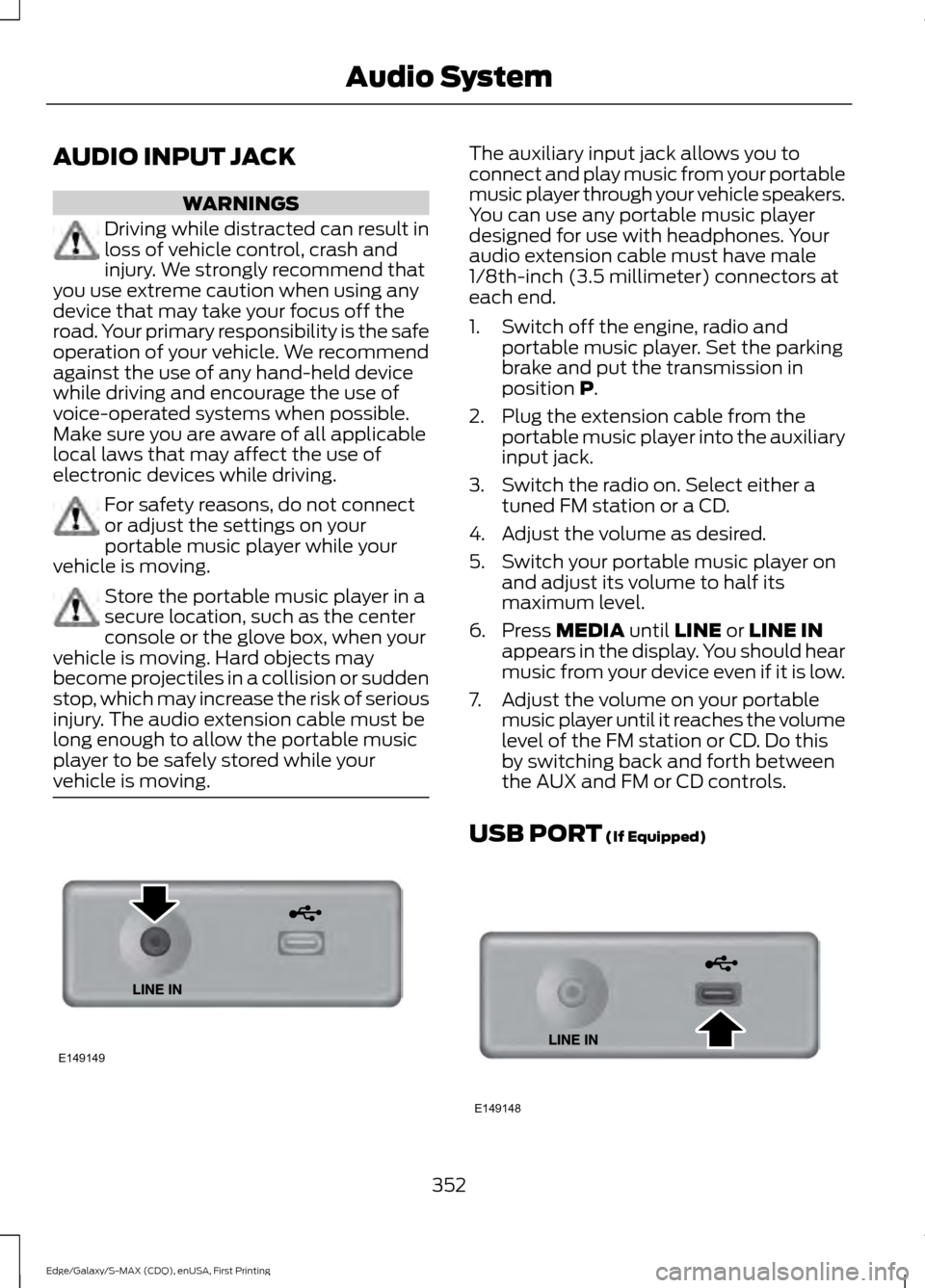
vehicle is moving. The auxiliary input jack allows you to
connect and play music from your portable
music player through your vehicle speakers.
You can use any portable music player
designed for use with headphones. Your
audio extension cable must have male
1/8th-inch (3.5 millimeter) connectors at
each end.
1. Switch off the engine, radio and
portable music player. Set the parking
brake and put the transmission in
position P.
2. Plug the extension cable from the portable music player into the auxiliary
input jack.
3. Switch the radio on. Select either a tuned FM station or a CD.
4. Adjust the volume as desired.
5. Switch your portable music player on and adjust its volume to half its
maximum level.
6. Press
MEDIA until LINE or LINE IN
appears in the display. You should hear
music from your device even if it is low.
7. Adjust the volume on your portable music player until it reaches the volume
level of the FM station or CD. Do this
by switching back and forth between
the AUX and FM or CD controls.
USB PORT
(If Equipped) 352
Edge/Galaxy/S-MAX (CDQ), enUSA, First Printing Audio SystemE149149 E149148
Page 375 of 508
If an update is required and you want to
request this update manually, for example
when in a Wi-Fi hotspot, select Request
Update in the settings menu.
You can disable automatic updates by
selecting
Disable Updates in the settings
menu. Doing so also disables the use of
Mobile Apps on SYNC.
USING SYNC™ WITH YOUR
MEDIA PLAYER
You can access and play music from your
digital music player over your vehicle's
speaker system using the system's media
menu or voice commands. You can also
sort and play your music by specific
categories, such as artist and album.
Note: The system is capable of indexing up
to 15,000 songs.
SYNC is capable of hosting nearly any
digital media player including: iPod, Zune,
plays from device players, and most USB
drives. SYNC also supports audio formats,
such as MP3, WMA, WAV and ACC.
Connecting Your Digital Media
Player to the USB Port
Note: If your digital media player has a
power switch, make sure you switch it on
before plugging it in.
Using Voice Commands
1. Plug the device into your vehicle's USB
port.
2. Press the voice button and when prompted, say "USB" or "iPod". 3. You can now play music by saying any
of the appropriate voice commands.
See the media voice commands.
Using the System Menu
1. Plug the device into your vehicle's USB
port.
2. Press the
AUX button until an
"initializing" message appears in the
display. Depending on how many
media files are on your connected
device, an indexing message may
appear in the display. When indexing
is complete, the screen returns to the
playback menu.
You can browse the files on the USB device
in categories. Choose from the following:
• Play all
• Playlists
• Songs
• Artists
• Albums
• Genres
• Browse USB
• Reset USB
What's Playing?
At any time during playback, you can press
the voice button and ask the system what
is playing. The system reads the metadata
tags (if populated) of the current track.
Media Voice Commands Press the voice button. When
prompted, say "USB" or "iPod",
and then any of the following:
372
Edge/Galaxy/S-MAX (CDQ), enUSA, First Printing SYNC™E142599
Page 377 of 508
Examples of USB Commands
SYNC provides the user with many intuitive
ways to find and play a song using voice.
For example, if we have a song called
"Penny Lane" from the album "Magical
Mystery Tour" we can say the following to
play this song:
•
Play song "Penny Lane".
• Play "Penny Lane".
If we wanted to play the entire album, we
can say:
• Play album "Magical Mystery Tour".
• Play "Magical Mystery Tour".
Bluetooth Audio
The system is also capable of playing
music from your cellular phone through
Bluetooth. To switch on Bluetooth audio, use the AUX
or SOURCE button. You can also press
the voice button and, when prompted, say,
"Bluetooth audio". "BLUETOOTH AUDIO"
"Pause""Play"
"Play next track"
"Play previous track"
Media Menu Features
The media menu allows you to select how
to play your music (such as by artist, genre,
shuffle or repeat), find similar music or
reset the index of your USB devices.
1. Press
AUX to select USB playback.
2. Select Options to enter the media menu, and then any of the following:
374
Edge/Galaxy/S-MAX (CDQ), enUSA, First Printing SYNC™
Page 378 of 508
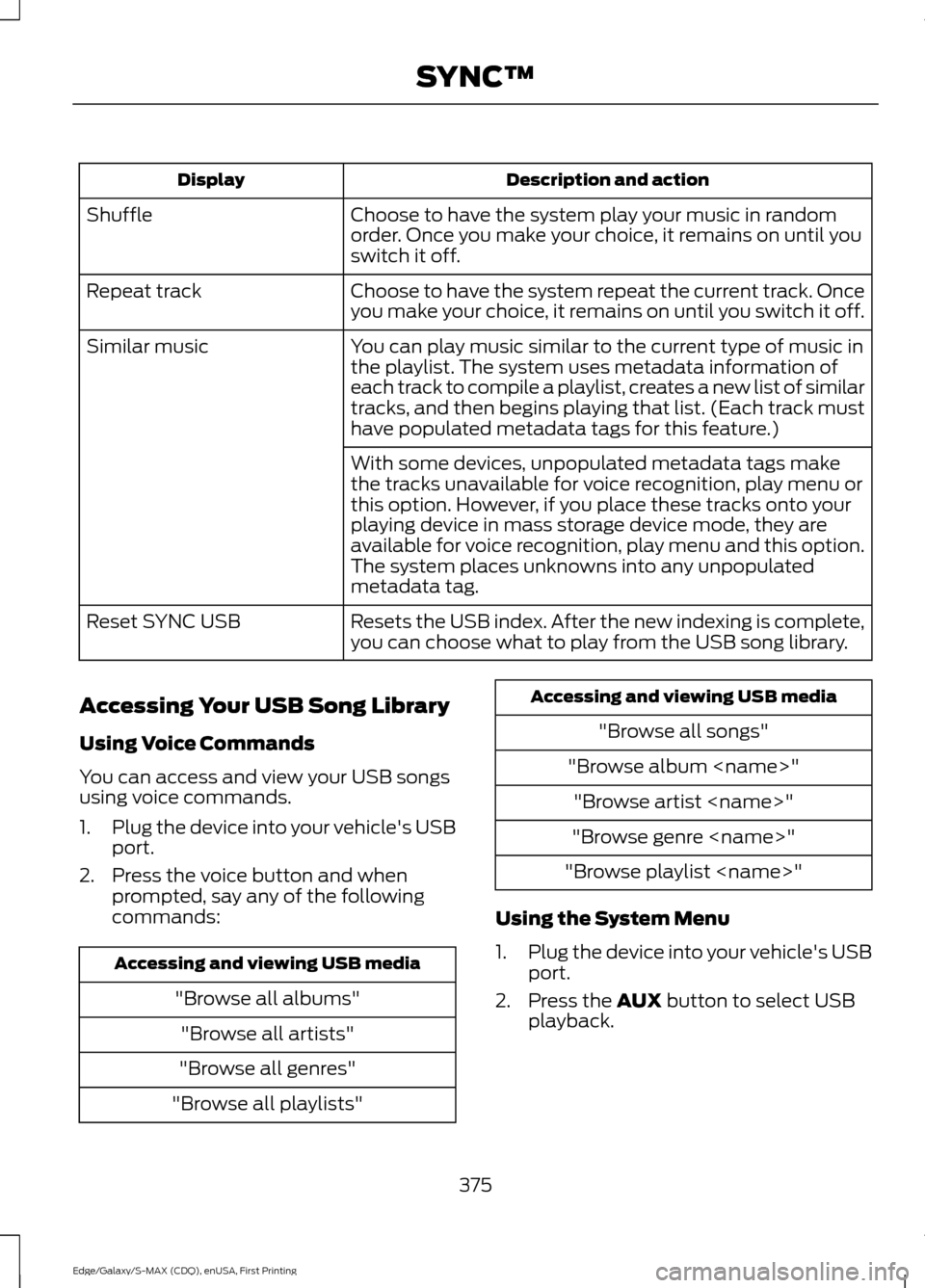
Description and action
Display
Choose to have the system play your music in random
order. Once you make your choice, it remains on until you
switch it off.
Shuffle
Choose to have the system repeat the current track. Once
you make your choice, it remains on until you switch it off.
Repeat track
You can play music similar to the current type of music in
the playlist. The system uses metadata information of
each track to compile a playlist, creates a new list of similar
tracks, and then begins playing that list. (Each track must
have populated metadata tags for this feature.)
Similar music
With some devices, unpopulated metadata tags make
the tracks unavailable for voice recognition, play menu or
this option. However, if you place these tracks onto your
playing device in mass storage device mode, they are
available for voice recognition, play menu and this option.
The system places unknowns into any unpopulated
metadata tag.
Resets the USB index. After the new indexing is complete,
you can choose what to play from the USB song library.
Reset SYNC USB
Accessing Your USB Song Library
Using Voice Commands
You can access and view your USB songs
using voice commands.
1. Plug the device into your vehicle's USB
port.
2. Press the voice button and when prompted, say any of the following
commands: Accessing and viewing USB media
"Browse all albums""Browse all artists"
"Browse all genres"
"Browse all playlists" Accessing and viewing USB media
"Browse all songs"
"Browse album
"Browse genre
"Browse playlist
Using the System Menu
1. Plug the device into your vehicle's USB
port.
2. Press the AUX button to select USB
playback.
375
Edge/Galaxy/S-MAX (CDQ), enUSA, First Printing SYNC™
Page 380 of 508
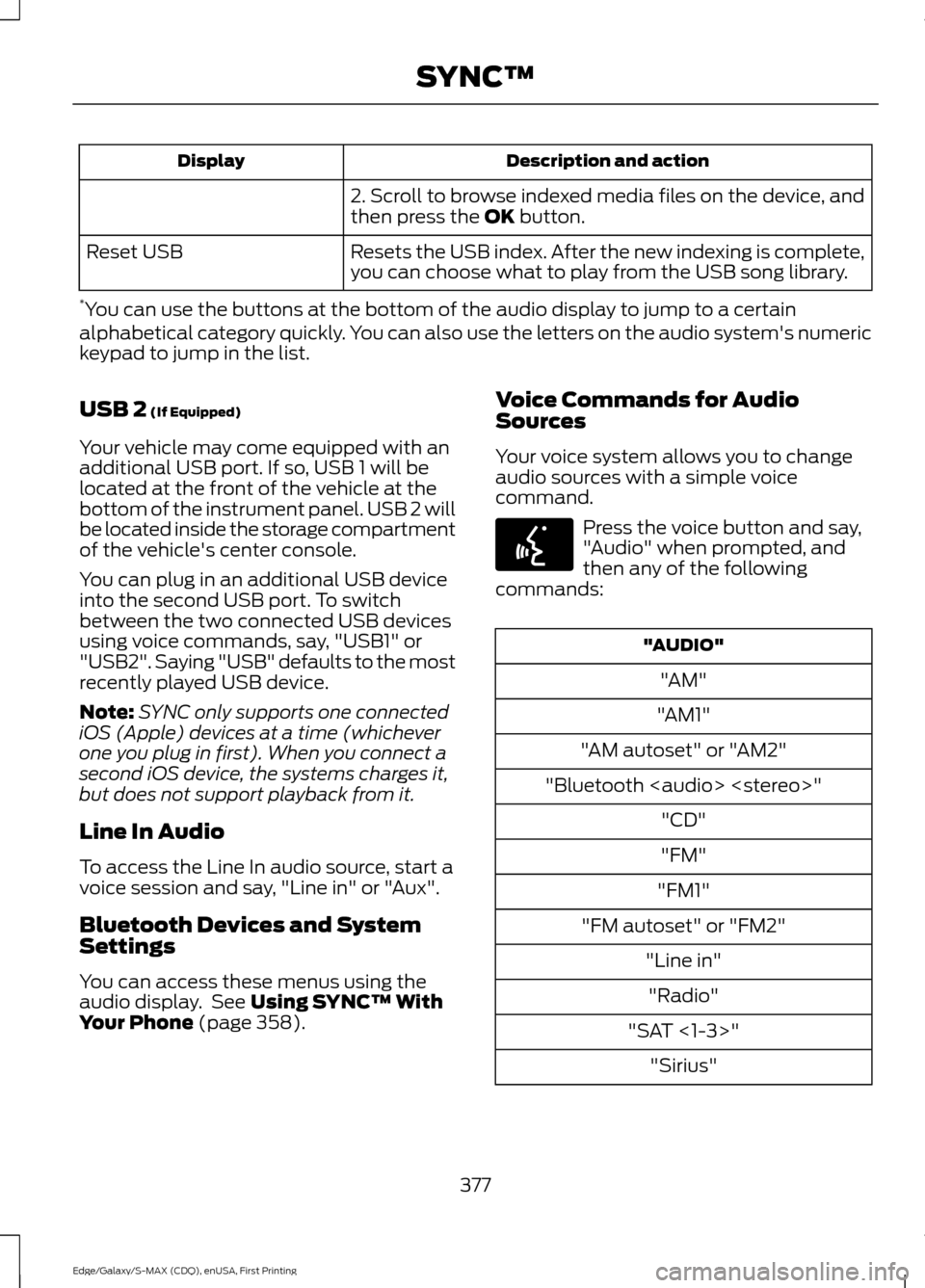
Description and action
Display
2. Scroll to browse indexed media files on the device, and
then press the OK button.
Resets the USB index. After the new indexing is complete,
you can choose what to play from the USB song library.
Reset USB
* You can use the buttons at the bottom of the audio display to jump to a certain
alphabetical category quickly. You can also use the letters on the audio system's numeric
keypad to jump in the list.
USB 2
(If Equipped)
Your vehicle may come equipped with an
additional USB port. If so, USB 1 will be
located at the front of the vehicle at the
bottom of the instrument panel. USB 2 will
be located inside the storage compartment
of the vehicle's center console.
You can plug in an additional USB device
into the second USB port. To switch
between the two connected USB devices
using voice commands, say, "USB1" or
"USB2". Saying "USB" defaults to the most
recently played USB device.
Note: SYNC only supports one connected
iOS (Apple) devices at a time (whichever
one you plug in first). When you connect a
second iOS device, the systems charges it,
but does not support playback from it.
Line In Audio
To access the Line In audio source, start a
voice session and say, "Line in" or "Aux".
Bluetooth Devices and System
Settings
You can access these menus using the
audio display. See
Using SYNC™ With
Your Phone (page 358). Voice Commands for Audio
Sources
Your voice system allows you to change
audio sources with a simple voice
command. Press the voice button and say,
"Audio" when prompted, and
then any of the following
commands: "AUDIO"
"AM"
"AM1"
"AM autoset" or "AM2"
"Bluetooth