reset FORD EDGE 2016 2.G User Guide
[x] Cancel search | Manufacturer: FORD, Model Year: 2016, Model line: EDGE, Model: FORD EDGE 2016 2.GPages: 451, PDF Size: 6.18 MB
Page 108 of 451
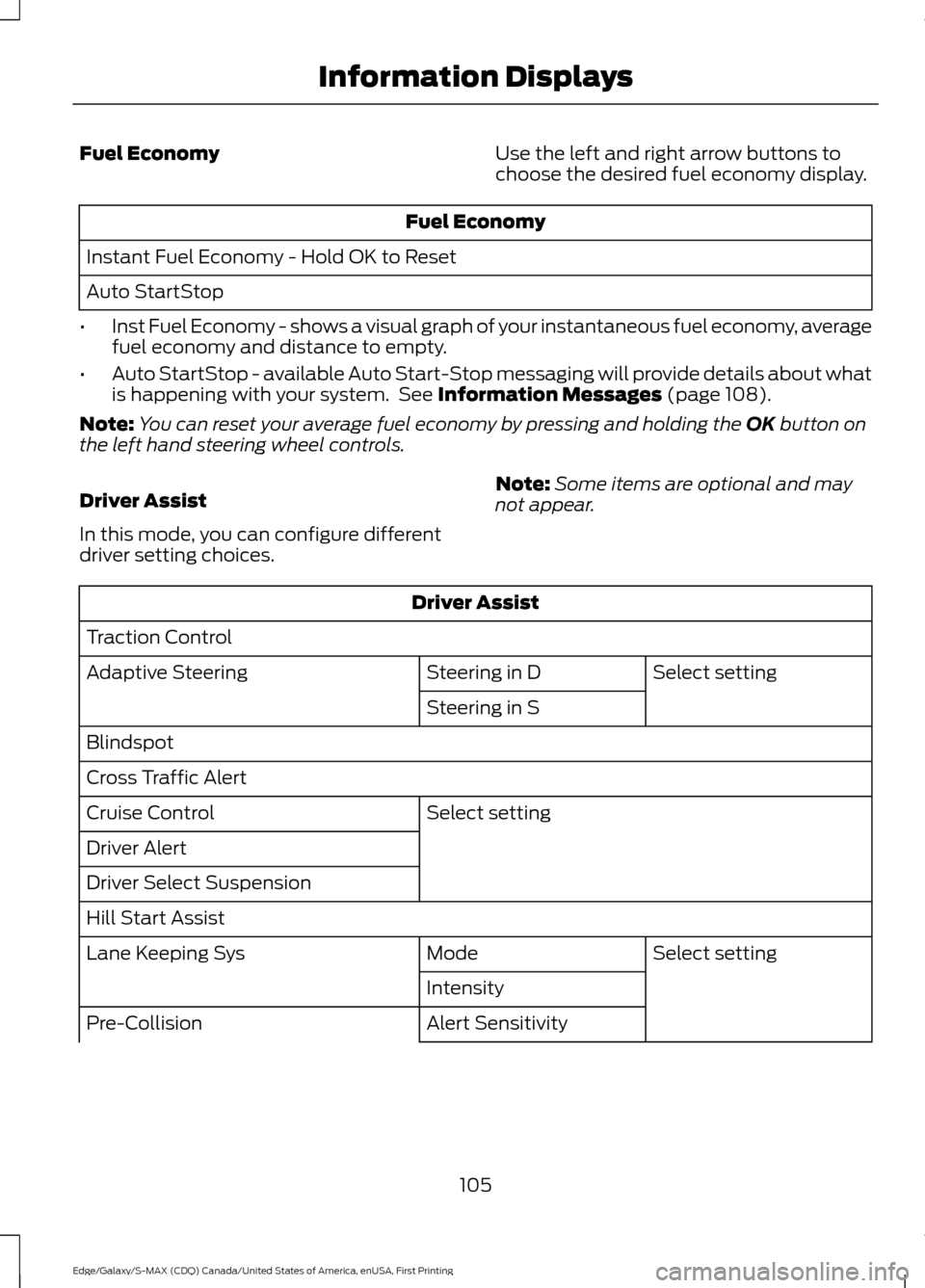
Fuel Economy
Use the left and right arrow buttons to
choose the desired fuel economy display.Fuel Economy
Instant Fuel Economy - Hold OK to Reset
Auto StartStop
• Inst Fuel Economy - shows a visual graph of your instantaneous fuel economy, average
fuel economy and distance to empty.
• Auto StartStop - available Auto Start-Stop messaging will provide details about what
is happening with your system. See Information Messages (page 108).
Note: You can reset your average fuel economy by pressing and holding the
OK button on
the left hand steering wheel controls.
Driver Assist
In this mode, you can configure different
driver setting choices. Note:
Some items are optional and may
not appear. Driver Assist
Traction Control Select setting
Steering in D
Adaptive Steering
Steering in S
Blindspot
Cross Traffic Alert Select setting
Cruise Control
Driver Alert
Driver Select Suspension
Hill Start Assist
Select setting
Mode
Lane Keeping Sys
Intensity
Alert Sensitivity
Pre-Collision
105
Edge/Galaxy/S-MAX (CDQ) Canada/United States of America, enUSA, First Printing Information Displays
Page 109 of 451
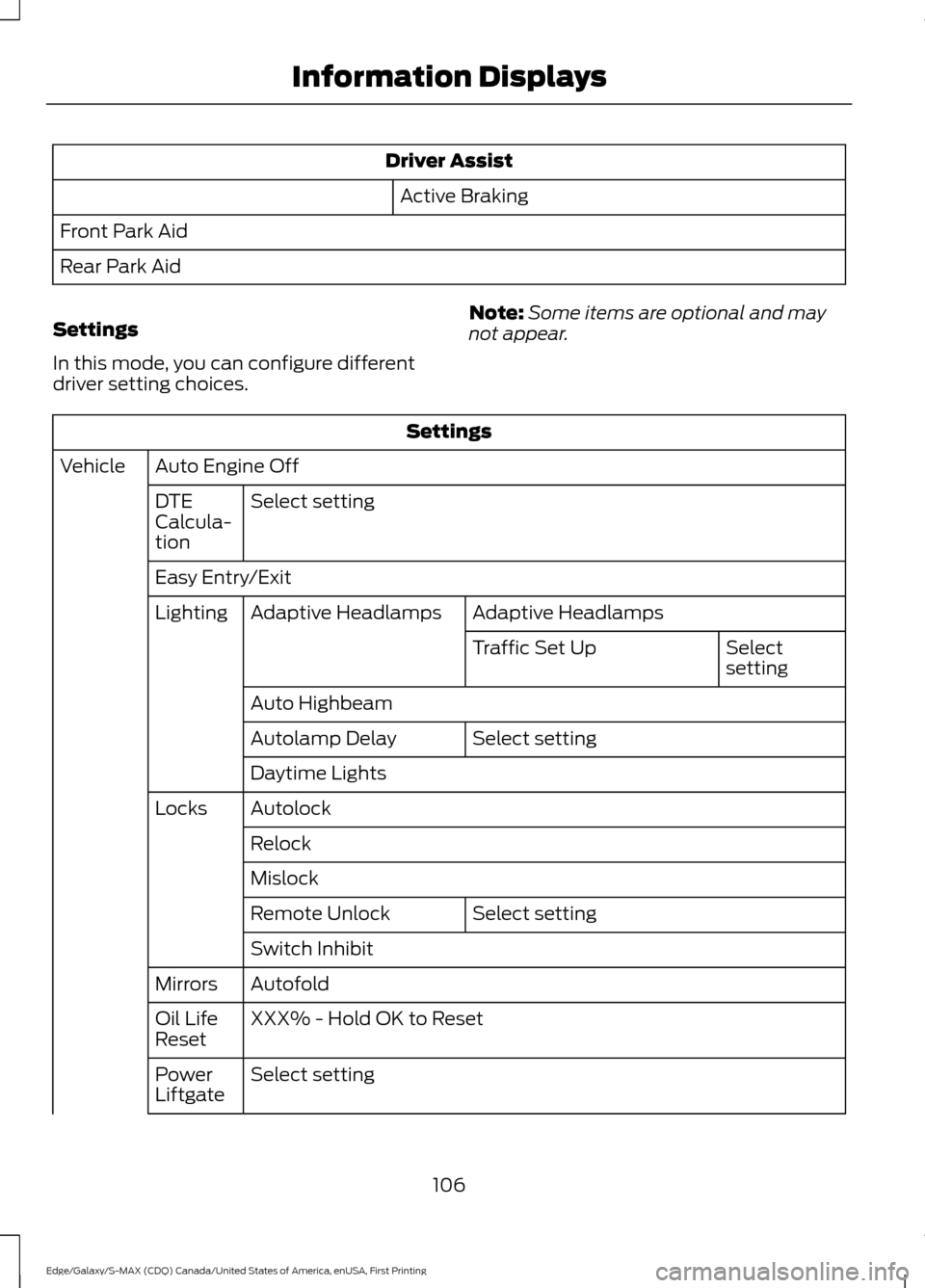
Driver Assist
Active Braking
Front Park Aid
Rear Park Aid
Settings
In this mode, you can configure different
driver setting choices. Note:
Some items are optional and may
not appear. Settings
Auto Engine Off
Vehicle
Select setting
DTE
Calcula-
tion
Easy Entry/Exit
Adaptive Headlamps
Adaptive Headlamps
Lighting
Select
setting
Traffic Set Up
Auto Highbeam Select setting
Autolamp Delay
Daytime Lights
Autolock
Locks
Relock
Mislock Select setting
Remote Unlock
Switch Inhibit
Autofold
Mirrors
XXX% - Hold OK to Reset
Oil Life
Reset
Select setting
Power
Liftgate
106
Edge/Galaxy/S-MAX (CDQ) Canada/United States of America, enUSA, First Printing Information Displays
Page 116 of 451
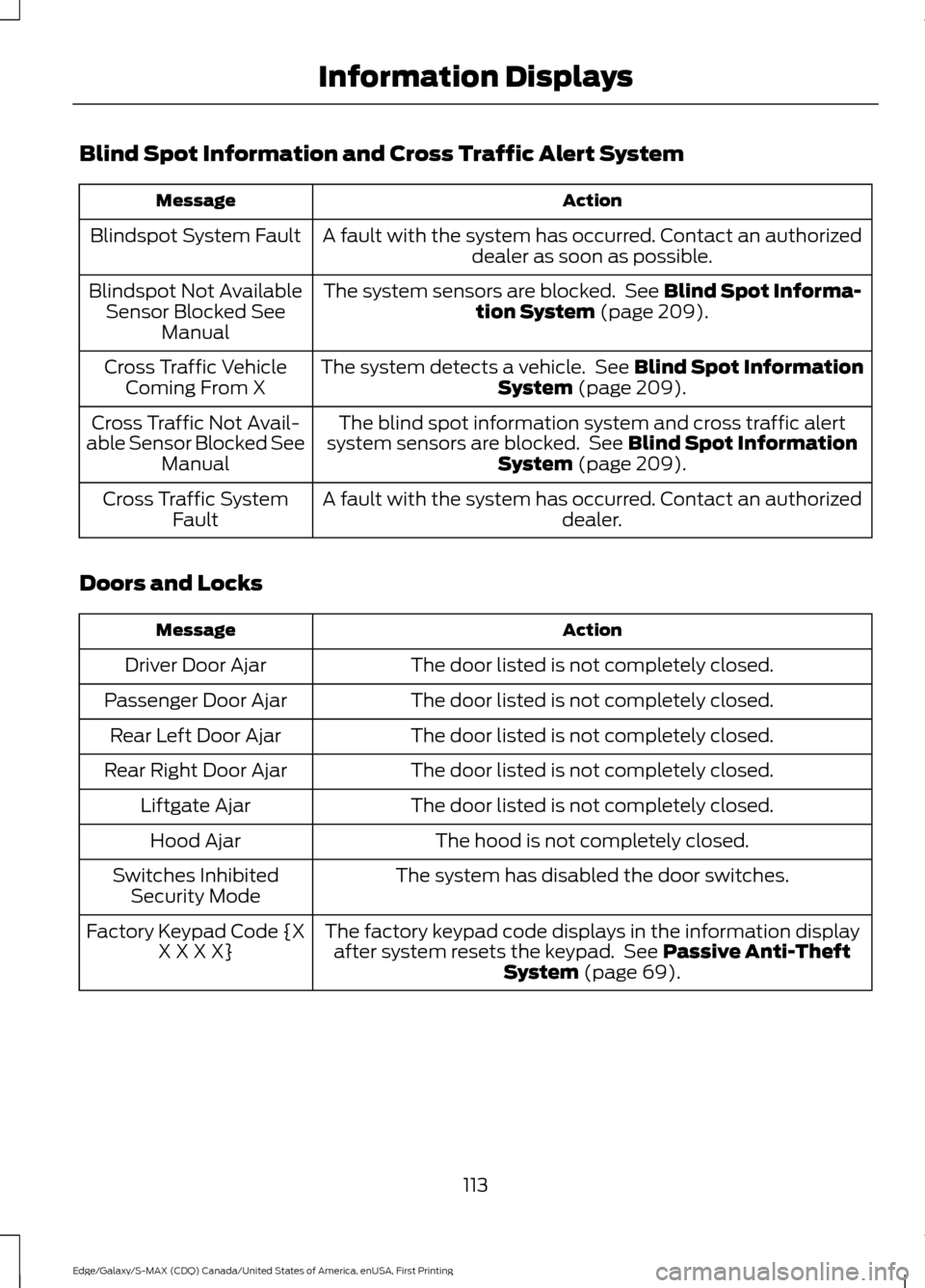
Blind Spot Information and Cross Traffic Alert System
Action
Message
A fault with the system has occurred. Contact an authorizeddealer as soon as possible.
Blindspot System Fault
The system sensors are blocked. See Blind Spot Informa-
tion System (page 209).
Blindspot Not Available
Sensor Blocked See Manual
The system detects a vehicle. See
Blind Spot Information
System (page 209).
Cross Traffic Vehicle
Coming From X
The blind spot information system and cross traffic alert
system sensors are blocked. See
Blind Spot Information
System (page 209).
Cross Traffic Not Avail-
able Sensor Blocked See Manual
A fault with the system has occurred. Contact an authorized dealer.
Cross Traffic System
Fault
Doors and Locks Action
Message
The door listed is not completely closed.
Driver Door Ajar
The door listed is not completely closed.
Passenger Door Ajar
The door listed is not completely closed.
Rear Left Door Ajar
The door listed is not completely closed.
Rear Right Door Ajar
The door listed is not completely closed.
Liftgate Ajar
The hood is not completely closed.
Hood Ajar
The system has disabled the door switches.
Switches Inhibited
Security Mode
The factory keypad code displays in the information displayafter system resets the keypad. See
Passive Anti-Theft
System (page 69).
Factory Keypad Code {X
X X X X}
113
Edge/Galaxy/S-MAX (CDQ) Canada/United States of America, enUSA, First Printing Information Displays
Page 140 of 451
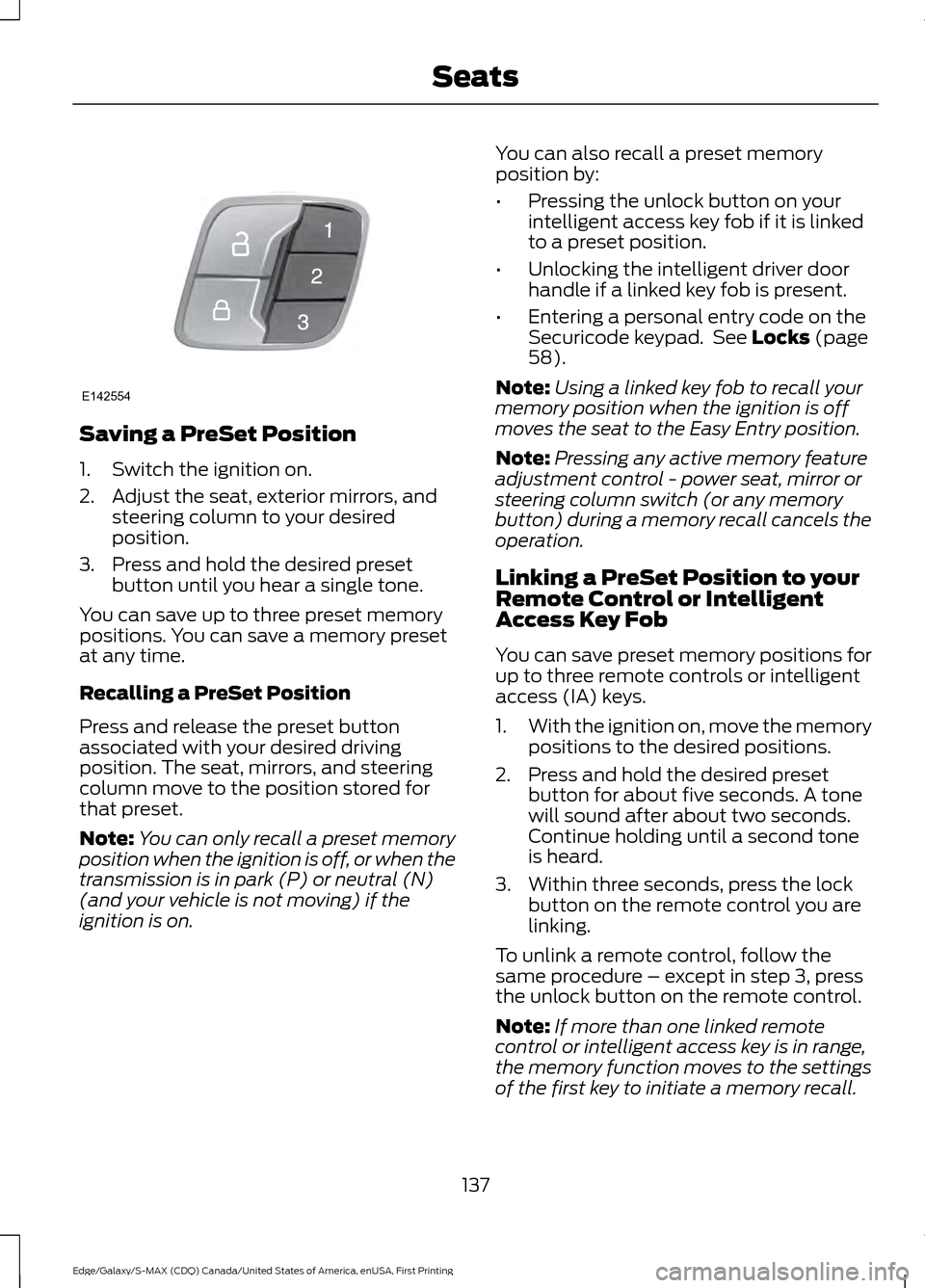
Saving a PreSet Position
1. Switch the ignition on.
2. Adjust the seat, exterior mirrors, and
steering column to your desired
position.
3. Press and hold the desired preset button until you hear a single tone.
You can save up to three preset memory
positions. You can save a memory preset
at any time.
Recalling a PreSet Position
Press and release the preset button
associated with your desired driving
position. The seat, mirrors, and steering
column move to the position stored for
that preset.
Note: You can only recall a preset memory
position when the ignition is off, or when the
transmission is in park (P) or neutral (N)
(and your vehicle is not moving) if the
ignition is on. You can also recall a preset memory
position by:
•
Pressing the unlock button on your
intelligent access key fob if it is linked
to a preset position.
• Unlocking the intelligent driver door
handle if a linked key fob is present.
• Entering a personal entry code on the
Securicode keypad. See Locks (page
58).
Note: Using a linked key fob to recall your
memory position when the ignition is off
moves the seat to the Easy Entry position.
Note: Pressing any active memory feature
adjustment control - power seat, mirror or
steering column switch (or any memory
button) during a memory recall cancels the
operation.
Linking a PreSet Position to your
Remote Control or Intelligent
Access Key Fob
You can save preset memory positions for
up to three remote controls or intelligent
access (IA) keys.
1. With the ignition on, move the memory
positions to the desired positions.
2. Press and hold the desired preset button for about five seconds. A tone
will sound after about two seconds.
Continue holding until a second tone
is heard.
3. Within three seconds, press the lock button on the remote control you are
linking.
To unlink a remote control, follow the
same procedure – except in step 3, press
the unlock button on the remote control.
Note: If more than one linked remote
control or intelligent access key is in range,
the memory function moves to the settings
of the first key to initiate a memory recall.
137
Edge/Galaxy/S-MAX (CDQ) Canada/United States of America, enUSA, First Printing SeatsE142554
Page 143 of 451
The rear seat heat controls are located on
the rear of the center console.
Press the heated seat symbol to cycle
through the various heat settings and off.
More indicator lights indicate warmer
settings.
The heated seat module resets at every
ignition run cycle. While the ignition is on,
press the high or low heated seat switch
to enable heating mode. When activated,
they will turn off automatically when you
turn the engine off.
CLIMATE CONTROLLED SEATS
(If Equipped)
Heated Seats WARNING
Persons who are unable to feel pain
to the skin because of advanced age,
chronic illness, diabetes, spinal cord
injury, medication, alcohol use, exhaustion,
or other physical conditions, must exercise
care when using the seat heater. The seat
heater may cause burns even at low
temperatures, especially if used for long
periods of time. Do not place anything on
the seat that insulates against heat, such
as a blanket or cushion, because this may
cause the seat heater to overheat. Do not
puncture the seat with pins, needles, or
other pointed objects because this may
damage the heating element which may
cause the seat heater to overheat. An
overheated seat may cause serious
personal injury. Note:
Do not do the following:
• Place heavy objects on the seat.
• Operate the seat heater if water or any
other liquid spills on the seat. Allow the
seat to dry thoroughly.
• Operate the heated seats unless the
engine is running. Doing so can cause
the battery to lose charge. Touch the heated seat symbol to cycle
through the various heat settings and off.
More indicator lights indicate warmer
settings.
140
Edge/Galaxy/S-MAX (CDQ) Canada/United States of America, enUSA, First Printing SeatsE146322 E146322
Page 156 of 451
counting down from 30 seconds. If you do
not intervene within 30 seconds, the engine
shuts down. Another message appears in
the information display to inform you that
the engine has shut down in order to save
fuel. Start your vehicle as you normally do.
Automatic Engine Shutdown Override
Note:
You cannot permanently switch off
the automatic shutdown. When you switch
it off temporarily, it turns on at the next
ignition cycle.
You can stop the shutdown, or reset the
timer, at any point before the 30-second
countdown has expired by doing any of the
following:
• Reset the timer by pressing the brake
or accelerator pedal.
• Temporarily switch off the shutdown
feature during the current ignition cycle
using the information display. See
General Information (page 98).
• Press
OK or RESET to temporarily
switch the feature off during the
current ignition cycle.
Stopping the Engine When Your
Vehicle is Stationary
1. Shift into park (P).
2. Press the push button ignition switch.
3. Apply the parking brake.
Note: The ignition, all electrical circuits and
all warning lamps and indicators will be
turned off.
Note: If the engine is idling for 30 minutes,
the ignition and engine automatically shuts
down. Stopping the Engine When Your
Vehicle is Moving WARNING
Switching off the engine when the
vehicle is still moving will result in a
loss of brake and steering assistance.
The steering will not lock, but higher effort
will be required. When the ignition is
switched off, some electrical circuits,
including air bags, warning lamps and
indicators may also be off. If the ignition
was turned off accidentally, you can shift
into neutral (N) and re-start the engine. 1. Put the transmission into neutral (N)
and use the brakes to bring your vehicle
to a safe stop.
2. When your vehicle has stopped, shift into park (P) for vehicles with
automatic transmission, or first gear
for vehicles with manual transmission.
3. Press and hold the push button ignition
switch until the engine stops, or press
it three times within two seconds.
4. Apply the parking brake.
Guarding Against Exhaust Fumes WARNING
If you smell exhaust fumes inside
your vehicle, have your vehicle
checked by your authorized dealer
immediately. Do not drive your vehicle if
you smell exhaust fumes. Carbon
monoxide is present in exhaust fumes.
Take precautions to avoid its dangerous
effects. 153
Edge/Galaxy/S-MAX (CDQ) Canada/United States of America, enUSA, First Printing Starting and Stopping the Engine
Page 165 of 451
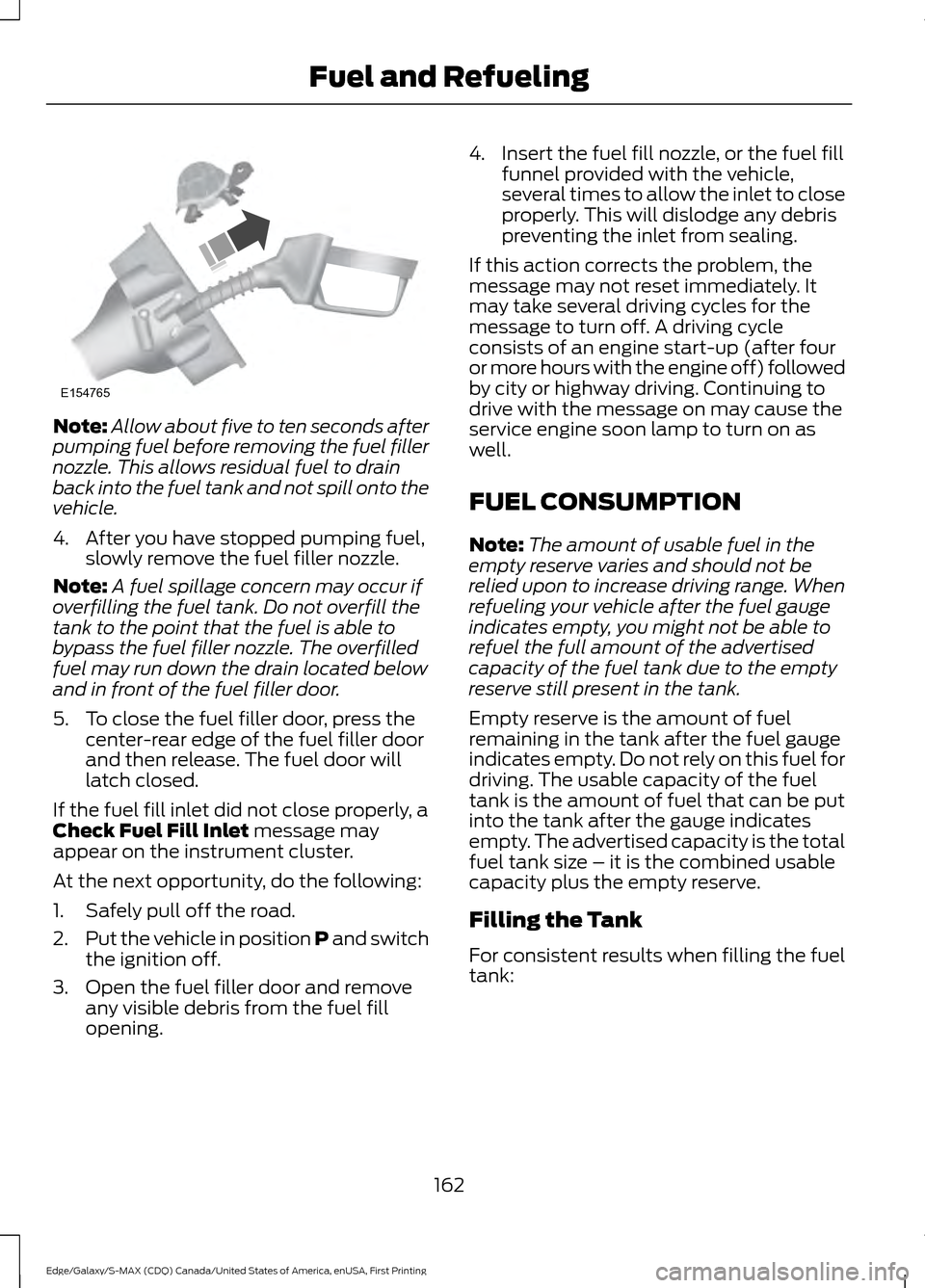
Note:
Allow about five to ten seconds after
pumping fuel before removing the fuel filler
nozzle. This allows residual fuel to drain
back into the fuel tank and not spill onto the
vehicle.
4. After you have stopped pumping fuel, slowly remove the fuel filler nozzle.
Note: A fuel spillage concern may occur if
overfilling the fuel tank. Do not overfill the
tank to the point that the fuel is able to
bypass the fuel filler nozzle. The overfilled
fuel may run down the drain located below
and in front of the fuel filler door.
5. To close the fuel filler door, press the center-rear edge of the fuel filler door
and then release. The fuel door will
latch closed.
If the fuel fill inlet did not close properly, a
Check Fuel Fill Inlet message may
appear on the instrument cluster.
At the next opportunity, do the following:
1. Safely pull off the road.
2. Put the vehicle in position P and switch
the ignition off.
3. Open the fuel filler door and remove any visible debris from the fuel fill
opening. 4. Insert the fuel fill nozzle, or the fuel fill
funnel provided with the vehicle,
several times to allow the inlet to close
properly. This will dislodge any debris
preventing the inlet from sealing.
If this action corrects the problem, the
message may not reset immediately. It
may take several driving cycles for the
message to turn off. A driving cycle
consists of an engine start-up (after four
or more hours with the engine off) followed
by city or highway driving. Continuing to
drive with the message on may cause the
service engine soon lamp to turn on as
well.
FUEL CONSUMPTION
Note: The amount of usable fuel in the
empty reserve varies and should not be
relied upon to increase driving range. When
refueling your vehicle after the fuel gauge
indicates empty, you might not be able to
refuel the full amount of the advertised
capacity of the fuel tank due to the empty
reserve still present in the tank.
Empty reserve is the amount of fuel
remaining in the tank after the fuel gauge
indicates empty. Do not rely on this fuel for
driving. The usable capacity of the fuel
tank is the amount of fuel that can be put
into the tank after the gauge indicates
empty. The advertised capacity is the total
fuel tank size – it is the combined usable
capacity plus the empty reserve.
Filling the Tank
For consistent results when filling the fuel
tank:
162
Edge/Galaxy/S-MAX (CDQ) Canada/United States of America, enUSA, First Printing Fuel and RefuelingE154765
Page 202 of 451
The current gap setting and SET also
appear in the information display.
Setting the Adaptive Cruise Speed
1. Drive to desired speed.
2. Press and release
SET+.
3. A green indicator light, the current gap
setting and your set speed appear in
the information display.
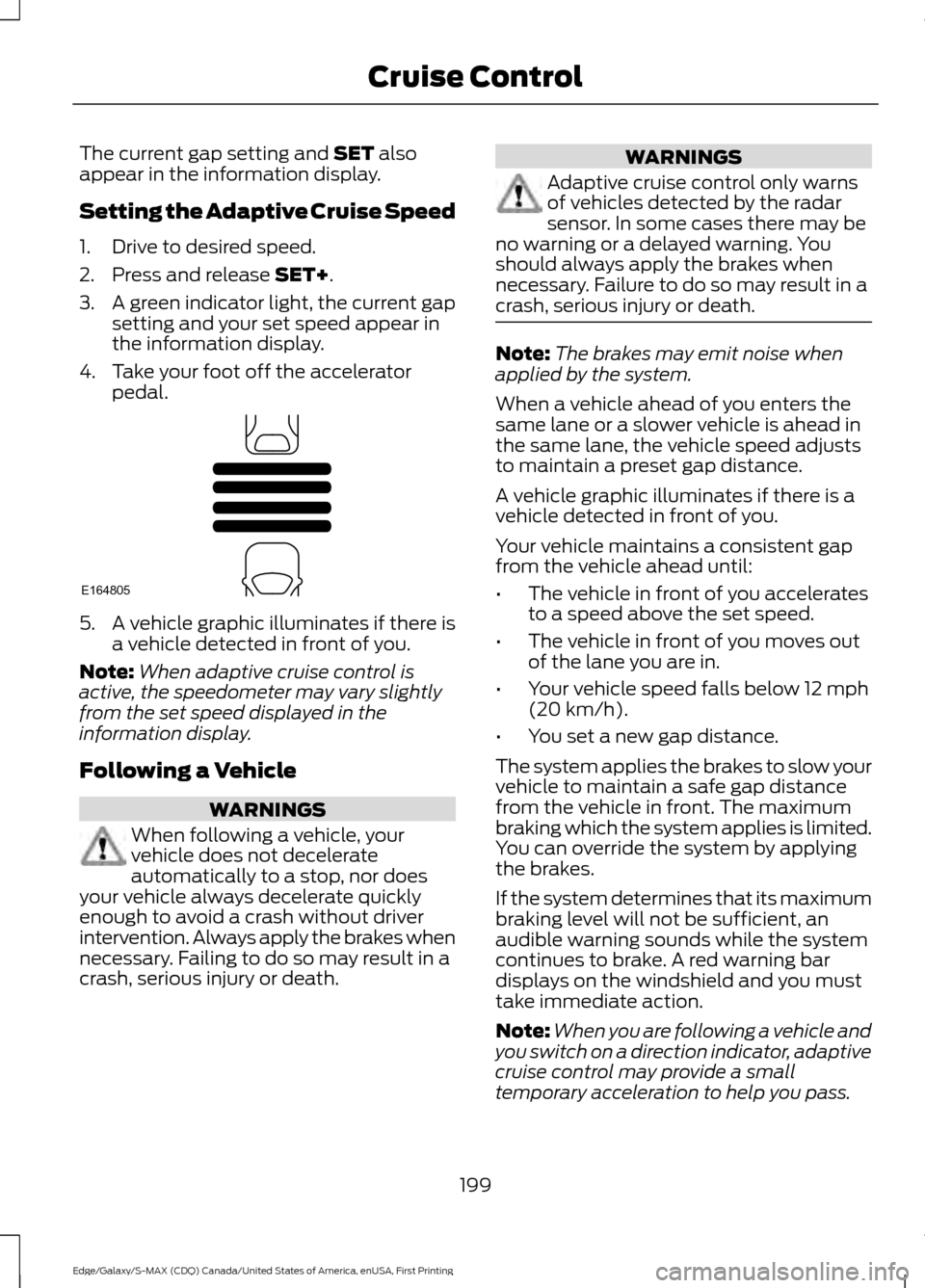
4. Take your foot off the accelerator pedal. 5. A vehicle graphic illuminates if there is
a vehicle detected in front of you.
Note: When adaptive cruise control is
active, the speedometer may vary slightly
from the set speed displayed in the
information display.
Following a Vehicle WARNINGS
When following a vehicle, your
vehicle does not decelerate
automatically to a stop, nor does
your vehicle always decelerate quickly
enough to avoid a crash without driver
intervention. Always apply the brakes when
necessary. Failing to do so may result in a
crash, serious injury or death. WARNINGS
Adaptive cruise control only warns
of vehicles detected by the radar
sensor. In some cases there may be
no warning or a delayed warning. You
should always apply the brakes when
necessary. Failure to do so may result in a
crash, serious injury or death. Note:
The brakes may emit noise when
applied by the system.
When a vehicle ahead of you enters the
same lane or a slower vehicle is ahead in
the same lane, the vehicle speed adjusts
to maintain a preset gap distance.
A vehicle graphic illuminates if there is a
vehicle detected in front of you.
Your vehicle maintains a consistent gap
from the vehicle ahead until:
• The vehicle in front of you accelerates
to a speed above the set speed.
• The vehicle in front of you moves out
of the lane you are in.
• Your vehicle speed falls below
12 mph
(20 km/h).
• You set a new gap distance.
The system applies the brakes to slow your
vehicle to maintain a safe gap distance
from the vehicle in front. The maximum
braking which the system applies is limited.
You can override the system by applying
the brakes.
If the system determines that its maximum
braking level will not be sufficient, an
audible warning sounds while the system
continues to brake. A red warning bar
displays on the windshield and you must
take immediate action.
Note: When you are following a vehicle and
you switch on a direction indicator, adaptive
cruise control may provide a small
temporary acceleration to help you pass.
199
Edge/Galaxy/S-MAX (CDQ) Canada/United States of America, enUSA, First Printing Cruise ControlE164805
Page 208 of 451
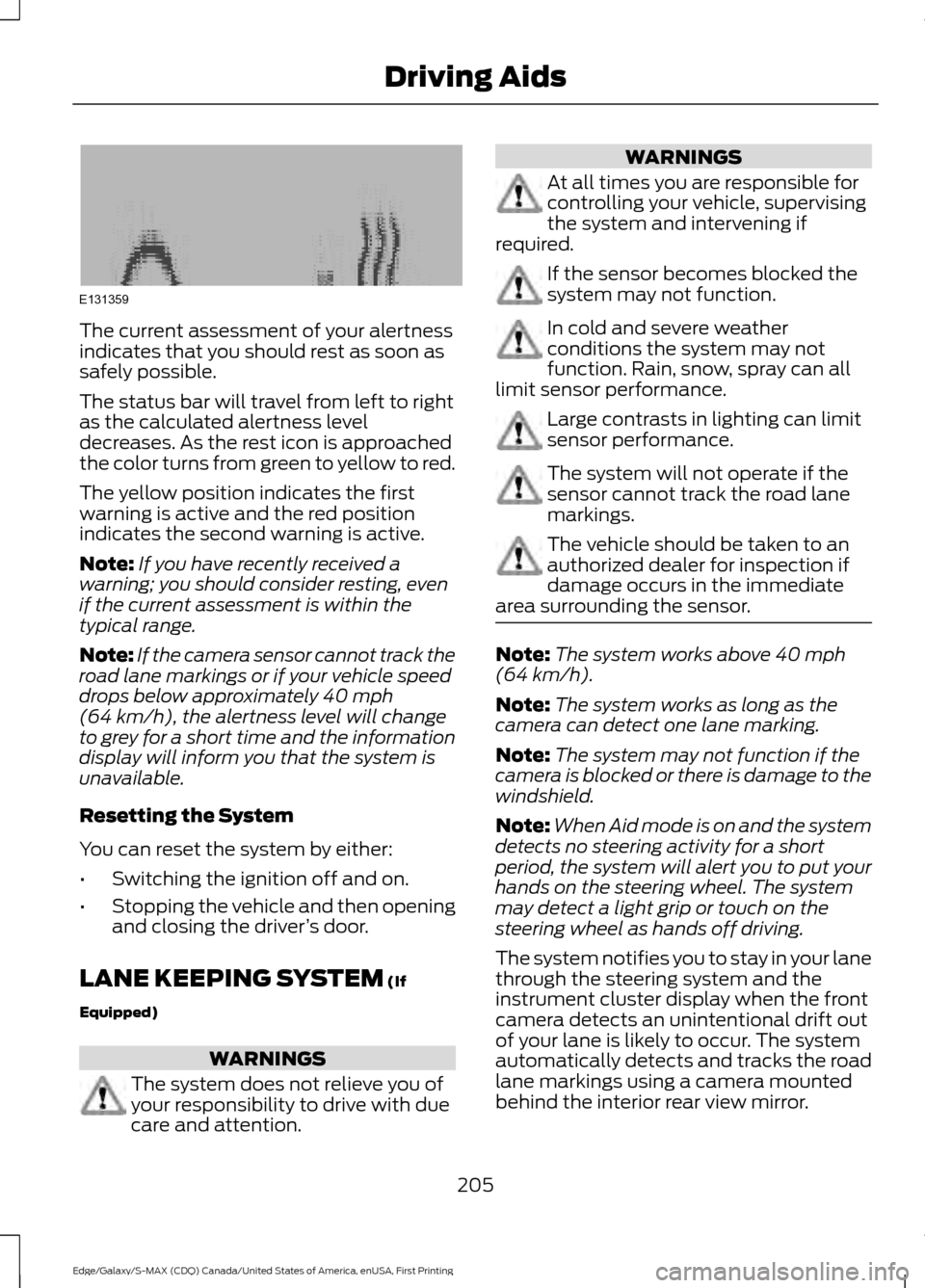
The current assessment of your alertness
indicates that you should rest as soon as
safely possible.
The status bar will travel from left to right
as the calculated alertness level
decreases. As the rest icon is approached
the color turns from green to yellow to red.
The yellow position indicates the first
warning is active and the red position
indicates the second warning is active.
Note:
If you have recently received a
warning; you should consider resting, even
if the current assessment is within the
typical range.
Note: If the camera sensor cannot track the
road lane markings or if your vehicle speed
drops below approximately 40 mph
(64 km/h), the alertness level will change
to grey for a short time and the information
display will inform you that the system is
unavailable.
Resetting the System
You can reset the system by either:
• Switching the ignition off and on.
• Stopping the vehicle and then opening
and closing the driver ’s door.
LANE KEEPING SYSTEM
(If
Equipped) WARNINGS
The system does not relieve you of
your responsibility to drive with due
care and attention. WARNINGS
At all times you are responsible for
controlling your vehicle, supervising
the system and intervening if
required. If the sensor becomes blocked the
system may not function.
In cold and severe weather
conditions the system may not
function. Rain, snow, spray can all
limit sensor performance. Large contrasts in lighting can limit
sensor performance.
The system will not operate if the
sensor cannot track the road lane
markings.
The vehicle should be taken to an
authorized dealer for inspection if
damage occurs in the immediate
area surrounding the sensor. Note:
The system works above
40 mph
(64 km/h).
Note: The system works as long as the
camera can detect one lane marking.
Note: The system may not function if the
camera is blocked or there is damage to the
windshield.
Note: When Aid mode is on and the system
detects no steering activity for a short
period, the system will alert you to put your
hands on the steering wheel. The system
may detect a light grip or touch on the
steering wheel as hands off driving.
The system notifies you to stay in your lane
through the steering system and the
instrument cluster display when the front
camera detects an unintentional drift out
of your lane is likely to occur. The system
automatically detects and tracks the road
lane markings using a camera mounted
behind the interior rear view mirror.
205
Edge/Galaxy/S-MAX (CDQ) Canada/United States of America, enUSA, First Printing Driving AidsE131359
Page 220 of 451
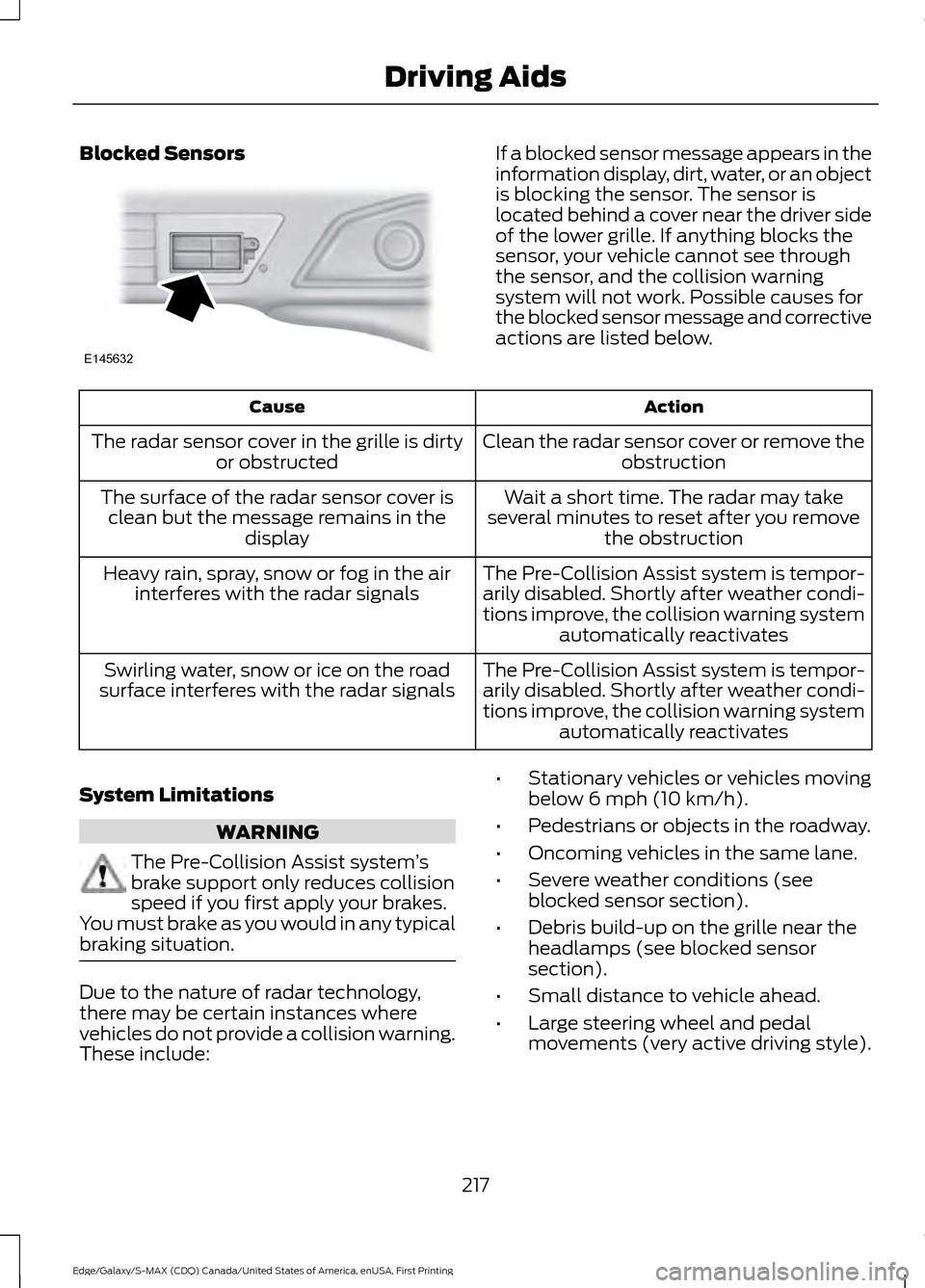
Blocked Sensors If a blocked sensor message appears in the
information display, dirt, water, or an object
is blocking the sensor. The sensor is
located behind a cover near the driver side
of the lower grille. If anything blocks the
sensor, your vehicle cannot see through
the sensor, and the collision warning
system will not work. Possible causes for
the blocked sensor message and corrective
actions are listed below.
Action
Cause
Clean the radar sensor cover or remove theobstruction
The radar sensor cover in the grille is dirty
or obstructed
Wait a short time. The radar may take
several minutes to reset after you remove the obstruction
The surface of the radar sensor cover is
clean but the message remains in the display
The Pre-Collision Assist system is tempor-
arily disabled. Shortly after weather condi-
tions improve, the collision warning systemautomatically reactivates
Heavy rain, spray, snow or fog in the air
interferes with the radar signals
The Pre-Collision Assist system is tempor-
arily disabled. Shortly after weather condi-
tions improve, the collision warning systemautomatically reactivates
Swirling water, snow or ice on the road
surface interferes with the radar signals
System Limitations WARNING
The Pre-Collision Assist system
’s
brake support only reduces collision
speed if you first apply your brakes.
You must brake as you would in any typical
braking situation. Due to the nature of radar technology,
there may be certain instances where
vehicles do not provide a collision warning.
These include: •
Stationary vehicles or vehicles moving
below 6 mph (10 km/h).
• Pedestrians or objects in the roadway.
• Oncoming vehicles in the same lane.
• Severe weather conditions (see
blocked sensor section).
• Debris build-up on the grille near the
headlamps (see blocked sensor
section).
• Small distance to vehicle ahead.
• Large steering wheel and pedal
movements (very active driving style).
217
Edge/Galaxy/S-MAX (CDQ) Canada/United States of America, enUSA, First Printing Driving AidsE145632